3 Closure Initiation
This topic describes information about the Closure Initiation stage in Facility Closure.
In this stage, the user can close the liability / facilities provided to the customer as well as the collaterals provided as a security for the facility.
- On Home screen, select Credit
Facilities. Under Credit Facilities, select
Corporate. Under Corporate, select
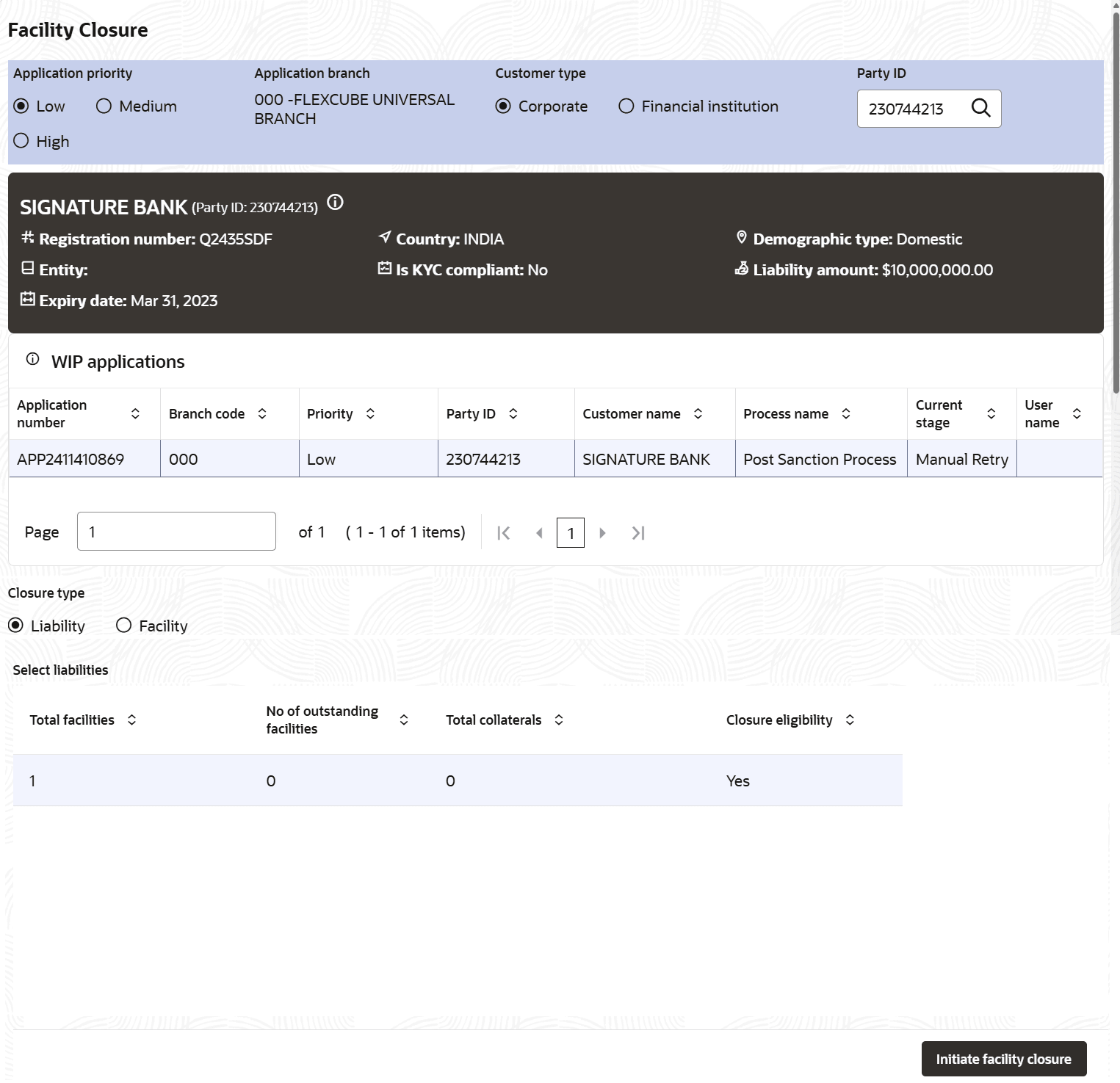
Facility Closure.The Facility Closure Initiation window is displayed.
For information on fields in the Facility Closure screen, refer the below table.
Table 3-1 Facility closure
Fields Description Application Priority. Choose the facility closure Application Priority. The options available are: Low, Medium, and High. Application Branch Select the Application Branch. Bank branches maintained in the system are displayed in the LOV. Party Id Click the search icon in Party Id field and select the required customer. The system displays basic information of the customer along with the WIP applications created for the customer, and enables the Initiate Facility Closure button. Closure Type Select the Closure Type. The options available are Liability and Facility. Liability If the Liability option is selected, all the liabilities available for the selected customer are displayed. Facility If the Facility option is selected, all the facilities created for the selected customer are displayed in the Select Facilities drop down list. Initiate Facility Closure Select the required liability / facility and click Initiate Facility Closure The Company Name-Closure page is displayed.. - Expand the required customer.
- Click Initiate Closure.The Company Name - Closure page is displayed.
Figure 3-3 ACME Corporation- Closure
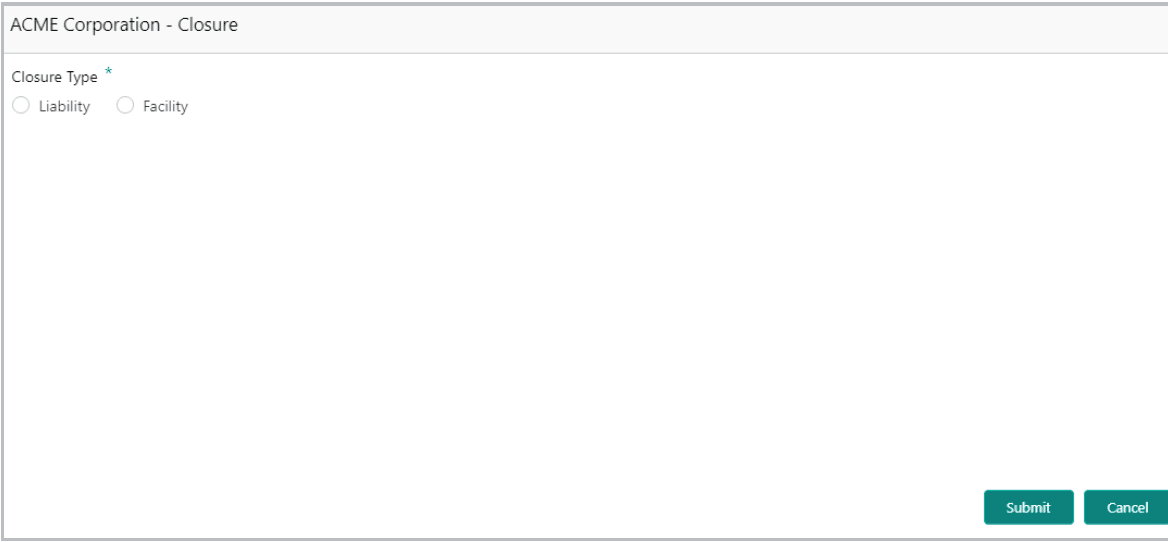
For information on fields in the ACME Corporation- Closure screen, refer the below table.
Upon selecting the Liability option, all the liabilities associated with the customer are displayed as shown below:Table 3-2 ACME Corporation- Closure
Fields Description Closure Type Select the Closure Type. The options available are Liability and Facility. Facility To close the facility, click the Facility option. Liability To close the liability, select Liability option. Figure 3-4 ACME Corporation- Closure
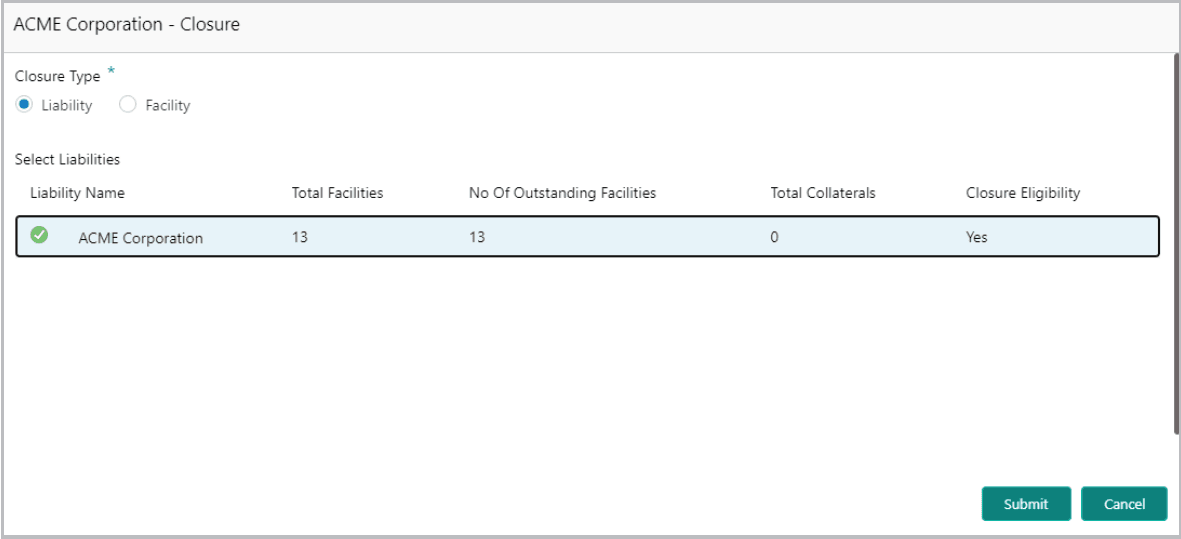
For information on fields in the ACME Corporation- Closure screen, refer the below table.
Upon selecting the Facility option, all the facilities associated with the customer are displayed as shown below:Table 3-3 ACME Corporation- Closure
Fields Description Submit Select the liability and click Submit. The Liability Closure screen is displayed. Facility To close the facility, click the Facility option. Figure 3-5 ACME Corporation- Closure
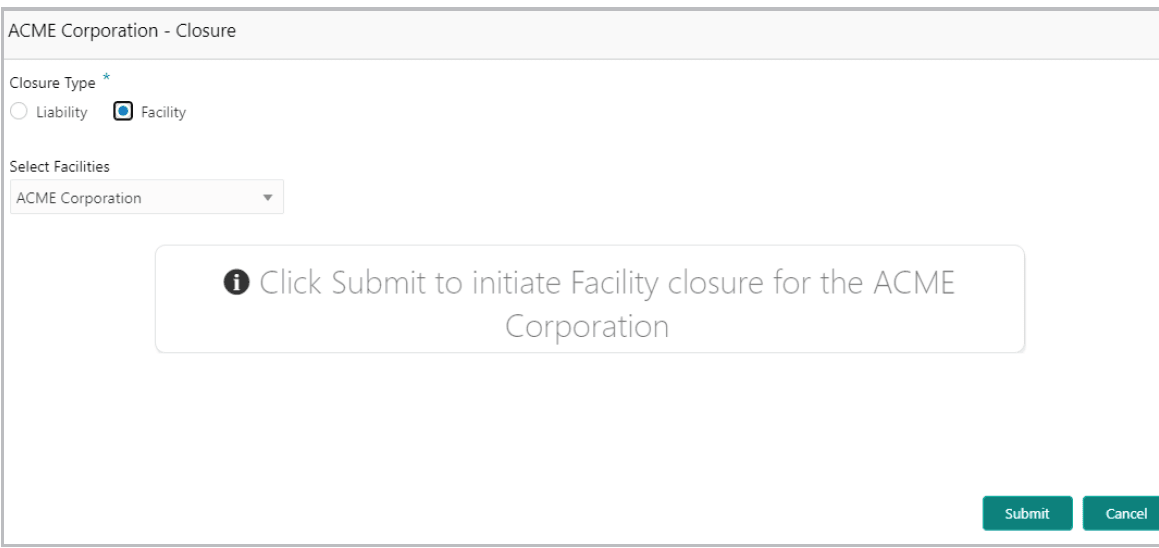
For information on fields in the ACME Corporation- Closure screen, refer the below table.
Table 3-4 ACME Corporation- Closure
Fields Description Select Facilities Select the required facility from the Select Facilities drop down list. Submit Click Submit.The Facility Closure page is displayed.
- Initiation - Closure Summary
Detailed information about the Closure Summary of the Facility Closure Process. - Liability Details
This topic describes the information about the liability details. - Initiation - Facility Closure
This topic describes information about the Liability and Facility Closure stage in the Facility Closure. - Initiation - Comments
This topic provides systematic instructions about the Comments of the Facility Closure.