6.1 Draft Generation
This topic provides detailed information about the Draft Generation stage in Facility closure Process.
This data segment allows to configure communication details of the party for email notification.
Figure 6-1 Facility Closure-Closure Notification
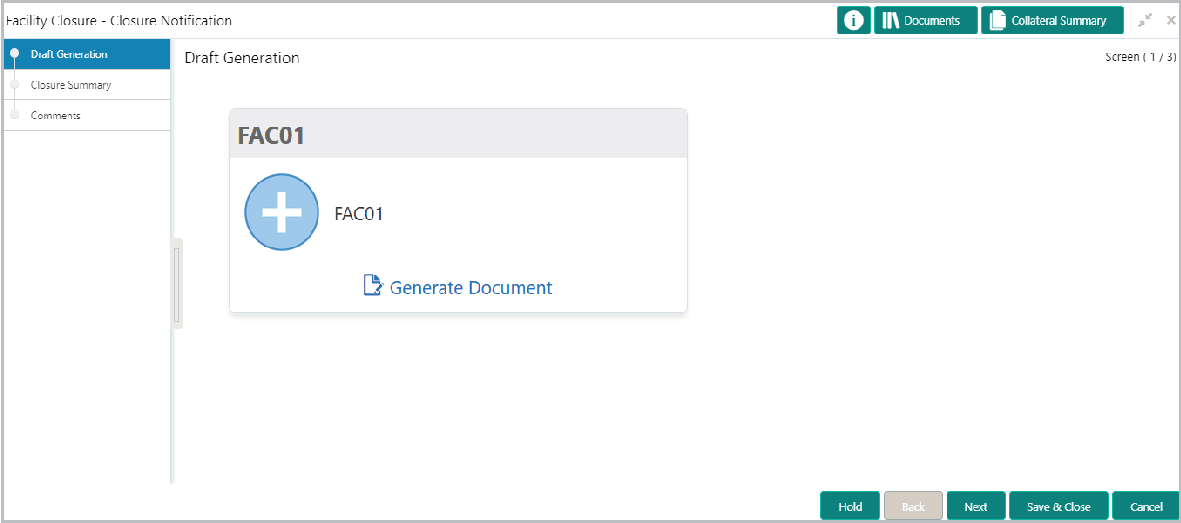
Description of "Figure 6-1 Facility Closure-Closure Notification"
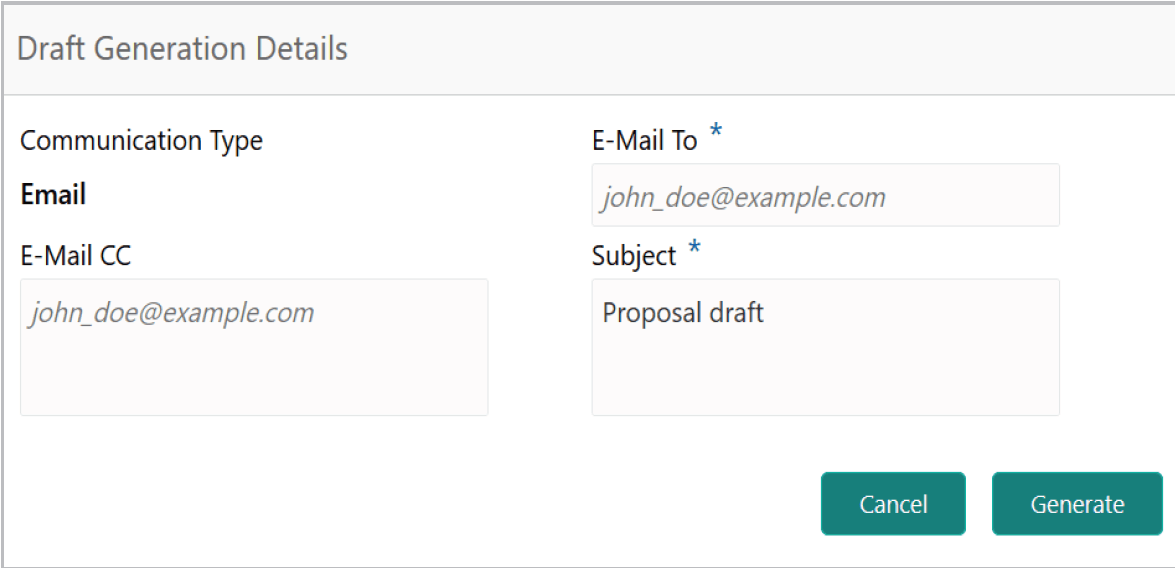
- Click Generate Document.The Draft Generation Details is displayed.
For information on Draft Generation Details, refer the below table.
Table 6-1 Draft Generation Details
Fields Description E-mail In E-mail To field, type the E-mail address to which the closure draft has to be sent. E-mail CC In E-mail CC field, type the E-mail address which has to be in CC of draft closure mail. Subject In Subject field, type the mail subject. Generat Click Generate. Closure draft configured in the system is sent to the mail ID mentioned in E-Mail To field. For information on Draft generation, refer the below table.
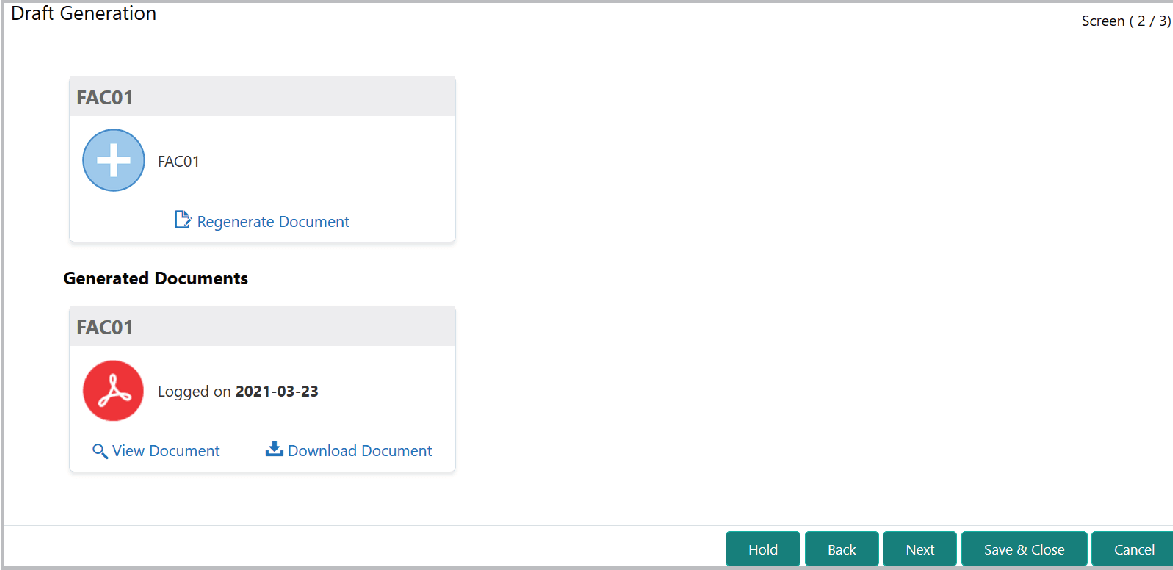
Table 6-2 Draft Generation Details
Fields Description View Document To view the generated draft document, click View Document Download Document To download the generated draft document, click Download Document. Next After generating closure draft, click Next. The Closure Summary page is displayed.
Parent topic: Customer Notification