12.1 Create Collateral Category
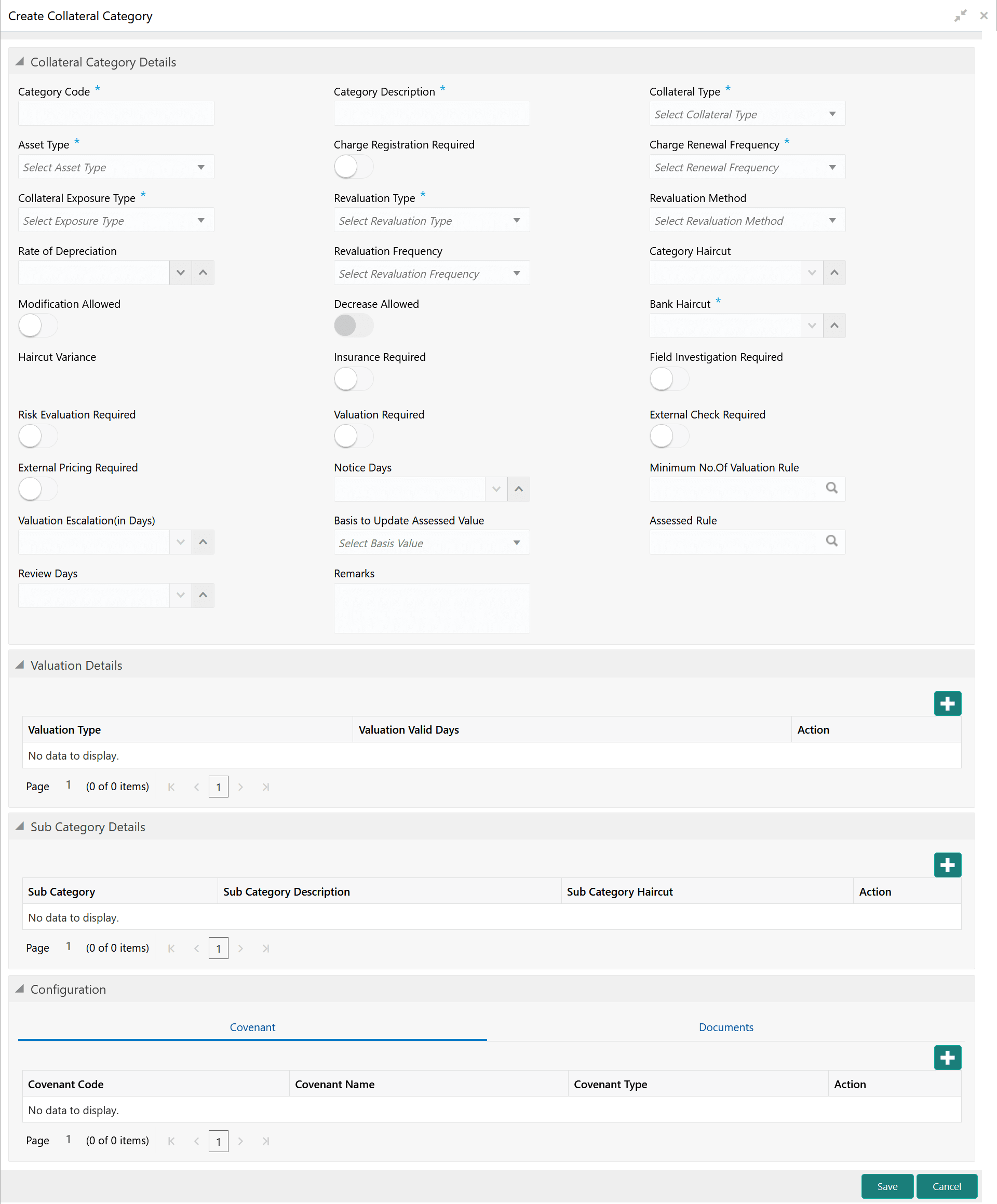
This topic provides systematic instructions about the procedure to create a collateral category in OBCFPM.
- From Home screen, select Credit Facilities. Under Credit Facilities, select Maintenance.
- Under Maintenance, select the Collateral Category. Under
Collateral Category, select Create Collateral
Category.The Create Collateral Category screen is displayed.
- Specify the collateral category details based on description in the following
table.
Table 12-1 Collateral Category Details - Field Description
Field Description Category Code Specify a unique code for the collateral category to be created. Category Description Prodive a brief description about the collateral category to be created. Collateral Type Select the Collateral Type from the drop down list. The options available are: - Account Receivables
- Accounts Contracts
- Aircraft
- Bill Of Exchange
- Bond
- Cash Collaterals
- Commercial Paper
- Commodity
- Corporate Deposits
- Crop
- Fund
- Guarantee
- Insurance
- Inventory
- Machine
- Miscellaneous
- Other Bank Deposits
- PDC
- Perishable
- Precious Metals
- Promissory Note
- Property
- Ship
- Stock
- Vehicle
Asset Type Select the Asset Type from the drop down list. The options available are: - In-Tangible
- Tangible
Charge Registration Required Enable this flag if charge registration is required for the collateral. Charge Renewal Frequency Select the Charge Renewal Frequency from the drop down list. The options available are: - Daily
- Weekly
- Monthly
- Quarterly
- Half Yearly
- Yearly
Collateral Exposure Type Select the Collateral Exposure Type from the drop down list. The options available are: - Liquid
- Secured
- Un-Secured
Revaluation Type Select the Revaluation Type from the drop down list. The options available are: - Automatic
- Manual
Revaluation Method Select the Revaluation Method, if the Revaluation Type is selected as Automatic. The options available in the drop down list are: - Custom
- External
- Straight Line
- Sum of Years Digit
- Written Down Value
Rate of Depreciation Specify the collateral's Rate of Depreciation. Revaluation Frequency Select the frequency for automatic or manual revaluation. The options available in the drop down list are: - Daily
- Weekly
- Monthly
- Quarterly
- Half Yearly
- Yearly
For automatic revaluation, the system revaluates the collateral based on the selected frequency.
For manual revaluation, the user has to manually revaluate the collateral based on the selected frequency.
Category Haircut Specify the market haircut for the category to be created. Modification Allowed Enable this flag. if haircut modification is allowed for the category. Decrease Allowed Enable this flag, if decrease in haircut is allowed for the category. Bank Haircut Specify the Bank Haircut for the category to be created. Haircut Variance The system displays the variance between specified Category Haircut and Bank Haircut. Insurance Required Enable this flag to allow capturing of insurance details for the collateral during the collateral processes. Field Investigation Required Enable this flag if field investigation is required for the collateral category to be created. Risk Evaluation Required Enable this flag if risk evaluation is required for the collateral category to be created. If disabled Risk Evaluation task will not be generated. Valuation Required Enable this flag if valuation is required for the collateral category to be created. If disabled Valuation task will not be generated. External Check Required Enable this flag if external check is required for the collateral category to be created. If disabled External Check task will not be generated. External Pricing Required Enable this flag to allow capturing of external pricing details for the collateral during the collateral processes. Notice Days Specify the notice days for notifying the bank user before the expiry of valuation report. Minimum No.Of Valuation Rule Specify the minimum number of valuation required for the Collateral Type and Category combination by selecting the predefined rule defined using the Rule Maintenance screen. Valuation Escalation (in Days) Specify the number of days after which the collateral must be escalated, if revaluation is not performed. Basis to Update Assessed Value Specify on what basis the collateral value must be updated, if minimum number of valuation is more than one. The following options are available in the drop down list: - Lowest value across valuers and valuation type
- Latest value across valuers and valuation type
- Average value across valuers and valuation type
- Lowest value across valuers for the latest valuation type
- Average value across valuers for the latest valuation type
Assessed Rule Select the predefined rule for assessing the collateral value. If Basis to Update Assessed Value option is selected, Assessed Rule must not be selected. Note: The outcome of the rule selected can only be the following:- Lowest value across valuers and valuation type
- Latest value across valuers and valuation type
- Average value across valuers and valuation type
- Lowest value across valuers for the latest valuation type
- Average value across valuers for the latest valuation type
Review Days Specify the collateral Review Days. You must initiate the Collateral Review task based on the specified review days and frequency. As part of Collateral review, you must reinitiate the valuation and update the latest valuation report. Upon verification/approval of the new valuation report, the assessed rule gets triggered and the appropriate Assessed Value gets updated as the final market value of the respective Child Collateral.
The revised next Review date of the Collateral gets updated once the Review process is completed in CFPM and the updated collateral details are handed off to the ELCM Module along with the new Valuation details.
Note: The collateral valuation can also be performed on adhoc basis with the selected rule.
Remarks Capture Remarks for the collateral category to be created. Table 12-2 Valuation Details - Field Description
Field Description Valuation Type Select the Valuation Type for collateral type and category combination from the drop down list. Valuation Valid Days Specify the days till which the valuation report is valid. Action To edit or delete the valuation details, click the Edit or Delete icon in the Action column. Table 12-3 Sub Category Details - Field Description
Field Description Sub Category Specify the sub category for the collateral type and category combination. For example, for Property and Residential Property combination, you can specify villa as a sub category. Sub Category Description Provide a brief description about the sub category. Sub Category Haircut Specify the haircut for the sub category. Action To edit or delete the sub category details, click the Edit or Delete icon in the Action column. Table 12-4 Configuration - Covenant - Field Description
Field Description Covenant Code Select the Covenant Code for linking with the collateral category. Covenant Name Covenant Name is defaulted based on the selected covenant code. Covenant Type Covenant Type is defaulted based on the selected covenant code Action To edit or delete the covenant details, click the Edit or Delete icon in the Action column. Table 12-5 Configuration - Documents - Field Description
Field Description Document Type Search and select the Document Type. The system displays this document type along with an option to upload the document in the collateral specific screen. Document Type Description Document Type Description maintained for the selected Document Type is defaulted. Is Mandatory Enable this flag if document submission is mandatory. Action To edit or delete the document details, click the Edit or Delete icon in the Action column. - Click Save.The collateral category will be created upon authorization.
Parent topic: Collateral Category