7.1 Create Questionnaire Details

This topic provides systematic instructions about the procedure to create questionnaire details record.

The Create Questionnaire Details screen provides an option to add new questions for evaluation (for example, Risk Evaluation) or analysis (for example, Peer Analysis) in business process.
  1. From Home screen, select Credit Facilities. Under Credit Facilities, select Maintenance.
  2. Under Maintenance, select Questionnaire Details. Under Questionnaire Details, select Create Questionnaire Details.
    The Create Questionnaire Details page is displayed.

    Figure 7-1 Create Questionnaire Details


  3. Provide or select the questionnaire details based on description in the following table.

    Table 7-1 Create Questionnaire Details - Field Description

    Field Description
    Questionnaire Code Specify a unique code for the questionnaire to be created.
    Category Code Select the Category Code from the drop down list.
    Description Type a brief description for the questionnaire to be created.
  4. Click Add Question in the Question Details section.
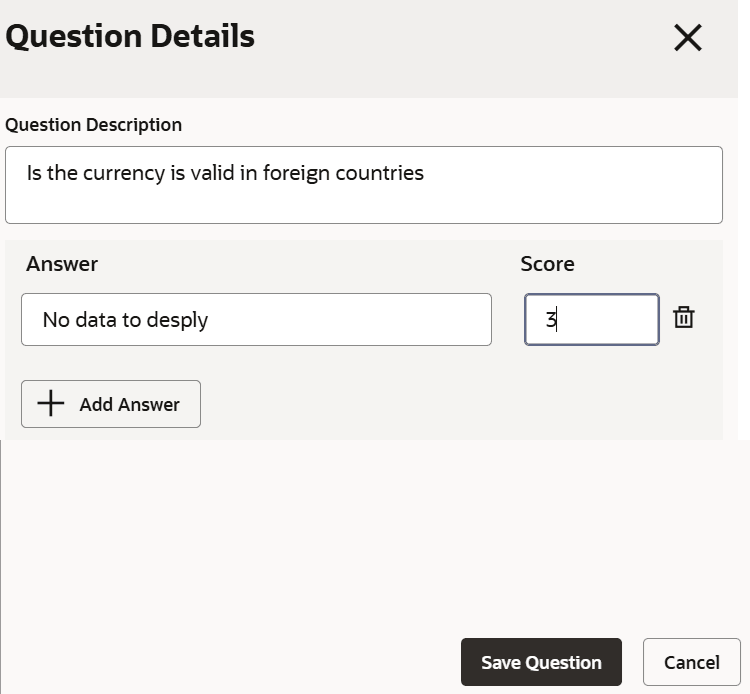
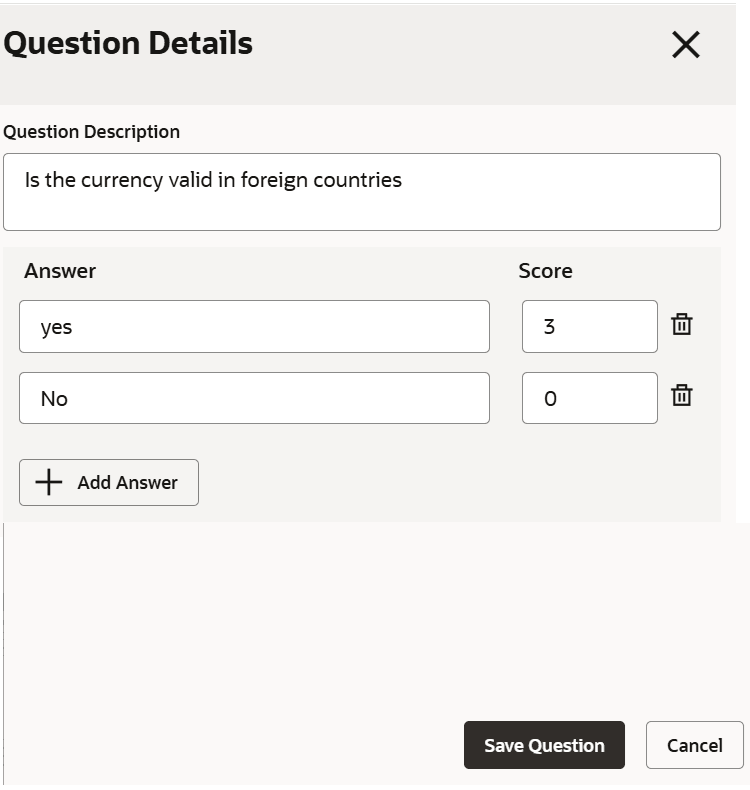
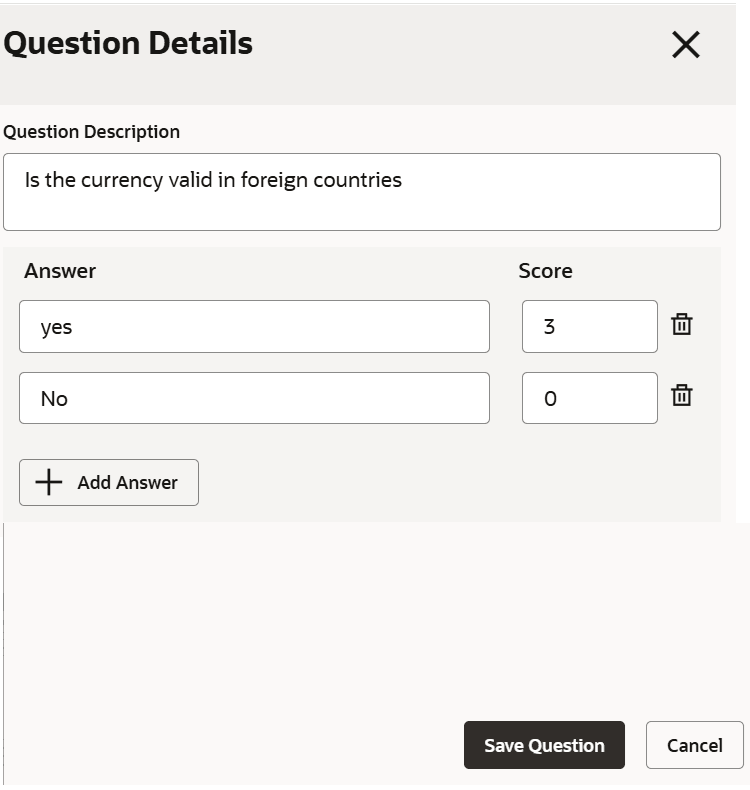
    The Question Details window is displayed.
  5. Provide or select the question details based on description in following table.

    Table 7-2 Question Details - Field Description

    Field Description
    Question Description Type the question for evaluation / analysis.
    Sub Category Code Select the Sub Category Code from the drop down list.
    Factor Specify the maximum score for the question.
  6. Click Add Answer.
    New row for entering the answer is created as shown below.

    Figure 7-3 Quetsion Details - Add Answer


  7. Provide the answer details based on description in following table.

    Table 7-3 Quetsion Details - Add Answer - Field Description

    Field Description
    Answer Type the answer option for the evaluation question. To add multiple answer options for the question, click Add Answer and add required number of rows for answer options.
    Score Specify the Score for the answer.
  8. To remove the answer, click Remove in the Action column.
  9. To save the question details, click Save Question.
    The question details are added in the Create Questionnaire Details screen as shown below.

    Figure 7-4 Create Questionnaire Details - Question and Answer
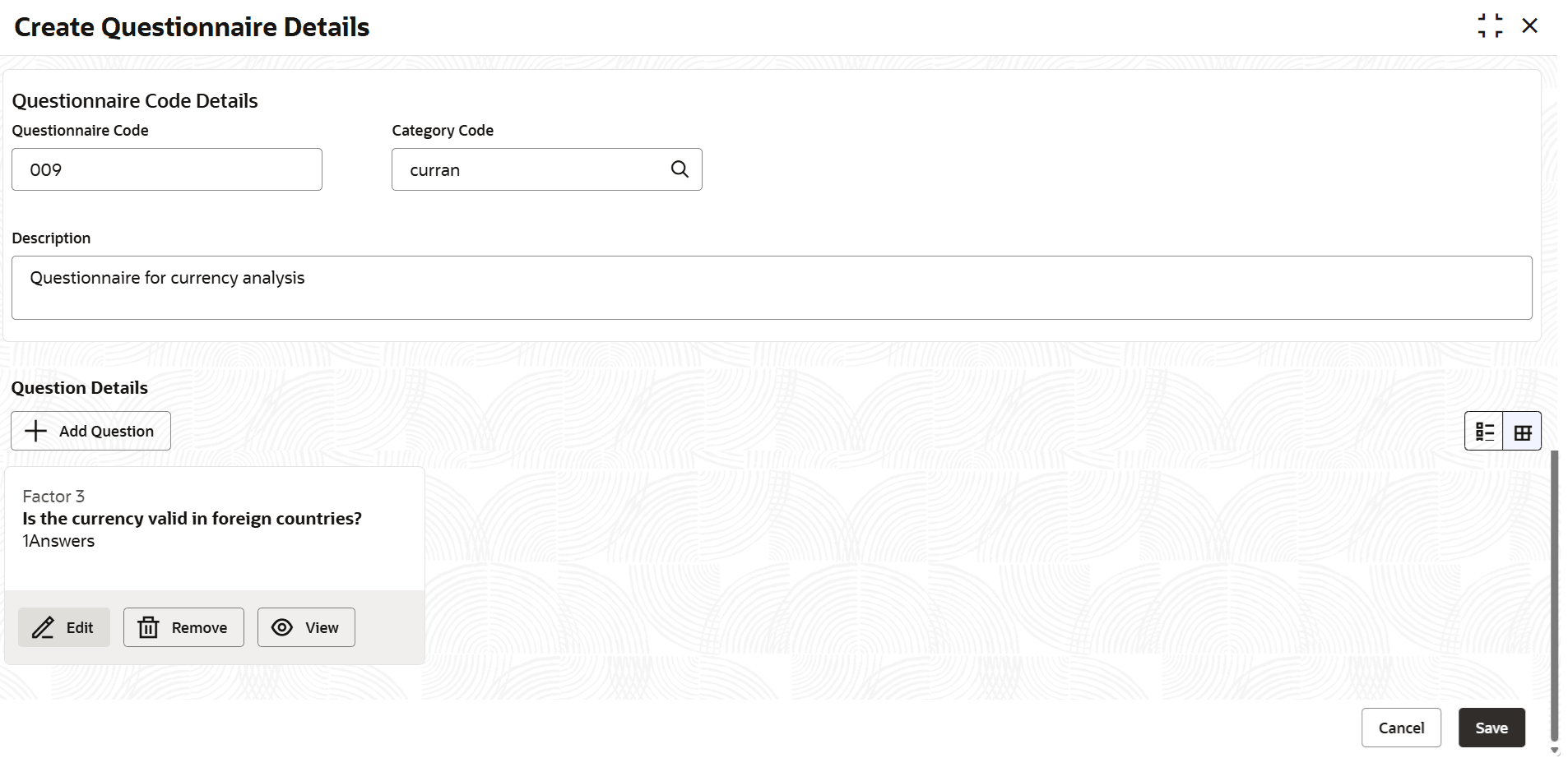


  10. To Edit or Remove the question detail, click the corresponding icon in Action column.
  11. Click Save.
    Questionnaire will be created upon authorization.