15.2 Steps to upload documents
- Click
 at the top right corner of any page. The Documents window is displayed.
Figure 15-1 Documents
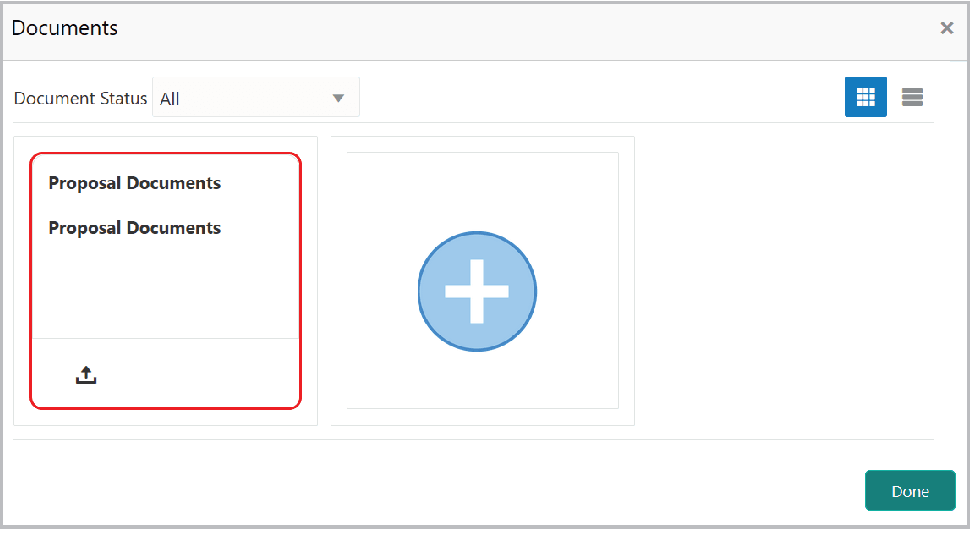
If the document list is configured in Business Process Maintenance, the same appears in the above window. You can also click the add icon to upload other documents.
In case the mandatory document is not uploaded, the system prompts an alert. You need to upload the necessary documents and proceed further.
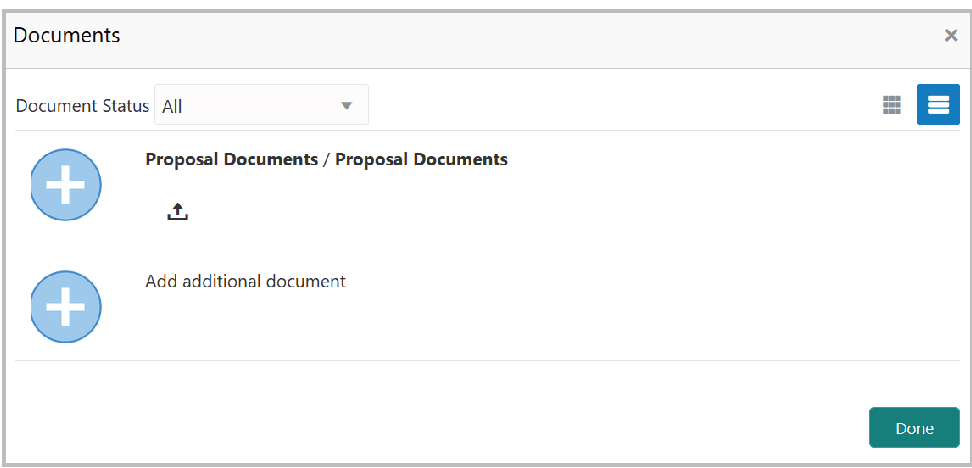
- Click the list icon at the top right corner to change the table view to the
list view. Documents window appears as shown below:
Figure 15-2 Documents
- Click the Add icon. The Document Details window is displayed.
Figure 15-3 Document Details
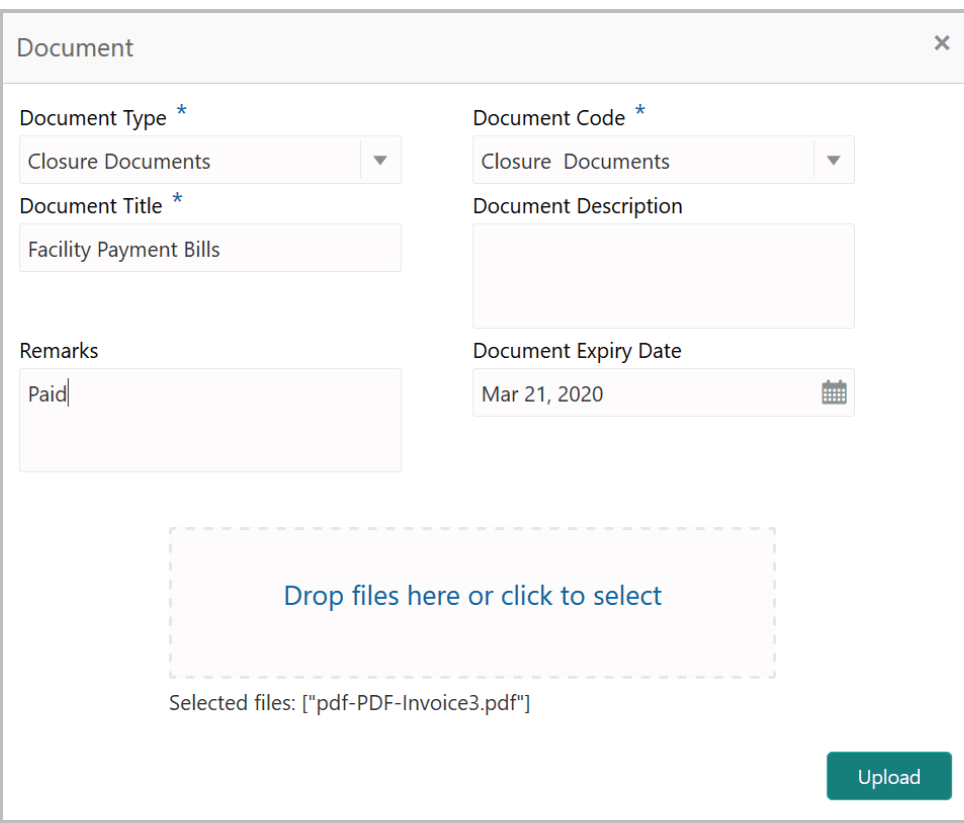
For field level information refer the below table.
Table 15-1 Document Details
Fields Description Document Type Select the Document Type from the drop-down list. The options available are: Amendment Documents, Proposal Documents and Closure Documents. Document Code Select the and Document Code from the drop-down list. The options available are: Amendment Documents, Proposal Documents and Closure Documents. Document Title Enter the Document Title. Document Description Enter a brief description about the document in the Document Description field. Remarks Enter the Remarks, if any. Document Expiry Date Click the calendar icon and select the Document Expiry Date. Drop files here or click to select In Drop files here or click to select area, drag and drop the documents or click and select the documents. Selected files are displayed at the bottom. Note: To upload multiple supporting documents at the same time, drag and drop or click and select all the documents.
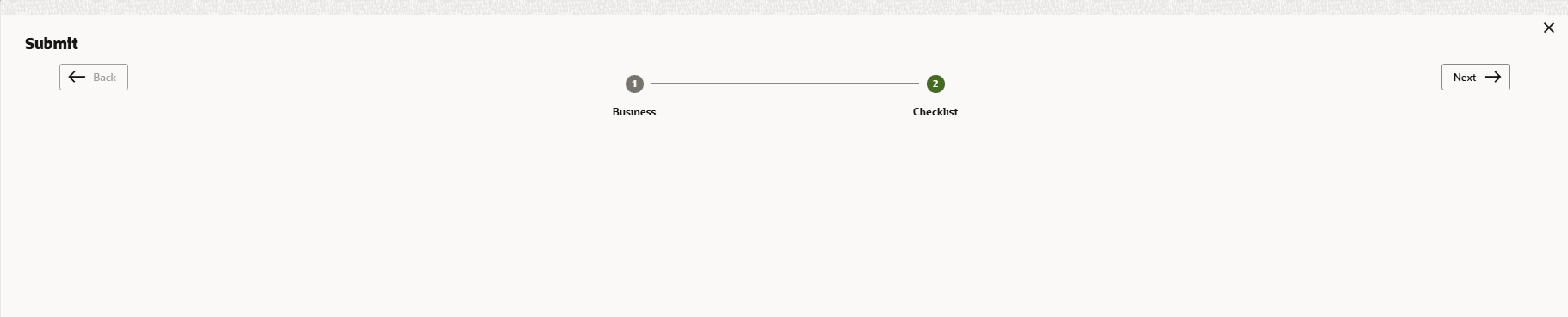
- Click Upload.The Checklist window is displayed.
Parent topic: Document Upload