7 Amendment Approval
This topic provides systematic instructions about the Amendment Approval stage in the Group Concentration Limit Amendment Process.
In this stage, the Approver can view the proposed liability details and take
necessary actions such as Approve, Reject or Send Back the amendment
application.
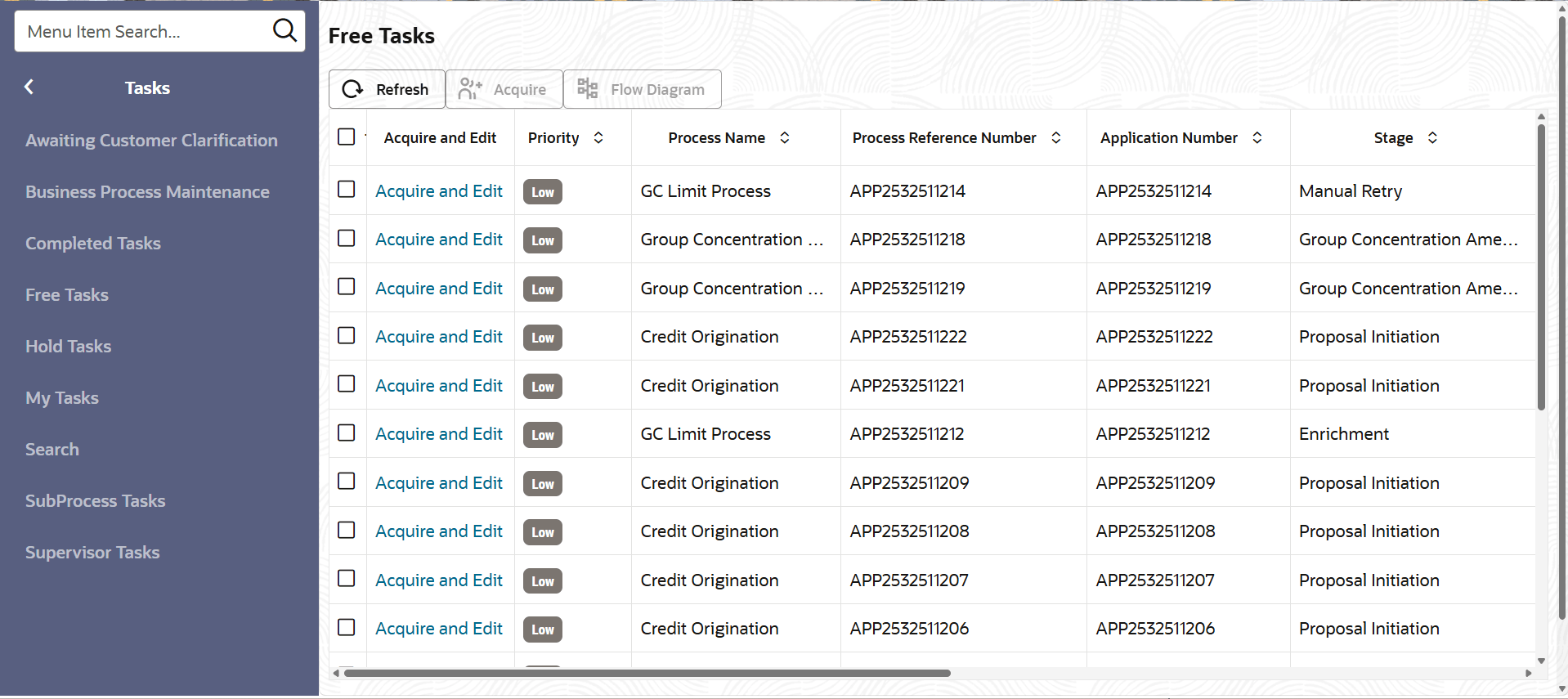
- From Home screen, click Tasks.
Under Tasks, click Free Tasks.The Free Tasks page is displayed.
-
Acquire & Edit the required Approval task.
Figure 7-2 Customer Summary
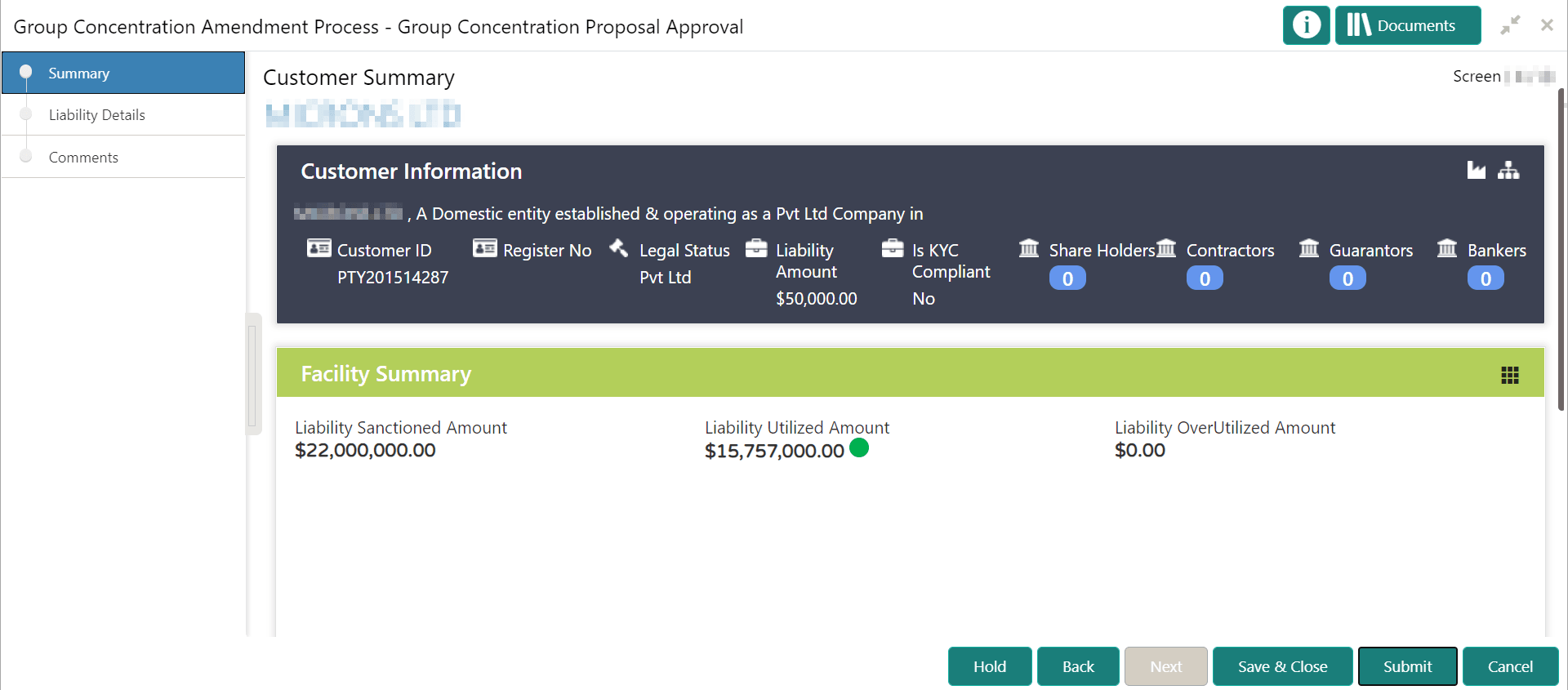
Note:
For information on actions that can be performed in the Customer Summary page, refer Credit 360 User Manual. - View the Customer Summary and click Next. The Liability Details page is displayed.
- To approve a liability amendment, click the Hamburger icon in the
corresponding record and select Edit. The Liability Details window
is displayed.The Approve Facility window is displayed.
Figure 7-4 Liability Details
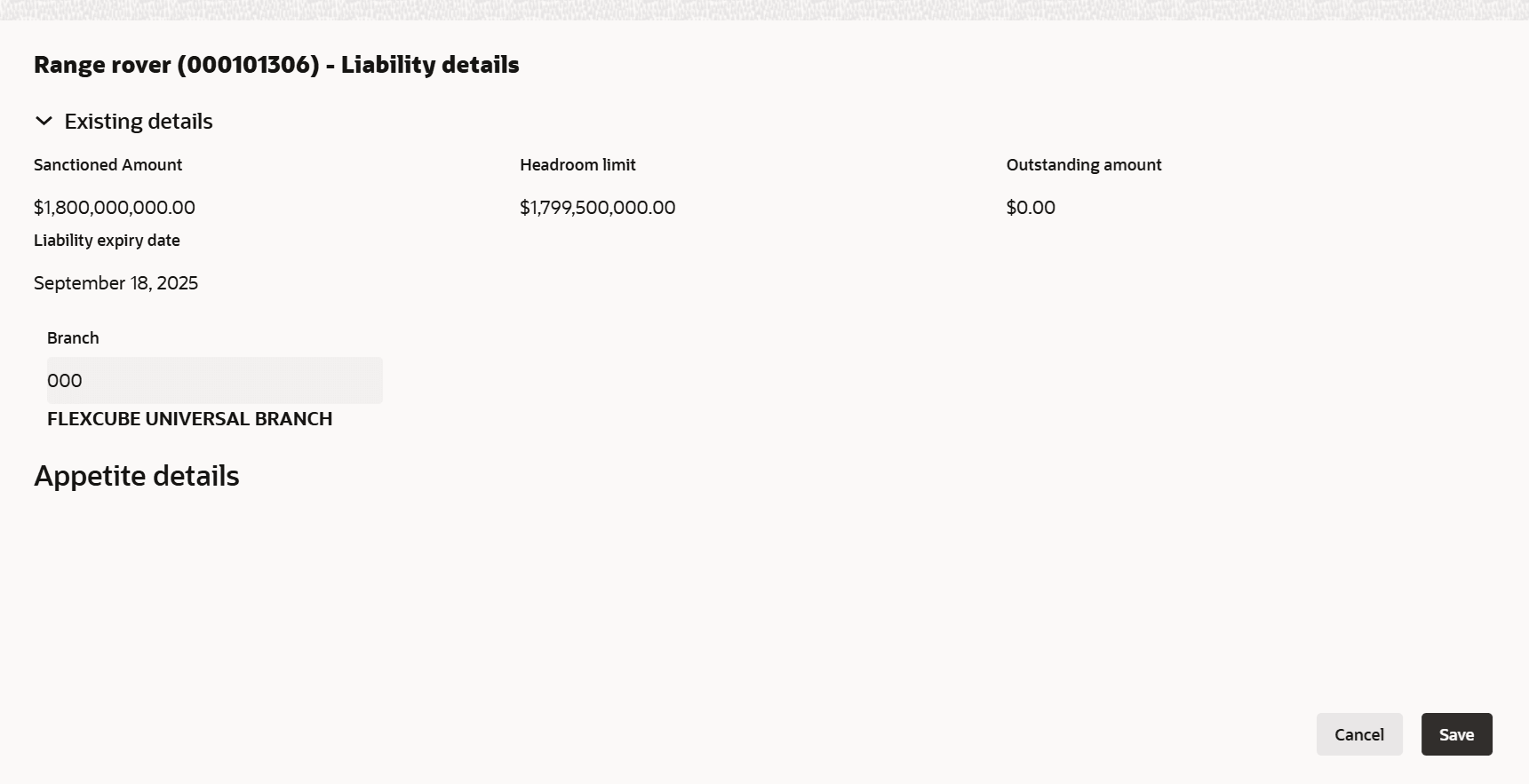 For more information on fields, refer to the field description table below.
Table 7-1 Liability Details
Fields Description Sanctioned Amount Specify the sanctioned amount. Headroom Limit Displays the headroom limit. Outstanding Amount Specify the outstanding amount. Liability Expiry Date Specify the expiry date. Branch Specify the branch code. Save Click Save. The Liability Details page is updated with the modified details. Note:
For more information of fields, refer Field Configuration Parameters
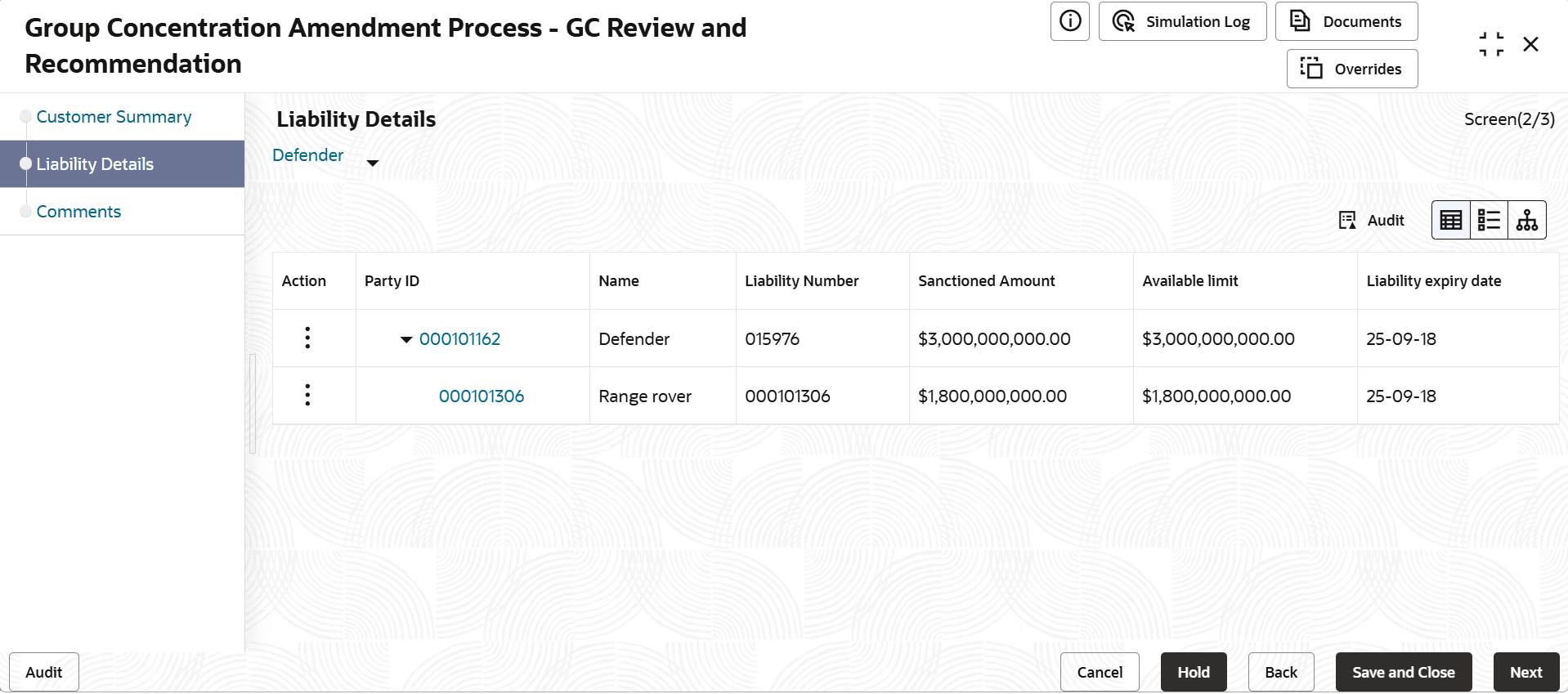
In the Proposed and Approved section:
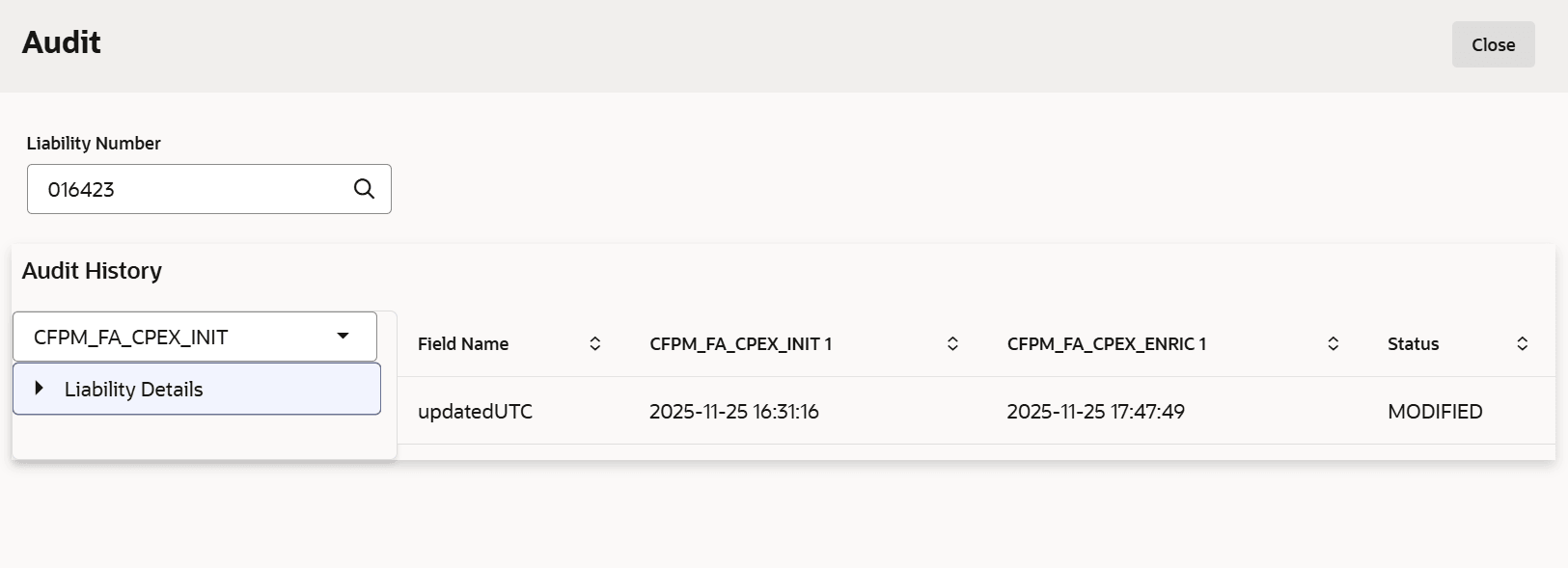
- Click Audit.The Audit screen displays.
- Click Next in the Liability Details page. The
Comments page is displayed.
Figure 7-6 Comments
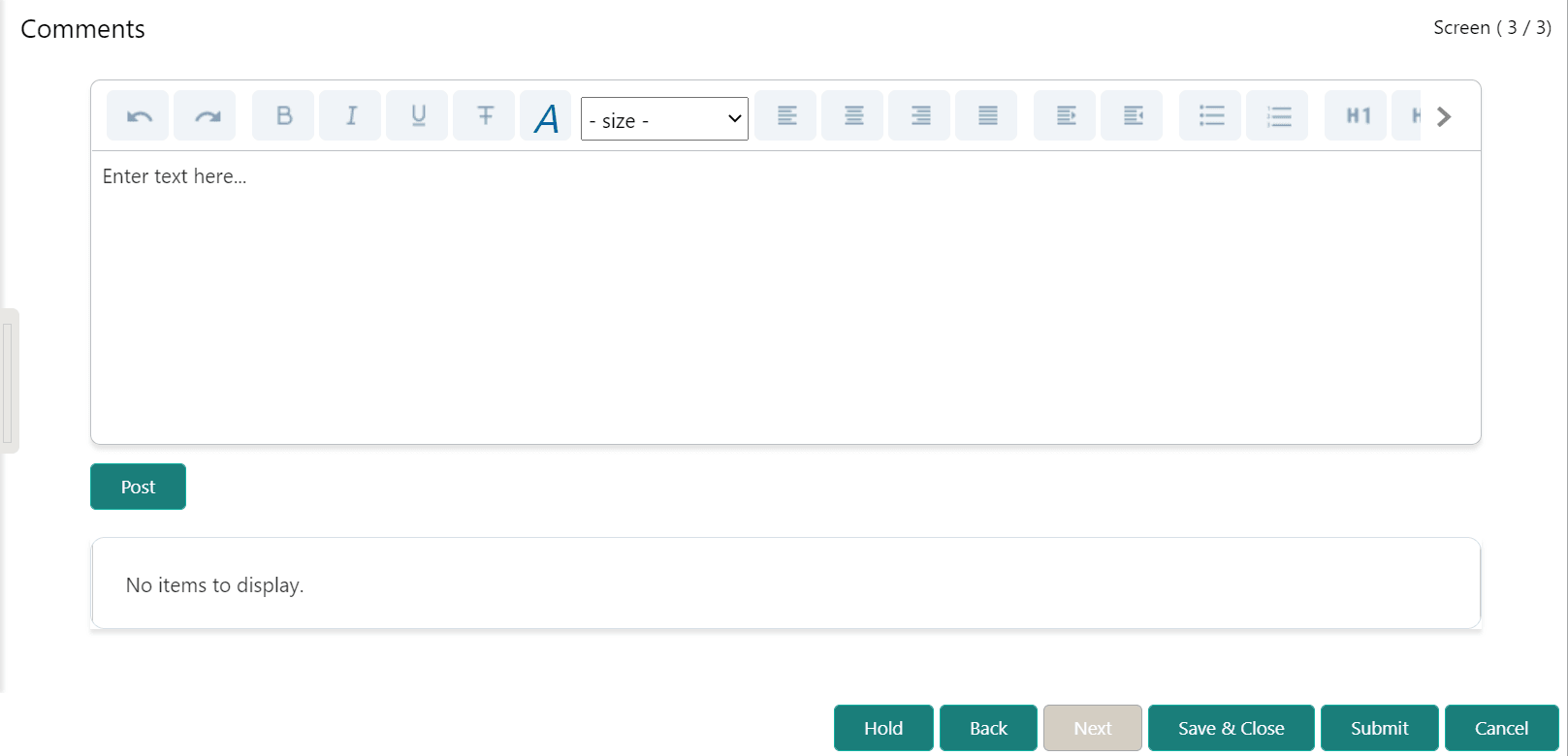
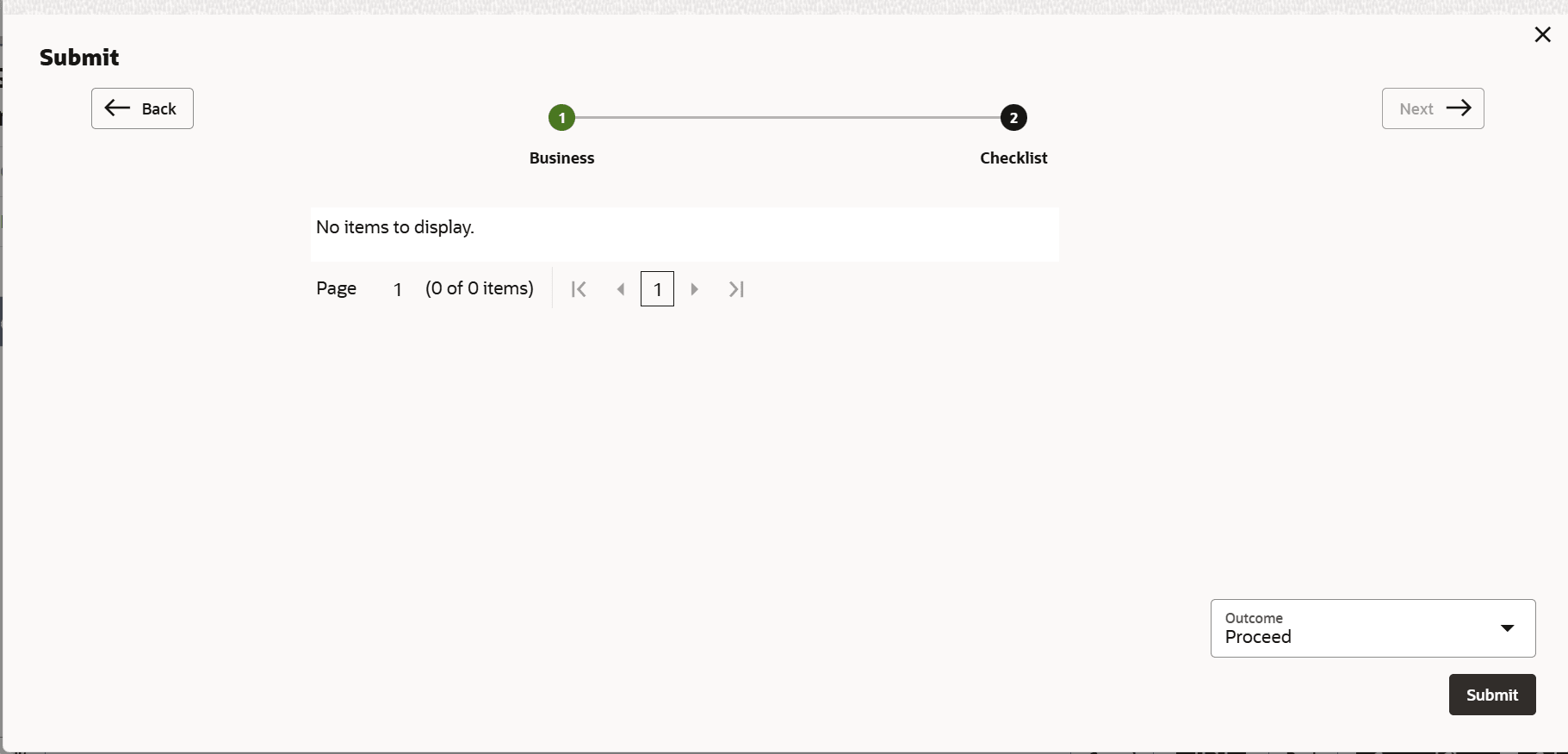
- Click Submit. The Policy Exception window is displayed.By default, policy exceptions are displayed for both the party and child parties. To view the policy exceptions for particular party / child party, select the required party / child party from the drop down list at top left corner.
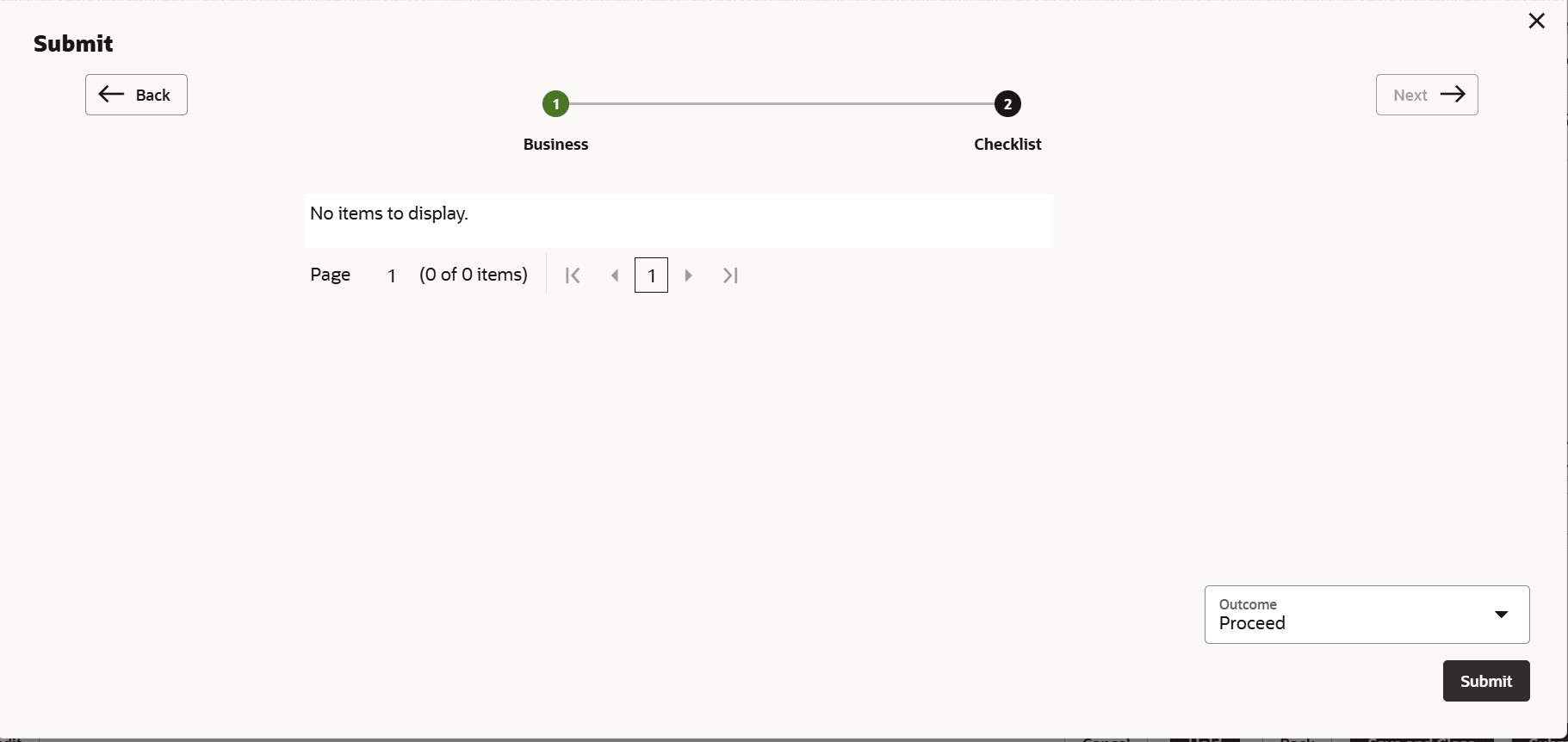
- Click the Checklist data segment.