5 KYC Check
This topic provides systematic instructions about the KYC Check stage in the Group Concentration Limit Amendment Process.
This is an optional stage and it is applicable only if the Is KYC Required check
box is selected in the ‘Enrichment’ stage. If the KYC details are available for the
group entity, then the banker can add the KYC details to the Group Concentration Limit
Amendment application. Adding KYC details helps the Reviewer and Approver to determine
the originality of the organization.
Note:
Company’s KYC related data must be updated as per bank and regulatory policy requirement.- From Home screen, click Tasks.
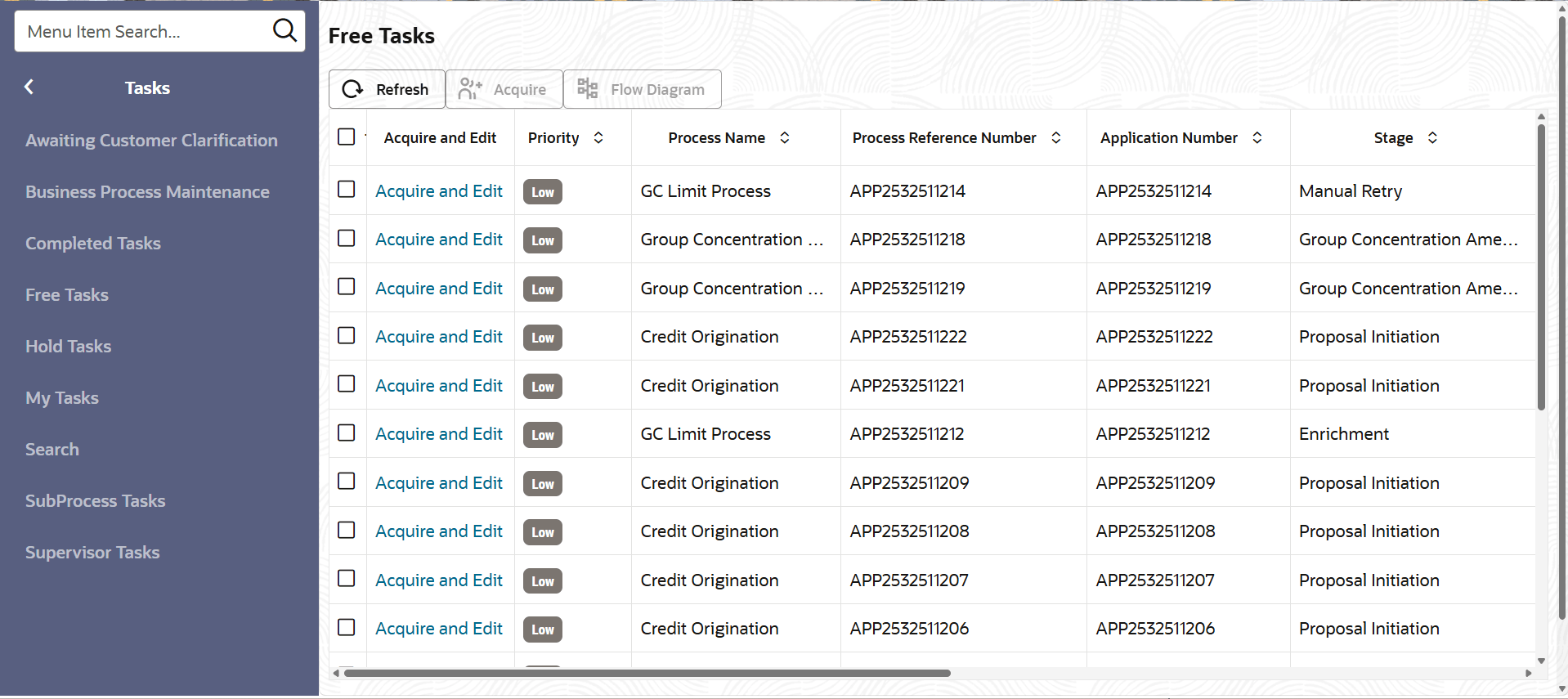
Under Tasks, click Free Tasks.The Free Tasks page is displayed.
- Acquire & Edit the required KYC task. The KYC Evaluation -
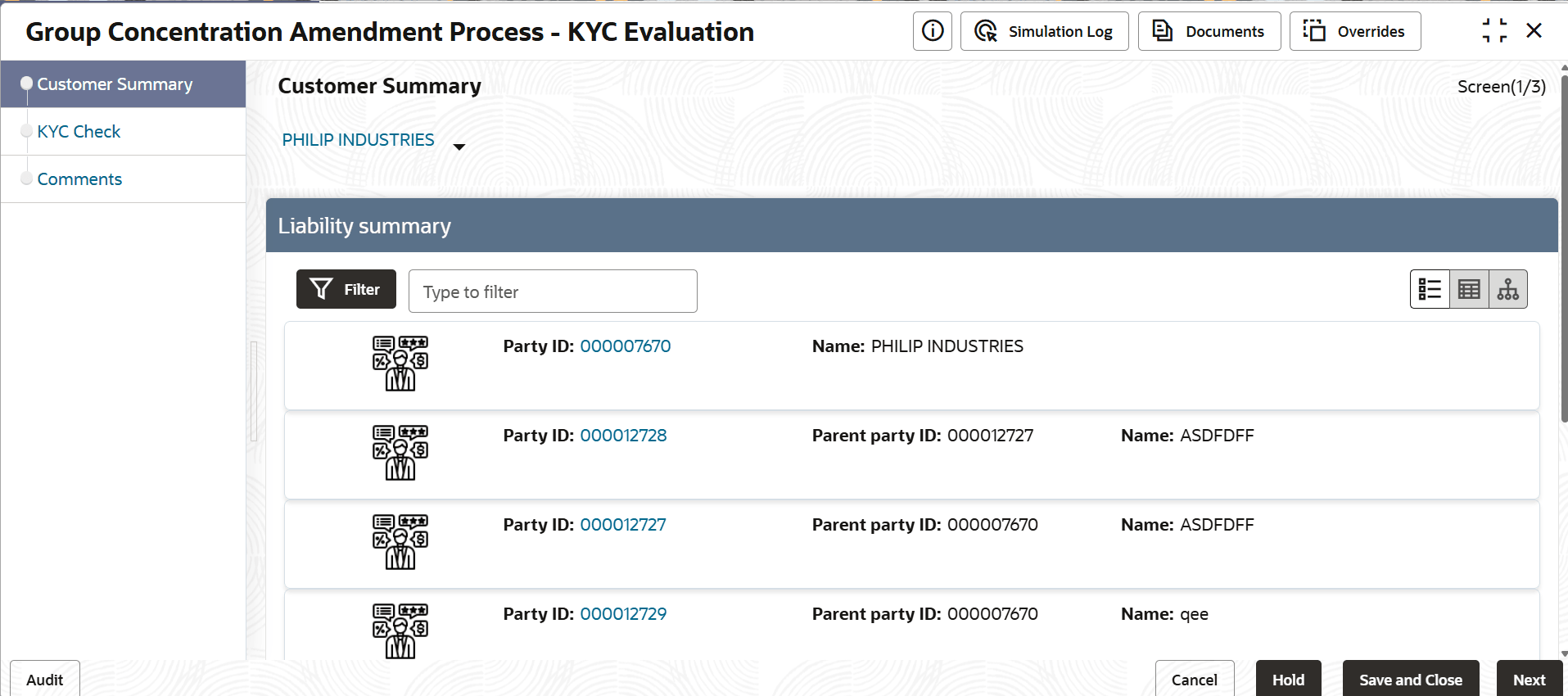
Customer Summary page is displayed.
- Review the Customer Summary and click Next. The KYC Check page is displayed.
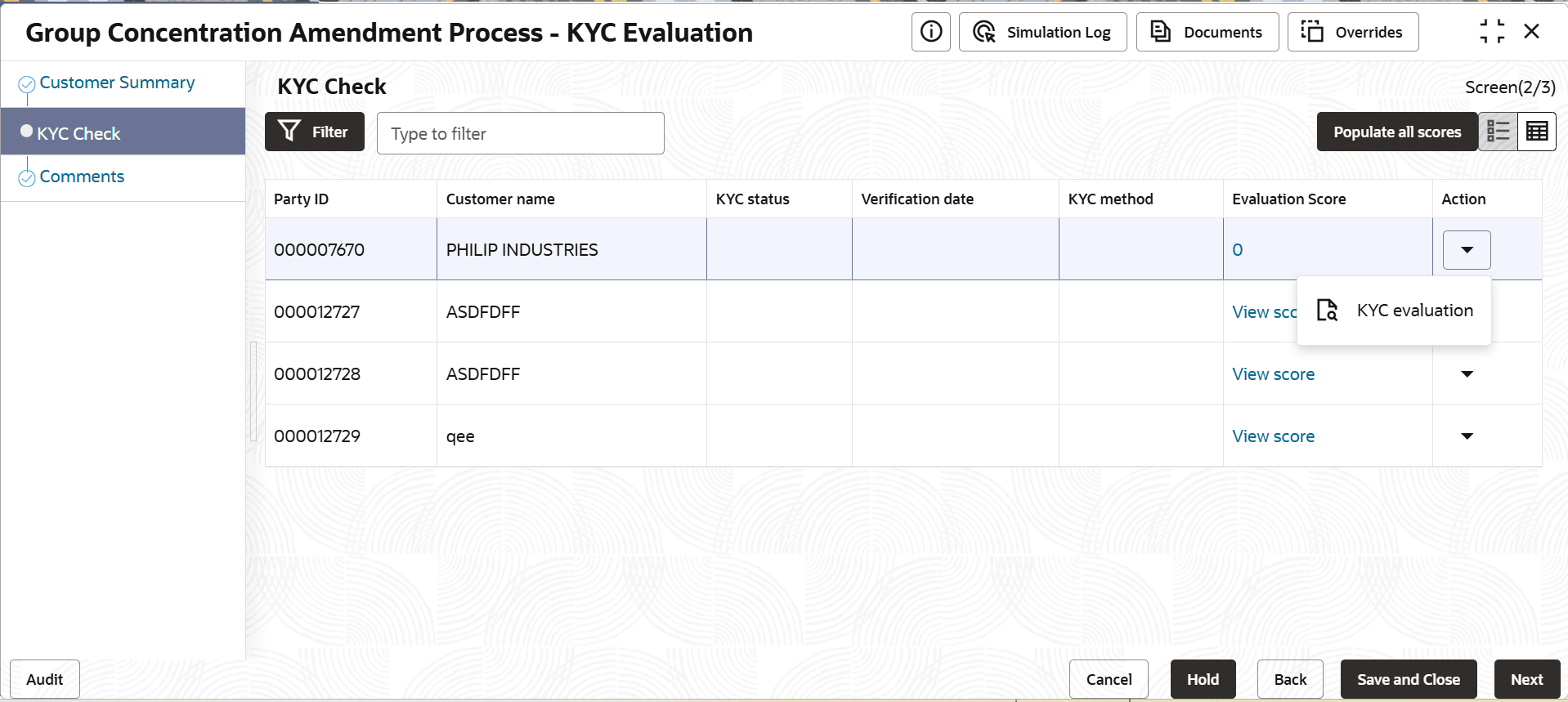
In the KYC page, provision to add KYC details for the group entity is provided.
- To add the KYC Details, click KYC Details option.The KYC Details window is displayed.For information on fields in the KYC Details page, refer the below table.
Figure 5-4 KYC Details
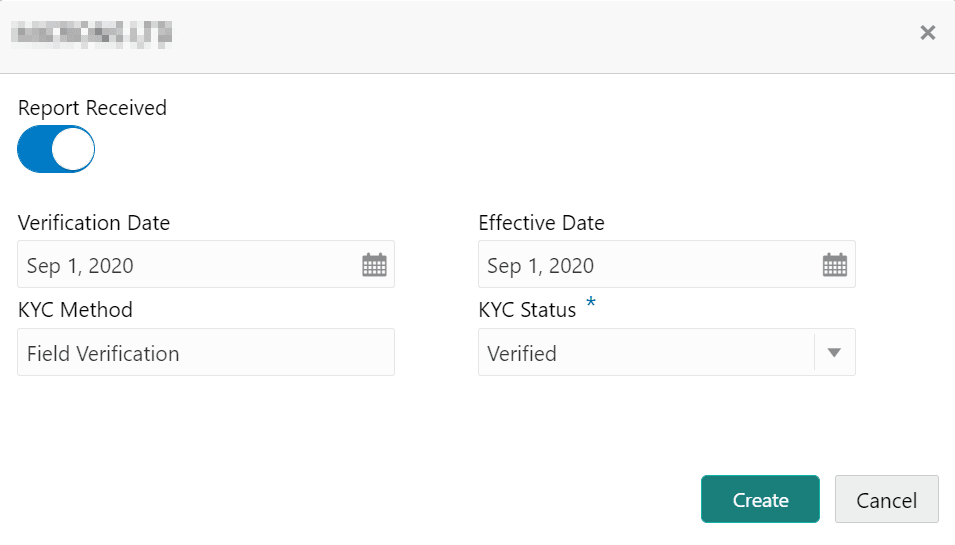
Table 5-1 KYC Details
Fields Description Report Received If KYC report is available for the organization, enable the Report Received switch. Verification Date Click the calendar icon and select the KYC Verification Date. Effective Date Click the calendar icon and select the Effective Date on which the KYC verification is approved. KYC Method Type the KYC Method. For example: Field verification is a KYC Method. KYC Status Select the KYC Status. The options available are Verified, Yet To Verify, and Verification Failed. Create Click Create. KYC details are updated in the KYC page. - To perform KYC evaluation, click the hamburger icon and select KYC
Evaluation. Questionnaire maintained for the KYC evaluation is
displayed.
Figure 5-5 KYC Evaluation
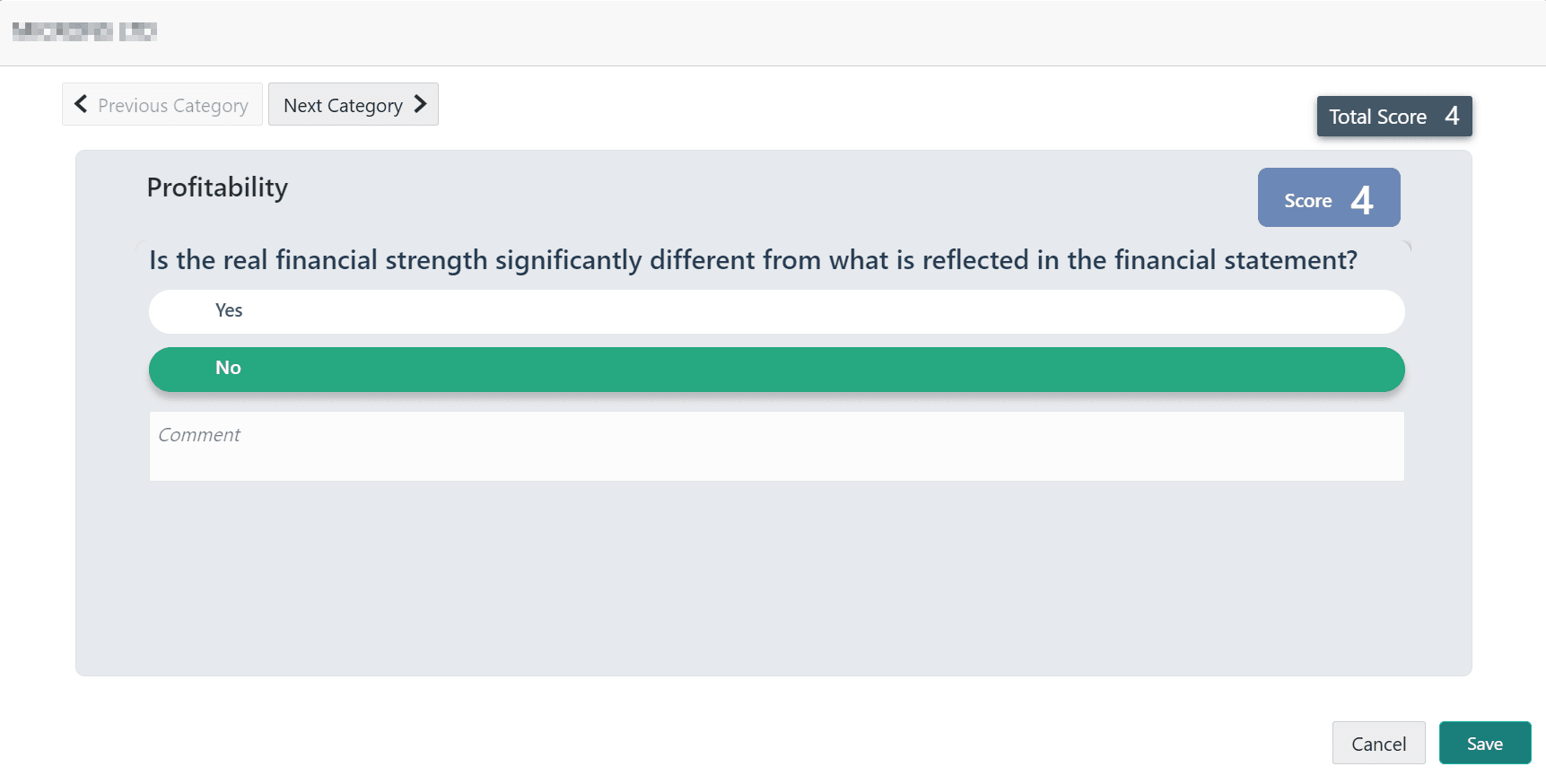
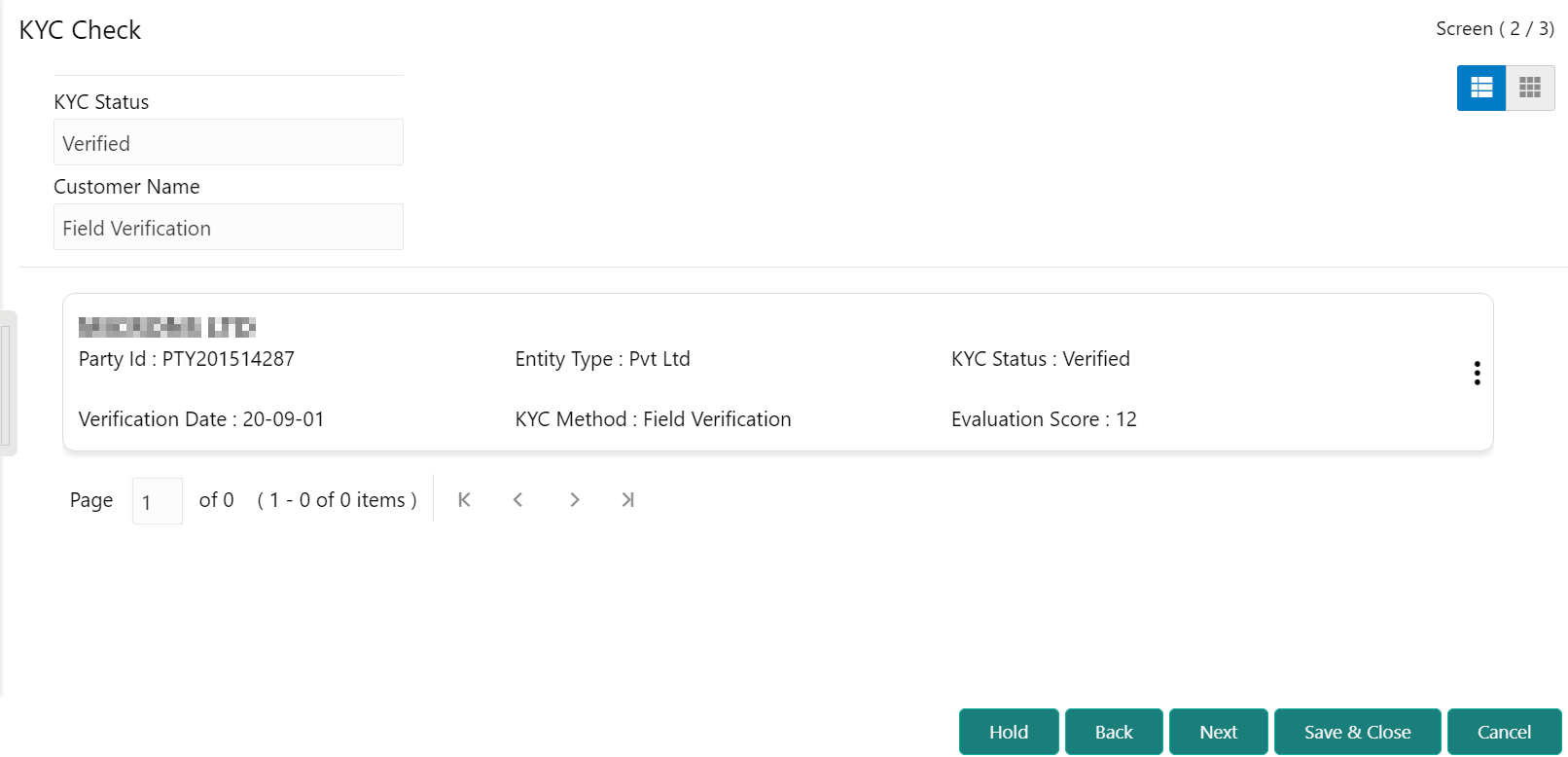
- Click Save. The KYC page is updated with the Evaluation
Score as shown below.
Figure 5-6 KYC Evaluation
- After adding KYC details or performing KYC evaluation for the group entity,
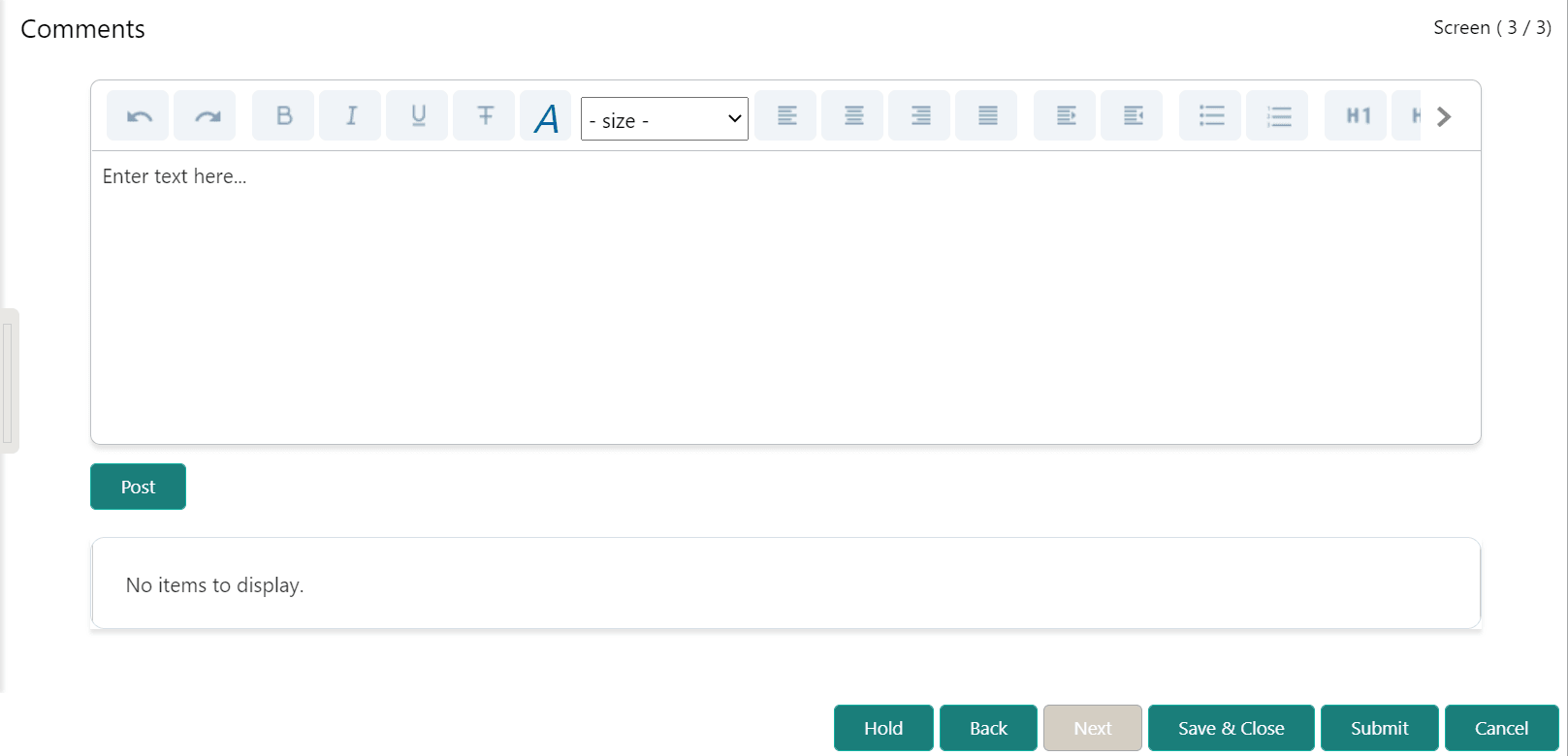
click Next.The Comments page is displayed.
Figure 5-7 Comments
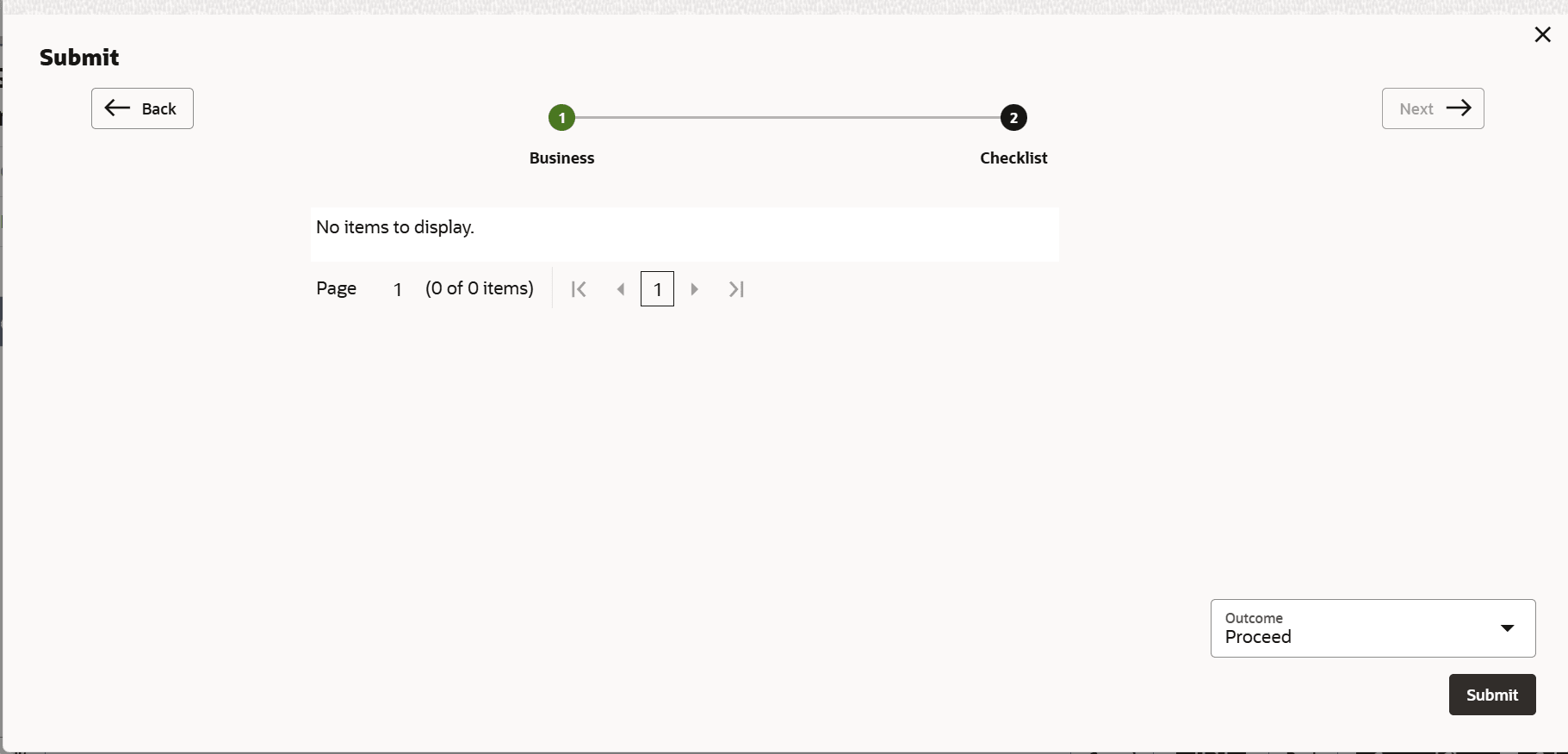
- Click Submit.The Policy exceptions window is displayed.
By default, policy exceptions are displayed for both the organization (party) and its child party.
- Click the Checklist data segment.