9 Draft Generation
This topic provides systematic instrcutions about the Draft Generation stage in Simplified Credit Proposal Evaluation Process.
In this stage, customer’s communication address can be configured and the draft document can be generated for customer acceptance.
To generate draft for the proposal, perform the following steps:
- From Home screen, click Tasks.
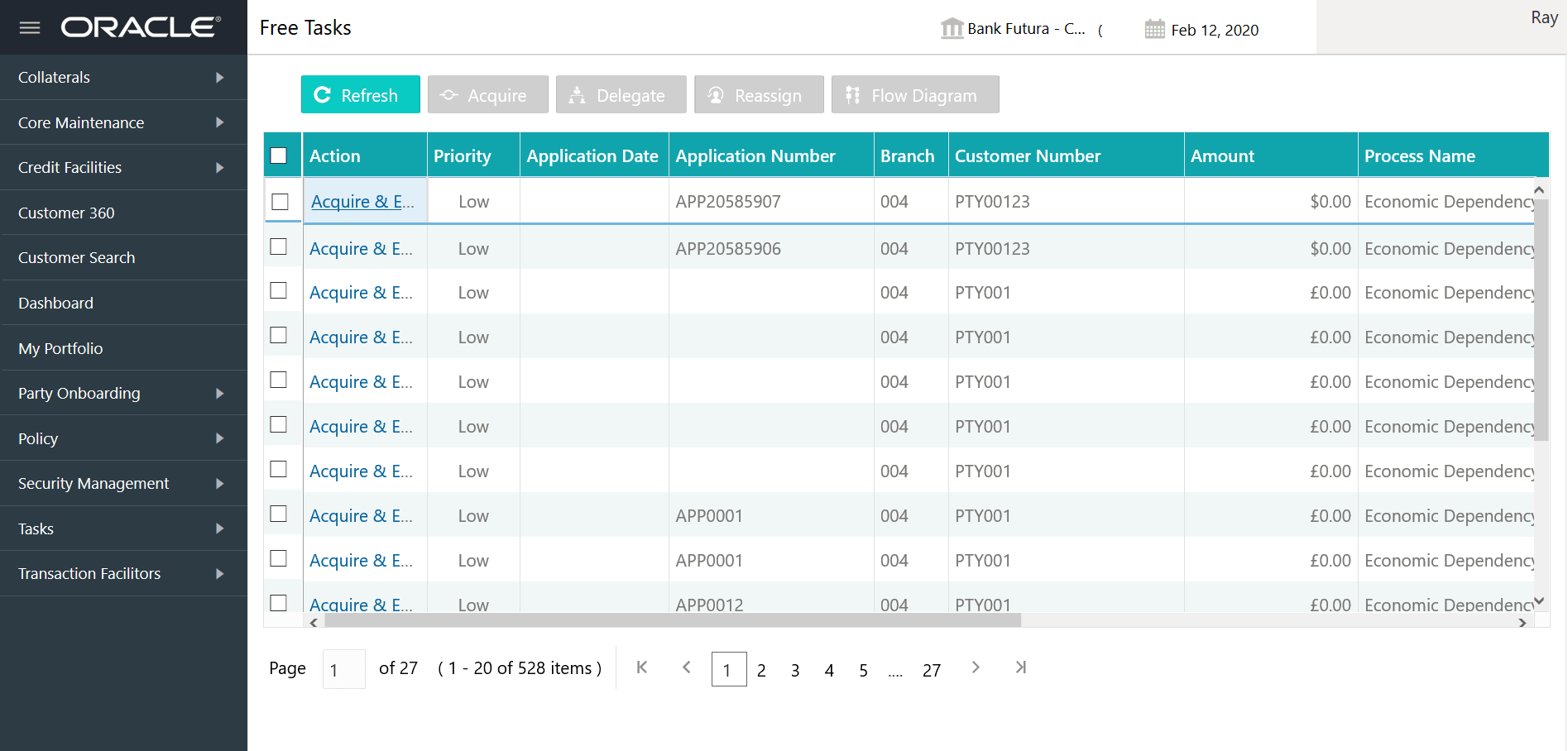
Under Tasks, click Free Tasks.. The Free Tasks page is displayed.
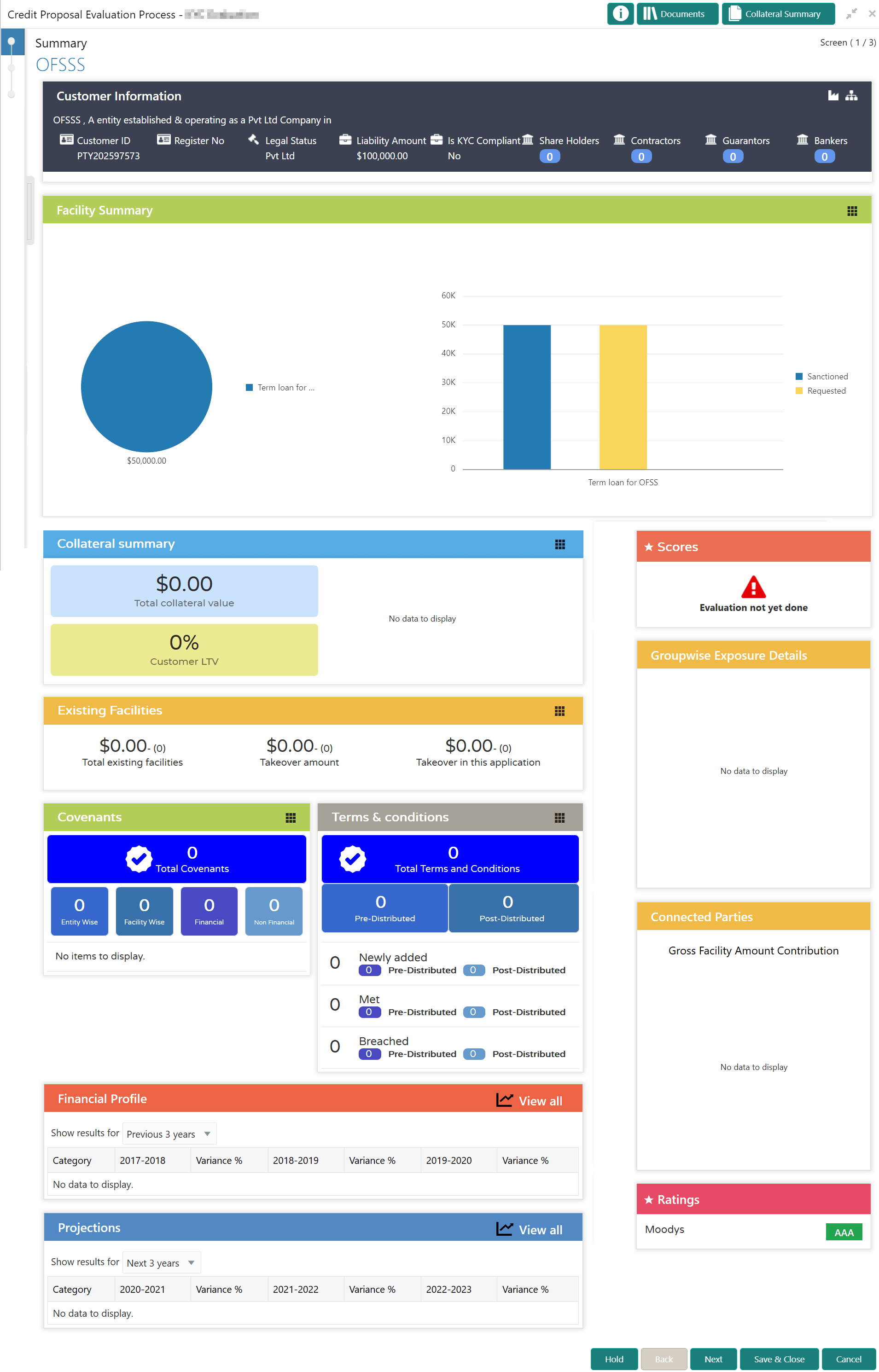
- Select the required application and click Acquire & Edit.The Draft Generation - Summary page is displayed.
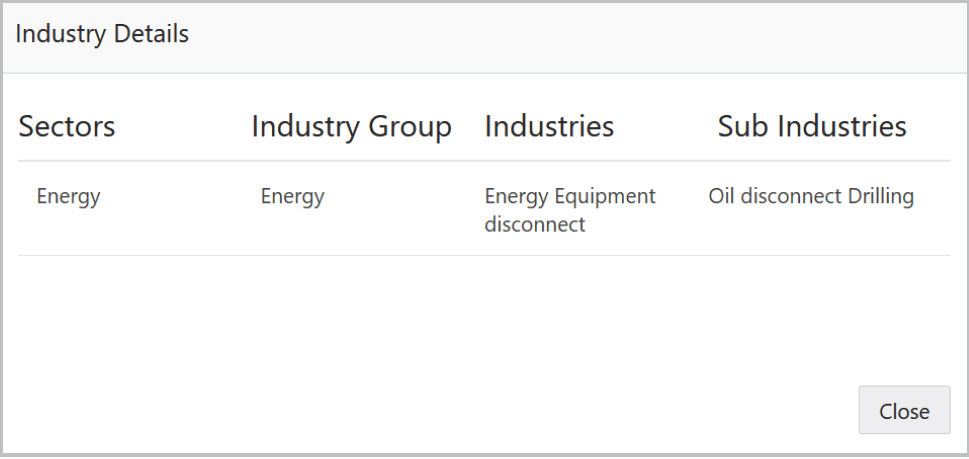
- To view the sector and industry information, click the industry icon in
customer information section.The Industry Details window is displayed.
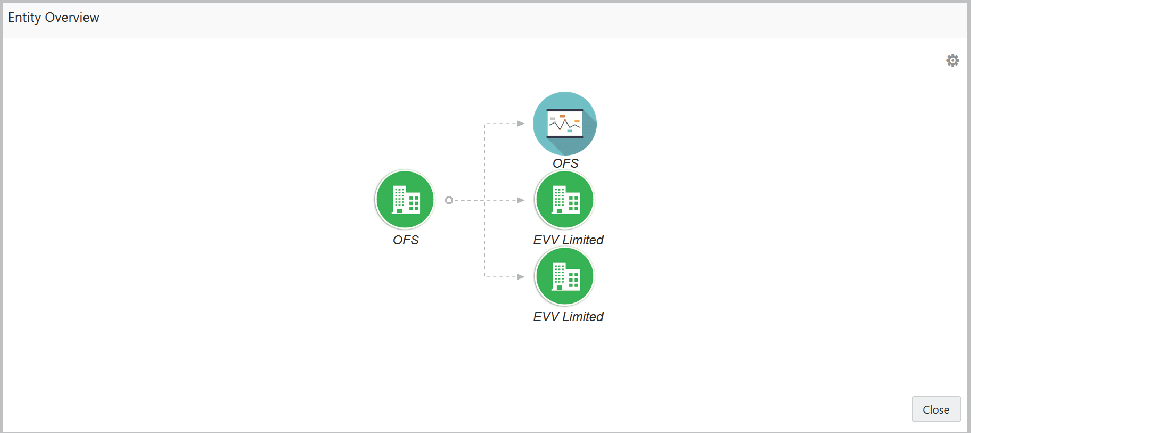
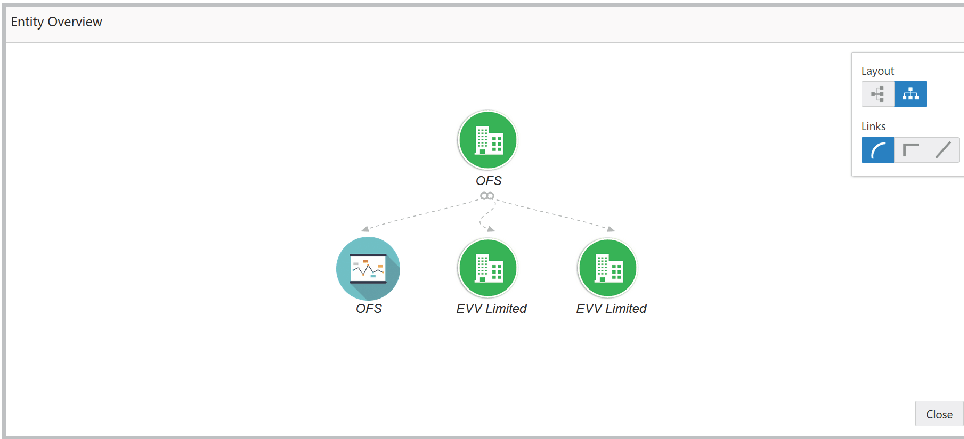
- To view the overview of the organization, click the entity overview icon in
Customer Information section.The Entity Overview window is displayed.
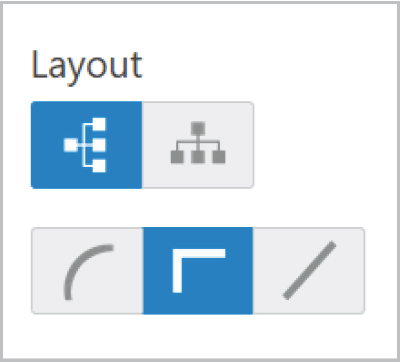
- To change the layout of the entity overview, click the configuration icon at
the top right corner.The Layout window is displayed.
- Select the required layout. Entity Overview is changed to the selected layout
as shown below.
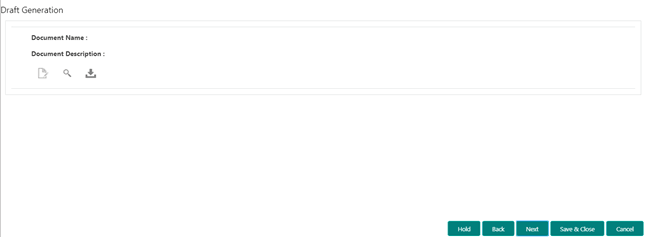
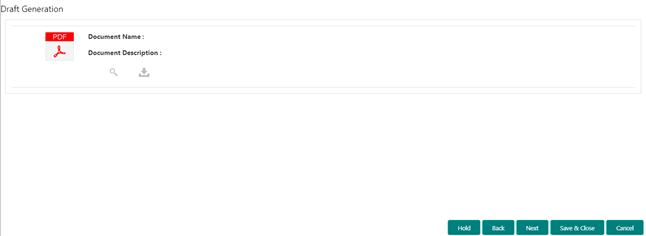
- After reviewing the Summary, click Next.The Draft Generation page is displayed.
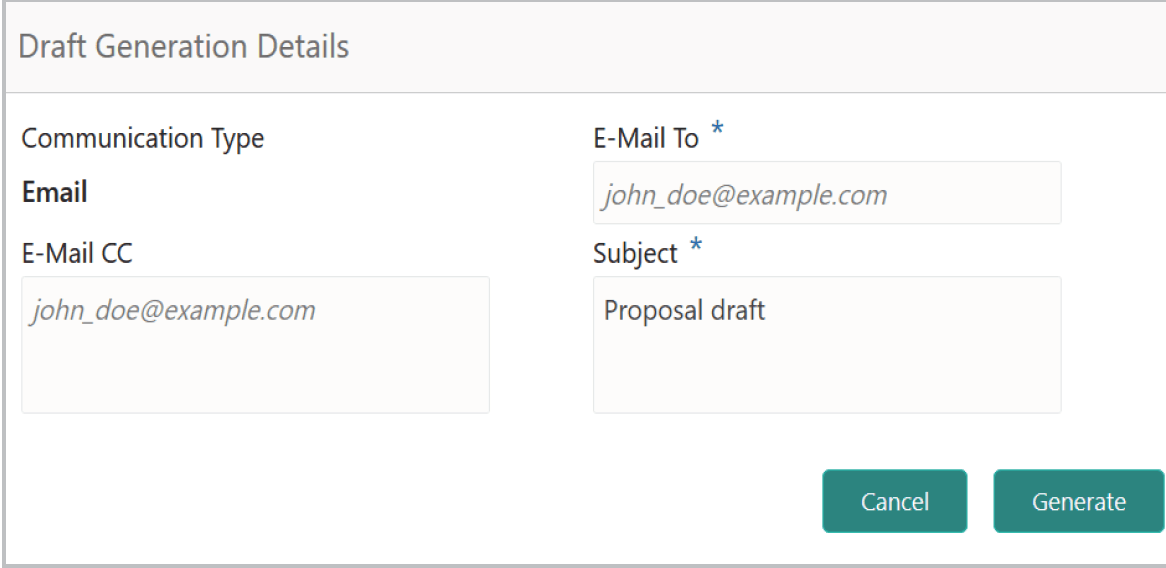
- Click Generate Document.The Draft Generation Details window is displayed.For information on fields in the Draft Generation Details screen, refer the below table.
Table 9-1 Draft Generation Details
Field Description E-mail To In E-mail To field, type the E-mail address to which the proposal draft has to be sent.
E-mail CC In E-mail CC field, type the E-mail address which has to be in CC of draft proposal mail.
Subject In Subject field, type the mail subject.
Generate Click Generate. Proposal draft configured in the system is sent to the mail ID mentioned in E-Mail To field.
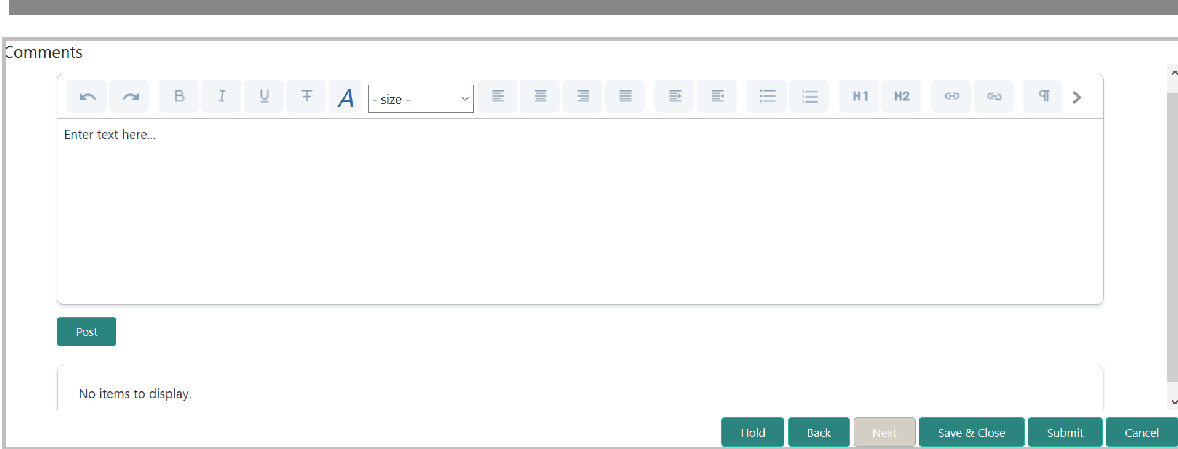
- Click Next.
The Comments page is displayed.
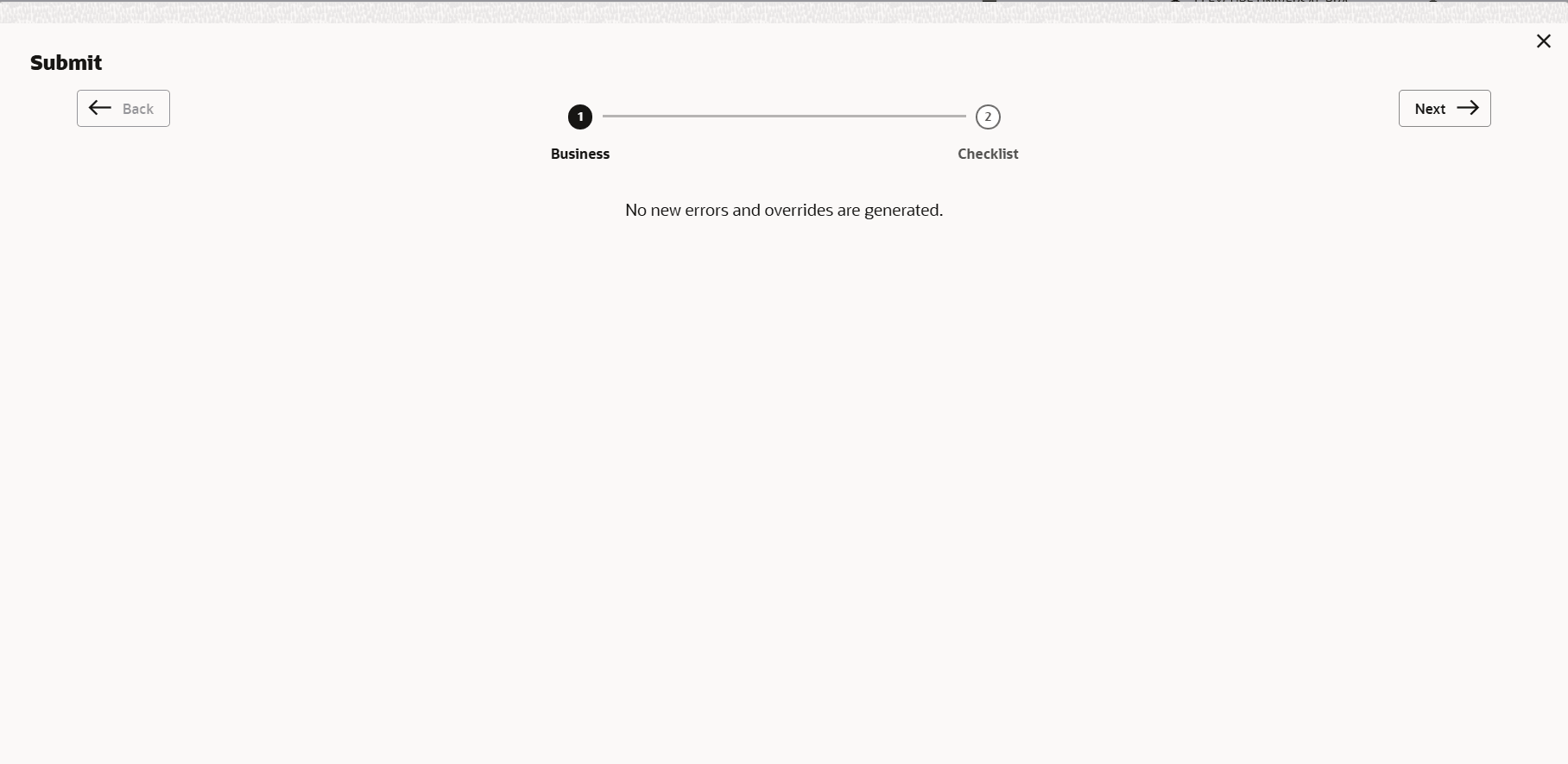
- Click Submit.The Policy exceptions window is displayed.
By default, policy exceptions are displayed for both the organization (party) and its child party.
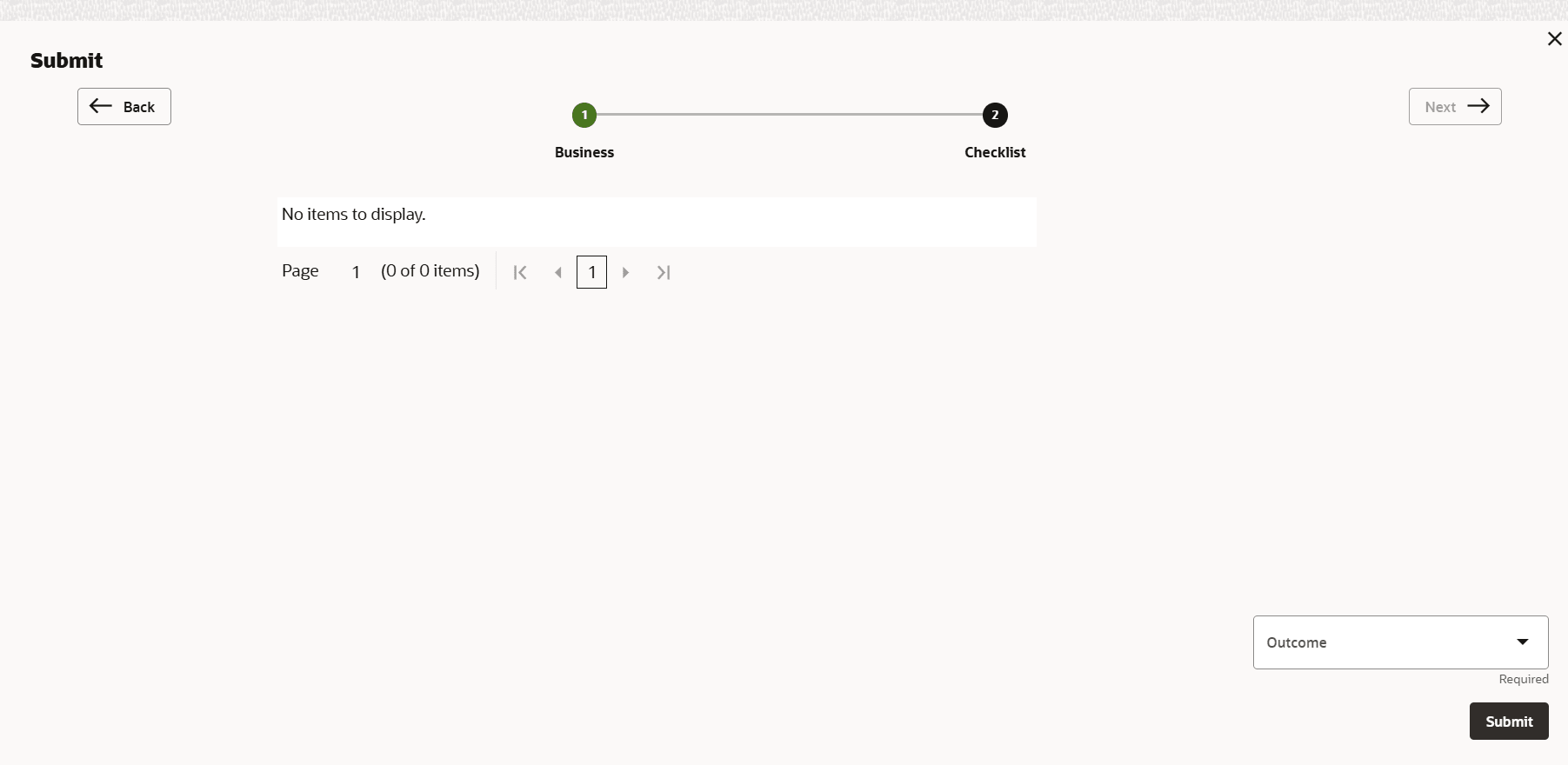
- Click the Checklist data segment.