3.2 Enrich Application
This topic provides systematic instructions about the Enriching Application data segment in Simplified Credit Proposal Evaluation stage.
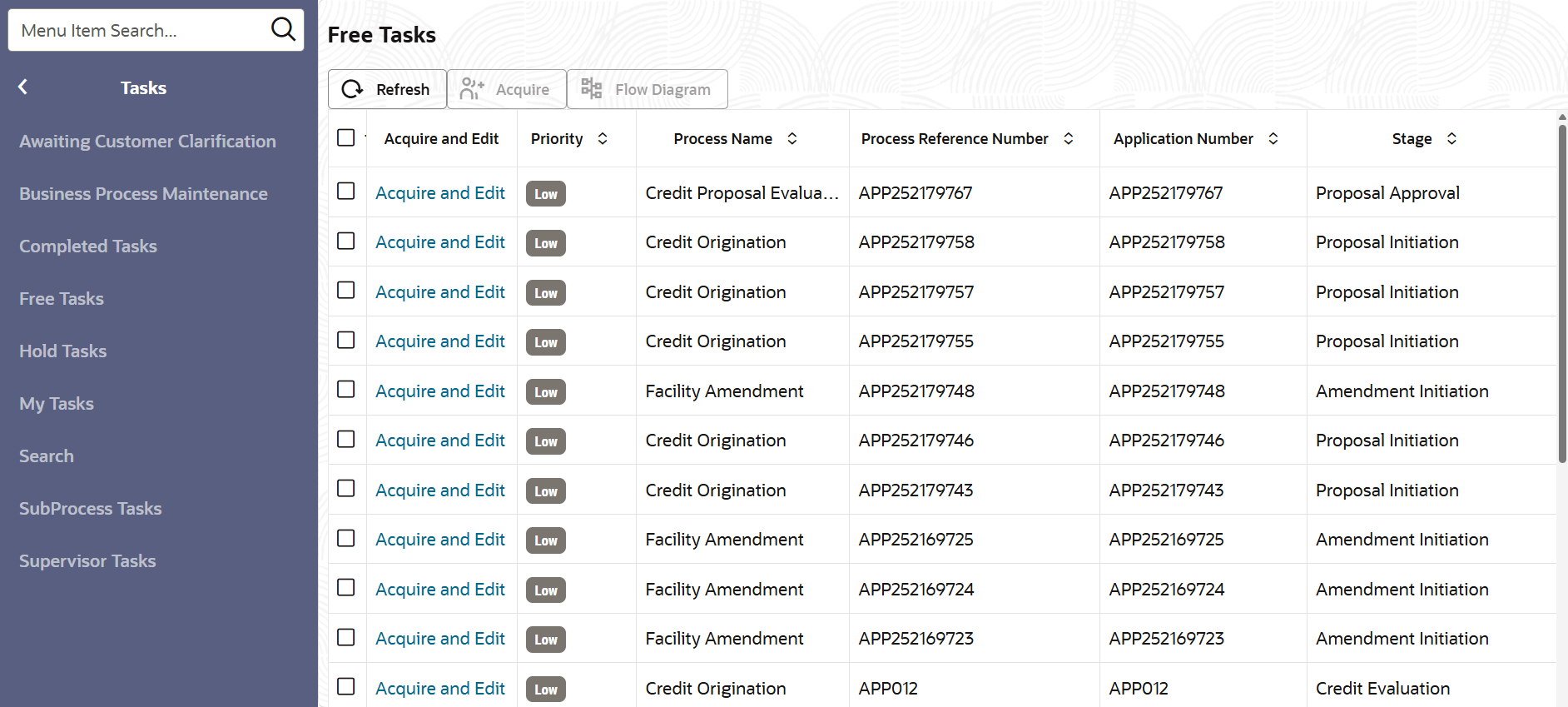
- From Home screen, click Tasks.
Under Tasks, click Free Tasks.. The My Tasks page is displayed.
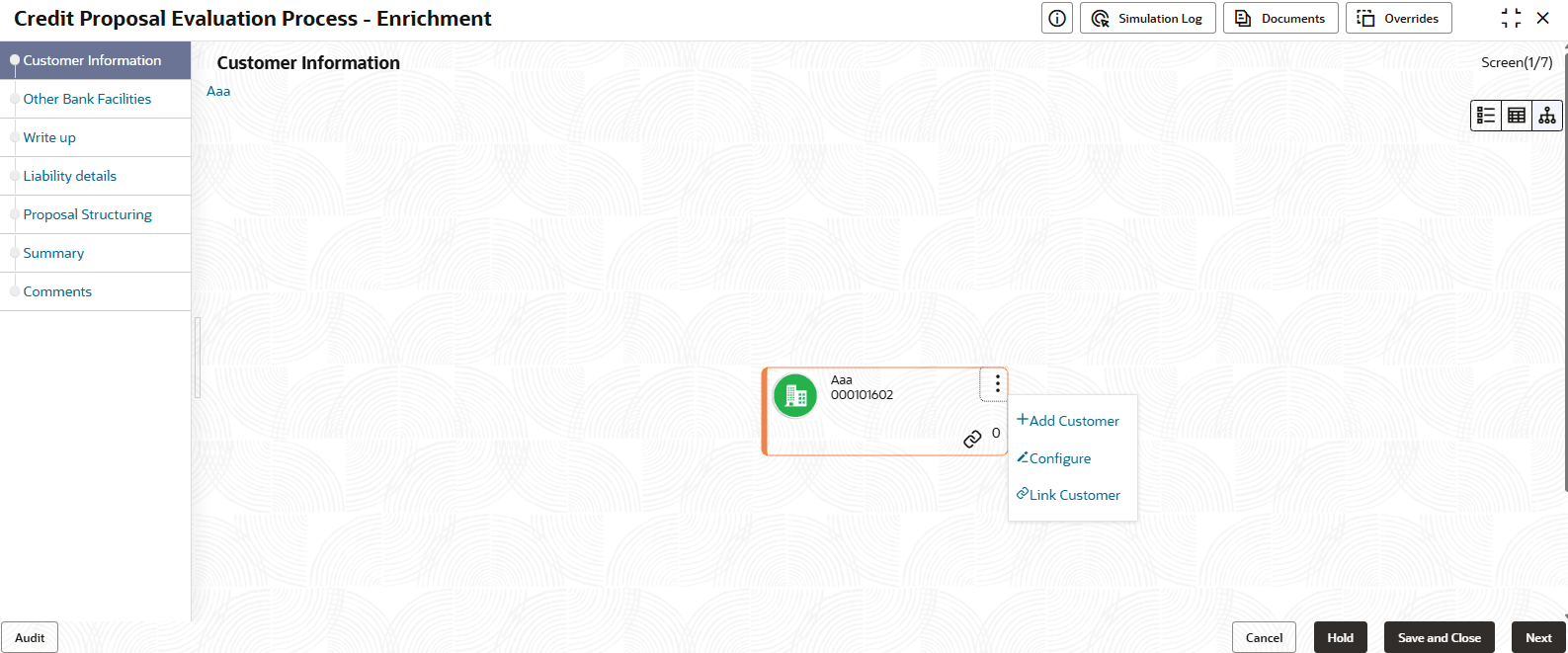
Customer Info
This data segment allows to view and modify the basic information captured during credit proposal initiation and add child parties to the party (organization).
Figure 3-9 Customer Info
Mouse hovering on the organization icon displays the basic information about the organization.
Figure 3-10 Customer Info
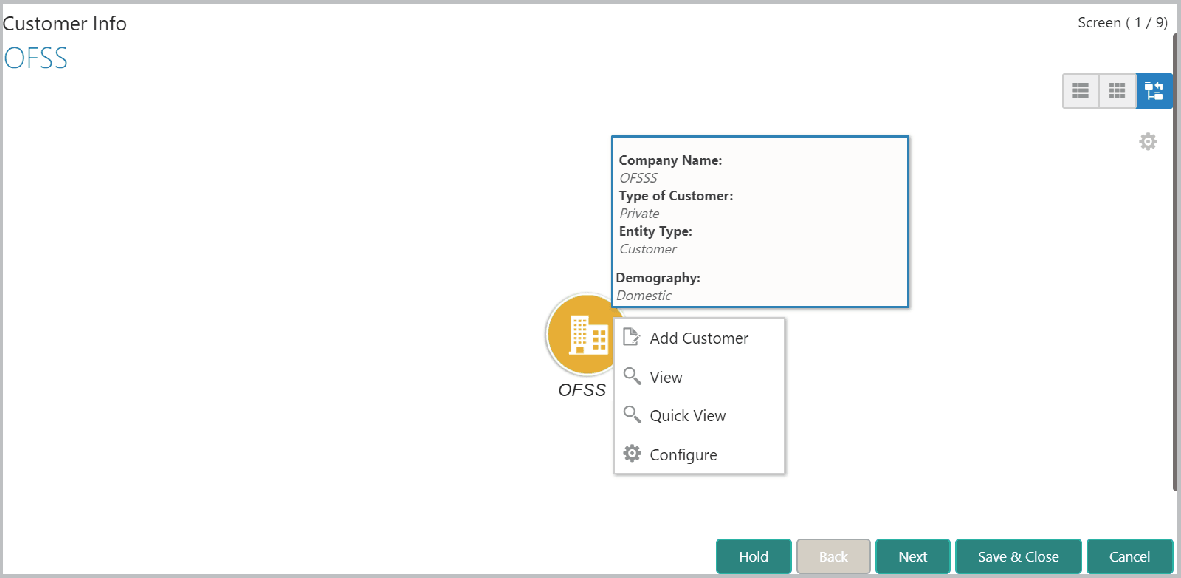
Description of "Figure 3-10 Customer Info"
- To change the layout of the tree view, click the settings icon at the right
corner. Layout options appear as shown below:
For information on fields in the Facility Details screen, refer the below table.
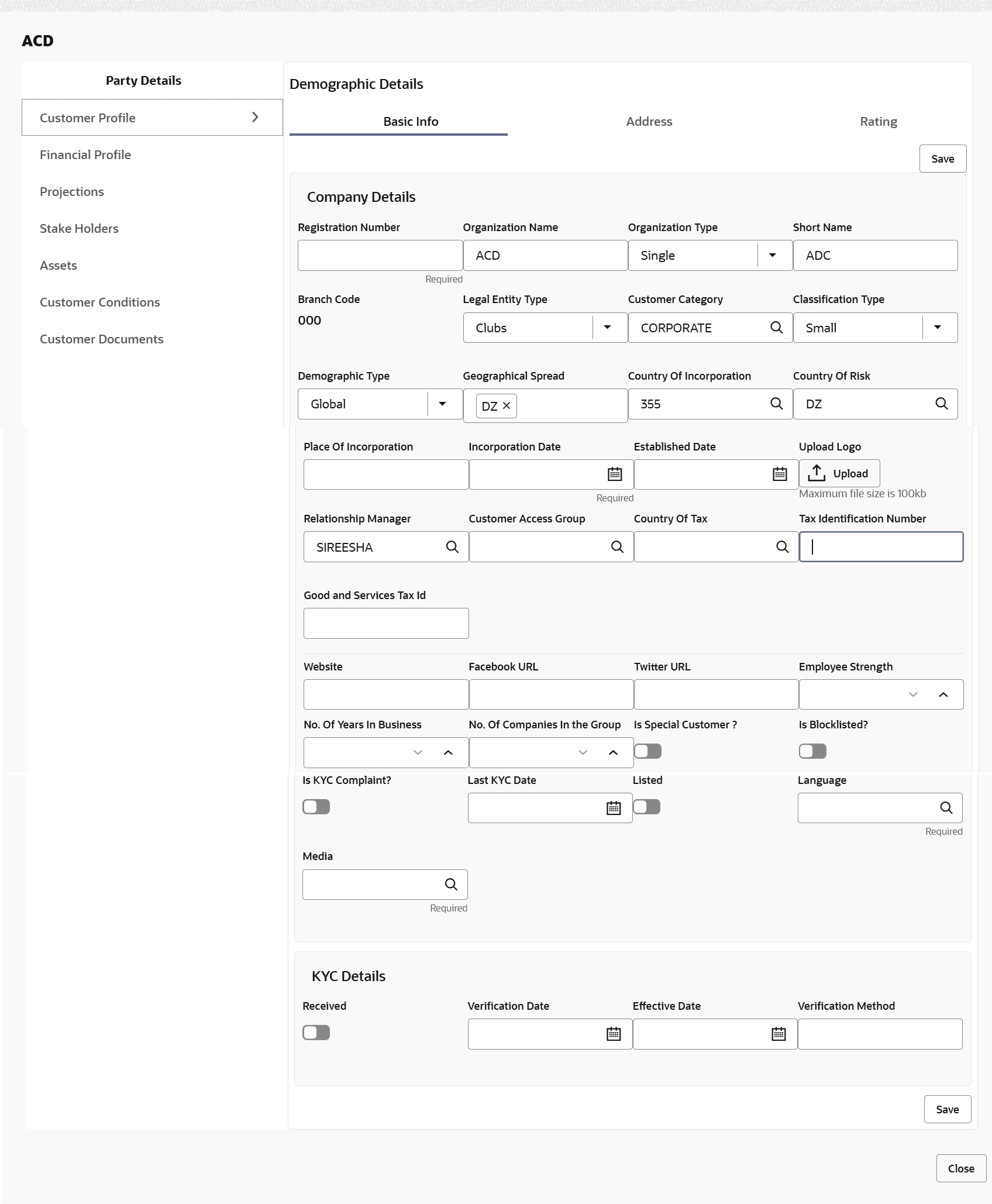
Customer Profile
Table 3-6 Facility Details
Fields Description Company Details Enter / select the following details in the corresponding fields: - Registration Number
- Company Name
- Type Of Company
- Geographical Spread
- Place Of Incorporation
- Incorporated Date
- Established Date
- RM Id
- Company Website
- Facebook URL
- Twitter URL
- Employee Strength
- No. Of Years In Business
- No. Of Companies in the Group
- Country of Risk
Is Blacklisted? Enable the Is Blacklisted? switch, if the company is blacklisted. Is KYC Compliant? Enable the Is KYC Compliant? switch, if the company is KYC Compliant. Last KYC Date Click the calendar icon and select the Last KYC Date. Listed Company Enable the Listed Company switch, if the company is listed. Language Select the Language from the drop down list. Media Select the Media for transactions from the drop down list. Table 3-7 KYC Details
Fields Description Received Enable the Received switch, if KYC verification details are received for the customer. KYC Verification Date and Effective Date. Click the calendar icon and select the KYC Verification Date and Effective Date. Verification Method Type the KYC Verification Method. For example: Field verification. Save Click Save. - To add the company address details, click the Address tab and then click the
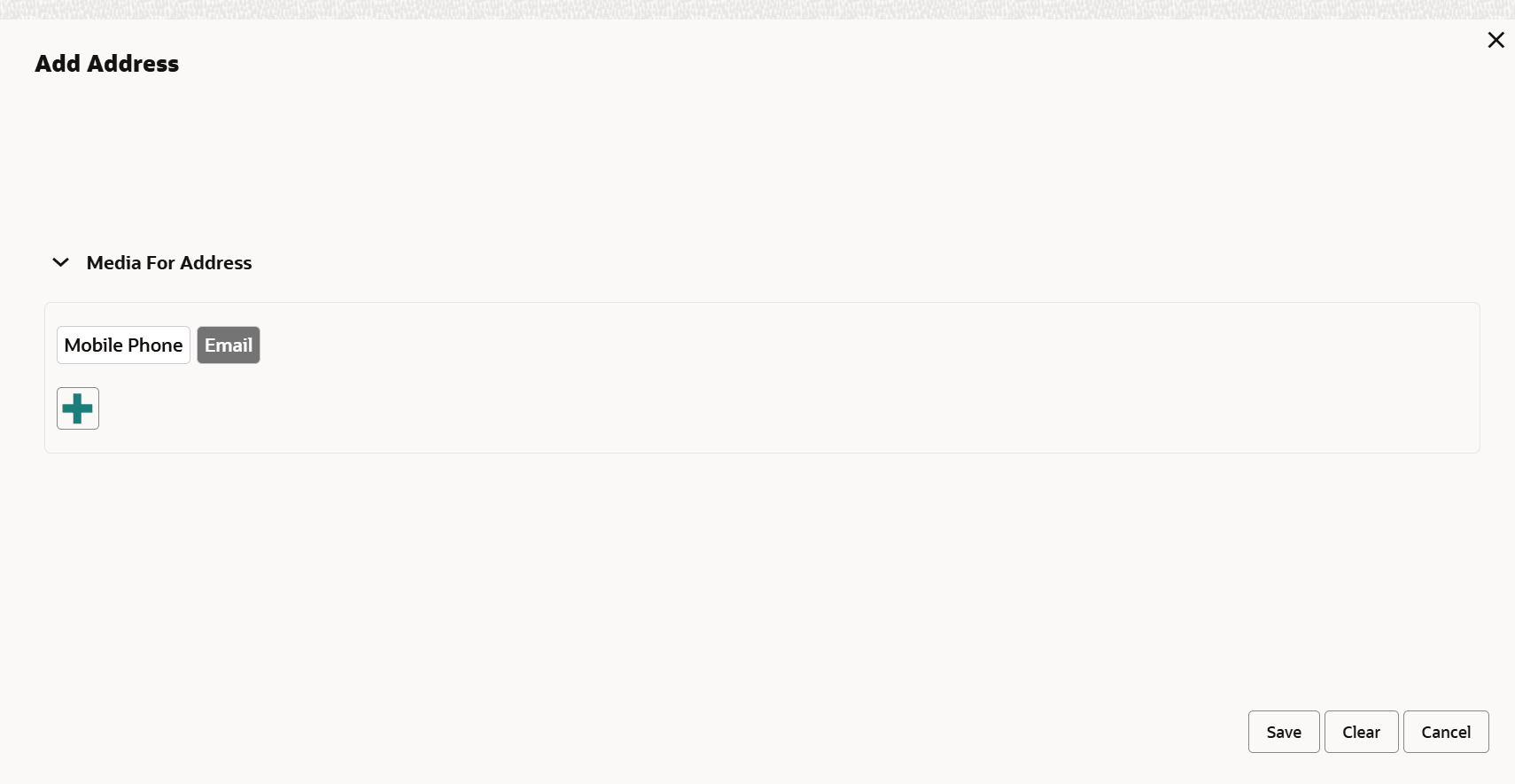
Add icon.The Address Details window is displayed.
For information on fields in the Adrees Details screen, refer the below table.
Table 3-8 Adrees Details
Fields Description Adrees Details Type or select the following details in the corresponding fields: - Address Type
- Name of the contact person
- House/Building name
- Street
- Locality
- Landmark
- Area
- City
- State
- Zip-Code
- Country
- Email Address
- Phone Number
Add Click Add. Address details are added. Industry To add the industry details, click the Industry tab and select the required details. Note:
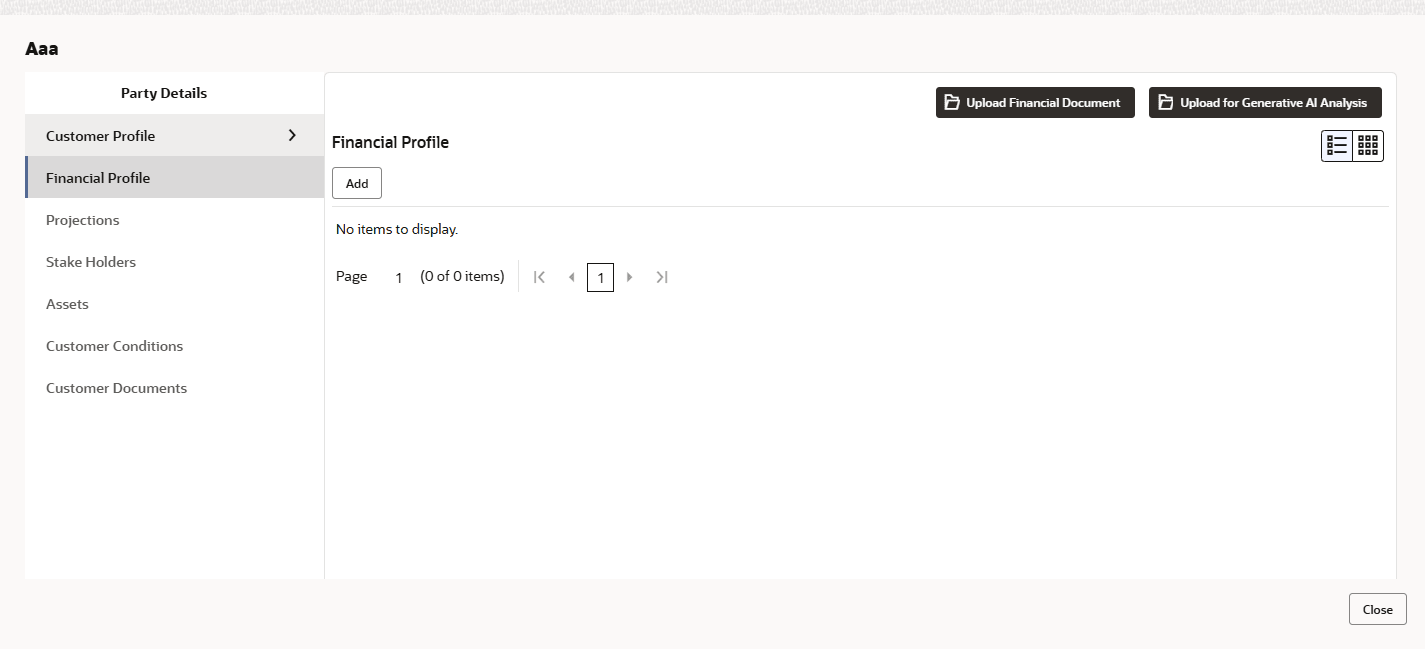
To Edit, Delete or View the added Basic Info, Address, and Industry. click the hamburger icon in the required list item and select the required option. - To configure organization’s financial details, click Financial Profile
in left menu.The Financial profile screen is displayed.
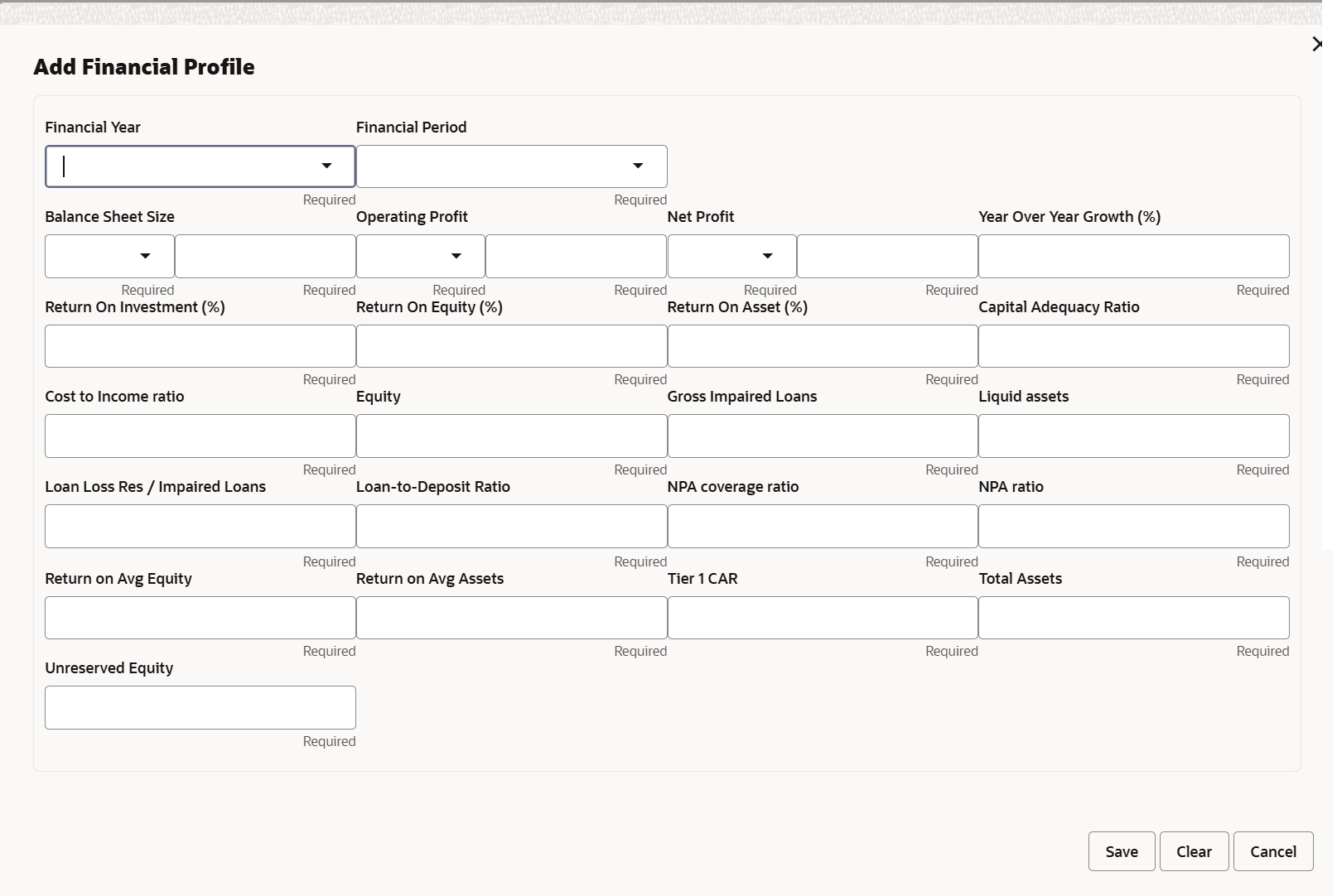
- Click the Add icon. The following window is displayed.
For information on fields in the Financial Profile screen, refer the below table.
Table 3-9 Financial Profile
Fields Description Year Specify the Year for which the organization’s financial details are to be added. Currency Search and select the Currency for the financial information. Details Specify the following details in the corresponding fields: - Balance Sheet Size
- Operating Profit
- Net Profit
- Year Over Year Growth
- Return On Investment
- Return On Equity
- Return On Asset
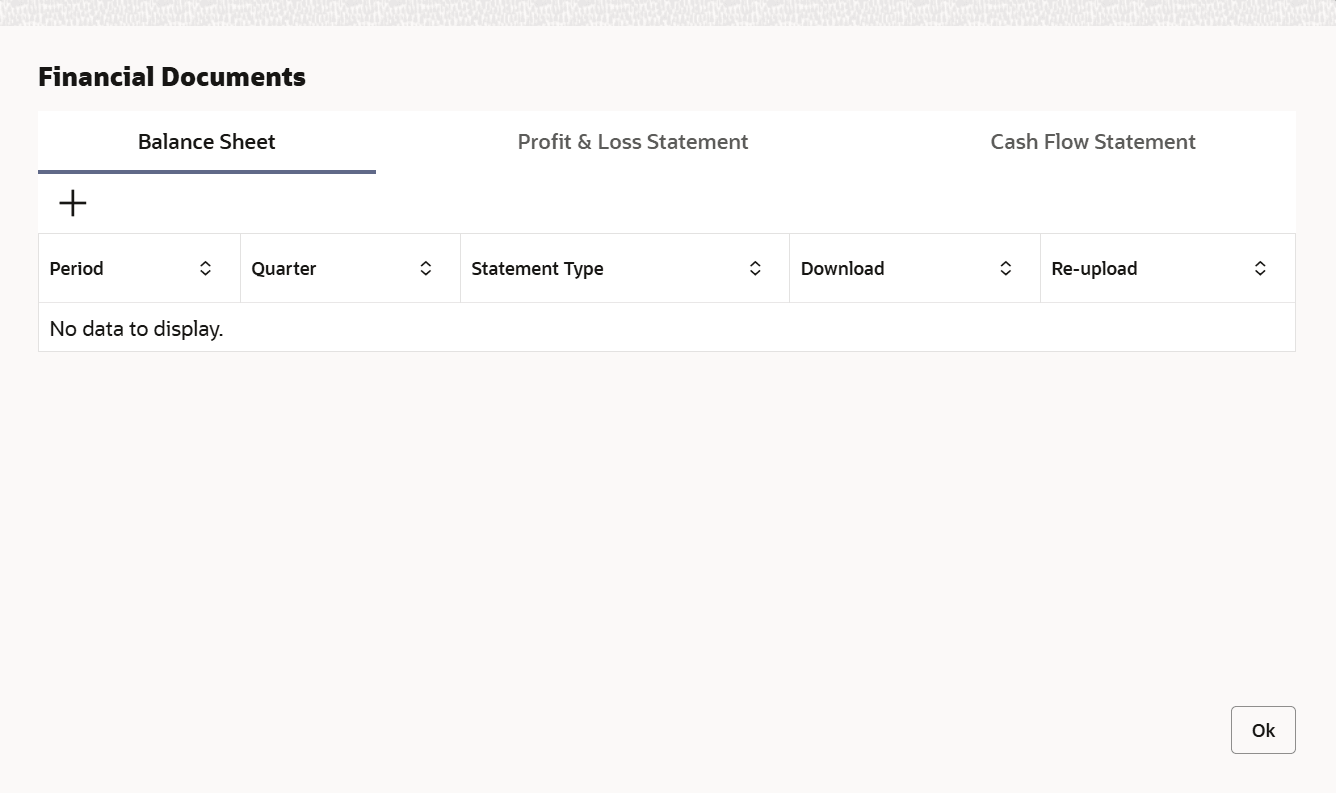
Add Click Add. Organization’s financial details are added. - To add financial documents, click Upload Financial Document.The Financial Documents window is displayed. In the Financial Documents window, the user can Add the following documents by clicking respective tabs.
- Balance Sheet
- Profit & Loss Statement
- Cash Flow Statement
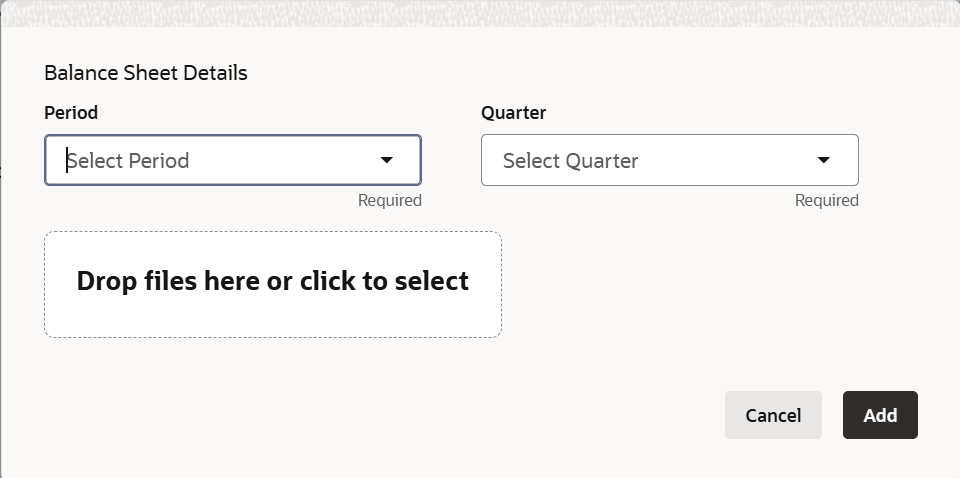
For information on fields in the Balance Sheet Details screen, refer the below table.
Table 3-10 Balance Sheet Details
Fileds Description Period Select the Period for which the financial document is to be added. Quarter Select the Quarter for which the financial document is to be added. Drop files here or click to select In Drop files here or click to select section, drag and drop or click and upload the financial document. - To configure projection details, click Projections from
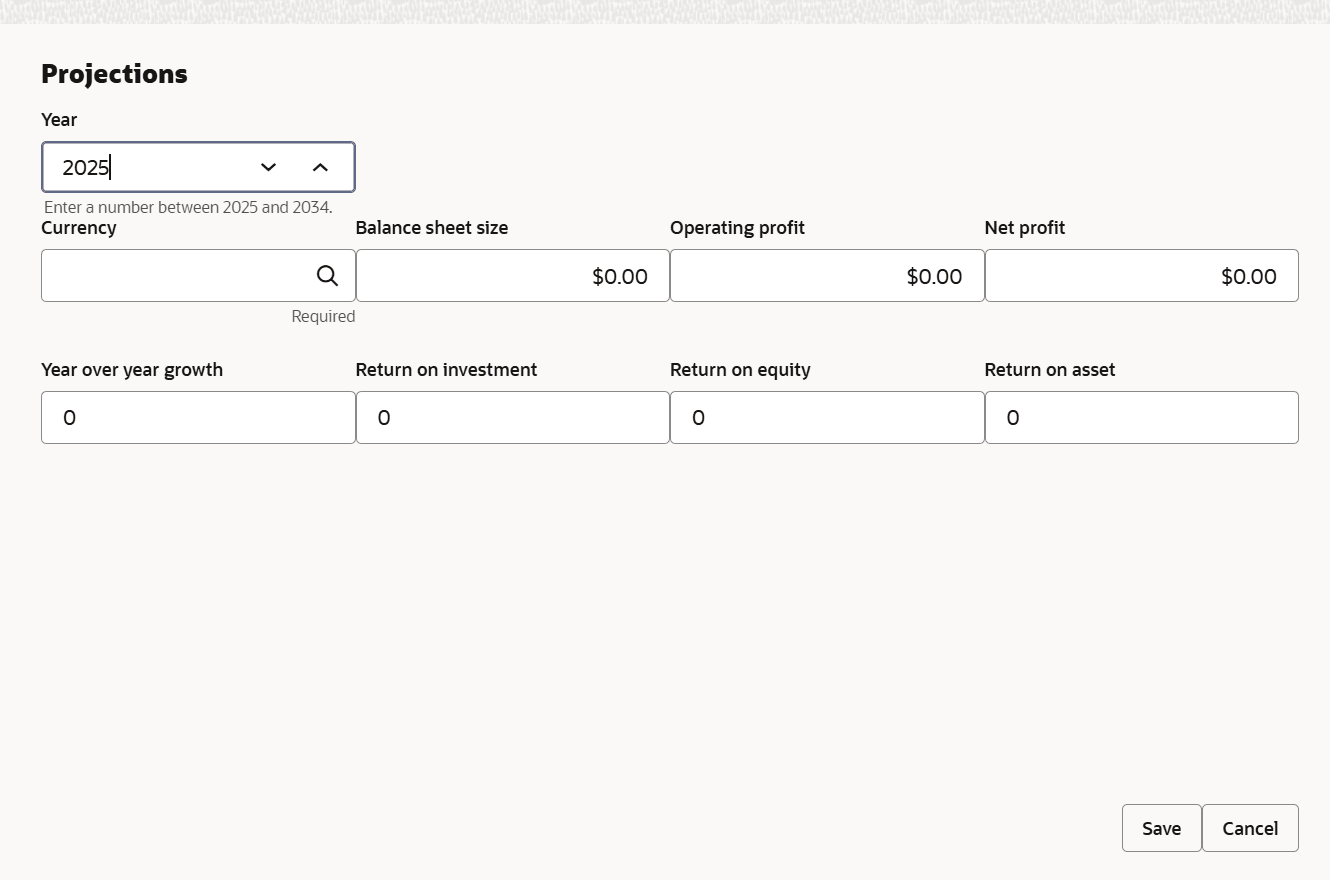
the left menu and then click the Add icon.The Projections window is displayed.
For information on fields in the Projections screen, refer the below table.
Table 3-11 Projections
Fields Descriptions Year Specify the Year for which the organization’s projection details are to be added. Currency Search and select the Currency for the projection details. Details Specify the following details in the corresponding fields: - Balance Sheet Size
- Operating Profit
- Net Profit
- Year Over Year Growth
- Return On Investment
- Return On Equity
- Return On Asset
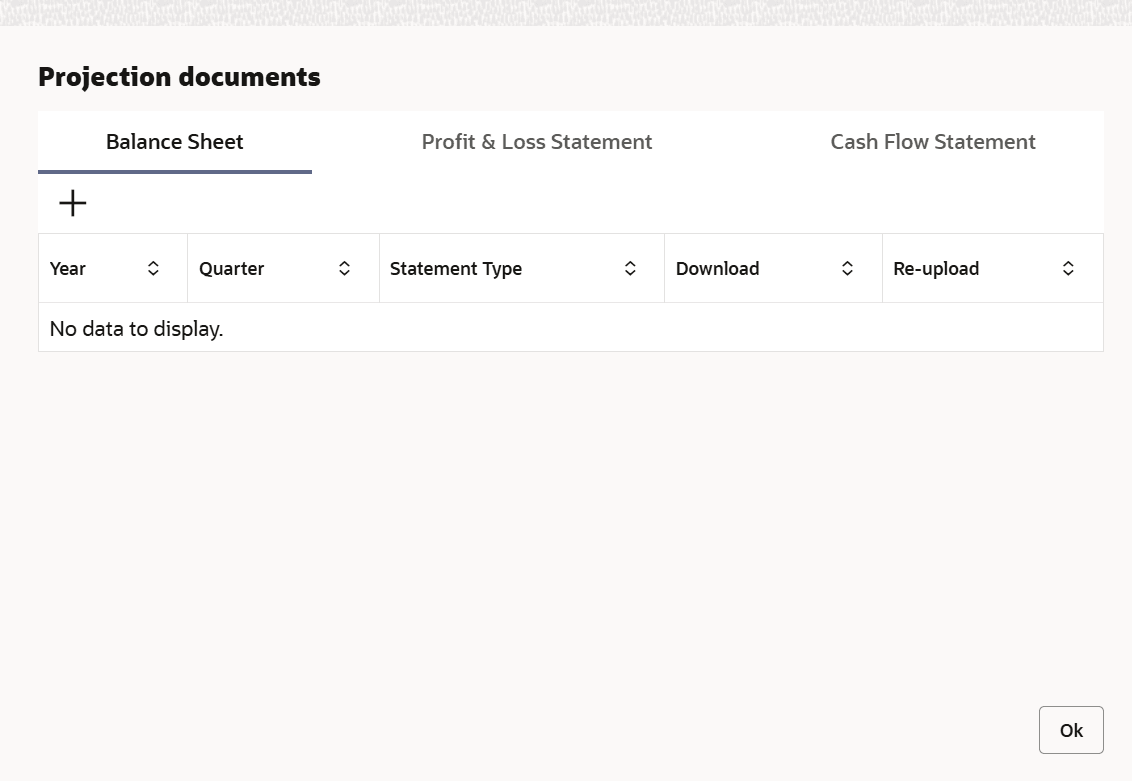
- To add projection documents, click Upload Projection Document.The Projection Documents window is displayed.
In the Projection Documents window, the user can Add the following documents by clicking respective tabs.
- Balance Sheet
- Profit & Loss Statement
- Cash Flow Statement
For information on fields in the Balance Sheet Details screen, refer the below table.
Table 3-12 Balance Sheet Details
Fields Description Period Select the Period for which the projection document is to be added. Quarter Select the Quarter for which the projection document is to be added. Drop files here or click to select In Drop files here or click to select section, drag and drop or click and upload the projection document. Add Click Add. Document is added.
Rating
- To configure stakeholders information, click
Stakeholders in the left menu.
The user can add information about the following stakeholders by clicking the Stakeholders menu:
- Sponsors
- Share holders
- Directors
- Management Team
- Bankers
- Guarantors
- Customers
- Suppliers
Figure 3-20 Sponsors
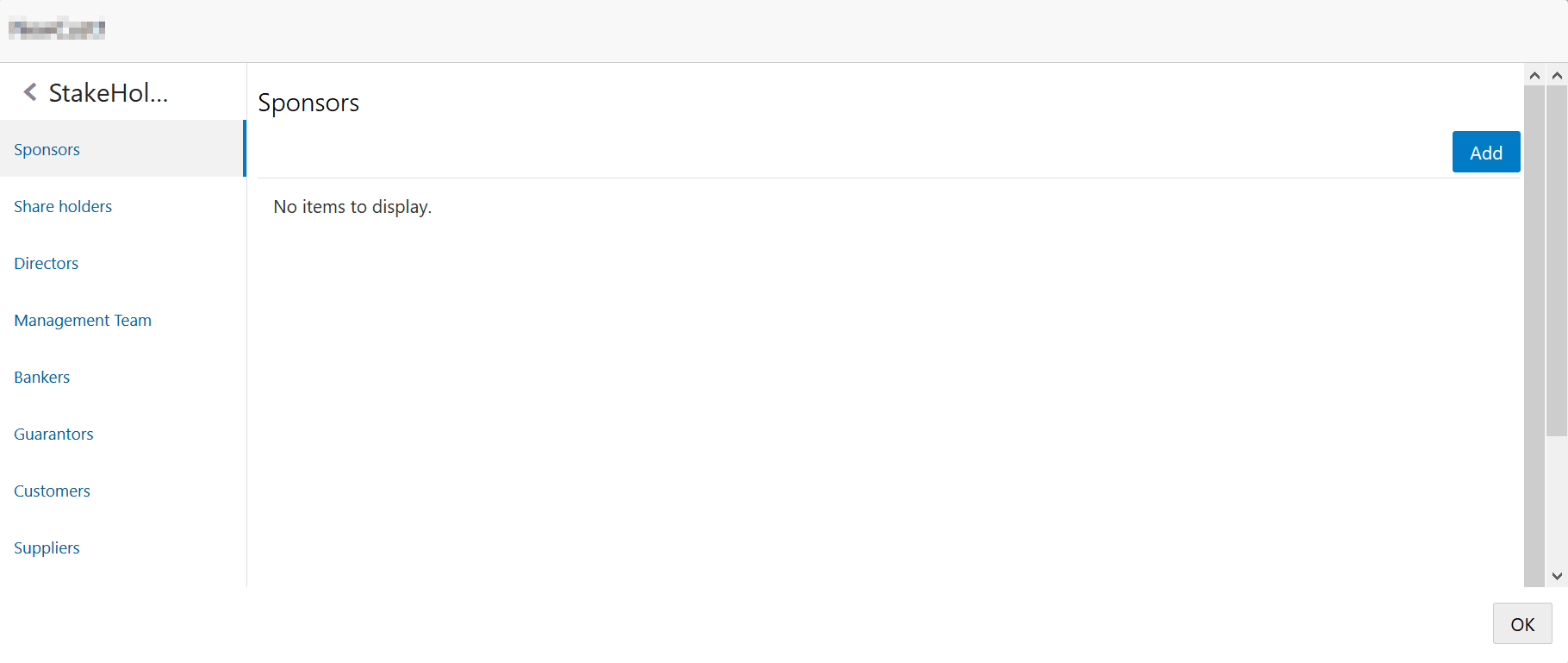
Description of the illustration configure_stakeholders.png - To add sponsor details, click Sponsors from the left menu and then click
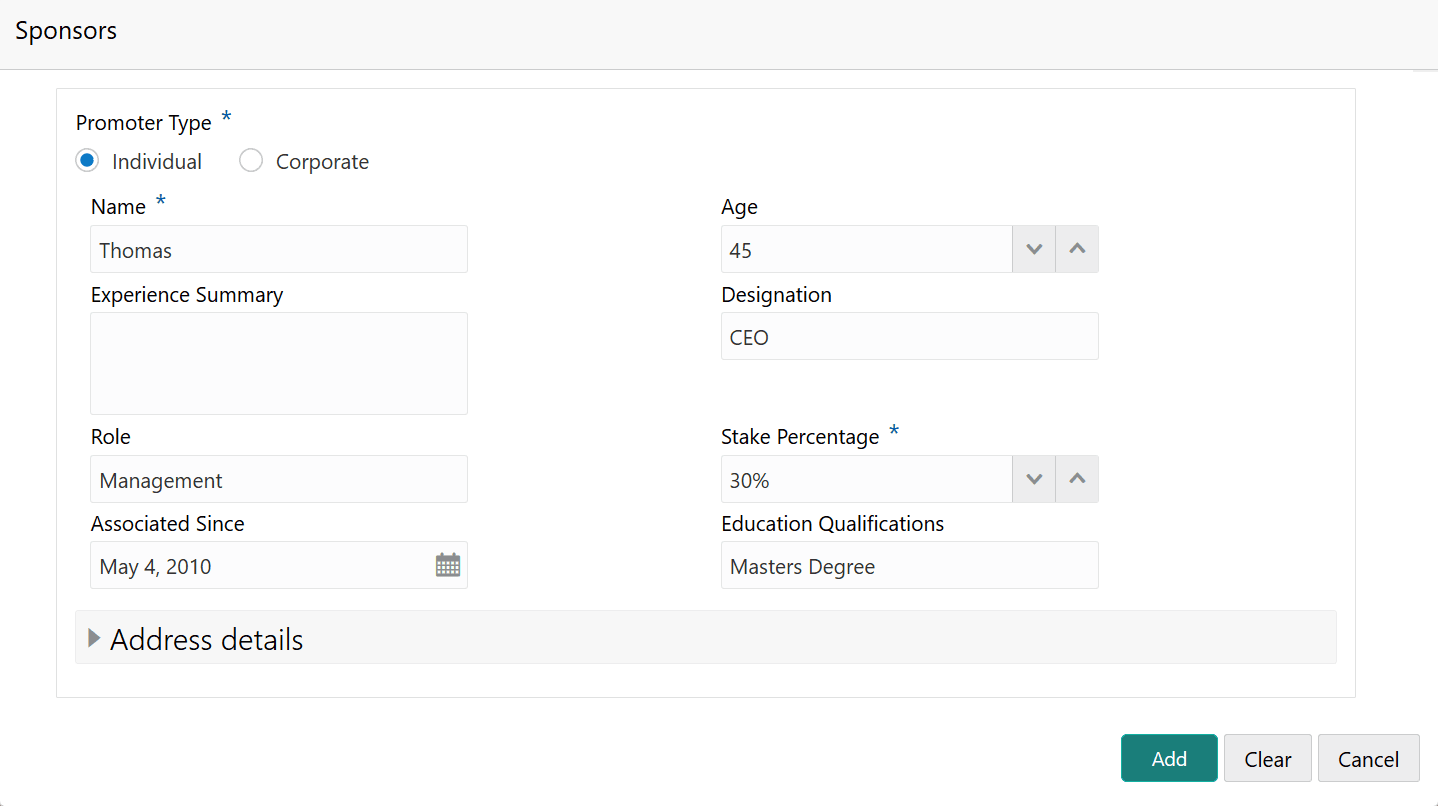
Add.The Sponsors window is displayed.
For information on fields in the Sponsors screen, refer the below table.
Table 3-13 Sponsors
Fields Description Individual If the sponsor is an individual, select or type the following sponsor details in the corresponding fields: - Promoter Type (select Individual option)
- Name
- Age
- Experience Summary
- Designation
- Role
- Stake Percentage
- Associated Since
- Education Qualification
Corporate If the sponsor is an entity, select or type the following sponsor details in the corresponding fields: - Promoter Type (select Corporate option)
- Name
- Stake Percentage
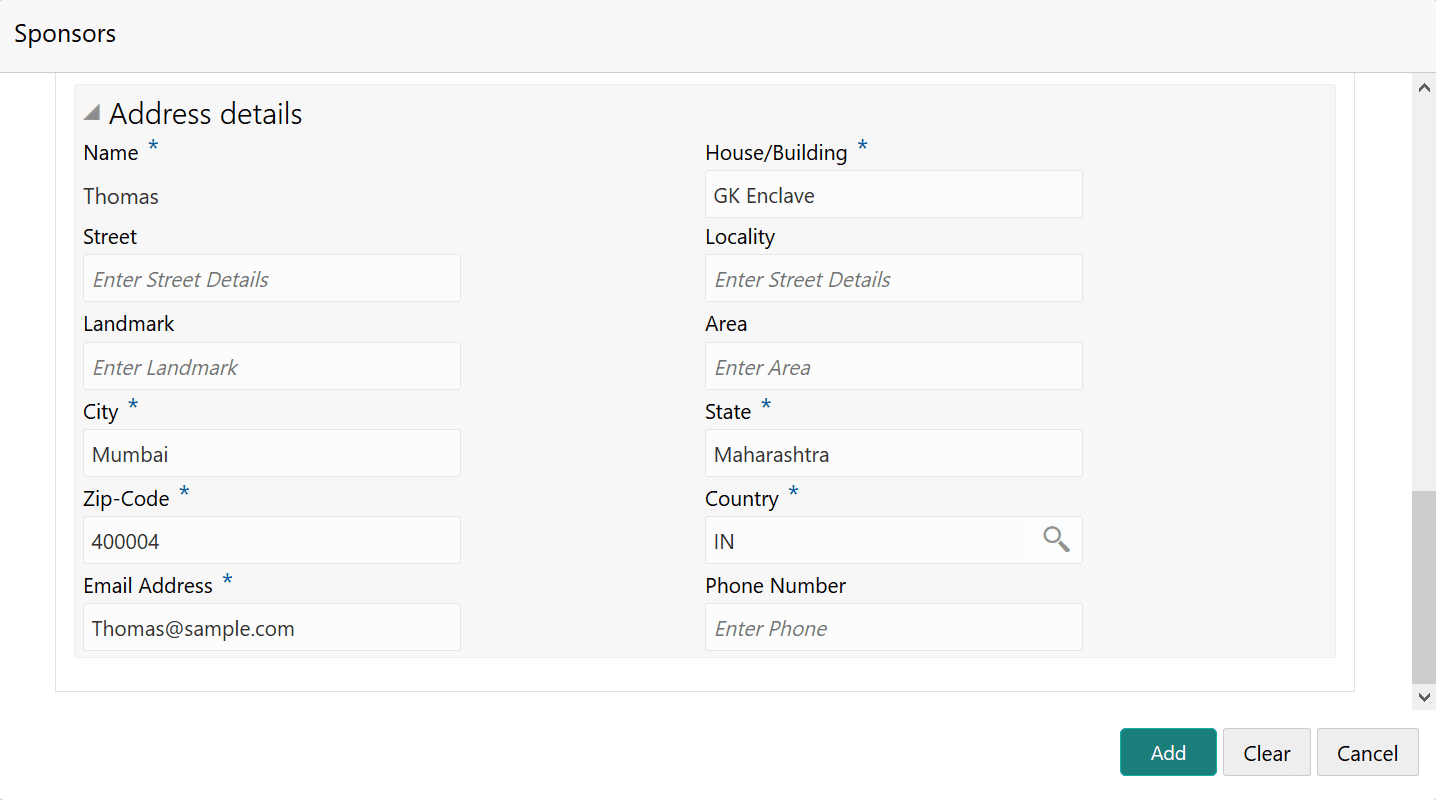
- Click and expand the Address details section.
- To add asset details, click Assets from the left menu
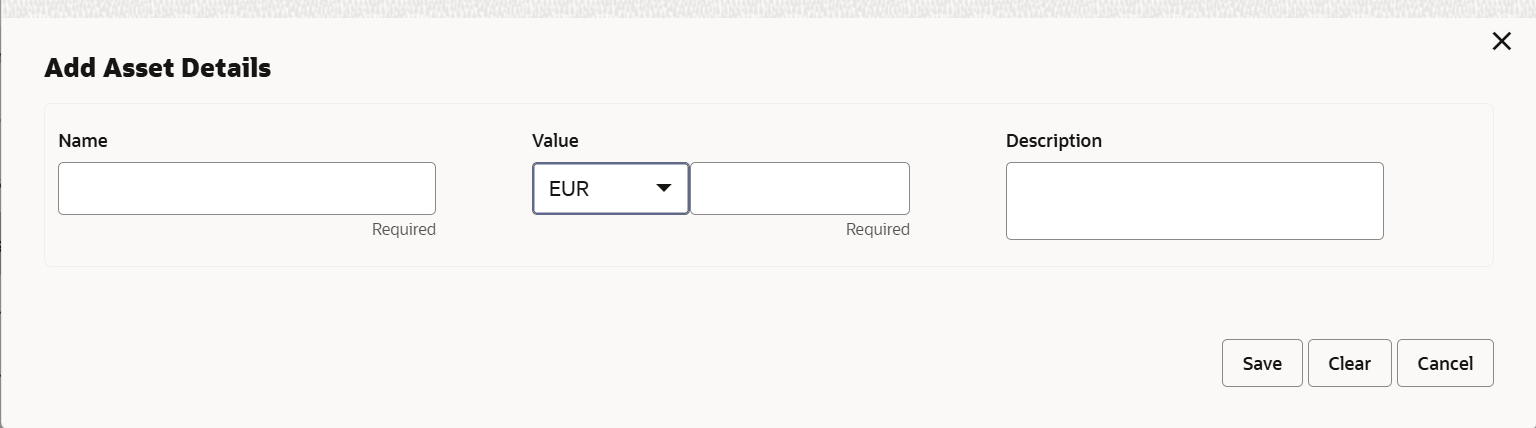
and then click Add.The Assets window is displayed.
For information on fields in the Assets screen, refer the below table.
Table 3-14 Assets
Fields Description Name Type the Name of the Asset. Currency Search and select the Currency for the asset value. Value Specify the asset Value. Description Type the asset Description. Add Click Add. Asset details are added. Note:
To Edit, Delete or View the added Assets. click the hamburger icon in the required list item and select the required option. - To add covenant details, click Customer Covenants from the left
menu.The following screen is displayed.
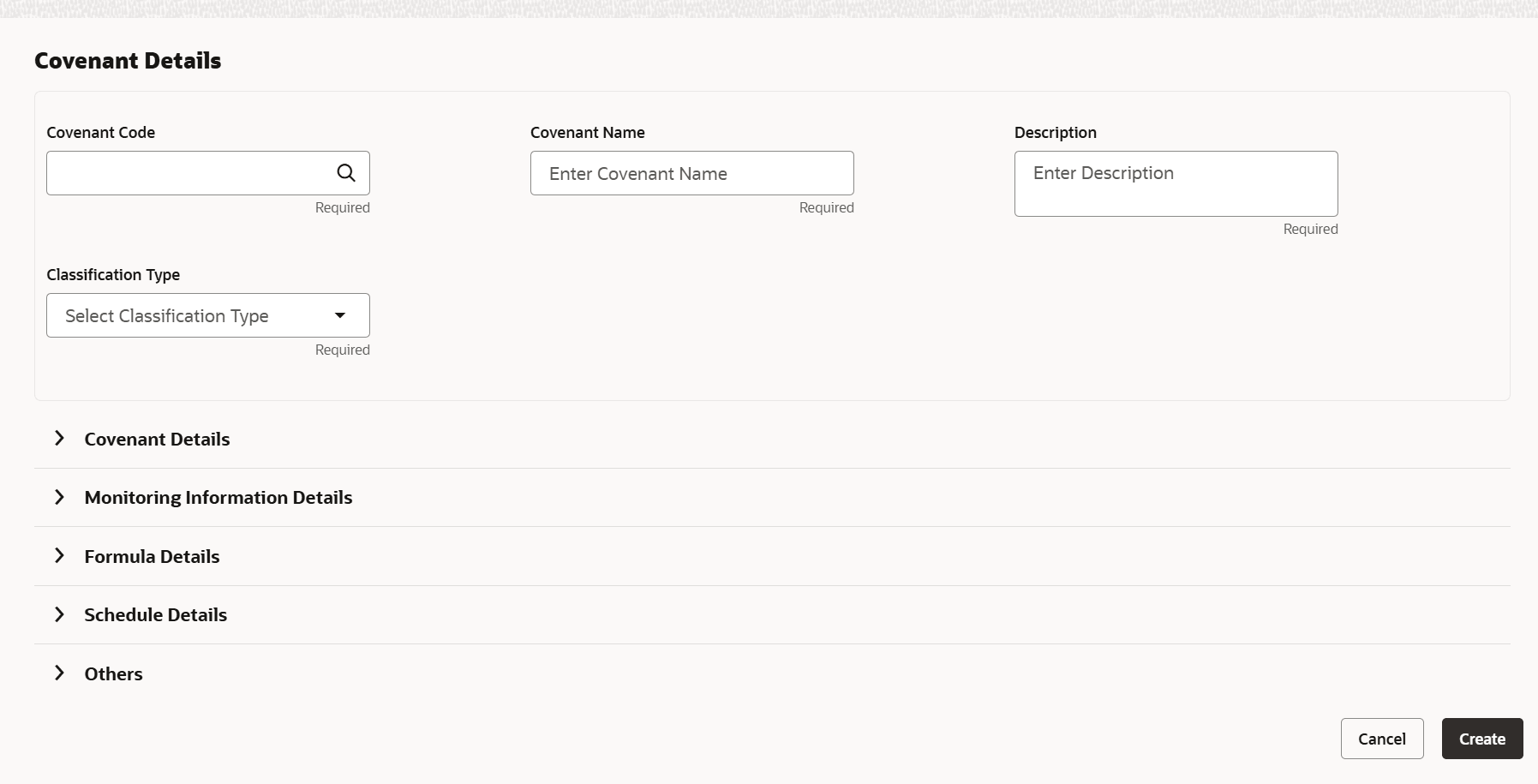
- Click the add icon. The Covenant Details window is displayed.
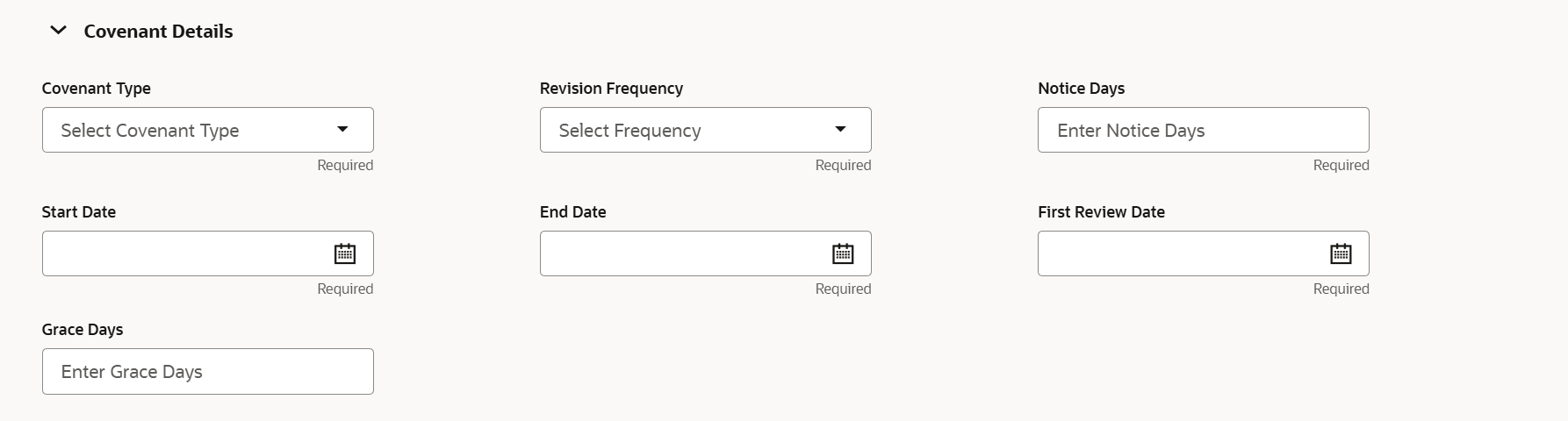
- Click and expand the Covenant details section.
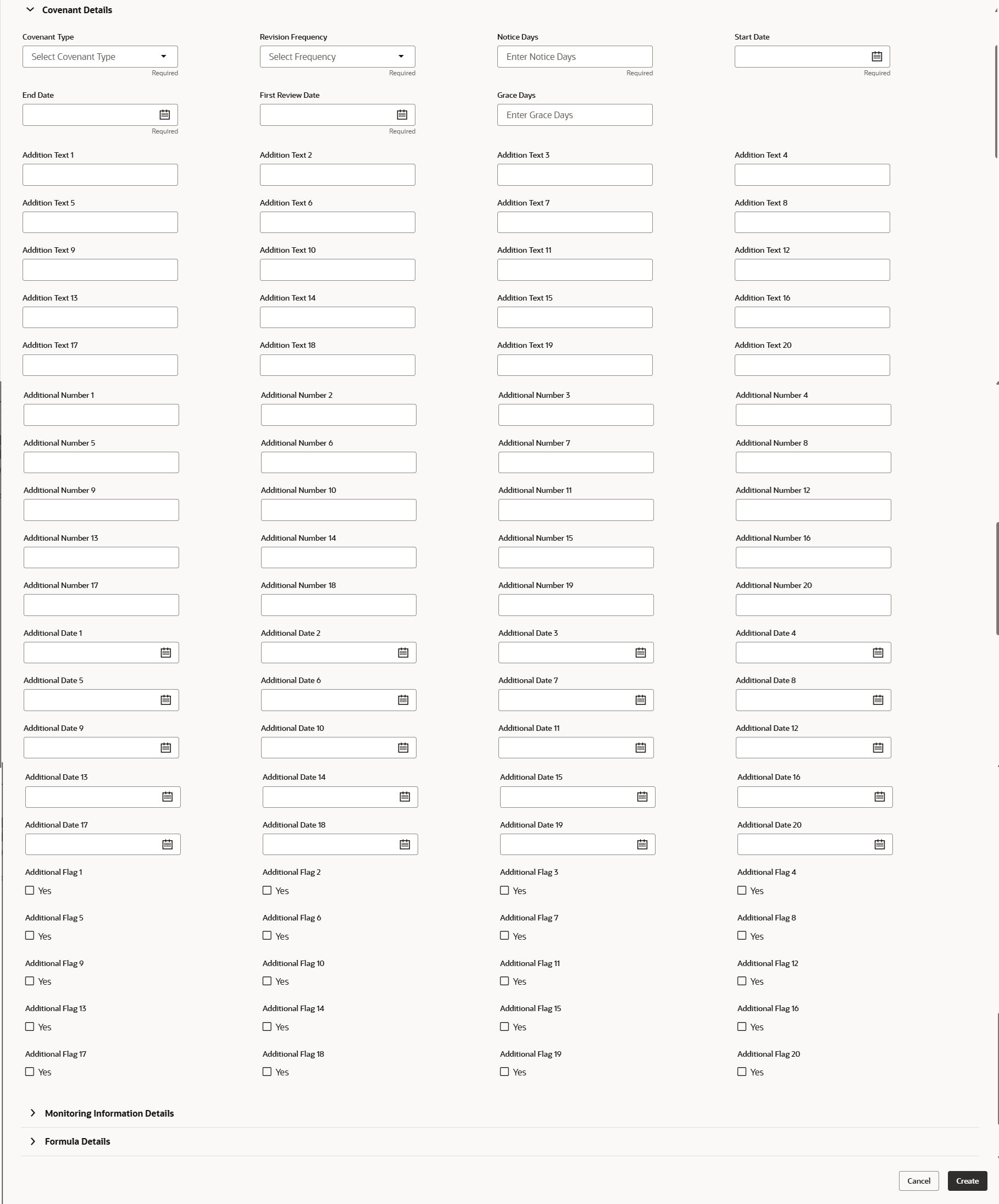
For process Covenant Details, user can set up extra placeholder fields in the Maintenance screen. For more information on managing these placeholders, refer to the Maintenance User Manual.
The system supports configuration of up to 20 fields each for the following data types:- Text
- Numeric
- Boolean
- Date
Each field type allows a minimum of 0 and a maximum of 20 fields per Covenant details, based on the requirements. These fields displays in the Covenant Details screen only if they are configured. If no additional fields are defined, the screen will display only the standard covenant details fields.
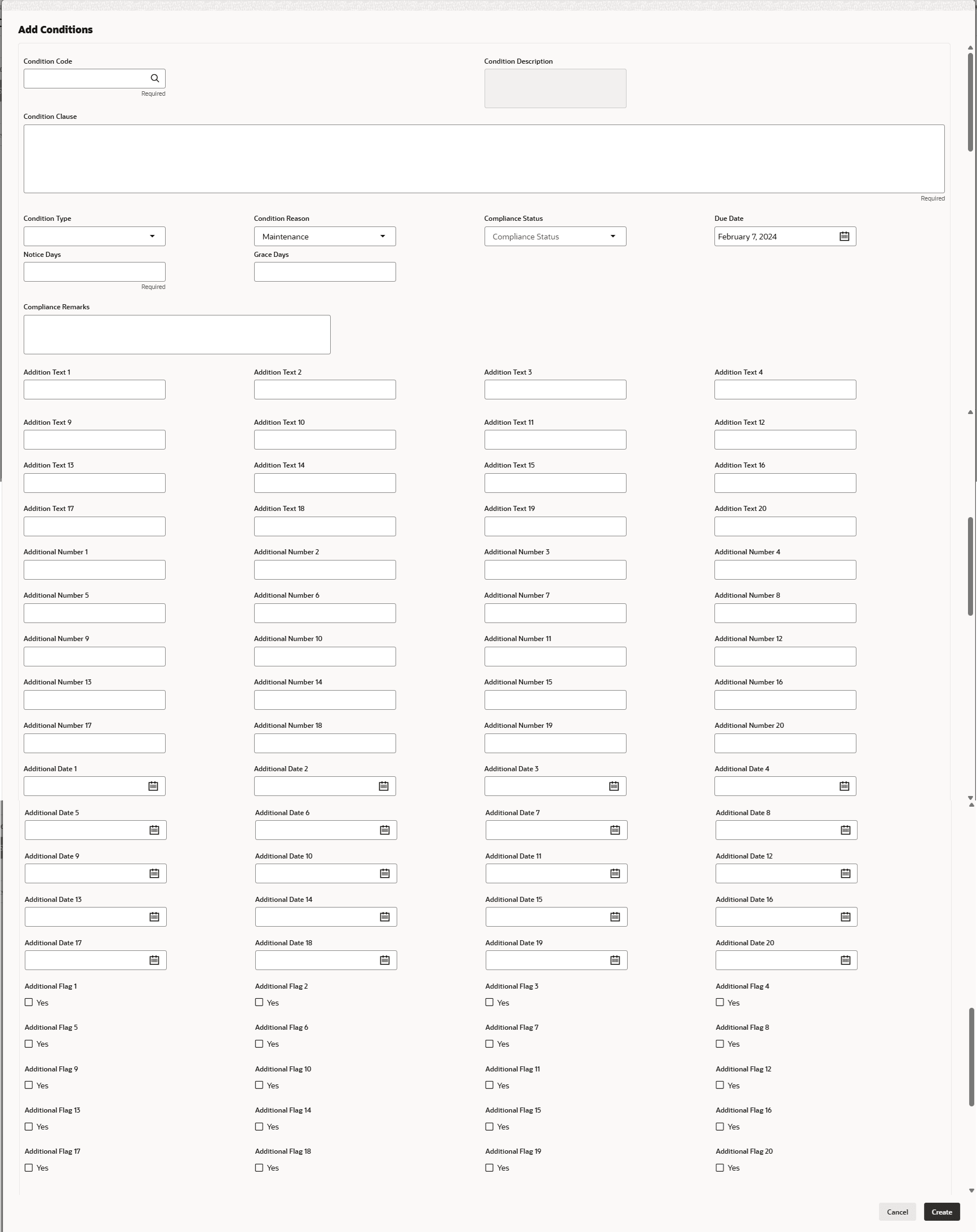
For example, we maintained 20 additional fields each for text, numeric, boolean, and date.
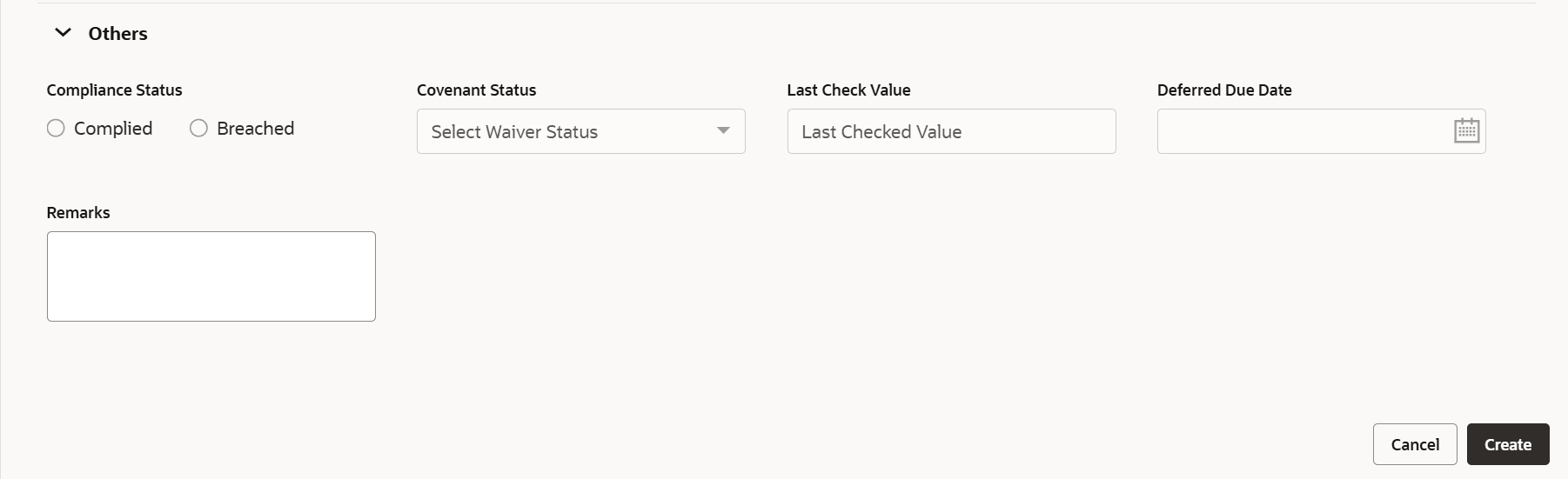
The Covenant Details screen displays. - Click and expand the Others section.
- To capture the monitoring information for the covenant, click and expand the
Monitoring Information Details section.
Figure 3-29 Monitoring Information Details
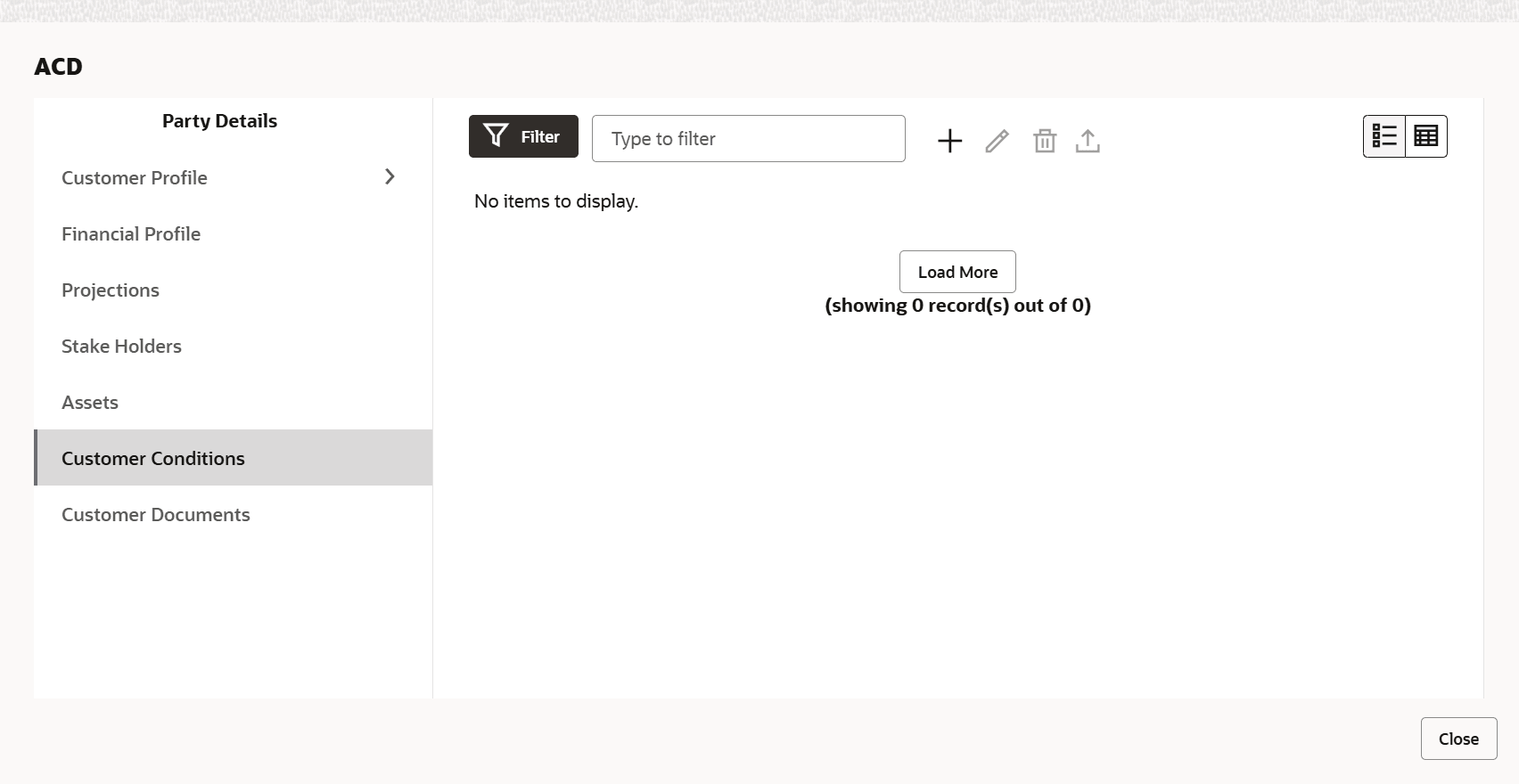
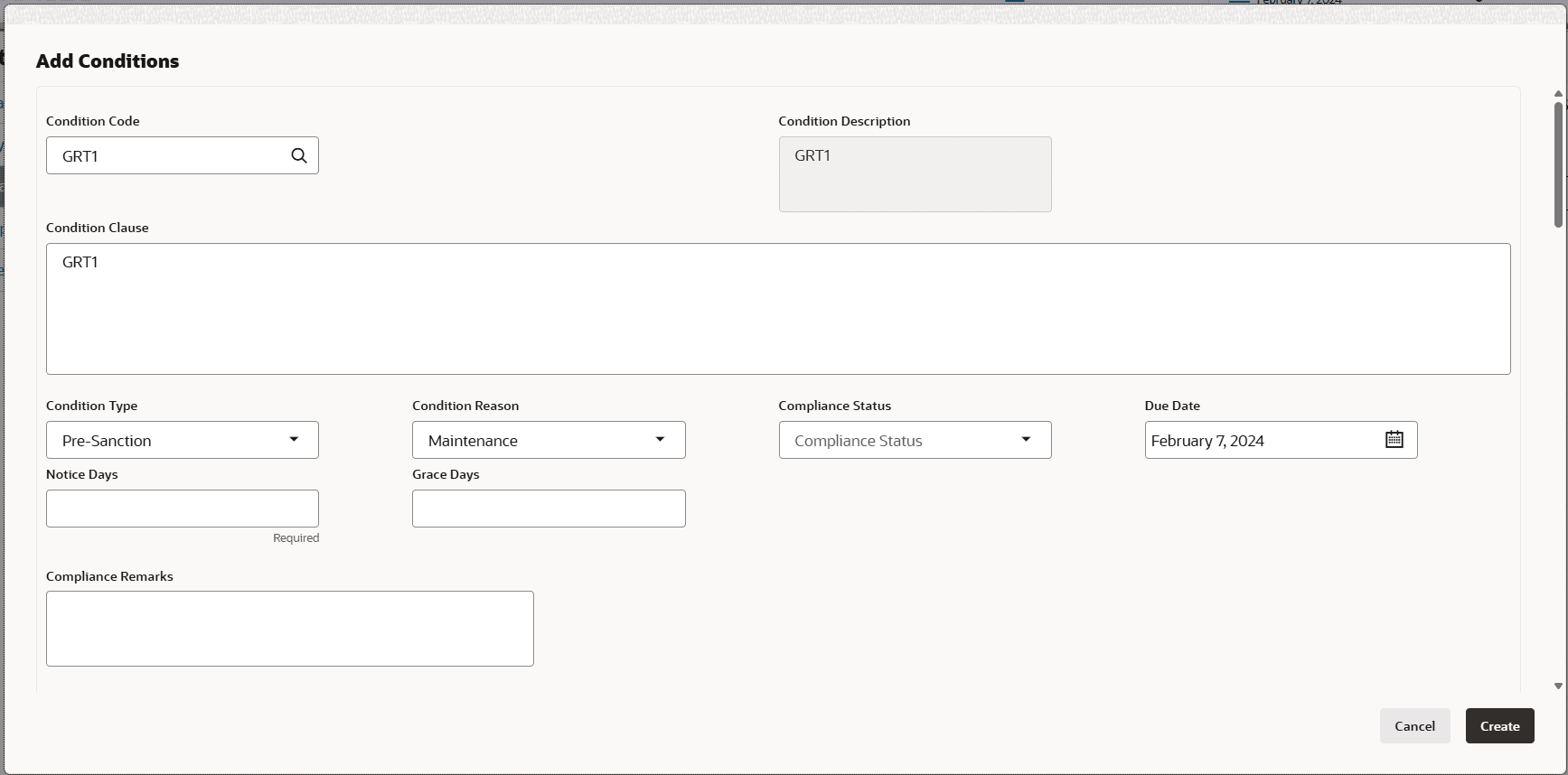
- To configure conditions for the customer, click Customer
Terms & Condition in the left menu and then click Add. The Add Conditions window is displayed.For process Conditions Details, user can set up extra placeholder fields in the Maintenance screen. For more information on managing these placeholders, refer to the Maintenance User Manual. The system supports configuration of up to 20 fields each for the following data types:
- Text
- Numeric
- Boolean
- Date
Each field type allows a minimum of 0 and a maximum of 20 fields per Conditions details, based on the requirements. These fields displays in the Conditions Details screen only if they are configured. If no additional fields are defined, the screen will display only the standard Conditions details fields. For example, we maintained 20 additional fields each for text, numeric, boolean, and date.
The Add Conditions screen displays. - If the Customer Linkage switch is not enabled, the Facility Id
field appears as shown below: For information on fields in the Add Conditions screen, refer the below table.
Table 3-15 Add Conditions
Fields/ Icons Description Conditions Code Search and Select Conditions Code. Conditions Description and Conditions are defaulted based on the selected Conditions code. Conditions Description Display the Conditions description. The Conditions description will be defaulted from Conditions maintenance based on the selected Conditions Code and cannot be modified. Conditions Clause Specify the Conditions clause. This field defaulted based on the selected Conditions code. The user can input up to 250 characters. Notice Days Specify the number of notice days are the number of days before the Due date of a Conditions for the Conditions tracking. Grace Days Specify the grace days. The user must update the compliance status within grace days after the due date. If not complied, the status will be marked as breached and the compliance date will be updated to the current date during the end-of-day process using the batch “tncTrackingOverdueBreachJob”. Conditions Type Click Create. Conditions are linked to the party and displayed in the Conditions tab. Cancel Conditions Type is defaulted based on selected Conditions code. The options available are: • Pre-disbursement
• Post-disbursement
• Pre-SanctionCompliance Status Select Compliance Status from drop-down list. The options available are:
• Met
• BreachedDue Date Select the due date. Compliance Remarks Enter Compliance Remarks, if required. Customer Linkage Customer Linkage details are displayed by default based on selected Conditions code. Create Click Create. Conditions are linked to the party and displayed in the Conditions tab. Cancel Click the Cancel to cancel and exist the screen. Note:
To filter the required information, click the filter icon and provide the filter parameters or directly type first three characters of the parameter in Type to filter text box.To view, edit, or delete a list item, click the hamburger icon in the required list item and select the required option.
To change the list view to chart view, click the Chart view icon.
Note:
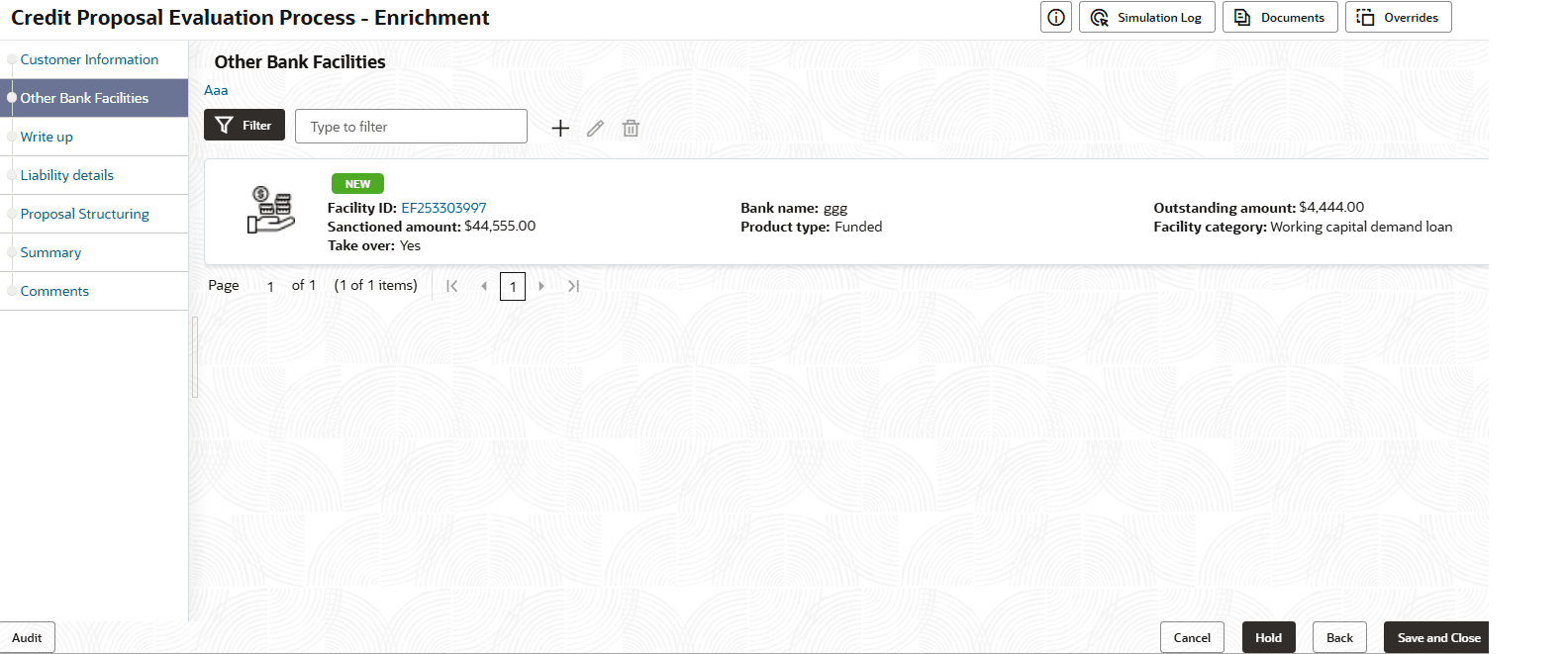
For information on adding Exposures detail, refer Economic Dependency Analysis User Manual. - To go to the next page, click Next. Existing Facilities page with
existing facilities details added in simplified CPEP displayed.
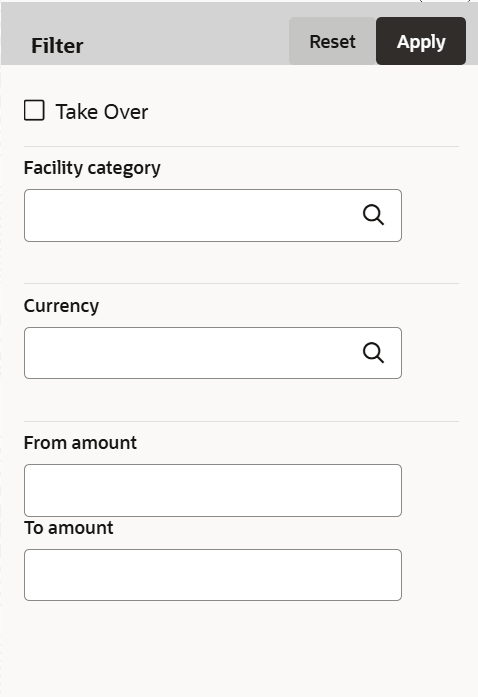
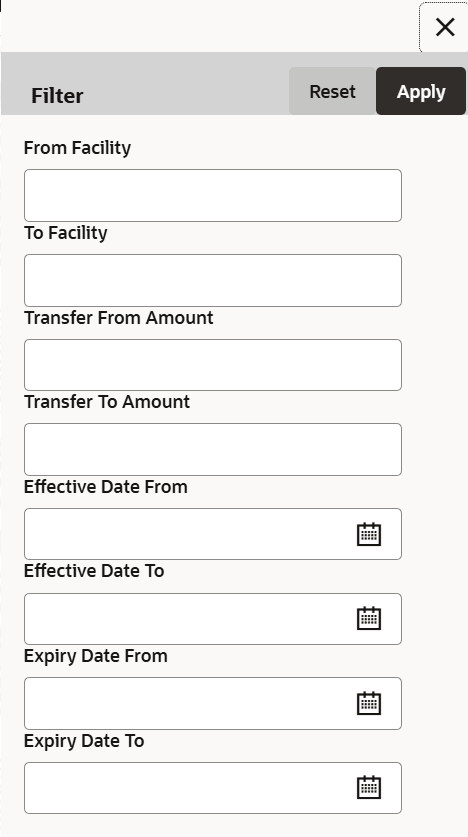
- To filter the required facility from all the available existing facilities,
click Filter button. The Filter window is displayed.
- To go to the next page, click Next. Groupwise Exposure page with
exposure details added in Simplified CPEP displayed.
- To filter the required groupwise exposure from the list, click Filter
button. The Filter window is displayed.
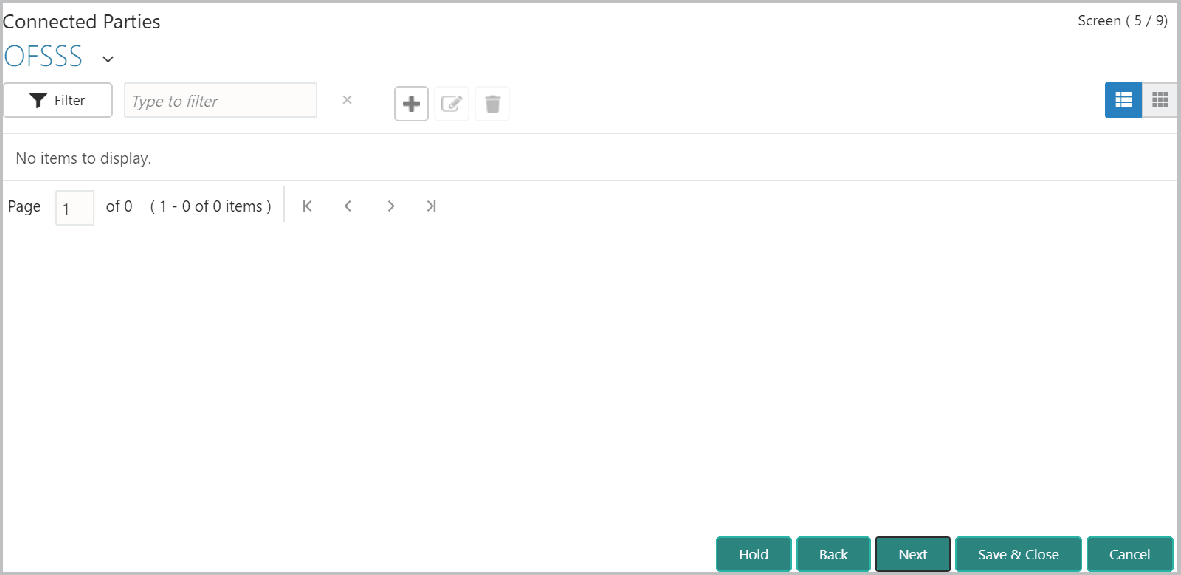
- To go to the next page, click Next. Connected Parties page with details
added in Simplified CPEP displayed.
Figure 3-37 Initiation - Connected Parties
- To filter the required connected party from the list, click Filter
button. Then Filter window is displayed.
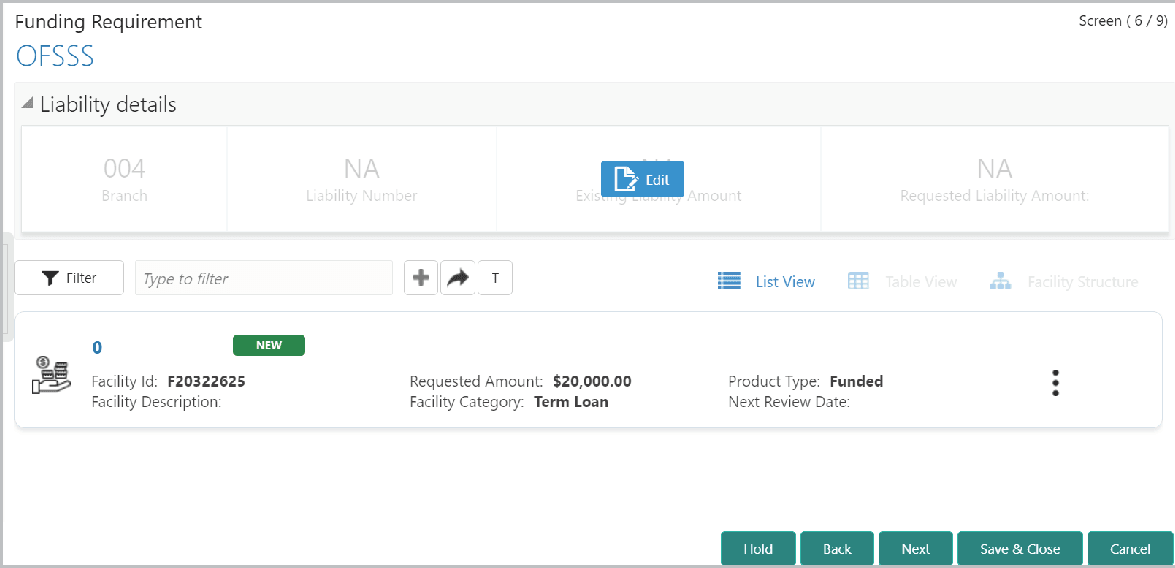
- To go to the next page, click Next.The Funding Requirement page is displayed.
Figure 3-39 Initiation - Funding Requirement
- To filter the required facility from the list, click Filter button. The Filter window is displayed.
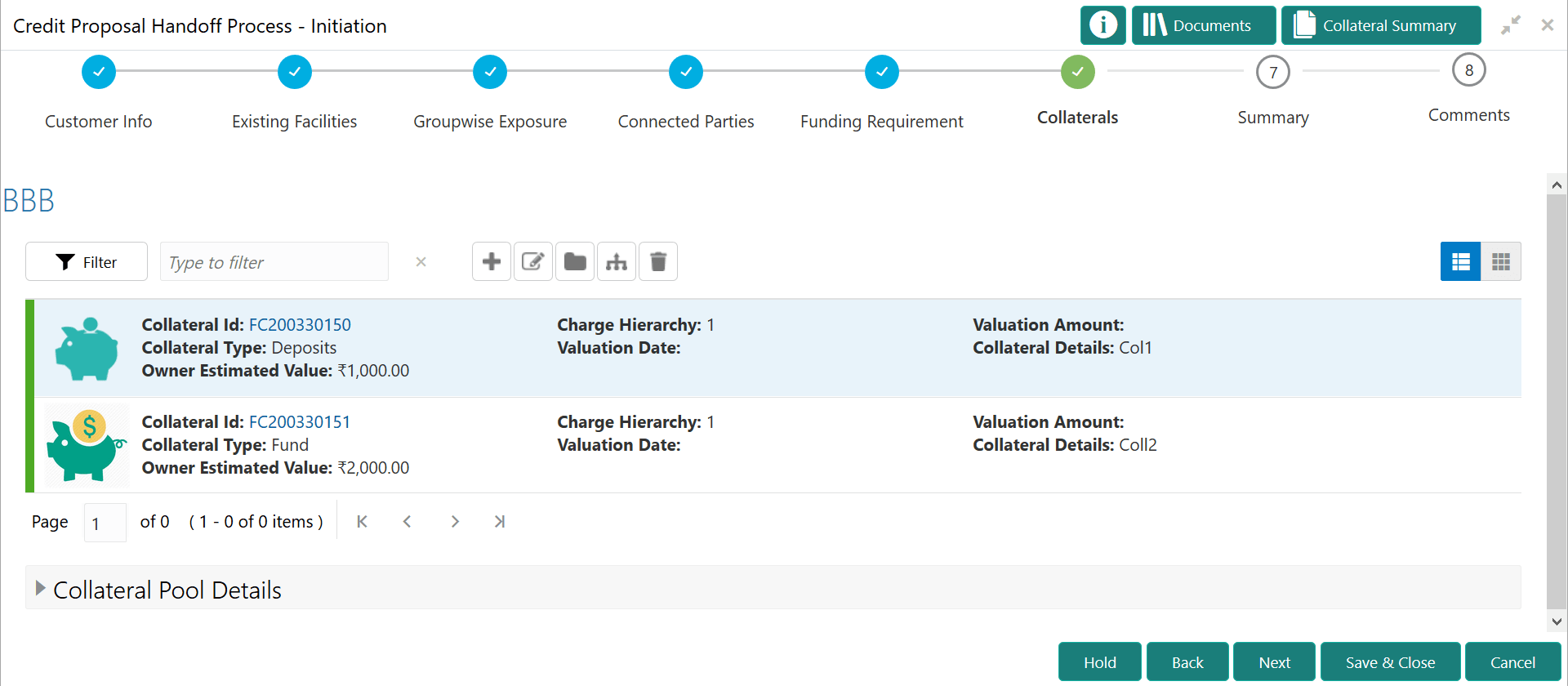
- To go to the next page, click Next. Collaterals page with collaterals
detail added in Simplified CPEP displayed.
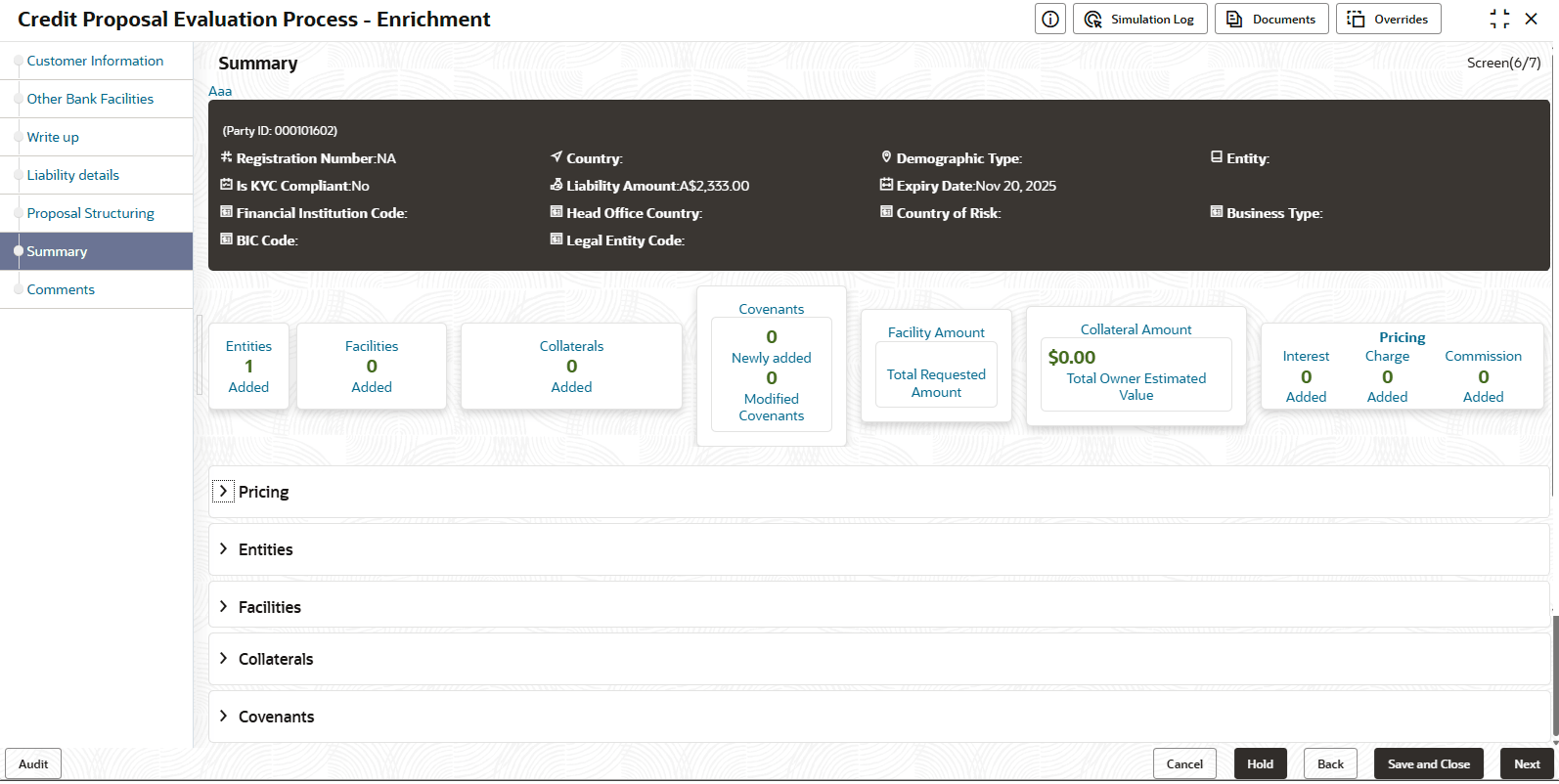
- To go to the next page, click Next. The Summary page is displayed.
The Summary page displays all the information about the evaluated proposal for easy verification.
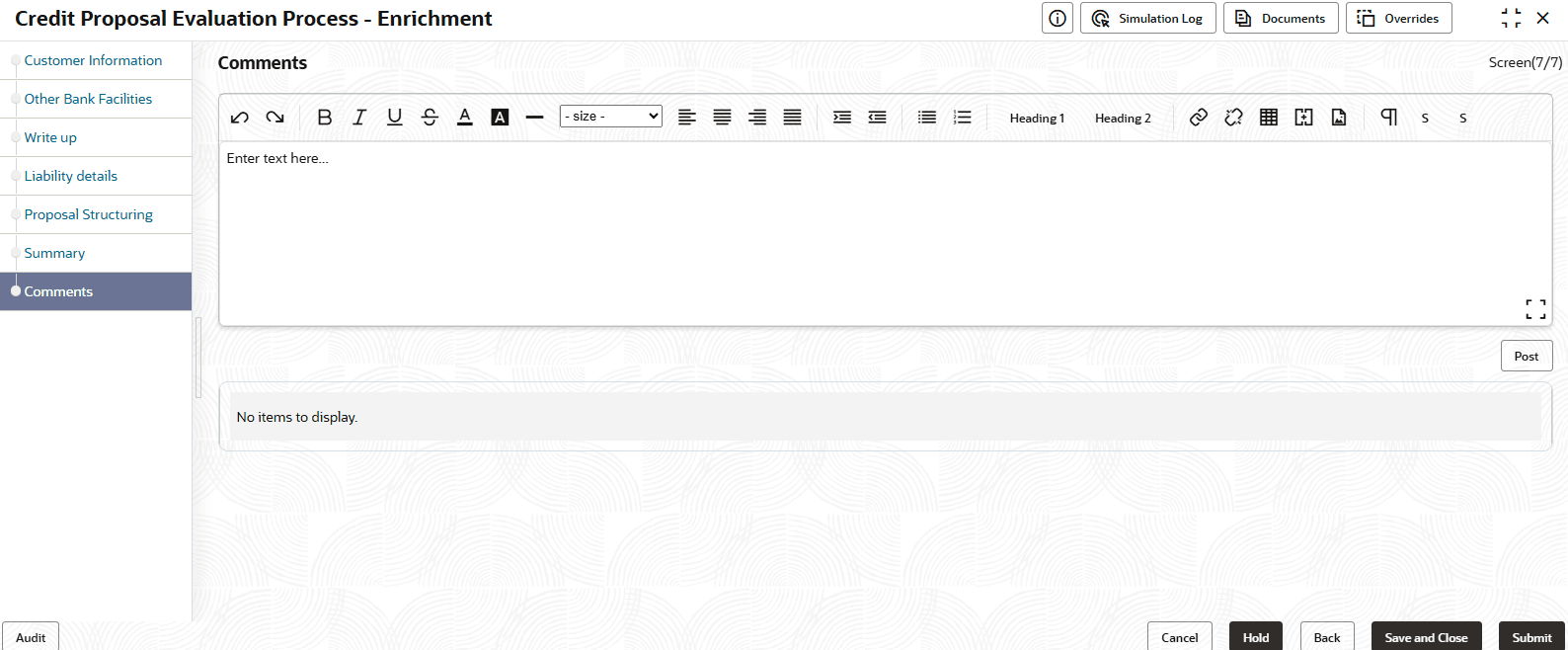
- To view the details in previous data segment, click Back.Upon clicking the Next button, Comments page is displayed.
The Comments page allows to capture the remarks for the overall process. Posted comments are displayed at the bottom of the page to enable the user in identifying the previous actions performed by them.
For information on fields in the Comments screen, refer the below table.
Table 3-16 Comments
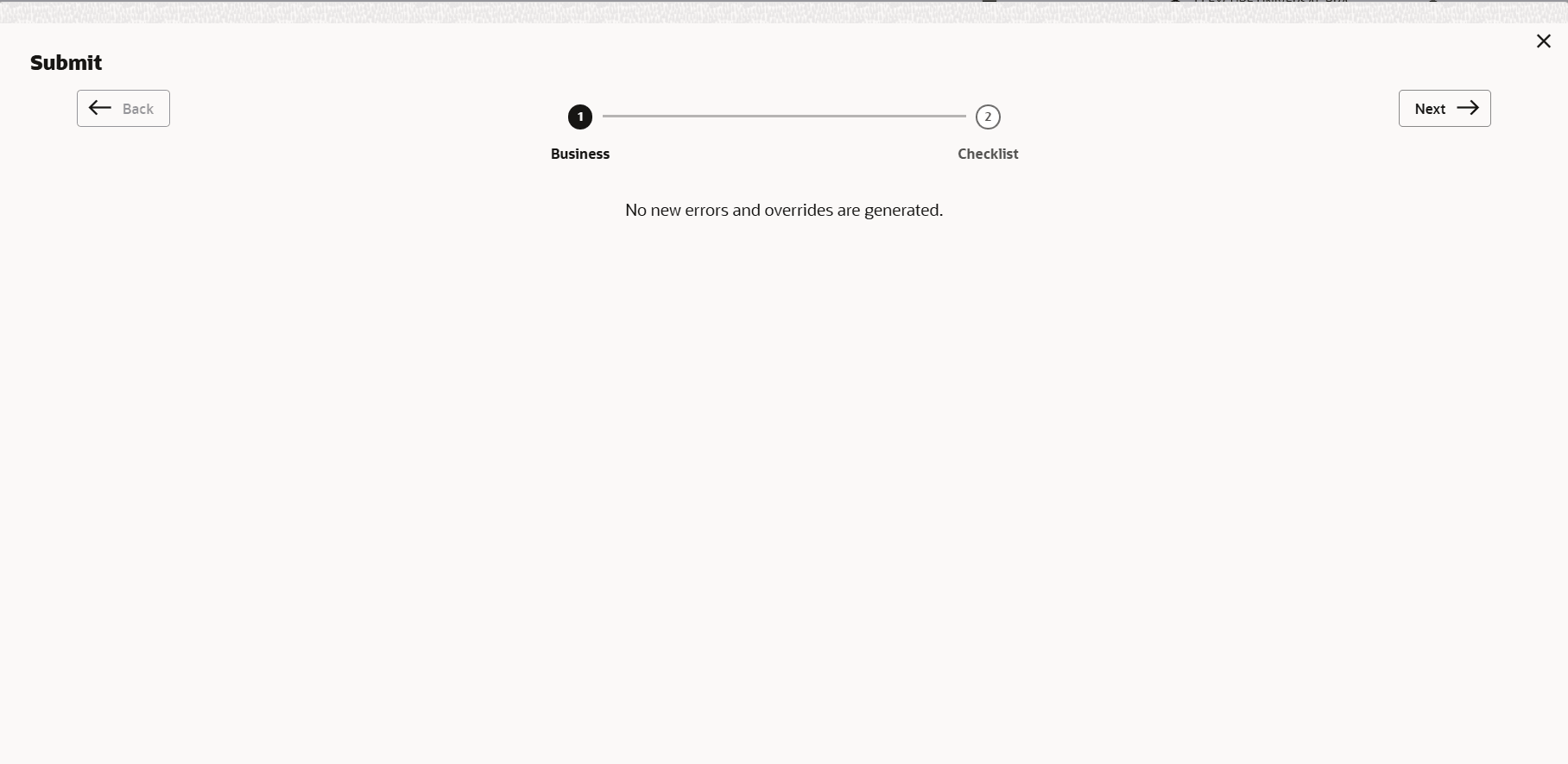
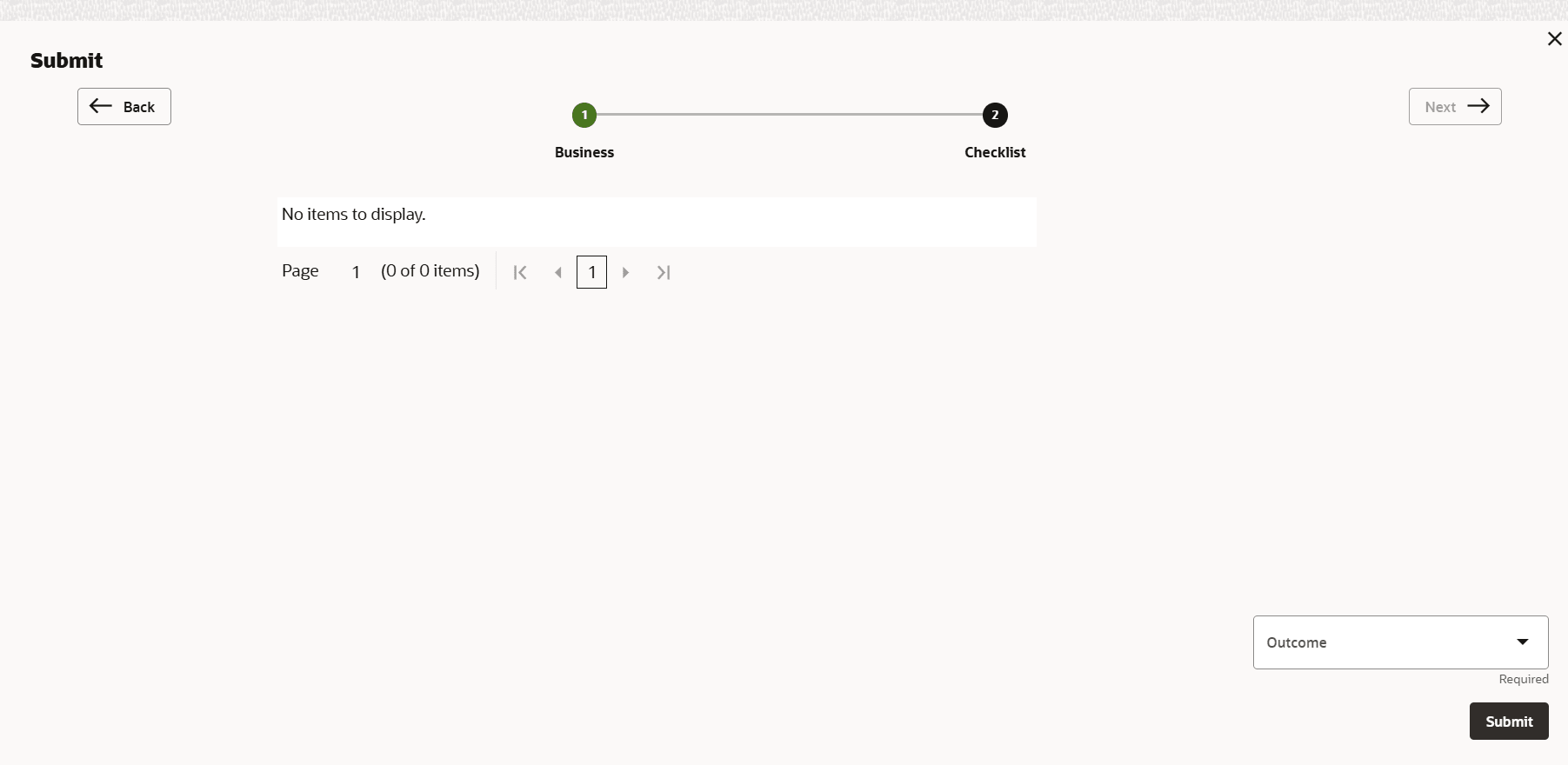
Fields Description Post Type the necessary comments in the text box and click Post. Comment is posted. Hold To hold the Simplified CPER process, click Hold. Back To go back to the previous page, click Back. Save & Close To save the process for future edit, click Save & Close. Submit To submit the proposal to validation stage, click Submit. Cancel To exit the task without saving the information, click Cancel. Upon clicking the Submit button, Policy exceptions window is disdplayed.
By default, policy exceptions are displayed for both the organization (party) and its child party.
- Click the Checklist data segment.

Write Up
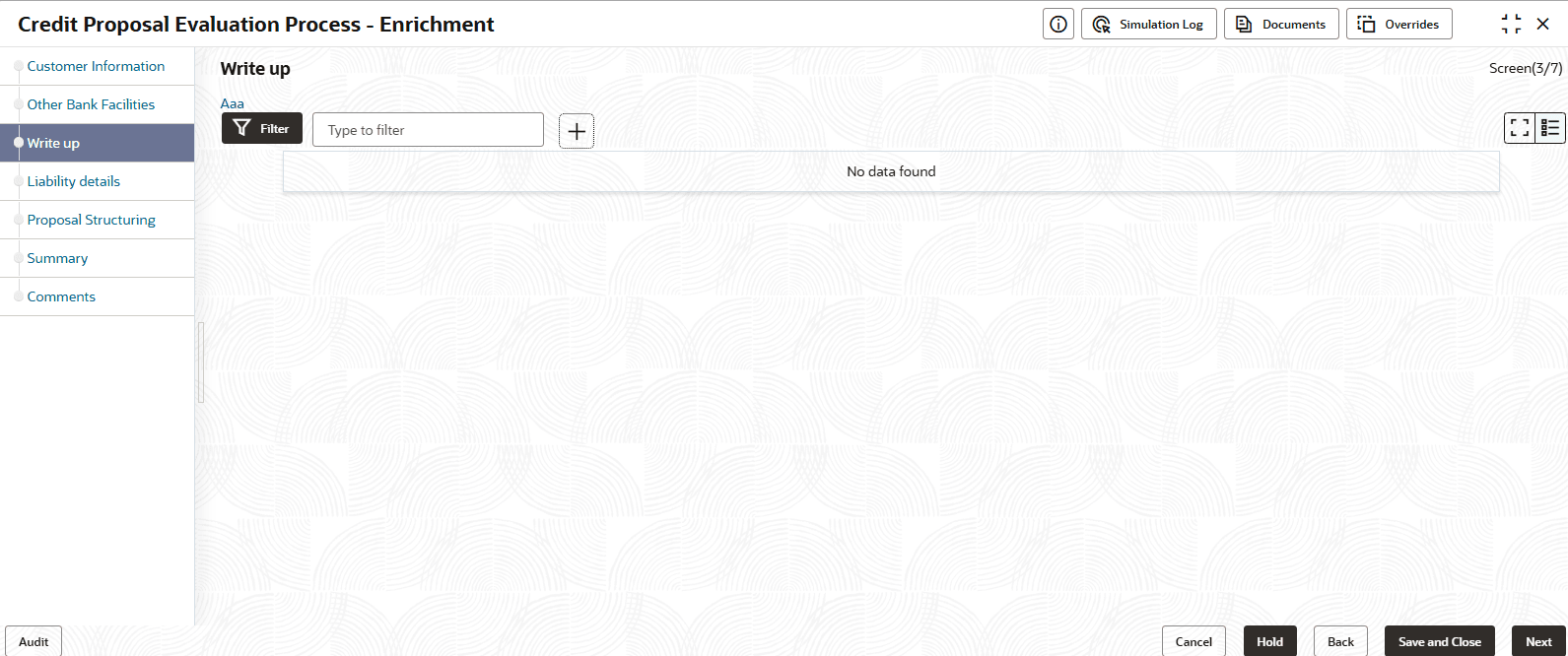
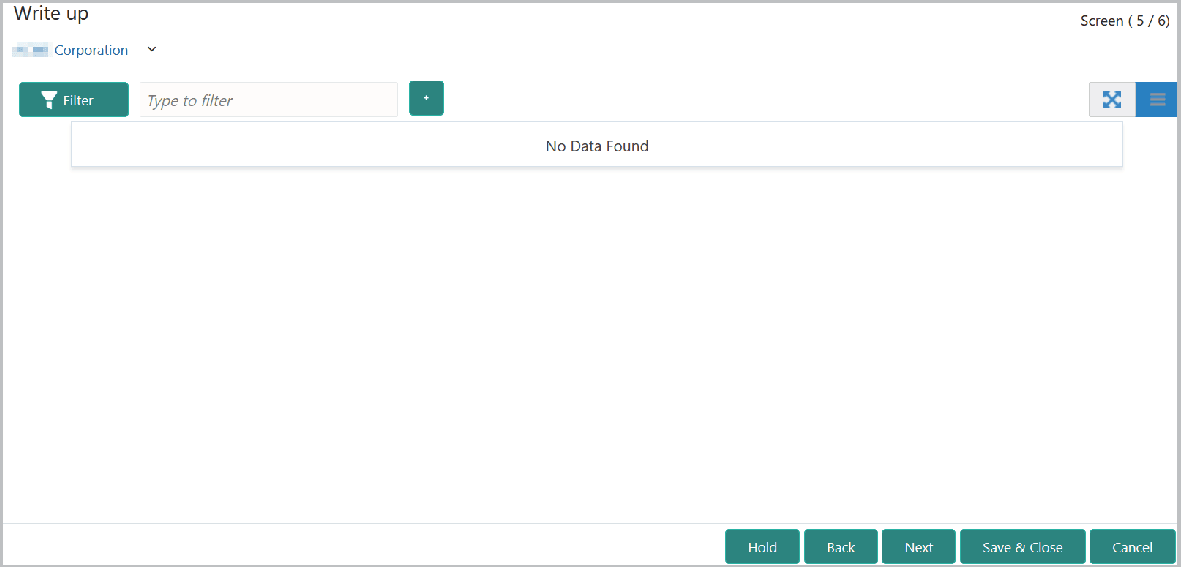
This data segment allows the user to add writeup for the customer and all their child parties in the available writeup categories. The history of writeup for the customer will be available to the users throughout the customer’s association with the bank.
Note:
Write up data segment appears only if that data segment is enabled in the Maintenance module.Figure 3-46 Write Up
Description of "Figure 3-46 Write Up"
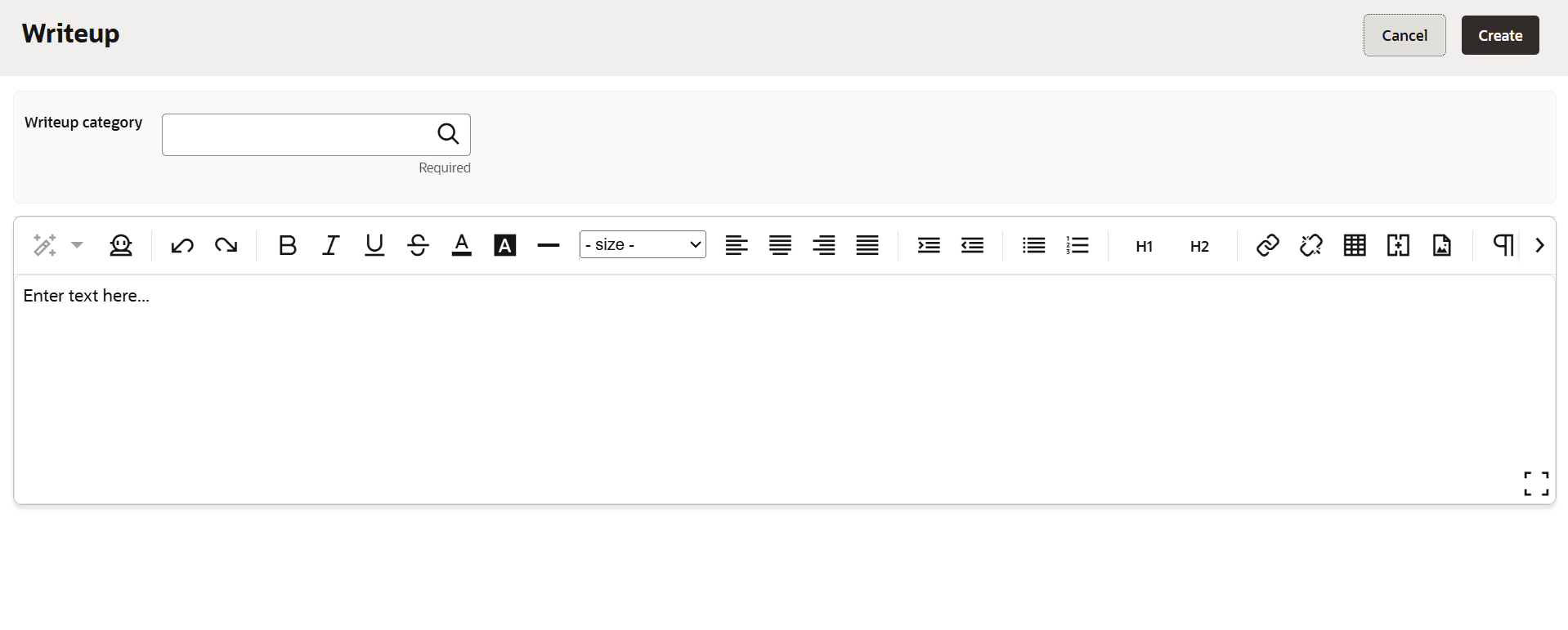
- Click the add icon. The Write Up window is displayed.
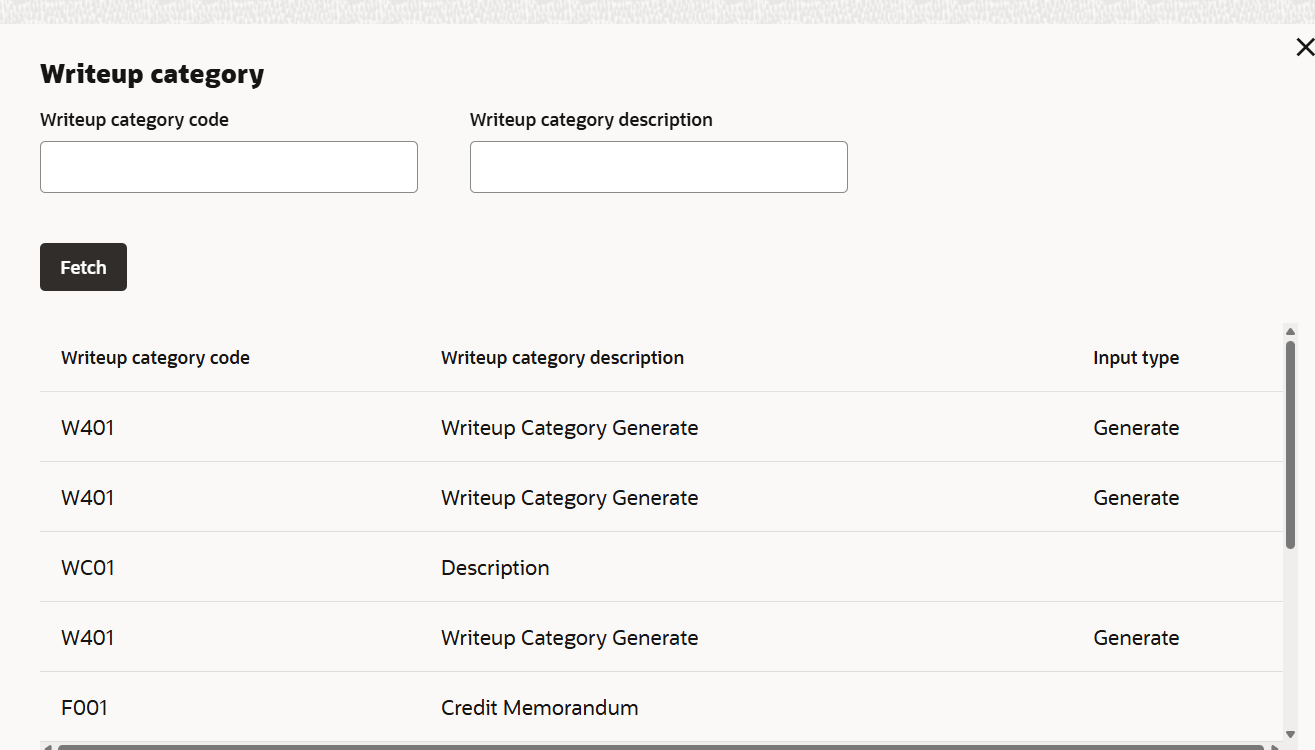
- Click the search icon in the Writeup Category field. The Fetch Writeup
Category window with the list of categories maintained in the Maintenance module
is displayed.
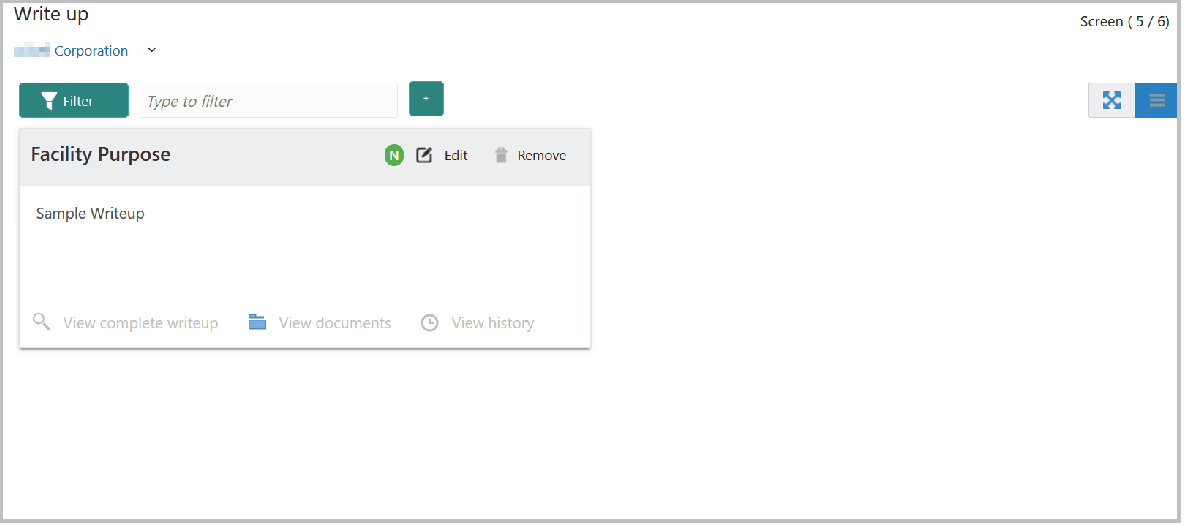
- Type the observations in the text box and click Create. The observations
are added in the Write Up page as shown below:
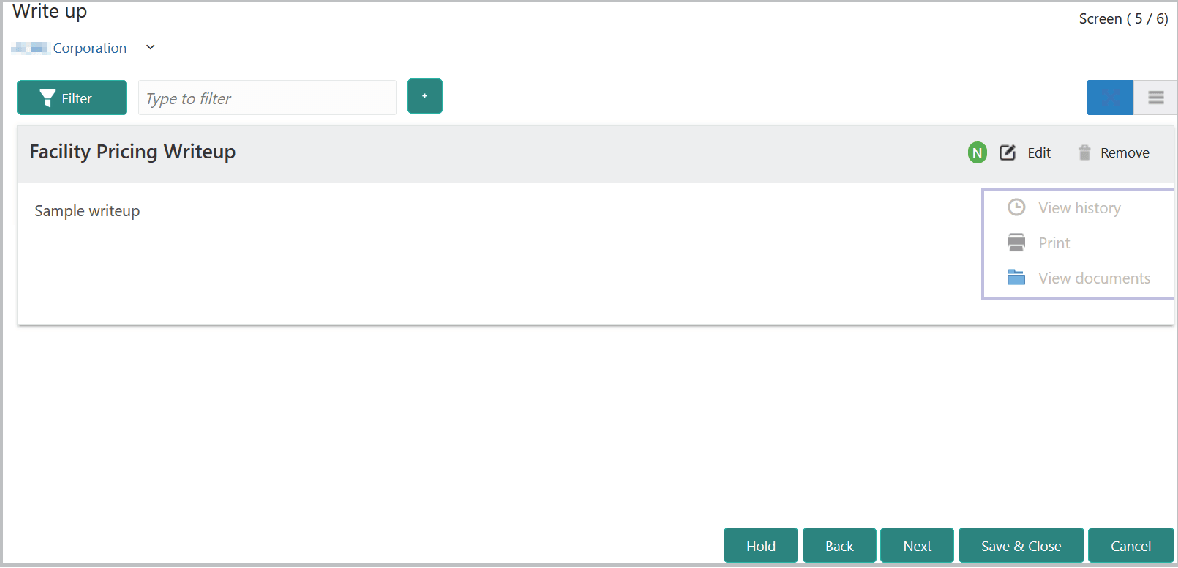
- To change the layout of Write up data segment to the expanded view,
click the Expanded View icon at the top right corner.The Write up is expanded as shown below:
For information on fields in the Write up screen, refer the below table.
Table 3-17 Write up field and description
Fields Description Edit To modify the writeup, click the Edit icon and change the information. Remove To delete the writeup, click the Remove icon. A confirmation message appears. Yes Click Yes. The writeup is removed. View history To view the writeup history, click the View history icon. Print To print the write up, click the Print icon. - To attach / view writeup related documents, click View Documents icon.
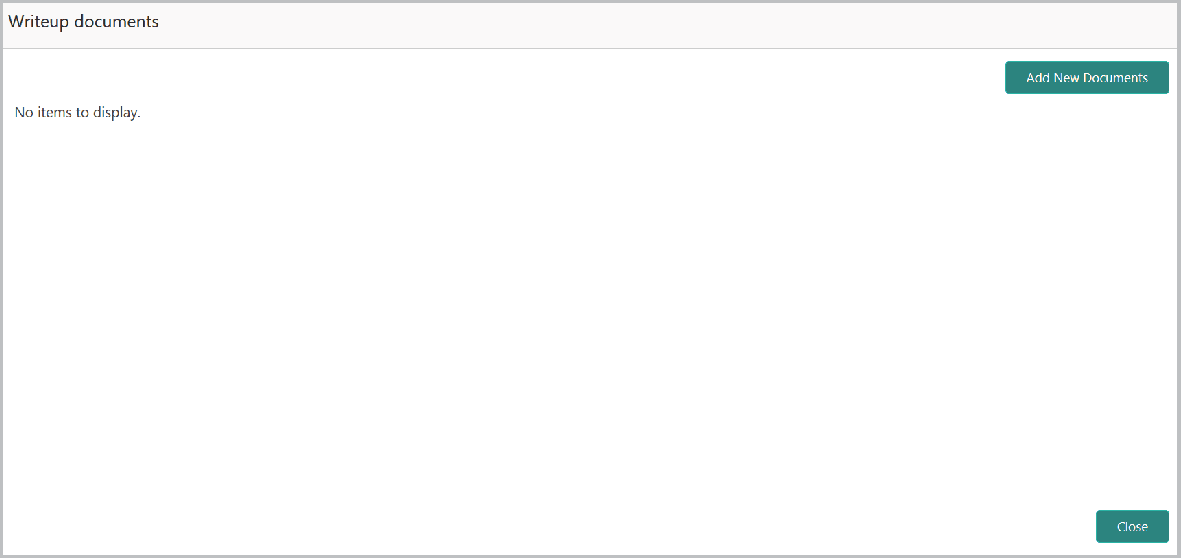
The following window appears:
For information on fields in the Writeup Documents screen, refer the below table.
Table 3-18 Writeup Documents
Fields Description Add New Documents. To add new documents, click Add New Documents. Close To exit the Writeup documents window, click Close. Next To go to the next page, click Next. The Groupwise Exposure page is displayed. This data segment allows to capture exposure details of the customers and their connected parties.
Figure 3-52 Groupwise Exposure
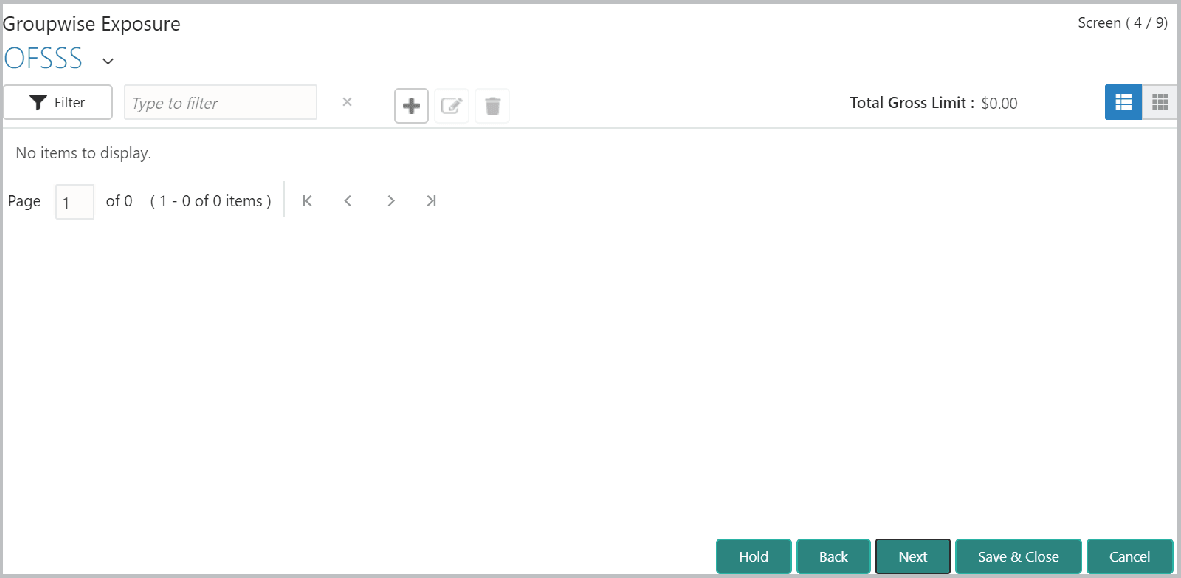
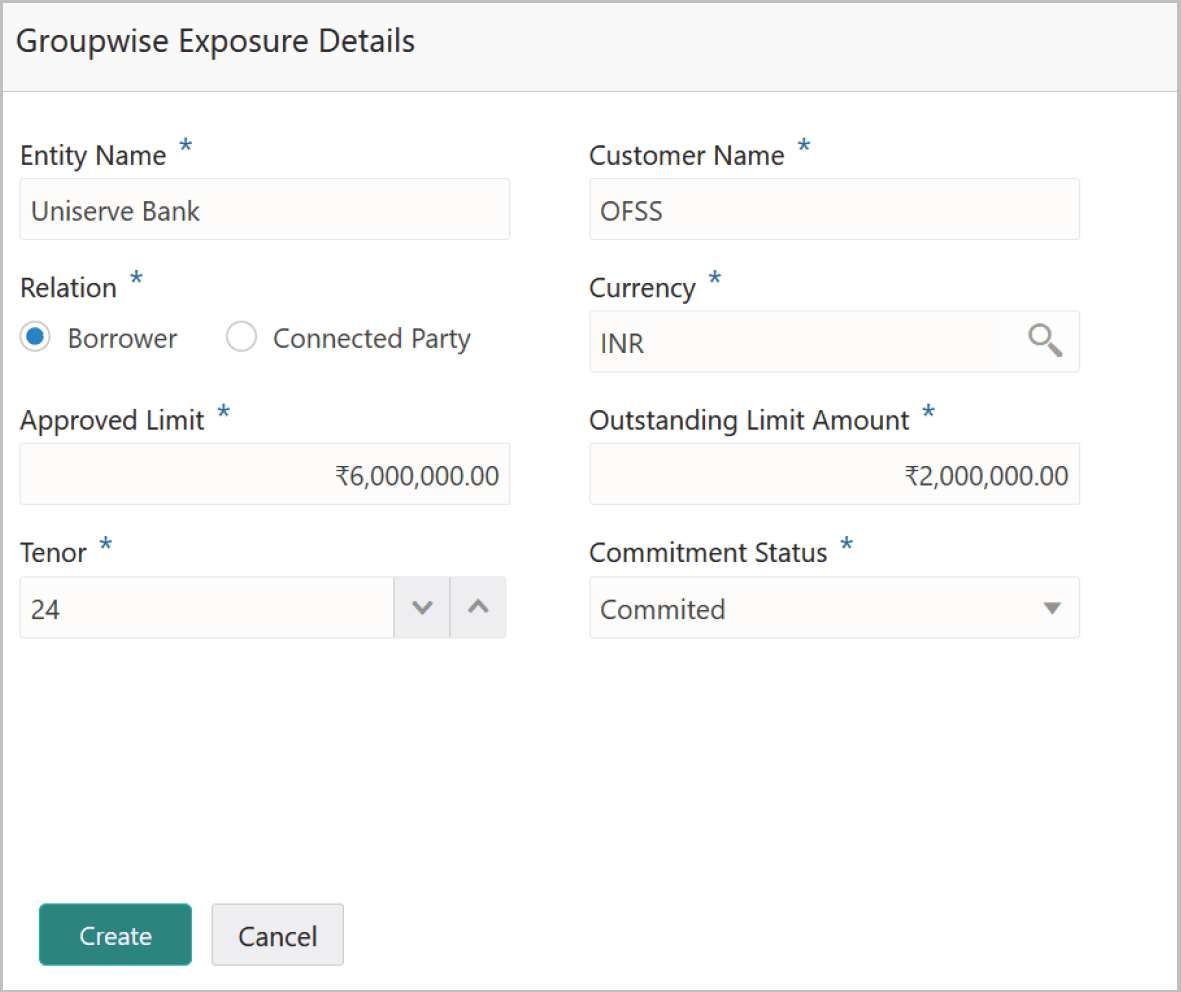
- Click the add icon. The Groupwise Exposure
Details window is displayed.
For information on fields in the Groupwise Exposure Details screen, refer the below table.
Table 3-19 Groupwise Exposure Details
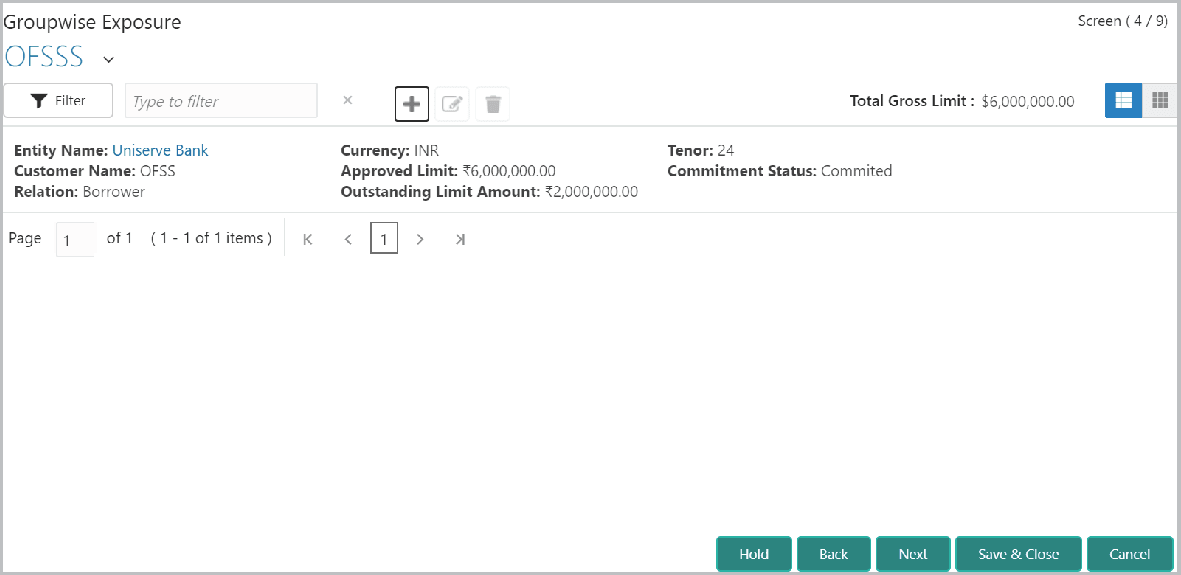
Fields Description Entity Name In Entity Name field, enter the name of bank from which the organization has availed facility. Customer Name In Customer Name field, enter the name of the party or the child party. Relation Select the Relation as Borrower, if party name is provided in the Customer Name field. If child party name is provided in the Customer Name field, select the Relation as Connected Party. Currency Search and select the Currency in which the facility is offered from the mentioned bank. Commitment Status Select the Commitment Status from the drop don list. The options available are Committed and Uncommitted. - Click Create. Groupwise exposure details are added and displayed as
shown below:
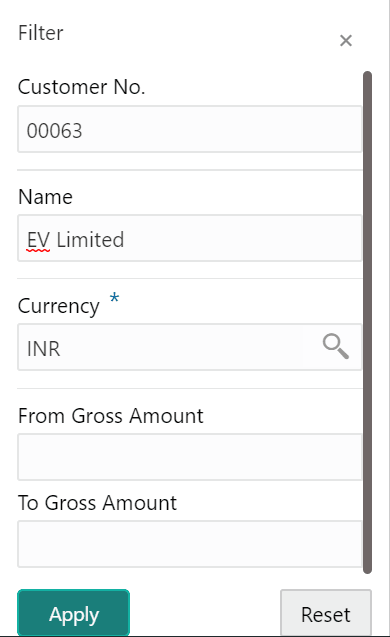
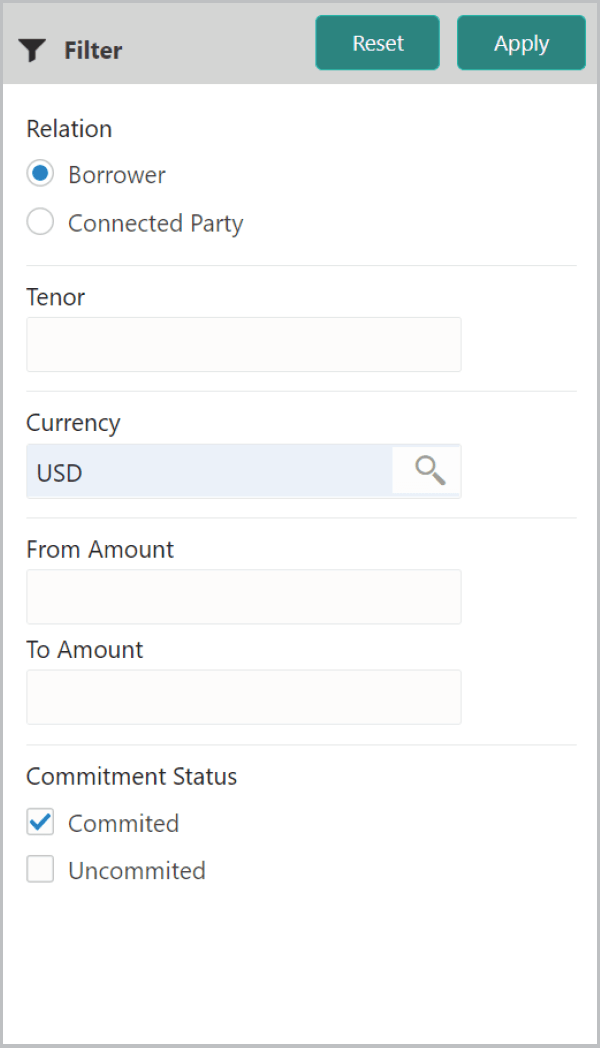
- To filter the required groupwise exposure from the list,
click Filter button. .The Filter window is displayed.
Figure 3-55 Filter
For information on fields in the Filter screen, refer the below table.
Table 3-20 Filter
Field Description Filter Type and / or select the filter parameters. Apply Click Apply. Existing groupwise exposure that matches the filter parameters are displayed. Type to filter To filter the groupwise exposure using single filter parameter, type the parameter directly in Type to filter text box. Note:
Minimum 3 characters need to be entered in the Type to filter text box to filter the groupwise exposure.Select To edit the groupwise exposure information, Select the required exposure from the list. Edit icon is enabled. Edit Click the Edit icon. Groupwise Exposure Details window appears. Save Modify the required information and click Save. Delete To delete the groupwise exposure information, Select the exposure and click Delete icon. - Add the groupwise exposure information of the customer and click Next.
Connected Parties page appears.
If the party’s connected party is already linked with your bank, the connected party information can be added during proposal initiation.
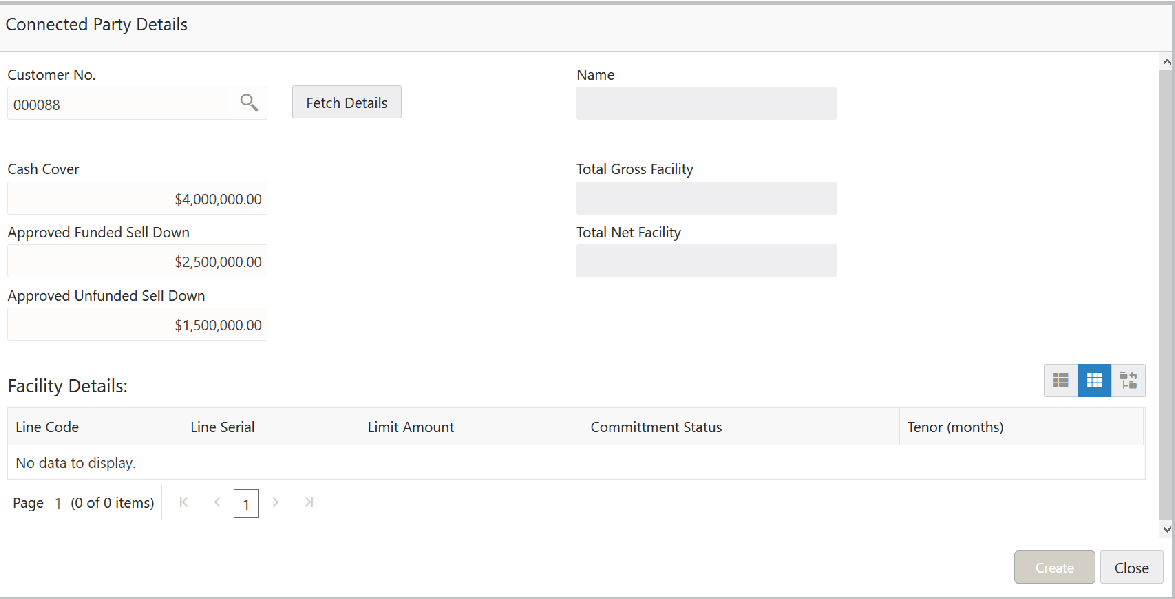
- Click the add icon.The Connected Parties Details window appears.
For information on fields in the Connected Parties Details screen, refer the below table.
Table 3-21 Connected Parties Details
Fields Description Customer No Search and select the Customer No of the connected party. Fetch Details Click Fetch Details. Following details about the connected party are fetched and displayed: - Name
- Total Gross Facility
- Total Net Facility
- Cash Cover
- Approved Funded Sell Down
- Approved Unfunded Sell Down
- Facility Details
Facility Details To change the view of Facility Details, click the required icon from List View, Table View and Tree View icons. Create Click Create. Connected party details are added and displayed in the Connected Parties page. List view To change the table view to list view, click the List view icon at the right corner. Note: If the organization has more than one connected party in your bank, add all the connected parties details by clicking add icon again.
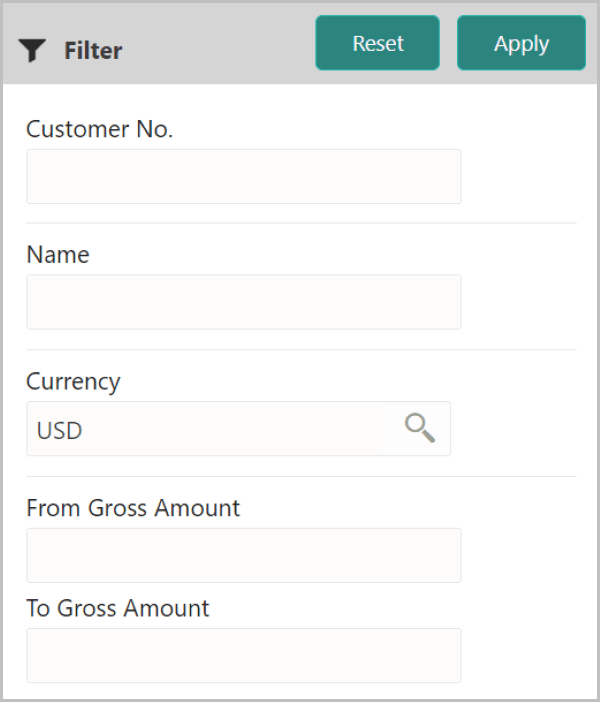
- To filter the required connected party from the list, click Filter
button.The Filter screen is displayed.
For information on fields in the Filter details screen, refer the below table.
Table 3-22 Filter
Fields Description Filter Type and / or select the Filter parameters. Apply Click Apply. Connected parties that matches the filter parameters are displayed. Type to filter To filter the connected parties using single filter parameter, type the parameter directly in Type to filter text box. Note: Minimum 3 characters need to be entered in the Type to filter text box to filter the connected parties.
Select To edit the connected party details, Select the required party from the list. Edit icon is enabled. Edit Click the Edit icon. Connected Party Details window appears. Save Modify the required information and click Save. Select To delete the connected party, Select the party and click delete icon. Customer list To add connected party details of the organization’s customer, click the arrow next to the organization name in the top left corner. Customer list appears. Required customer Select the Required customer. Connected Parties - [organization name] > [customer name] page appears. Next Add the connected party details of the customer and click Next. The Funding Requirement page is displayed. Funding Requirement
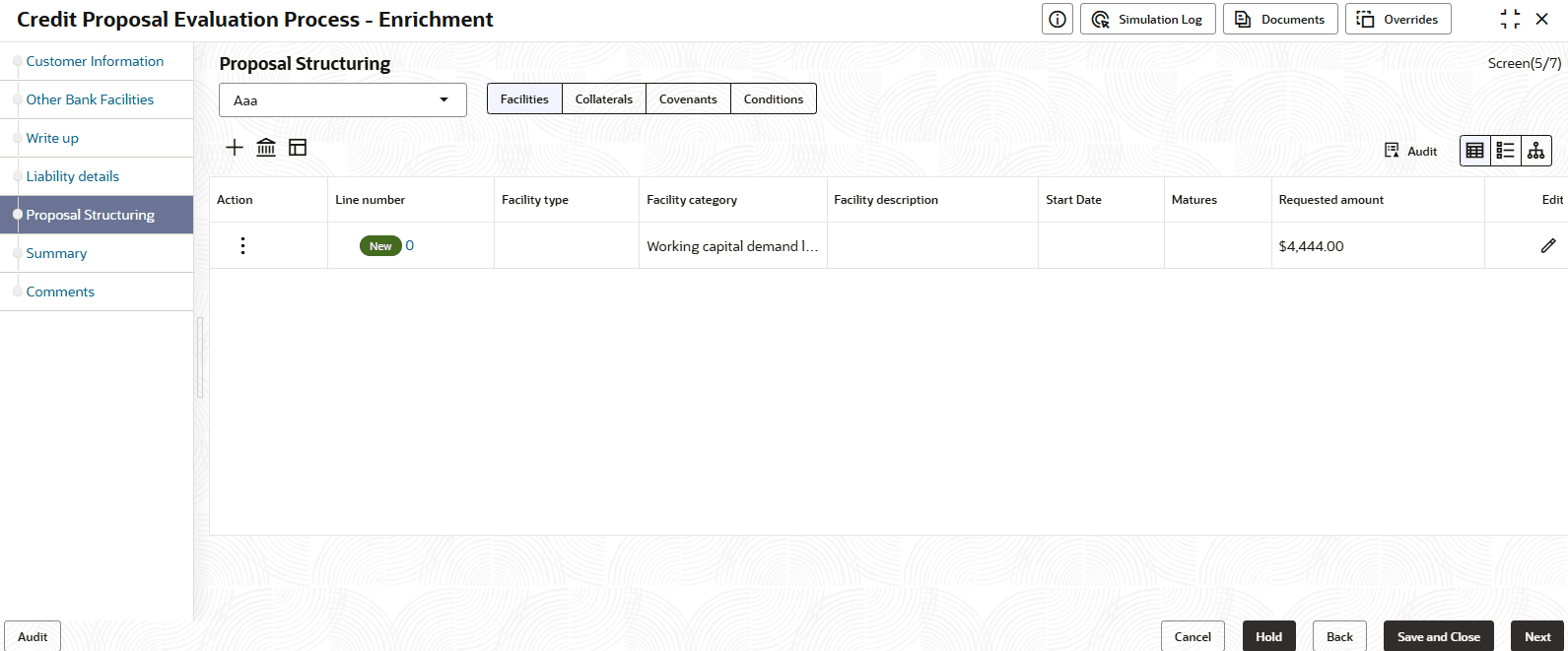
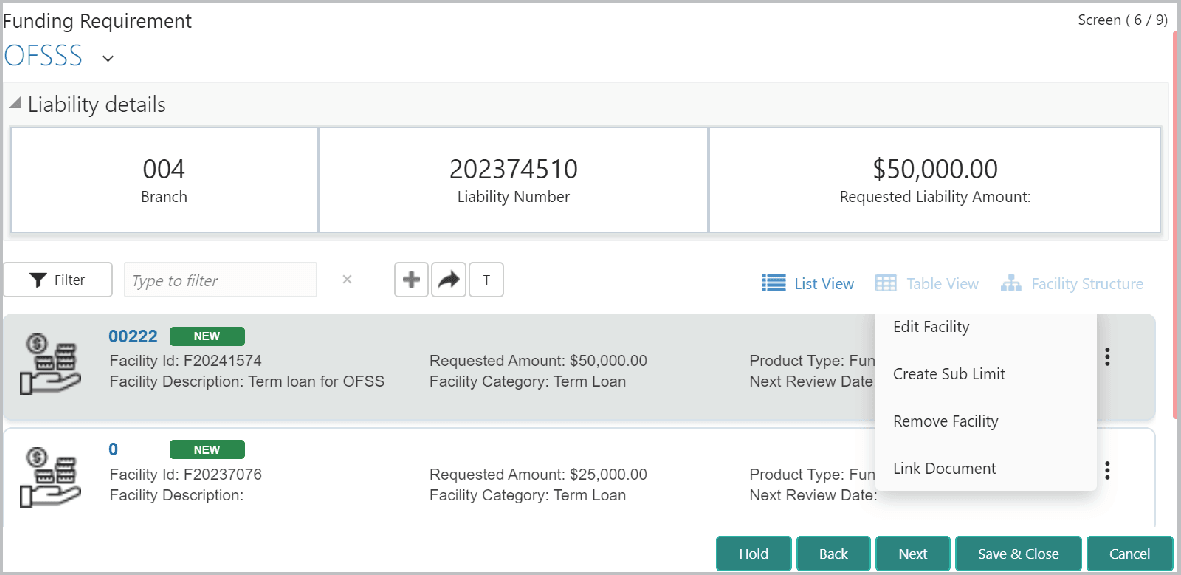
You can capture the funding requirement of your customer (party) in this data segment by adding a facility for the party. If all the details are available, it can be captured in this stage. Otherwise, the details can be captured in further stages.
The facility can be either directly created or created using the Facility Template maintained at the Maintenance module.
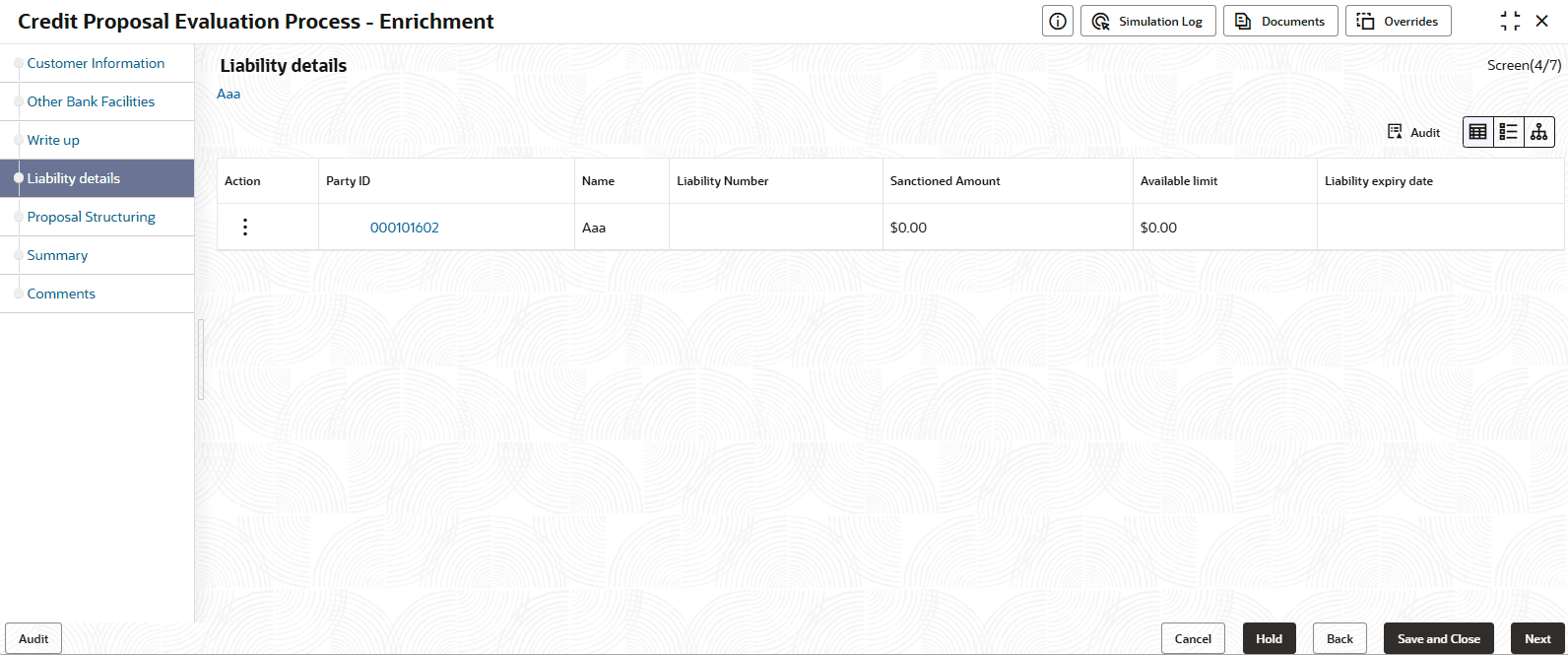
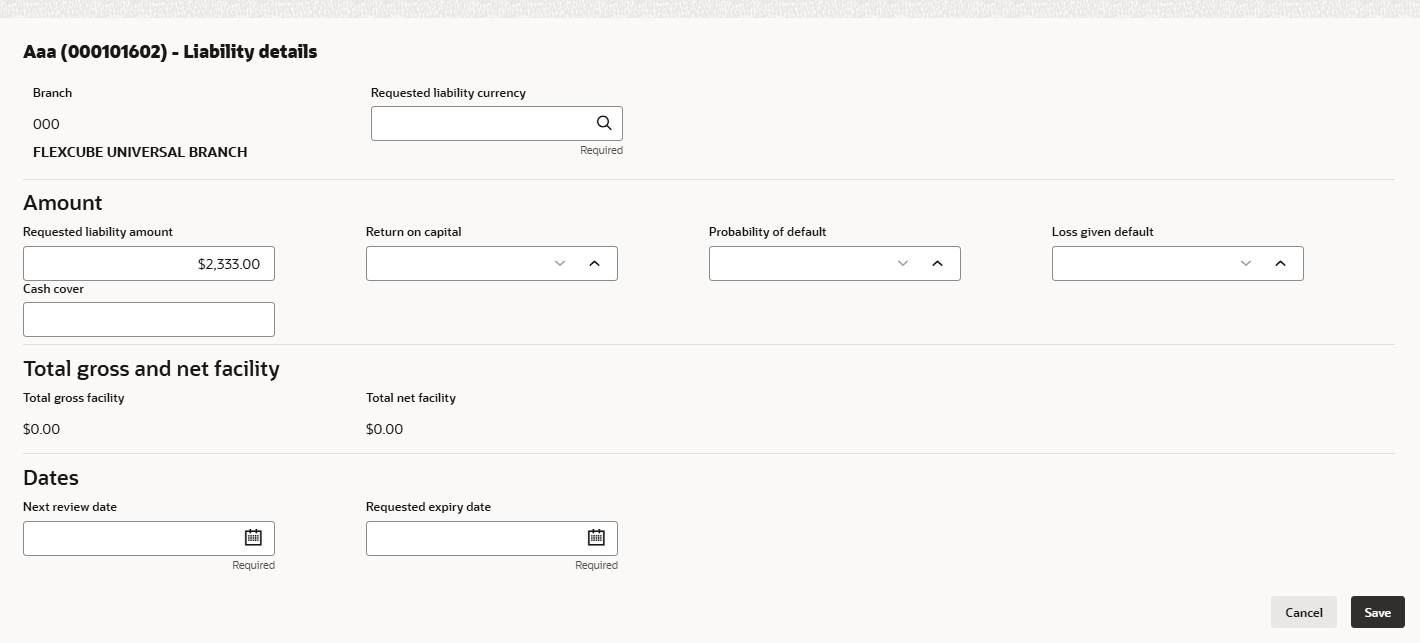
Before creating the facility, Liability details must be captured for the facility.
Note:
Liability details cannot be captured, if the Group Concentration Limit application is selected during credit proposal initiation.If the Take Over check box is selected while adding existing facility, the added existing facility is displayed in the Funding Requirement page.
- Click the Edit icon. The Liability Details window is displayed.
For information on fields in the Liability Details screen, refer the below table.
Table 3-23 Liability Details
Fields Description Currency In the Requested Liability Currency field, search and select the currency in which the liability is requested by the entity. Amount Specify the following details: - Requested Liability Amount - Liability amount requested by the entity
- Return On Capital - Ratio calculated by dividing the after tax operating income by the average book-value of the invested capital
- Probability Of Default - Estimate of the likelihood that the entity will be unable to meet its debt obligations
- Loss Given Default - Amount of money a bank or other financial institution loses when a borrower defaults on a loan
- Cash Cover - Amount deposited by the entity in your bank
- Proposed Funded Sell Down - Funded sell down proposed for the entity
- Proposed Unfunded Sell Down - Unfunded sell down proposed for the entity
- Approved Funded Sell Down - Funded sell down approved for the entity
- Approved Unfunded Sell Down - Unfunded sell down approved for the entity
Dates - Select the Next Review Date for the Credit Proposal application.
- Select the Requested Expiry Date for the liability based on your customer request.
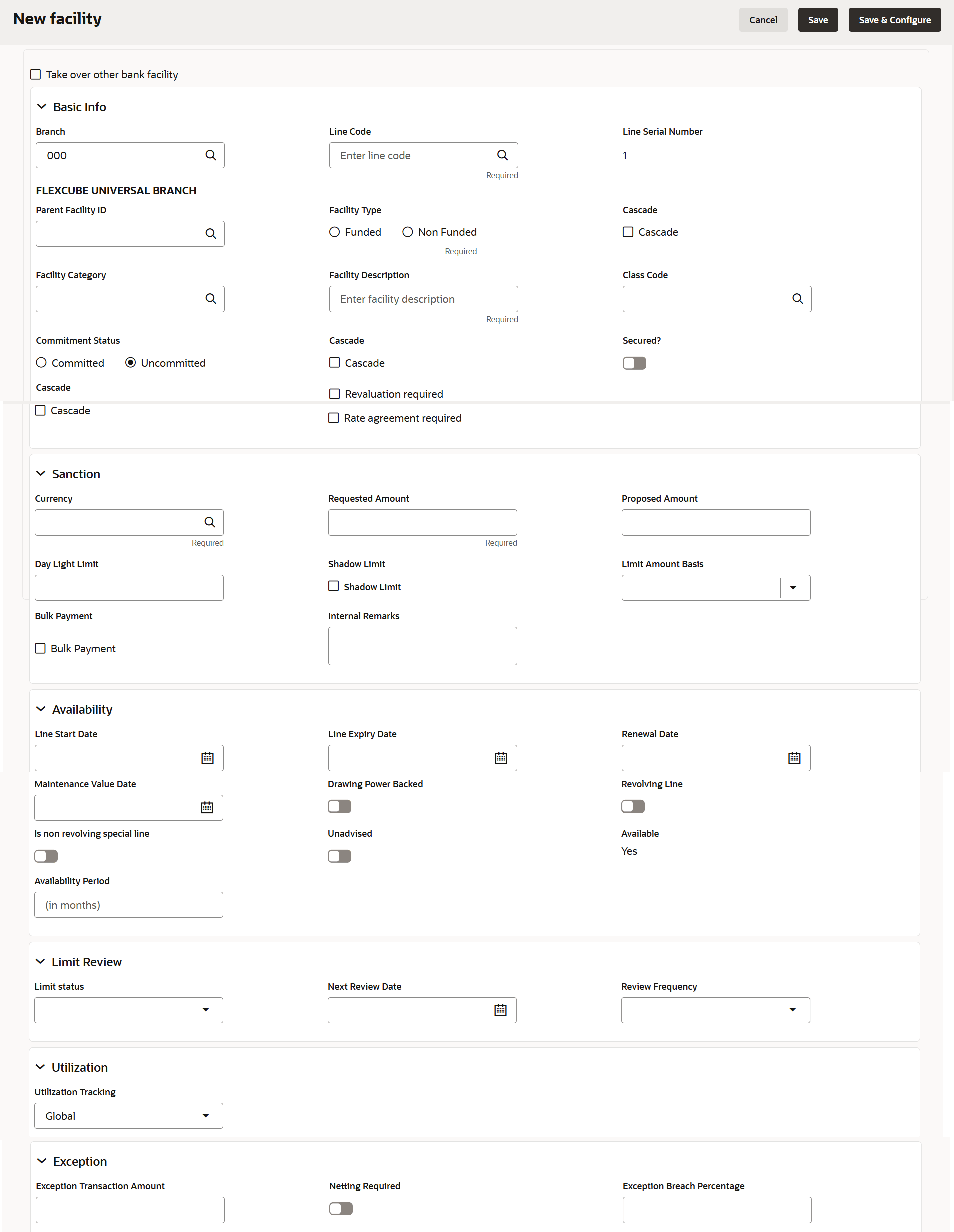
- To directly add the facility without using template, click the
add icon.The New Facility window is displayed.
In the New Facility window, you can link the other bank facility and / or create new facility by adding the necessary information.
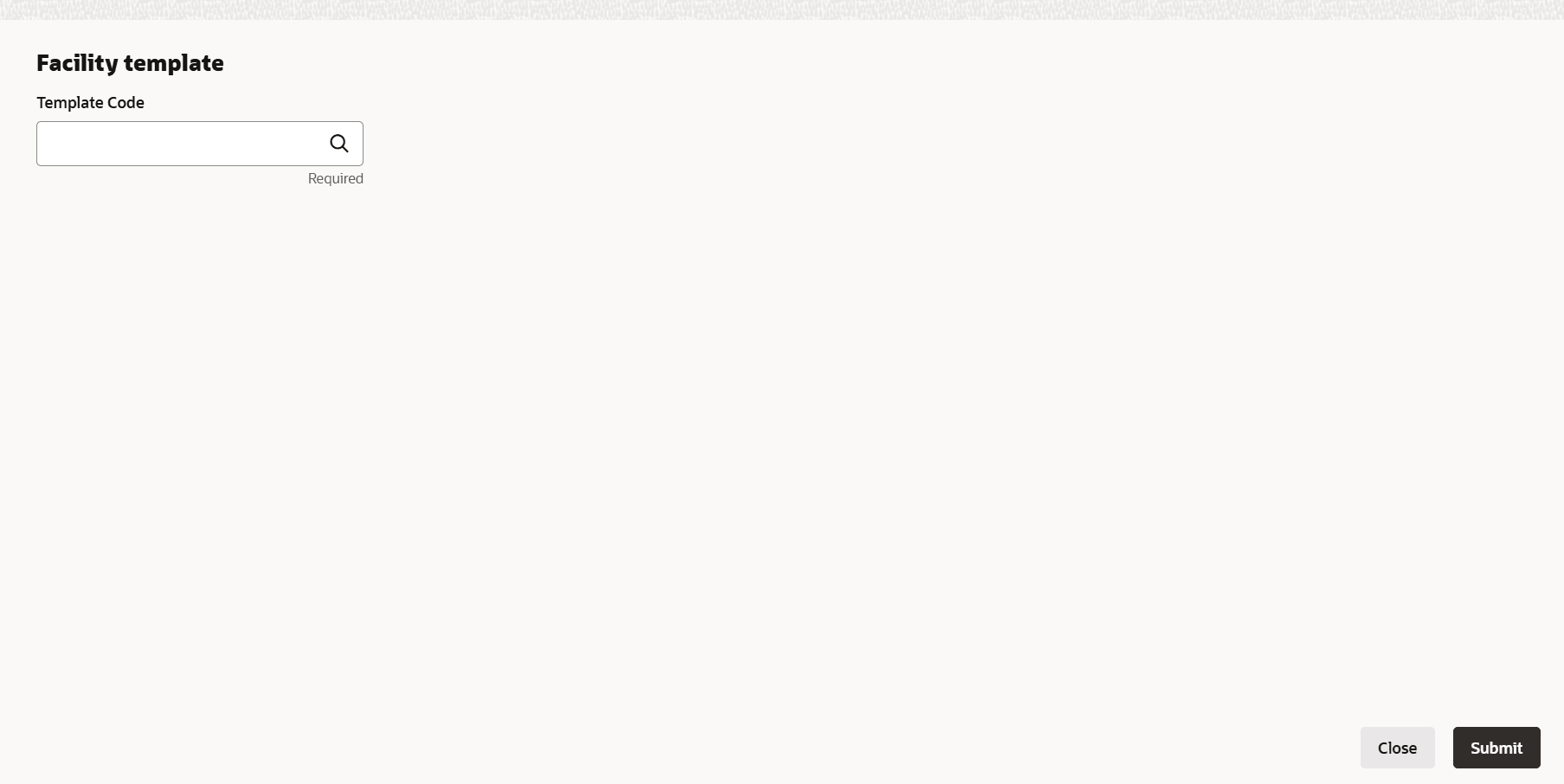
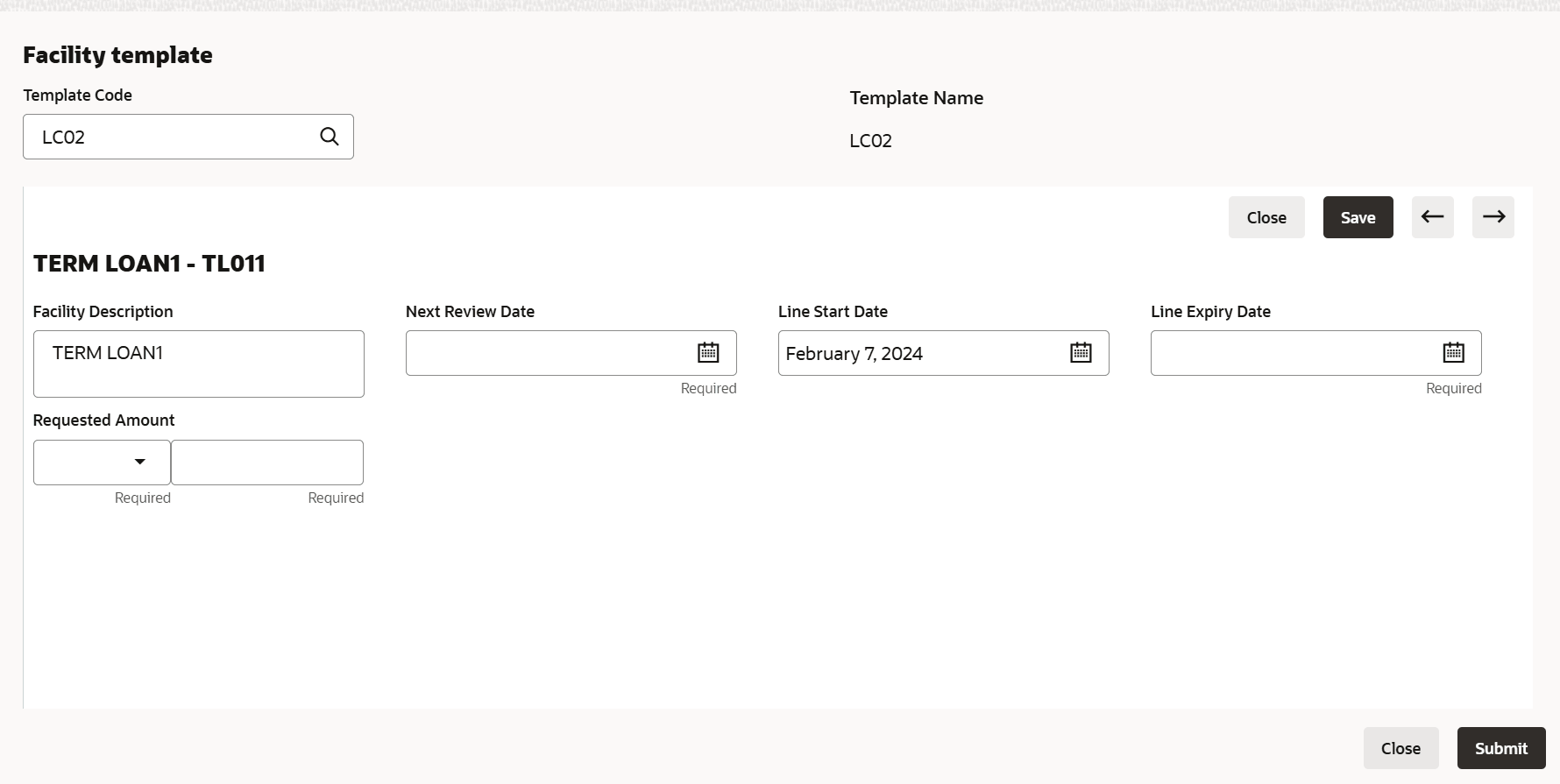
- To create the facility using template, click the Facility Template (T)
icon. The Facility Template Window is displayed.
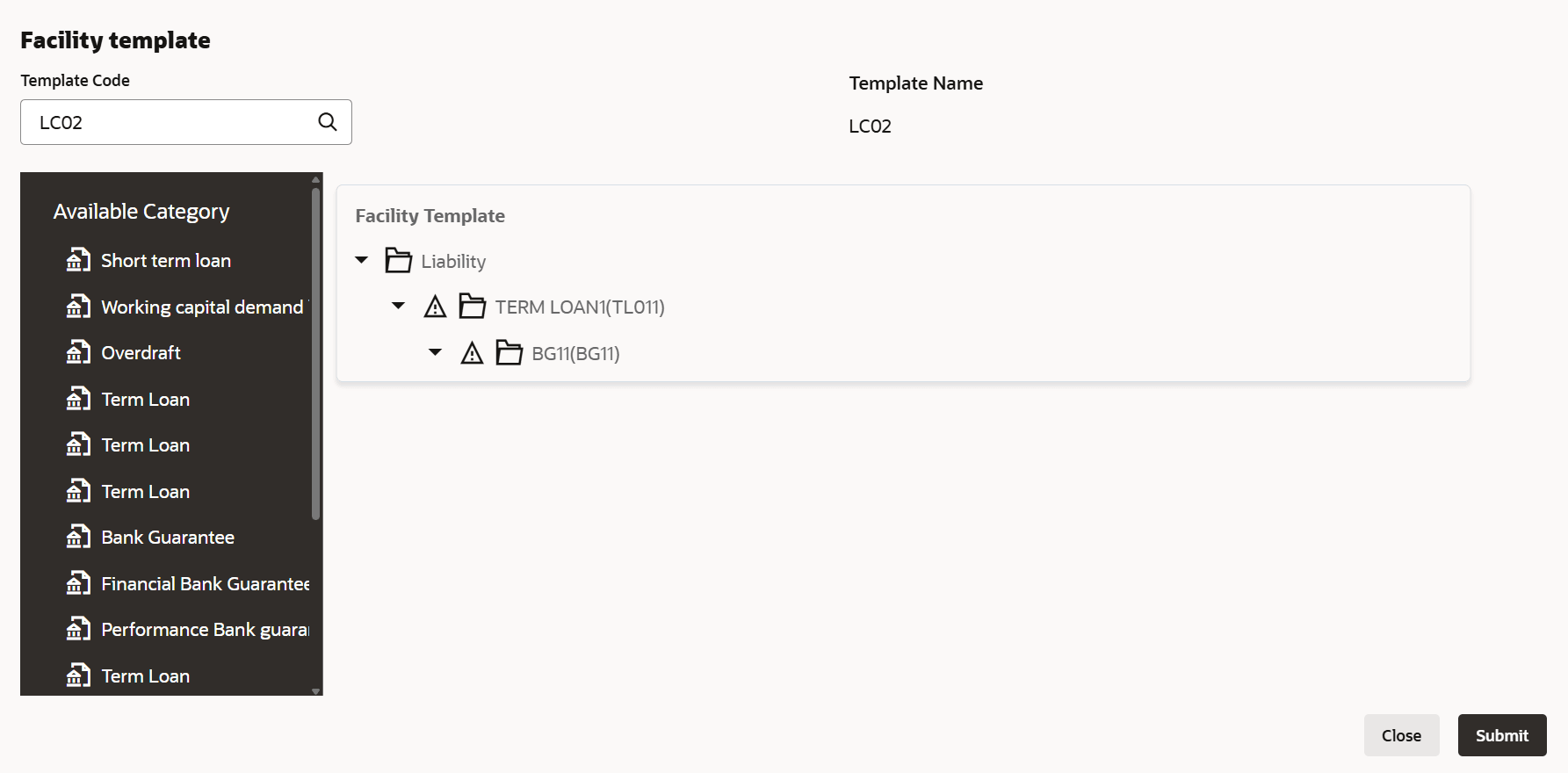
- To add additional facility to the Facility Template, click the right arrow at
the left side. Available Facility section expands as shown below.
- To capture the facility details, click the facility in the Facility
Template section. Fields related to the facility appear as shown below:
For information on fields in the Facility Template screen, refer the below tables.
Table 3-27 Facility Template
Fields Description Facility Description Type the Facility Description.
Next Review Date Select / specify the Next Review Date for the facility
Currency Search and select the Currency for the Requested Amount.
Requested Amount Specify the Requested Amount.
Save Click Save.
- After providing details for all the facilities in the Facility Template
section, click Submit. Facility is created and listed as shown
below.
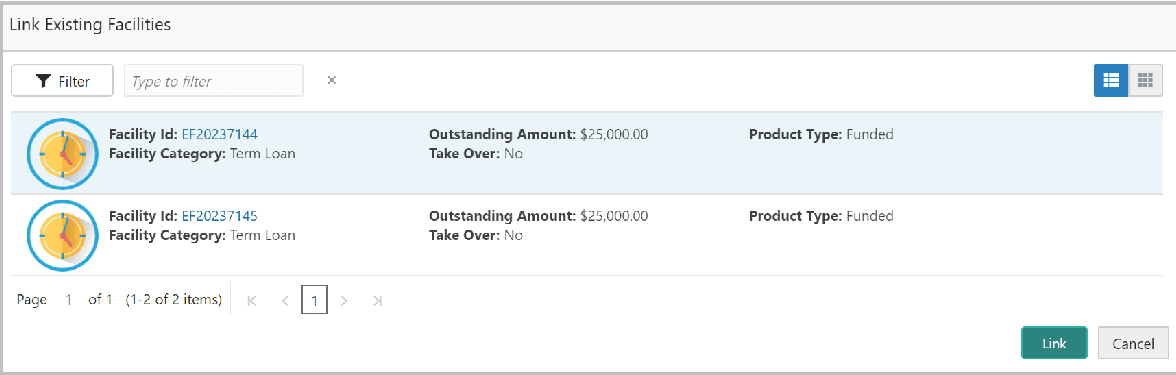
If the Take Over check box is not enabled while adding existing facilities, the user can link the existing facilities with the funding requirement using this option.
- Click the Link Existing Facilities icon next to the Add New
Facility icon. The Link Existing Facilities window listing all the
existing facilities is displayed.
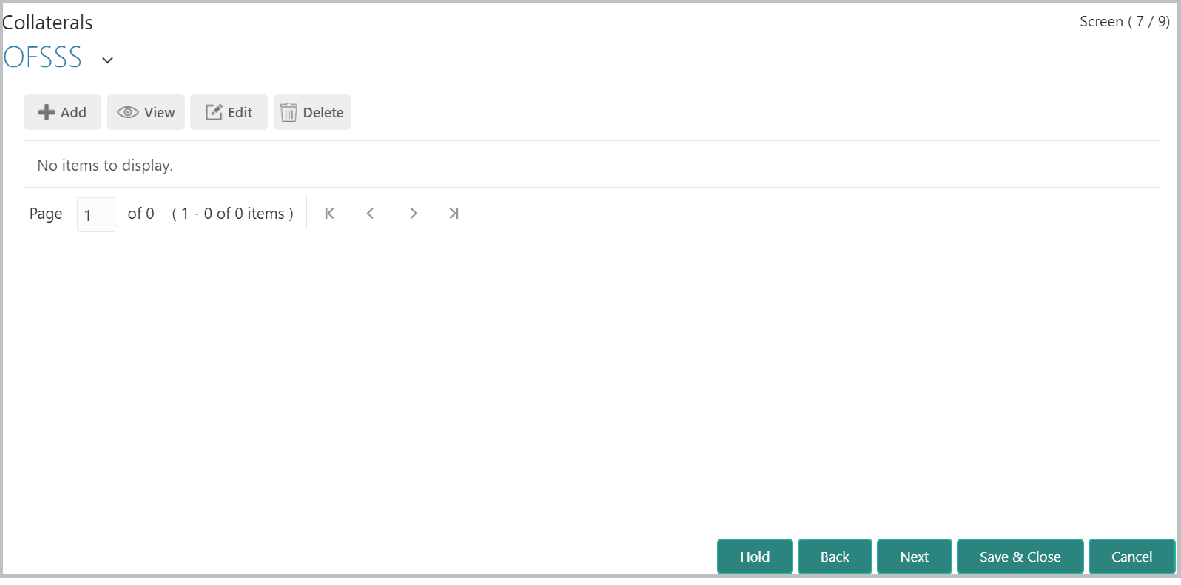
- After adding facilities, click Next. The Collaterals page is
displayed.
Collaterals
This data segment allows you to add details about the collaterals submitted by your customer to the bank.
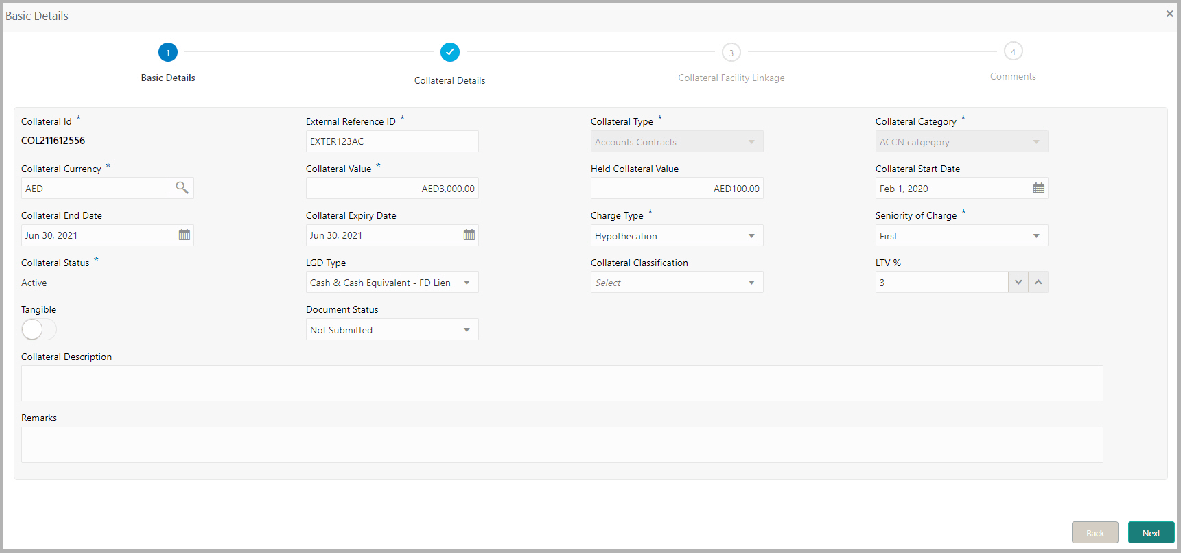
- Click the Add icon. The Basic Details window is displayed.
In this page, you can select a collateral type and capture basic details about the collateral.
For information on fields in the Basic Details screen, refer the below tables.
Table 3-28 Basic Details
Fields Description Collateral Id Specify a unique ID for collateral in the Collateral Id field.
Collateral Type Select the Collateral Type from the drop down list. The options available are:- Accounts Contracts
- Crop
- Commercial Paper
- Perishable
- Commodity
- PDC
- Bill of Exchange
- Promissory Note
- Machine
- Deposits
- Bond
- Stock
- Fund
- Vehicle
- Guarantee
- Property
- Aircraft
- Insurance
- Precious Metals
- Ship
- Accounts Receivables
- Cash Collaterals
- Inventory
Collateral Category
Select the Collateral Category from the drop down list. Collateral categories are listed based on the selected Collateral Type.
Collateral Currency Click the search icon in Collateral Currency field and select the currency for collateral value.
Collateral Value and the Held Collateral Value Specify the Collateral Value and the Held Collateral Value in corresponding fields.
Collateral Start Date and Collateral End Date Click the calendar icon and select the Collateral Start Date and Collateral End Date. Collateral will be effective only during the mentioned period.
Collateral Expiry Date Click the calendar icon and select the Collateral Expiry Date. This is the actual expiry date of the collateral. For example, if the collateral type is selected as Bill of Exchange, collateral expiry date is the expiry date mentioned in the Bill of Exchange.
Charge Type Select the Charge Type based on selected Collateral Type. The options available are Hypothecation, Pledge, and Lien.
Seniority of Charge Select the bank’s Seniority of Charge on the collateral. The options available are: First, Second, and Third.
Collateral Status Select the Collateral Status from the drop down list.
LGD Type Select the LGD Type (Loss Given Default Type) from the drop down list. The bank will take action on loss given default based on the option selected in this field.
Collateral Classification Select the Collateral Classification from the drop down list. The options available are: Secured, Unsecured, and Liquid.
LTV % Specify the collateral’s loan to value percentage in LTV % field.
Tangible Enable the Tangible flag, if the collateral is tangible.
Document Status Select the Document Status from the drop down list. The options available are: Submitted, Released, Not Submitted, and Partially Submitted.
Collateral Description Specify a brief description about the collateral in Collateral Description field.
Remarks Capture Remarks about the collateral.
- Click Next. The Collateral Details page is displayed.
Note:
In the Initiation stage, you can enter all the details about the collaterals if information is available. Otherwise, only the collateral Basic Details can be enriched in the further stages.Refer Collateral Details for more information on adding collateral details.
The Summary page displays a preview of actions performed in the previous pages for verification purpose.
- To modify the provided information, click Back and edit the required
information.Upon clicking the Next, the Comments page appears.
The Comments page allows to capture the remarks for the overall process. Posting comments help the user in next stage to better understand the application.
For information on fields in the Comments screen, refer the below table.
Table 3-29 Comments
Fields Description Post Type the necessary comments in the text box and click Post. Comment is posted. Hold To hold the credit proposal initiation process, click Hold. Back To go back to the previous stage, click Back. Save & Close To save the process for future edit, click Save & Close. Submit To submit the enriched application for evaluation, click Submit. Cancel To exit the process without saving the information, click Cancel. Upon clicking the Submit, the Policy Exception window is displayed.By default, policy exceptions are displayed for both the organization (party) and its child party.
- Click the Checklist data segment.
Parent topic: Proposal Initiation