6 Proposal Structuring
This topic proides systematic instructions about the Proposal Structuring stage in the Simplified Credit Proposal Evaluation Process.
In this stage, the banker can propose an amount to the organization based on the scores obtained for each evaluation. Additionally, already added information about the collaterals, covenants, and terms & conditions can be viewed, modified and deleted or new collaterals, covenants, and terms & conditions can be added in this stage.
Steps to structure credit proposal
To structure the credit proposal, perform the following steps:
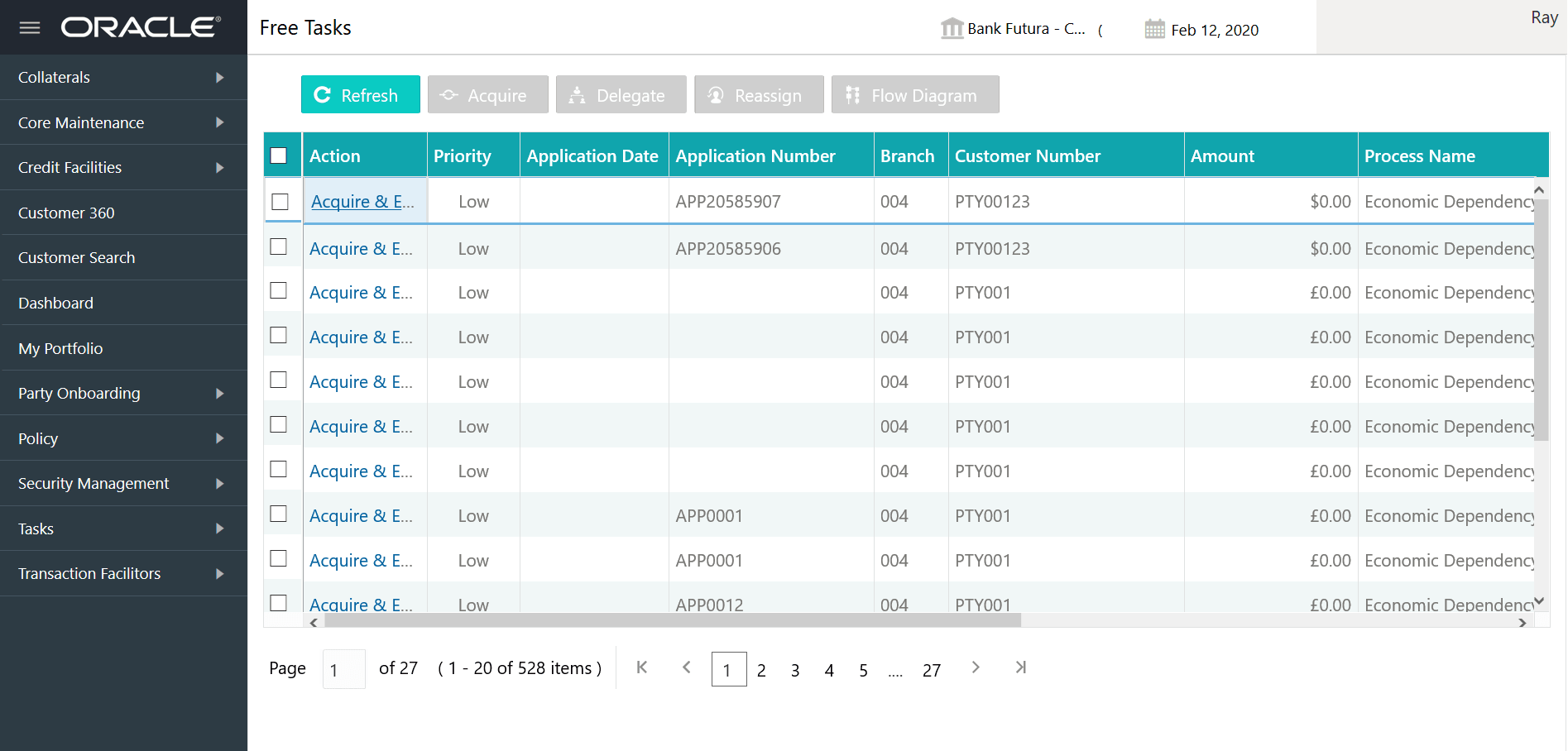
- From Home screen, click Tasks.
Under Tasks, click Free Tasks.. The Free Tasks page is displayed.
- Select the required application and Acquire & Edit.
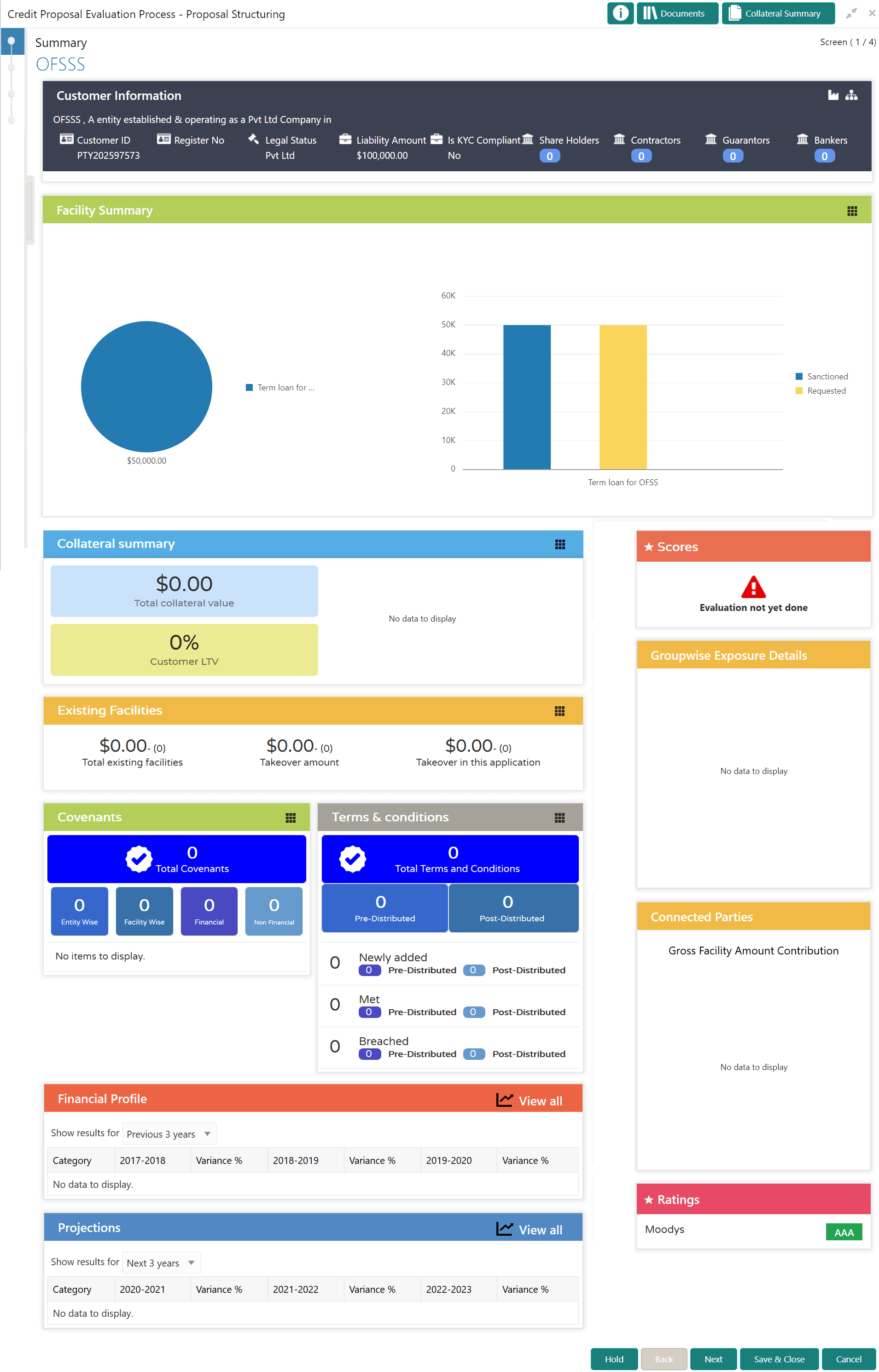
The Proposal Structuring - Summary page is displayed.
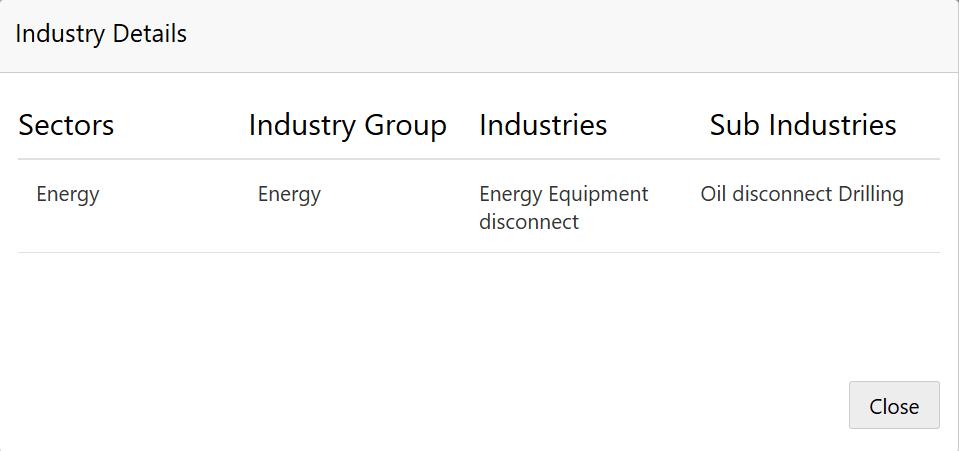
- To view the sector and industry information, click the industry icon in
customer information section.The Industry Details window is displayed.
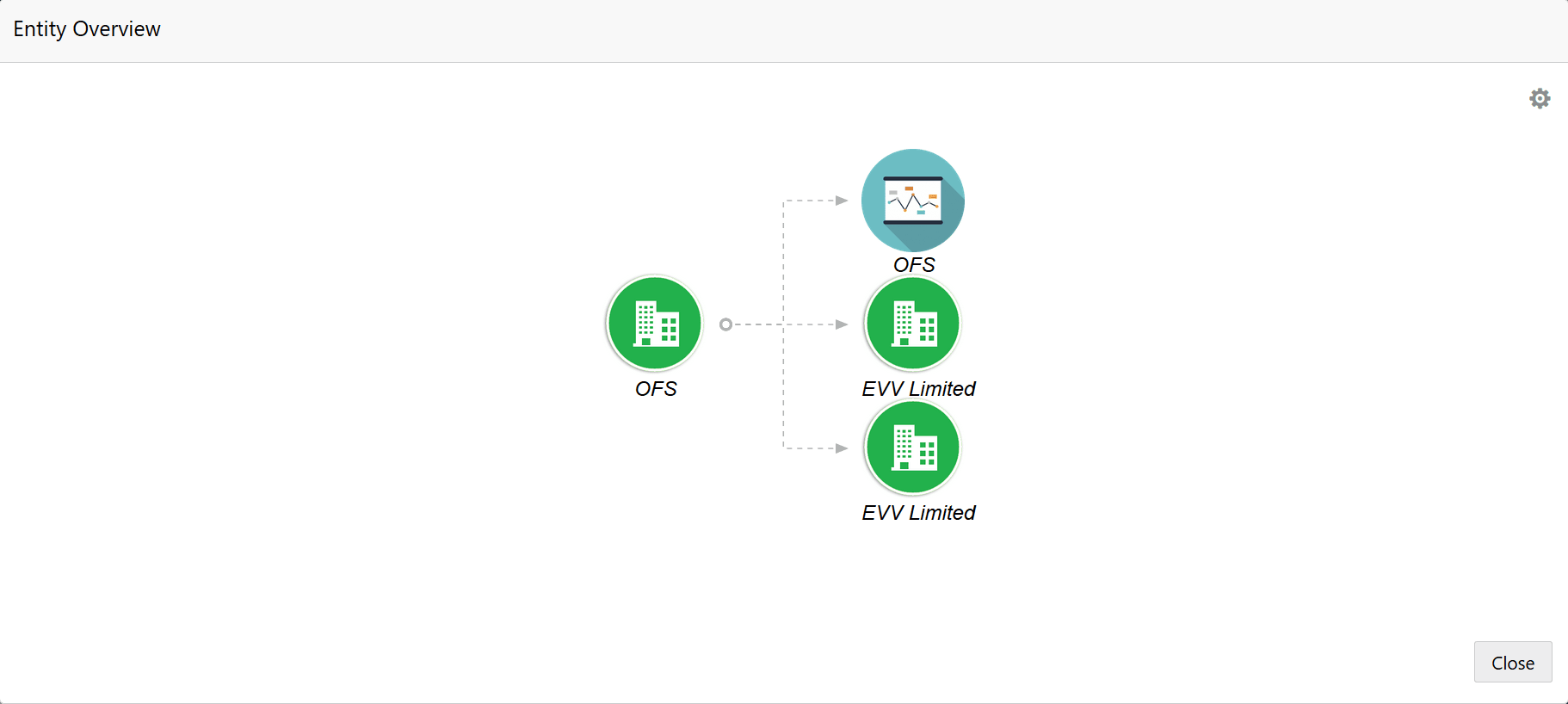
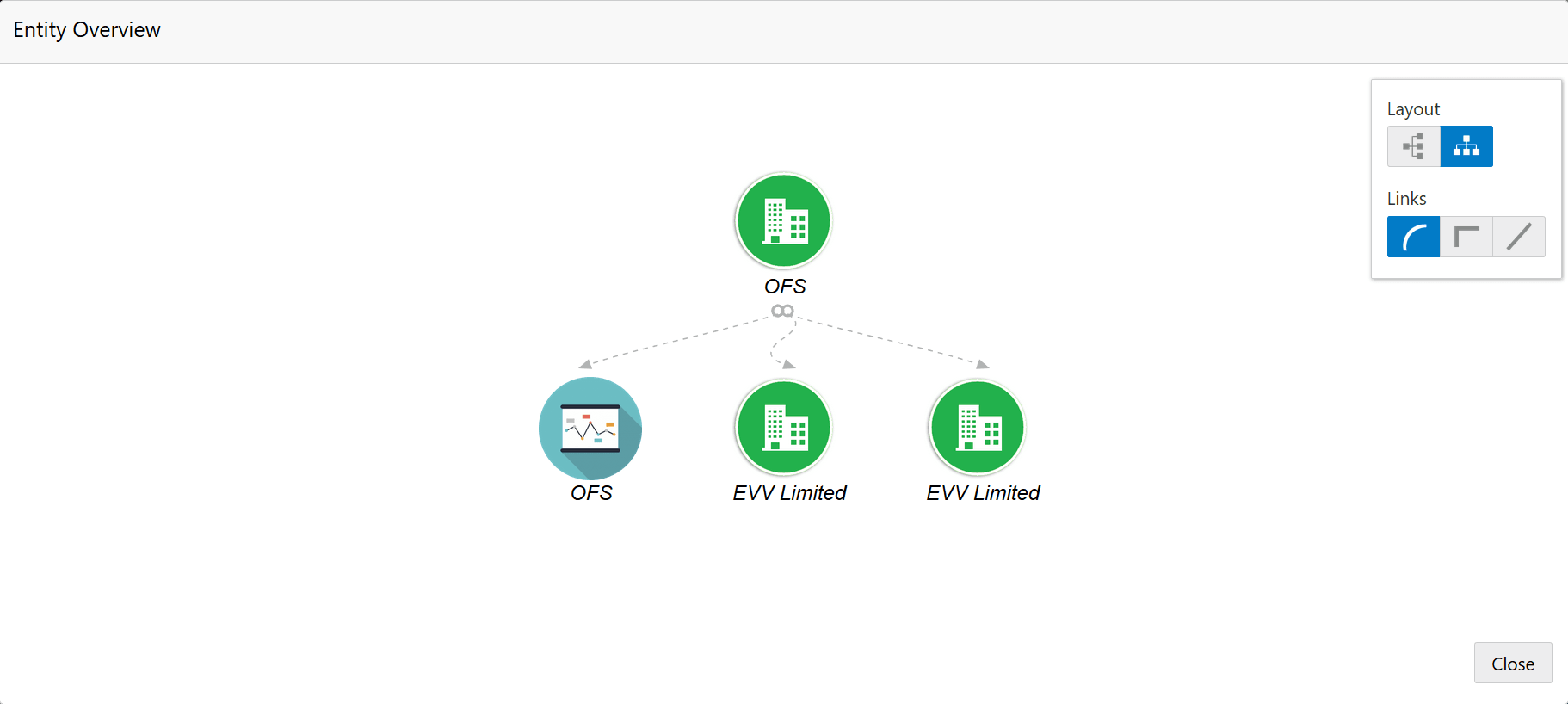
- To view the overview of the organization, click the entity overview icon in
Customer Information section.The Entity Overview window appears.
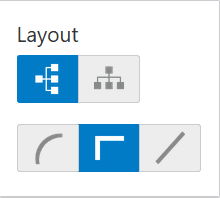
- To change the layout of the entity overview, click the configuration icon at the top right corner.
- Select the required layout. Entity Overview is changed to the selected layout
as shown below.
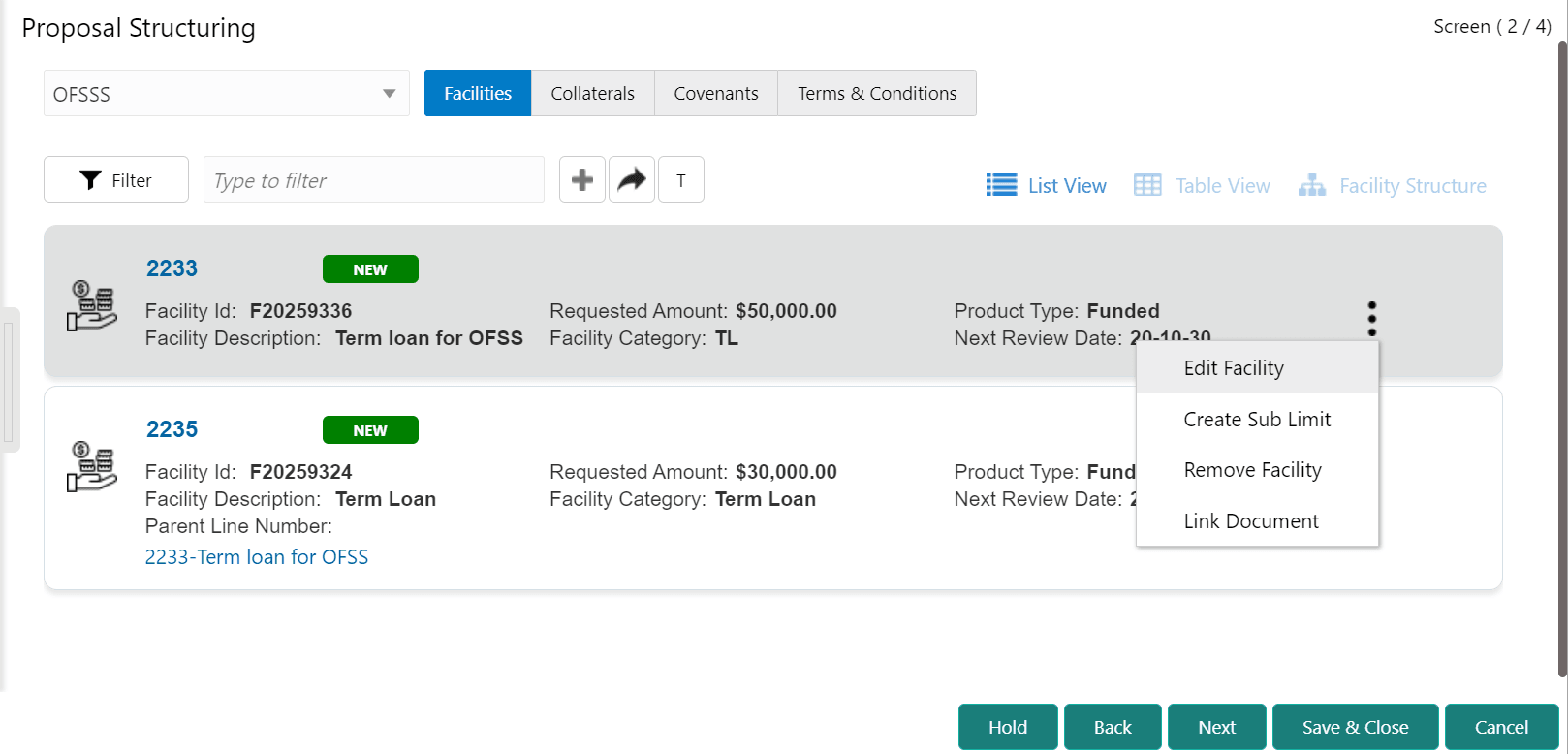
- After reviewing the Summary, click Next.The Proposal Structuring page is displayed.
Note:
For information about filter, add, edit, delete, and layout options, refer Funding Requirement section in Proposal Initiation Chapter.In the Proposal Approval stage, Approve, Reject, and Send Back icons appear. To Approve, Reject or Send Back the proposal, select the corresponding record from the list and click the required icon.
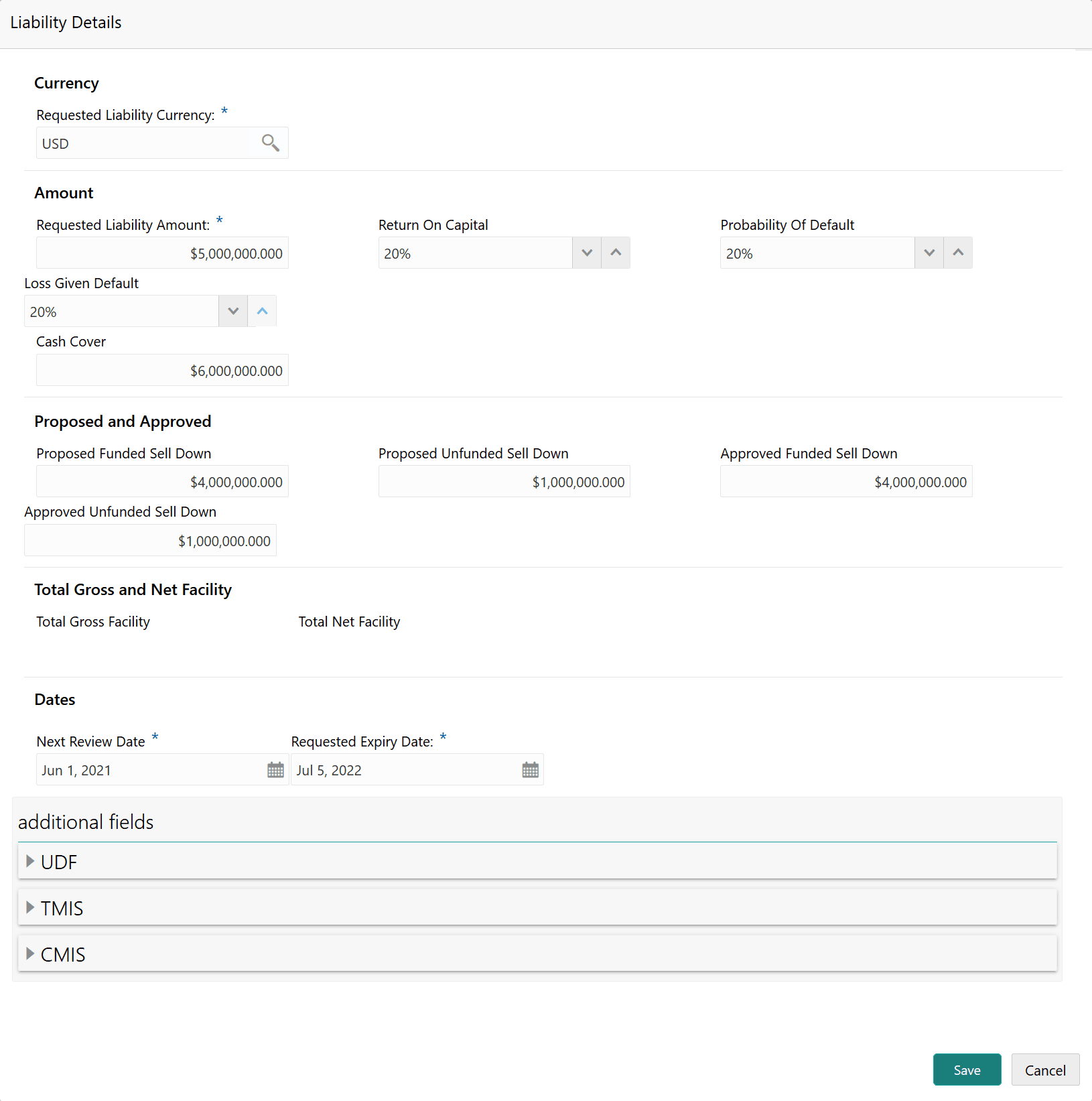
- Click the view icon.The Liability Details window is displayed.
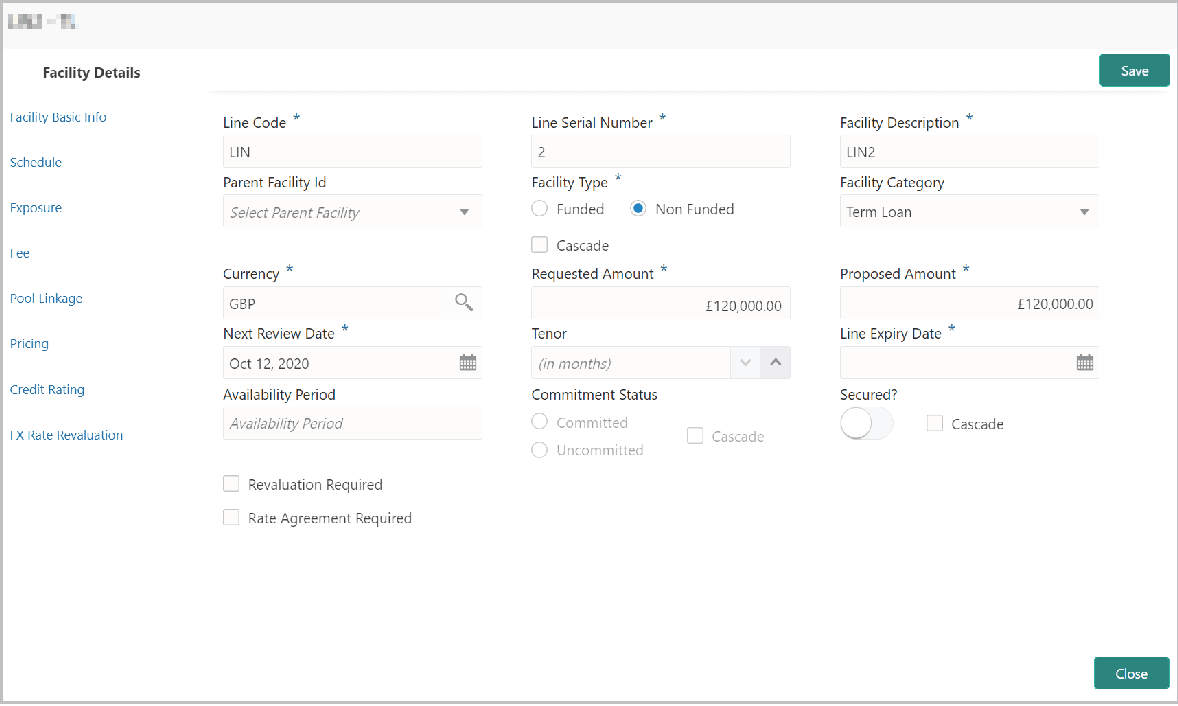
- To propose the amount, select the facility and click edit icon. The Facility Details window is displayed.
Note:
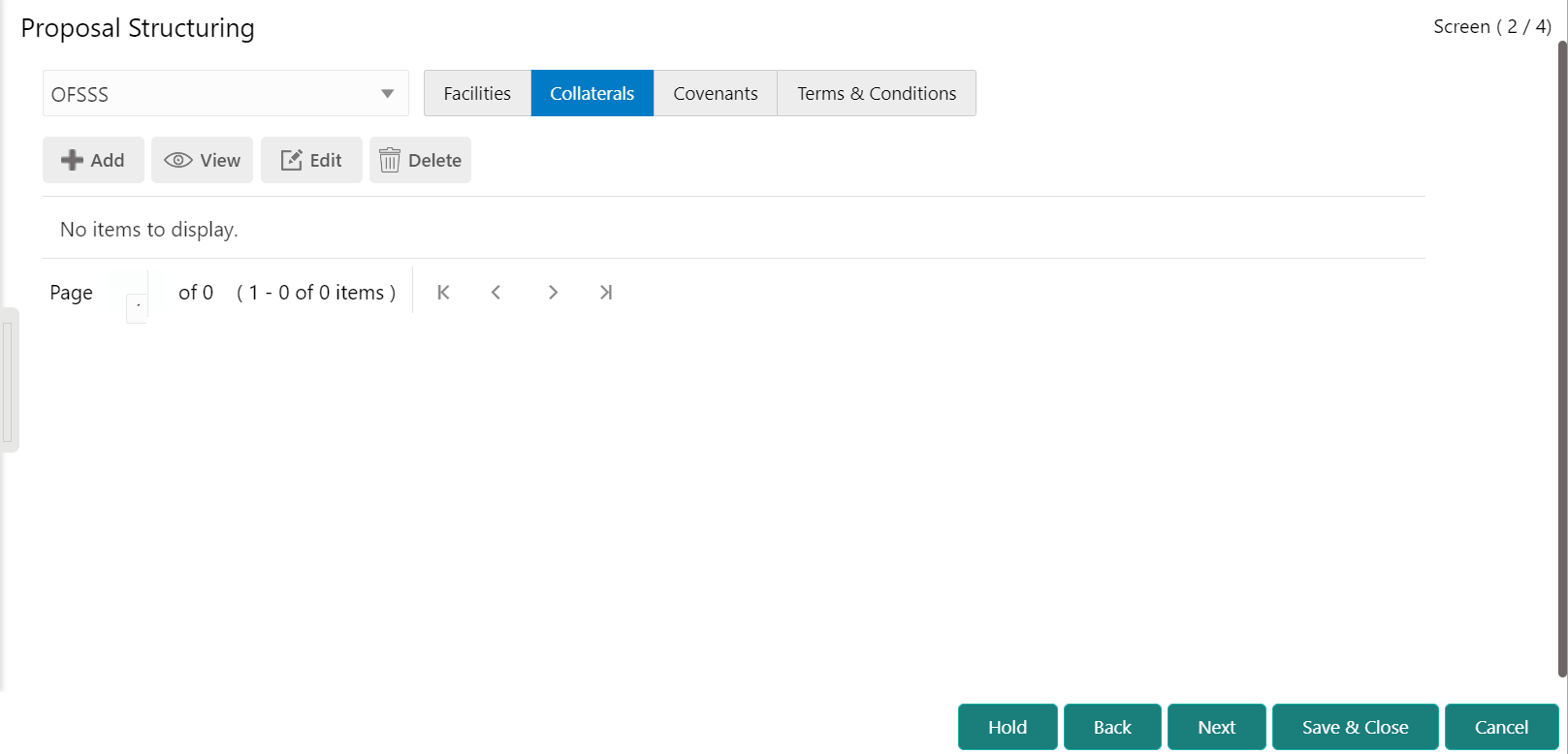
For information about Schedule, Exposure, Fee, Pool Linkage, Pricing, Credit Rating and FX Rate Revaluation menus, refer Funding Requirement section in Proposal Initiation Chapter. - To go to the Collaterals page, click the Collaterals tab. The Collaterals page is displayed.
Note:
For information about filter, add, edit, delete, and layout options, refer Collaterals. - To go to the Covenants page, click the Covenants tab.
Figure 6-11 Proposal Structuring - Covenants
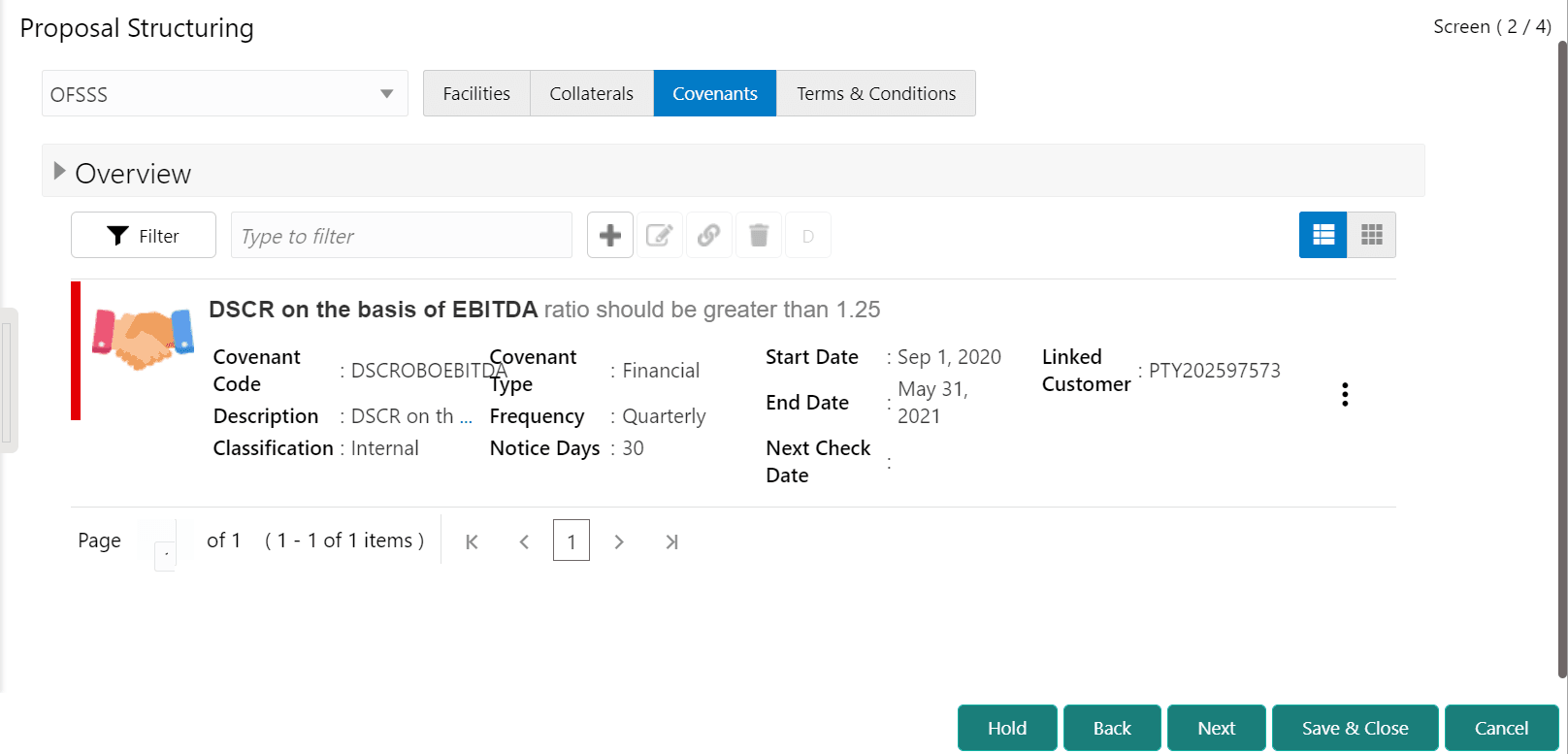
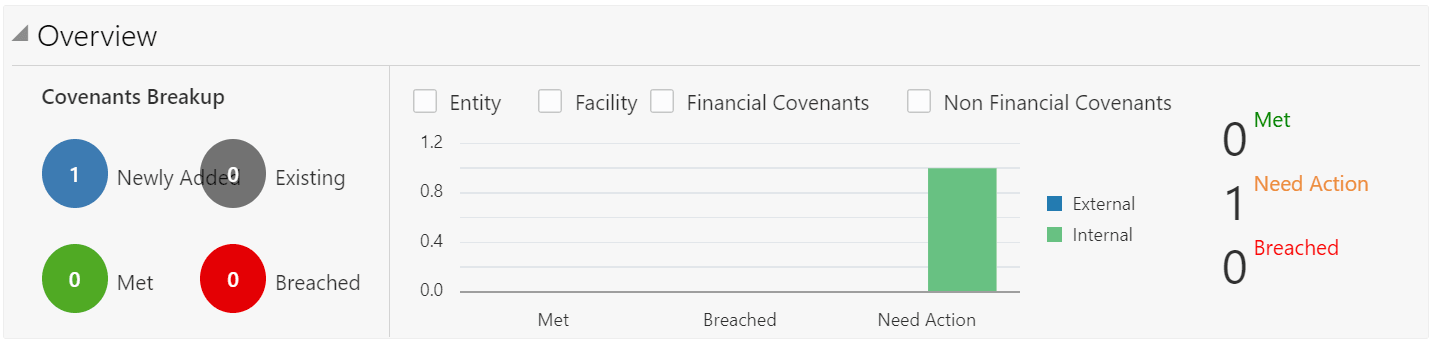
Description of "Figure 6-11 Proposal Structuring - Covenants" - To view details about the already added covenant, click and expand the
Overview section.
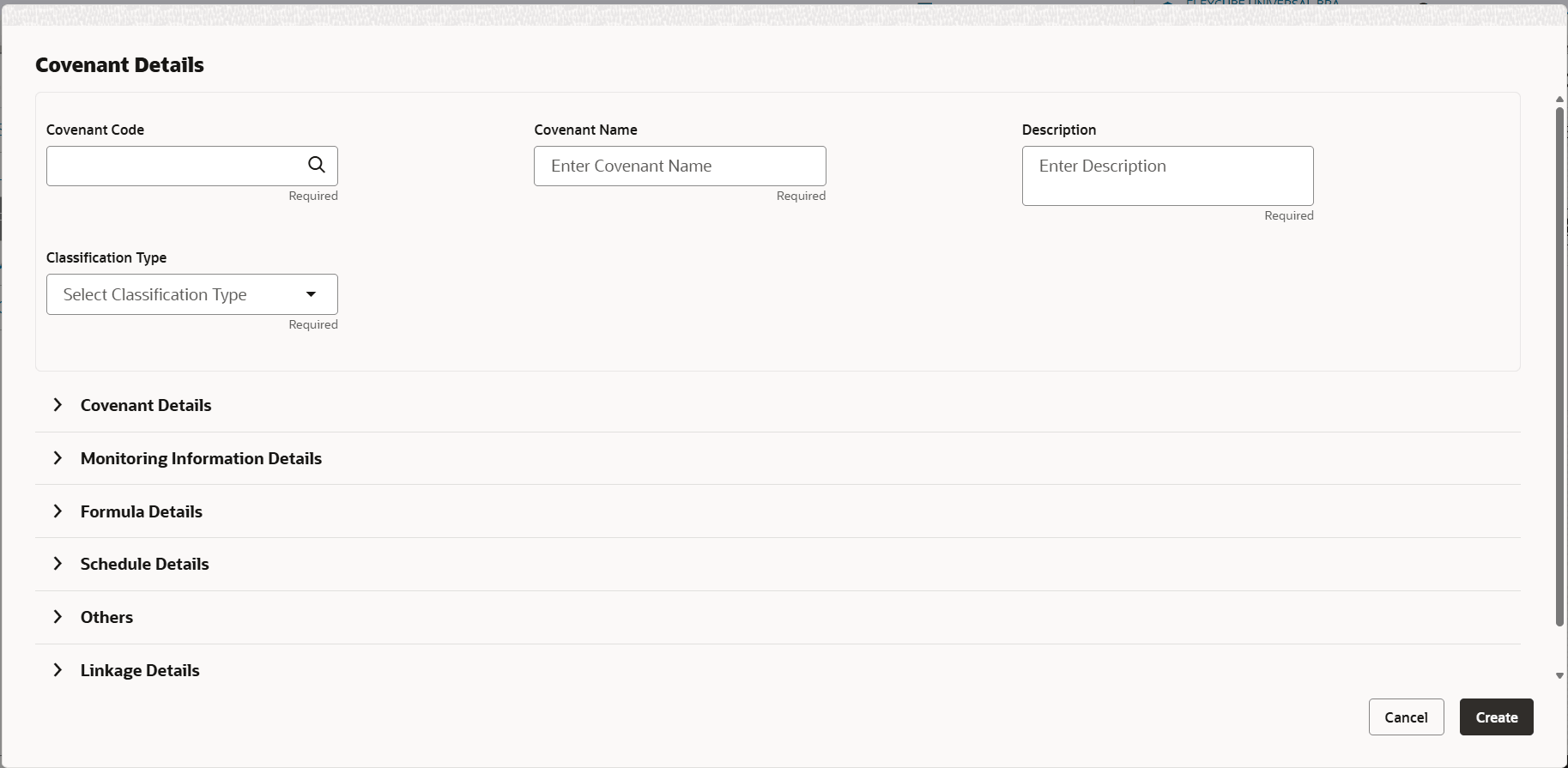
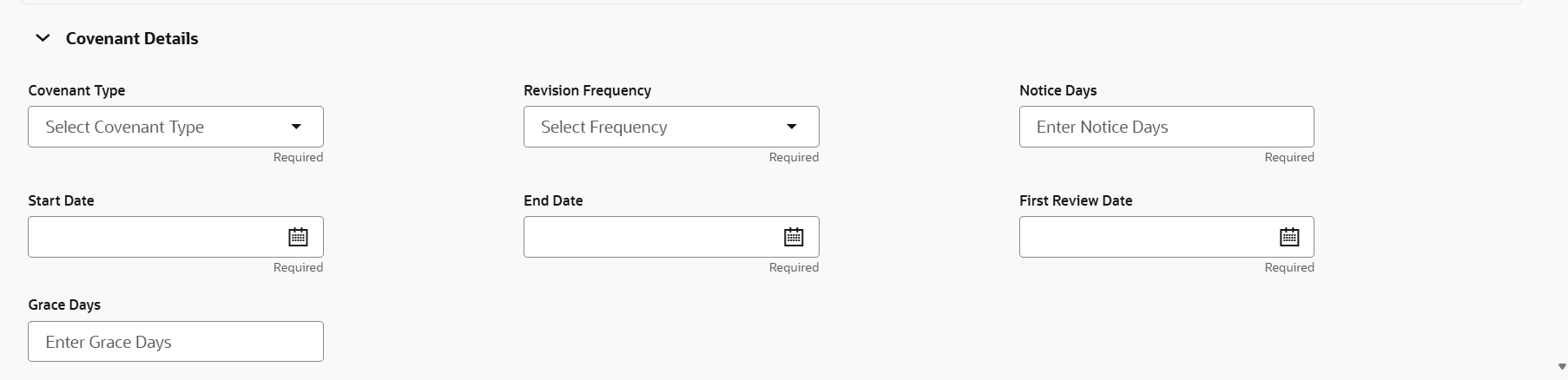
- To add new covenant, click the add icon.The Covenant Details window is displayed.
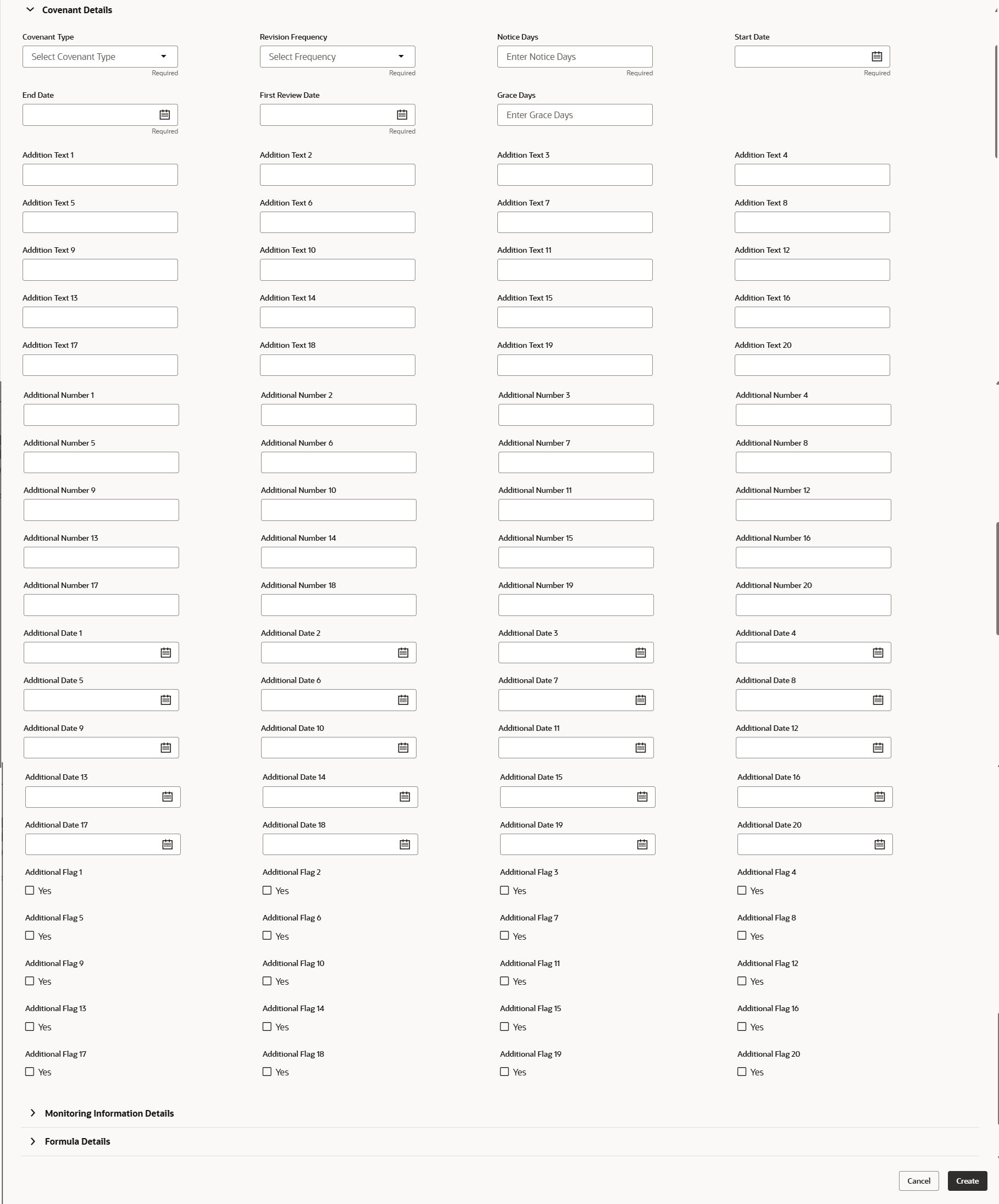
For RSO Covenant Details, additional placeholder fields can be configured in Maintenance screen. For more information on managing these placeholders, refer to the Maintenance User Manual.
The system supports configuration of up to 20 fields each for the following data types:- Text
- Numeric
- Boolean
- Date
Each field type allows a minimum of 0 and a maximum of 20 fields per Covenant details, based on the requirements. These fields displays in the Covenant Details screen only if they are configured. If no additional fields are defined, the screen will display only the standard condition details fields.
For example, we maintained 20 additional fields each for text, numeric, boolean, and date.
The Covenant Details screen displays. - To set the covenant condition, click and expand the Covenant Details
section.
- Click and expand the Others section.
- To capture the monitoring information for the covenant, click and expand the
Monitoring Information Details section.
Figure 6-17 Monitoring Information Details
- To link the covenant with the facility, click and expand the Facility
Linkage Details section.
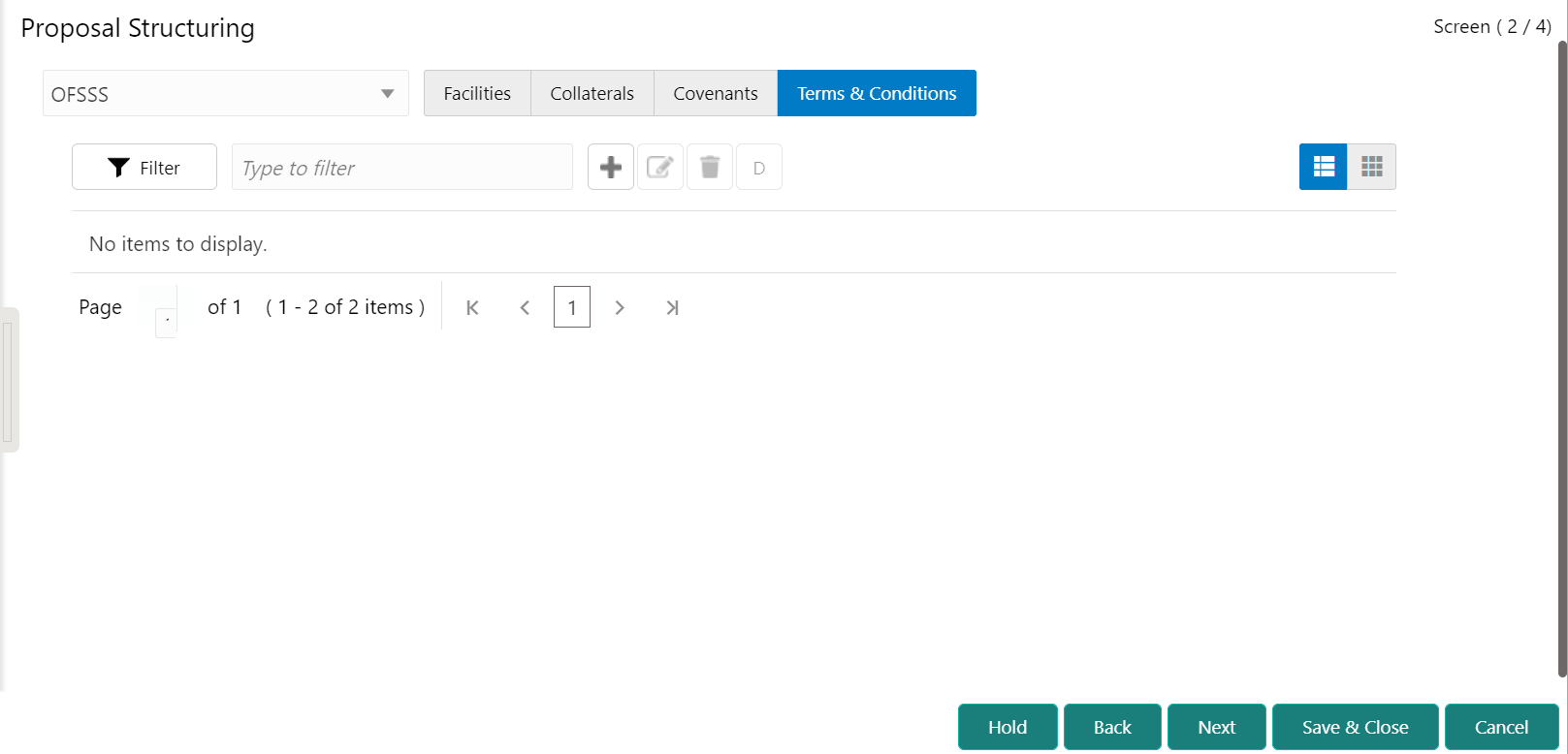
- To go to the Terms & Condition page, click the Terms &
Conditions tab.
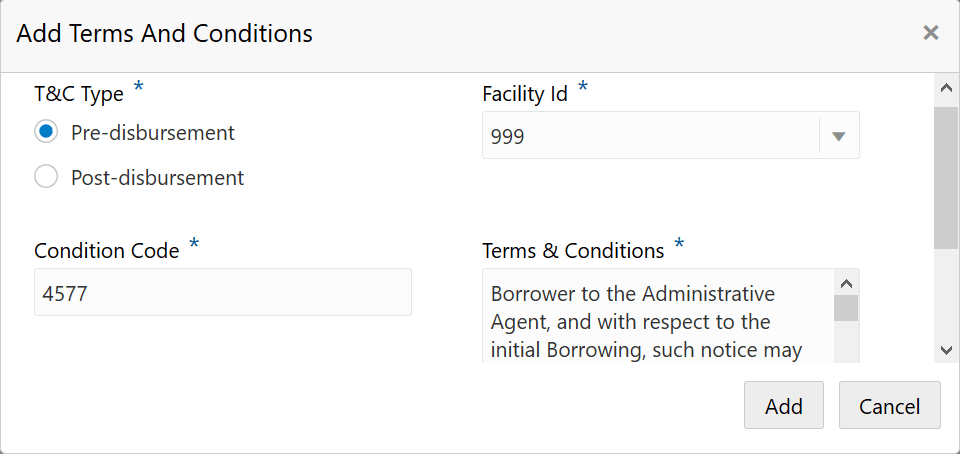
- To add new terms & conditions, click the add icon. The Add Terms And Conditions window is displayed.
For information on fields in the Add Terms And Conditions screen, refer the below table.
Table 6-1 Add Terms And Conditions
Fields Description T&C Type Select the T&C Type. The options available are Pre-disbursement and Post-disbursement. Facility Id To link the facility with the terms & conditions, select the required Facility Id from the drop down list. Condition Code Type the Condition Code and the Terms & Conditions. Add Click Add. Terms & Conditions are added and displayed in Terms & Conditions page. Note:
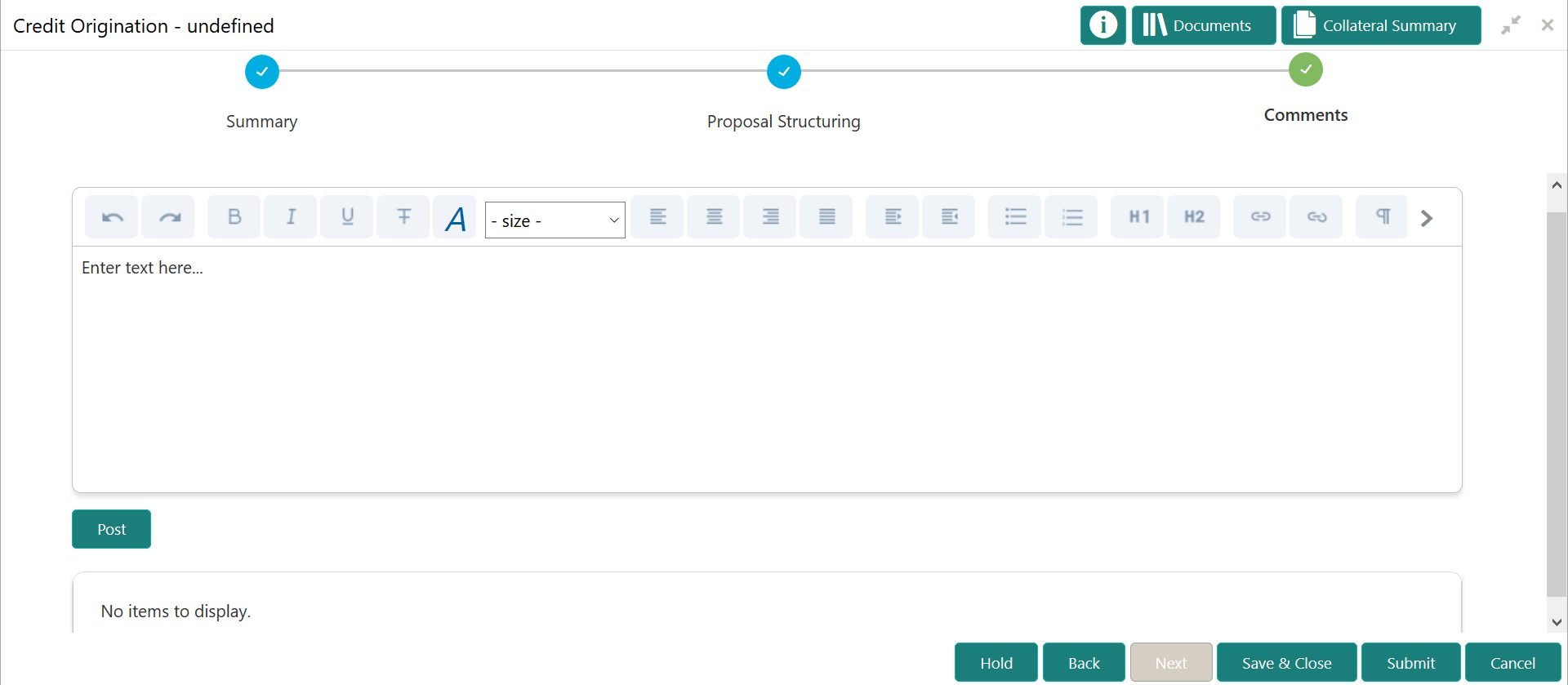
For information about filter, edit, delete, and layout options, refer any section in Proposal Initiation Chapter. - Click Next.The Comments page is displayed.
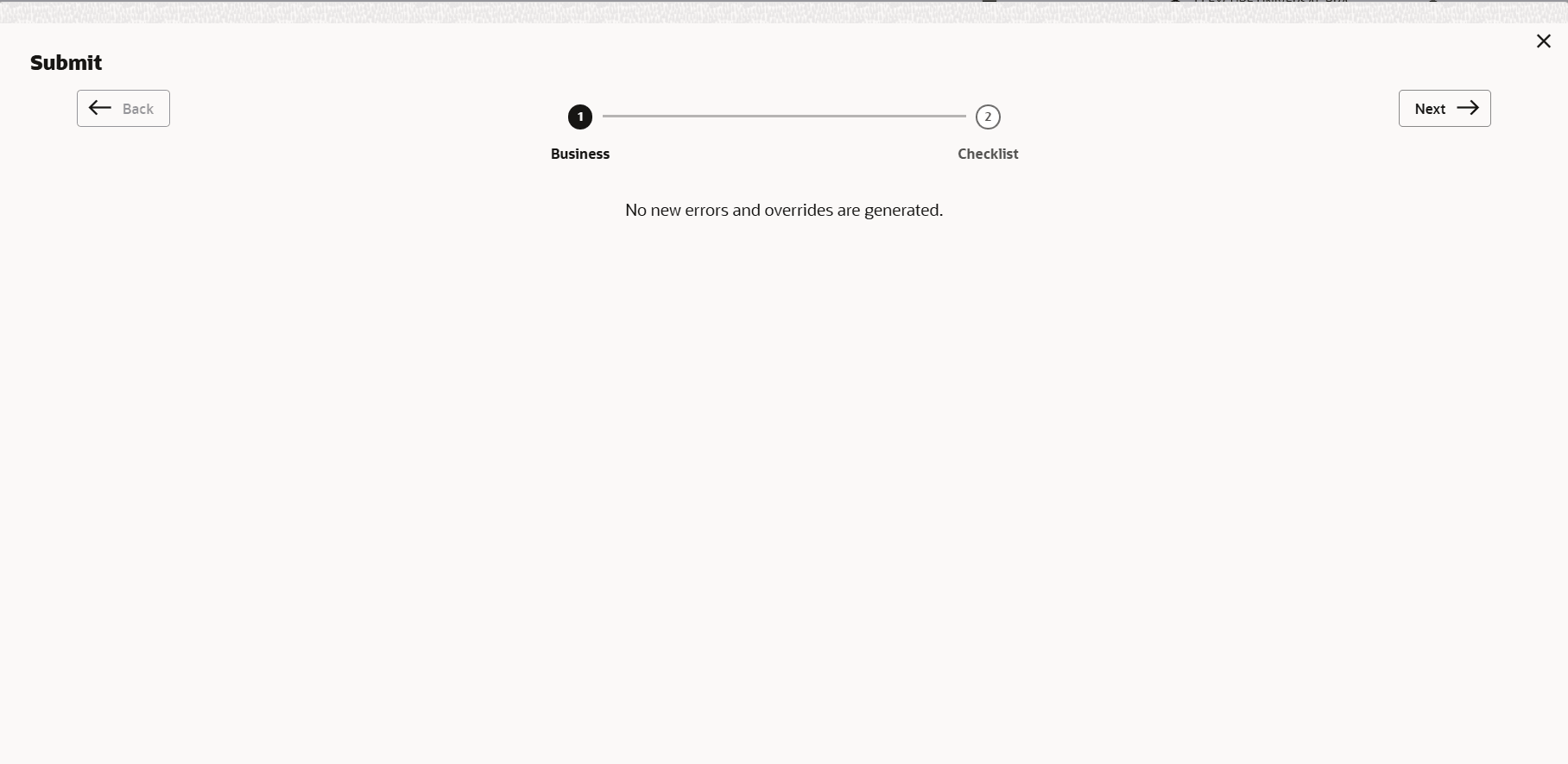
- Click Submit.The Policy exceptions window is displayed.
By default, policy exceptions are displayed for both the organization (party) and its child party.
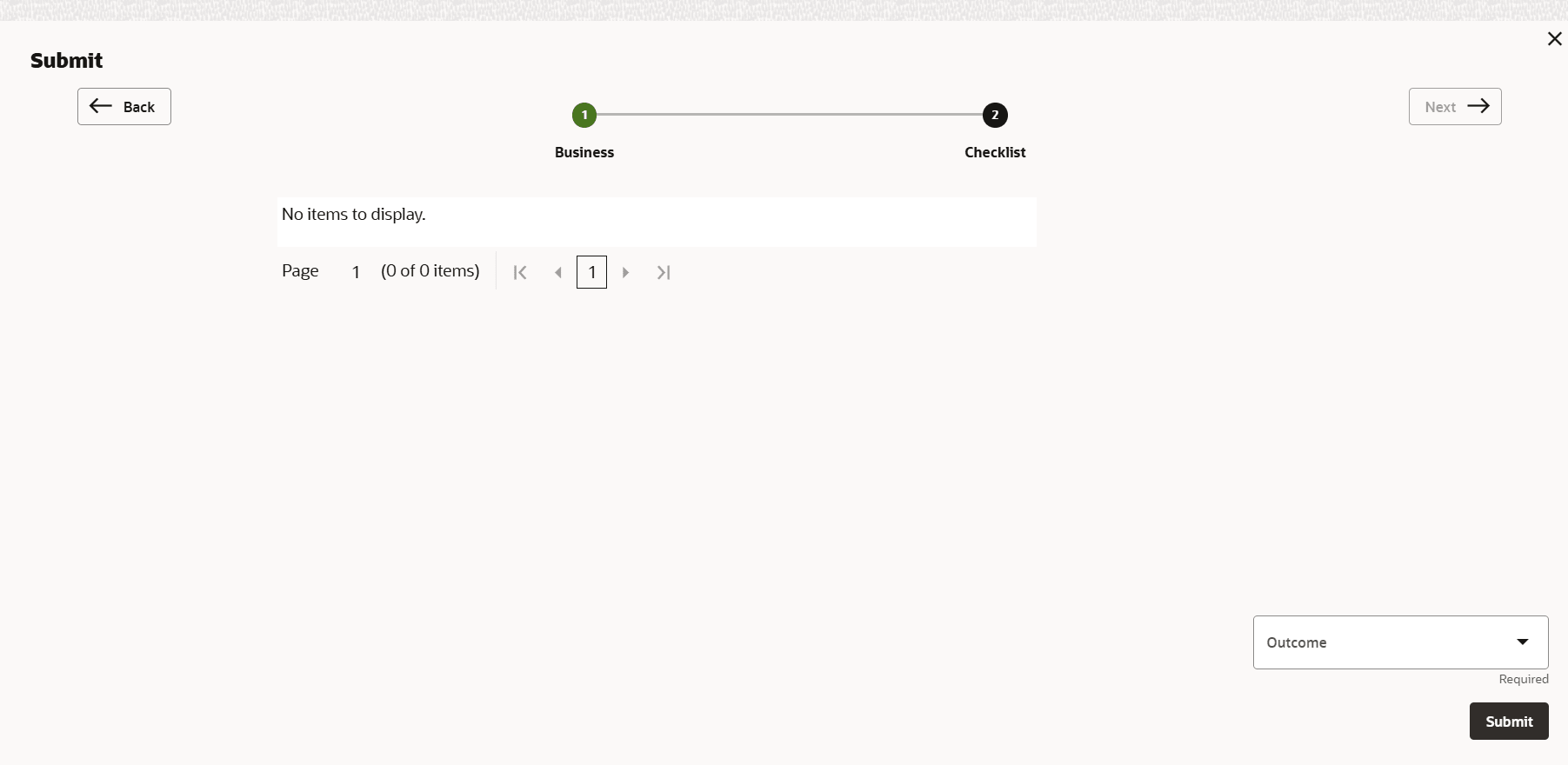
- Click the Checklist data segment.