10.1 Creating Facility Template
This topic provides systematic instructions about the procedure to create a facility template.
- From Home screen, select Credit Facilities. Under Credit Facilities, select Maintenance.
- Under Maintenance, select Facility Template. Under
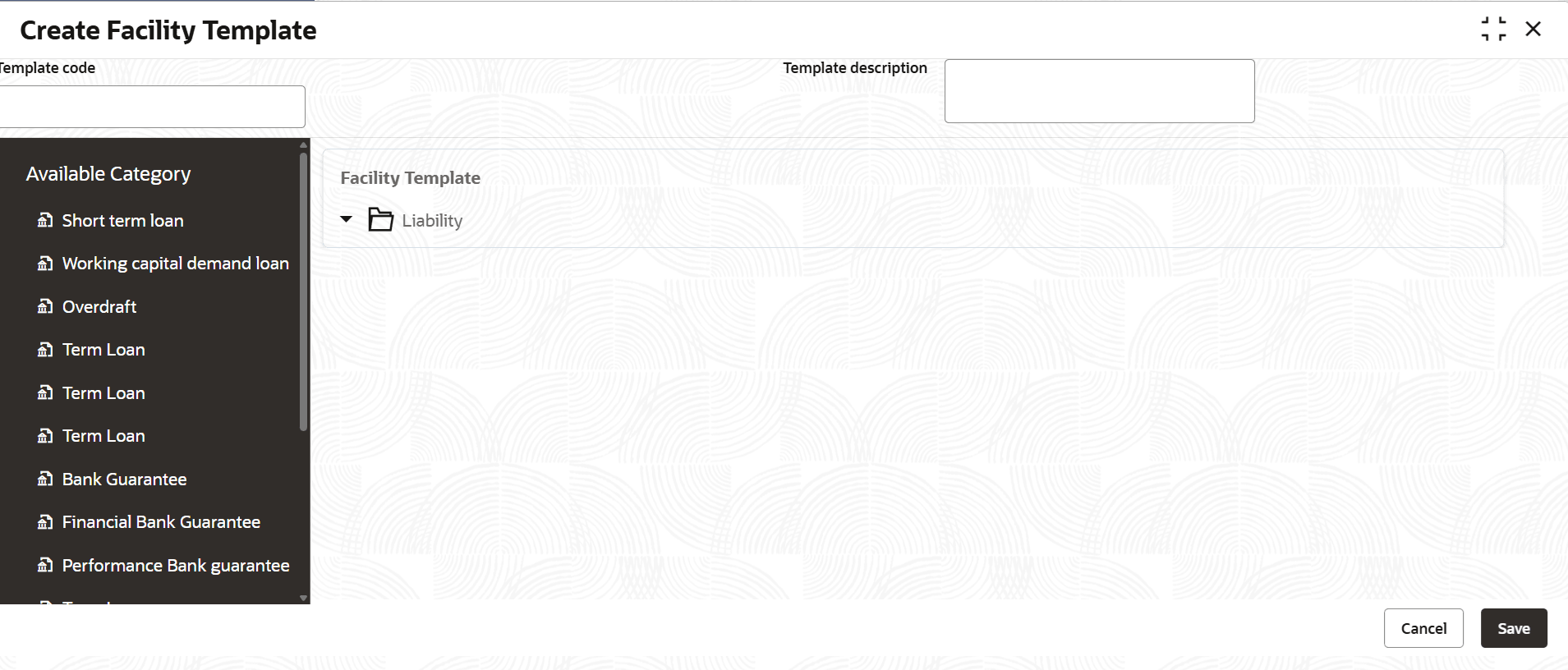
Facility Template, select Create Facility
Template.The Create Facility Template screen is displayed.
- Provide the template details based on description in the following table.
Table 10-1 Create Facility Template - Field Description
Field Description Template Code Specify a unique code for the template. Template Description Type a brief description for template to be created. - Drag and drop the required facilities from the Available Category section to Facility Template section.
- Click a facility in the Facility Template section.The Create Facility Template screen expands as shown below.
Figure 10-2 Create Facility Template - New Facility - Field Description
- Provide or select the facility details based on description in following
table.
Table 10-2 Create Facility Template - New Facility - Field Description
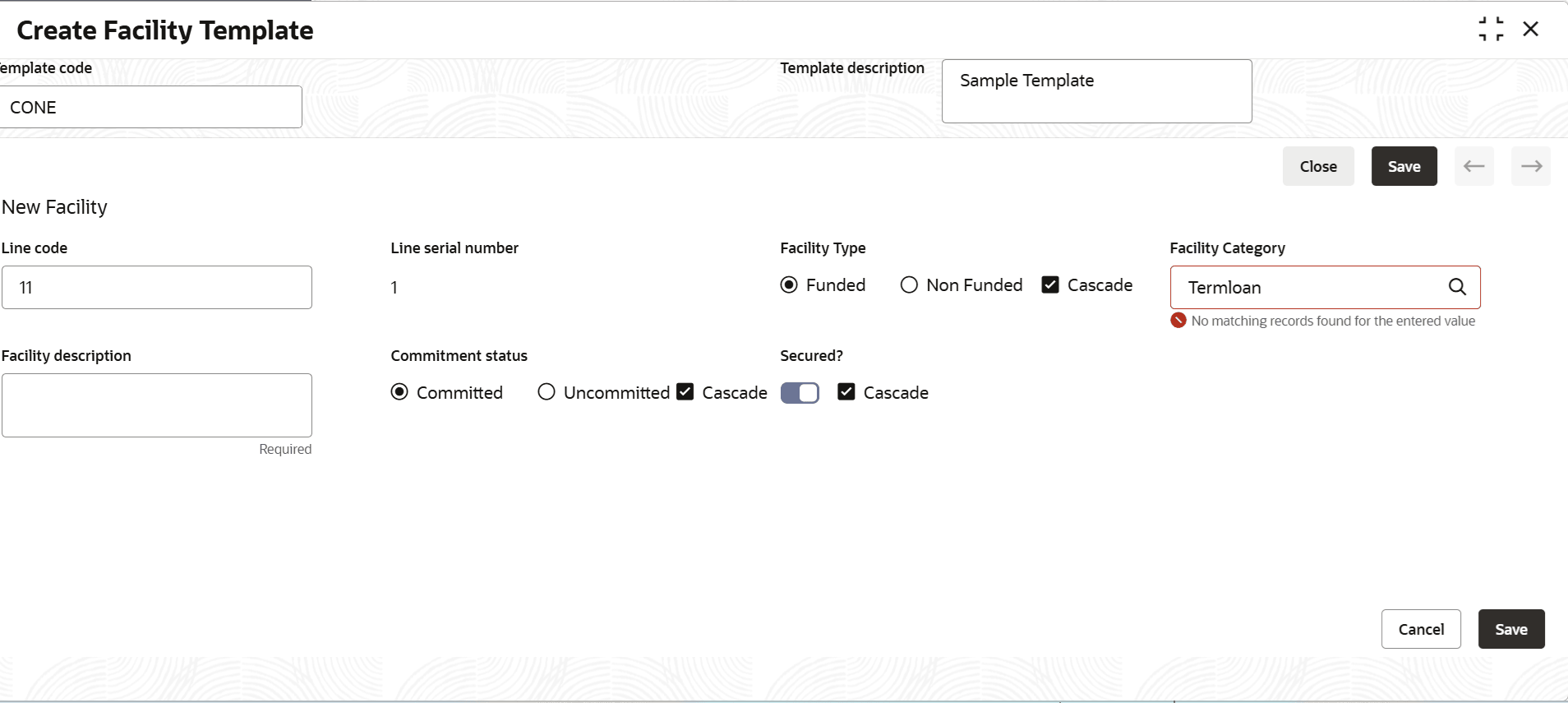
Field Description Line Code Specify the Line Code for the facility. Line Serial Number Specify the Line Serial Number for the facility. Facility Type Select the Facility Type. The options available are Funded and Non-Funded.
Enable the Cascade check box, if required. The system will default the facility type for sub-facilities under this facility based on the option selected in this screen. The user cannot modify the facility type of sub-facility.
Facility Category Select the Facility Category. Facility categories maintained in the Facility Category Maintenance screen are displayed in the option list. Facility Description Type a brief description for the facility. Commitment Status Select the Commitment Status of the facility. The options available are Committed and Uncommitted.
Enable the Cascade check box, if required. The system will default the commitment status for sub-facilities under this facility based on the option selected in this screen. The user cannot modify the commitment status of sub-facility.
Secured? Enable this flag to mark the facility as secured.
Enable the Cascade check box, if required. The system will mark the sub-facilities under this facility as secured. The user cannot disable this flag.
- Click Save.
- If more facility is added in Facility Template section, click the arrows beside Save and provide details of all the facility.
- After providing details for all the facilities, click the close icon at the left corner.
- To add sub-facility for a facility, right click on the facility and select Add or directly drag and drop the facility in the Available Category section under the required facility in Facility Template section.
- To remove a facility from the Facility Template section, right click on the facility and select Remove.
- Click Save in the Create Facility Template
screen.The facility template will be created upon authorization.
Parent topic: Facility Template

