5.1.2 Borrowing Base Computation
This topic provides systematic instructions about Borrowing Base Computation.
- Click Next in the previous data segment to proceed with
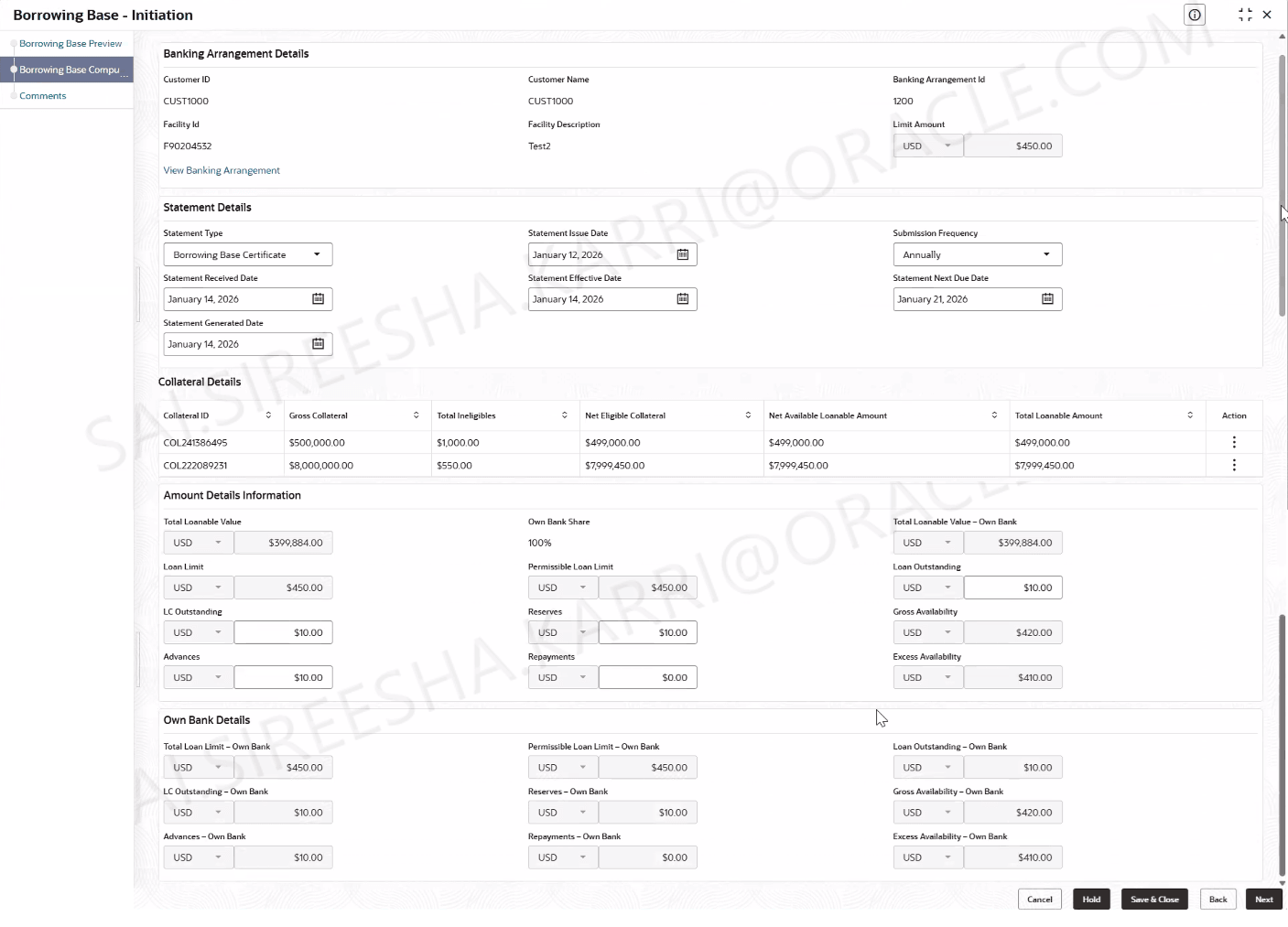
the next data segment, after successfully capturing the data.The Borrowing Base Computation screen displays.For more information on fields, refer to the field description table below:
Table 5-2 Borrowing Base Computation
Field Description Banking Arrangements Details This section displays the banking arrangement details. Customer ID Displays the customer ID. Customer Name Displays the customer name. Banking Arrangement ID Displays the banking arrangement ID. Facility ID Displays the facility ID. Facility Description Displays the facility description. Limit Amount Displays the limit amount. Statement Details This section displays the statement details. Statement Type Select the statement type from the drop-down list. The available options are: - Stock Statement
- Cash Budget
- Borrowing Base Certificate
Statement Issue Date Select the statement issue date. Submission Frequency Select the submission frequency from the drop-down list. The available options are: - Monthly
- Quarterly
- Semi- Anually
- Anually
Statement Received Date Select the statement received date. Note: The statement received date can be the past date.
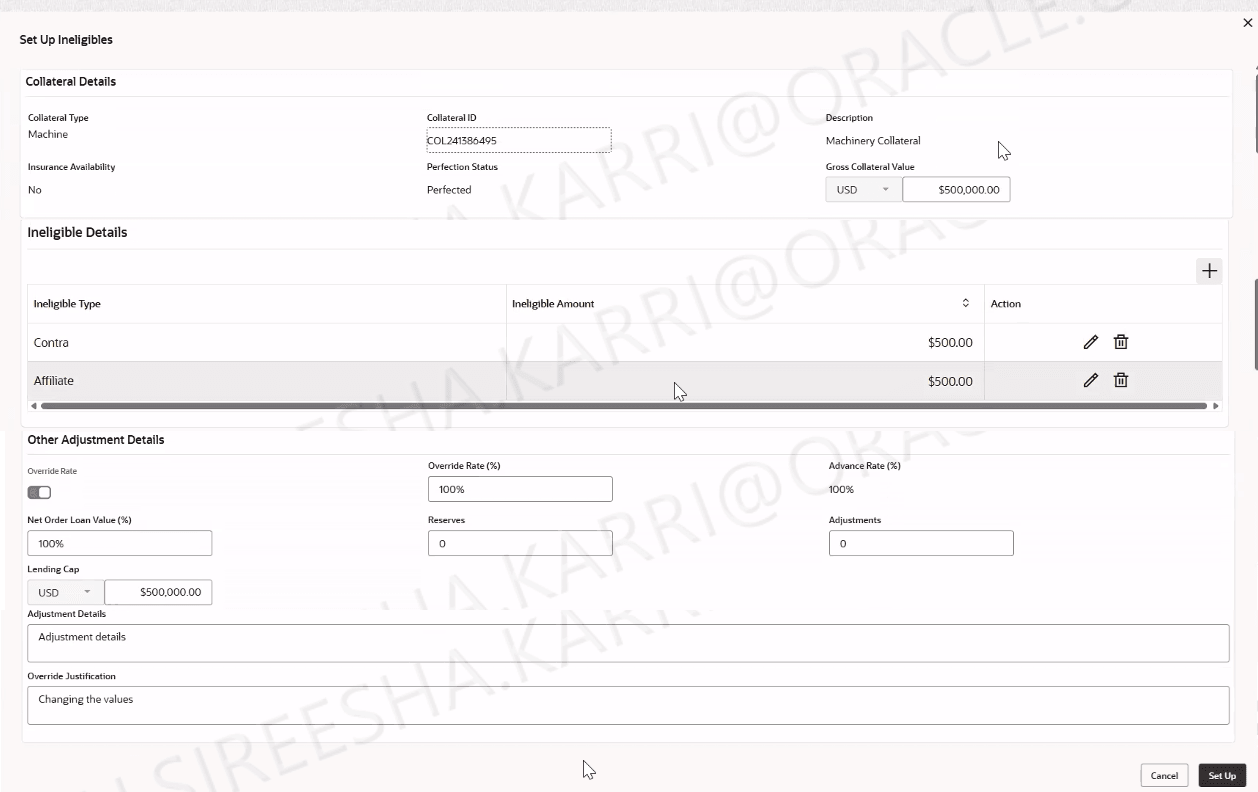
Statement Effective Date Select the statement effective date. Statement Next Due Date Select the statement next due date. It ca be calculated as Statement Issue Date + Frequency. Statement Generated Date Select the statement generated date. Collateral Details This section displays the collateral details. Collateral ID Displays the collateral ID. Gross Collateral Displays the gross collateral value. Total Ineligibles Displays the total ineligible amount. Net Eligible Collateral Displays the net eligible collateral. Net Available Lonable Amount Displays the net available lonable amount. Total Lonable Amount Displays the total lonable amount. Amount Details Information This section displays the amount details information. Total Lonable Value Displays the total lonable value. Own Bank Share Displays the own bank share percentage. Total Lonable Value - Own Bank Displays the total lonable value. It can be calculated as Total Loanable Amount * Own Bank share Loan Limit Displays the loan limit amount. Permissible Loan Limit Displays the permissible loan limit amount. Loan Outstanding Displays the loan outstanding amount. LC Outstanding Displays the LC Outstanding amount. Reserves Displays the amount to be input by the user for the selected collateral. Gross Availability Displays the gross availability. It can be calculated as Gross Availability * Own Bank Share. Advances Displays the amount for the selected collateral. Repayments Displays the repayments. Excess Availability Displays the excess availability. It can be calculated as Gross Availability - Advances + Repayments. Own Bank Details This section displays the own bank details. Total Loan Limit - Own Bank Displays the total loan limit. It can be calculated as calculated as Loan Limit * Own Bank share. Permissible Loan Limit - Own Bank Displays the permissible loan limit. It can be calculated as the lower of 'Total Loanable Amount- Own Bank share' and 'Loan Limit- Own Bank share'. Loan Outstanding - Own Bank Displays the loan outstanding amount. It can be calculated as Loan Outstanding * Own Bank share. LC Outstanding - Own Bank Displays the LC Outstanding amount. It can be calculated as LC Outstanding * Own Bank share. Reserves - Own Bank Displays the amount to be input by the user for the selected collateral. Gross Availability - Own Bank Displays the gross availability. Advances - Own Bank Displays the advances of the bank. Repayments - Own Bank Displays the repayments of the bank. Excess Availability - Own Bank Displays the excess availability of the bank. - On Action field, click Setup Ineligibles.The Setup Ineligibles screen displays.For more information on fields, refer to the field description table below.
Table 5-3 Setup Ineligibles
Field Description Collateral Details Displays the collateral details. Collateral Type Displays the collateral type. Collateral ID Displays the collateral ID. Description Displays the description of collateral. Insurance Availability Displays the insurance availability. Perfection Status Displays the perfection status. Gross Collateral Value Displays the gross collateral value. Ineligible Details Displays the ineligible details. Ineligible Type Displays the ineligible type. Ineligible Amount Displays the ineligible amount. Other Adjustment Details This section displays the other adjustment details. Override Rate Enable the toggle to override the calculated rate. Override Rule(%) Specify the percentage to override the calculated area. Advance Rate(%) Displays the advance rate (%). Net Order Loan Value(%) Specify the advance rate(%). Reserves Specify the amount set to reserve against the collateral. Adjustments Specify the additional adjustments of the collateral. Lending Cap Displays the maximum loan amount allowed against the collateral. Adjustment Details If Adjustment field is not blank, this field becomes mandatory to enter. Otherwise field should be disabled. Override Justification Specify the override justification.
Parent topic: Borrowing Base Initiation