2 Process to Create RWA Parameter
This topic describes the systematic instructions about Process to Create RWA Parameter.
- From Homescreen, click Credit
Facilities. Under Credit Facilities, click
Maintenance. Under
Maintenance, click RWA Parameter
Maintenance. Under RWA Parameter Maintenance, click
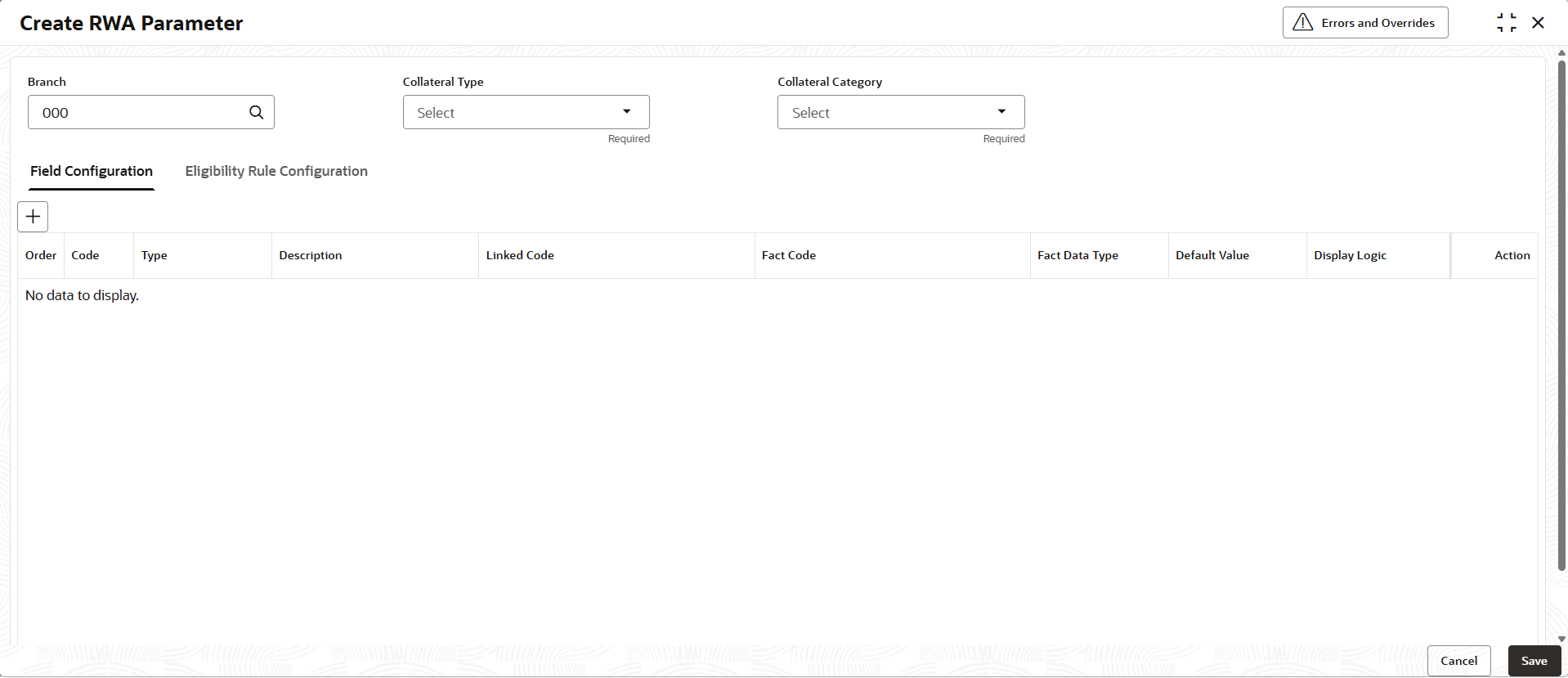
Create RWA Parameter.The Create RWA Parameter screen is displayed.
- On Create RWA Parameter screen, specify the
fields.For more information on fields, refer to the field description table.
Note:
The fields marked as Required are mandatory.Table 2-1 Create RWA Parameter - Field Description
Field Name Description Branch Click  icon and select the branch code from the
list.
icon and select the branch code from the
list.
Collateral Type Select the collateral type from the drop-down list. The available options are:
- Account Receivables
- Account Contracts
- Aircraft
- Bill Of Exchange
- Bond
- Cash Collaterals
- Commercial Paper
- Commodity
- Corporate Deposits
- Crop
- Fund
- Guarantee
- Insurance
- Inventory
- Machine
- Miscellaneous
- Other Bank Deposits
- PDC
- Perishable
- Precious Metals
- Promissory Note
- Property
- Ship
- Stock
- Vehicle
Collateral Category Select the collateral category from the drop-down list. Note: User can select the collateral category based on the collatera type.
Field Configuration This section is used to provide parameter codes for the branch. Order The sequence in which the fields appear or evaluated. Code Indicates the unique identification code for the parameters. Type Select the type from the drop-down list. The available options are:
- Application Data
- Question
Description Specify the description. Linked Code Click icon and select the linked code.
Fact Code Click icon and select the fact code.
Fact Data Type Select the fact data type from the drop-down list. The available options are:
- NUMBER
- TEXT
- BOOLEAN
- DATE
Default Value Default value will pre-populated in eligibility screen. For Example: User chosen Linked code like YNCODE, they will get option to choose Yes/No in drop-down under default value selection.
Display Logic Select the display logic from the drop-down list. The available options are:
- Always: Parameter will always be displayed on the end user eligibility screen.
- Never: Parameter will not be displayed to the end user (but will remain available for use in any eligibility logic).
- Rule: Parameter will be displayed to the end user based on additional display rule logic.
Display Rule If user configured Rule information will display here along with edit facility. Dependent By User can map the appropriate Field Code for resolving the possible value by another selected value. For Example: Render state list, country code is mandatory. Hence user will map the country Code will fetch from CP3.
Action Use the available icons to perform actions on the parameter row. The available options are:
- Edit: Click
 icon to modify the parameter details.
- Delete: Click
 icon to remove the parameter from the
list.
icon to remove the parameter from the
list.
- Click
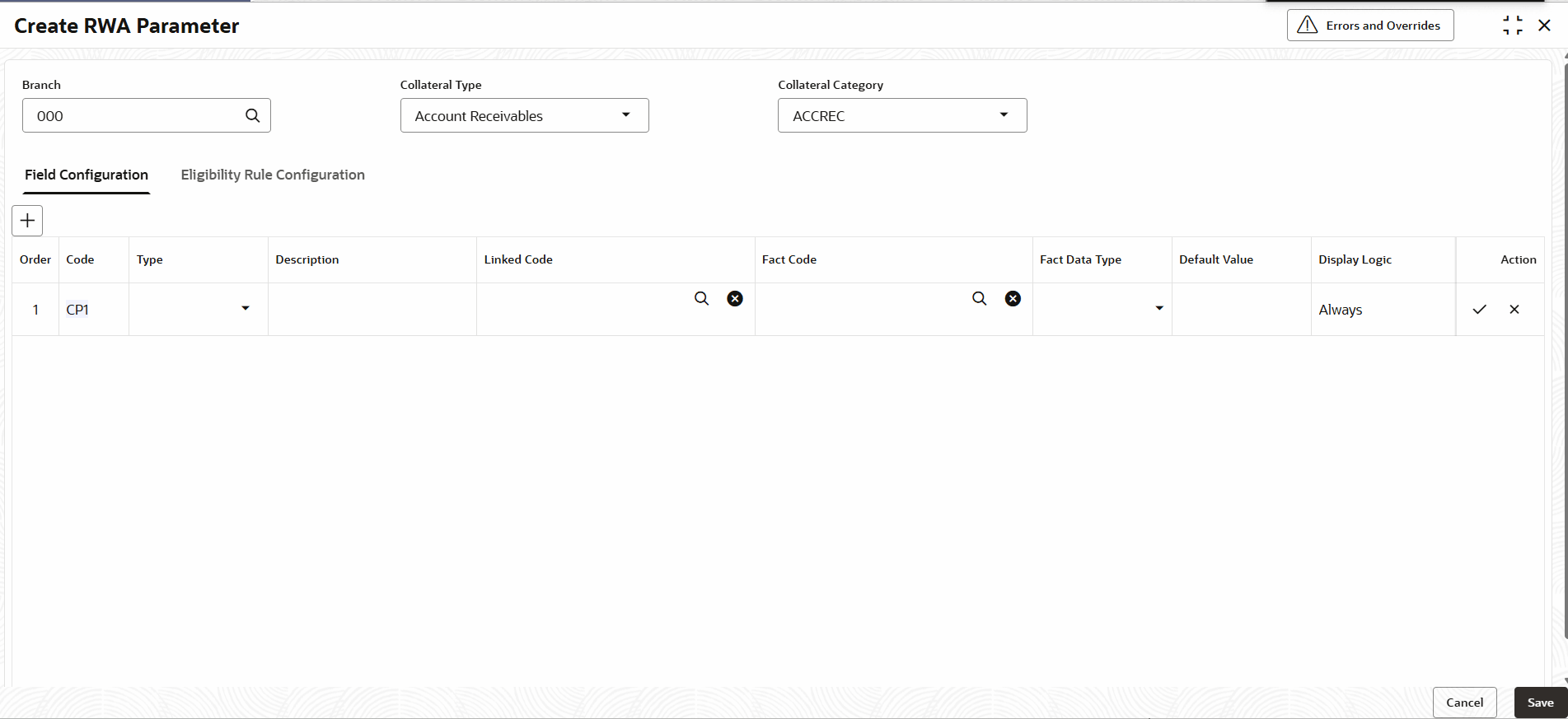
 icon to configure Field Configuration.The Create RWA Parameter Field Configurationscreen is displayed.
Figure 2-2 Create RWA Parameter - Field Configuration
For more information on fields, refer to the field description table.
Table 2-2 Create RWA Parameter - Field Configuration
Field Description Order The sequence in which the fields appear or evaluated. Code Displays the code. Type Select the type from the drop-down list. The available options are: - Application Data
- Question
Description Specify the description. Linked Code Click icon and select the linked code from the
list.
Fact Code Click icon and select the fact code from the
list.
Fact Data Type Select the fact data type from the drop-dow list. The available options are: - NUMBER
- TEXT
- BOOLEAN
- DATE
Default Value Specify the default value. Display Value Select the display value. The available options are: - Always
- Never
- Rule
Action Use the available icons to perform actions on the parameter row. The available options are: - Save
- Cancel
- To configure the Linked Code and Fact
Code.
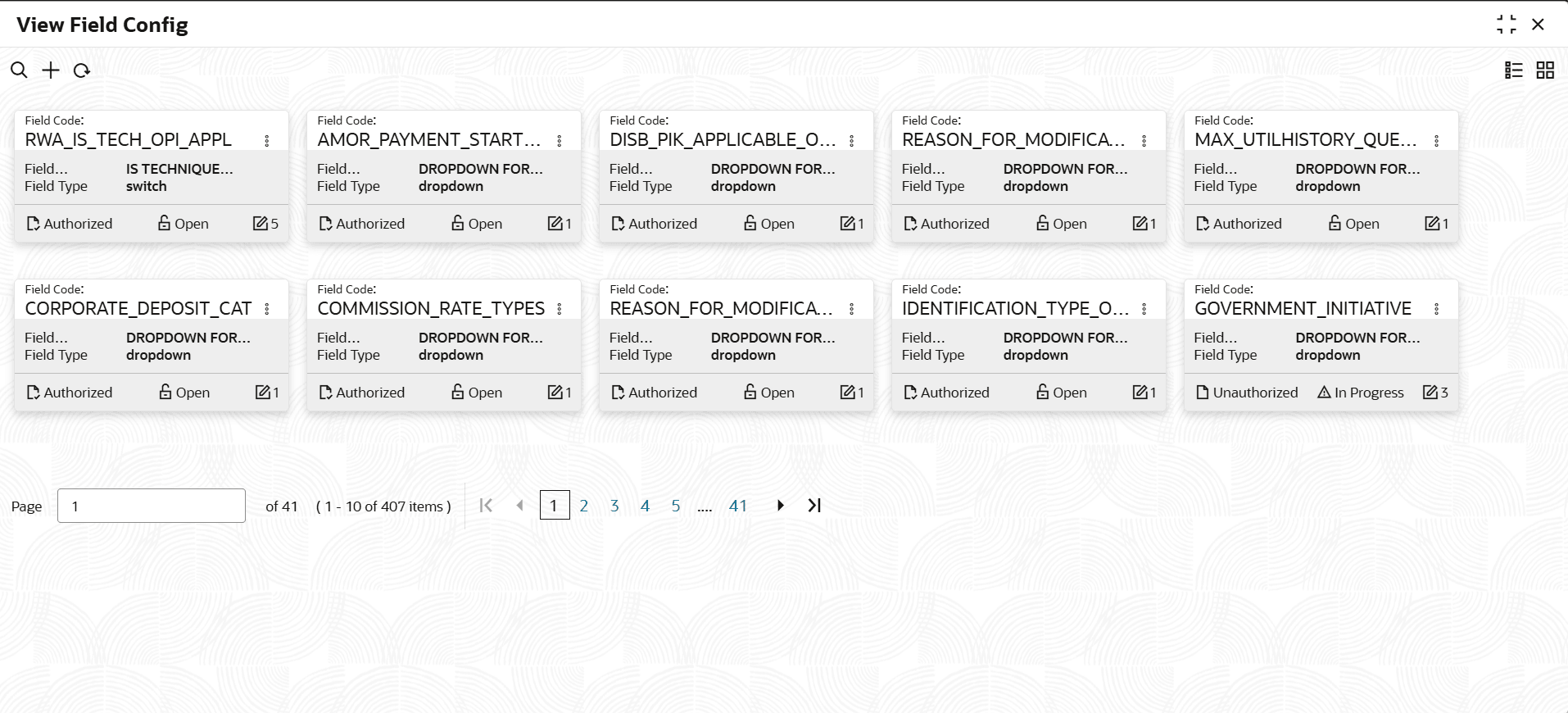
- For Linked Code from menu search View
Field Configuration
The View Field Configuration screen is displayed.
- Click Unlock to modify the field
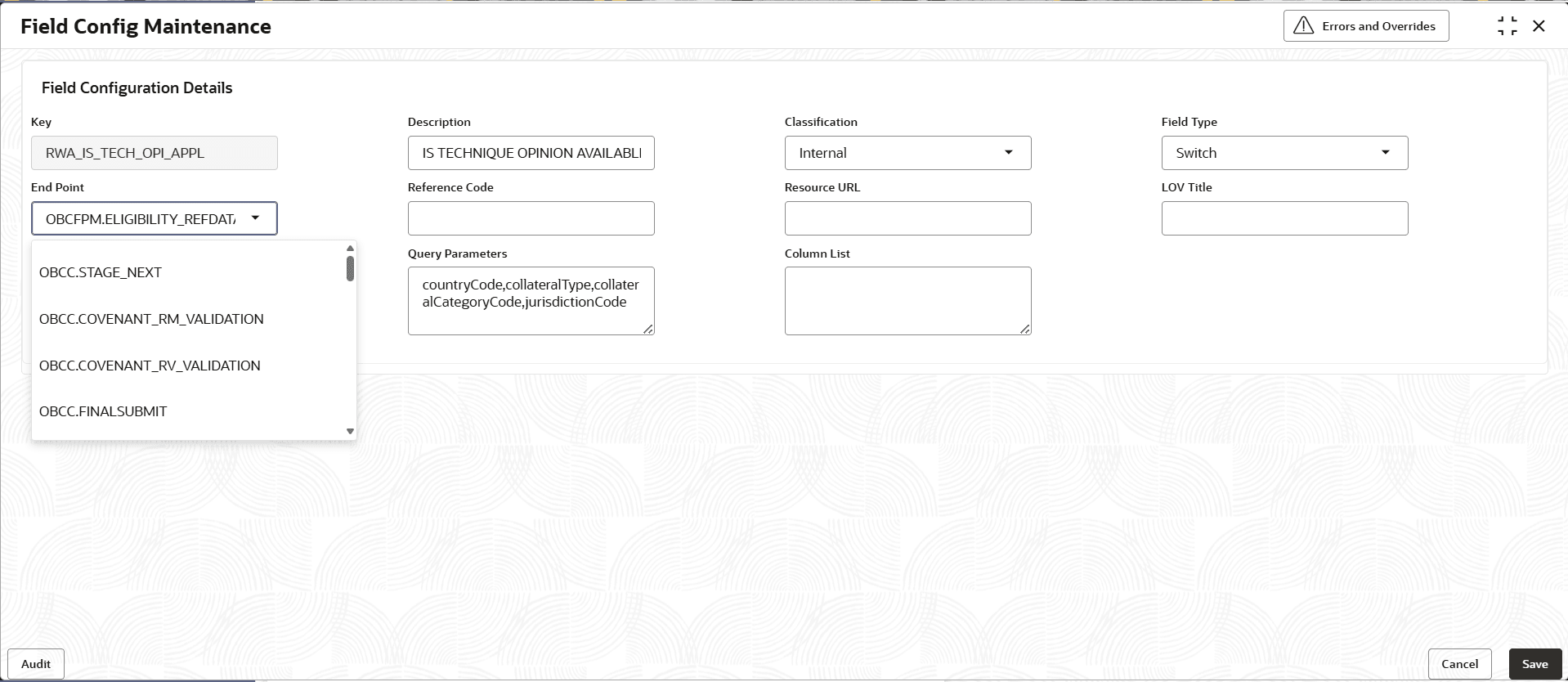
configuration.The Field Config Maintenance screen is displayed.
Figure 2-4
For more information on fields, refer to the field description table.
Table 2-3 Field Config Maintenance - Field Description
Field Description Key Displays the key. Description Displays the description. Classification Select the classification from the drop-down list. The available options are: - Internal
- External
Field Type Select the classification from the drop-down list. The available options are: - LOV
- Dropdown
- Number
- Date
- Text
- Textarea
- Switch
- Link
- Amount
End Point Select the required key from the drop-down list. Reference Code Specify the Reference Code. Resource URL Specify the Resource URL. LOV Title Specify the LOV title. Query Parameters Displays the Query Parameters Column List Specify the column list.
- For Linked Code from menu search View
Field Configuration
- To create Fact Code from menu search
Rule under Rule select
Fact under fact select Create
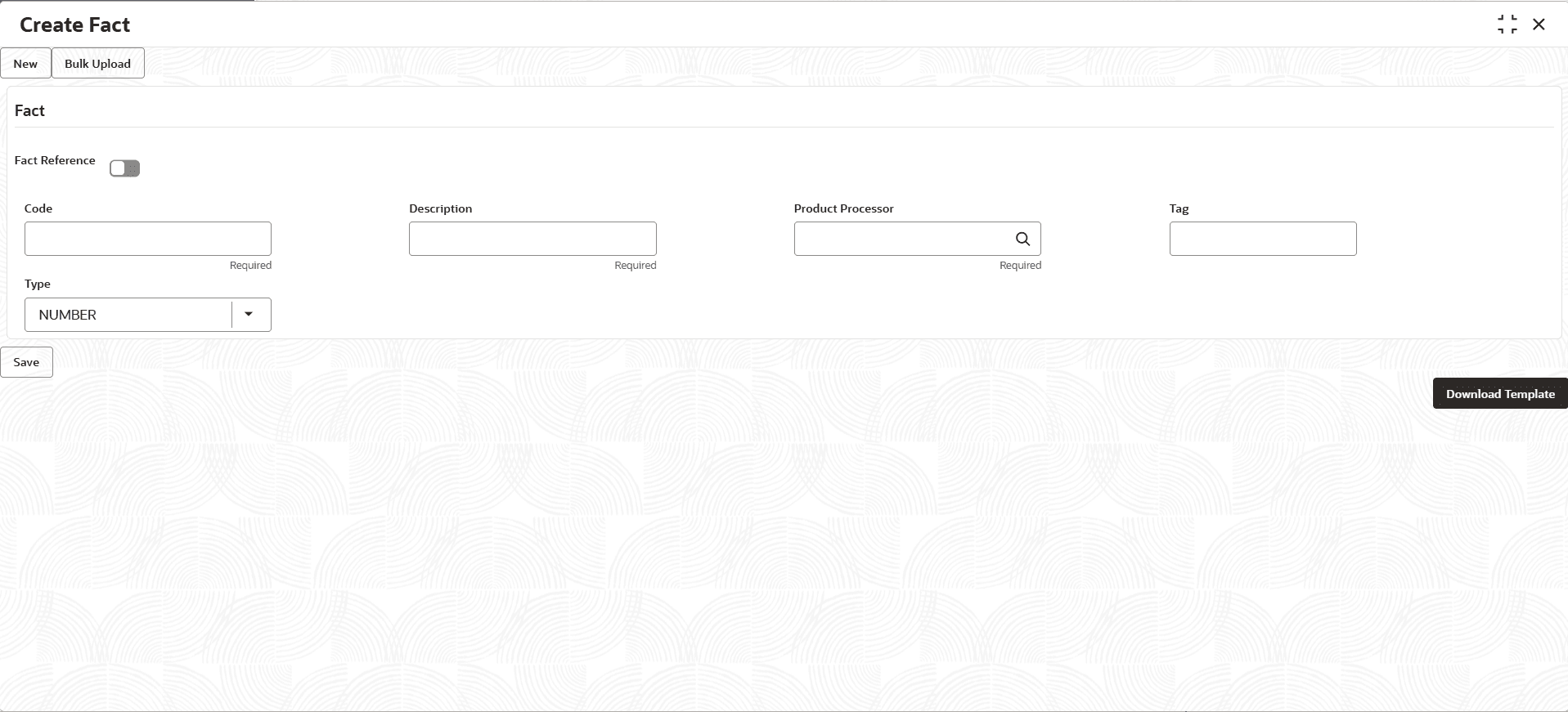
Fact. The Create Fact screen is displayed.
- Specify the fields on the Create Fact screen.
Note:
The fields marked as Required are mandatory.For more information on fields, refer to the field description table.Table 2-4 Create Fact - Field Description
Field Description Code Specify the code. Description Specify the description. Product Processor Click and select the product processor from the list.
Tag Specify the tag. Type Select the type from the drop-down list. The available options are: - NUMBER
- TEXT
- BOOLEAN
- DATE
- ARRAY
- ENUM
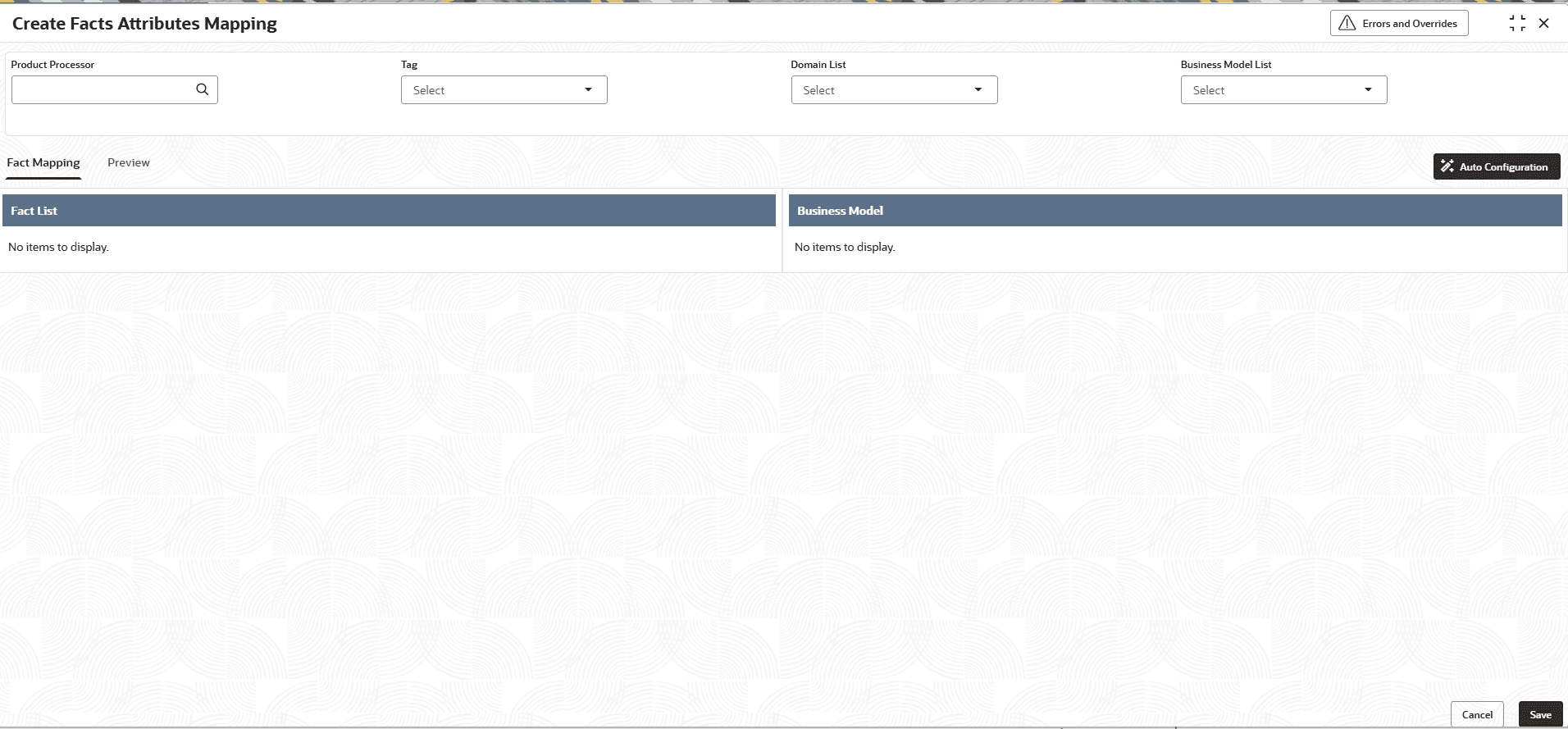
- Under Maintenance, click Fact Attributes
Mapping. Under Fact Attributes Mapping, click Create
Fact Attributes Mapping.The Create Fact Attributes Mapping screen is displayed.
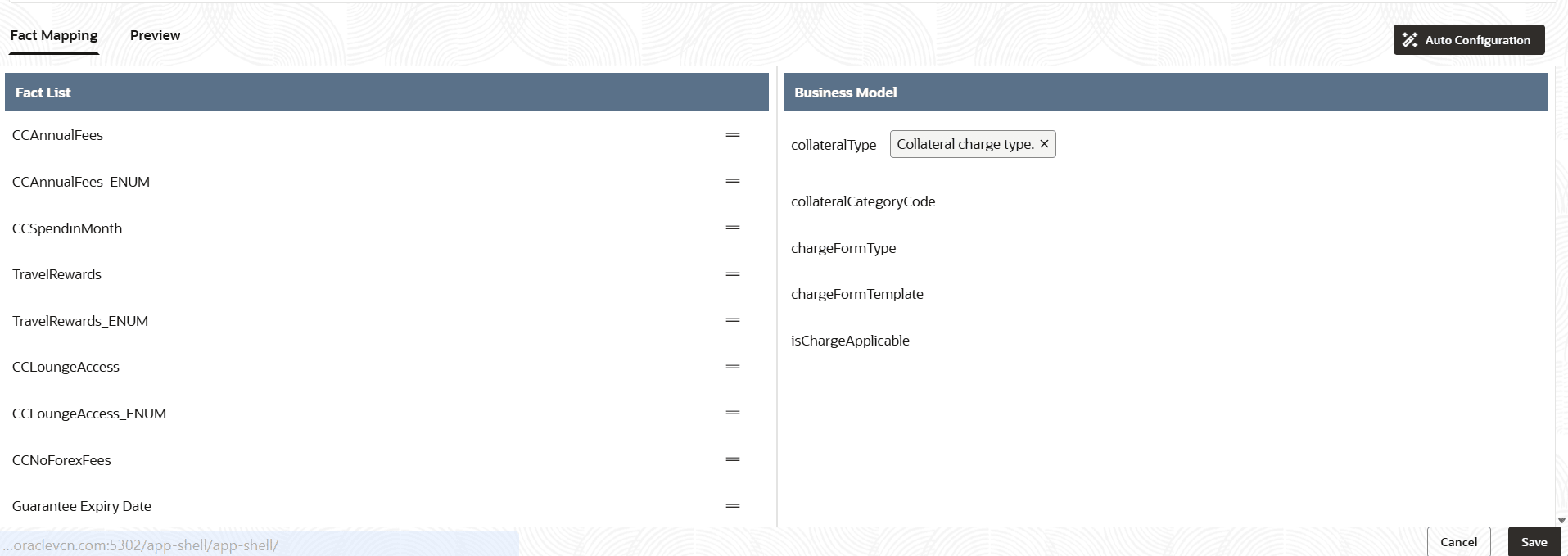
- On Fact Mapping tab, drag the Fact
Code and drop in specific Bussiness
Model. The Fact code screen displays.
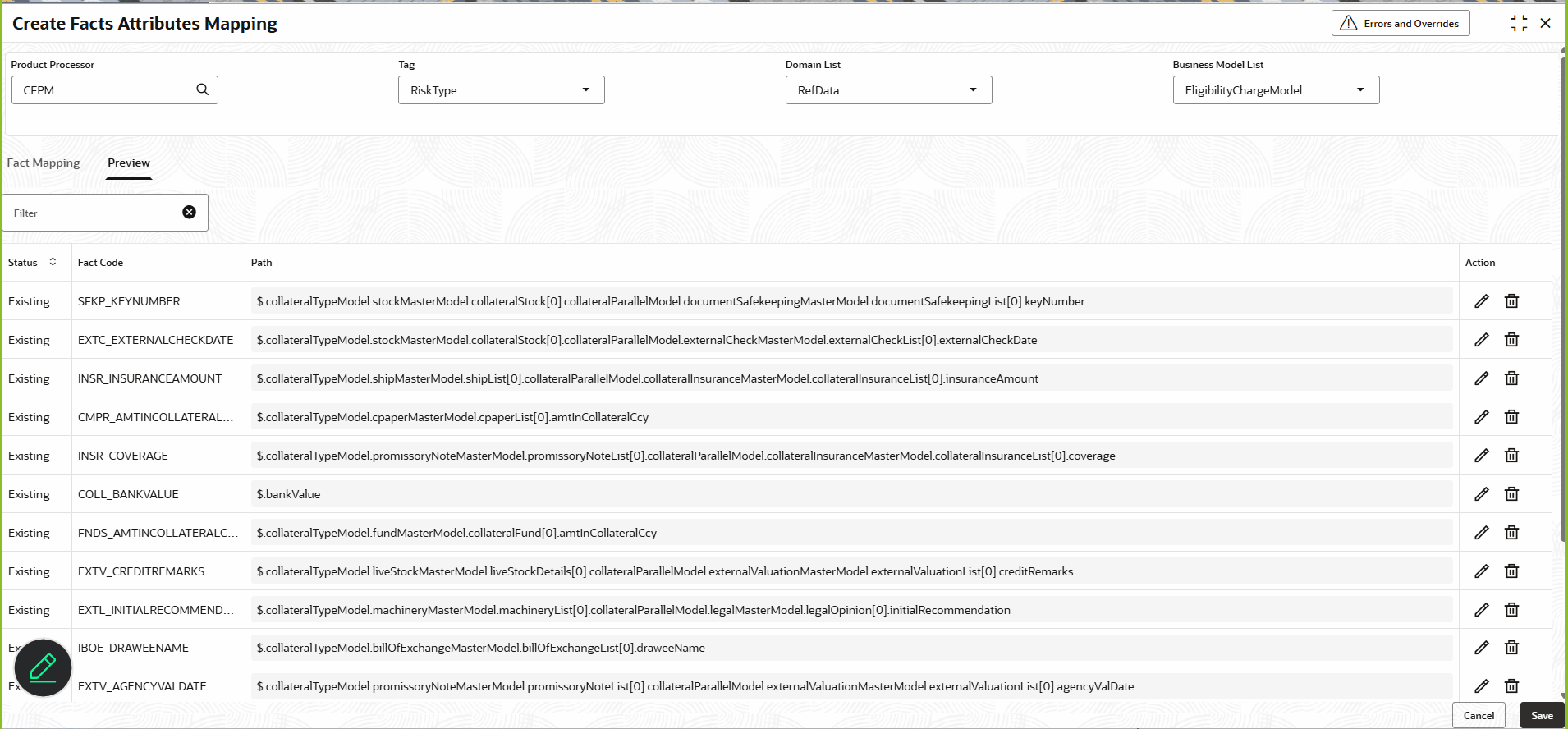
- Select the Preview tab. The Preview screen displays.For more information on fields, refer to the filed description table below.
Table 2-6 Set Field Value - Field Description
Field Description Status Displays the status of the fact code. Fact Code A Fact Code is usually a standard identifier (code) that labels a specific "fact"—a measurable data point or business event—allowing it to be stored, referenced, and reported consistently across different systems. Path Displays the path of the fact code. Action Use the available icons to perform actions in fact code. The available options are: - Edit: Click
icon to modify the parameter
details.
- Delete: Click
icon to remove the parameter from the
list.
- Edit: Click
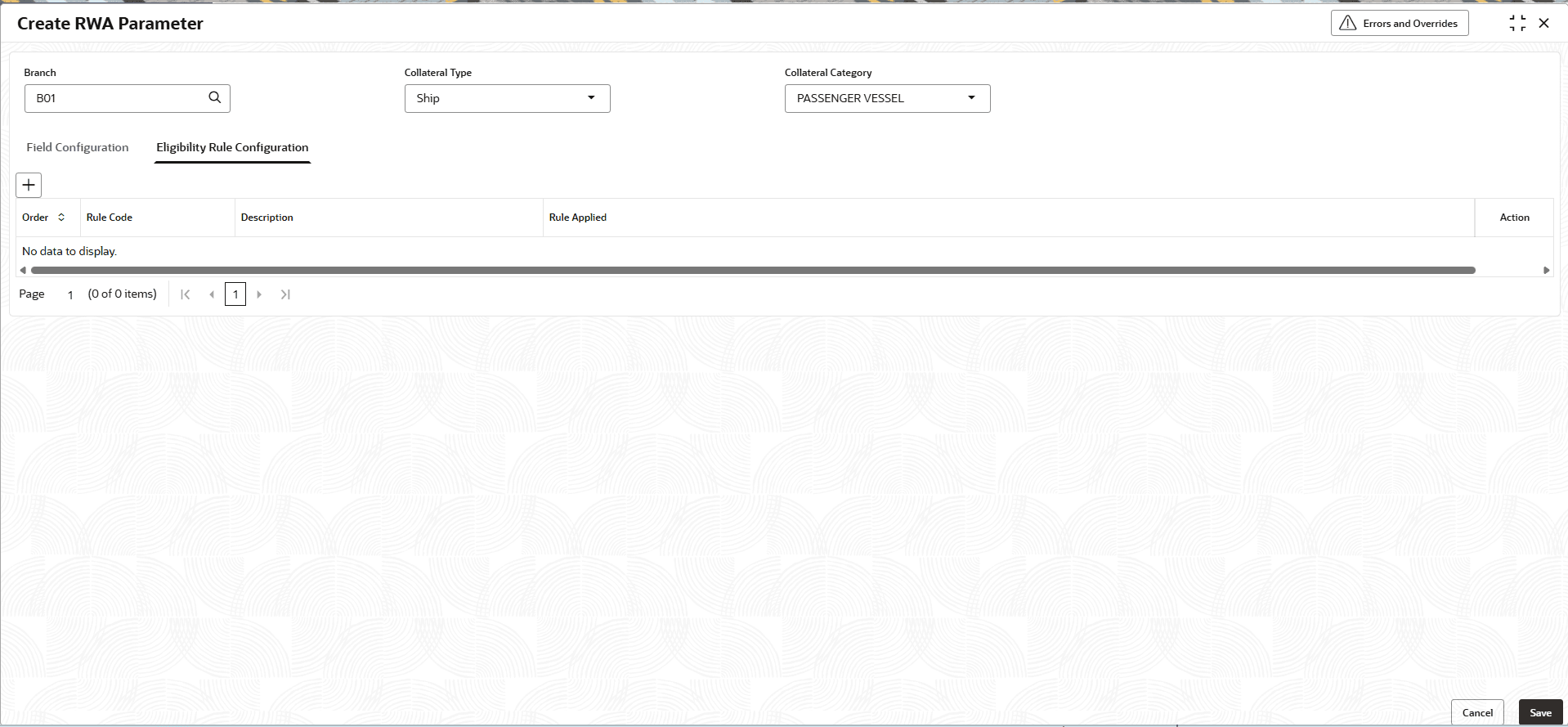
- On the Create RWA Parameter screen, select
Eligibility Rule Configuration to specify the
details.The Create RWA Parameter Eligibility Rule Configuration screen is displayed.
- Click icon to configure Eligibility Rule Configure
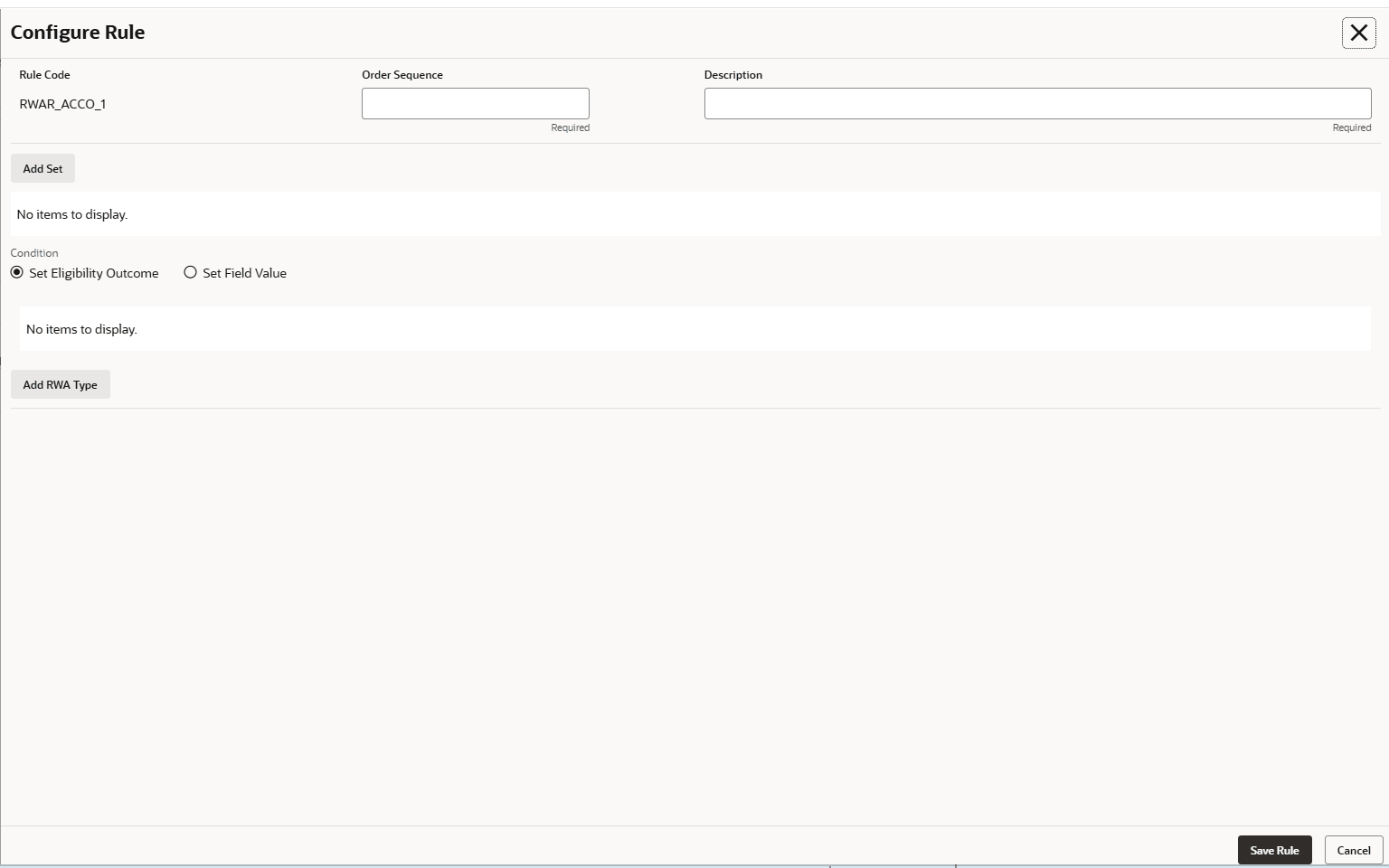
.The Configure Rule screen is displayed.
Note:
The fields marked as Required are mandatory.For more information on fields, refer to the field description table.
Table 2-7 Configure Rule - Field Description
Field Description Rule Code Displays the rule code. Order Sequence Specify the order sequence. Description Specify the description. - Click Add Set.The Add Set screen is displayed.
Note:
The fields marked as Required are mandatory.For more information on fields, refer to the field description table.
Table 2-8 Add Set - Field Description
Field Description Item Code Select the item code from the drop-down list. Note: User can select the item code based on the code.
Description Displays the description. Condition Select the condition from the drop-down list. The available options are:- NOTIN
- < Less than
- > Greater than
- == Equals
- != Not equal to
- >= Greater than or Equal to
- <= Less than or Equal to
- IN
- On the Configure Rule screen, select the condition type
and define it respectively.
- Select Set Eligibility Outcome.The Set Eligibility Outcome screen is displayed.
For more information on fields, refer to the field description table.
Table 2-9 Set Eligibility Outcome - Field Description
Field Description Eligibility Type Displays the eligibility type. RWA Type Select the RWA type from the drop-down list. The available options are:
- RWA Global
- RWA Regional
- RWA Local
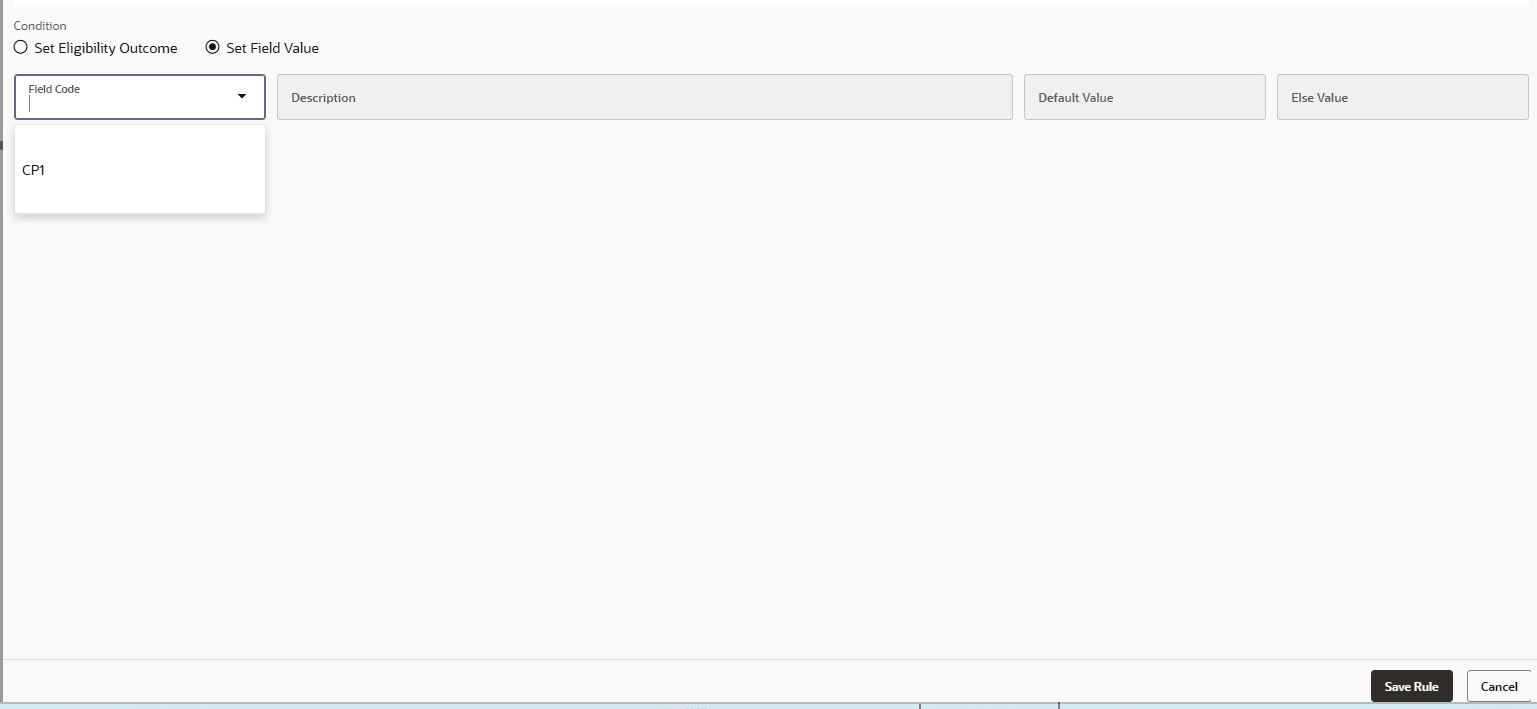
Display Next To Displays the warning next to specific field. Warning/Reason Specify the warning/Reason. - Select Set Field Value. This set field value is
used to set a value based on rule.The Set Field Value screen is displayed.
For more information on fields, refer to the field description table.
Table 2-10 Set Field Value - Field Description
Field Description Field Code Select the field code from the drop-down list. Note: User can select the field code based on the code.
Description Displays the description. Default Value Displays the default value. Else Value Displays the else value.
- Select Set Eligibility Outcome.