4.1.1.1 Create Expected Cash Flow
This topic provides systematic instructions to create a single Cash Flow in Oracle Banking Digital Experience.
- Perform the following navigation to access the Create Expected Cash Flow
screen.From the Dashboard, click Toggle Menu. Under Toggle Menu, click Cash Management . Under Cash Management , click Cash Flow. Under Cash Flow, click Create Expected Cash Flow.
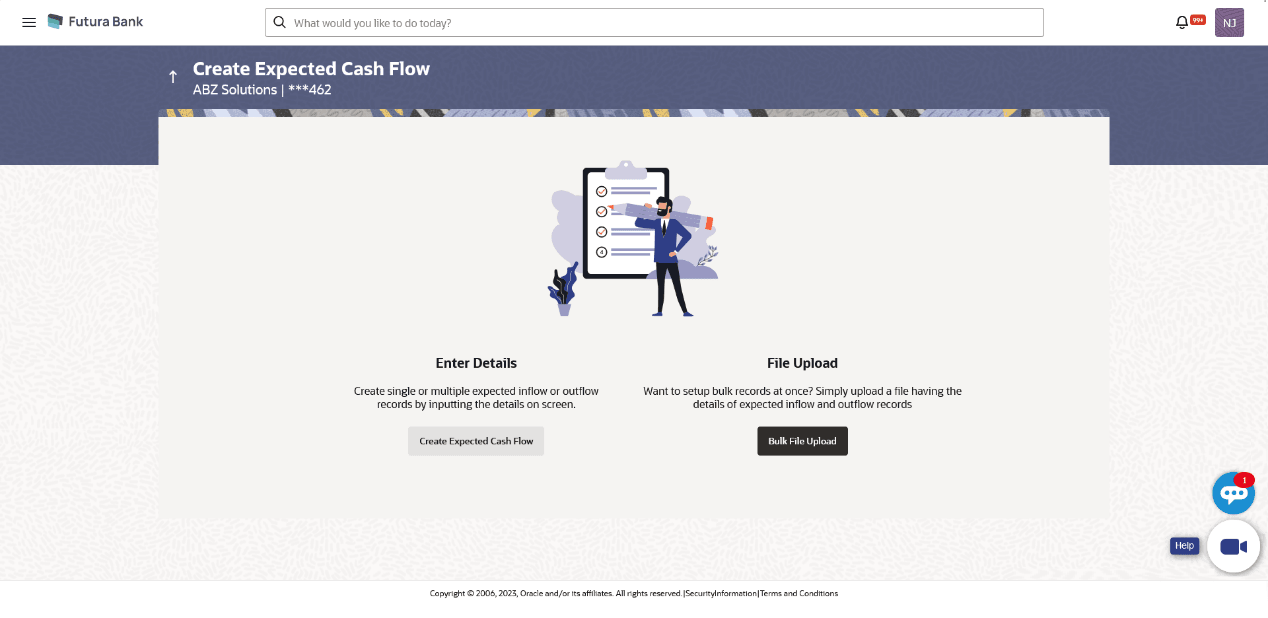
The Create Expected Cash Flow screen displays.
For more information on fields, refer to field description table below:
Table 4-1 Create Expected Cash Flow - Field and Description
Field Description Party Name Displays the name of the logged-in corporate party. Enter Details Indicates the option to create single or recurring expected cash flow records by manual entry of cash flow details. File Upload Indicates the option to create bulk expected cash flow records through file upload. The file formats supported are .xls, .xlsx, .csv, and .xml. - In the Create Expected Cash Flow screen, click Create Expected Cash
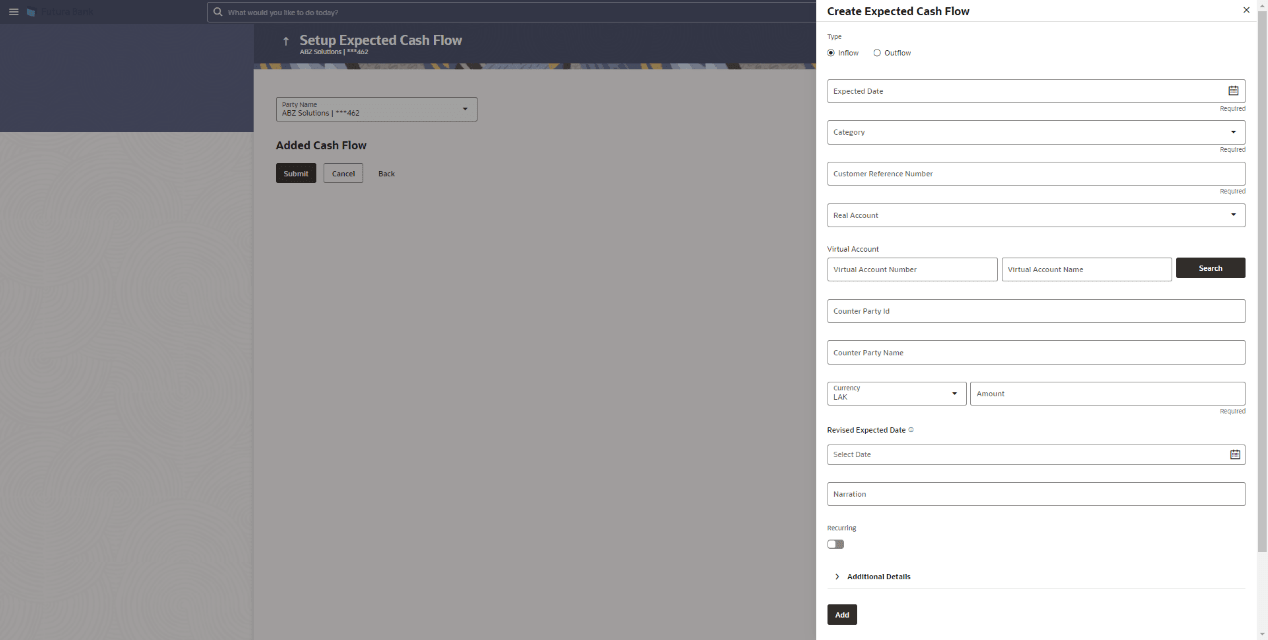
Flow. The overlay window appears.
For more information on fields, refer to field description table below:
Table 4-2 Create Expected Cash Flow - Field and Description
Field Description Type Select whether the cash flow is an inflow or an outflow. Category Type Select the category type. The options are:- Standard Category
- Custom Category
Standard Category Select the standard category of the cash flow transaction. The values in this list depend on the option selected in the Type field (inflow or outflow). This field is displayed if Category Type is Standard Category.
Custom Category Select the appropriate category for the cashflow transactions. The values in this list depend on the option selected in the Type field (inflow or outflow). This field is displayed if Category Type is Custom Category.
Create New Custom Category Switch on the toggle to create a new custom category. This field is displayed if Category Type is Custom Category.
Category Code Specify the code for the category. This field appears when Create New Custom Category toggle is enabled.
Category Name Specify a description for the category. This field appears when Create New Custom Category toggle is enabled.
Expected Date Specify the expected date of expected cash flow transaction. Customer Reference Number Specify the customer’s own reference number for the cash flow. Currency Select the currency for the expected cash flow transaction. Amount Specify the amount of the expected cash flow transaction. Revised Expected Date Specify the revised date when the cash flow is expected to take place, if required. Narration Specify the narration of the expected cash flow transaction. Actual Date Select or specify the actual date for the expected cash flow transaction. Currency Select the actual currency for the expected cash flow transaction. Actual Amount Specify the actual amount of the expected cash flow transaction. Account Details Switch the toggle on, to select the Own Bank Account. Account Number Displays the own bank account number. Account Name Displays the own bank account name. Real Account Select the account number of the corporate party for the expected cash flow transaction. The dropdown list either displays the real account numbers or the International Bank Account Number (IBAN), based on the configuration set by the bank. Note: This field is displayed if the Account Details toggle is enabled for expected cash flow transaction.
BIC Code Specify the BIC code. Note: This field is displayed if the Account Details toggle is enabled for expected cash flow transaction.
Virtual Account Number Specify the virtual account number of the corporate party for the expected cash flow transaction. Virtual account will be input field if account selected is external bank account.
Note: This field is displayed if the Account Details toggle is enabled for expected cash flow transaction.
Virtual Account Name Specify the virtual account name of the corportate party for the expected cash flow transaction. Note: This field is displayed if the Account Details toggle is enabled for expected cash flow transaction.
Search Click Search to search the virtual account with the account number, and account name specified. Counter Party Details This section displays counter party details. Counter Party Type Slect the appropriate counter party type. The options are:- New Party
- Existing Party
Counter Party ID Specify the ID of the counter party. This field is displayed, if you select New Party option from Counter Party Type field.
Counter Party Name Specify the name of the counter party. This field is displayed, if you select New Party option from Counter Party Type field.
Select Existing Party Select the existing party as a counter party type. This field is displayed, if you select Existing Party option from Counter Party Type field.
Additional Details- Filler 1-10 Specify the additional details in the fileds Filler 1 to 10. - Once you add the required details, click Add. The cash
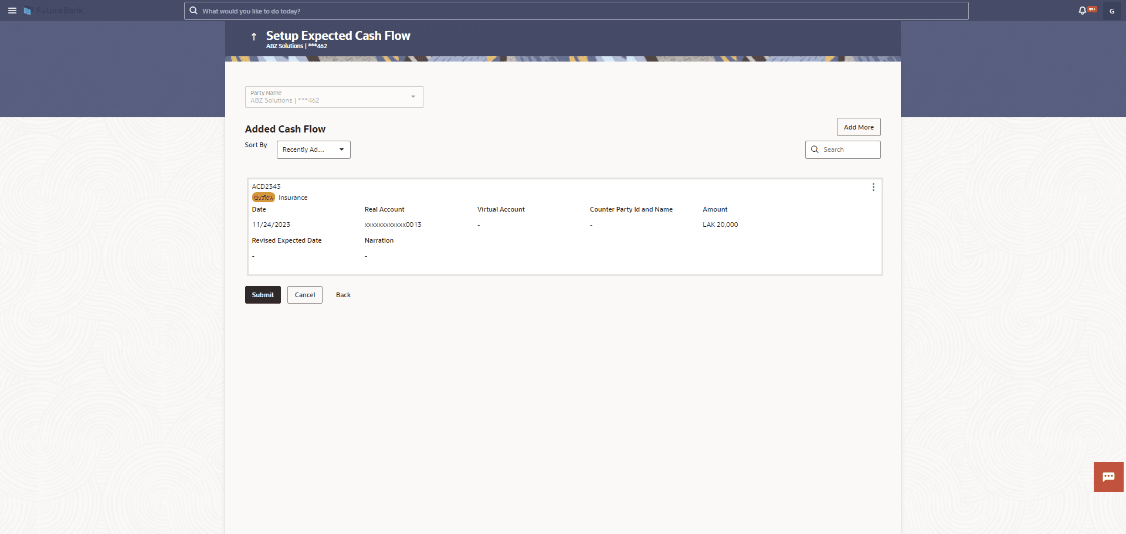
flow transaction record is added to the Added Cash Flow list.
- Click
 and select Edit beside the record to
edit the added entry.
and select Edit beside the record to
edit the added entry. - Click and select Delete beside the record to
delete the added entry.
Figure 4-3 Added Cash Flow – One-time Cash Flow Record
For more information on fields, refer to field description table below:
Table 4-3 Added Cash Flow – Expected Cash Flow Record - Field and Description
Field Description Party Name & ID Displays the name and ID of the logged-in corporate party. Sort By Indicates a list of options to sort the cash flow entries. Search Indicates an option to search for a specific cash flow transaction record based on the search text entered. Customer Reference Number, Type, Category Displays the customer’s reference number for the expected cash flow record, the type of cash flow (Inflow or Outflow), and the category of the cash flow transaction.
In case of a recurring cash flow record, the
 indicator appears beside the customer reference
number.
indicator appears beside the customer reference
number.
Date Displays the date on which the cash flow transaction is expected to occur. Real Account Displays the account number of the corporate party for the recurring cash flow transaction. Note: This field is displayed if the Account Details toggle is enabled for recurring cash flow transaction.
Virtual Account Displays the virtual account number and name selected for the transaction. BIC Code Specify the BIC code. Note: This field is displayed if the Account Details toggle is enabled for recurring cash flow transaction.
Counterparty Id and Name Displays the ID and name of the counter party associated with the expected cash flow transaction. Amount Displays the currency and amount of the cash flow transaction. Revised Expected Date Displays the revised date when the transaction is expected to occur. Narration Displays the narration associated with the cash flow transaction. Click this icon to edit or delete the added expected cash flow entry. - Click
- Perform one of the following actions:
- Click Submit to submit the record.
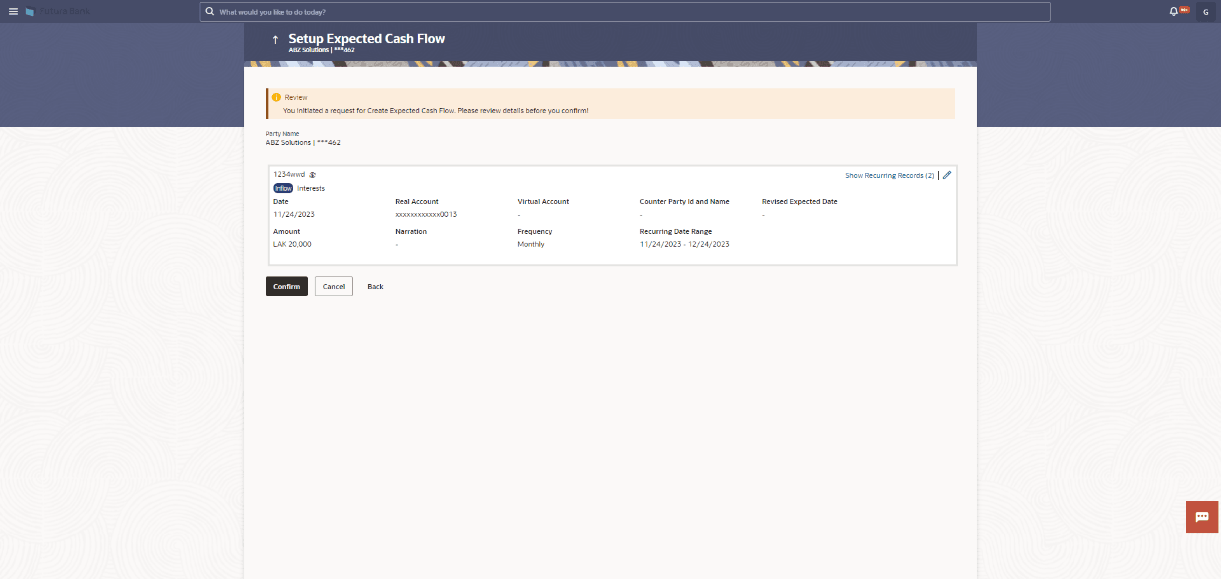
The Review screen appears.
Figure 4-4 Setup Expected Cash Flow – Review Screen
- Click Cancel to cancel the adding of the record.
- Click Back to go to the previous screen.
- Click Submit to submit the record.
- In the Review screen, verify the details and click
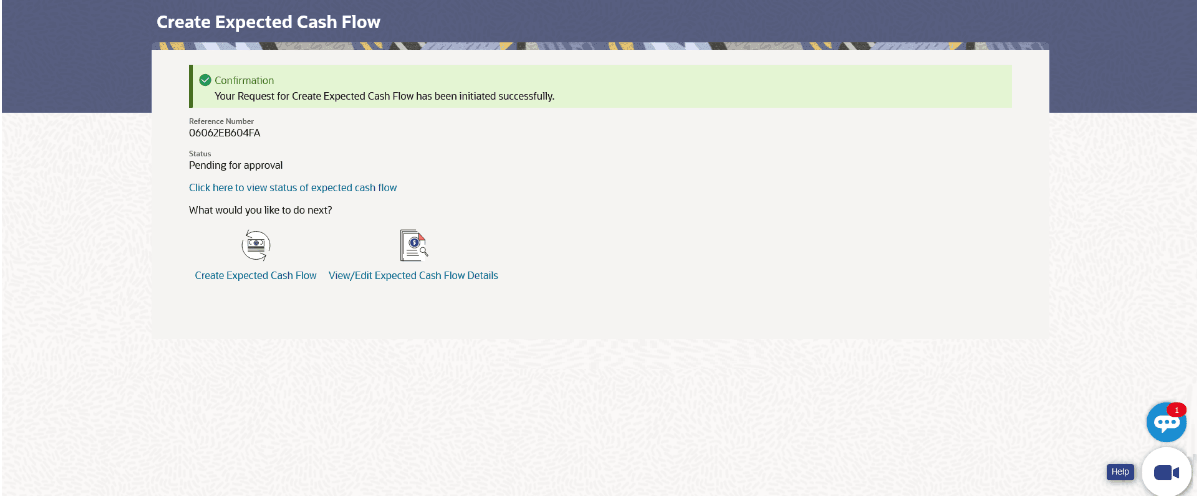
Confirm to confirm adding the record. A Confirmation
message appears with the reference number and status of the transaction.
- Click
 to edit the record.
- Click Cancel to cancel the submission.
- Click Back to go to the previous screen.
Figure 4-5 Create Expected Cash Flow - Confirmation
- Click