1.4 Kick Off Page
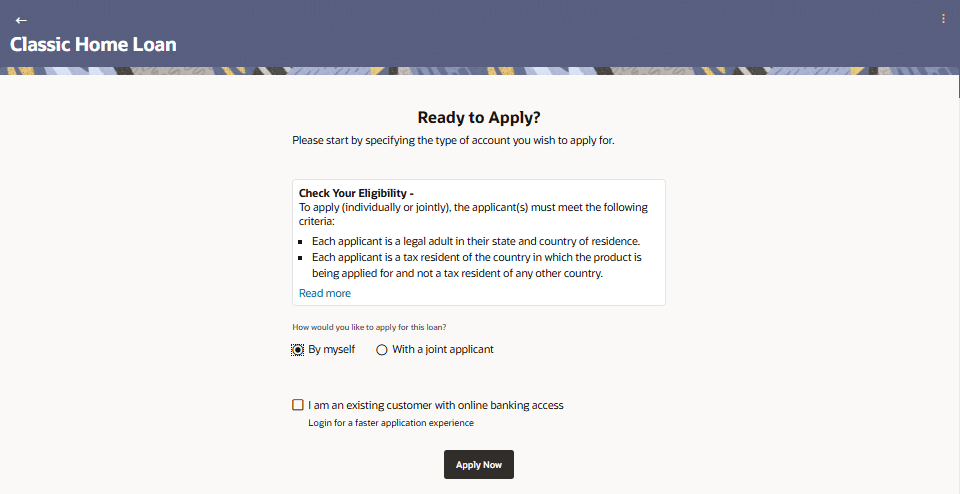
This topic describes the product application kick off page and the options available to the applicant to proceed with the application form.
The information will cover the eligibility criteria you as well as any joint applicant are required to meet in order to apply for the product and the documents that can serve as various proofs including ID proof, address proof etc. This page also provides the means by way of which you can proceed with the application form – as an existing customer of the bank or as a guest who has no current relationship with the bank.
In case the product you have selected, allows for joint applications, this page will also provide the option by way of which you can add a joint account. The eligibility criteria will reflect the conditions that both you, as the primary applicant, as well as the joint applicant, will need to meet in order to be able to apply for the account.
If you are an existing customer of the bank with online access, you can select the option provided and continue to log in using your online banking credentials. In this case, you will be required to only specify information pertaining to the account. Information related to your personal details, etc will not be required to be entered as it is already available with the bank.
On the other hand, if you are new to the bank, you will be required to furnish all information including information pertaining to your personal details and will also be provided with the option to complete online KYC. You will also be required to upload mandatory documents such as ID proof, proof of employment etc. to support your application.
- Perform any of the following actions:
- From the Product Listing page, click Apply Now proceed to the application form for that specific product.
- From the Product Details page, click Apply Now proceed to the application form for that specific product.
- From the Product Comparison page, click Apply Now proceed to the application form for that specific product.
- On Compare Products screen, click Apply Now against any product to apply for that product and proceed to the application form for that specific product.
The Kick Off Page screen is displayed.Table 1-4 Kick Off page - Field Description
Field Name Description How would you like to apply for this loan? Select the type of account. The options are:This field is enabled only if the product being applied for supports joint applications.- By myself - If this option is selected, on clicking on the Apply Now button, the application form that loads will be specific to a single applicant.
- With a joint applicant - If this option is selected, on clicking on the Apply Now button the application form will contain sections in which you can specify the information both the joint applicant as well.
I am an existing customer with online banking access Select this check-box if you (the primary applicant) are an existing online customer of the bank.
Parent topic: Home Loan Application