1.8 Savings Account Specifications
This topic describes the section where you can specify your service specifications.
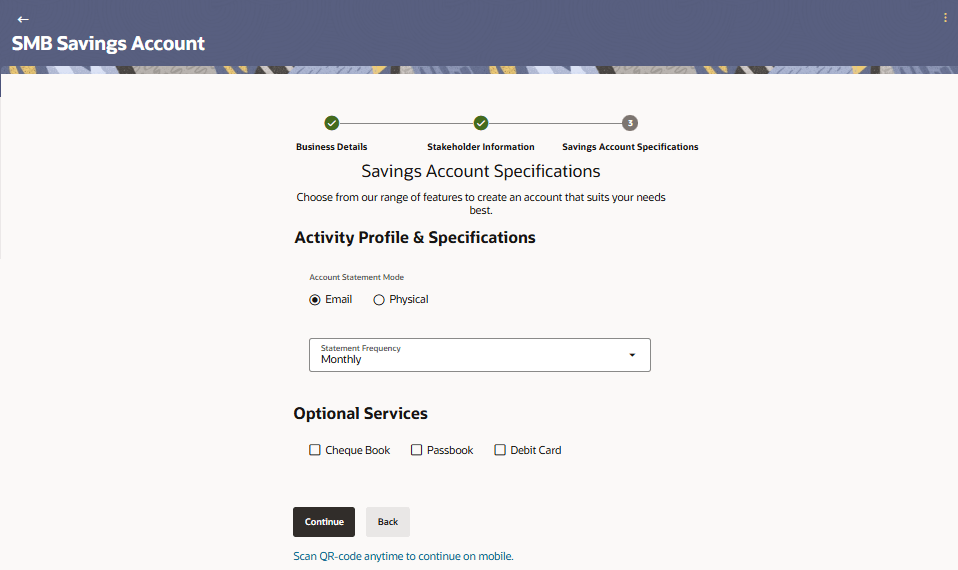
This step enables you to enhance the features of the business account that is being applied for. You can specify preferences related to services that you would like the account to have, which could include Debit Card, Passbook, Cheque Book, access to Direct Banking and Phone Banking, etc. You can also select the currency in which you wish your account to be held and define account statement preferences such as the account statement mode and frequency.
Figure 1-16 Savings Account Specifications
Note:
The fields which are marked as Required are mandatory.For more information on fields, refer to the field description table.
Table 1-15 Savings Account Specifications - Field Description
| Field Name | Description |
|---|---|
| Account Statement Mode | Specify the mode through which you would like the account
statement to be delivered.
The options are:
|
| Statement Frequency | The frequency at which you would like to receive account
statements.
The options are:
|
| Service /Feature | Each service that has been configured for the product you are
applying for will be listed here.
Select the check box against the service that you wish to enable on your account. |
- In the Account Statement Mode field, select the desired option.
- From the Statement Frequency list, select the desired frequency at which you wish to receive account statements.
- Select the checkbox against any service that you wish to have enabled on your account under the Optional Services sub section.
- Perform any of the following actions:
Parent topic: Business Savings Account Application