1.11 Disbursement and Repayment
This topic describes the section of the application form where you can specify the account for loan disbursement, following successful processing and sanction of your application.
In this section of the application form, you can specify details of the account in which you would like the loan amount to be disbursed once the bank processes your application form and sanctions the loan amount. You can also specify information pertaining to the account from which you intend on making loan repayments.
In case you are an existing online banking customer, all the checking and savings accounts that your business holds with the bank will be displayed and available for selection. You can alternately, specify information of accounts that you hold with other banks if you want the loan amount disbursed into an external bank account or wish to make repayments from an account held with another bank.
- Under the Disbursement sub-section, perform any of the following
actions:
Note:
The fields which are marked as Required are mandatory.For more information on fields, refer to the field description table.
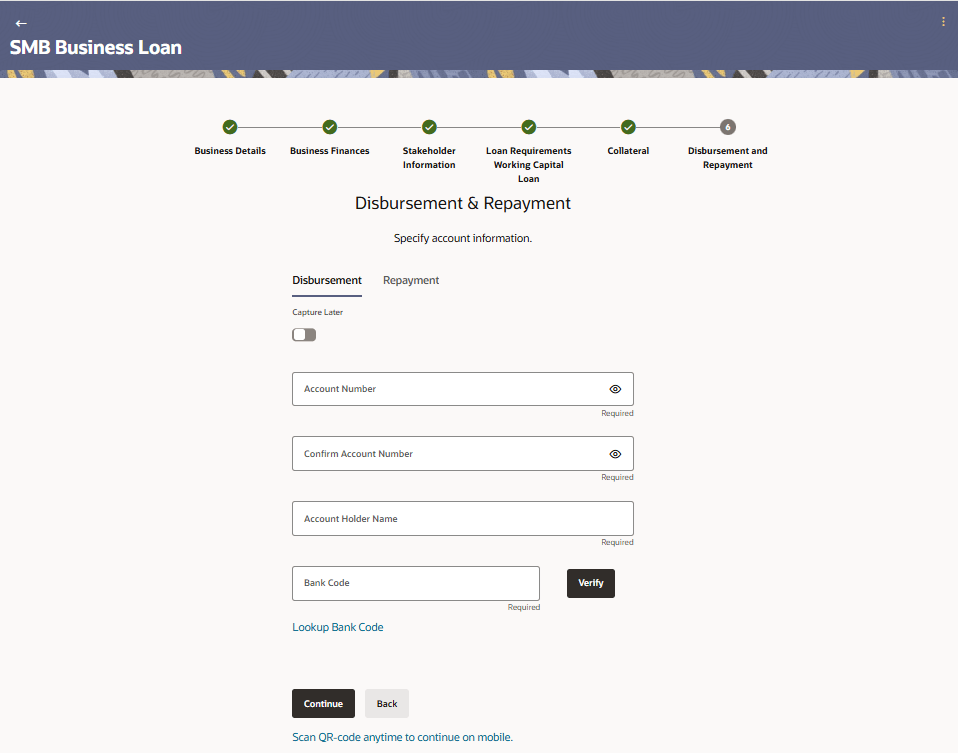
Table 1-21 Disbursement Details - Field Description
Field Name Description Capture Later The option to capture disbursement account details at a later date. Select this option if you do not wish to specify information of the account in which the loan is to be disbursed, at present.
Loan amount to be credited in account held with Specify whether the loan amount is to be credited into an account that is held with the same bank or into an account held with another bank. The options are:- Own Internal Transfer
- Other Bank
This field will only be displayed in case the business is an existing online banking customer that has active savings or checking accounts with the bank.
Account Number The account number in which the loan is to be disbursed. Confirm Account Number Re-enter the account number to confirm the same. Account Holder Name The name of the account holder. Bank Code The Bank Code through which the transfer is to be made. Verify Click on the link to verify the Bank Code defined in the Bank Code field. Lookup Bank Code The lookup for the Bank Code search. The below fields appears in modal window if the Lookup Bank Code link is selected. Bank Name The facility to search for the Bank Code based on the bank name. Search Results Based on search criteria or Bank Code, fetch bank details. Bank Code The facility to lookup bank details based on Bank Code through which the transfer is to be made. Bank Name The name of the bank in which the account is held. Address The address of the bank in which the account is held. - Click Continue to proceed to the next step in the application. The Repayment tab appears.
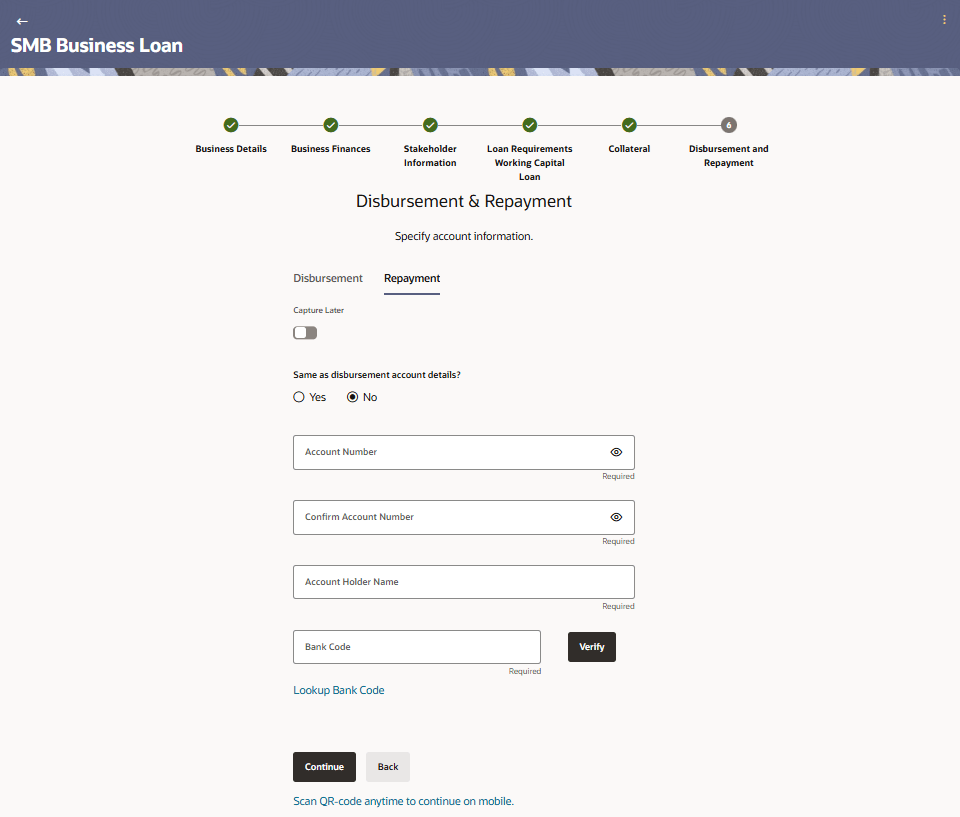
Figure 1-21 Repayment Details
Note:
The fields which are marked as Required are mandatory.For more information on fields, refer to the field description table.
Table 1-22 Repayment Details - Field Description
Field Name Description Capture Later The option to capture repayment account details at a later date. Select this option if you do not wish to specify information of the account from which the loan is to be repaid, at present.
Same as disbursement account details? Specify whether loan repayments will be made from the same account defined for disbursement or if the account will be different. The options are:
- Yes
- No
Repay loan from account held with Specify whether loan repayments will be made from an account held with the same back or whether repayments will be made from an account held with another bank. The options are:This field will be displayed only if the primary applicant is an existing online banking customer that has active Savings or Checking accounts with the bank.- Own Internal Transfer
- Other bank
Account Number The account number from which loan repayments will be made. In case Own Internal Transfer is selected, this field will be a drop- downand will list all the active savings and checking accounts of the primary applicant. No other fields will be displayed in this case.
Confirm Account Number Re-enter the account number to confirm the same. Account Holder Name The name of the account holder. Bank Code The payment bank code through which the transfer will be made. Verify Click on the link to verify the payment network code defined in the Bank Code field. Lookup Bank Code The option to search for payment network code. The below fields appears in modal window if the Lookup Bank Code link is selected. Bank Name The facility to search for the bank code based on the bank name. Search Results Based on search criteria or bank code, fetch bank details. Bank Code The bank code will be displayed as a link. Bank Name The name of the bank in which the account is held. Address The address of the bank in which the account is held.
Parent topic: Business Working Capital Loan Application