11.2.2 Security Questions
This topic describes the systematic instruction to Security Questions option. Using this option, the user can setup security question maintenance.
Security question maintenance entails selecting questions from a pre-defined list and defining answers for each selected question. This list of security questions and answers becomes the user’s security question set and the user will be asked to answer these questions while initiating certain transactions (as defined by the bank administrator) as a second level of authentication.
Security question setup is part of the first time login steps. The user can opt to skip setting security questions during first time login and can instead complete security question setup from the Security and Login screen.
To set up security questions:
Note:
If security questions have not been set-up by the user, the following message will be displayed - "Security Questions have not been set up yet". The user will be provided with the option to set up security questions.- Click Set up now to set-up security questions.
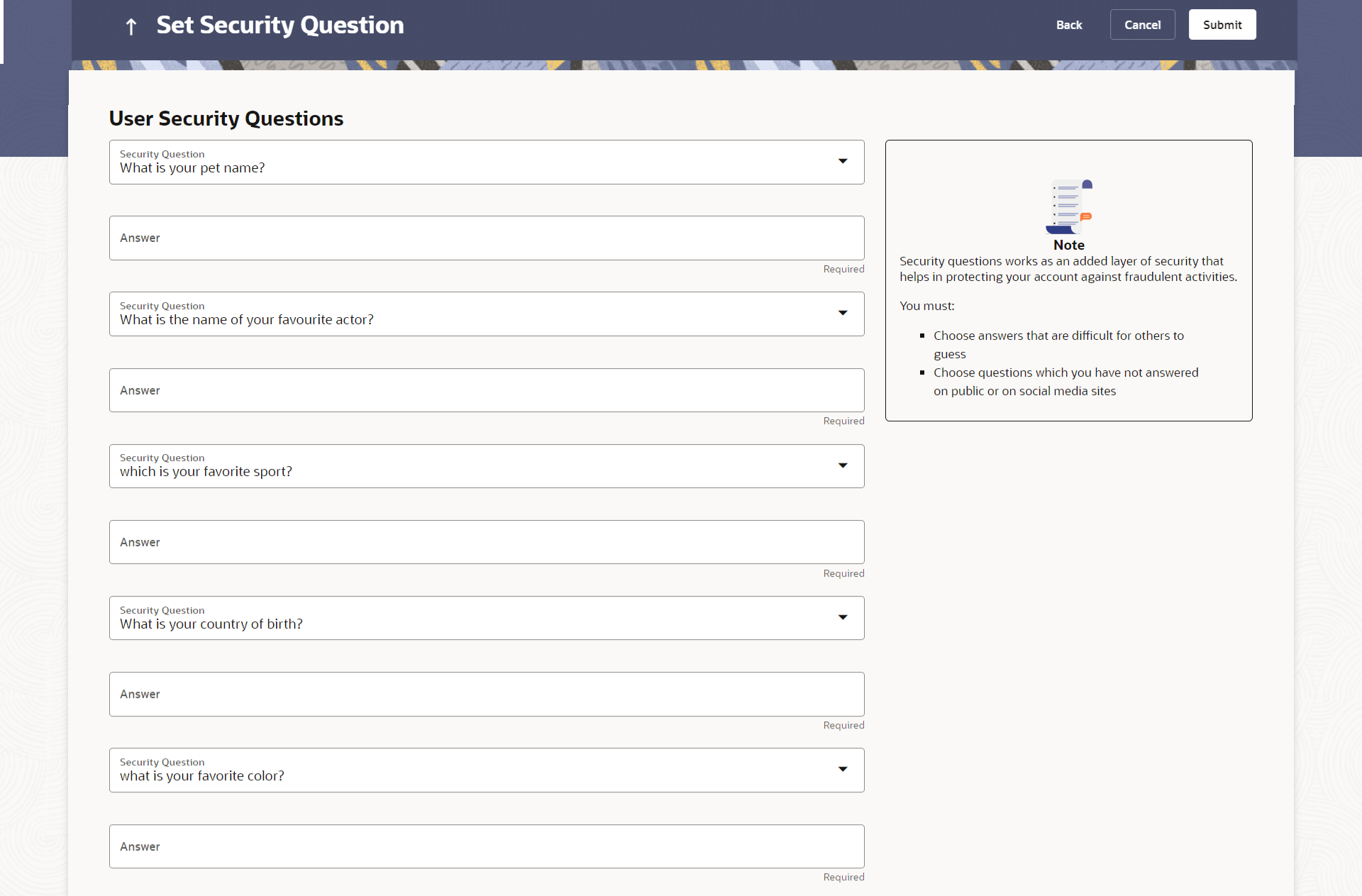
- The Set Security Question screen appears.
- Click Cancel to cancel the operation and navigate back to Dashboard.
- Click Back to go back to previous screen.
Note:
The fields which are marked as Required are mandatory.For more information on fields, refer to the field description table.
Table 11-2 Security Question Maintenance - Field Description
Field Name Description User Security Questions Information specified in below fields are related to User Security Questions Security Question Select a question to be assigned as a security question. The security questions will be numbered, e.g. Security Question1, Security Question 2 and so on. The number of security questions and answers available will be dependent on the number configured by the bank administrator.
Answer Specify an answer for the selected security question. The fields in which you can specify answers to selected security questions will be displayed below each security question and will be numbered, e.g. Answer 1, Answer 2 and so on.
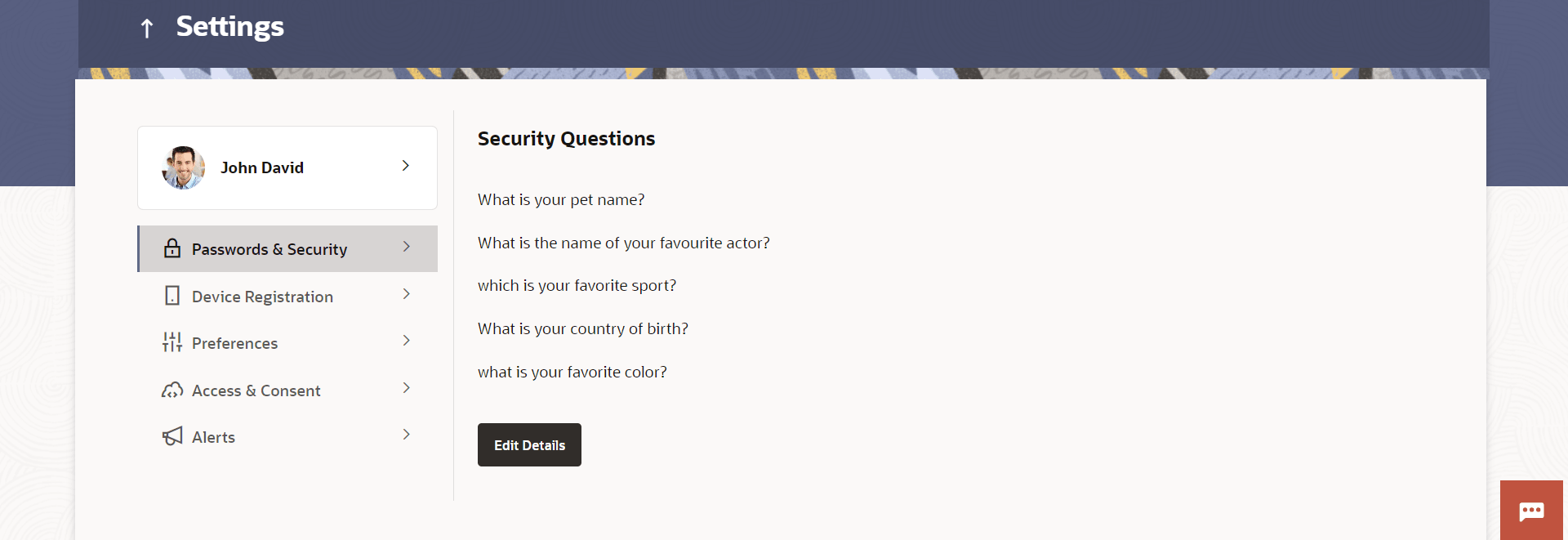
Security Questions – View and Edit
If the user has already set-up of Security Questions, the application displays the list of security questions. It also enables the user to modify the set of security questions.
To edit the set of security questions:
- Navigate to Set Security Questions screen. The Set Security Question - View screen appears.
Note:
The fields which are marked as Required are mandatory.For more information on fields, refer to the field description table.
Table 11-3 Set Security Question - View - Field Description
Field Name Description Security Questions The list of security questions, which is the existing set of the user. - Click Edit to make changes, if required. The Security Question Maintenance – Edit screen with values in editable form appears.
- Click Cancel to cancel the transaction.
- Click Back to navigate back to the previous screen.
Note:
The fields which are marked as Required are mandatory.For more information on fields, refer to the field description table.
Table 11-4 Set Security Question - Edit - Field Description
Field Name Description Questions The list of security question, which is the existing set of the user. Answer Specify an answer for the selected security question. The fields in which you can specify answers to selected security questions will be displayed below each security question and will be numbered, e.g. Answer 1, Answer 2 and so on.
Parent topic: Password & Security