8.6 Manual Allocation
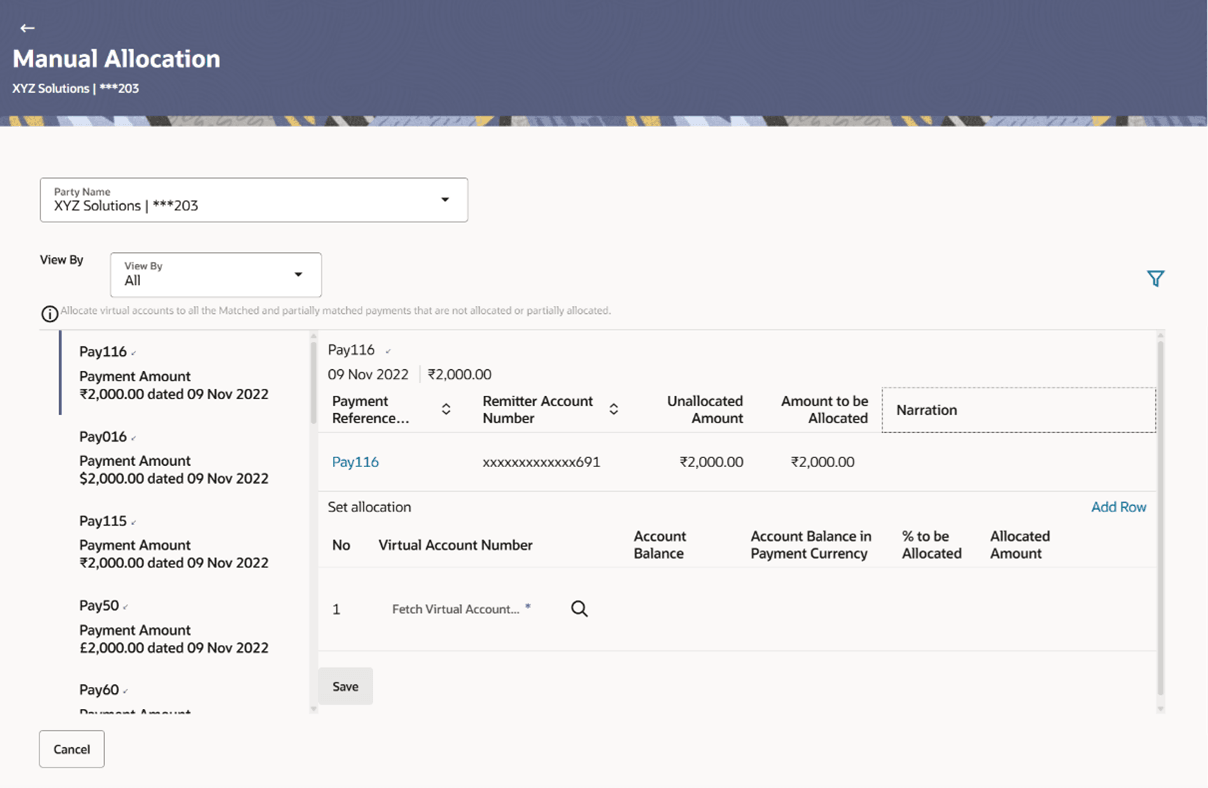
Using this screen, the corporate user can manually allocate payments to the required virtual accounts.
The manual allocation transaction can be used by corporates to manually allocate payments to accounts, in cases where the execution of the allocation rule has failed or for payments that do not have rules set.
The screen, by default, displays all the matched or partially matched and unallocated or partially allocated payments for manual allocation.
The user can select a single payment and allocate it to a single or multiple virtual accounts and set the corresponding percentage(s) of allocation. The total percentage should always be 100.
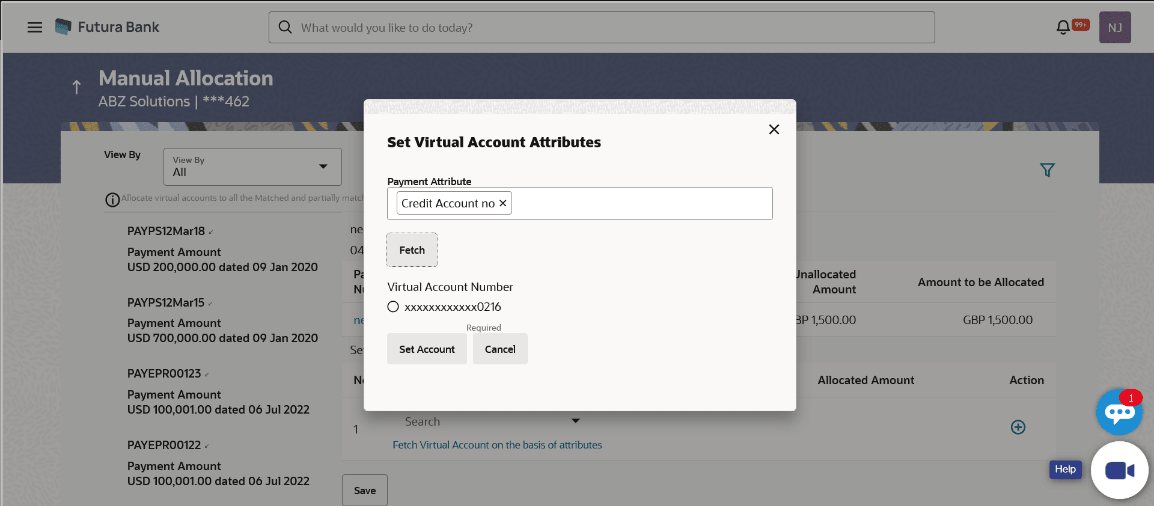
Allocation of virtual account can also be based on payment attributes. Payments attributes are listed. The user can select a single or multiple attributes. The values of these attributes are used to make a call to the Virtual Accounts Management system, which in response, returns the associated virtual account. That virtual account is mapped to the payment. Multiple accounts can be mapped by setting the percentage for each. The total percentage should always be 100.
- In the Manual Allocation screen, use the View By list and/or the
filter options to get a list of required payment records.
Table 8-42 Manual Allocation - Field Description
Field Name Description Party Name Displays the name and ID of the logged-in corporate party. View By Indicates an option to view the payment records based on the following criteria: - Saved for Allocation
- Incoming Payments
- Outgoing Payments

Indicates an option to filter the payment records based on selected parameters. Refer the Payments Search overlay window section below, for more details. Payments Panel In the Manual Allocation screen, the panel on the left hand side displays a list of matched and partially matched payments that have not been allocated or are partially allocated. You can use the View By field and the filter option to narrow down this list. Payment Reference Number Displays the unique reference number of the payment. The  (incoming) or
  (outgoing) indicator is also displayed.
Payment Amount Displays the currency and amount of the payment. Payment Date Displays the date on which the payment occurred. Selected Payment By default, the first payment in the payments panel appears selected. You can select a different record for allocation, as required. The details of the selected payment record are displayed in the main section, with the following fields: Payment Reference Number Displays the unique reference number of the payment. The (incoming) or (outgoing) indicator is also displayed.
Payment Date Displays the date on which the payment occurred. Payment Amount Displays the currency and amount of the payment. External Reference Number Displays the reference number of the payment assigned by the corporate party. This is a hyperlink which when clicked displays the details of the payment. For more information on the payment details, refer the View Payments (details) section in this document.
Remitter Account Number Displays the account number from which the payment originated. Unallocated Amount Displays the amount that is yet to be allocated. Amount to be Allocated Specify the payment amount to be allocated in the current transaction. By default, the value in the Unallocated Amount field is displayed. Narration Specify the narration. Set Allocation You can search and set the virtual accounts and their allocation percentages in this section.The sum of percentages of all added accounts should be 100. Virtual Account Set the virtual account to which the payment should be allocated. Click the Fetch Virtual Account on the basis of attributes link to search and find the required virtual account. The Set Virtual Account Attributes pop-up window appears. For more information on the fields in this window, refer the Set Virtual Account Attributes section below.
Percentage to be Allocated Specify the percentage of the payment to be allocated to the selected virtual account. If you enter a percentage in this field, the Allocated Amount field gets updated automatically. Note: The total percentage allocated to all virtual accounts should be less than or equal to 100.
Allocated Amount Specify the amount to be allocated to the selected virtual account. If you enter an amount in this field, the Percentage to be Allocated field gets updated automatically. Note: The total amount allocated to all the virtual accounts should be less than or equal to the Amount to be Allocated amount.
Add Row Click the link to add further virtual accounts. Or click  to delete an added account.
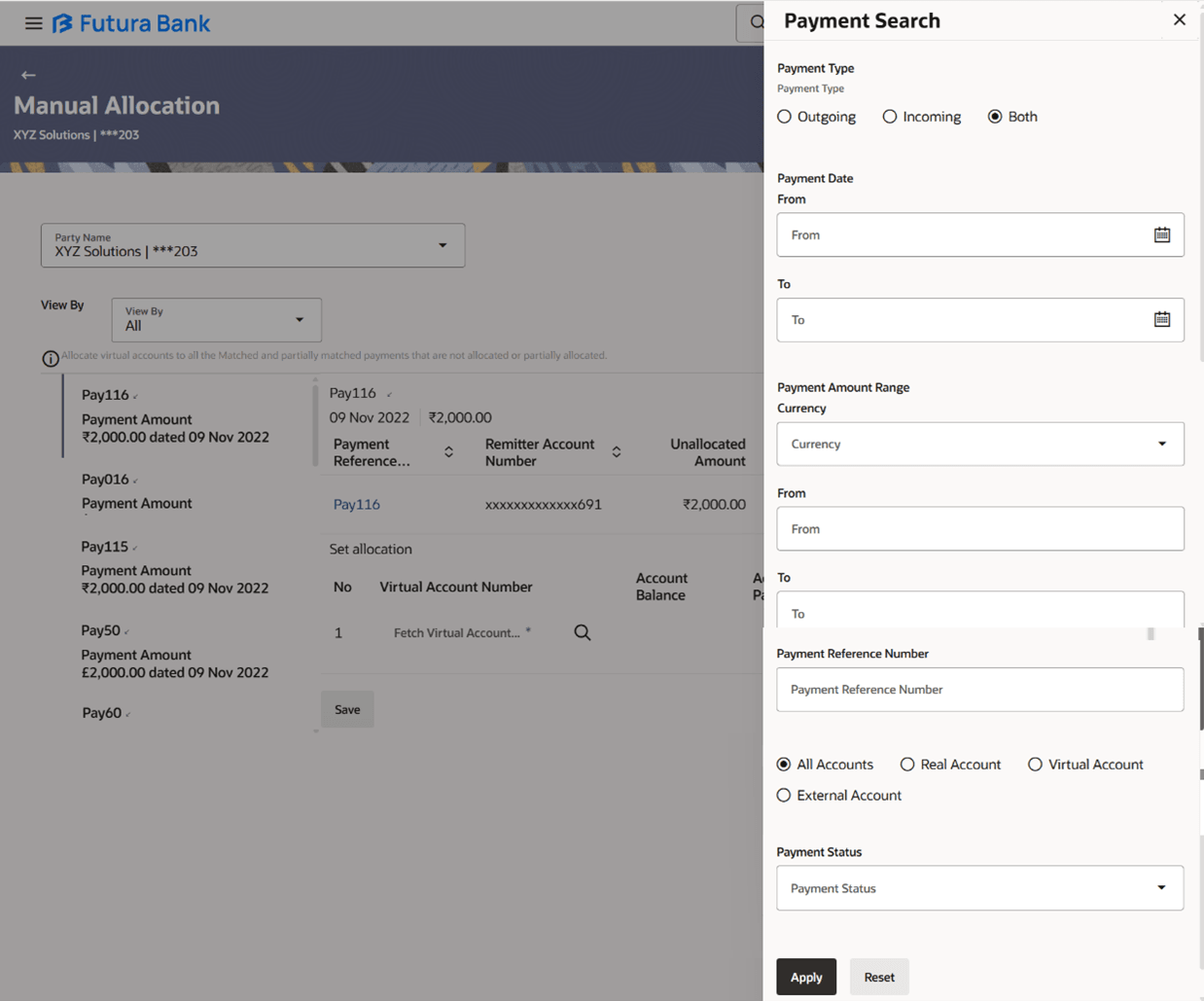
- Click the icon to open the Payment Search overlay window.
Table 8-43 Payment Search overlay window - Field Description
Field Name Description Payment Type Indicates an option to filter the payment records based on payment type. The options available are: - Incoming
- Outgoing
- Both
Payment Date From - To Indicates an option to filter the payment records based on a date range. Payment Amount Range Currency From-To Indicates an option to filter the payment records based on an amount range. Payment Reference Number Indicates an option to filter the payment records based on reference number. Type of account being credited Indicates an option to filter the payment records based on the type of account being credited - a specific real account, or a specific virtual account, or both. The options are: - Real Account – On selecting this option, a list of real account numbers (in masked format) associated with the logged-in party is displayed. The required account can be selected.
- Virtual Account – On selecting this option, a list of virtual account numbers (in masked format) associated with the logged-in party is displayed. The required account can be selected.
- Both
Payment Status Indicates an option to filter the payment records based on payment status. - In the Set allocation section, click the Fetch Virtual Account on the
basis of attributes link. The Set Virtual Account Attributes pop-up window appears.
Figure 8-80 Set Virtual Account Attributes
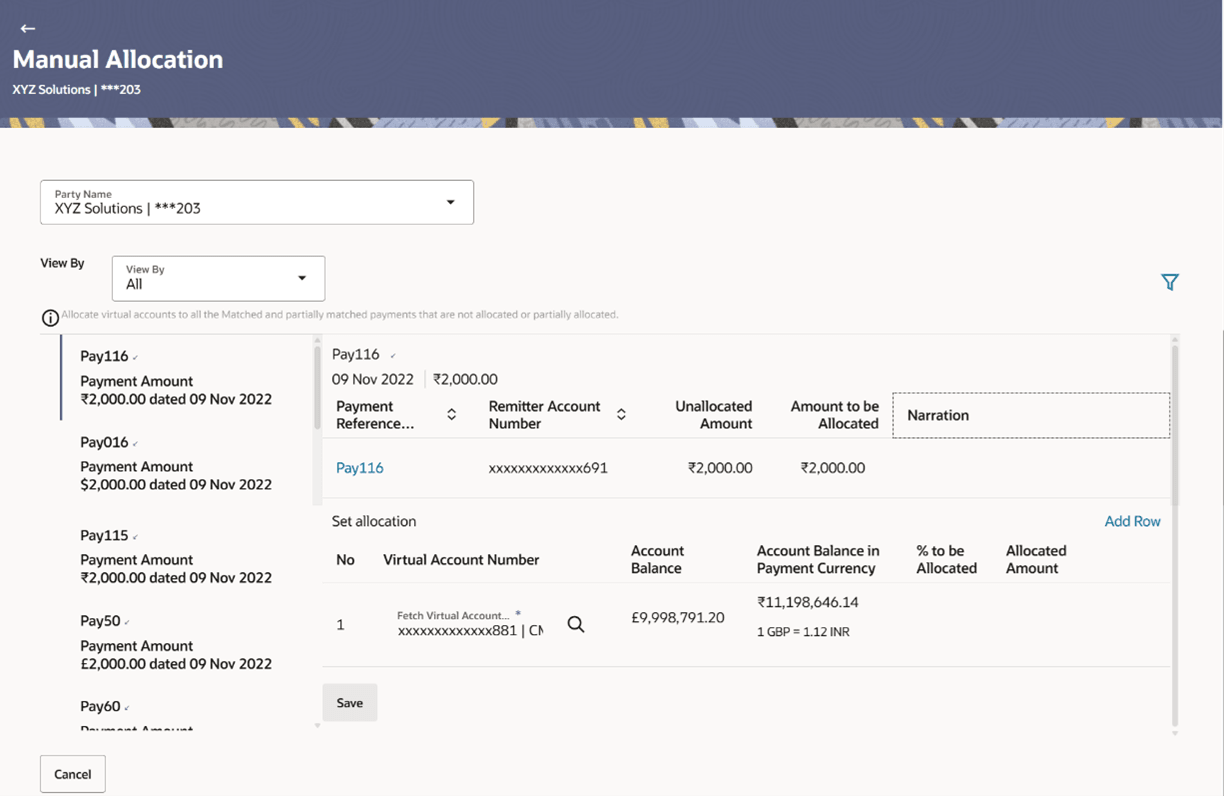
- Click Set Account. The selected account appears in the
Set allocation section. Or, click Cancel to
cancel setting the virtual account.
Figure 8-81 Manual Allocaiton - Set Allocation
- To add further virtual accounts, click
 .
.Note:
Click to delete an added account.
- Click Submit to submit the allocation. The Review
screen appears. Or, do one of the following:
- Click Cancel to cancel the transaction.
- Click Back to go to the main dashboard.
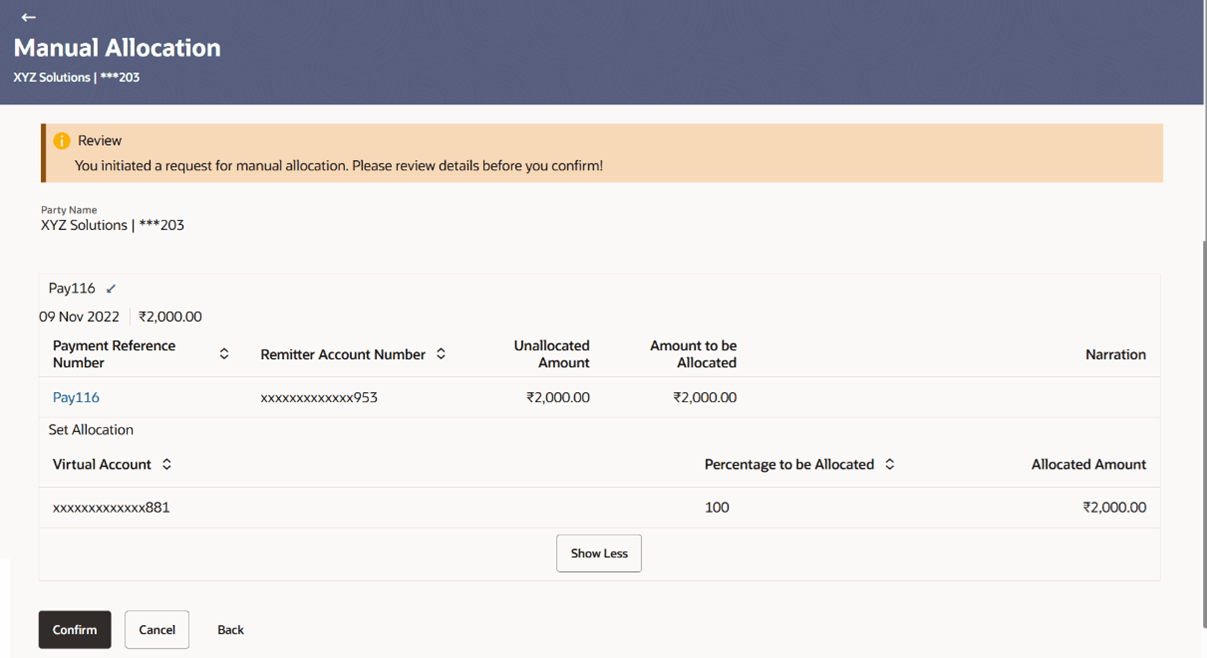
Figure 8-82 Manual Allocation - Review Screen
- In the Review screen, verify the details and click
Confirm. A confirmation message appears with the
reference number and status of the transaction. Or, do one of the
following:
- Click Cancel to cancel the transaction.
- Click Back to go to the previous screen.
Figure 8-83 Manual Allocation – Confirmation

Parent topic: Reconciliation