1.2 Onboard Associated Party
On-boarding an Associated Party refers to introducing your trade partner to the Supply Chain Finance or Cash Management system.
This is the first step in supply chain finance or cash management business. The Associated Party is the other party in the trade of the Corporate, who may or may not be a customer of the bank. The associated party could be a buyer or a supplier.
Using this option, you can on-board your associated party so that you can link your party to the program for Supply Chain Finance business or add your receivables or payables through Cash Management module against the Associated Party. The Associated Party that is on-boarded can be a customer of the bank or may not be the customer of the bank. This is identified by Back Office through a de-dupe check run on the party’s details.
- Perform any of the following actions:
- From the Dashboard, click the Toggle Menu, then click Receivables/Payables, Associated Party Management, and Onboard Associated Party.
-
From the Dashboard, click the Toggle Menu, then click Receivables/Payables, Associated Party Management, and View Associated Parties, and then Onboard new link.
-
From the Dashboard, click the Toggle Menu, then click Supply Chain Finance, Overview, Quick Links, and Onboard Associated Party.
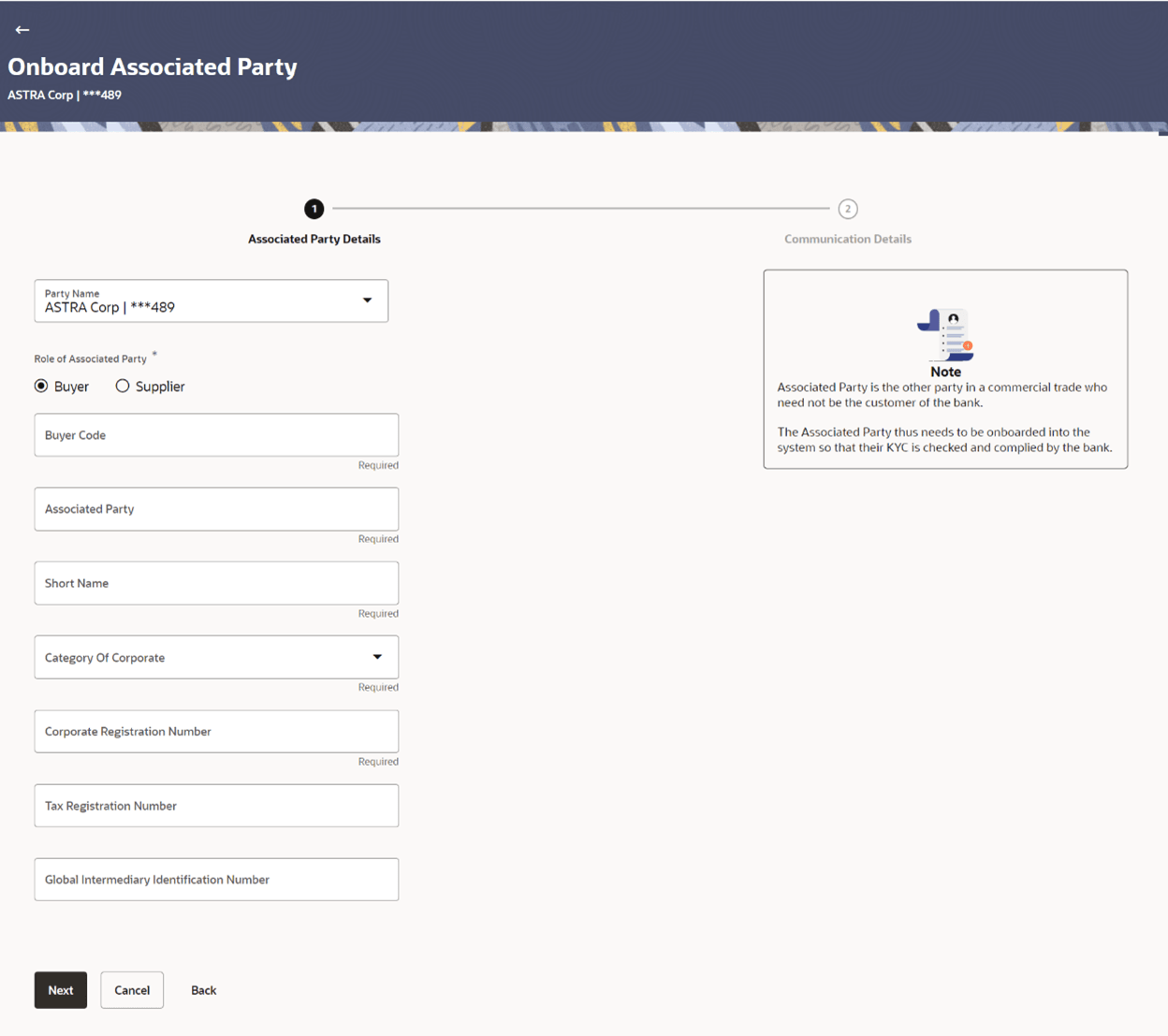
The Onboard Associated Party- Associated Party Details screen appears.Figure 1-1 Onboard Associated Party- Associated Party Details
Table 1-1 Field Description
Field Name Description Onboard Associated Party – Associated Party Details step This section displays the Onboard Associated Party – Associated Party Details step. Party Name Select the party name from the dropdown list in which the associated party must be onboarded. By default, the primary party/gcif of the logged-in user is selected. Note: Only accessible parties are displayed to the user.
Role of Associated Party Specify the role of the associated party. The options are:
- Buyer
- Supplier
Buyer Code Specify the buyer code. This field is displayed, only if the Buyer option is selected in the Role of Associated Party field.
Supplier Code Specify the supplier code. This field is displayed, only if the Supplier option is selected in the Role of Associated Party field.
Party Name Specify the name of the associated party to be on-boarded. Short Name Specify the short name of the associated party. Category Of Corporate Select the category that the associated party falls under. The options are:
- Others
- Partnership firm
- Public Limited Company
- Private Limited Company
Corporate Registration Number Specify the registration number of the associated party. Tax Registration Number Specify the tax registration number of the associated party. Global Intermediary Identification Number Specify the GIIN that has been issued by the IRS, if relevant. - Once you enter the required data in the Associated Party Details step, click Next, to proceed to the Communication Details step. Or, do one of the following:
- Click Cancel to cancel the transaction.
- Click Back to navigate back to the previous screen.
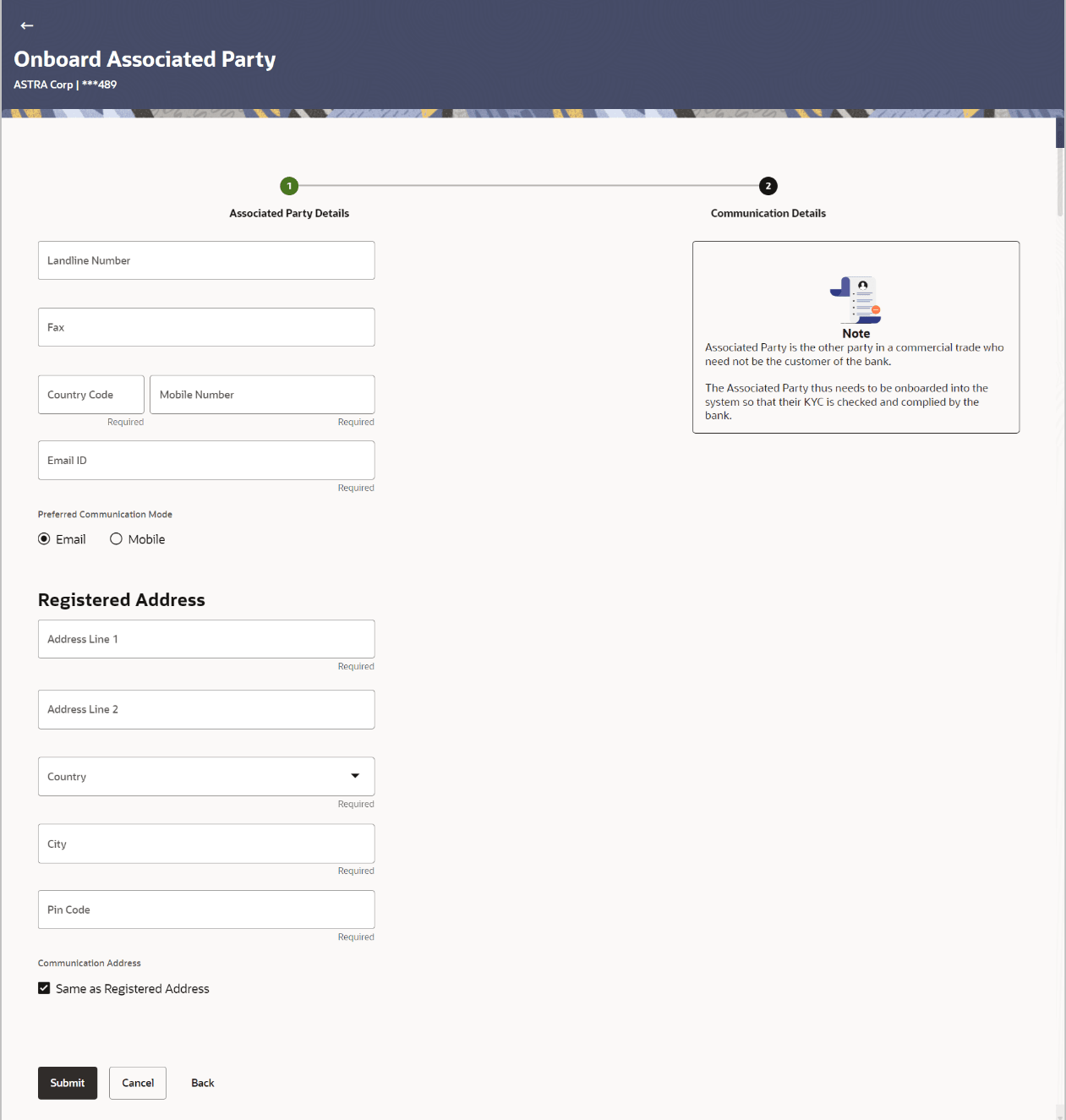
On clicking Next, the Onboard Associated Party- Communication Details screen appears.Figure 1-2 Onboard Associated Party- Communication Details
Table 1-2 Field Description
Field Name Description Onboard Associated Party – Communication Details step This section displays the Onboard Associated Party – Communication Details step. Landline Number Enter the landline number of the associated party. Add Fax Click the Add Fax link to add the fax number of the associated party. To delete the added fax number, click
 .
.
Mobile Number Specify the mobile number of the associated party along with the country code. Email ID Specify the email ID of the associated party. Preferred Communication Mode Select the preferred mode for communication with the associated party. The options are:
- Mobile
Registered Address This section displays the registered address. Address Line 1- 2 Specify the lines 1 and 2 of the registered address of the associated party. Country Select the country of the associated party. State Select the state of the associated party. City Specify the city where the associated party is based in. PIN Code Specify the pin code of the associated party. Communication Address This section displays the Communication address. Same as Registered Address Select the check box if you wish to use the registered address as the communication address. Below fields are enabled only if the Same as Registered Address check box is unchecked.
Address Line 1- 2 Enter lines 1 and 2 of the communication address of the associated party. Country Select the country of the associated party. State Select the state of the associated party. City Specify the city where the associated party is based in. PIN Code Specify the pin code of the associated party. - Once you enter the required details in the Communication Details step, click Submit to on-board your associated party. Or, do one of the following:
- Click Cancel to cancel the transaction.
- Click Back to navigate back to the previous screen.
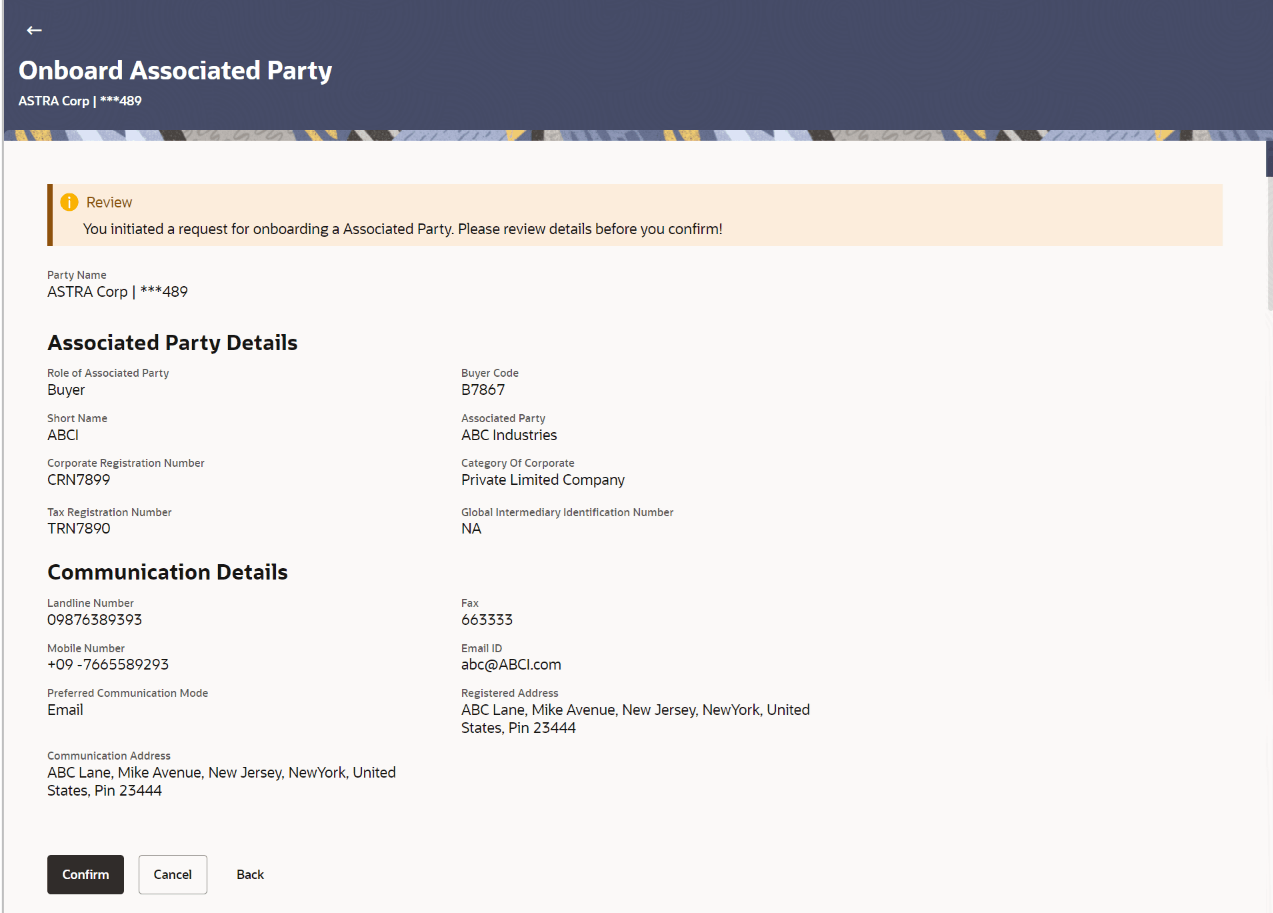
On clicking Submit, the Review screen appears.Figure 1-3 Onboard Associated Party – Review Screen
- In the Review screen, verify the details, and click
Confirm. Or, perform any of the following
actions:
- Click Cancel to cancel the transaction.
- Click Back to navigate back to the previous screen.
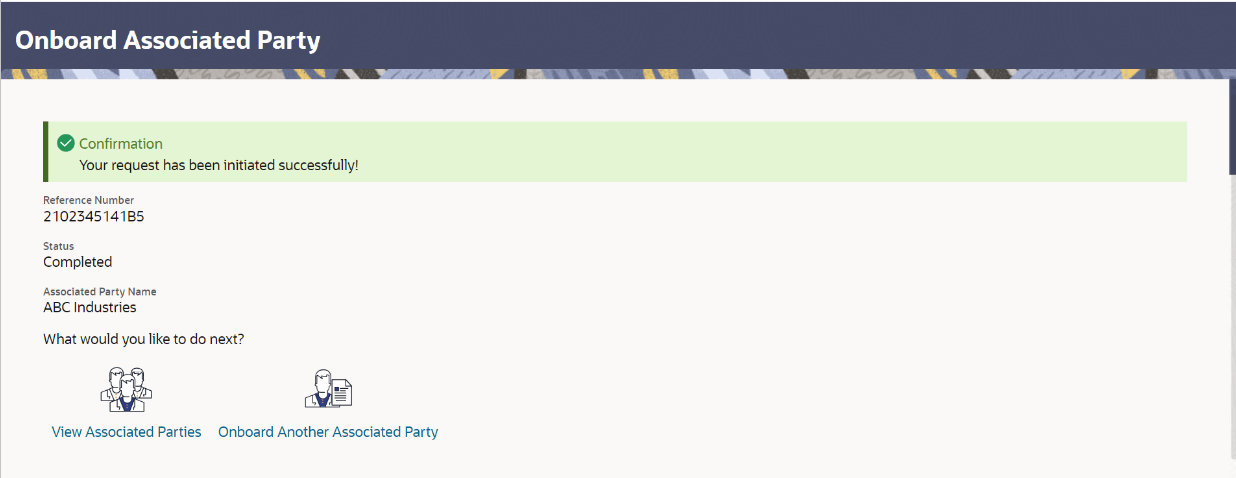
On clicking Confirm, a confirmation message of request initiation for on-boarding the associated party appears, along with the reference number and status of the transaction.Figure 1-4 Onboard Associated Party – Confirmation
Parent topic: Associated Party Management