1.6 View Associated Parties
This topic provides systematic instructions to view the associated party details.
All its customers on-boarded by the Corporate can be viewed on this screen. Corporate will also be able to view its Anchors here.
Figure 1-7 Illustration – Parties Involved:
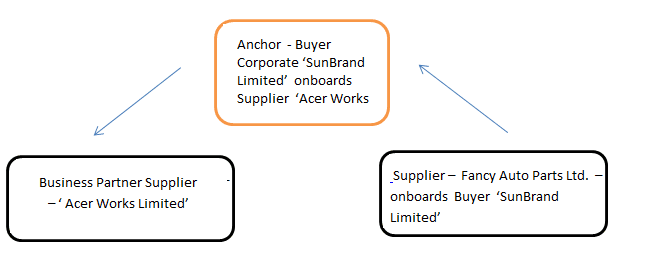
Explanation:
Corporate SunBrand Limited logs on to the Portal and navigates to ‘View Associated Parties, then both the corporates ‘Acer Works Limited’ who is the associated party of ‘SunBrand Limited’ and ‘Fancy Auto Parts Limited’ who has on-boarded ‘SunBrand Limited’ will be displayed.
The details of each of the associated party are displayed on accessing the respective Party. Details of associated party like his address and contact number along with the associated programs and its invoices are displayed
If the party is a buyer and not a Supplier, then 'Payables' data is displayed on the page for Program widget, vice-versa for if party is Supplier the ‘Receivables’ data is displayed. If party is buyer as well as Supplier, then 'Receivables' data is displayed default on the screen and the Switcher is set to 'Receivables'.
- Perform any of the following actions:
- From the Dashboard, click the Toggle Menu, then click Receivables/Payables, Associated Party Management, and View Associated Party.
- From the Dashboard, click the Toggle Menu, then click Supply Chain Finance, Overview, Quick Links, and View Associated Party.
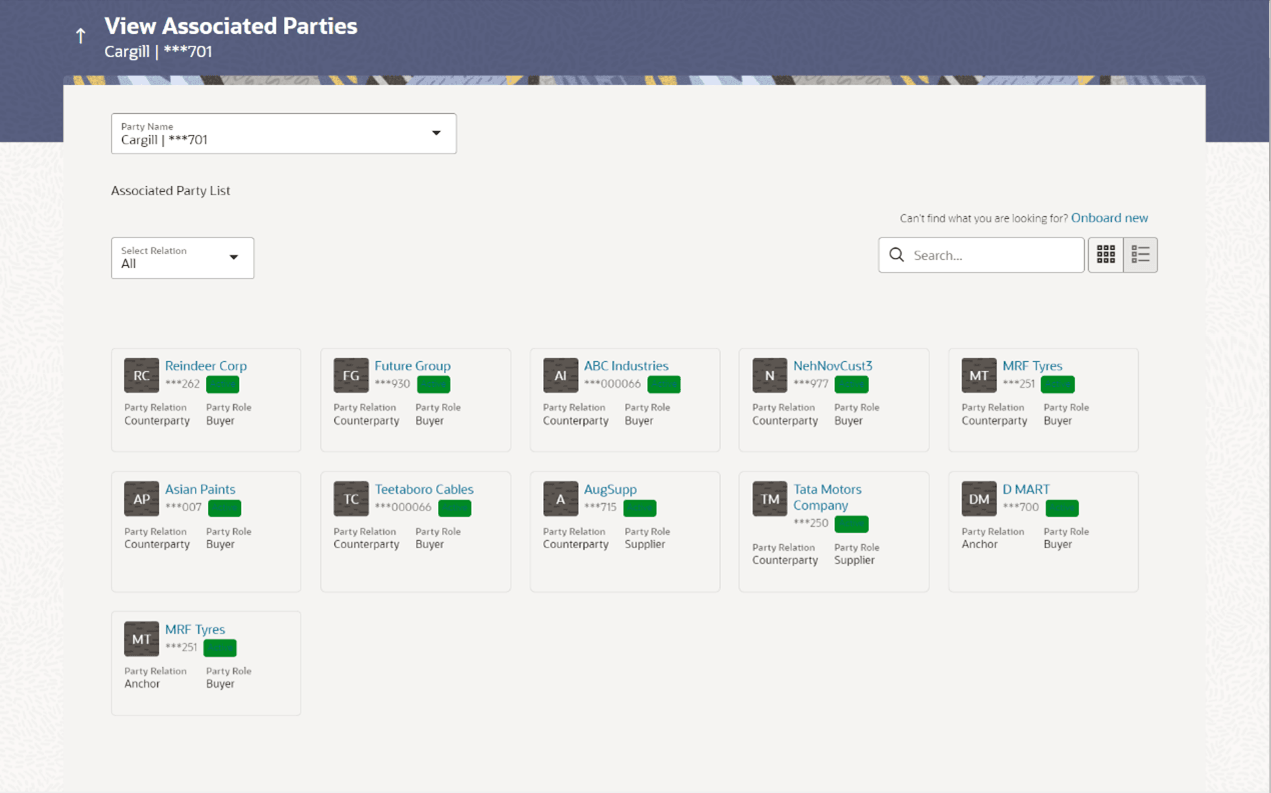
The View Associated Parties screen appears, with a set of on-boarded party tiles.Note:
You can narrow down the set by using the filter options and the Search field.Figure 1-8 View Associated Parties - Search Result
Figure 1-9 View Associated Parties (on mobile device)
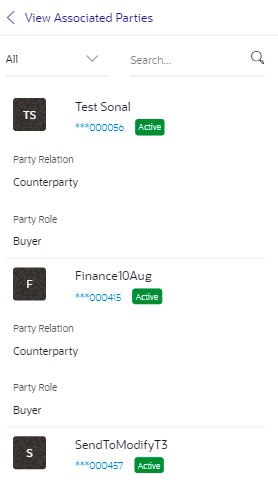
Note:
The View Associated Parties screen can also be viewed on a mobile device. The features and functionality available on the desktop computers, such as hyperlinks, search filters, the dropdown field to select Anchor party or Counterparty, are also available on the mobile device.Table 1-4 Field Description
Field Name Description View Associated Parties This section displays View Associated Parties details in tile form. Party Name & ID Displays the name and ID of the logged-in corporate party. Associated Party List This section displays Associated Parties list. Can’t find what you are looking for? Onboard new Click the Onboard new link to on-board a new associated party. Filter List Select the required option to filter the associated parties. The options are: - All
- Anchor
- Counterparty
Search Enter the corporate’s name or ID to search for that party. Note: Click
 or
or  to view details in the card (tile) view or list
view.
to view details in the card (tile) view or list
view.
Associated Party Tile A tile is displayed for each associated party, with the following fields. Associated Party Initials, Name, ID and Status Displays the associated party’s initials, name along with ID. The status of the party (Active / Inactive) is also displayed.
Note:
To view further details of the party, click the respective party tile / party name link.Associated Party Initials, Name, ID and Status Displays the associated party’s initials, name along with ID. The status of the party (Active / Inactive) is also displayed. Note:
To view further details of the party, click the respective party tile / party name link.Party Relation Displays the relation of the associated party (Anchor or Counterparty). Party Role Displays the role of the associated party (Buyer or Supplier). - In the Associated Party List section, click on an associated party tile (in case of card or tile view ) or associated party name link (in case of list view ) to view their details.
- Click the required party tile, to view more details.
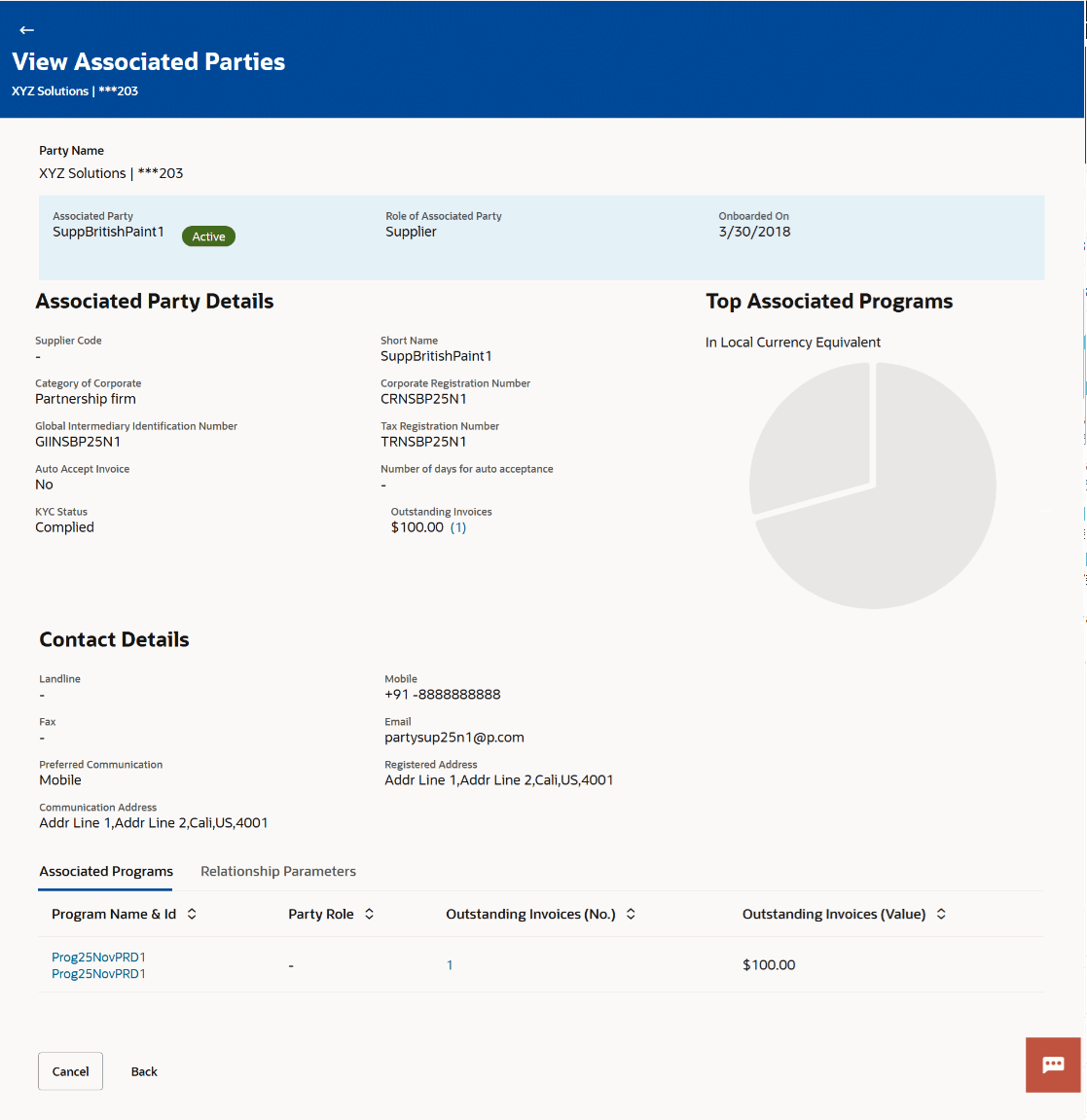
Figure 1-10 View Associated Party Details
Note:
The View Associated Parties screen can also be viewed on a mobile device. All details present in the desktop version, such as hyperlinks, graphs, invoice list, and so on, are also available on the mobile device.Table 1-5 Field Description
Field Name Description Party Name Displays the name and ID of the logged-in corporate party. Associated Party Name Displays the name of the associated party. Role of Counterparty Displays the role of the associated party, whether Buyer or Supplier. Onboarded On Displays the date on which the party was on-boarded. Status Displays the status of the associated party, whether Active or Inactive. Counterparty Details This section displays the counter party details. Note: If the counterparty is also a customer of the bank, then these details are not displayed to the logged-in party. Instead, an image is displayed stating: ‘As the associated party is a bank customer, their basic and contact details cannot be displayed for security purposes’.
Buyer Code Displays the buyer code. This field is displayed only if Role of Counterparty is Buyer.
Supplier Code Displays the supplier code. This field is displayed only if Role of Counterparty is Supplier.
Short Name Displays the short name of the associated party. Category of Corporate Displays the category that the associated party falls under. Corporate Registration Number Displays the corporate registration number of the associated party. Global Intermediary Identification Number Displays the GIIN assigned by the IRS to the associated party. Tax Registration Number Displays the tax registration number of the associated party. Auto Accept Invoice Displays Yes if the invoices are set to be auto accepted for the associated party, and No otherwise. Number of days for auto acceptance Displays the number of days after which the ‘raised’ invoices are deemed as ‘accepted’.
This field is displayed only if Auto Accept Invoice is set as Yes.
KYC Status Displays the KYC status of the associated party. Outstanding Invoices Displays the total outstanding invoice amounts in the respective currencies along with the numbers. Click the ‘numbers’ link to visit the View Receivables/Payables screen. For more information, refer the View Receivables/Payables section in this document. Contact Details This section displays the counter party details. Note: If the counterparty is also a customer of the bank, then these details are not displayed to the logged-in party. Instead, an image is displayed stating: ‘As the associated party is a bank customer, their basic and contact details cannot be displayed for security purposes’.
Landline Displays the landline number of the associated party. Mobile Displays the mobile number of the associated party. Fax Displays the fax number of the associated party. Email Displays the email address of the associated party. Preferred Communication Displays the preferred communication mode set for the associated party. Registered Address Displays the registered address of the associated party. Communication Address Displays the communication address of the associated party. Top Associated Programs Displays the total value of receivables or payables with the name of the program in a donut chart. The top 4 performing programs are displayed on the basis of their receivables / payables. The amounts are specified in local currency equivalent and derived from Outstanding Invoices. Note: This widget is visible only if the Oracle Banking Supply Chain Finance application is implemented by the bank. Additionally, this widget does not appear if the associated party is not linked to any program.
Associated Programs Displays a list of programs linked to the associated party under which invoices have been raised. This section is visible only if the Oracle Banking Supply Chain Finance application is implemented by the bank. Note: A program appears in this table only if one or more invoices have been linked to it..
Program Name & Id Displays the name and ID of the program. The name of the program is a hyperlink which when clicked displays the View Program screen. For more information, refer the View Programs section in User Manual Oracle Banking Digital Experience Corporate Supply Chain Finance. Party Role Displays the role of the associated party, in the program. Outstanding Invoices (No.) Displays the count of invoices outstanding between the two parties, under the program. This number is a hyperlink, which when clicked displays the View Receivables/Payables screen. For more information, refer the View Receivables/Payables section in this document. Outstanding Invoices (Value) Displays the value of invoices outstanding between the two parties, under the program. Status Displays the status of the program.
Parent topic: Associated Party Management