7.1 View Payments
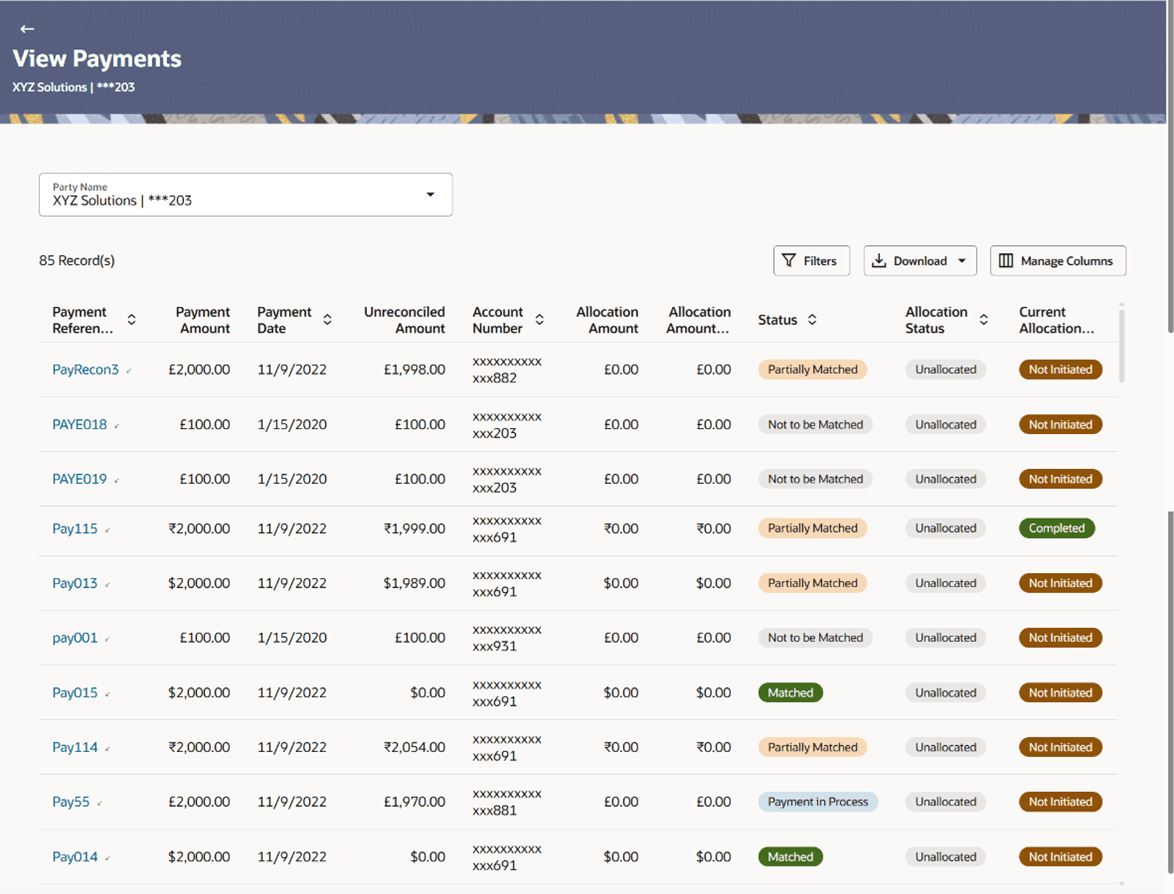
This topic provides systematic instructions to the corporate to view the details of payments made.
- From the Dashboard, click the Toggle
Menu, then click Receivables/Payables,
Payments Management, and then View
Payments.The View Payments screen appears.
Table 7-1 View Payments - Field Description
Field Name Description Party Name Select the party name from the dropdown list to view the applicable list of payments. By default, the primary party/gcif of the logged-in user is selected. Note: Only accessible parties are displayed to the user. Based on the party selection, the list of payments is displayed.
Payments Details This section displays the Payments Details. Search Indicates an option to search for specific payment records. 
Indicates an option to filter the payment records based on payment type, date range, amount range, reference number, and status. For more information, refer the Payment Search section below. Download Indicates an option to download the payment records search results. Payment Reference Number Displays the unique reference number assigned to the payment. This is a hyperlink which when clicked displays the details of the payment. For more information, refer the View Payments (details) section below.
The incoming / outgoing icon is also displayed beside the reference number.
Payment Amount Displays the payment amount. Payment Date Displays the date of the payment. Unreconciled Amount Displays any amount that is not yet reconciled. Account Number Displays either the real account number, or the International Bank Account Number (IBAN) based on the configuration set by the bank. Allocation Amount Displays the successfully posted allocation amount for a payment in Allocation Amount. Allocation Amount in Progress Displays the allocation amount pending for posting. Status Displays the status of the payment. This can be one of the following: - Matched
- Unmatched
- Partially Matched
- Not to be Matched
- Reconciliation in Process
Allocation Status Displays the status of payments allocation of the payment record. This can be one of the following: - Allocated
- Partially Allocated
- Unallocated
Current Allocation Status Displays the posting status of the last allocation done. The current allocation status can be:
- Completed
- Pending
- Not Initiated
Remark Displays remarks, if any. Bank Code Displays the code of the other bank involved in the payment. Bank Name Displays the name of the other bank involved in the payment Branch Name Displays the name of the branch of the other bank. Reconciliation and Allocation Information This section is displays the Reconciliation and Allocation Information details. Reconcile Against Flag and Instrument Displays the flag and instrument against which the payment has-been/will-be reconciled. The instrument can be a receivable (such as invoice/debit note), finance, or cashflow. Reference Number Displays the reference number of the instrument against which the payment has-been/will-be reconciled. This can be the invoice/debit note reference number, the finance reference number, or the cashflow reference number. Auto-Reconciliation Required Displays ‘Yes’ if the instrument is eligible for auto-reconciliation, and ‘No’, otherwise. Allocation Required Displays ‘Yes’ if the instrument is eligible for allocation, and ‘No’, otherwise. Finance Related Information This section appears if these details have been provided in the bulk payment file that has been uploaded. Program Code Displays the program code associated with the finance. Appropriation while Settlement Displays the order of repayment with respect to principal, interest, and overdue interest. Specific Appropriation Displays the amounts allotted to repayment of principal, interest and overdue interest. Additional Details This section displays the Filler Label Fields. The financial institution can configure these fields on Day 0, based on their requirement.
Payment Search
This overlay window appears when you click the  icon in the View Payments screen.
Figure 7-2 View Payments - Filters
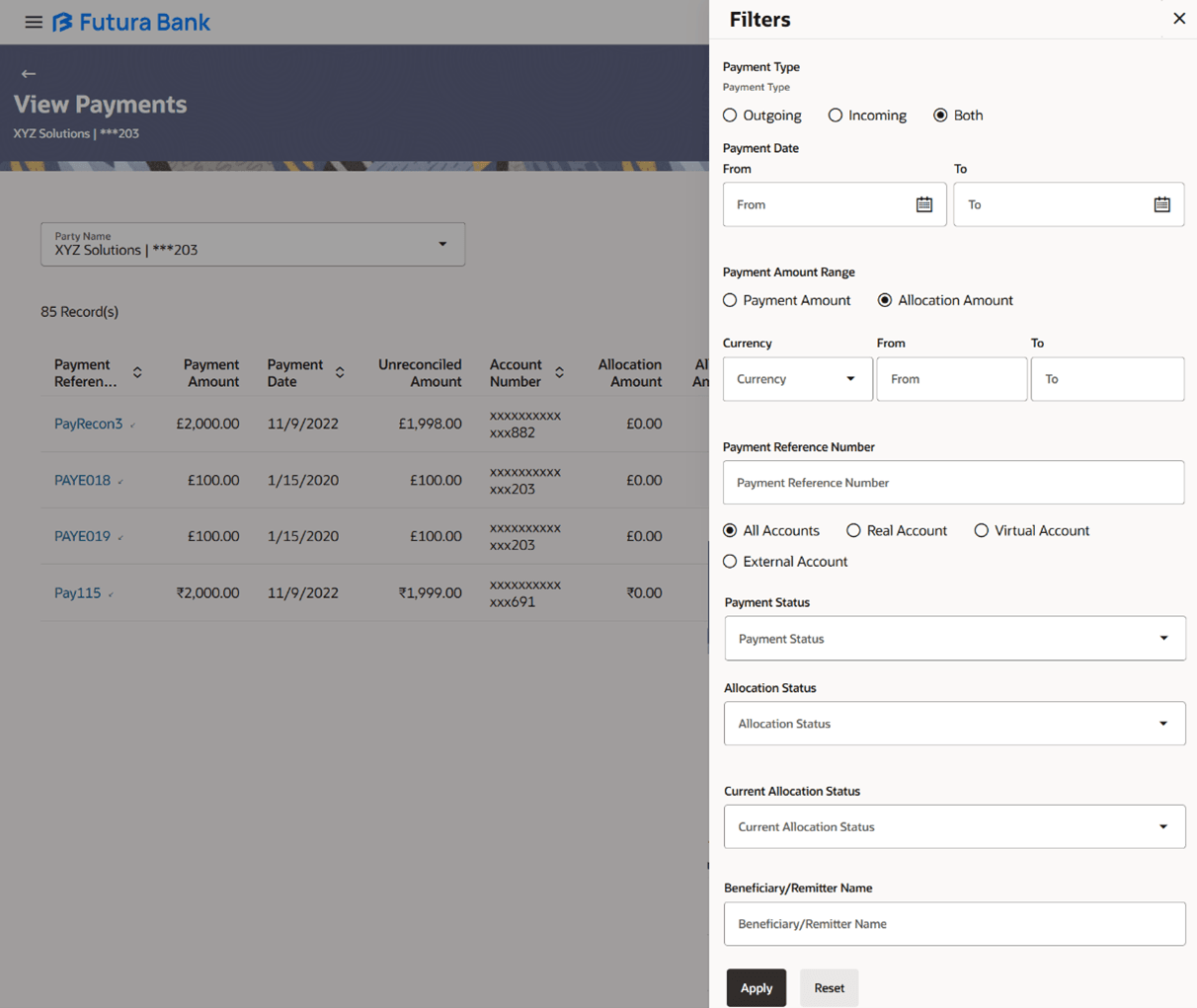
Table 7-2 View Payments - Filters - Field Description
| Field Name | Description |
|---|---|
| Payment Type | Indicates the option to filter payments based on
payment type. The payment types available are:
|
| Payment Date From - To | Indicates the option to filter payments that
occurred within a date range. You can select the dates by
clicking the  icon in the From and To fields. icon in the From and To fields.
|
| Payment Amount Range Currency From - To | This option allows user to filter payments by
specifying a range of amounts based on payment and allocation,
focusing on amounts within a specific range.
You can select either Payment Amount or Allocation Amount to search the payment records. You can select the required currency from the Currency list, and enter the amount range in the From and To fields. |
| Payment Reference Number | Indicates an option to filter payments based on the customer's payment reference number. |
| Accounts | Indicates the option to filter payments based on
the type of account used for payment. The options available
are:
Note: ‘IBAN’ can be listed instead of ‘Real Account’ and ‘Virtual Account’, if the configuration at the bank-level is set to display IBAN. |
| Payment Status | Indicates the option to filter payments based on
payment status. The options are:
|
| Allocation Status | Indicates an option to filter payments based on
their allocation status. The options are:
|
| Current Allocation Status | Displays the posting status of the last allocation done.
The current allocation status can be:
|
| Beneficiary/Remitter Name | Specify the name of the beneficiary or remitter
of the payment. The application matches the exact name entered
and fetches results accordingly.
|
- To narrow the search results, click the icon. The Payment Search overlay window appears.
- Specify the required details, and click Apply. Or, click Reset to reset the filter fields.
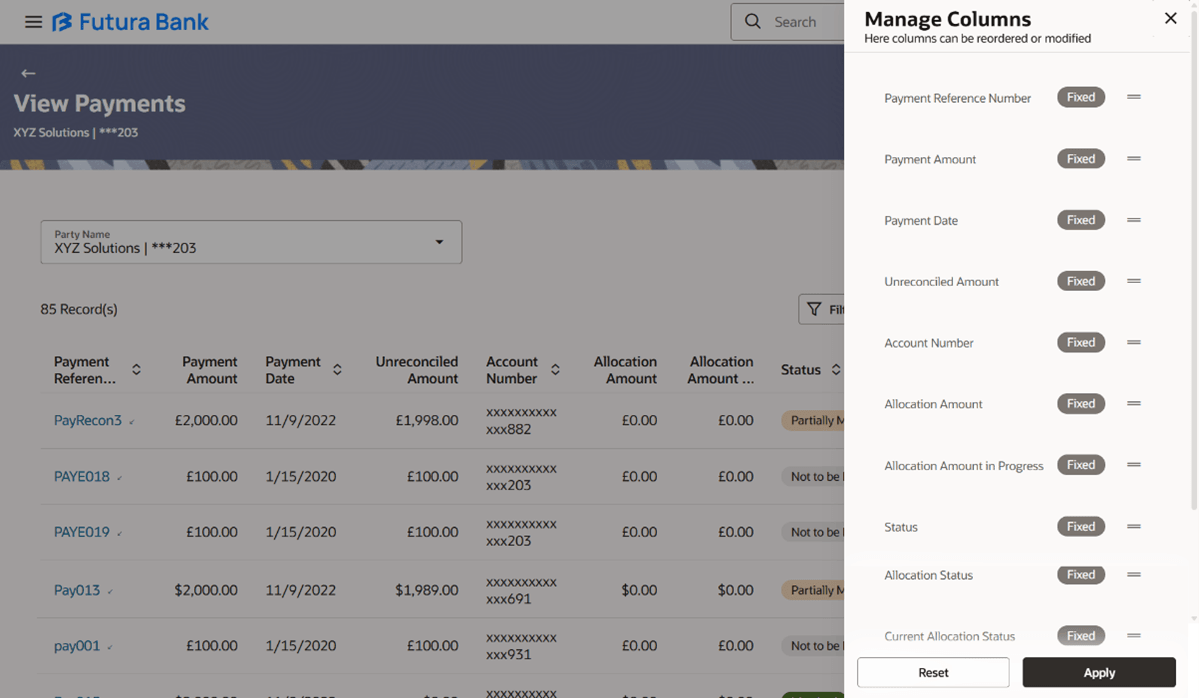
The payment records appear based on the search criteria. - Click Manage Columns to reorder or modify or save column preferences in
View Payments screen.
- Click Apply to apply the modified columns preferences.
- Click Reset to reset the columns preferences.
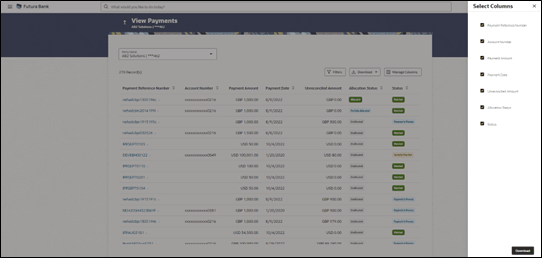
- Click Download and select the file format to download
the Payment list. At present the CSV format is supported.The Select Columns overlay screen appears.
View Payments (details)
This screen appears when you click the Payment Reference Number of a particular payment record in the View Payments screen.
Figure 7-4 View Payments (details)
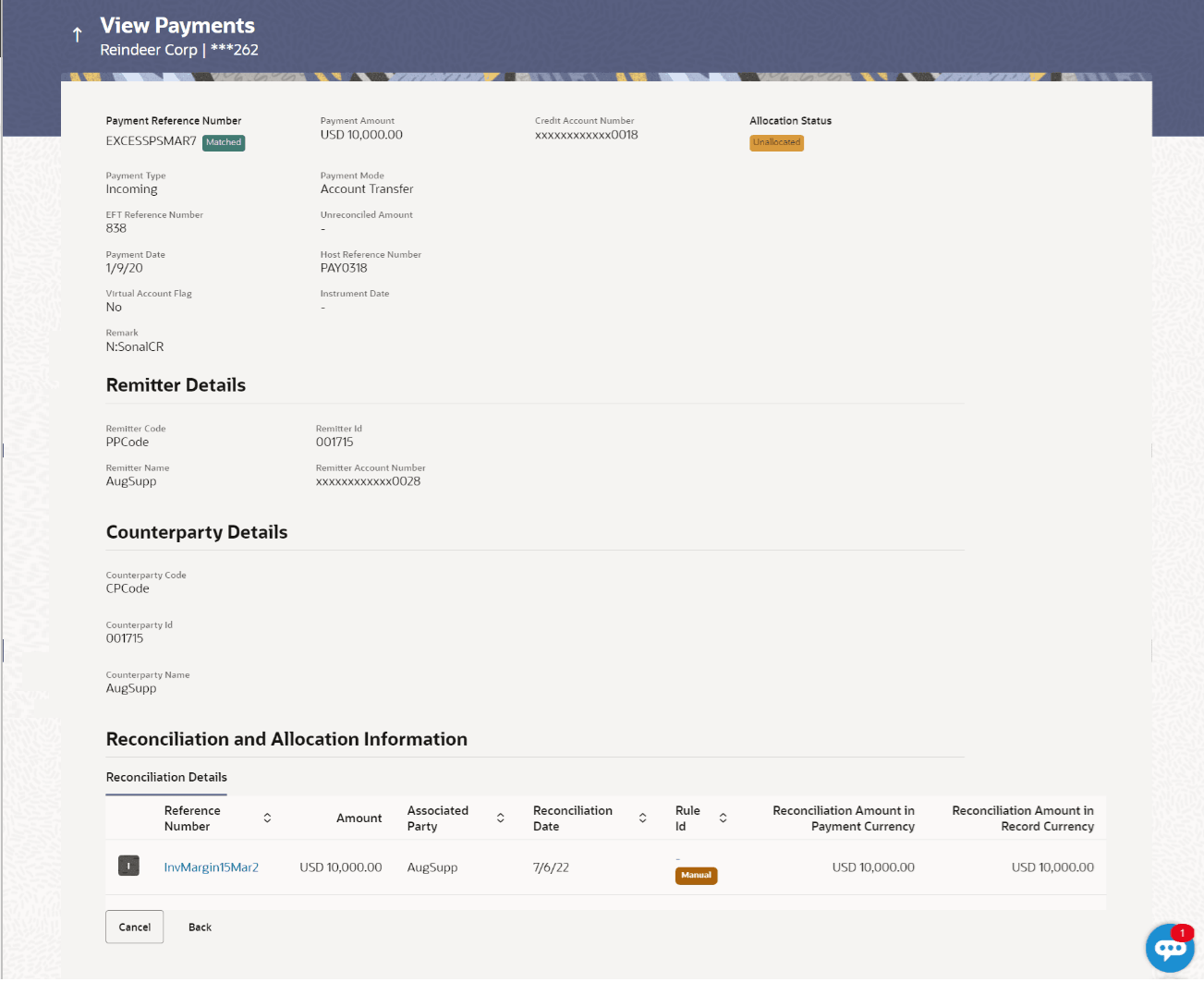
Note:
The View Payments screen can also be viewed on a mobile device. The payment details present in the desktop version, are also available on the mobile device.Table 7-3 View Payments (details) - Field Description
| Field Name | Description |
|---|---|
| Party Name | Displays the name and ID of the logged-in corporate party. |
| Payment Reference Number Payment Status |
Displays the unique reference number of the
payment.
Also displays the reconciliation status of the payment. |
| Payment Amount | Displays the payment amount. |
| Credit Account Number / Debit Account Number | Displays the masked account number involved in
the payment. If the payment is of incoming type, then ‘Credit
Account Number’ is displayed, and if the payment is of outgoing
type, then ‘Debit Account Number’ is displayed.
The account number can be either a real account number or an IBAN, based on the configuration set by the bank. |
| Allocation Status | Displays the status of allocation of the payment. |
| Payment Type | Displays the type of payment, whether incoming or outgoing. |
| Payment Mode | Displays the mode in which the payment has been made. |
| EFT Reference Number | Displays the unique reference number assigned to the electronic transfer. |
| Unreconciled Amount | Displays any amount that is not yet reconciled. |
| Payment Date | Displays the date of the payment. |
| Host Reference Number | Displays the reference number of the payment, assigned by the host system. |
| Virtual Account Flag | Displays ‘Yes’ if a virtual account has been used for the payment, and ‘No’, otherwise. |
| Instrument Date | Displays the date of the instrument, if one has been used for the payment. |
| Remark | Displays any remarks entered during the payment. |
| Remitter Details | This section is displayed if the payment is of ‘incoming’ type with respect to the logged-in party. |
| Remitter Code | Displays the code assigned to the remitter by the remitter’s financial institution. |
| Remitter Id | Displays the remitter’s unique ID. |
| Remitter Name | Displays the remitter’s name. |
| Remitter Account Number | Displays the masked account number used by the
remitter to make the payment.
Note: The IBAN can be displayed instead of real and virtual account numbers, if the configuration at the bank-level is set to display IBAN. |
| Beneficiary Details | This section is displayed if the payment is of ‘outgoing’ type with respect to the logged-in party. |
| Beneficiary Code | Displays the code assigned to the beneficiary by the beneficiary’s financial institution. |
| Beneficiary Id | Displays the beneficiary’s unique ID. |
| Beneficiary Name | Displays the beneficiary’s name. |
| Beneficiary Account Number | Displays the masked account number of the
beneficiary to which the payment has been made.
Note: The IBAN can be displayed instead of real and virtual account numbers, if the configuration at the bank-level is set to display IBAN. |
| Counterparty Details | This section is displays counterparty details. |
| Counterparty Code | Displays the code of the counterparty. |
| Counterparty Id | Displays the counterparty’s unique ID. |
| Counterparty Name | Displays the counterparty’s name. |
| Bank Details | This section is displays bank details. |
| Bank Code | Displays the code of the other bank involved in the payment. |
| Bank Name | Displays the name of the other bank involved in the payment. |
| Branch Name | Displays the name of the branch of the other bank. |
| Reconciliation and Allocation Information | This section is displays reconciliation and allocation information details. |
| Reconcile Against Flag and Instrument | Displays the flag and instrument against which the payment has-been/will-be reconciled. The instrument can be a receivable (such as invoice/debit note), finance, or cashflow. |
| Reference Number | Displays the reference number of the instrument against which the payment has-been/will-be reconciled. This can be the invoice/debit note reference number, the finance reference number, or the cashflow reference number. |
| Auto-Reconciliation Required | Displays ‘Yes’ if the instrument is eligible for auto-reconciliation, and ‘No’, otherwise. |
| Allocation Required | Displays ‘Yes’ if the instrument is eligible for allocation, and ‘No’, otherwise. |
| Finance Related Information | This section appears if these details have been provided in the bulk payment file that has been uploaded. |
| Program Code | Displays the program code associated with the finance. |
| Appropriation while Settlement | Displays the order of repayment with respect to principal, interest, and overdue interest. |
| Specific Appropriation | Displays the amounts allotted to repayment of principal, interest and overdue interest. |
| Additional Details | This section displays theFiller Label Fields. The financial institution can configure these fields on Day 0, based on their requirement. |
The View Payments screen consists of the following tabs:
- Reconciliation Details
- Allocation Details
Note:
These tabs can also be viewed on a mobile device.- Click the Reconciliation Details tab to view the details.
Note:
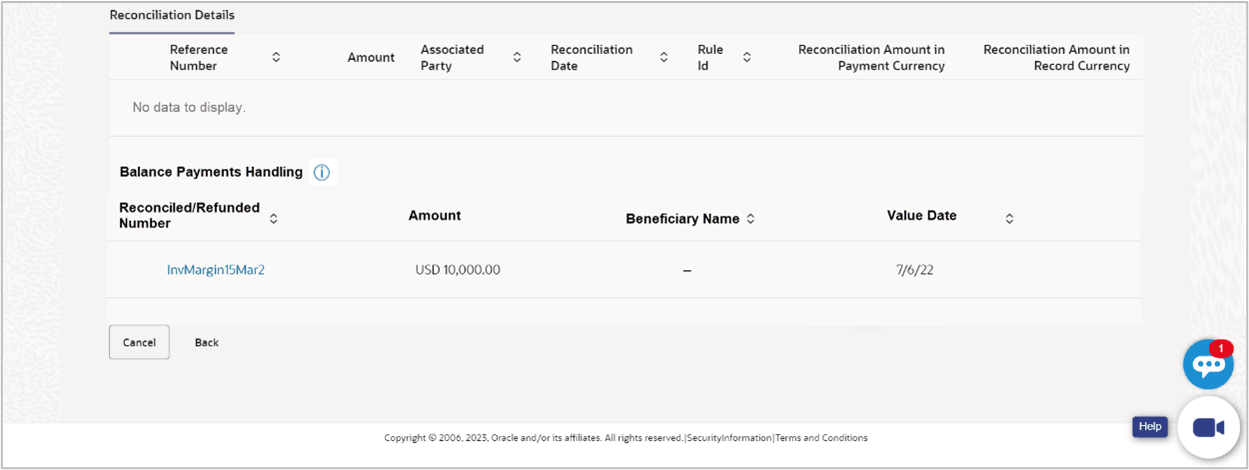
This tab appears only if the payment has been reconciled with invoices/debit notes/cash flows.Figure 7-5 View Payments – Reconciliation Details tab
Table 7-4 View Payments – Reconciliation Details tab - Field Description
Field Name Description View Payments - Reconciliation Details tab The Reconciliation Details tab appears only if the payment has been reconciled with invoices/debit notes/cash flows. Indicator Displays what instrument has been reconciled with the payment. Displays ‘I’ for invoice, ‘D’ for debit note, and ‘C’ for cash flow. Reference Number Displays the reference number of the cash flow / invoice /debit note that the payment has been reconciled with. This is a hyperlink which when clicked displays the details of the cash flow / invoice. For more information on the fields in the View Cash Flow Details screen, refer the View Cash Flow Details section in Corporate Cash Management User Manual. For more information on the fields in the View Invoice screen, refer the View Invoice Details section in this user manual. For more information on the fields in the View Debit Note screen, refer the View Debit Note Details section in this user manual.
Amount Displays the total cash flow / invoice / debit note amount. Associated Party Displays the name of the associated party of the payment. Reconciliation Date Displays the date of reconciliation. Reconciliation Amount in Payment Currency Displays the amount that has been reconciled in the currency in which the payment has been made. Reconciliation Amount in Record Currency Displays the amount that has been reconciled in the cash flow / invoice / debit note currency.

Balance Payments HandlingThe records appearing under this section
are as a result of any balance amount post execution of auto reconciliation. The
payment remaining post reconciliation is handled as per the maintenance set for
the party. Table 7-5 View Payments – Reconciliation Details tab - Balance Payments
Handling - Field Description This is a hyperlink which when clicked
the user is navigated to a page that displays the
details of the cash flow / invoice / debit note. This
field is applicable only for reconciliation. This
field is applicable only for reconciliation.
Field Name
Description
Indicator
Displays ‘F’ if the cash flow / invoice
/debit note if the balance payment has been reconciled
against an outstanding finance.
Reconciled / Refund Number
Displays the reference number of the cash
flow / invoice /debit note that the payment has been
reconciled with.
Amount
Displays the total amount reconciled /
refunded.
Associated Party/ Beneficiary
Name
Displays the name of the associated party, in
case of an inflow payment. Displays the name of the
beneficiary, in case of an outflow payment.
Value Date
Displays the date of
reconciliation/refund.
Reconciliation Amount in Payment
Currency
Displays the amount that has been reconciled
in the currency in which the payment has been made.
Reconciliation Amount in Record
Currency
Displays the amount that has been reconciled
in the cash flow / invoice / debit note currency.
- Click the Allocation Details tab to view the details.
Note:
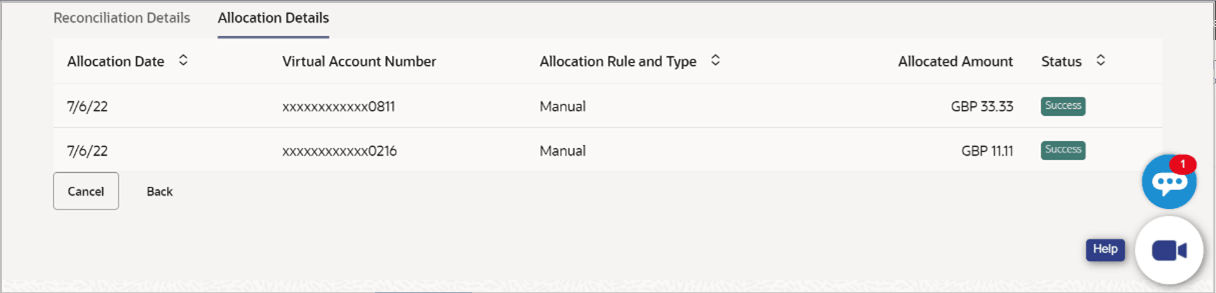
This tab appears only if the payment status is ‘Allocated’ or ‘Partially Allocated’, which means that the payment has been either fully or partially allocated to virtual account(s).Figure 7-6 View Payments – Allocation Details tab
Table 7-6 View Payments – Allocation Details - Field Description
Field Name Description Allocation Date Displays the date of payment allocation. Virtual Account Number Displays the virtual account number to which the payment has been allocated. Allocation Rule and Type Displays the name of the allocation rule applied. Also displays the type of allocation, whether manual or auto. Allocated Amount Displays the amount that has been allocated. Status Displays the virtual account wise the posting status of manual allocation done. The status can be:
- Success
- Failure
- Pending
Parent topic: Payments Management