3.1 Create Program
This topic provides systematic instructions to create program.
A Corporate can create program(s) to link their business counterparts (who are referred to as Counter Parties) together, so that the parties can avail finance. A program is created using a finance product that would be availed by the counter parties or the Anchor (one who creates the program) depending on who the borrower is, in the finance product. The finance product is fetched from the bank’s system.
A counter party can be linked to a program only when they are successfully onboarded into the bank’s system. For more information on onboarding a counterparty and inquiring related details, refer User Manual Oracle Banking Digital Experience Receivables Payables Management.
Using this option, user can create a SCF program to manage invoices / purchase orders. It allows user to define major parameters at the program level like auto-acceptance or auto-financing of the invoices.
- Perform any of the following actions:
- From the Dashboard, click the Toggle Menu, and then click Supply Chain Finance. Under Supply Chain Finance, click Program Management, then Program Management, and then click Create Program.
- From the Dashboard, click the Toggle Menu, and then click Supply Chain Finance. Under Supply Chain Finance, click Program Management. Under Program Management, click View Program, and then click Create New Program.
- From the Dashboard, click the Toggle Menu, then click Supply Chain Finance. Under Supply Chain Finance, click Overview. Under Overview, click Quick Links, and then click Create Program.
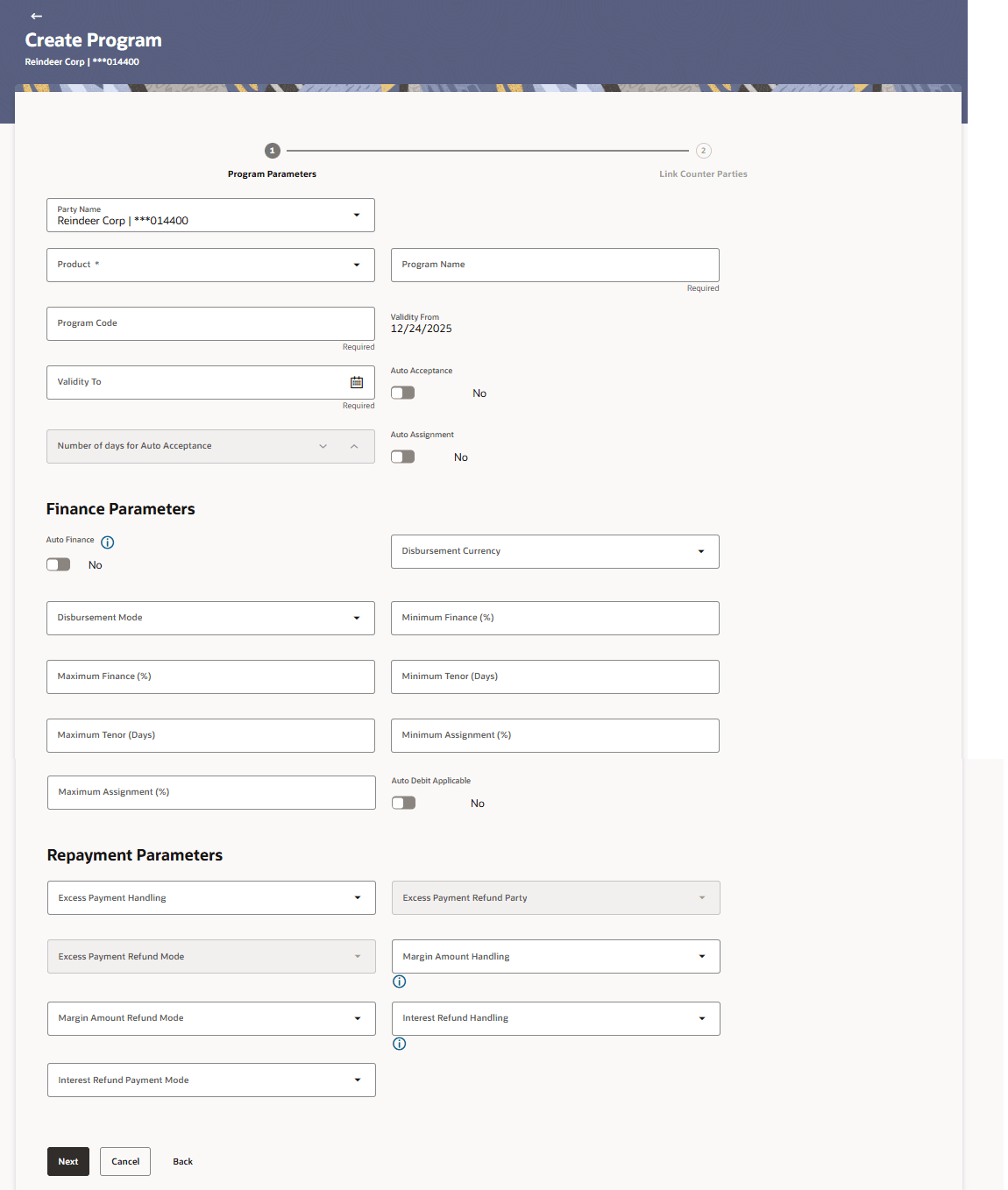
The Create Program screen displays.Figure 3-1 Create Program - Program Parameters
For more information on fields, refer to field description table.
Table 3-1 Create Program - Field Description
Field Name Description Program Parameters This section displays the program parameters. Party Name and ID Select the party name from the drop-down list for which the program must be created. By default, the primary party of the logged-in user is selected. The program will be created for the selected party and not for the logged in party. Note: Only accessible parties are displayed to the user.
Product Select a suitable program type. You can view the attributes of the selected type by clicking the View Attributes link. The Type of Program determines the following:
- Whether the program is buyer-centric or supplier-centric, based on the role of the logged-in party.
- Whether the program is to be used for financing invoices or purchase orders.
- The borrower of finances in the program, (whether Anchor or Spoke).
- Financial parameters such as, minimum and maximum finance that can be requested; minimum and maximum tenor for the finances and so on.
- Repayment parameters, such as, the sequence of finance repayment (interest, principal, and overdue interest) before, on, and after the due date; whether pre-payment and part payment are allowed and so on.
View Attributes Click on the link to view the attributes, finance parameters, and repayment parameters of the selected program type. For more information, refer to View Attributes section. Program Name Specify a unique name for the program to be created. Program Code Specify a unique code for the program to be created. Validity From Select the date of creation of the program. By default, it is the current business date of the bank. You can enter a future date if required. Validity To Select the date until when the program will be valid. It should be a future date. Auto Acceptance Switch the toggle to Yes to auto accept invoices or purchase orders.
- The invoices uploaded under this program will automatically be deemed as accepted after the specified number of days, if not explicitly accepted by the buyer.
- The purchase orders uploaded under this program will automatically be deemed as accepted after the specified number of days, if not explicitly accepted by the supplier.
Number of Days for Auto Acceptance Specify the number of days after which the invoices/purchase orders will be deemed as accepted, if not explicitly accepted by the buyer/supplier.
This field is enabled only if the Auto Acceptance toggle is set to Yes.
Auto Assignment Switch the toggle to Yes if the assignment is to be performed automatically post invoice/purchase order upload. This field is enabled only if the selected Product is invoice based.
Finance Parameters This section displays the finance parameters. Auto Finance Switch the toggle to Yes to automatically finance invoices or purchase orders (post acceptance) that are uploaded under the program. Disbursement Currency Select the disbursement currency for the program.
This field is mandatory, if the Auto Finance toggle is set to Yes.
Disbursement Mode Select the preferred disbursement mode of finance amount for the program.
The options are:
- Account Transfer
- Cheque
- EFT
Minimum Finance (%) Specify the minimum finance percentage allowed for financing a transaction (invoice/purchase order) under this program. Maximum Finance (%) Specify the maximum finance percentage allowed for financing a transaction (invoice/purchase order) under this program. Minimum Tenor (Days) Specify the minimum tenor allowed for financing a transaction under this program. Maximum Tenor (Days) Specify the maximum tenor allowed for financing a transaction (invoice/purchase order) under this program. Minimum Assignment (%) Specify the minimum percentage of the assignment allowed for financing a transaction (invoice) under this program. This value should be less than the maximum finance percentage defined. This field is enabled only, if the selected Product is invoice based.
Maximum Assignment (%) Specify the maximum percentage of the assignment allowed for financing a transaction (invoice) under this program. This value should be more than the minimum finance percentage defined. This field is enabled only, if the selected Product is invoice based.
Auto Debit Applicable Switch the toggle to Yes, if auto debit is applicable for this program to recover the outstanding finance due from the borrower. Repayment Parameters This section displays the repayment parameters. Excess Payment Handling Select how to handle any excess payment made towards the settlement of an outstanding invoice/finance. The options are:- Auto-Reconcile
- Auto-Reconcile and Refund
- Manually Reconcile
- Refund to beneficiary or payment party
Excess Payment Refund Party Select the party to refund the excess amount. The options are:- Beneficiary/Counter Party
- Payment Party
Excess Payment Refund Mode Select the mode of payment for the excess payment refund. The options are:- Account Transfer
- Cheque
- EFT
Margin Amount Handling Select how the margin should be handled. Margin is generated when invoice payment is made against financed invoices where finance amount is less than the invoice amount. Margin Amount can then be utilized as per options listed. The options are:- Refund to the Supplier
- Settle with Outstanding Finances
- Manually Settle O/s Finances
- Auto-Settle and Refund to Supplier
Margin Amount Refund Mode Select the mode of payment for the margin amount refund. The options are:- Account Transfer
- Cheque
- EFT
Interest Refund Handling Select how the interest refund should be handled. Interest is refunded in cases where interest is front ended and collected upfront. During settlement before maturity the interest needs to be refunded based on this maintenance. The options are:- Auto-Settle and Refund to IBP
- Manually Settle O/s Finances
- Refund to the Interest Bearing Party
- Settle with Outstanding Finances
Interest Refund Payment Mode Select the mode of payment for the interest amount refund. The options are:- Account Transfer
- Cheque
- EFT
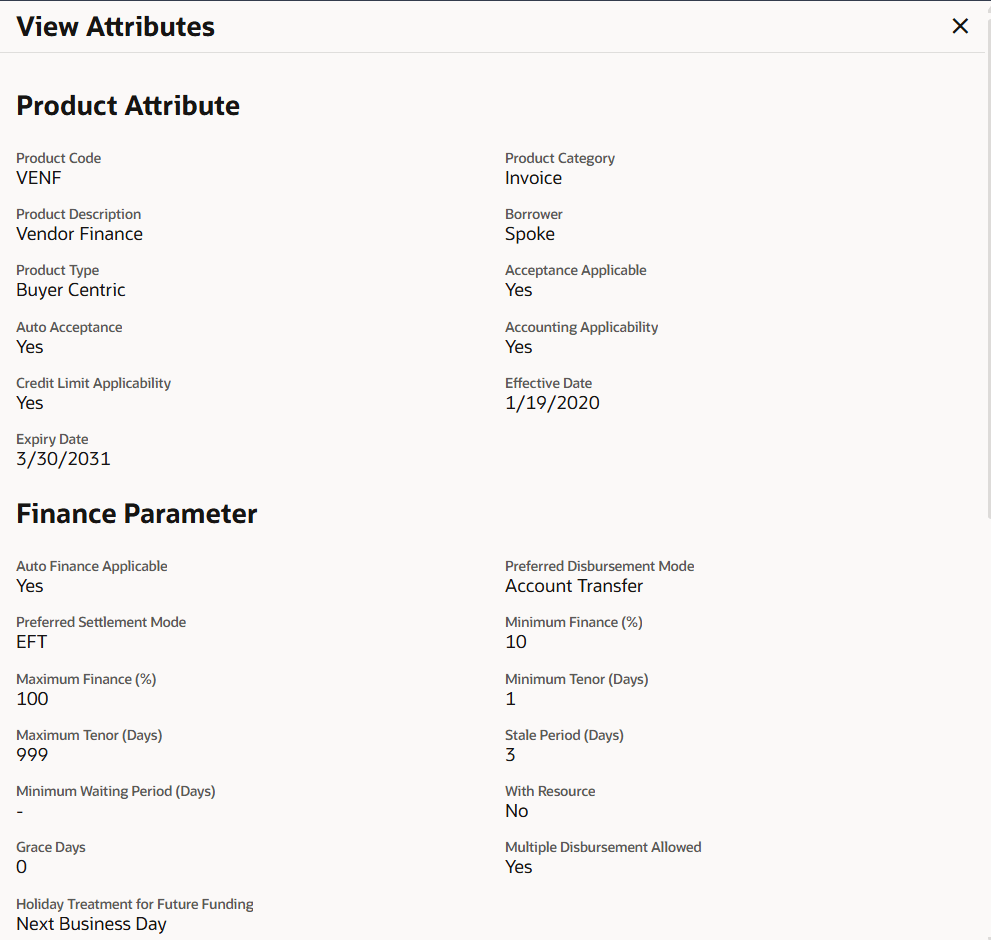
- This overlay window is displayed when user click the View Attributes
link in the Create Program screen.It displays the attributes associated with the Product selected.
For more information on fields, refer to field description table.
Table 3-2 View Attributes - Field Description
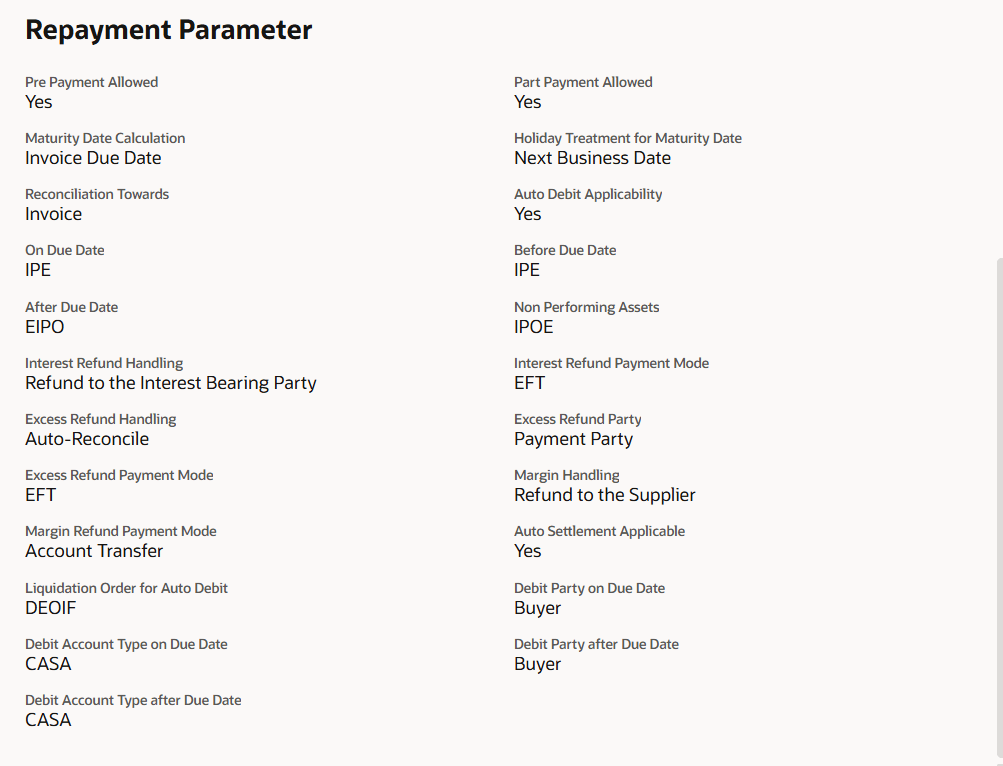
Field Name Description Product Attribute This section displays the product attribute. Product Code Displays the unique code associated with the product. Product Category Displays the type of receivable/payable that will be financed. For example, invoice or purchase order or debit note. Product Description Displays the description of the product. Borrower Displays whether the borrower is the anchor or the spoke. Product Type Displays the type of the product. Acceptance Applicable Displays whether the receivables/payables raised under the product is applicable for financing. Auto Acceptance Displays whether the receivables/payables raised under the product to be accepted automatically post invoice upload. Accounting Applicability Displays whether the accounting is applicable. Credit Limit Applicability Displays the credit limits applicability to the product. Effective Date Displays the date from when the product has been active. Expiry Date Displays the expiry date of the product. Finance Parameter This section displays the finance parameter. Auto Finance Applicable Displays whether the receivables/payables raised under the product will be automatically financed, or not. Preferred Disbursement Mode Displays the preferred mode of transferring the finance amount. Preferred Settlement Mode Displays the preferred mode of transferring the settlement amount. Minimum Finance % Displays the minimum percentage of the receivable/payable amount that will be financed. Maximum Finance % Displays the maximum percentage of the receivable/payable amount that will be financed. Minimum Tenor (Days) Displays the minimum finance tenor in days. Maximum Tenor (Days) Displays the maximum finance tenor in days. Stale Period (Days) Displays the period in days after which the receivable/payable becomes stale and cannot be financed any more. Minimum Waiting Period (Days) Displays the minimum period in days up to which the finance cannot be closed, in case pre-closure is allowed. With Recourse Displays whether the finance is with or without recourse. Grace Days Displays the number of days allowed as grace period. It is the period over and above the due date during which the payment may be done by the borrower without penalty or interest. Holiday Treatment for Future Funding Displays how the finance disbursement date is handled if it falls on a bank holiday. Multiple Disbursement Allowed Displays whether multiple disbursements of the finance amount is allowed or not. Figure 3-3 View Attributes – Repayment Parameter
For more information on fields, refer to field description table.
Table 3-3 View Attributes - Field Description
Field Name Description Repayment Parameter This section displays the repayment parameter. Pre Payment Allowed Displays whether the finance can be repaid prior to the finance maturity date. Part Payment Allowed Displays whether the finance can be repaid in parts. Maturity Date Calculation Displays the basis on which the maturity date of the finance is calculated. Holiday Treatment for Maturity Date Displays how the finance maturity date is handled if it falls on a bank holiday. Reconciliation Towards Displays what the reconciliation will be matched against. Auto Debit Applicability Displays whether auto debit is applicable for finance repayment. On Due Date Displays the order in which the principal, and the interest is paid on the finance maturity date. Before Due Date Displays the order in which the principal, and the interest is paid prior to the finance maturity date. After Due Date Displays the order in which the principal, interest, and overdue interest is paid post the finance maturity date. Non Performing Assets Displays the order in which the principal, interest, and overdue interest is paid if the finance repayment gets defaulted or missed. Interest Refund Handling Displays how the interest refund is handled. Interest Refund Payment Mode Displays the mode of payment for the interest refunds. Excess Refund Handling Displays how the excess payment made towards settling of outstanding invoice/finance, is handled. Excess Refund Party Displays the party to whom the excess refund amount is credited. Excess Refund Payment Mode Displays the mode of payment for the excess refunds. Margin Handling Displays how the margin refund is handled. Margin Refund Payment Mode Displays the mode of payment for the margin refunds. Auto Settlement Applicable Displays whether the finance availed against receivables/payables under the product will be settled automatically. Liquidation Order for Auto Debit Displays the auto-debit liquidation order in case partial funds are debited from the payment party on auto-debit. This field is displayed only, if the Auto Debit Applicability toggle is set to Yes.
Debit Party on Due Date Displays the party from whose account the amount should be debited if the business date is same as the finance maturity date. This field is displayed only, if the Auto Debit Applicability toggle is set to Yes.
Debit Account Type on Due Date Displays the account type to be debited, if the business date is same as the finance maturity date. This field is displayed only, if the Auto Debit Applicability toggle is set to Yes.
Debit Party after Due Date Displays the party from whose account the amount should be debited, if the business date is greater than finance maturity date. This field is displayed only, if the Auto Debit Applicability toggle is set to Yes.
Debit Account Type After Due Date Displays the account type to be debited if the business date is greater than finance maturity date. This field is displayed only, if the Auto Debit Applicability toggle is set to Yes.
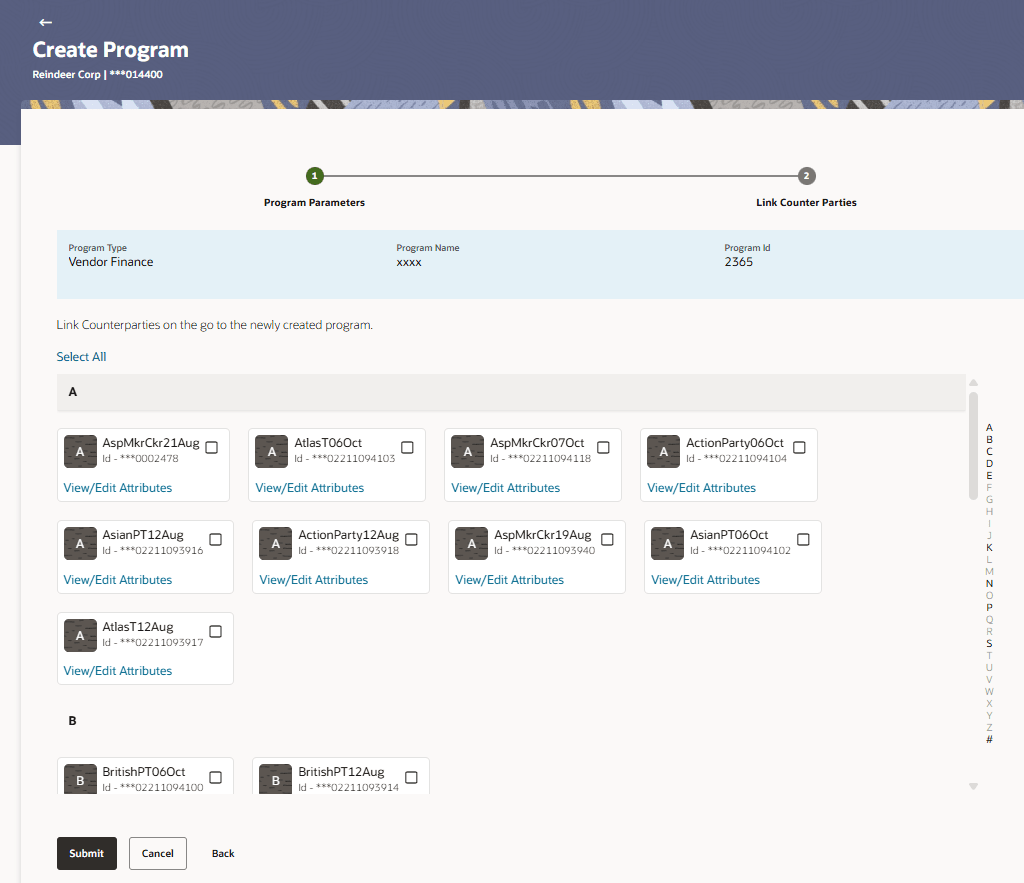
- Once the above details are entered, click Next to navigate to the Link Counter Parties screen. The screen displays a list of all counter parties that are onboarded by the anchor. Or, do one of the following:
- Click Cancel to cancel the transaction.
- Click Back to go to the main dashboard.
Figure 3-4 Create Program - Link Counter Parties
For more information on fields, refer to field description table.
Table 3-4 Create Program - Field Description
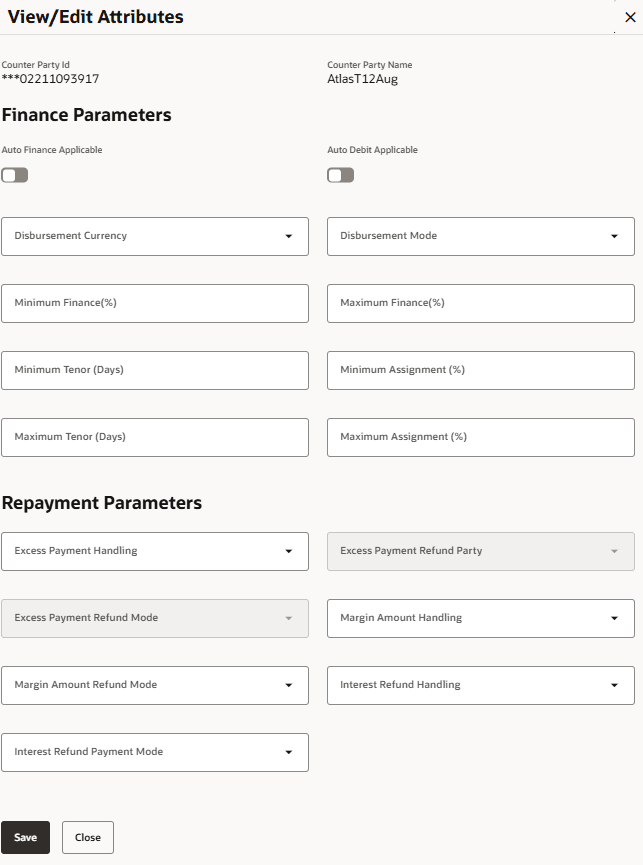
Field Name Description Link Counter Parties This section displays the link counter parties. Program Type Display the program type selected in the Program Parameters step. Program Name Display the program name entered in the Program Parameters step. Program Id Display the program ID entered in the Program Parameters step. Select Counterparties This section displays a list of onboarded counterparties in alphabetical order. A tile is displayed for each counterparty. You can individually select the parties to be linked to the program, or click Select All to link all of them to the program. Counterparty Tile Each tile displays the following details. Short Name Display the initials of the counter party. Counter Party Name and ID Displays the counter party’s name and ID. View/Edit Attributes Clicking this link displays the View/Edit Attributes overlay window. User can define the attribute values that are specific to the counterparties in the view/edit attributes overlay window. Figure 3-5 Link Counter Parties – View/Edit Attributes
For more information on fields, refer to field description table.
Table 3-5 Link Counter Parties - Field Description
Field Name Description View/Edit Attributes This section displays the view/edit attributes. Counter Party Id Displays the counter party ID. Counter Party Name Displays the counter party Name. Auto Finance Applicable Switch the toggle to Yes to automatically finance invoices/purchase orders (post acceptance) that are uploaded under the program for this counterparty. Auto Debit Applicable Switch the toggle to Yes, if auto debit is applicable for this counterparty to recover the outstanding finance due from the borrower. Disbursement Currency Select the disbursement currency for this counterparty. This field is mandatory, if the Auto Finance toggle is set to Yes. Disbursement Mode Select the preferred disbursement mode of finance amount for this counterparty. The options are:- Account Transfer
- Cheque
- EFT
Minimum Finance (%) Specify the minimum finance percentage allowed for financing a transaction (invoice/purchase order) for this counterparty. Maximum Finance (%) Specify the maximum finance percentage allowed for financing a transaction (invoice/purchase order) for this counterparty. Minimum Tenor (Days) Specify the minimum tenor allowed for financing a transaction for this counterparty. Maximum Tenor (Days) Specify the maximum tenor allowed for financing a transaction (invoice/purchase order) for this counterparty. Minimum Assignment (%) Specify the minimum percentage of the assignment allowed for financing a transaction (invoice) for this counterparty. This value should be less than the maximum finance percentage defined. This field is enabled only, if the selected Product is invoice based.
Maximum Assignment (%) Specify the maximum percentage of the assignment allowed for financing a transaction (invoice) for this counterparty. This value should be more than the minimum finance percentage defined. This field is enabled only, if the selected Product is invoice based.
Repayment Parameters This section displays the repayment parameters. Excess Payment Handling Select how to handle any excess payment made towards the settlement of an outstanding invoice/finance for this counterparty. The options are:- Auto-Reconcile
- Auto-Reconcile and Refund
- Manually Reconcile
- Refund to beneficiary or payment party
Excess Payment Refund Party Select the party to refund the excess amount for this counterparty. The options are:- Beneficiary or Counter Party
- Payment Party
Excess Payment Refund Mode Select the mode of payment for the excess payment refund for this counterparty. The options are:- Account Transfer
- Cheque
- EFT
Margin Amount Handling Select how the margin should be handled for this counterparty. Margin is generated when invoice payment is made against financed invoices where finance amount is less than the invoice amount. Margin Amount can then be utilized as per options listed. The options are:- Refund to the Supplier
- Settle with Outstanding Finances
- Manually Settle O/s Finances
- Auto-Settle and Refund to Supplier
Margin Amount Refund Mode Select the mode of payment for the margin amount refund for this counterparty. The options are:- Account Transfer
- Cheque
- EFT
Interest Refund Handling Select how the interest refund should be handled for this counterparty. Interest is refunded in cases where interest is front ended and collected upfront. During settlement before maturity the interest needs to be refunded based on this maintenance. The options are:- Auto-Settle and Refund to IBP
- Manually Settle O/s Finances
- Refund to the Interest Bearing Party
- Settle with Outstanding Finances
Interest Refund Payment Mode Select the mode of payment for the interest amount refund for this counterparty. The options are:- Account Transfer
- Cheque
- EFT
Parent topic: Program Management