3.2.2 Edit Program
This topic provides systematic instructions to edit program.
Using this option, you can edit the program created by you to make required changes, if you are an Anchor. When a program is selected for editing, the values of the program, as fetched from the Host, are displayed.
For example, if a program is in the Modified status and if you select this program for re-editing, then the values that were previously modified but not authorized, are displayed. You can then re-modify these as required. Programs in the Initiated, Closed, or Others status, cannot be edited.
Note:
Only a user of the Anchor party, who has access rights to create a program, can edit it. Counter party users will not be able to edit (or create) programs.- Perform any of the following actions:
- From the Dashboard, click the Toggle Menu, then click Supply Chain Finance. From Program Management, click View/Edit Program.
- From the Dashboard, click the Toggle Menu, then click Supply Chain Finance. From Overview, click Quick Links, and then View Program.
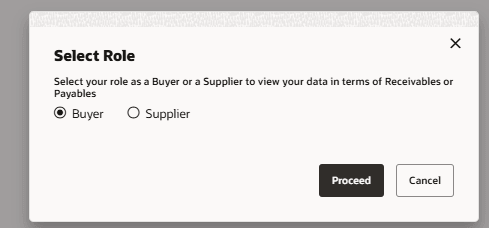
The Select Role pop-up appears. - Click Proceed to view the existing programs. Or, click
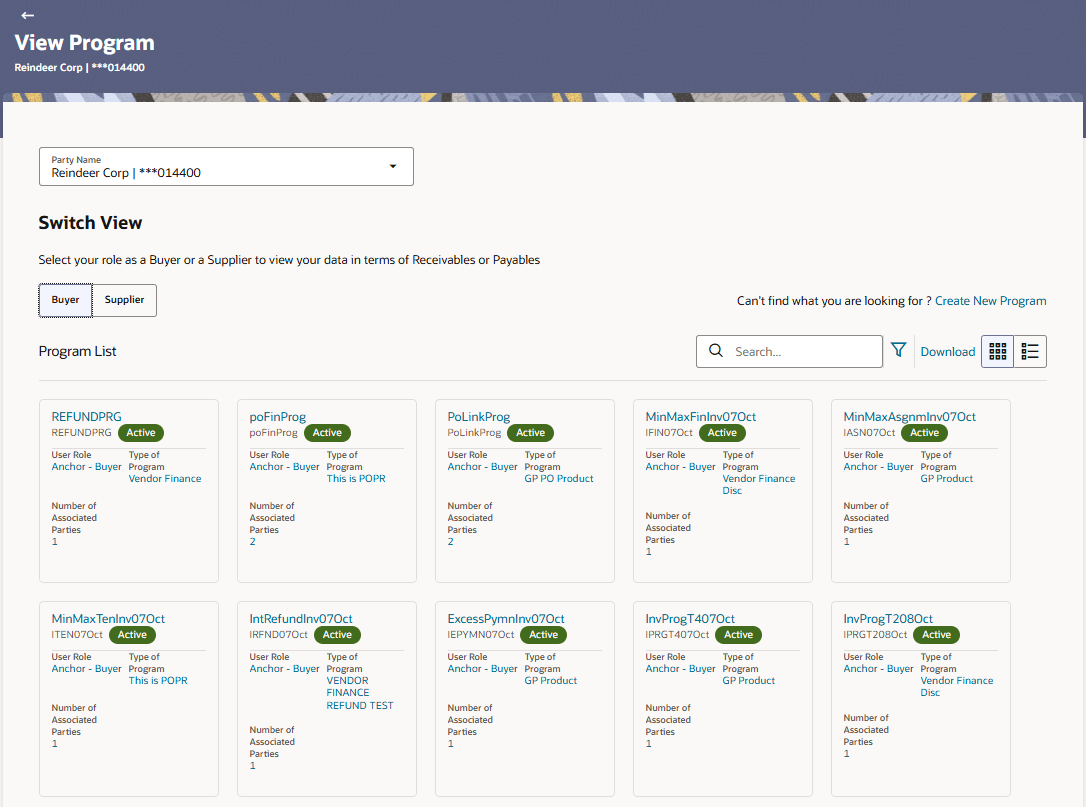
Cancel to cancel the transaction.The View Program screen appears.
- Enter the search criteria and click Search. The program list appears based on entered search criteria in card or list view format. Or, do one of the following:
- Click Clear to reset the search parameters.
- Click Cancel to cancel the transaction.
Note:
Click or
or  to view details in the card (tile) or list view formats respectively.
- Click the Program Tile or Program
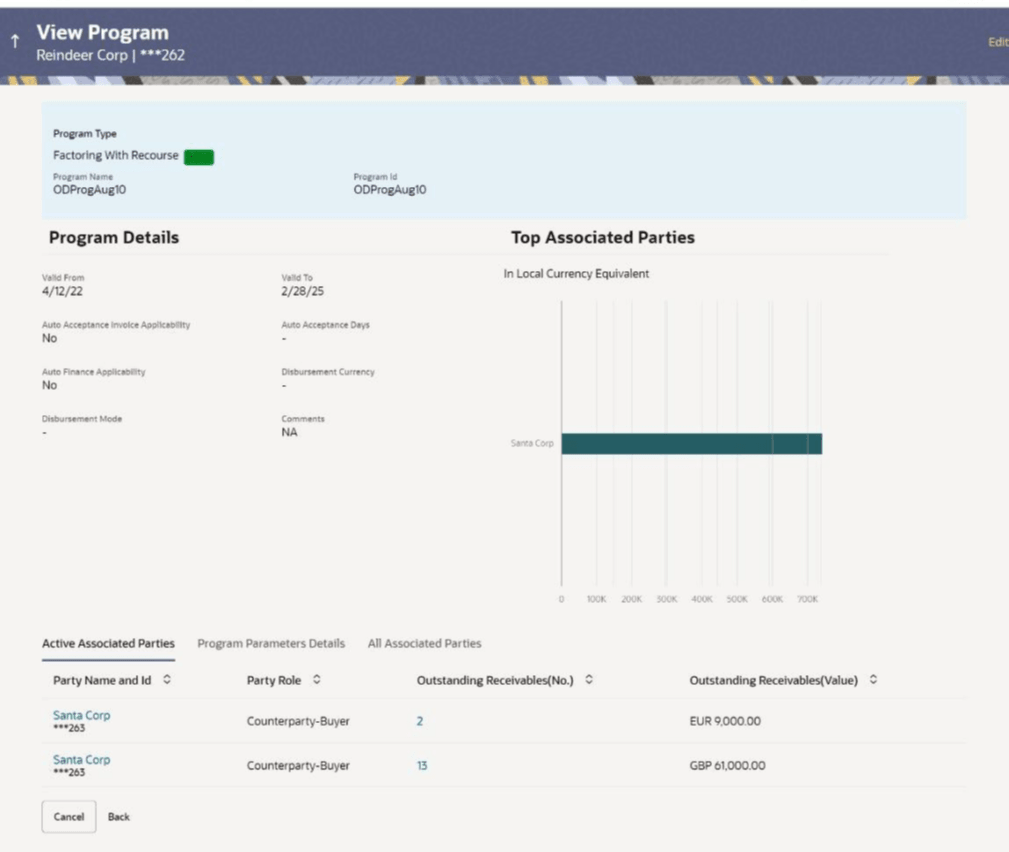
Name link of the program to be modified.The View Program screen appears.
- Click Edit to make the required changes to the program. The Edit Program screen appears.
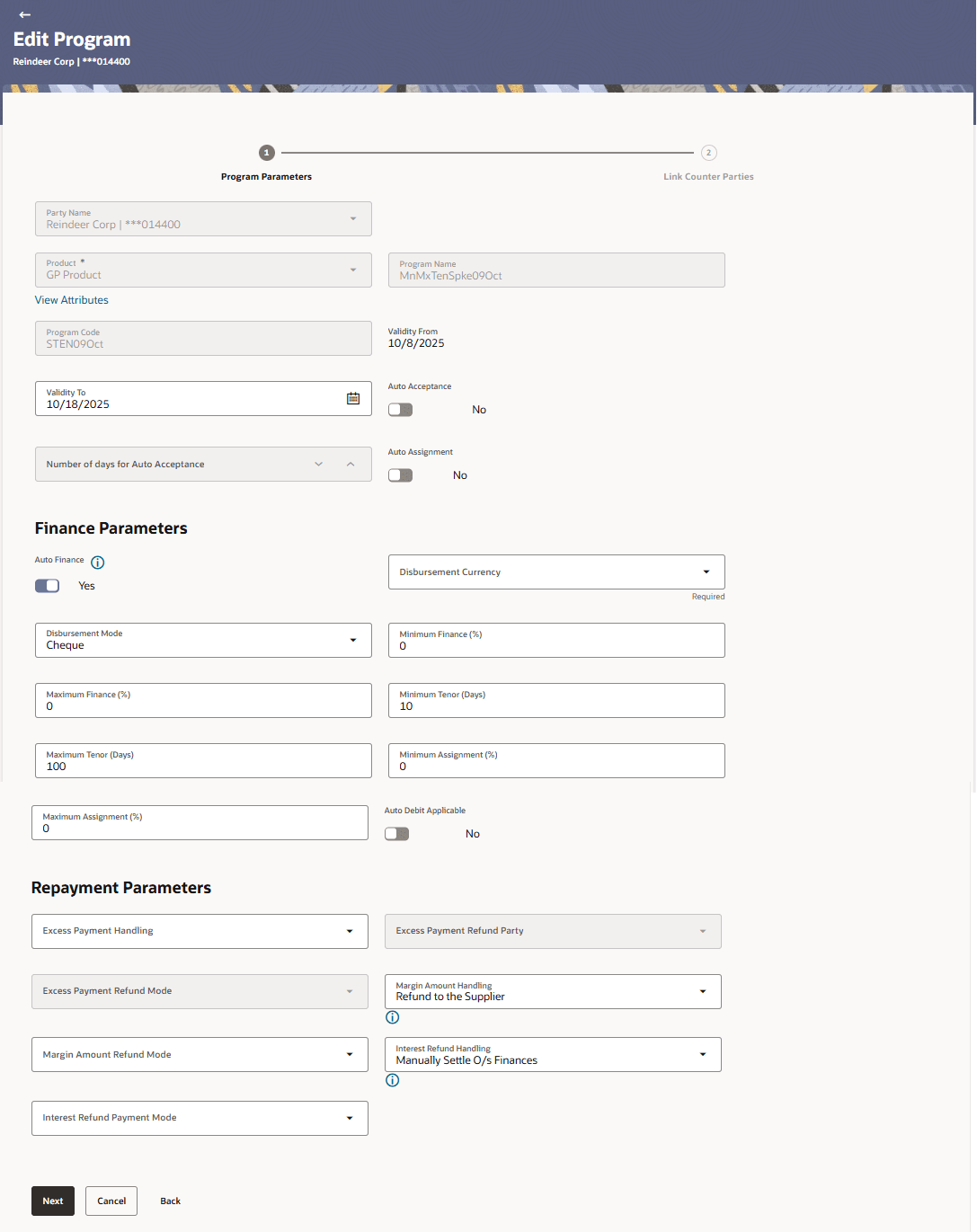
Figure 3-18 Edit Program - Program Parameters
Table 3-15 Program Parameters - Field Description
Field Name Description Party Name and ID Displays the name and ID of the logged-in corporate party. Program Type Displays the program type selected in the Program Parameters step. Program Name Displays the program name entered in the Program Parameters step. Program ID Displays the program ID entered in the Program Parameters step. Status Displays the status of the program. Displays whether the program is Initiated/Active/Inactive/Modified/Closed. Type of Program Displays the type of the program. This field is not editable. View Attributes Click on the link to view the attributes, finance parameters, and repayment parameters of the selected program type. Program Code Displays the unique code or ID of the program. This field is not editable. Validity From Displays the date of creation of the program. This field is not editable. Validity To Modify the date until when the program should be valid, if required.
It should be a future date.
Auto Accept Invoice Modify this toggle, if required. Switch the toggle to Yes to auto accept invoices/purchase orders.
- The invoices uploaded under this program will automatically be deemed as ‘accepted’ after the specified number of days, if not explicitly accepted by the buyer.
- The purchase orders uploaded under this program will automatically be deemed as ‘accepted’ after the specified number of days, if not explicitly accepted by the supplier.
Number of Days for Auto Acceptance Enter the number of days after which the invoices/purchase orders will be deemed as ‘accepted’, if not explicitly accepted by the buyer/supplier.
This field is displayed only, if the Auto Accept Invoice toggle is set to yes.
Auto Assignment Modify this toggle, if required. Switch the toggle to Yes if the assignment is to be performed automatically post invoice/purchase order upload. This field is enabled only, if the selected Product is invoice based.
Finance Parameters This section displays the finance parameters. Auto Finance Modify this toggle if required. Switch the toggle to Yes to automatically finance invoices / purchase orders (post acceptance) that are uploaded under the program. Disbursement Currency Specify the disbursement currency for the program.
This field is enabled only, if the Auto Finance toggle is set to Yes.
Disbursement Mode Specify the disbursement mode for the program.
The options are:
- Account Credit
- Cheque
- EFT
This field is enabled only, if the Auto Finance toggle is set to Yes.
Minimum Finance (%) Specify the minimum finance percentage allowed for financing a transaction (invoice or purchase order) under this program. Maximum Finance (%) Specify the maximum finance percentage allowed for financing a transaction (invoice or purchase order) under this program. Minimum Tenor (Days) Specify the minimum tenor allowed for financing a transaction under this program. Maximum Tenor (Days) Specify the maximum tenor allowed for financing a transaction (invoice or purchase order) under this program. Minimum Assignment (%) Specify the minimum percentage of the assignment allowed for financing a transaction (invoice) under this program. This value should be less than the maximum finance percentage defined. This field is enabled only, if the selected Product is invoice based.
Maximum Assignment (%) Specify the maximum percentage of the assignment allowed for financing a transaction (invoice) under this program. This value should be more than the minimum finance percentage defined. This field is enabled only, if the selected Product is invoice based.
Auto Debit Applicable Switch the toggle to Yes, if auto debit is applicable for this program to recover the outstanding finance due from the borrower. Repayment Parameters This section displays the repayment parameters. Excess Payment Handling Select how to handle any excess payment made towards the settlement of an outstanding invoice/finance. The options are:- Auto-Reconcile
- Auto-Reconcile and Refund
- Manually Reconcile
- Refund to beneficiary or payment party
Excess Payment Refund Party Select the party to refund the excess amount. The options are:- Beneficiary/Counter Party
- Payment Party
Excess Payment Refund Mode Select the mode of payment for the excess payment refund. The options are:- Account Transfer
- Cheque
- EFT
Margin Amount Handling Select how the margin should be handled. Margin is generated when invoice payment is made against financed invoices where finance amount is less than the invoice amount. Margin Amount can then be utilized as per options listed. The options are:- Refund to the Supplier
- Settle with Outstanding Finances
- Manually Settle O/s Finances
- Auto-Settle and Refund to Supplier
Margin Amount Refund Mode Select the mode of payment for the margin amount refund. The options are:- Account Transfer
- Cheque
- EFT
Interest Refund Handling Select how the interest refund should be handled. Interest is refunded in cases where interest is front ended and collected upfront. During settlement before maturity the interest needs to be refunded based on this maintenance. The options are:- Auto-Settle and Refund to IBP
- Manually Settle O/s Finances
- Refund to the Interest Bearing Party
- Settle with Outstanding Finances
Interest Refund Payment Mode Select the mode of payment for the interest amount refund. The options are:- Account Transfer
- Cheque
- EFT
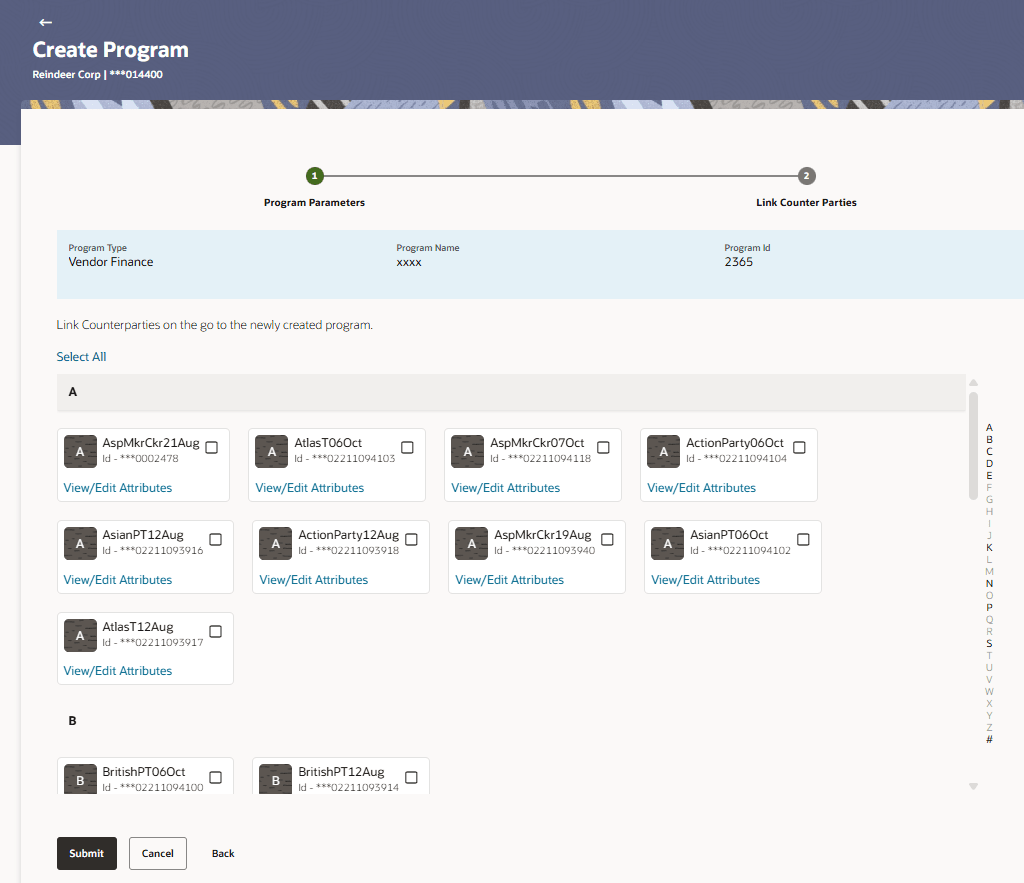
- Click Next to navigate to the Link Counter Parties tab. The screen displays all onboarded counter parties created by the anchor. Or, click Cancel to cancel the transaction.The Link Counter Parties screen appears.
Figure 3-19 Edit Program - Link Counter Parties
Parent topic: View / Edit Program