4.2 Finance Amendment
This topic covers the eligibility criteria for amendment, the process of selecting one or multiple finances, and the ability to complete amendments in a single transaction.
A corporate user can initiate amendment of their finances directly from the portal. The corporate user is provided with the option to modify the tenor of the outstanding finances. By default, the Finance Amendment screen displays all the outstanding finances that can be selected for amendment. The user can select a single or multiple finances for amendment, in a single transaction.
Note:
The corporate user will be able to view those finances where the logged in corporate party is the borrower, and the finance status is Disbursed or Partially settled.- On Dashboard, click the Toggle
Menu, then click Supply Chain Finance.
From Supply Chain Finance, click Finance
Management, and then click Finance
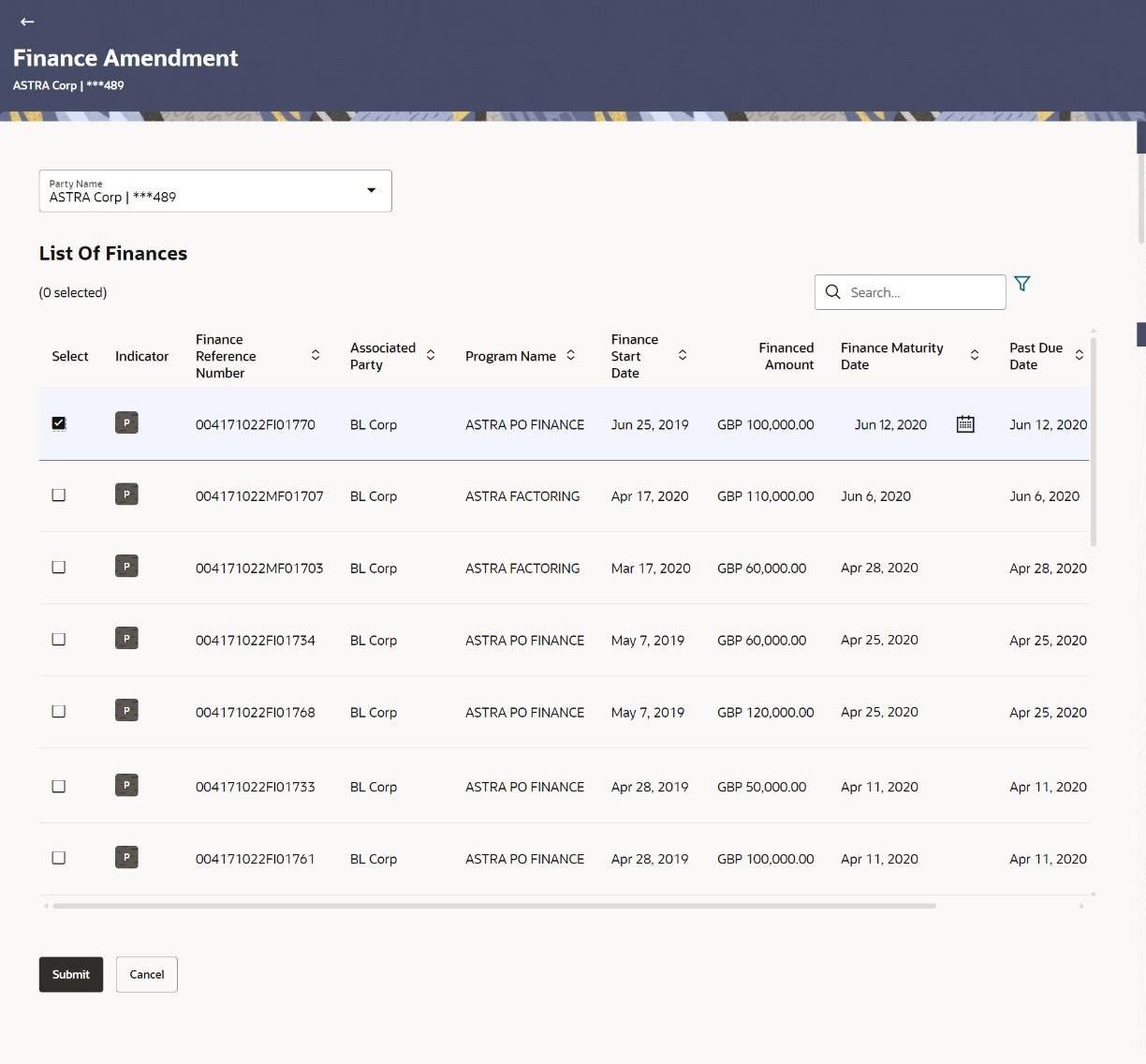
Amendment.The Finance Amendment screen is displayed with List of Finance.
For more information on fields, refer to field description table.
Table 4-4 Finance Amendment - Field Description
Field Description Party Name and ID Select the party name and ID from the drop-down list for which the finance must be amended. By default, the primary party of the logged-in user is selected. Note: Only accessible parties are displayed to the user.
List of Finances (number selected) This section displays a list of finances against which the amendment can be initiated. Once you select one or more finances to amend, the number of finances selected appears in brackets. Search Enter the partial or full finance reference number, associated party name, program name, or status to search for specific finance. The results appear as and when you enter the data. 
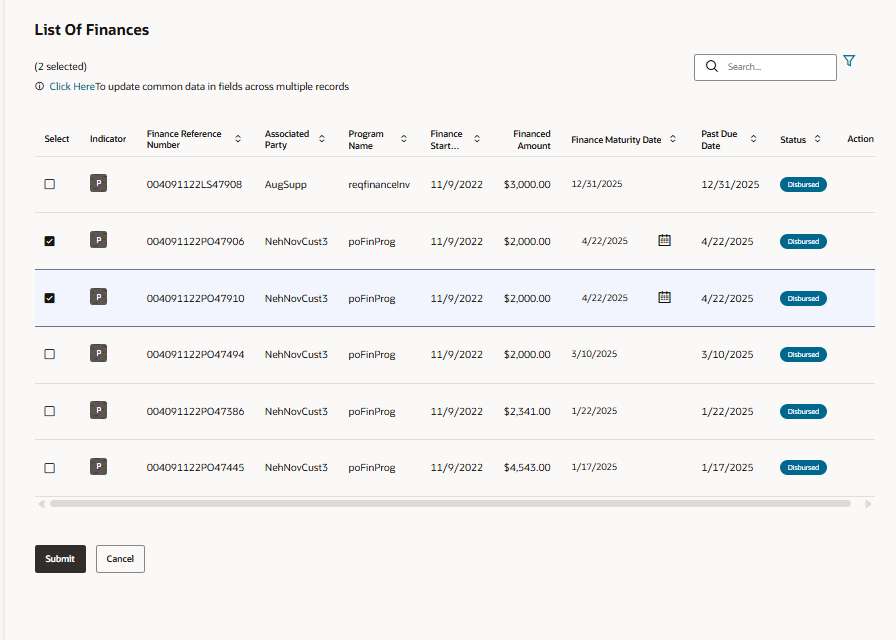
Click this icon to filter the finances, based on certain criteria. For more information, refer the Search (overlay window for Finance Amendment) section below. Select To select specific finances, select the check boxes beside those finances. If you select more than one finance to amend, the following message appears: To update common data in fields across multiple records.
Click the Click Here link to modify the maturity date for all selected finances.
Indicator Displays 'I' for a finance against invoice(s), 'D' for a finance against debit note(s), and 'P' for a finance against purchase order(s). Finance Reference Number Displays the finance reference number of the respective record. Associated Party Displays the name of the counter party. Program Name Displays the name of the program. Finance Start Date Displays the date when the finance amount was disbursed. Financed Amount Displays the financed amount along with the currency. Finance Maturity Date Displays the maturity date of the finance 
Click the calendar icon and select the new maturity date for the finance. This date must be greater than the current business date This icon is displayed only if the check box against a finance is selected.
Past Due Date Displays the due date post the initial finance maturity date. Past Due Date field is non-editable. However, the field is impacted due to change in the maturity date. Past Due Date = Finance Maturity Date + Grace Days
Status Displays the status of the finance. The options are: The options are:- Partially Settled
- Disbursed
Action Click the View Amendment hyperlink to view the modified details of the finance. This hyperlink appears only if a finance is modified.
- On Finance Amendment click

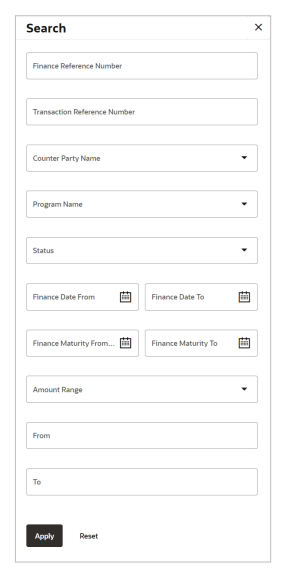
icon.The search overlay window is displayed with the list of relevant finances.For more information about the fields, refer to field description table.
Table 4-5 Search (overlay window for Finance Amendment) - Field Description
Field Description Finance Reference Number Indicates an option to search for finance records using the finance reference number of the borrower. Transaction Reference Number Indicates an option to search for finance records using the transaction reference number. Counter Party Name Indicates an option to search for finance records that are associated with a specific counter party. Program Name Indicates an option to search for finance records that are associated with a particular program. Status Indicates an option to search for finance records that are in a particular status. The options are:- Partially Settled
- Disbursed
Finance Date From - To Specify the date range in the From and To fields, within which the finances are disbursed. Finance Maturity Date From - To Specify the date range in the From and To fields, within which the required finances are maturing. Amount Range From - To Select the currency and specify the amount range in the From and To fields to search for the required finances. - Click
icon and enter the filter criteria to filter the finances.A list of finances displays based on the search criteria.
- Click
icon to modify the maturity date of the finance in the Finance Maturity Date field - To modify multiple records, select the check boxes against the required finances. Click the Click Here link.
- Click
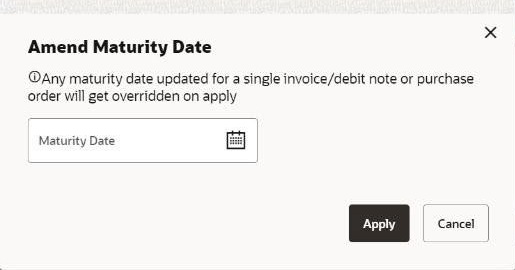
icon to modify the maturity date of the selected finances from the Amend Maturity Date pop-up window.The Amend Maturity Date screen is displayed.Note:
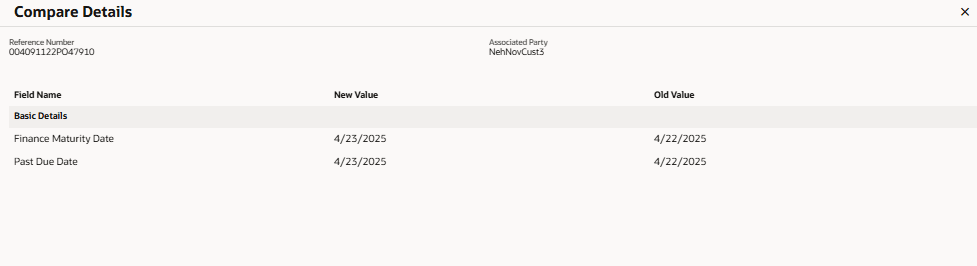
If you amend multiple records, data modified will be applied across the selected records. If any record was modified individually, then the previously modified data will get overridden on clicking Apply - Click View Amendment link. The Compare Details overlay window appears. Compare all the amended details and modify if required.
- Click Submit. Or, do one of the following:
- Click Back to navigate back to the previous screen.
- Click Cancel to cancel the transaction.
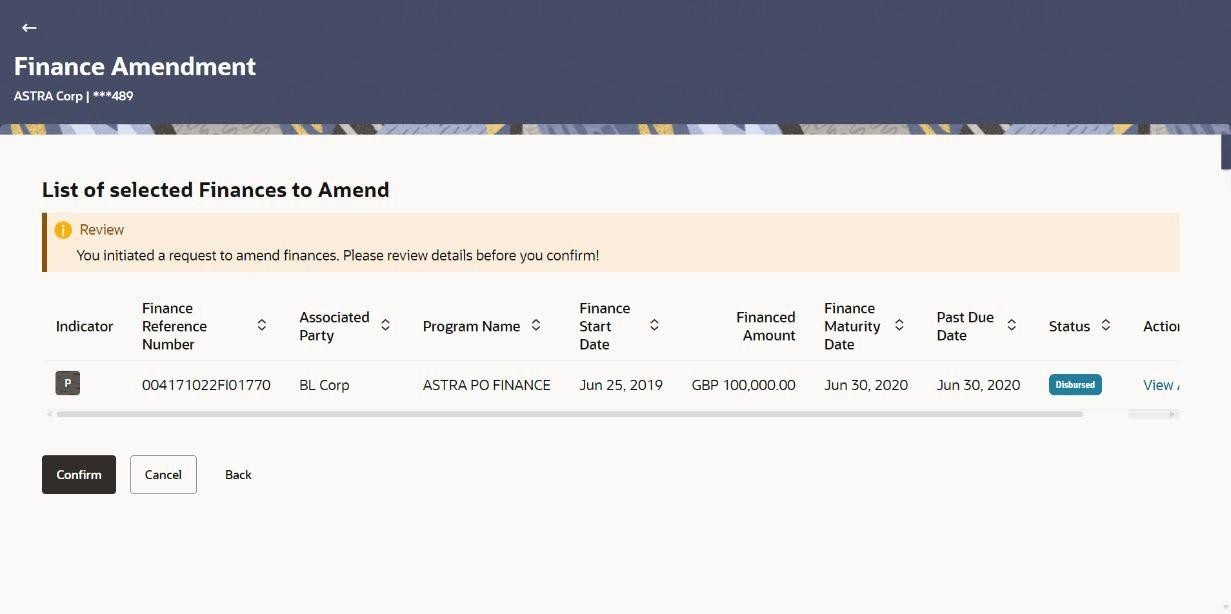
The Review screen is displayed. - In the Review screen, verify the details, and click
Confirm. Or don one of the following:
- Click Back to navigate back to the previous screen.
- Click Cancel to cancel the transaction.
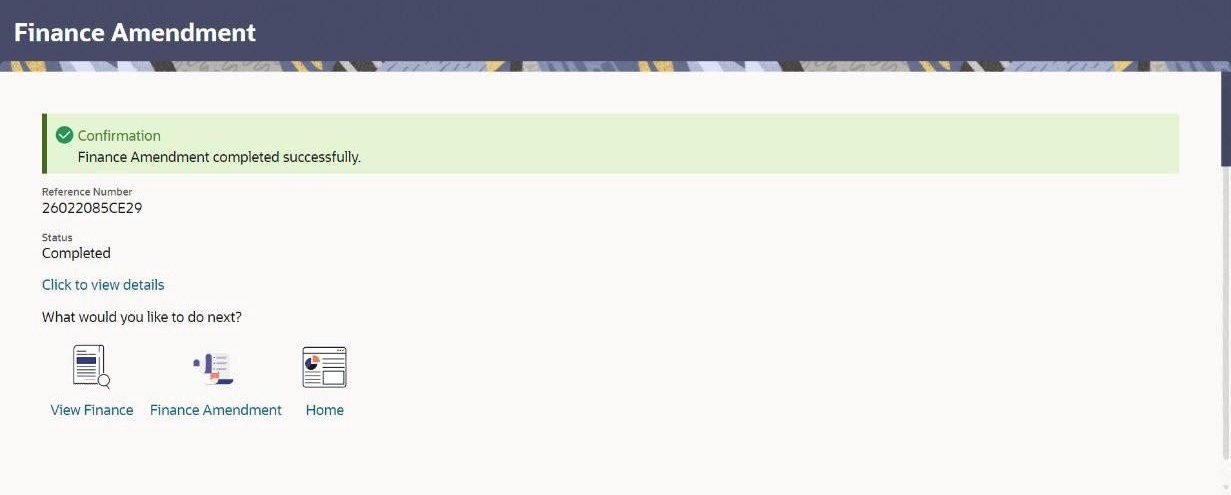
A confirmation message appears with the reference number and status of the transaction.Figure 4-10 Finance Amendment - Confirmation
Parent topic: Finance Management