4.1 Request Finance
This topic describes about the request finance.
Using this option, corporates can raise funds from the bank, for business activities like paying off liabilities, or gaining liquidity to start production of a new order. These funds are arranged by availing finance against invoices/purchase orders.
The corporate user can avail finance against multiple invoices/purchase orders associated with a particular ‘program and counter party’ combination. Finance can only be availed by the borrower in the program. The borrower is determined by the Program Type selected during the creation of the program.
- The borrowing party must be set as the borrower in the program associated with the invoice/purchase order.
- Perform any of the following actions:
- From the Dashboard, click the Toggle Menu, then click Supply Chain Finance. From Supply Chain Finance, click Finance Management, and then click Request Finance.
- In the Request Finance screen, select the instrument to be financed, whether Invoice/Debit Note or Purchase Order.
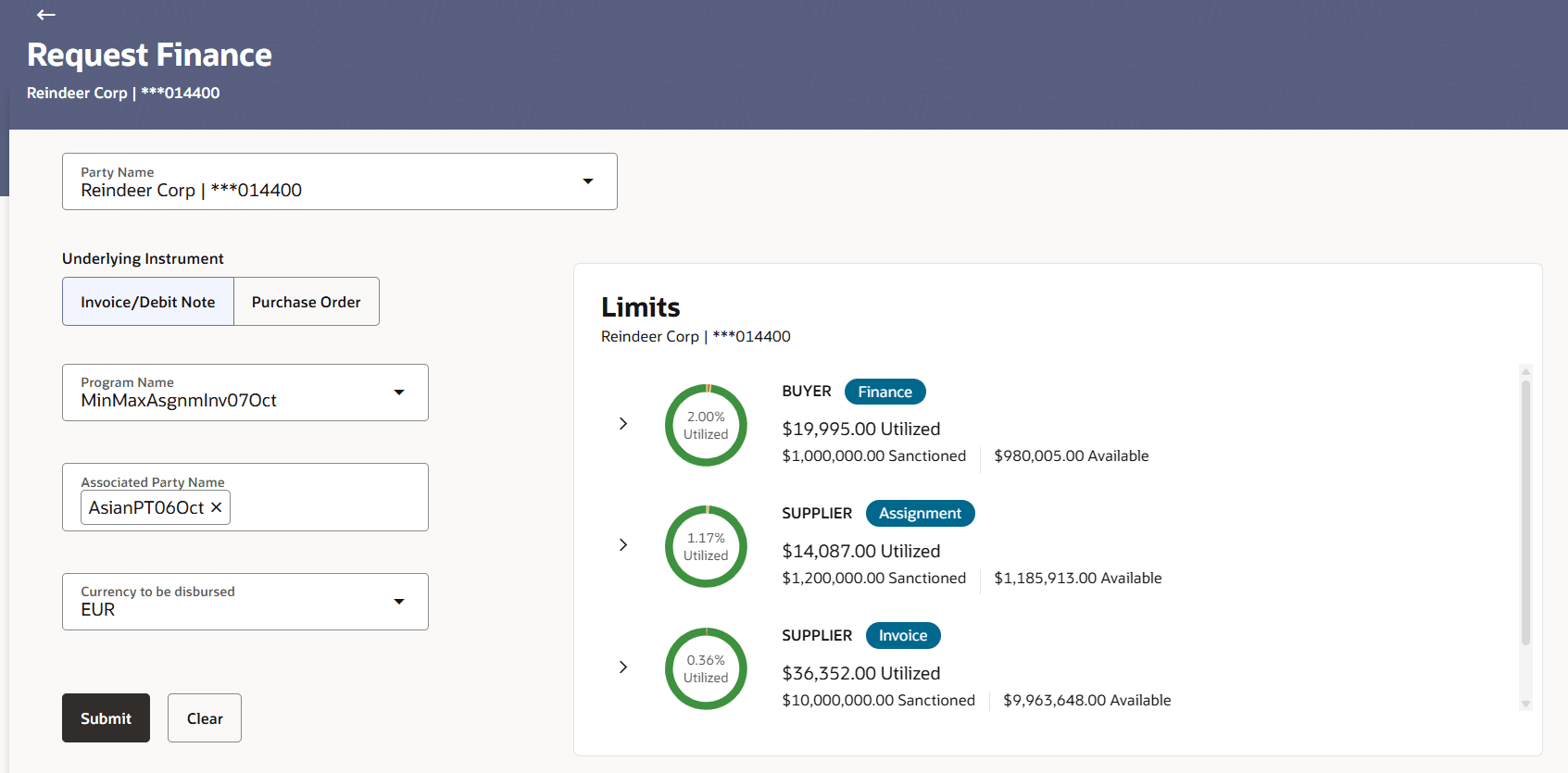
The Request Finance screen appears.Table 4-1 Request Finance - Field Description
Field Name Description Party Name & ID Select the party name and ID from the drop-down list for which the finance must be requested. By default, the primary party of the logged-in user is selected. Note: Only accessible parties are displayed to the user.
Underlying Instrument Select the instrument to be financed. The options are:
- Invoice/Debit Note
- Purchase Order
Program Name Select the name of the program under which the instrument should be financed. This list displays all programs linked with the logged-in party. Associated Party Name Select the required party associated with the invoice/debit note or purchase order to be financed. This list displays the associated party to link the invoice/debit note or purchase order from all on-boarded associated parties. The list of on-boarded associated party is categorized by: - Anchor Buyer
- Anchor Supplier
- Counter Party Buyer
- Counter Party Supplier
On selecting an associated party, the role of the party as Buyer or Supplier, appears below this field.
Currency to be Disbursed Select the currency in which the finance amount is to be disbursed. Limits This widget displays the list of all the limit types of the logged-in corporate party. Each limit type displays the name of the limit type, color-coded donut that displays the utilized limits in percentage, and the details of the sanctioned, utilized, and available borrowing limits displayed in the limits currency. Click on each limit and expand them to view the limits assigned to the party including the associated parties, linked programs, and products.
Once the Program Name, and Associated Party Name fields are selected, then the widget displays only the relevant limit type.
Refer the View Limits section for more information.
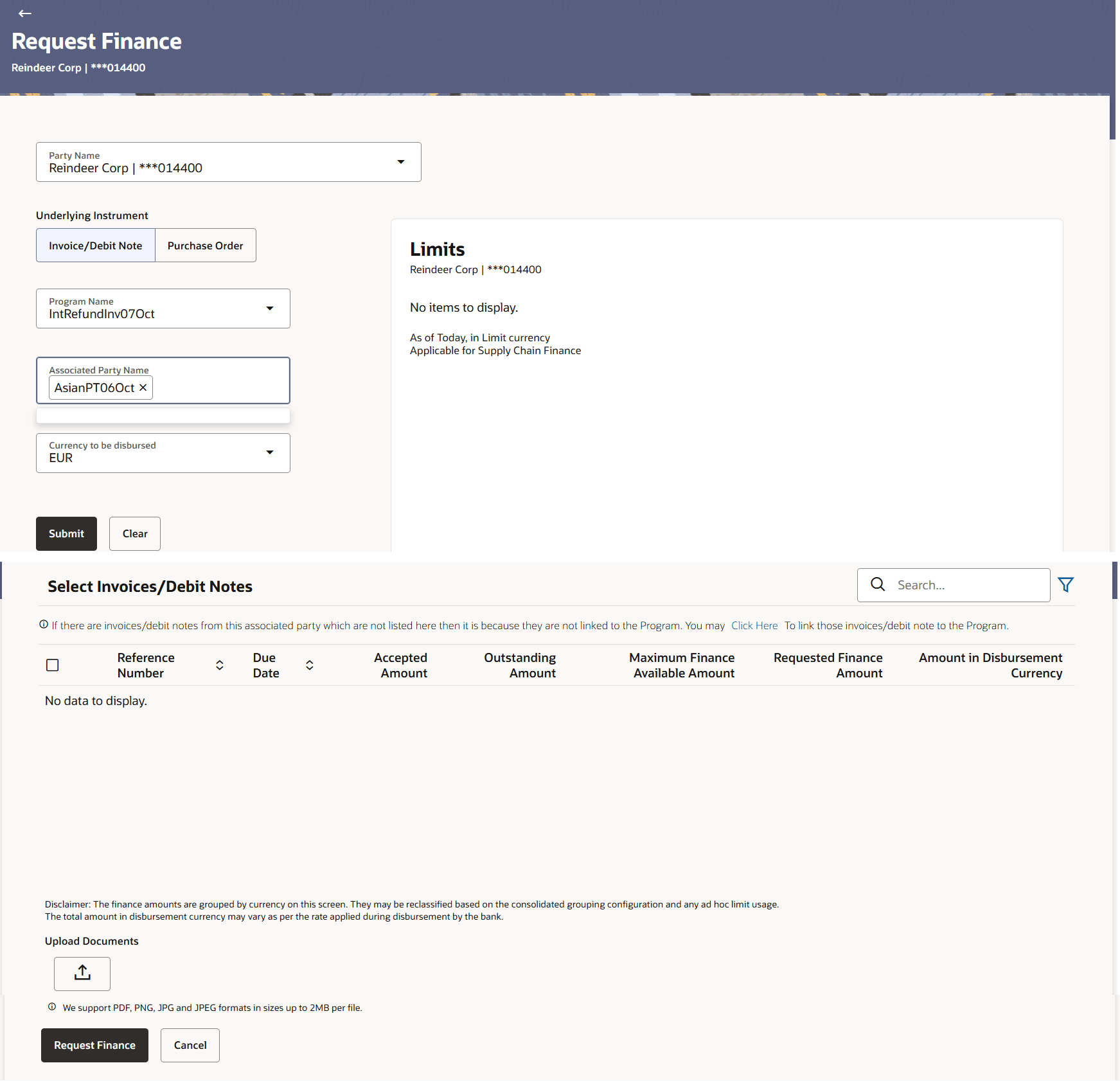
- Once the above details are entered, click Submit to submit the request. Based on the entered data, a list of financeable invoices/debit notes or purchase orders is displayed. Or, click Clear to reset the entered data.This section displays a list of invoices/debit notes which are either not financed or are partially financed. Invoices/debit notes that have already been financed, are not listed. A similar list is displayed for purchase orders, if you select the Purchase Order option in Request Finance through field.
Note:
- Once you click the Submit button, a message is displayed on the top of the window based on the value of the Consolidated Disbursement flag.
- If the flag is set to Yes, the following message is displayed, “Please be advised that invoices/purchase orders will be consolidated and financed together, provided they meet the applicable grouping criteria as defined by the bank's parameters”.
- If the flag is set to No, the following message is displayed, “Please be advised that invoices/purchase orders will be financed separately up to the threshold limit set by the bank. Once this threshold is exceeded, the invoices will be financed collectively”.
For more information on fields, refer to field description table.
Table 4-2 Select Invoices/Debit Notes - Field Description
Field Name Description Select Invoices/Debit Notes Displays a list of invoices/debit notes or purchase orders with Status as Accepted / Partially Financed and Payment Status of Unpaid / Partially Paid. Note: Invoices/Debit Notes that are not linked to any program will not get displayed. You can use the Click here link to do the linking.
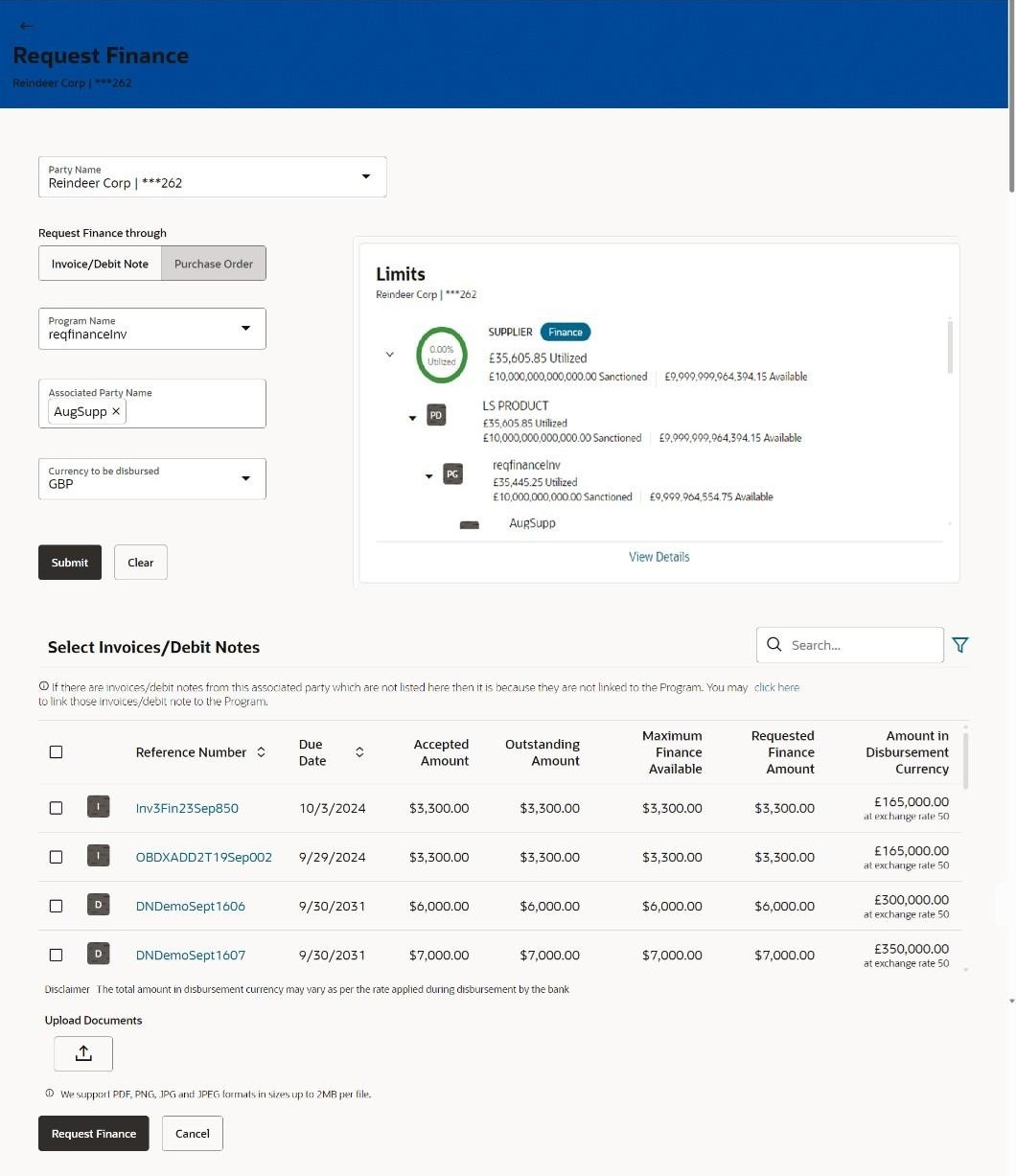
If you are financing invoices/debit notes, then the following details are displayed for each record.Search Indicates an option to search for invoices/debit notes by entering the partial or full reference number, amount and so on. Select Select the check box(es) against one or multiple invoices/debit notes of same or different currency to request finance. Based on the selection the following fields: No. of Records Selected for Requested Finance, Total Requested Finance Amount, and Total Amount in Disbursement Currency are updated. Indicator Displays ‘I’ for invoice(s), and ‘D’ for debit note(s). Reference Number Displays the reference number of the invoice/debit note. An Info icon is displayed with the following message, if the invoice is linked to a purchase order that is financed.The invoice record has linked Purchase Order which is Financed. Click on the reference number to view details.
This is a hyperlink which when clicked, displays the details of the invoice/debit note in an overlay window. For more information, refer the View Invoice Details / View Debit Note details section in User Manual Oracle Banking Digital Experience Receivables Payables Management.
Due Date Displays the invoice/debit note due date. Accepted Amount Displays the amount that has been accepted. Outstanding Amount Displays the amount that is to be paid. Maximum Finance Available Amount Displays the maximum amount that can be financed. Requested Finance Amount Displays the finance amount being requested for finance. Click on the field to modify the requested finance amount. You can enter the amount less than or equal to the maximum finance available amount. Amount in Disbursement Currency Displays the maximum amount that can be financed, post-conversion to the disbursement currency. The exchange rate is also displayed. No. of Records Selected for Requested Finance Displays the total number of invoices/debit notes selected for financing. View Finance Details Displays the finance details hyperlink which when clicked opens an overlay to display the possible number of finances that are processed basis the selected number of invoices. The overlay also displays the interest data applicable for the finance. For more information, refer to View Finance Details (Overlay window) section below. Total Amount in Disbursed Currency Displays the total amount to be financed, in the disbursement currency. Total Requested Finance Amount Displays the total finance amount being requested for the selected invoices/debit notes. Click  to modify the requested finance amount. You can
enter the amount less than or equal to the maximum finance
available amount.
to modify the requested finance amount. You can
enter the amount less than or equal to the maximum finance
available amount.
Upload Documents 
Click the upload icon to upload a document related to the finance being requested. The maximum allowed size for each document is 2MB. The supported formats are: PNG, JPG, JPEG, and PDF.
Once a document is uploaded, the name of the document appears as a hyperlink, which can be clicked to open (or save) it. The delete
 icon also appears beside the document, which
can be used to delete the uploaded document.
icon also appears beside the document, which
can be used to delete the uploaded document.
Note: The uploaded document can also be viewed by the ‘Approver’, in the ‘Pending For Approval’ section.
Select Purchase Orders Displays a list of purchase orders with Status as Accepted/Partially Financed and Payment Status of Unpaid/Partially Paid. Note: Purchase Orders that are not linked to any program will not get displayed. You can use the Click here link to do the linking.
Purchase Orders that are in completed status only gets displayed.
If you are financing purchase orders, then the following details are displayed for each purchase order record.Search Indicates an option to search for purchase orders by entering the partial or full reference number, amount and so on. Select Select the check box(es) against one or multiple purchase orders of same or different currency to request finance. Based on the selection the following fields: No. of Records Selected for Requested Finance, Total Requested Finance Amount, and Total Amount in Disbursement Currency are updated. Purchase Order Number Displays the unique reference number of the purchase order. This is a hyperlink which when clicked, displays the details of the purchase order, in an overlay window. For more information, refer the View Purchase Order section in User Manual Oracle Banking Digital Experience Receivables Payables Management. Date Displays the date of creation of the purchase order. Accepted Amount Displays the purchase order amount that has been accepted. Outstanding Amount Displays the amount that is to be paid. Maximum Finance Available Amount Displays the maximum amount that can be financed. Requested Finance Amount Displays the finance amount being requested. Click on the field to modify the requested finance amount. You can enter the amount less than or equal to the maximum finance available amount. Amount in Disbursement Currency Displays the maximum amount that can be financed, post-conversion to the disbursement currency. The exchange rate is also displayed. No. of Records Selected for Requested Finance Displays the total number of invoices/debit notes selected for financing. View Finance Details Displays the finance details hyperlink which when clicked opens an overlay to display the possible number of finances that are processed basis the selected number of invoices. The overlay also displays the interest data applicable for the finance. For more information, refer to View Finance Details (Overlay window) section below. Total Amount in Disbursed Currency Displays the total amount to be financed, in the disbursement currency. Total Requested Finance Amount Displays the total finance amount being requested for the selected purchase orders. Click to modify the requested finance amount. You can
enter the amount less than or equal to the maximum finance
available amount.
Upload Documents Click the upload icon to upload a document related to the finance being requested. The maximum allowed size for each document is 2MB. The supported formats are: PNG, JPG, JPEG, and PDF.
Once a document is uploaded, the name of the document appears as a hyperlink, which can be clicked to open (or save) it. The delete
icon also appears beside the document, which
can be used to delete the uploaded document.
Note: The uploaded document can also be viewed by the ‘Approver’, in the Pending For Approval section.
Table 4-3 Pending For Approval - Field Description
Field Name Description View Finance Details This overlay window displays the details of the multiple invoices that are grouped together for disbursement of finance on the basis of Currency, Invoice Due Date, Buyer Division Code, Supplier Division Code, Stale Invoice, Overdue Invoice, and Earmarked Limits. Finance Amount with the Currency (No. of records) Displays the finance amount of the selected records along with the currency. It also displays the number of records (invoices/purchase orders) bunched for the same currency. Interest Displays the interest rate applicable for the finances. If a tier - based finance is applicable, then click the icon beside the interest type to view the interest rate details.
Maturity Date Displays the maturity date of the finance. Tenor Displays the tenor of the finance. Grouping Parameters Parameters that are used for bunching other than those displayed in the Linked Invoice Details/Linked Purchase Order Details are listed under the grouping parameters, such as Stale, Overdue, Earmarked Limits, etc. Linked Invoice Details This section is displayed only for the finance request is against invoice(s)/debit note(s). Reference Number Displays the reference number of the invoice/debit note that has been financed. Due Date Displays the due date by when the invoice/debit note must be paid. Buyer Division Code Displays the division code of the buyer. Supplier Division Code Displays the division code of the supplier. Invoice Amount Displays the invoice/debit note amount that is due. Payment Due Date Displays the due date by when the finance amount must be paid. Linked Purchase Order Details This section is displayed only for the finance request is against purchase order(s). Reference Number Displays the reference number of the purchase order that has been financed. Due Date Displays the due date by when the purchase order must be paid. Buyer Division Code Displays the division code of the buyer. Supplier Division Code Displays the division code of the supplier. Purchase Order Amount Displays the purchase order amount that is due. - Select the check box(es) against the invoice(s)/debit note(s) or purchase order(s) to be financed.The Request Finance screen displays.
Figure 4-3 Request Finance - Select Invoices or Debit Notes or Purchase Orders
- Click Request Finance. The Review screen appears. Or, click Cancel to cancel the transaction
Note:
- The following appears for invoice(s)/debit note(s), if sufficient limits are not available for financing.
- “Sufficient limits are not available for disbursement
of finance. Do you want to proceed?”. Click
Ok to proceed. Or Click
 icon to cancel.
Parent topic: Finance Management