4.3.1 View Finance Details
This topic provides systematic instructions to View Finances Details.
- Click on the Finance Reference Number link to view the finance details.The View Finance Details screen consists of the following tabs:The View Finance screen with additional details of that particular finance record displays.
- Outstanding Details
- Disbursement Details
- Settlement Details
- Linked Invoices/Debit Notes or Linked Purchase Orders
- Charges
- Interest Payment Schedule
- Advices
- Refund
- Amendment Details
For more information on fields, refer to field description table.
Table 4-8 View Finance Details - Field Description
Field Description Party Name and ID Displays the name and ID of the logged-in corporate party. Finance Reference Number Status Displays the finance reference number of the finance record. Also displays the status of the finance. Finance Date Displays the date on which the finance has been availed Finance Amount Displays the amount that has been financed. Finance Based on Displays whether the finance is based on an invoice or debit note or purchase order. Maturity Date Displays the date on which the finance matures. Note: The following fields appear if you click the More Information link. You can hide the fields by clicking the Less Information link.
Program Name Displays the name of the program under which the finance has been requested. Associated Party Name Displays the associated party to link the finances from all on-boarded associated parties. The list of on-boarded associated party is categorized by: - Anchor Buyer
- Anchor Supplier
- Counter Party Buyer
- Counter Party Supplier
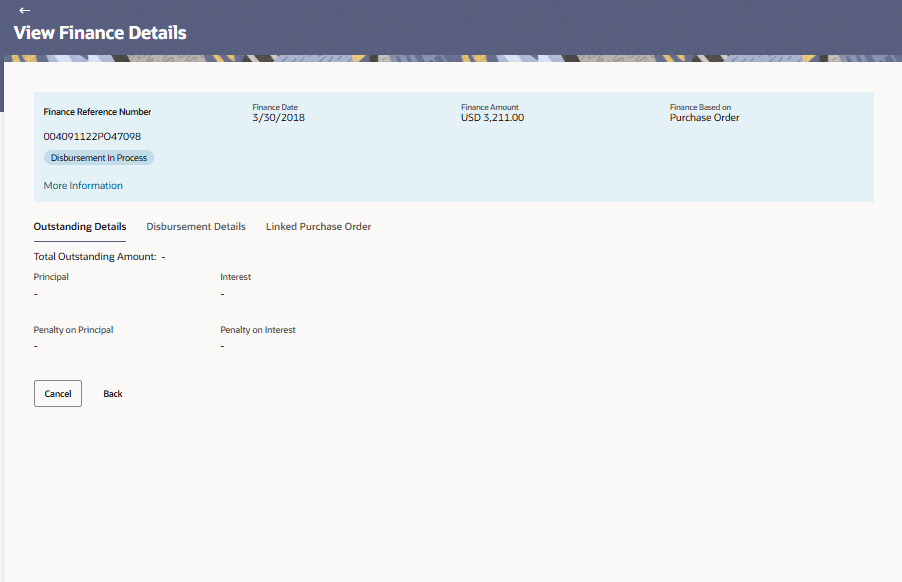
Product Name Displays the name of the selected product for the finance. Grace Period Displays the number of days allowed as grace period. It is the period over and above the due date during which the payment may be done by the borrower without penalty or interest. Interest Details This section displays the following fields. Type Displays whether the rate is floating or fixed. Rate Displays the net rate of interest applicable on finance. This is a hyperlink which when clicked displays the interest rate details, that is bank interest rate, spread, and tier based spread. Frequency Displays the frequency of collection of interest whether monthly or bullet. Penalty Details Displays the type of penalty, that is penalty on principal or penalty on interest. Type Displays whether the rate is floating or fixed. Rate Displays the net rate of interest applicable for penalty. This is a hyperlink which when clicked displays the interest rate details, that is interest rate, spread, and tier-based spread or amount. Frequency Displays the frequency of collection of penalty. - From the View Finance Details screen, Click Outstanding Details tab.The Outstanding Details tab displays.
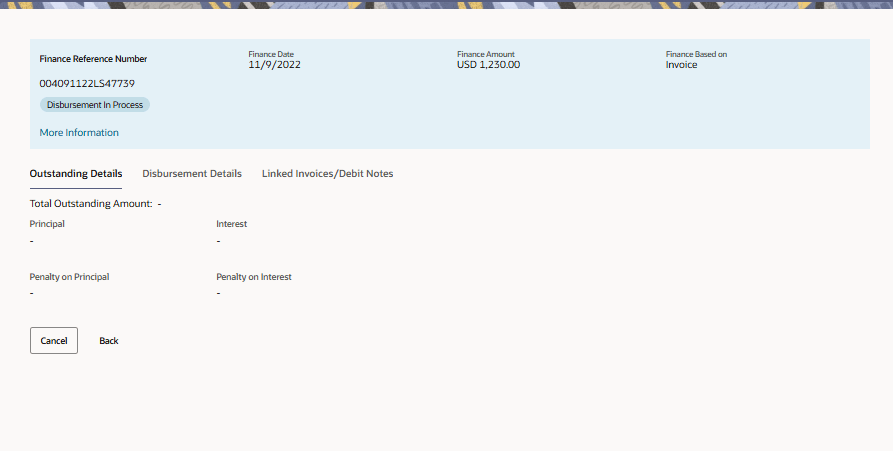
Figure 4-16 View Finance – Outstanding Details tab
For more information on fields, refer to field description table.
Table 4-9 Outstanding Details - Field Description
Field Description Total Outstanding Amount Displays the total amount of the outstanding due as of that day for payment. Principal Amount Displays the principal amount of the outstanding payment. Interest Amount Displays the interest to be charged against the outstanding principal amount. Penalty on Principal Displays penalty if any, against the outstanding principal amount. A View Details hyperlink for the Penalty on Principal field is enabled only if any penalty on the principal is applicable. Click the link to view the breakup. Penalty on Interest Displays penalty if any, against the outstanding interest amount. A View Details hyperlink for the Penalty on Interest field is enabled only if any penalty on the interest is applicable. Click the link to view the breakup. - From the View Finance Details screen, Click Disbursement Details tab.
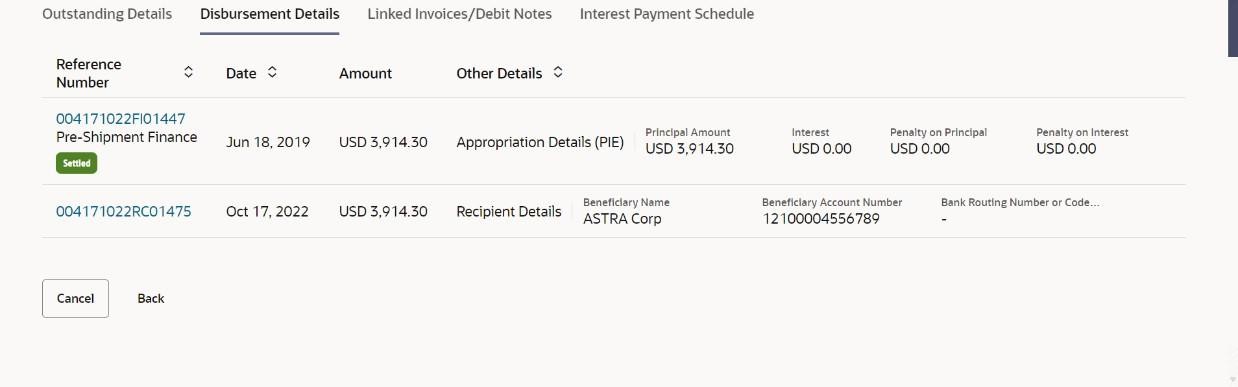
This tab appears once the disbursement of the finance is executed and shows how the disbursement proceeds has been credited to the borrower. In case where post-shipment finance is settling a pre-shipment finance of the customer, then displays the details of pre-shipment finance.
The Disbursement Details tab displays.Figure 4-17 View Finance - Disbursement Details
For more information on fields, refer to field description table.
Table 4-10 Disbursement Details - Field Description
Field Description Disbursement Details tab This tab appears once the disbursement of the finance is executed. The tab displays records on the basis disbursement effected. This tab also provides the information of the borrower account number where the disbursement proceeds have been credited. If the disbursement proceeds have settled any pre-shipment loan and balance has been credited to the borrower then multiple records will appear. Similarly, if the disbursement has been reversed by Host for any reason, then the tab will display two records, one of disbursement and the other of disbursement reversal. Reference Number Status Displays the reference number of the disbursement or pre-shipment finances, as fetched from the Host. Also displays the status of the finance. Date Displays the date of the disbursement, as fetched from the host. Amount Displays the disbursement amount, as fetched from the host Other Details Displays either the appropriation details if pre-shipment finance is settled from proceeds or recipient details if the proceeds are credited to the recipient. Appropriation Details Appropriation details appears only if pre-shipment finance is settled from proceeds of the post-shipment finance. Appropriation Sequence Displays the sequence of settlement, with respect to repayment of principal and interest. Principal Amount Displays the principal amount settled against the outstanding amount. Interest Displays the interest settled against the outstanding amount Penalty on Principal Amount Displays the penalty on principal amount settled against the outstanding amount. Penalty on Interest Displays the penalty on interest settled against the outstanding amount. Recipient Details Recipient details appears only if the proceeds from post-shipment finance is credited to the recipient. Beneficiary Name Displays the name of the beneficiary of the finance amount Beneficiary Account Number Displays the account number that the finance amount has been credited to. Bank Routing Number or Code Displays the routing number / code that identifies the beneficiary’s bank. - From the View Finance Details screen, click Interest Payment Schedule tab.The Interest Payment Schedule is displayed, when the frequency of the interest is monthly.
Figure 4-18 View Finance – Interest Payment Schedule
For more information on fields, refer to field description table.
Table 4-11 Interest Payment Schedule - Field Description
Field Description Base Amount for Interest Displays the finance amount on which the interest is levied. Interest Start Date Displays the due date for the repayment of the interest amount for each month or tenure. No. of Days Interest Levied Displays the number of days the interest is calculated. Rate Displays the rate of interest applied on the finance in percentage for calculation of interest. Interest Amount Displays the interest amount for the number of days the interest is levied for each month or the tenure. Interest Outstanding Displays the outstanding amount as of current business date. Interest Paid Displays the interest paid for each month or the tenure. Interest Due Displays the interest amount due as on the due as of current business date. Total Interest Displays the total interest amounts calculated for interest accrued, interest paid, and interest due for all the interest due dates. - From the View Finance Details screen, click Advices tab.This tab will display all the advices for specific events of the finance. If the advice is generated by the host system, then the same will be visible in the Advices tab. The tab displays only if record is present for the finance, otherwise the tab will not appear.
For more information on fields, refer to field description table.
Table 4-12 View Finance Details - Field Description
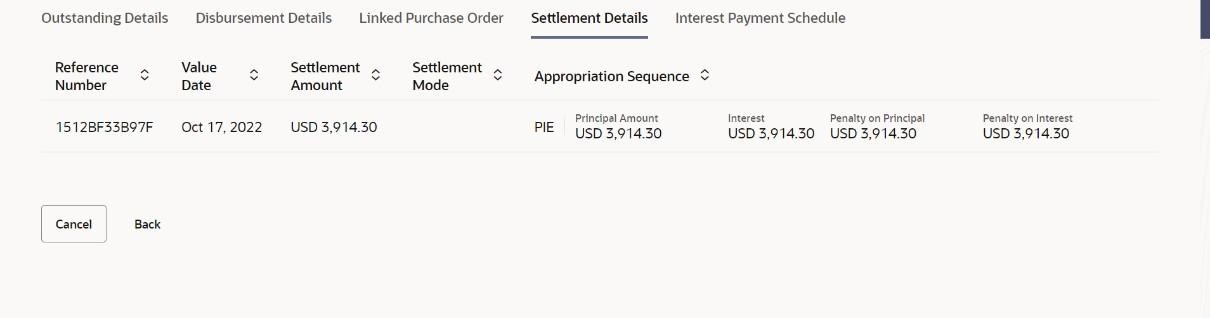
Field Description Transaction Reference Number Displays the transaction reference number. Date Displays the date of the finance has been created Event Displays the event of the finance. Action Click on View to see the advice details in PDF format. User can also download the advice detail PDF by clicking the download icon. - From the View Finance Details screen, click Settlement Details tab.This tab appears once the repayment of the finance is successfully executed. There can be multiple settlements against a single finance so multiple records will be displayed. Records will be multiple when a pre-shipment loan is settled by availing a post shipment loan. Similarly, if the settlement has been reversed by Host for any reason, then the tab will display two records, one of settlement and the other of settlement reversal.
Figure 4-20 View Finance - Settlement Details
For more information on fields, refer to field description table.
Table 4-13 Settlement Details - Field Description
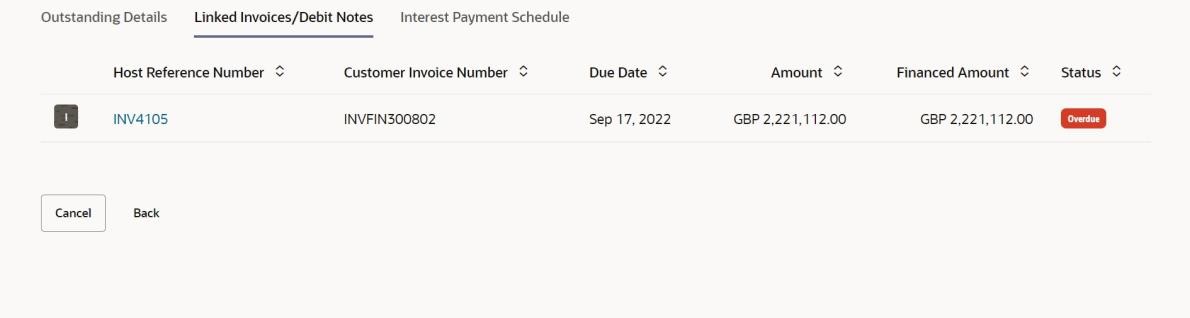
Field Description Settlement Reference Number Displays the reference number of the settlement, as fetched from the host. Value Date Displays the value date of the settlement, as fetched from the host. Settlement Amount Displays the settlement amount, as fetched from the host Interest Refund Amount Displays the interest amount to be refunded. Click the More Options icon beside the amount to view the Bank Account Number, Bank Account Name, and Bank Routing Number and Code where the amount is to be refunded. Settlement Mode Displays the mode used for settlement, as fetched from the Host. Appropriation Details Appropriation details appears only if pre-shipment finance is settled from proceeds of the post-shipment finance. Appropriation Sequence Displays the sequence of settlement, with respect to repayment of principal and interest. Principal Amount Displays the principal amount settled against the outstanding amount. Interest Displays the interest settled against the outstanding amount. Penalty on Principal Amount Displays the penalty on principal amount settled against the outstanding amount. Penalty on Interest Displays the penalty on interest settled against the outstanding amount. - From the View Finance Details screen, click Linked Invoices/Debit Notes tab tab.The Linked Invoices/Debit Notes tab is displayed, only when the finance amount has been disbursed against invoice(s)/debit note(s).
Figure 4-21 View Finance - Linked Invoices/Debit Notes tab
For more information on fields, refer to field description table.
Table 4-14 Linked Invoices/Debit Notes - Field Description
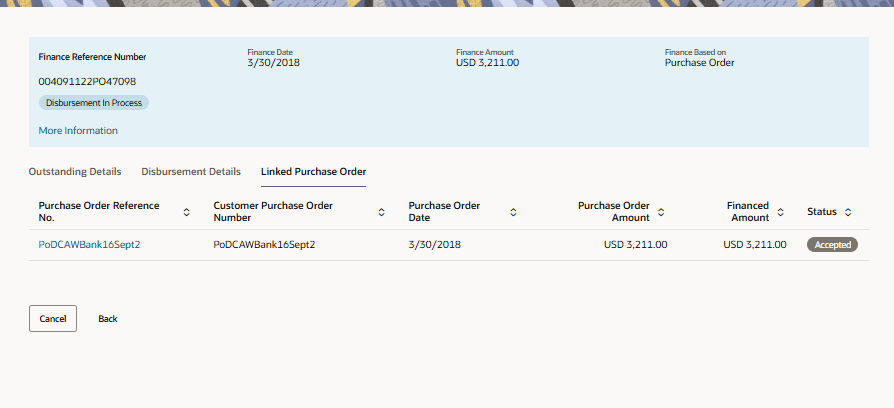
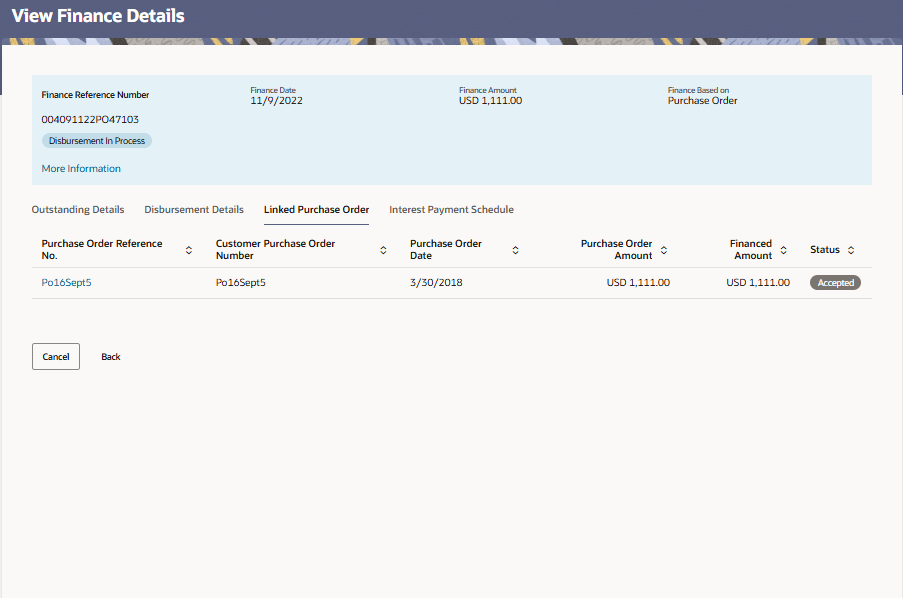
Field Description Indicator Displays 'I' for invoice and 'D' for debit note. Host Reference Number Displays the reference number of the invoice/debit note that has been financed. This is a hyperlink which when clicked displays the invoice/debit note details. For more information on the invoice details displayed, refer View Invoice Details section / View Debit Note Details section in User Manual Oracle Banking Digital Experience Receivables Payables Management. Customer Invoice Number Displays the customer’s reference number of the invoice/debit note. Due Date Displays the due date by which the invoice/debit note must be paid. Amount Displays the invoice/debit note amount Financed Amount Displays the amount that has been financed. Status Displays the status of the invoice/debit note - From the View Finance Details screen, click Linked Purchase Order tab tab.The Linked Purchase Order tab is displayed, only when the finance amount has been disbursed against purchase order(s).
Figure 4-22 View Finance – Linked Purchase Order tab
For more information on fields, refer to field description table.
Table 4-15 Linked Purchase Order - Field Description
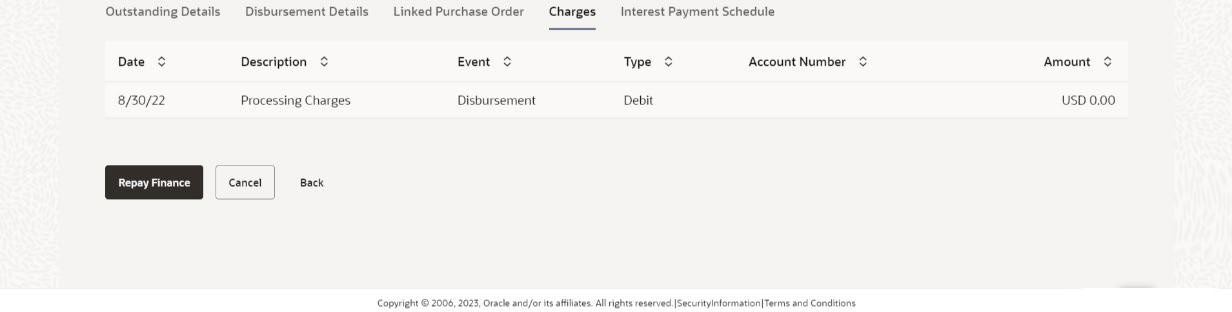
Field Description Purchase Order Reference No. Displays the reference number of the purchase order that has been financed. This is a hyperlink which when clicked displays the purchase order details. For more information on the invoice details displayed, refer View Purchase Order (details) section in User Manual Oracle Banking Digital Experience Receivables Payables Management. Customer Purchase Order Number Displays the customer’s reference number of the purchase order. Purchase Order Date Displays the date of creation of the purchase order Purchase Order Amount Displays the purchase order amount. Financed Amount Displays the amount that has been financed. Status Displays the status of the purchase order. - From the View Finance Details screen, click Charges tab.The Charges tab displays.
Figure 4-23 Charges tab - Field Description
For more information on fields, refer to field description table.
Table 4-16 Charges - Field Description
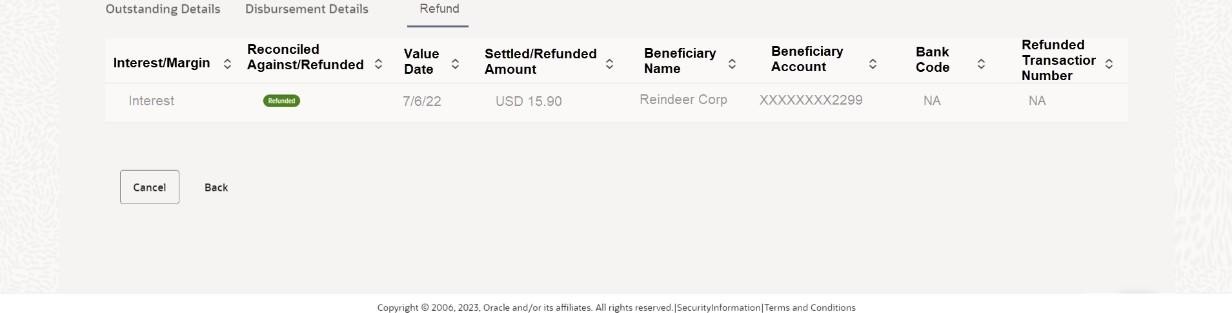
Field Description Date Displays the date of charge collection. Description Displays the description of the charge. Event Displays the event for which the charge is being collected. Type Displays the type of the charge. Account Number Displays the account number debited for the charge. Amount Displays the charge amount. - From the View Finance Details screen, click Refund tab.This tab appears only when any amount has been refunded to the party during settlement of the finance. The Refund tab displays the recipient details if proportionate interest amount is refunded to the party or displays the finance record details if the refund amount is settled against any outstanding finances.
For more information on fields, refer to field description table.
Table 4-17 Refund tab - Field Description
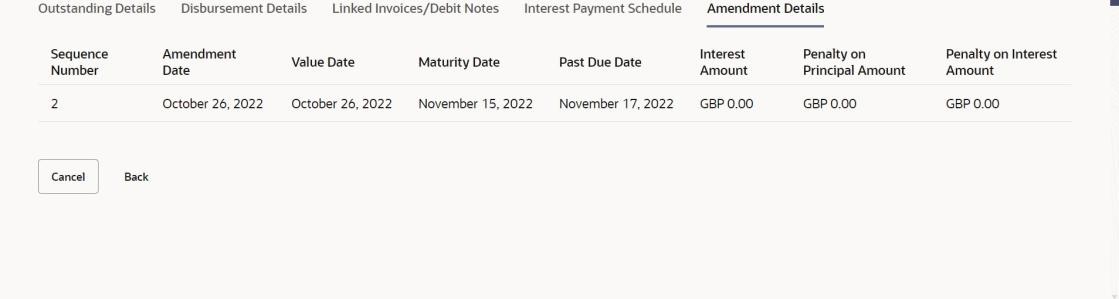
Field Description Interest / Margin Displays the type of refund, interest, or margin. Reconciled Against / Refunded Displays whether the refund is reconciled against any outstanding finances or refunded to the interest bearing party. Value Date Displays the value date of the refund, as fetched from the Host. Settled / Refunded Amount Displays the settled / refunded amount, as fetched from the Host. Beneficiary Name Displays the name of the beneficiary of the refund amount. Beneficiary Account Displays the account number that the refund amount has been credited to. Bank / Code Displays the routing number / code that identifies the beneficiary’s bank. Refund Transaction Number Displays the transaction number of the refund as fetched from Host. - From the View Finance Details screen, click Amendment Details tab.This tab appears only if any finance is amended. If multiple amendments are executed on a finance, multiple rows will be visible in the tab. The amended fields are also displayed in the tab. In case of reversal of an amendment by host, the tab will display two corresponding records of the same amendment, one for the original transaction of amendment and the other of reversal of amendment.
Figure 4-25 View Finance - Amendment Details
For more information on fields, refer to field description table.
Table 4-18 Amendment Details - Field Description
Field Description Sequence Number Displays the current sequence of the amendment transaction carried out on a finance. Amendment Date Displays the date of the amendment transaction. Value Date Displays the value date by when the updated interest rate gets applied. Maturity Date Displays the maturity date of the finance. Past Due Date Displays the due date post the initial finance maturity date. Past Due Date = Finance Maturity Date + Grace Days Interest Amount Displays the interest to be charged against the outstanding principal amount. Penalty on Principal Amount Displays penalty if any, against the outstanding principal amount. Penalty on Interest Amount Displays penalty if any, against the outstanding interest amount.

Parent topic: View Finances