4.3 View Finances
This topic provides systematic instructions to view finances.
Note:
Finance details can also be viewed using the Chatbot feature, either on a web browser or the mobile banking application. For more information on inquiring about finances using Chatbot, refer User Manual Oracle Banking Digital Experience Chatbot Mobile Banking Application.- On Dashboard, click the Toggle
Menu, and then click Supply Chain
Finance. From Supply Chain Finance, click
Finance Management, and then clickView
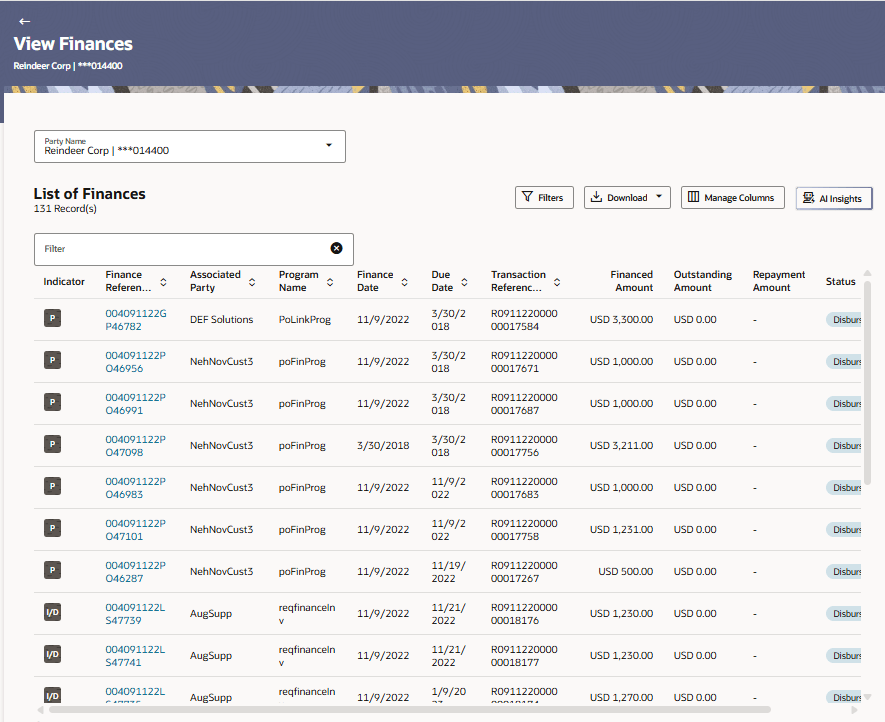
Finances.The View Finances screen is displays.
For more information on fields, refer to field description table.
Table 4-6 View Finances - Field Description
Field Description Party Name and ID Select the party name and ID from the drop-down list to view the applicable list of fin Filter Click this link to filter the finances based on certain filter criteria. The Filter overlay window appears. For more information, refer The Filter (overlay window for View Finances) section below.
Download Click this link to download the list of finances in CSV or PDF format. Manage Columns Click this link to personalize the columns, that is re-arrange or remove columns in the search result grid. The Manage Columns Overlay window appears. For more information, refer the Manage Columns (overlay window for View Finances) section below. Note: Banks can configure the fixed columns in the System configuration screen. Once the columns are fixed, they cannot be rearranged or removed.
Search Filter User can enter any text to search the records. The entered text will be matched against the entire data in the records. The data could be present in any data field of the record. As the text matches the specific record will be displayed in results List of Finances This section displays the list of finances of the logged-in corporate. No. of Record(s) Displays the total number of finances listed by default or after a filter criteria is applied. Indicator Displays 'I' for a finance against invoice(s), 'D' for a finance against debit note(s), and 'P' for a finance against purchase order(s). Finance Reference Number Displays the finance reference number of the respective record. Click on the reference number link to view the finance details. For more information, refer the View Finance (details) section below.
Associated Party Displays the associated party to link the finance from all on-boarded associated parties. The list of onboarded associated party is categorized by: - Anchor Buyer
- Anchor Supplier
- Counter Party Buyer
- Counter Party Supplier
Program Name Displays the name of the program Finance Date Displays the date when the finance amount was disbursed Due Date Displays the due date of the finance Transaction Reference Number Displays the transaction reference number of the finance. Financed Amount Displays the financed amount along with the currency The funds credit status is also displayed below the finance amount. This status provides information of whether the disbursed funds have been credited to the recipient, or have been initiated, or have failed.
Outstanding Amount Displays the outstanding amount of the finance. Repayment Amount Displays the amount repaid for the finance. Click on the link to view the Interest Amount and Principal Amount appropriated from the repayment amount. Status Displays the status of the finance. The options are:- Partially Settled
- Disbursed
- Settled
- Disbursement In Process
- Settlement In Process
- Disbursement Reversed
- Disbursement Reversal In Process
- Settlement Reversed
- Settlement Reversal In Process
- Click

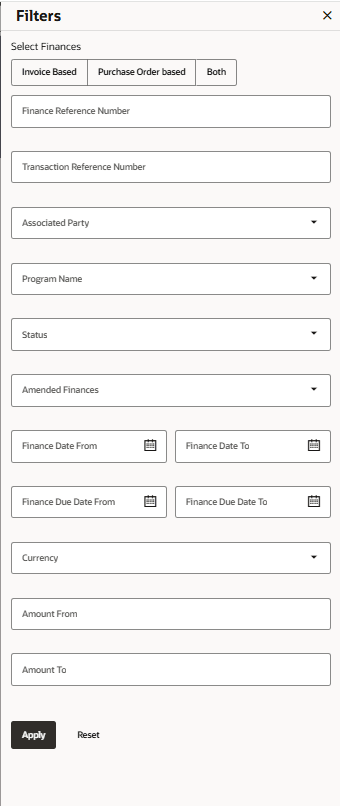
icon in the View Finances screen.The Filter Overlay window displays.For more information on fields, refer to field description table.
Table 4-7 Filter Overlay Window - Field Description
Field Description Finance Reference Number Indicates an option to search for finance records using the finance reference number. Transaction Reference Number Indicates an option to search for finance records using the transaction reference number. Counter Party Name Indicates an option to search for finance records that are associated with a specific counter party Program Name Indicates an option to search for finance records that are associated with a particular program. Status Indicates an option to search for finance records that are in a particular status. The options are:- Disbursed
- Disbursement In Process
- Partially Settled
- Settled
- Settlement In Process
- Disbursement Reversed
- Disbursement Reversal In Process
- Settlement Reversed
- Settlement Reversal In Process
Amended Finances Indicates an option to search for the finance records that are amended. The options are:- Yes
- No
Finance Date Specify the date range in the From and To fields, within which the finances are disbursed. Finance Due Date Specify the date range in the From and To fields, within which the required finances are due. Amount Range Select the currency and specify the amount range in the From and To fields to search for the required finances. - Click
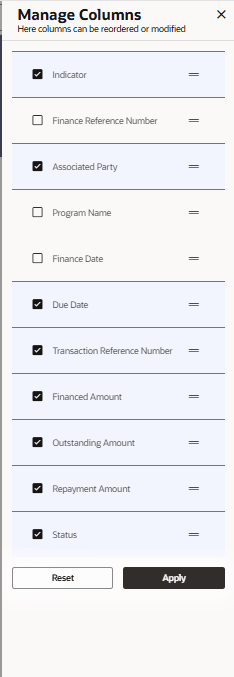
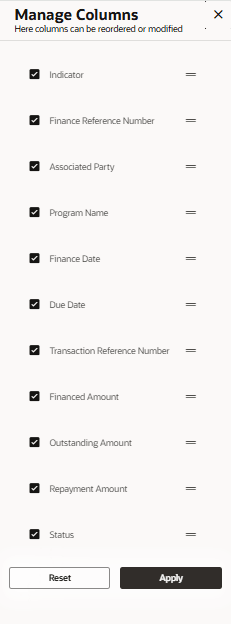
 icon in the View Finances Screen The Manage Columns overlay window displays.
 - Click Download to download the list of finances, and select CSV/PDF.The Select Columns overlay window displays.
Figure 4-14 Select Columns - Manage Columns
Note:
In case you are viewing the finances on a mobile device, click icon to download the list of finances.
- Click Manage Columns. Click
 and drag to rearrange the columns or uncheck the checkbox to remove the columns. OR Click Reset to reset the columns.
Note:
In case you are viewing the finances on a mobile device, click to manage the columns in the list of finances.
- View Finance Details
This topic provides systematic instructions to View Finances Details.
Parent topic: Finance Management