1.3.2 Uploaded Files Inquiry – Search Filters
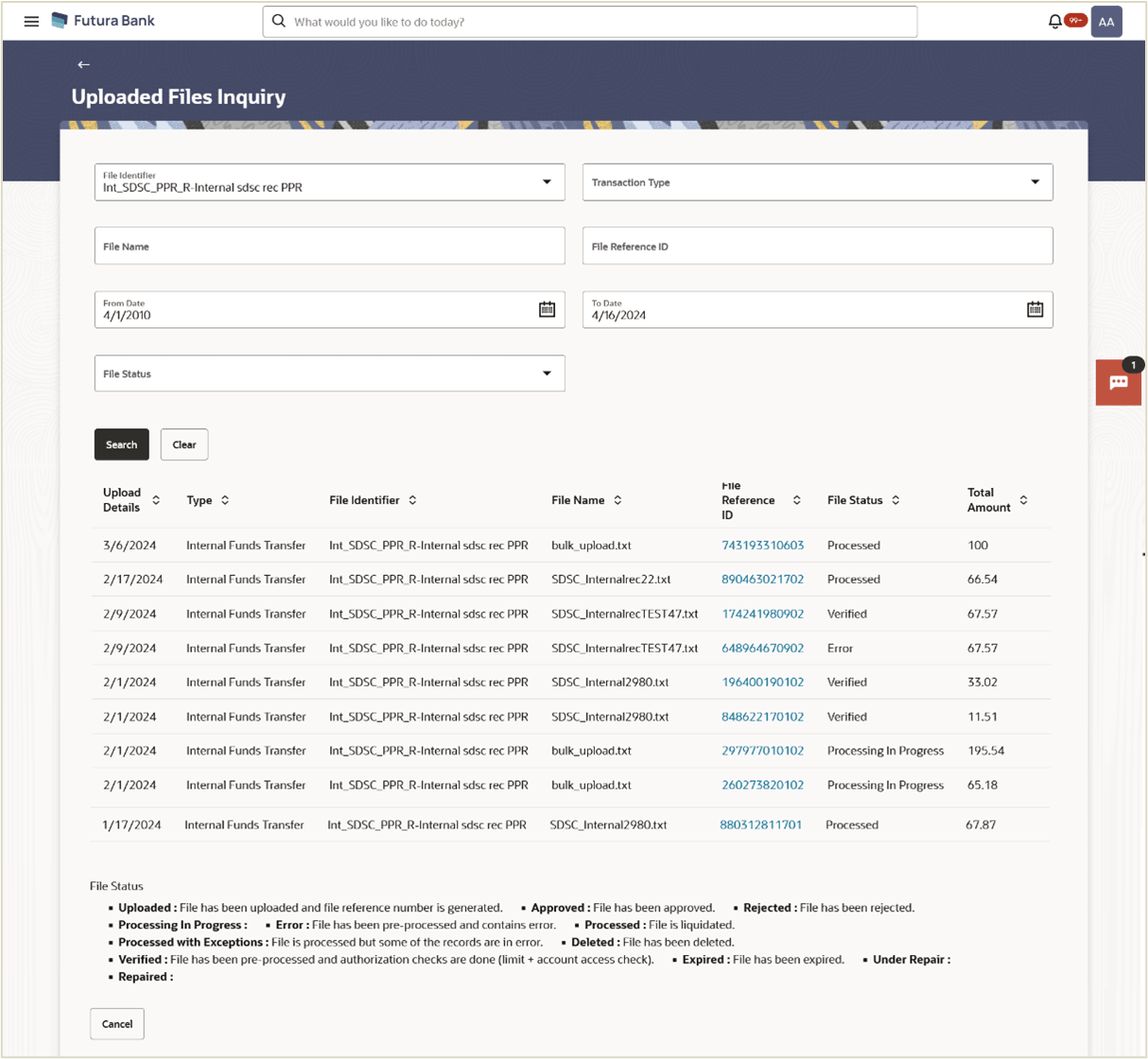
This topic provides the systematic instructions to corporate users to search and view files uploaded under a specific party.
On clicking the  search filters gets enabled on the screen, corporate users can search and view the
files that are uploaded under a party with the file identifier, date range, transaction
type, transaction reference ID and view the record details under the same.
search filters gets enabled on the screen, corporate users can search and view the
files that are uploaded under a party with the file identifier, date range, transaction
type, transaction reference ID and view the record details under the same.
User is expected to provide at least two search parameters to get the better result.
To search and view the uploaded files:
- Perform one of the following actions:
- Click Search.
The search results appear on the Uploaded File Inquiry screen based on the search parameters.
- Click Clear to reset the search criteria.
- Click Cancel to close the search panel.
Figure 1-5 Uploaded File Inquiry – Search
Note:
The fields which are marked as Required are mandatory.For more information on fields, refer to the field description table.
Table 1-3 Uploaded File Inquiry – Search - Field Description
Field Name Description File Identifier File identifier created earlier in order to identify the file. This will list the file identifiers assigned by the administrator user to the logged in user for handling of file uploads
Transaction Type Search with the transaction type associated with the file. File Name Search with the file name of the uploaded file. File Reference ID Search with the file reference number which was generated while uploading the file. From Date From Date to search for an uploaded file, in the specified date range. To Date To Date to search for an uploaded file, in the specified date range. File Status Search with the status of the file uploads. - Uploaded
- Approved
- Rejected
- Processing In Progress
- Error
- Processed
- Processed with Exceptions
- Initial Validation Success
- Expired
- Under Repair
- Repaired
- Error
Search Results Upload Details Displays the file upload date. Type Displays the transaction type of file uploaded File Identifier Displays the file identifier selected while uploading the file. File Name Displays the name of the uploaded file. File Reference ID Displays the file reference number generated after the file was uploaded. File Status Displays the status of the uploaded file. The file status could be:
- Uploaded: File Uploaded and file reference number is generated.
- Initial Validation Success: File has been pre-processed and authorization checks done (limit + account access check). File is now Pending Approval.
- Initial Validation Failure: File contains errors and will not process without correction. Please review the error report. The user can download the error file at this stage.
- Processing in Progress: File is being processed.
- Rejected: File has been rejected (File level). The end of the life cycle of the file.
- Approved: File has been approved.
- Error: File has been failed due to errors returned by the host. Please review the error report.
- Processed: . File has been processed. The user can download a response file at this stage.
- Processed with exception: File has been processed and contains error(s). The transactions that are not in error status have processed.
- Expired: File has expired.
Total Amount Total Transaction amount present in the file. Currency Displays the transaction currency. No. of Transactions Displays the total number of records uploaded as a part of the file. - Click Search.
Parent topic: Uploaded Files Inquiry