1.17 Fund Your Account (Post Account Opening)
This topic describes the steps involved in funding the newly opened savings account through the Fund Now option provided on the confirmation page of insta-savings account applications.
If you select the Fund Now option, you will be guided to a page on which you will provided with options to proceed with the funding. If you are a new to bank customer the options will be to Fund using Finicity and fund through Other Payment Modes. In case you are an existing customer of the bank and hold active savings or checking accounts with the bank, you will be provided with an additional option to fund using Own Internal Transfer.
Alternately, you can also opt to fund your savings account later.
Note:
The bank will need to procure the required licenses in order to support Finicity integration.Figure 1-27 Fund Your Account screen (Applicable when the Primary Applicant is new to the bank i.e. a prospect)
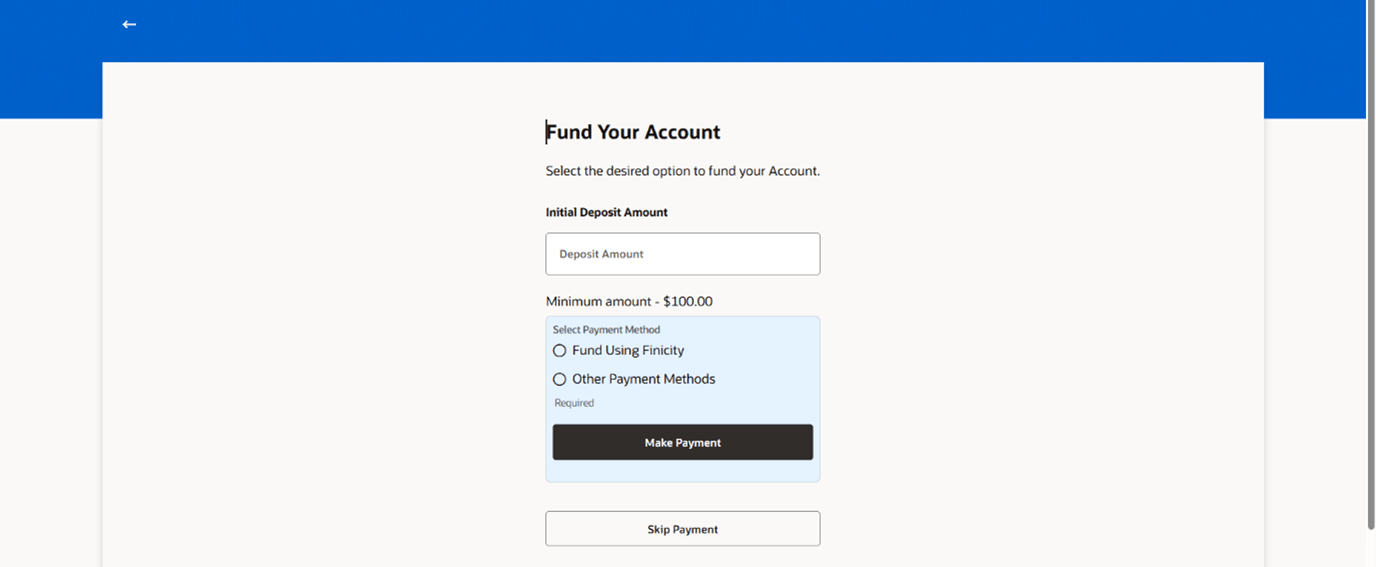
For more information on fields, refer to the field description table.
Table 1-23 Fund your Account - Field Description
| Field Name | Description |
|---|---|
| Initial Deposit Amount | Specify the amount to be deposited in the account.
The Initial Deposit Amount should be greater than the Minimum amount specified below this field. |
| Minimum amount | Displays the minimum amount that is to be funded. |
| Select Payment Method | This section will display the payment options available to you to fund your newly opened account. |
| Fund Using Finicity | Select this option to fund the account via an external domestic bank account. |
| Other Payment Methods | Select this option to fund the account through other means such a debit or credit cards or other payment gateway options. |
| Make Payment | Click this button to proceed to fund the account via the selected mode. |
| Skip Payment | Click this button if you do not wish to fund the account right away. |
- In the Initial Deposit Amount field, enter the amount in
USD to be deposited in the account.Perform any of the following actions:
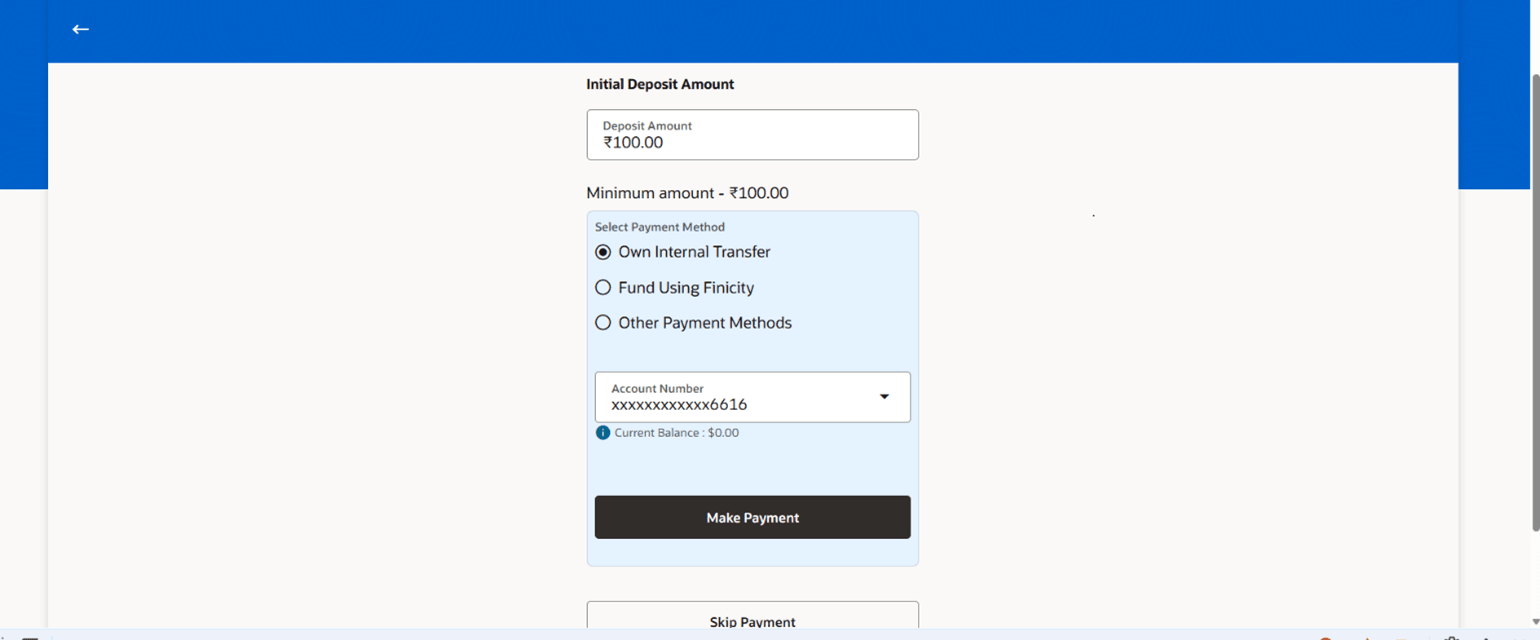
Figure 1-28 Fund Your Account screen (Applicable when the Primary Applicant is an existing customer)
For more information on fields, refer to the field description table.
Table 1-24 Fund your Account - Field Description
Field Name Description Initial Deposit Amount Specify the amount to be deposited in the account. The Initial Deposit Amount should be greater than the Minimum amount specified below this field.
Minimum amount Displays the minimum amount that is to be funded. Select Payment Method This section will display the payment options available to you to fund your newly opened account. Own Internal Transfer Select this option to fund the account via a savings or checking account that you hold with the bank. Fund Using Finicity Select this option to fund the account via an external domestic bank account. Other Payment Methods Select this option to fund the account through other means such a debit or credit cards or other payment gateway options. Account Number This field will be displayed if you have selected the Own Internal Transfer option. Select a savings or checking account from which you wish to transfer funds to credit the newly opened savings account.
Make Payment Click this button to proceed to fund the account via the selected mode. Skip Payment Click this button if you do not wish to fund the account right away.
- Fund Using Finicity
This topic describes the process through which you can select as external account to fund the new account.
Parent topic: Savings Account Application