2.1 Account Structures
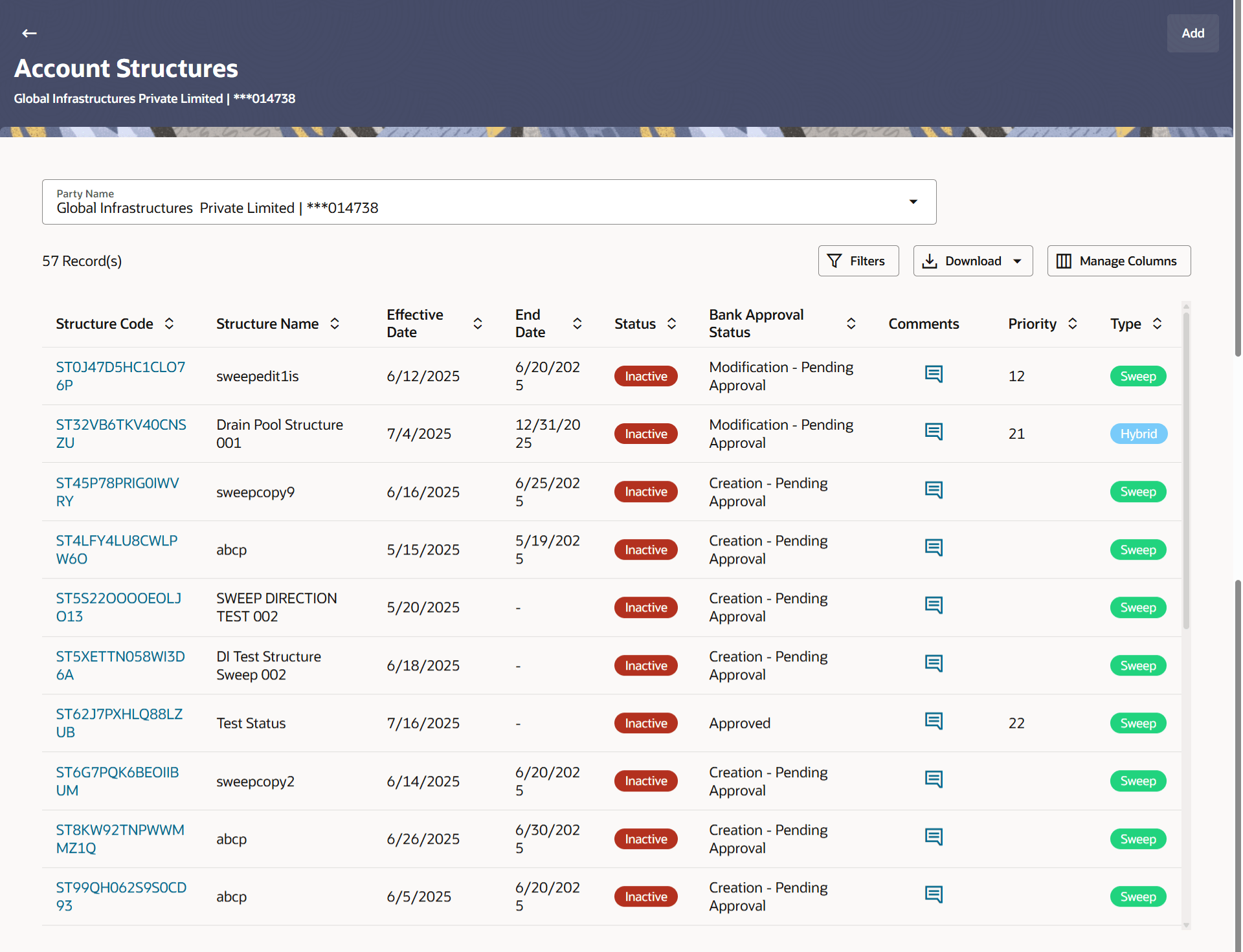
This topic describes the systematic information to Account Structures, which shows the summary of all the accounts.
Different types of structures (Sweep, Pool and Hybrid) and status (Active, Inactive, Paused, Closed and Expired) are depicted in different colors for easy identification. An option is also provided on the screen to search the specific structure with the name associated with it. The user can also choose to create a new structure from the screen.
In case there are no structures mapped to the logged in user, a screen with the related information and an option to create a new account structure is shown to the user.
To view the the summary of all the accounts:
- Perform any one of the following:
- From Menu, click Liquidity Management, and then click Overview. From Overview, click Quick Links, and then click Structure List.
- From Menu, click Liquidity Management, and then click Structure List.
The Account Structures screen displays. For more information on fields, refer to the field description table.Table 2-1 Account Structures - Field Description
Field Description Party Name Select the party name and ID from the drop-down list to view the applicable account structures. By default, the primary party of the logged-in user is selected.
Note: Only accessible parties are displayed to the user. Based on the party selection, the mapped account structures are displayed.
Structure Code Displays the unique ID associated to each account structure. Note:- For the structures in Modification - Pending Approval status – On clicking on the link, the user will get the option to view both Active Structure and Pending Approval Structure.
- For the structures in Creation - Rejected status – On clicking on the link, the user will get the option to view details and copy the structure to initiate new structure creation request.
Structure Name Displays the name of the account structure. Effective Date Displays the effective date from when the instruction has been setup. End Date Displays the end date till when the instruction has been setup. Priority Displays the priority of the account structure. Type Displays the type of account structure. The available options are:- Sweep - Funds moved physically with in the account structure.
- Pool - Notional movement of funds, the account balances are notionally consolidated and interest computations carried out on such notional balances.
- Hybrid – A structure is a combination of sweep and pool instructions.
Status Displays the status of account structure. The available options are:- Active
- Inactive
- Paused
- Expired
- Closed
Bank Approval Status Displays the bank approval status of the account structure. The available options are:- Creation – Pending Approval
- Modification – Pending Approval
- Approved
- Creation – Rejected
- Modification – Rejected
Comments Click Comments to view the approval or rejection comments. Structure Type Select the type of the account structure by which the data is to be filtered. The available options are:- Sweep - Funds moved physically between the parent and child account pairs.
- Pool - Notional movement of funds, the account balances are notionally consolidated and interest computations carried out on such notional balances.
- Hybrid – A structure is a combination of sweep and pool instructions.
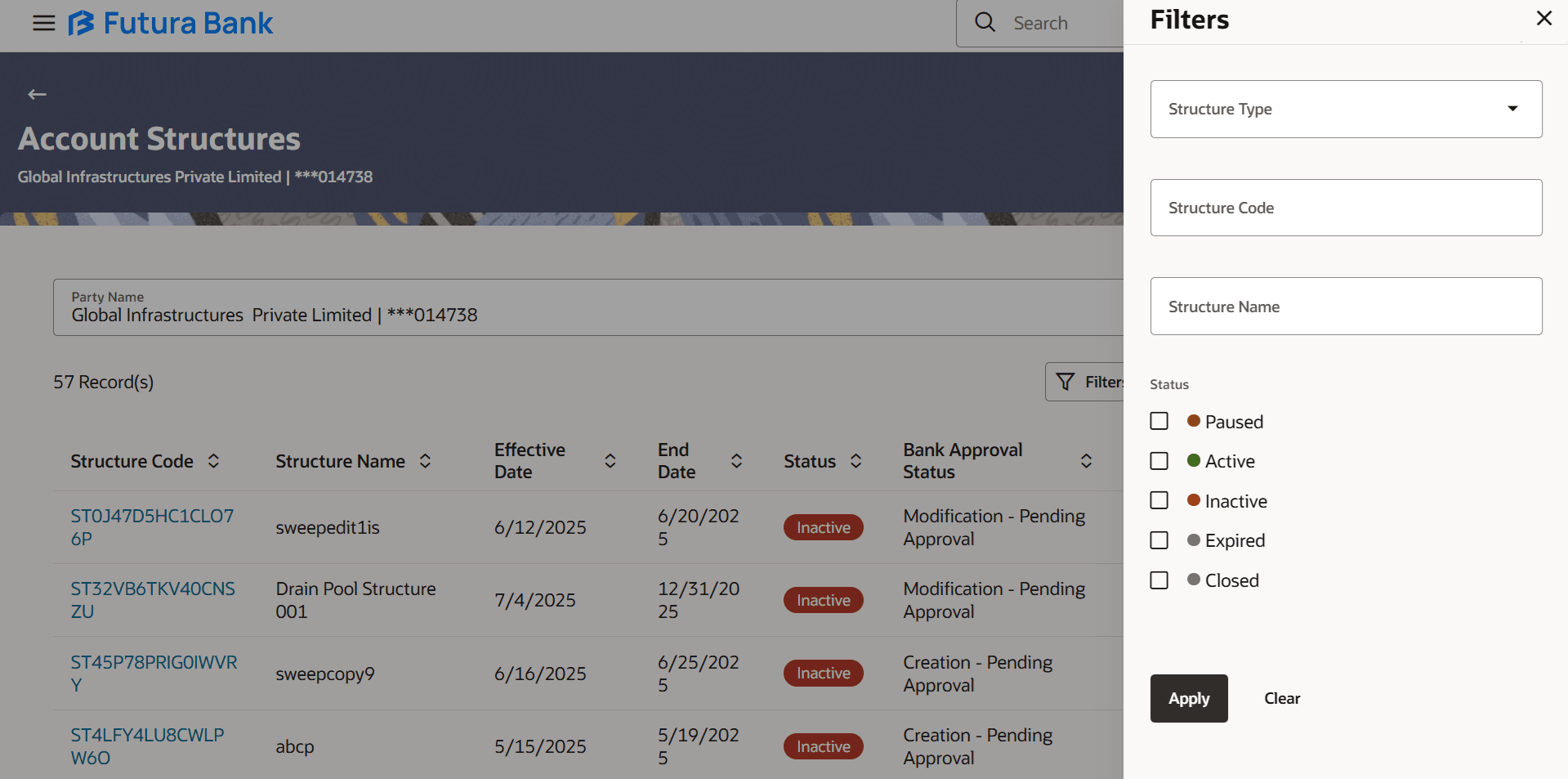
Structure Code Specify the unique code of the structure by which the data is to be filtered. Structure Name Specify the name of the structure by which the data is to be filtered. Status Select the status of the account structure by which the data is to be filtered. The available options are:- Active
- Inactive
- Paused
- Expired
- Closed
- Click
 to refine and display the account structure based on account structure
Structure Type, Structure
Code, Structure Name, and
Status.The Filter overlay screen displays.
to refine and display the account structure based on account structure
Structure Type, Structure
Code, Structure Name, and
Status.The Filter overlay screen displays.- Select the Structure type from the list.
- Specify the unique code of the structure.
- Specify the name of the structure.
- Select the Status check-box.
- Perform any one of the following:
- Click Apply to reset the refine criteria.
- Click Reset to reset the refine criteria.
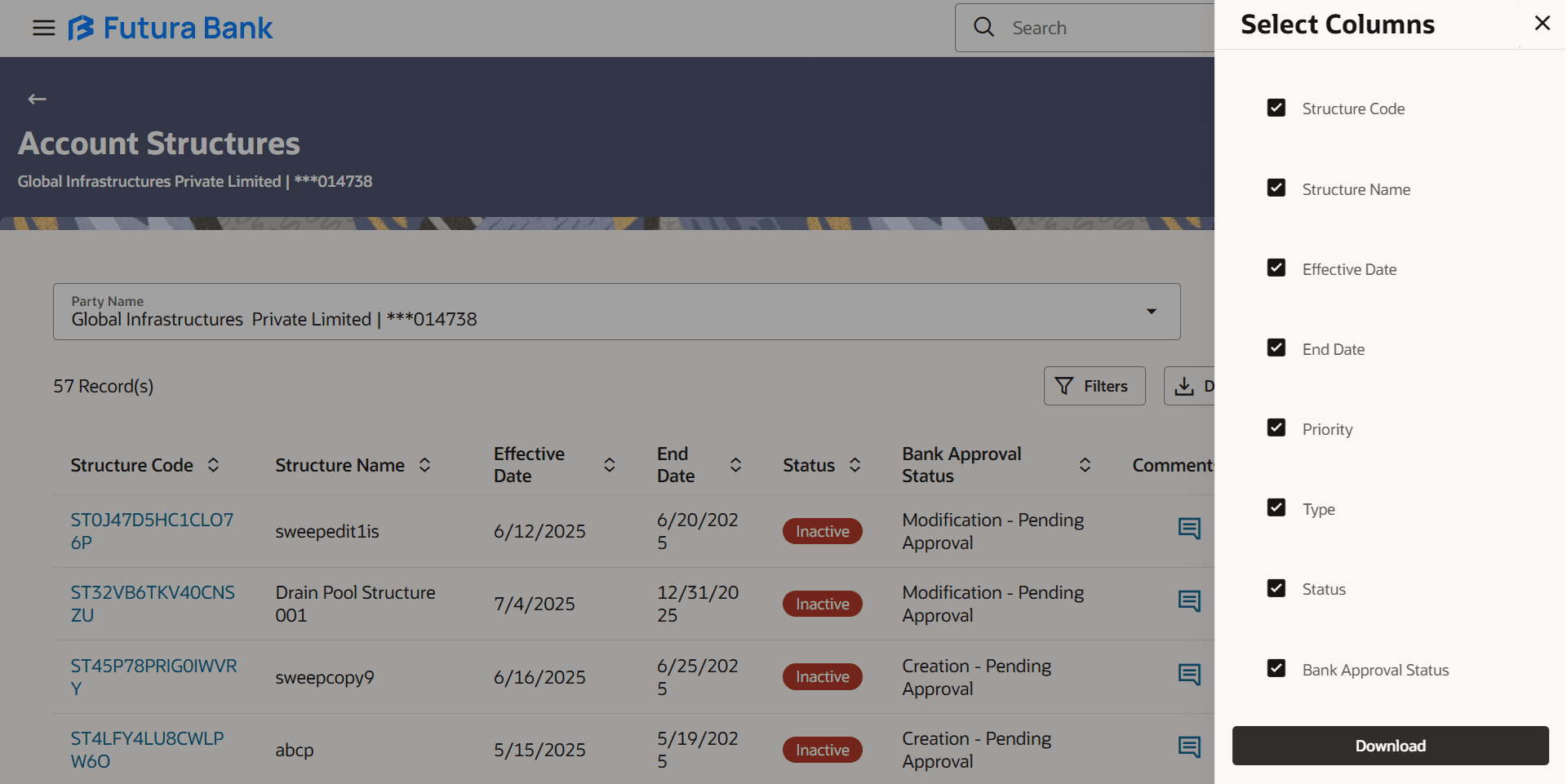
- Click Download and select the option
PDF or CSV from the drop-down
list.
The Select Columns overlay screen displays.
Figure 2-4 Account Structures - Select Columns
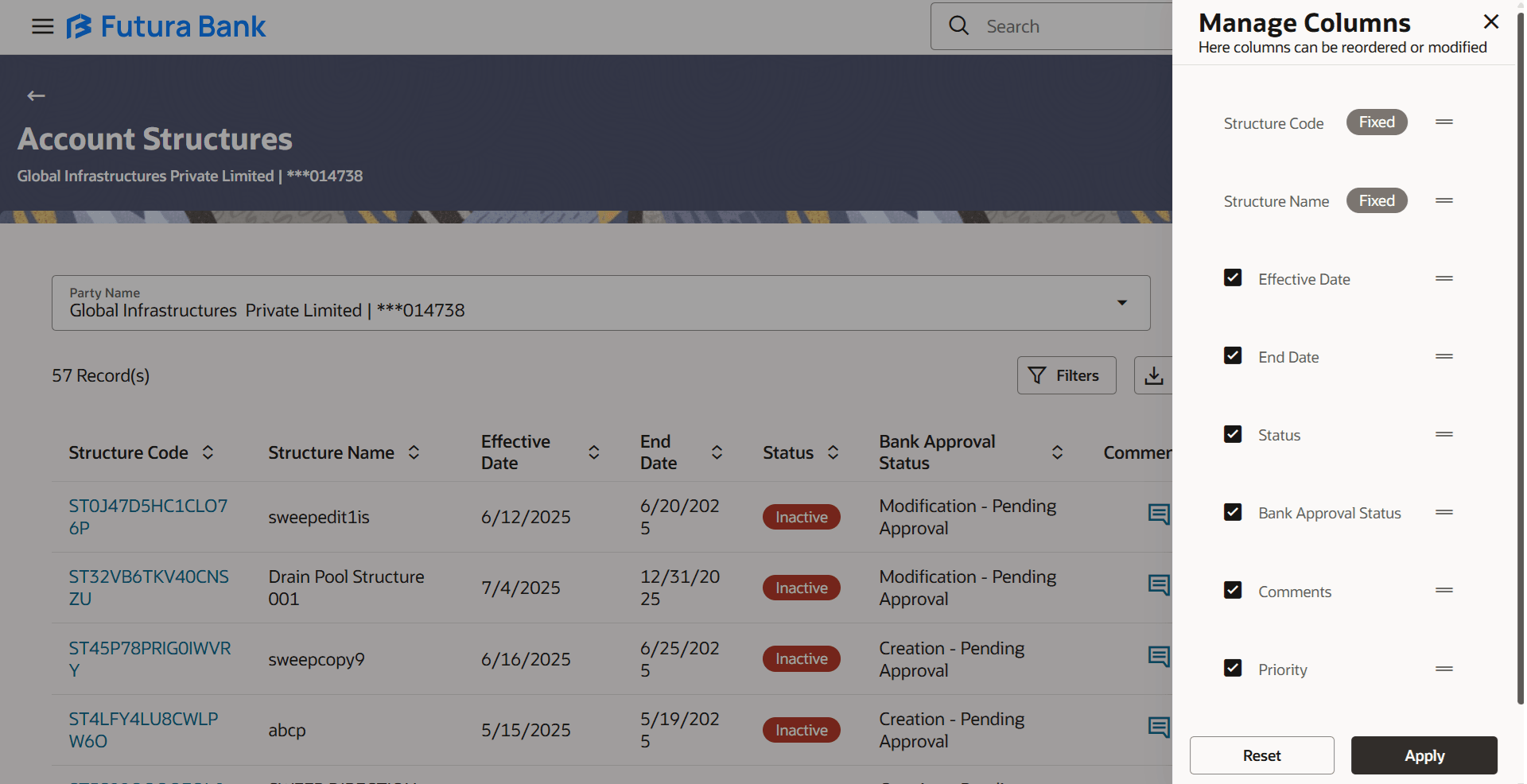
- Click Manage Columns to reorder or modify or save column
preferences in account structures screen.
The Manage Columns overlay screen appears.
Figure 2-5 Account Structures - Manage Columns
- Click Apply to apply the modified columns preferences.
- Click Reset to reset the columns preferences.
Parent topic: Account Structure Maintenance