2.2.3 Create Hybrid Structure
This topic provides the systematic instructions to ceate Hybrid Structure, that enables the user to build the hybrid structure to move funds and then notionally consolidate them.
- On the Liquidity Management Structure Creation screen, click Get Started, under the Hybrid Structure section.The Create Hybrid Structure - Structure Parameters screen displays.For more information on fields, refer to the field description table.
Figure 2-54 Create Hybrid Structure - Structure Parameters
Table 2-36 Create Hybrid Structure - Structure Parameters - Field Description
Field Description Party Name Select the party name and ID from the drop-down list in which the account structure must be created. By default, the primary party of the logged-in user is selected.
Note: Only accessible parties are displayed to the user.
Structure Parameters Information specified in below fields are related to structure parameters. Structure Name Specify the name of the hybrid structure that is to be created. Effective Date Select the date from which the hybrid structure execution should take place. End Date Select the date till which the hybrid structure execution should take place. Charge Account Select the charge account from the drop-down list for which the charges can be collected. Note:- Only accessible internal accounts of the primary party and the linked parties as part of GCIF will be displayed. This field is non-mandatory.
- User can search the Charge Account by Account Name, Account Number, Branch or Currency based on the parameters set in the system configuration and also displays these details in the search results and the respective fields once the required account is selected.
Interest Method Displays the method by which the interest is calculated. By default, this field will appear as Interest. This field is non-editable.
Pool Details Information specified in below fields are related to pool details. Reallocation Method Select the method in which the interest is shared with the participating accounts within the account structure. The available options are:- Absolute Pro-Data Distribution
- Central Distribution
- Even Direct Distribution
- Even Distribution
- Fair Share Distribution
- No Reallocation
- Reverse Fair Share Distribution
Note: The Percentage Reallocation method is also available, but it can be defined only at the pair parent level in Select Reallocation Method & Link Accounts.
Central Account Number Specify the account in which the interest arrived is credited to one central account, which can be any one of the participating accounts or a separate account. This field displays if the user selects Central Distribution from the Reallocation Method list.
Note: User can search the central account number by account name, account number, branch or currency based on the parameters set in the system configuration and displays these details in the search results and the respective fields once the required account is selected.
Central Account Currency & Branch Displays the currency and branch of the central account. This field appears if the user selects Central Distribution from the Reallocation Method list and select central account number from drop-down.
Default Sweep Instructions Information specified in below fields is defaulted at each parent-child account pair whereas user can override and define a specific frequency for a specific pair of account as a part for instruction set up. Sweep Method Select the sweep method that is to be applied to the structure. The available options are:- Zero Balance Model
- Fixed Amount Model
- Collar Model
- Target Model - Constant
- Target Model - Fixed
- Threshold Model
- Range Based Model
- Cover Overdraft Model
- Percentage Model
Frequency Information specified in below fields are related to frequency. Frequency Select the frequency at which the account structure should be executed. Reverse Frequency Select the reverse frequency at which the reverse sweep for account structure should be executed. The list displays the frequencies for which the BOD is enabled.
Other Instructions Information specified in below fields are related to other instructions. Sweep on Currency Holiday Move the slider to enable the sweep on currency holiday. Consider Post Sweep Balance Move the slider to consider the post sweep balance. Currency Holiday Rate Displays the default option as Previous Day Rate. Note: This field is enabled only if the user toggle on the Sweep on Currency Holidays.
Holiday Treatment Select the holiday treatment. The available options are:- Holiday
- Next Working Date
- Previous Working Date
Maximum Backward days Specify the maximum backward days. Note: This field is enabled only if the user select Previous Working Date from the holiday treatment.
Backward Treatment Select the backward treatment. The available options are:- Move forward
- Holiday
Note: This field is enabled only if the user select Previous Working Date from the holiday treatment.
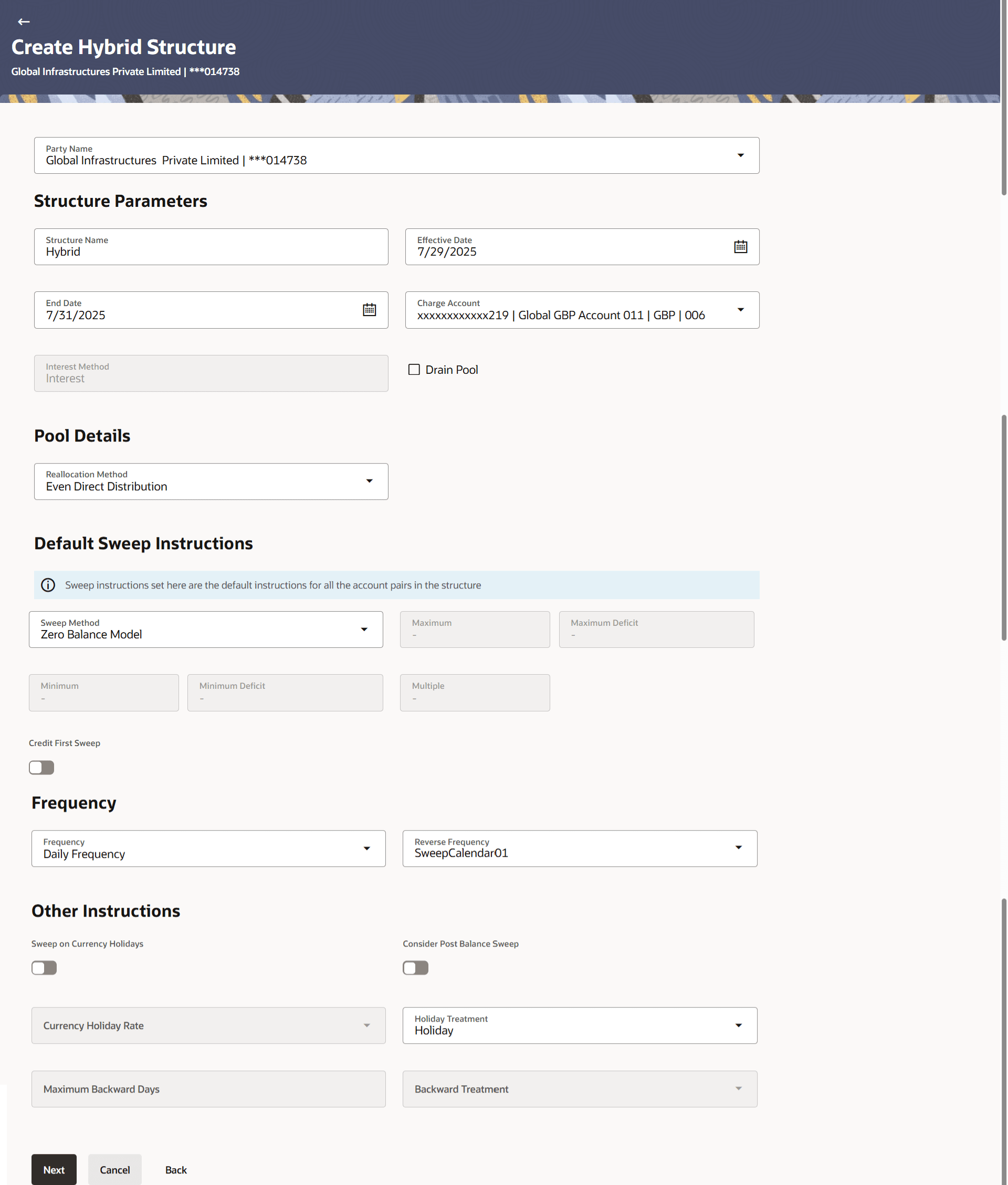
The first step of hybrid structure creation involves defining the basic details of the hybrid structure like structure name, effective date, end date, etc.
As a part of following step, the user can build the structure by adding the header and child accounts.
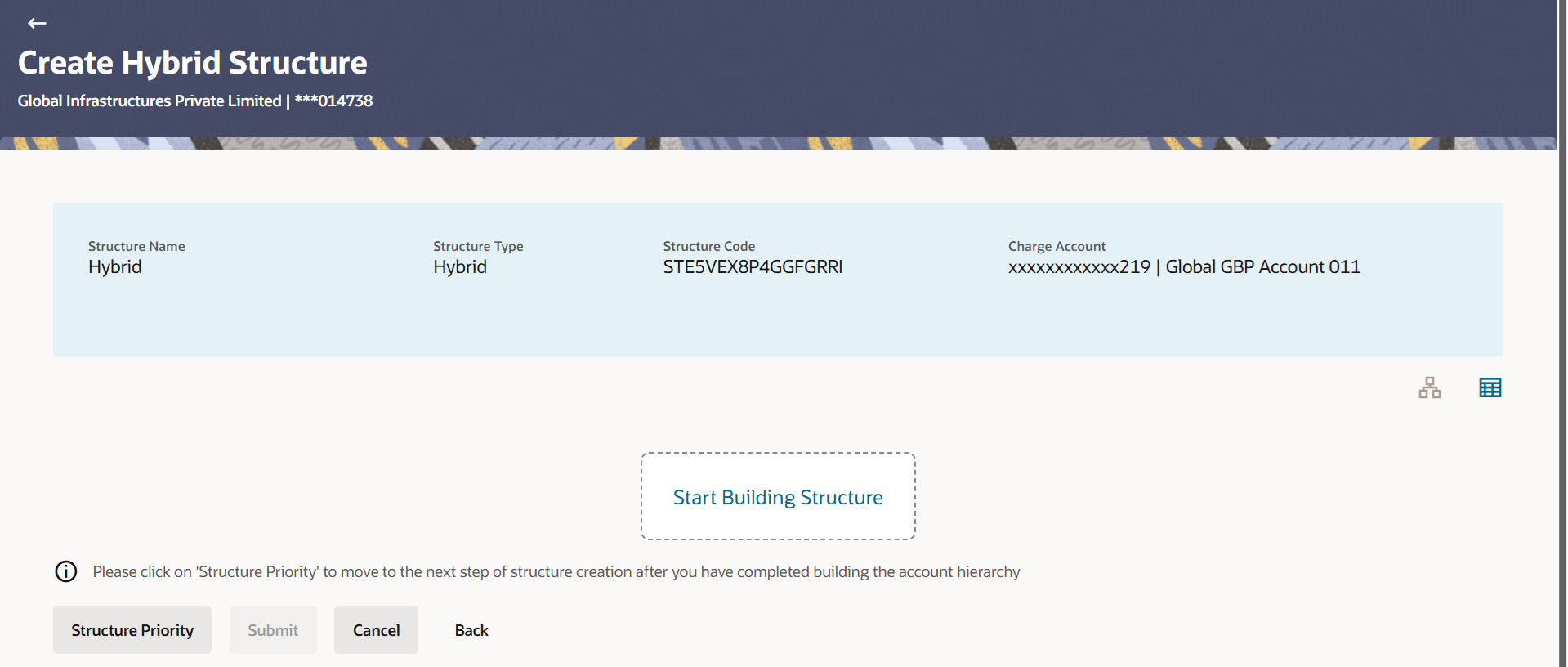
By default, the Build Structure screen displays in tree view.
Figure 2-55 Create Hybrid Structure – Build Structure – Tree View
- Click
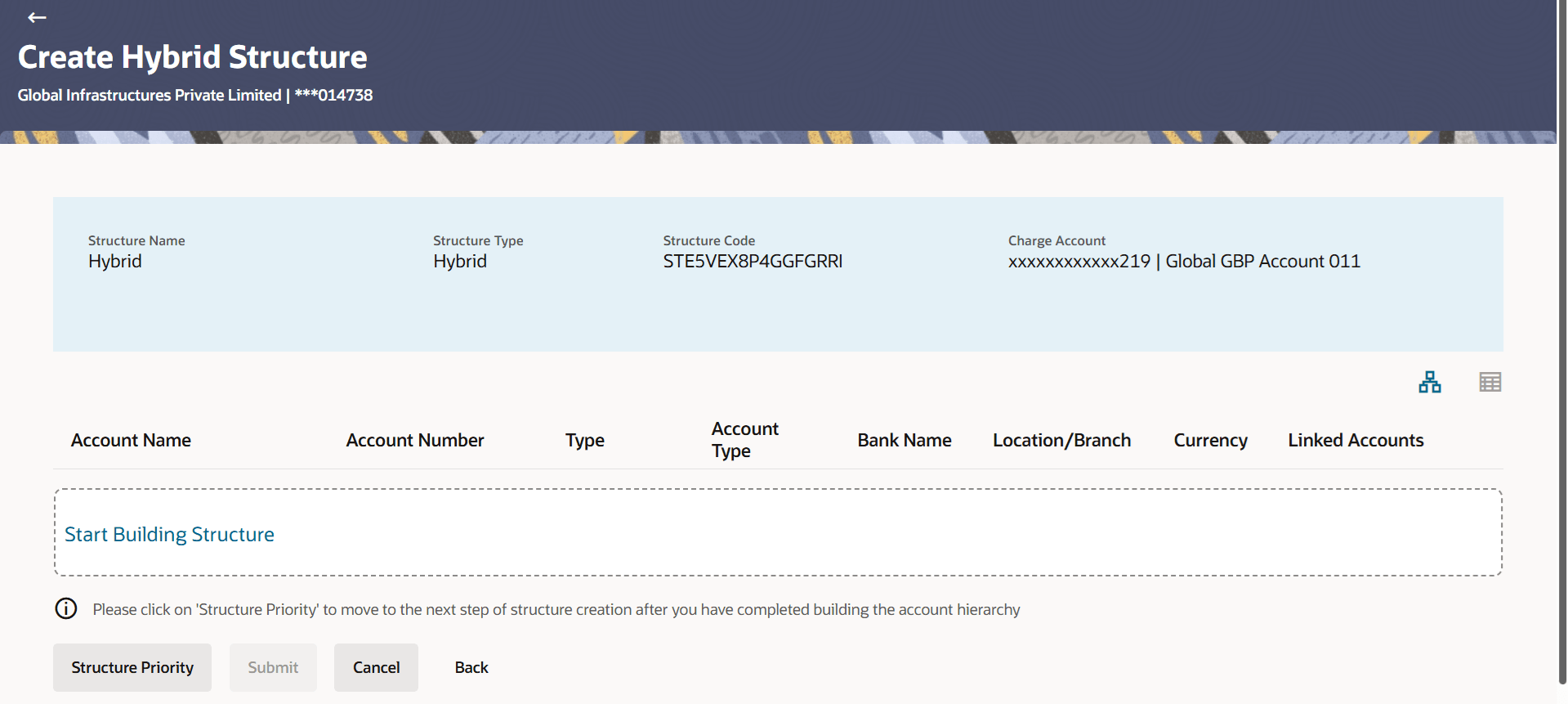
 to build the structure in the table view.The Create Hybrid Structure - Build Structure - Table View screen displays.
Figure 2-56 Create Hybrid Structure - Build Structure – Table View
The below field descriptions are common for both Tree View and Table View. For more information on fields, refer to the field description table.Table 2-37 Create Hybrid Structure - Build Structure – Field Description
Field Description Structure Code Displays the structure ID of the structure. Structure Type Displays the type of the structure. Structure Name Displays the name of the structure. Charge Account Displays the charge account and account name from which the charges can be collected. Note: Only accessible internal accounts of the primary party and the linked parties as part of GCIF will be displayed. This field is non-mandatory.
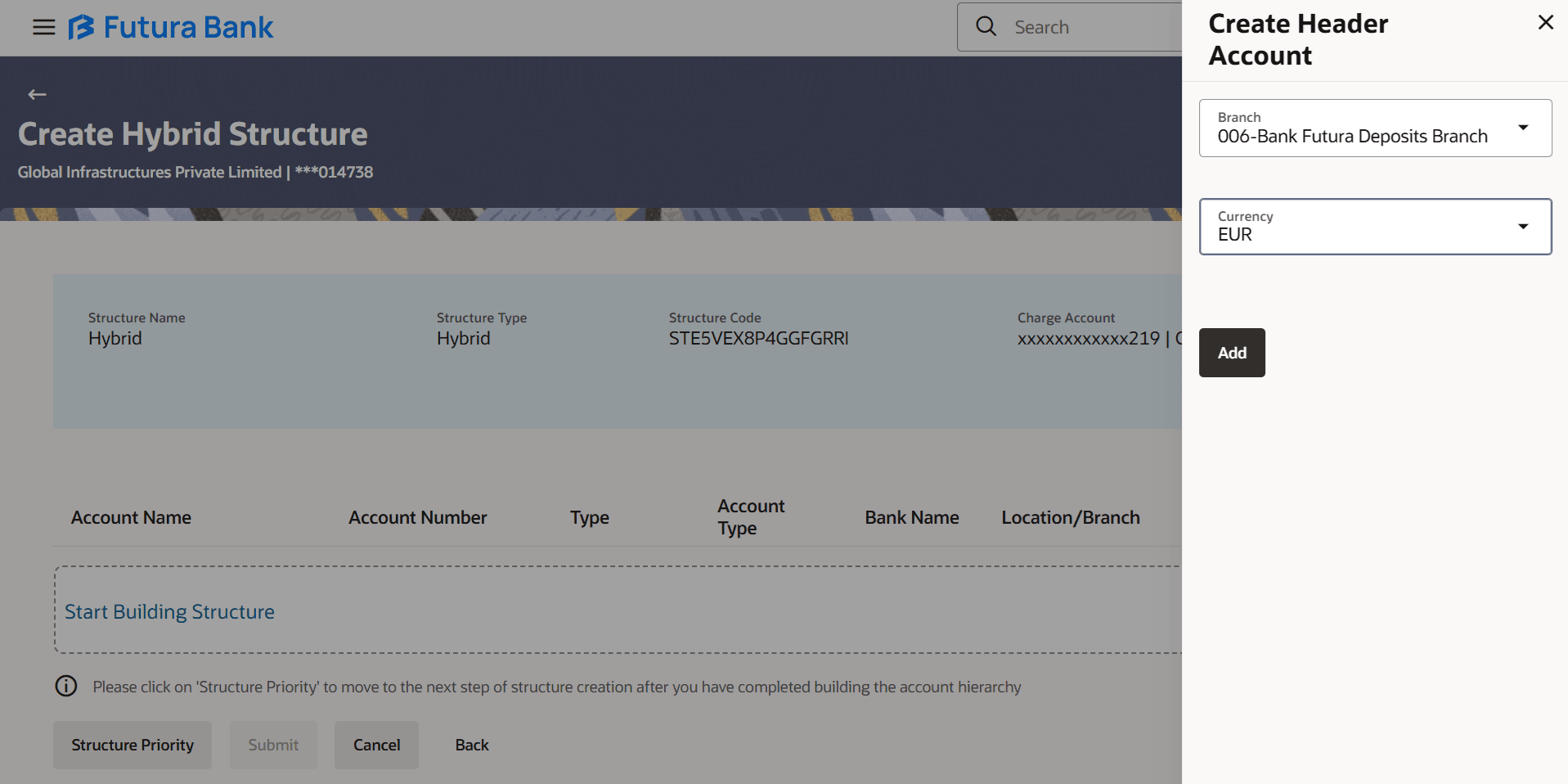
As a part of following step, the user can create header account in which the funds will concentrated.
Figure 2-57 Create Hybrid Structure – Create Header Account Table 2-38 Create Hybrid Structure - Create Header Account - Field Description
For more information on fields, refer to the field description table.
Field
Description
Branch
Select the branch name for the header account.
Currency
Select the currency for the header account.
- Perform any one of the following actions:
- Click Add, the header account is created and added to the Create Hybrid Structure – Create Header Account screen.
- Click
 to close the overlay screen.
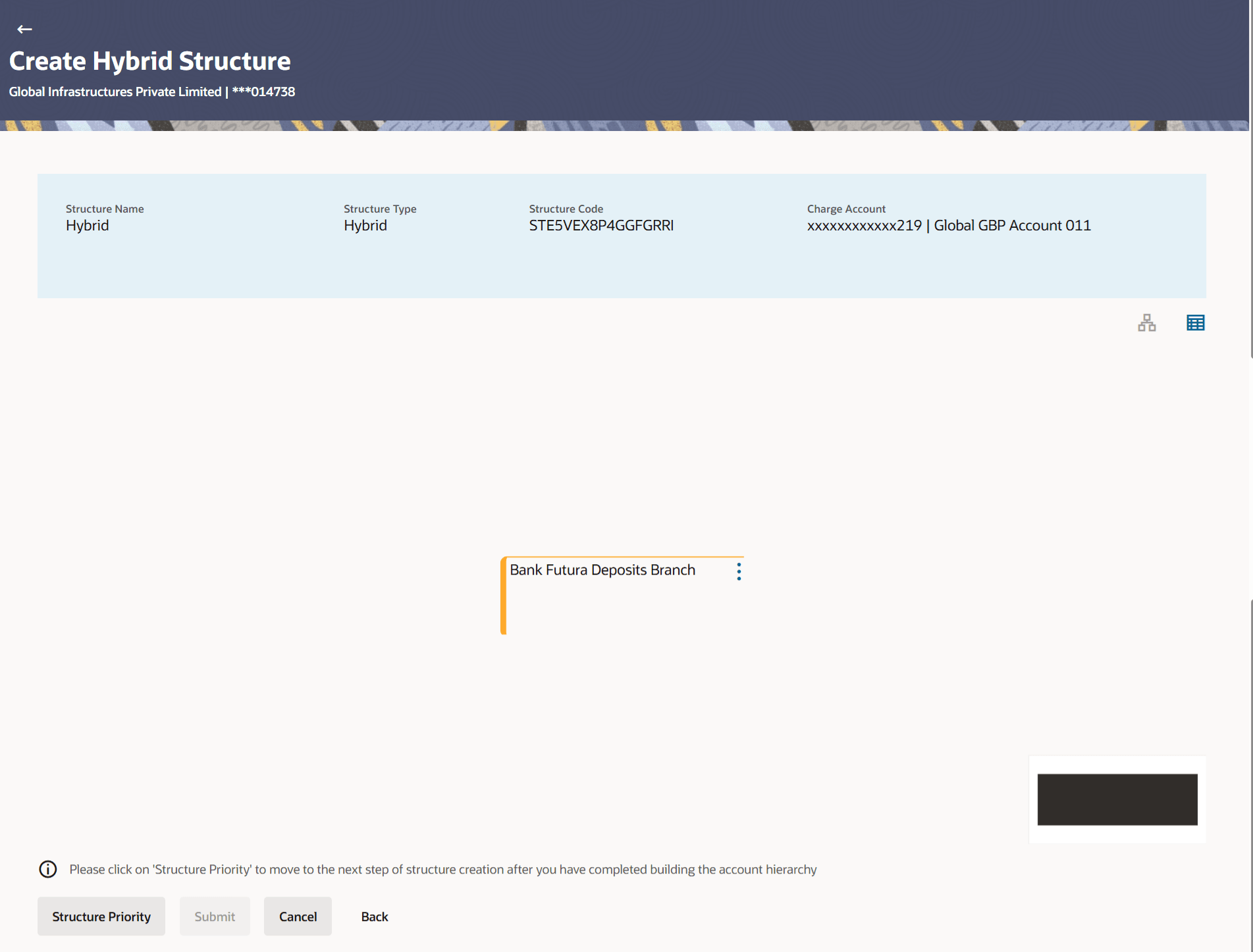
Once the header account is added, the user can further link the child accounts. This screen is available in both Tree and Table view.For more information on fields, refer to the field description table.Figure 2-58 Create Hybrid Structure – Added Header Account – Tree View
Table 2-39 Create Hybrid Structure - Create Header Account - Tree View - Field Description
Field Description Structure Code Displays the structure ID of the structure. Structure Type Displays the type of the structure. Structure Name Displays the name of the structure. Charge Account Displays the charge account number and account name from which the charges can be collected. Note: Only accessible internal accounts of the primary party and the linked parties as part of GCIF will be displayed. This field will appear only if the user selects the charge account number.
Notional Header Information displayed on notional header account card. Branch Displays the branch name for the header account. Currency Displays the currency for the header account. 
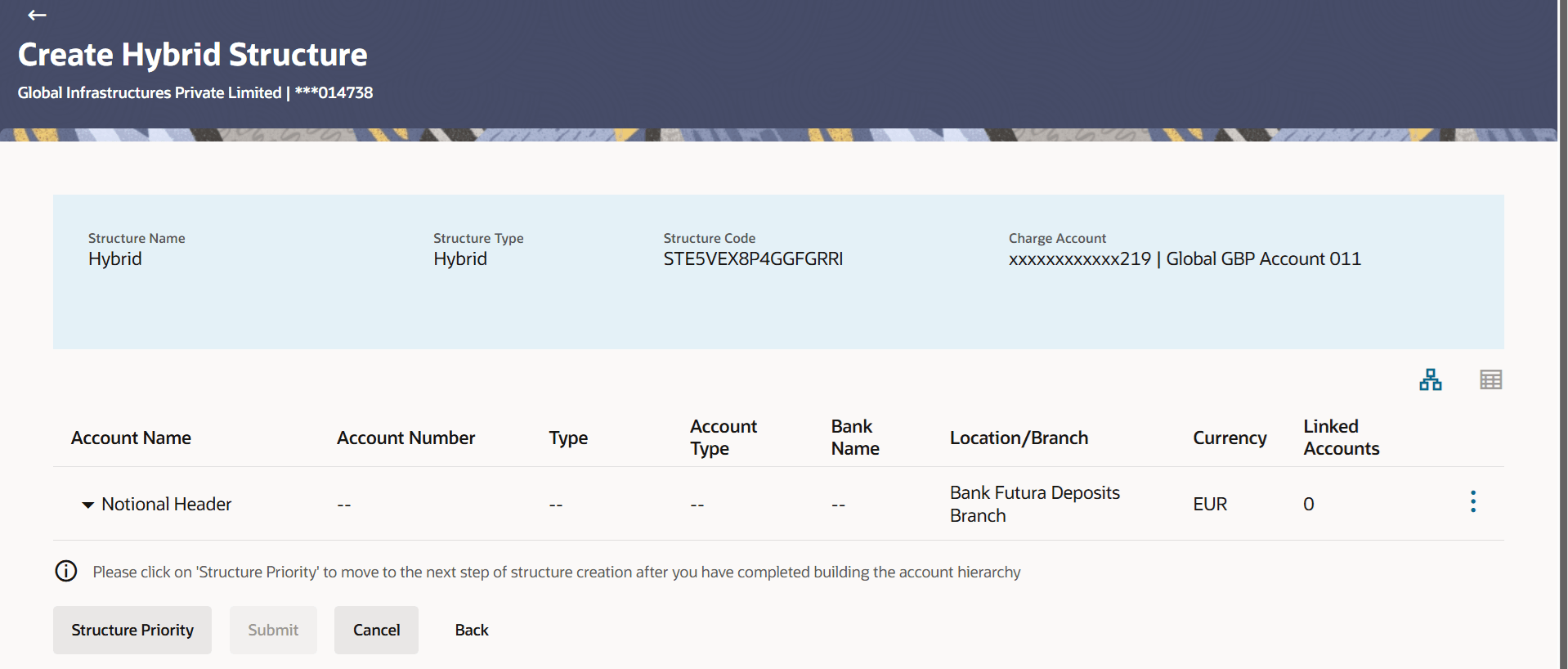
Displays the child account(s) linked to the parent account. - Click to view the added accounts in the table view.The Create Hybrid Structure - Added Header Account - Table View screen displays.For more information on fields, refer to the field description table.
Figure 2-59 Create Hybrid Structure – Added Header Account – Table View
Table 2-40 Create Hybrid Structure – Added Header Account – Table View - Field Description
Field Description Structure Code Displays the structure ID of the structure. Structure Type Displays the type of the structure. Structure Name Displays the name of the structure. Charge Account Displays the charge account number and account name from which the charges can be collected. Note: Only accessible internal accounts of the primary party and the linked parties as part of GCIF will be displayed. This field will appear only if the user selects the charge account number.
Notional Header Account Information displayed for header account and each child account. Account Name Displays the name of the customer linked to the account. Account Number Displays the account number in masked format. Type Displays the type of the structure. Account Type Displays the type of account. The available options are: - Internal: An account which is internal to the bank.
- External: An account which is external to the bank and linked for liquidity management.
Bank Name Displays the name of bank. Location/Branch Displays the location/branch name of the bank. Currency Displays the currency of the account. Linked Accounts Displays the number of the child account(s) linked to the parent account. - Click
 and then click Link to add the child accounts.
 - The Create Hybrid Structure - Select Reallocation Methods & Link Accounts overlay screen displays.
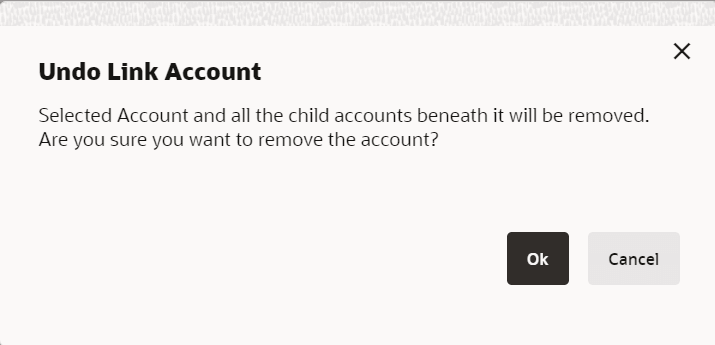
- Click Undo Link. A Undo Link Account pop-up displays confirming the removal of accounts.
- Click Ok, if the user wants to remove the added header account.
- Click Cancel to cancel the removing process.
The user can search and select the accounts to be linked to the selected header/parent account. The filtered account list for which the user has access to will appear for linking the accounts. For GCIF enabled environment, the account list also shows the linked party account of the transaction party.Note:
If the selected accounts are already part of existing Pool Structure or pool part of existing Hybrid Structure, then the accounts cannot be linked again. This condition is applicable only if the Cash Concentration Method is selected as Pool. - Select the accounts that the user wants to link to the header account.
- In the Search By Party Name, Account Number field, specify and search the complete or partial account details to display the list of accounts that matches across the fields in the table and select the accounts that the user want to link to the header account.
Note:
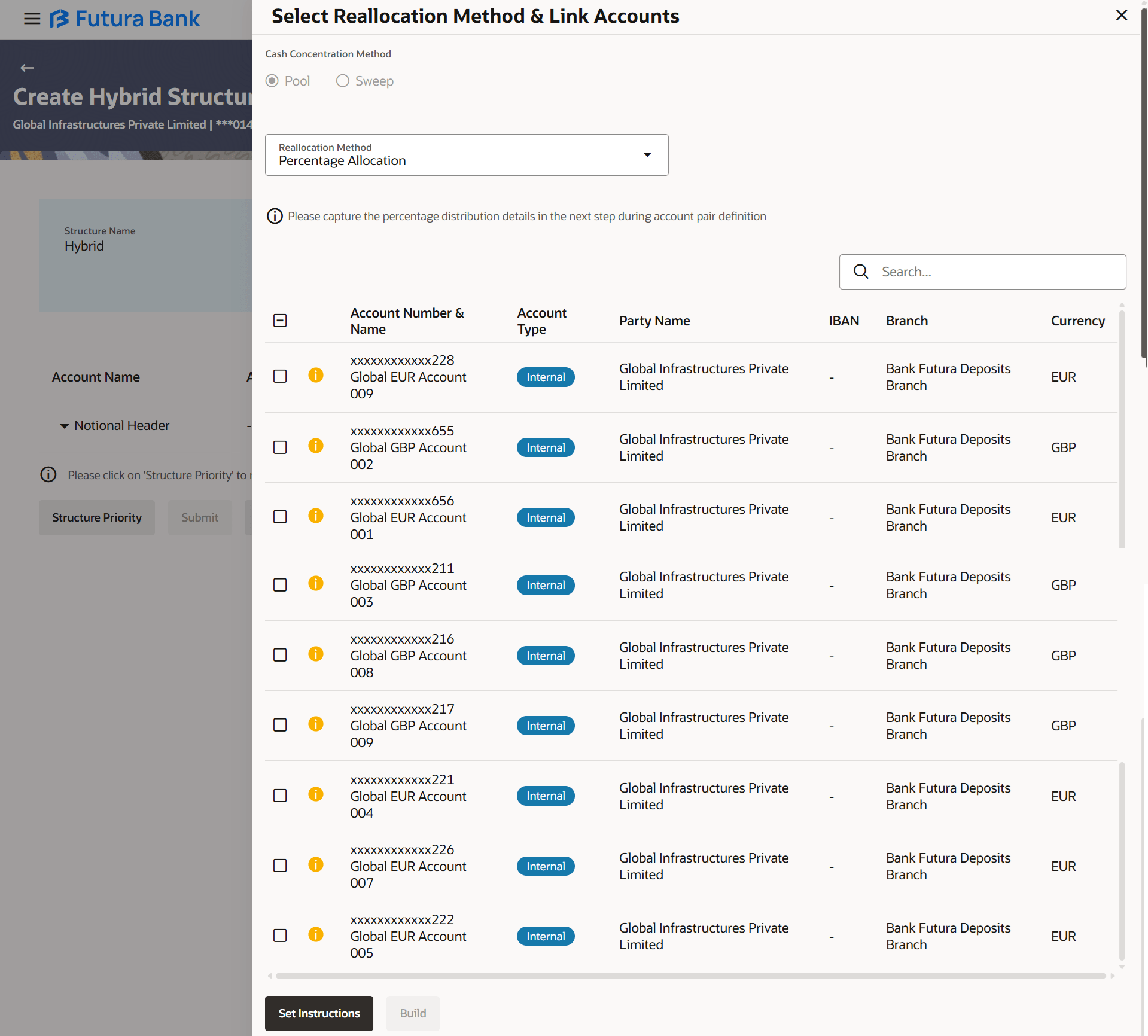
The user can either select the accounts directly in the overlay or can use the UI search to filter and select additional records. In this case, the accounts that were filtered using UI search will appear at the top, while those selected before applying UI search will appear at the bottom.The Create Hybrid Structure - Select Reallocation Method & Link Accounts screen displays.For more information on fields, refer to the field description table.Figure 2-60 Create Hybrid Structure – Select Reallocation Method & Link Accounts
Table 2-41 Create Hybrid Structure - Select Reallocation Method & Link Accounts – Field Description
Field Description Cash Concentration Method Select the cash concentration methods for the account pair. The available options are:- Pool
- Sweep
Note: For notional header account, this option is defaulted as pool. This option is enabled only for leaf nodes (no existing children) with pool type linkage.
Reallocation Method Select the method in which the interest is shared with the participating accounts within the account structure. The available options are:- Absolute Pro-Data Distribution
- Central Distribution
- Even Direct Distribution
- Even Distribution
- Fair Share Distribution
- No Reallocation
- Percentage Allocation
- Reverse Fair Share Distribution
This field is applicable only if the Cash Concentration Method is selected as Pool.
Search Specify and search the complete or partial account details and displays the list of accounts that matches across the fields in the table. Select All Select the check-box to select all the accounts. Account Number and Name Displays the account numbers and name of the user in masked format. Account Type Displays the type of account. The available options are:- Internal: An account which is internal to the bank.
- External: An account which is external to the bank and linked for liquidity management.
Party Name Displays the name of the party linked to the account. IBAN Displays the IBAN number of the account. Branch Displays the branch name of the account. Currency Displays the currency of the account. 
Accounts marked with this symbol, are marked for regulated debit. - Click Set Instructions.
- The Create Hybrid Structure - Reallocation overlay screen displays, if the cash concentration method is selected as Pool.
The Create Hybrid Structure - Set Instructions overlay screen displays, if the cash concentration method is selected as Sweep.
- Click Build to use the default instructions and add the child accounts to the header account.
The Create Hybrid Structure – Submit screen displays.
- Click to close the overlay screen.
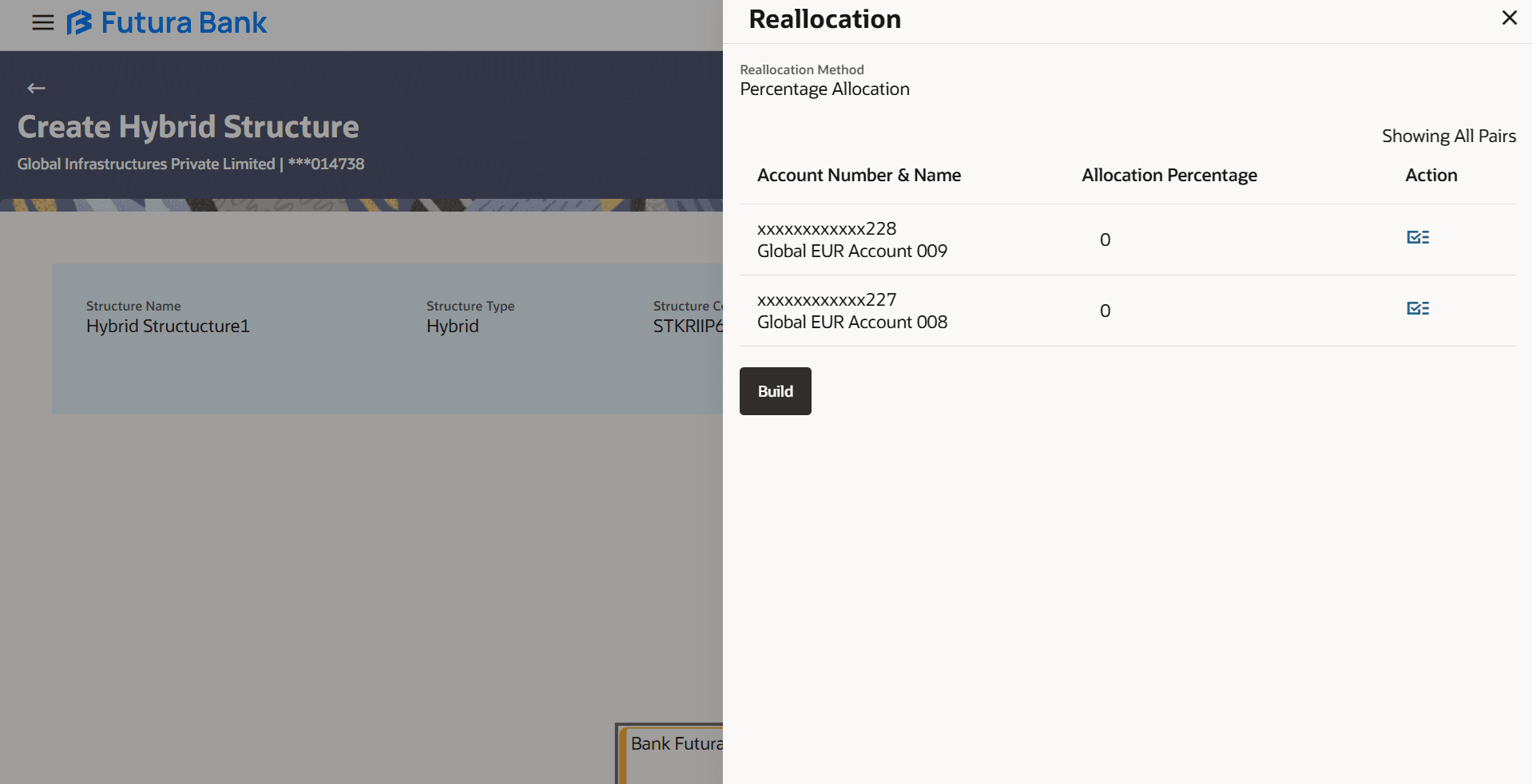
Once the child accounts are selected, the user can further set the allocation percentage for each child accounts. This screen is applicable only if the Reallocation Method is selected as Percentage Allocation.
Note:
The Show All Pairs link displays when there are existing child accounts and user is trying to add new nodes at parent level. In such cases when the Show All Pairs links appears, user can modify the Percentage Reallocation only after clicking the link.For more information on fields, refer to the field description table.Figure 2-61 Create Hybrid Structure – Reallocation
Table 2-42 Create Hybrid Structure - Reallocation – Field Description
Field Description Reallocation Method Displays the method in which the interest is shared with the participating accounts within the account structure. By default, the value displays as Percentage Allocation.
Account Number & Name Displays the account numbers and name of the account in masked format. Priority Specify the sweep priority used to determine the order of execution across pairs at a level in the structure. Note: Sweep Priority can be modified only if Showing All Pairs.
Allocation Percentage Specify the allocation percentage for the child account. Note:- The sum of the allocation percentage for all the child accounts must be 100. This condition is applicable only for first level (accounts directly linked with notional header).
- If the user wants to undo link any of the child nodes from the structure, then the user needs to zero the percentage of that node.
- The Create Hybrid Structure - Reallocation overlay screen displays, if the cash concentration method is selected as Pool.
- Click
 to modify the allocation percentage for the child account.
 - Click
 to update the changes made in the percentage allocation for the child account.
 - Perform any one of the following actions:
- Click Build to add the child accounts to the header account.
The Create Hybrid Structure – Submit screen displays.
- Click to close the overlay screen.
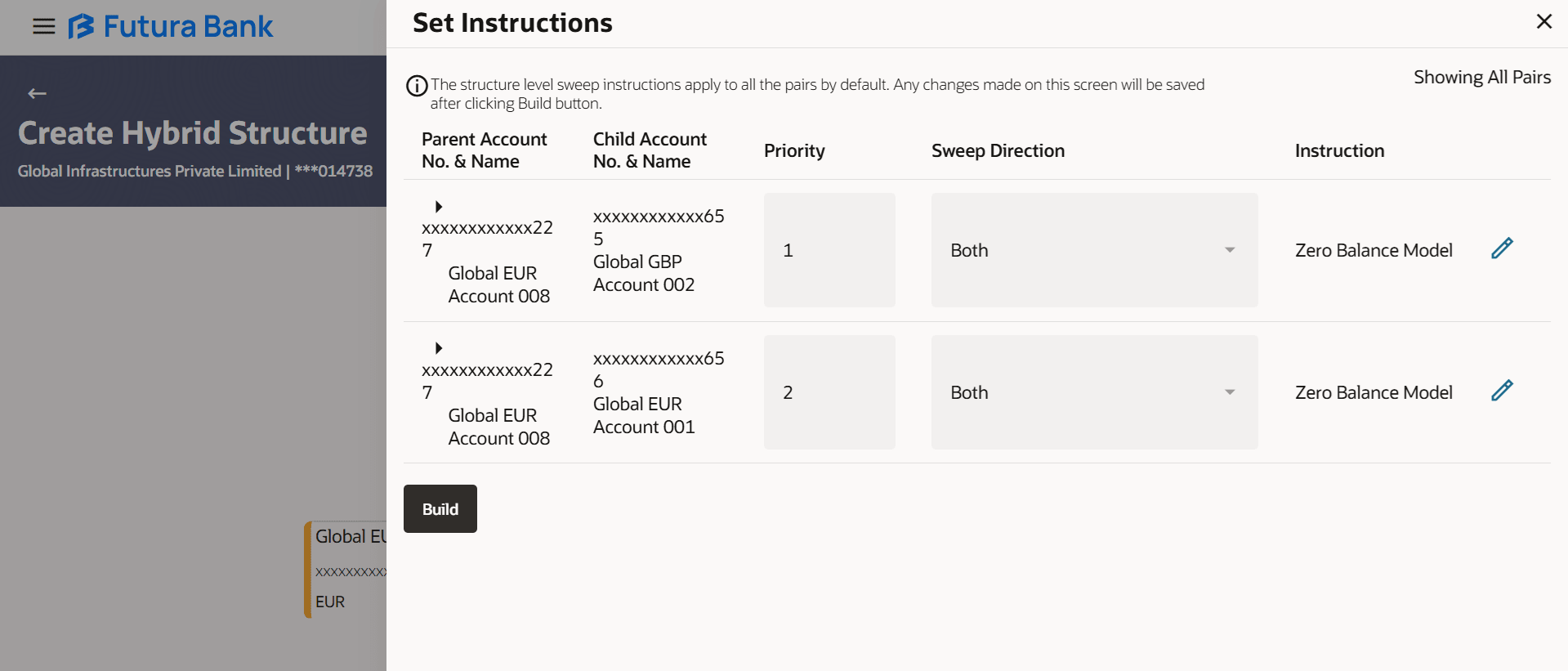
Once the child accounts are linked, the user can further set the instruction between an account pair along with the parent and child account information.
Note:
- The link appears when there are existing child accounts and user is trying to add new nodes at parent level. By clicking Show All Pairs allows the user to view and modify the instructions of all the child accounts that are linked to the header account.
- In cases, when the Show All Pairs links appears, user can modify the priority only after clicking the link.
- Any unsaved changes made to the child accounts prior to clicking the Show All Pairs link gets lost and a warning message is displayed to the user.
For more information on fields, refer to the field description table.Figure 2-62 Create Hybrid Structure – Set Instructions
Table 2-43 Create Hybrid Structure - Set Instructions – Field Description
Field Description Parent Account No & Name Displays the parent account number & name of the structure in masked format. Child Account No & Name Displays the child account number & name of the structure in masked format. Priority Specify the sweep priority used to determine the order of execution across pairs at a level in the structure. Note: Sweep Priority can be modified only if Showing All Pairs.
Sweep Direction Displays the sweep direction for the account pair. The options are:
- Parent to Child - Downward only sweep option to set up child instructions to sweep from parent to child.
- Child to Parent - Upward only sweep option to set up child instructions to sweep from child to parent.
- Both - Sweep option to set up child instructions to sweep from parent to child as well as child to parent. By default this option is pre-selected.
Instruction Displays the instruction type for the account pair. - Click Build to add the child accounts to the header account.
- Click
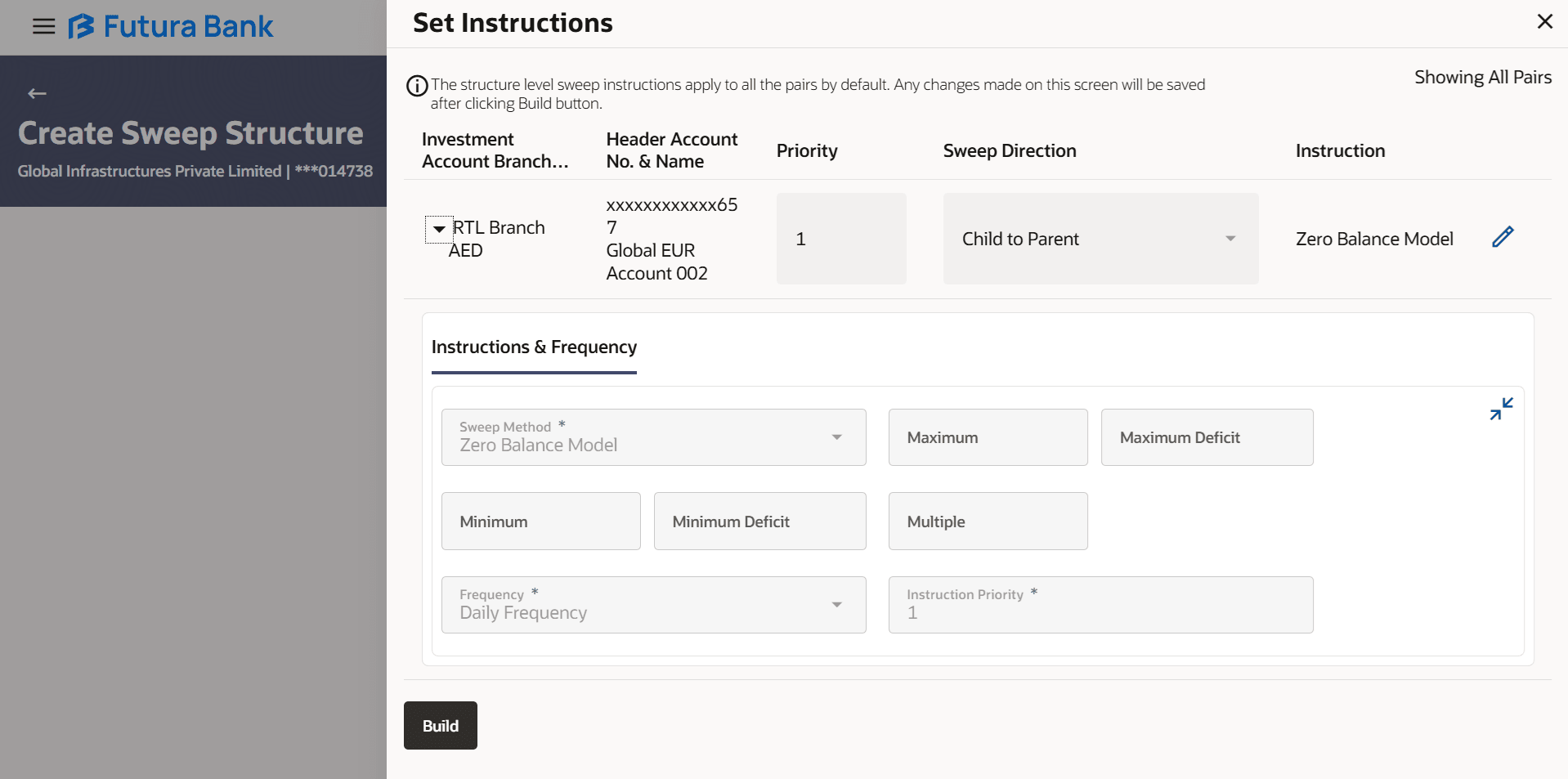
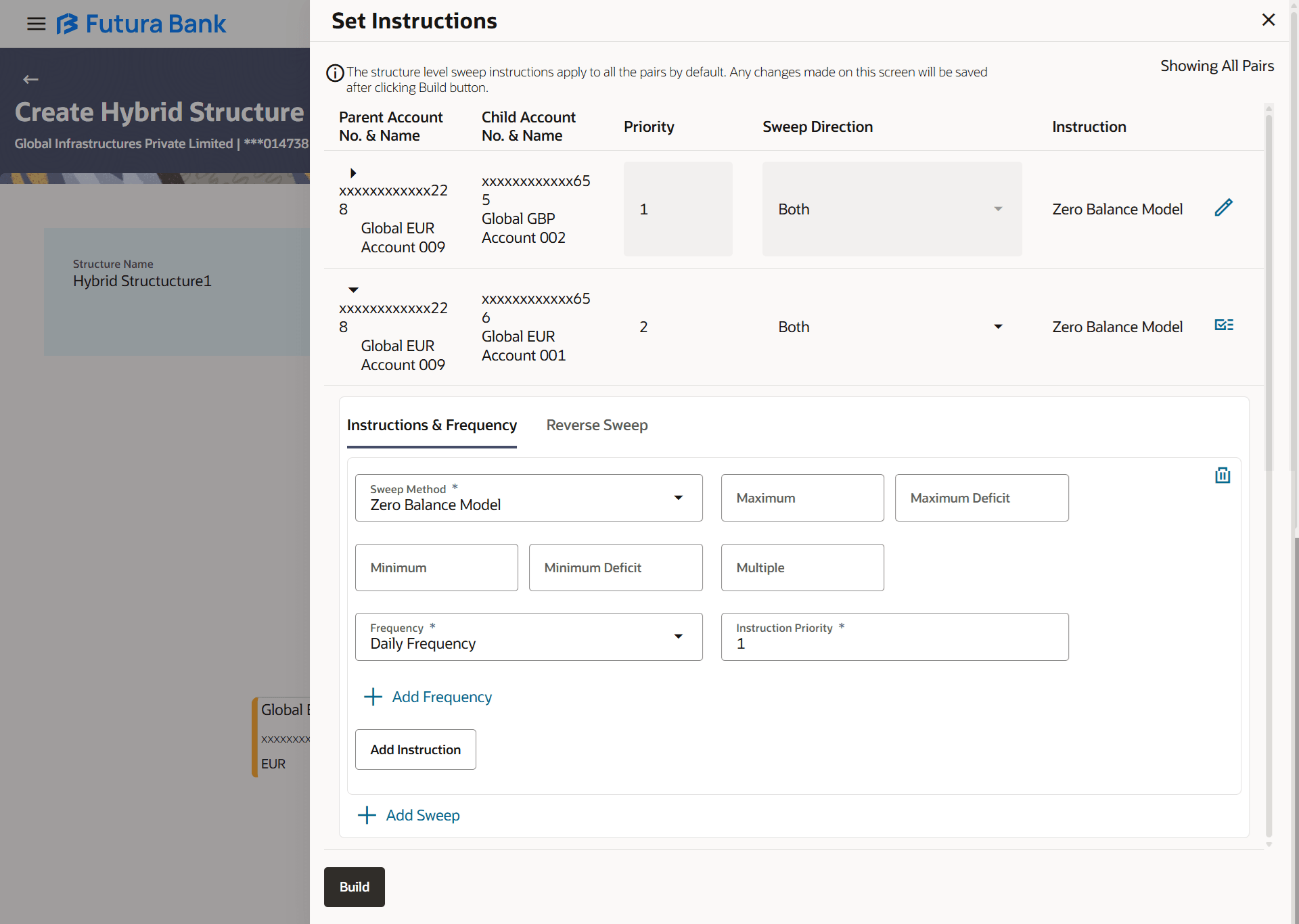
 to view the instructions for the account pair.The Create Hybrid Structure - Set Instructions – Instructions & Frequency screen displays.The user can create the instructions and frequency for the account pair.
Figure 2-63 Create Hybrid Structure – Set Instructions – Instructions & Frequency
- Click to modify the instruction and frequency for the header accounts.
- In the Instruction & Frequency tab, do the
following:
- Click
 to delete the frequency.
 - Click to delete the added sweep instruction & frequency.
- Click
- Click to update the changes made to the set instructions of child accounts.
Note:
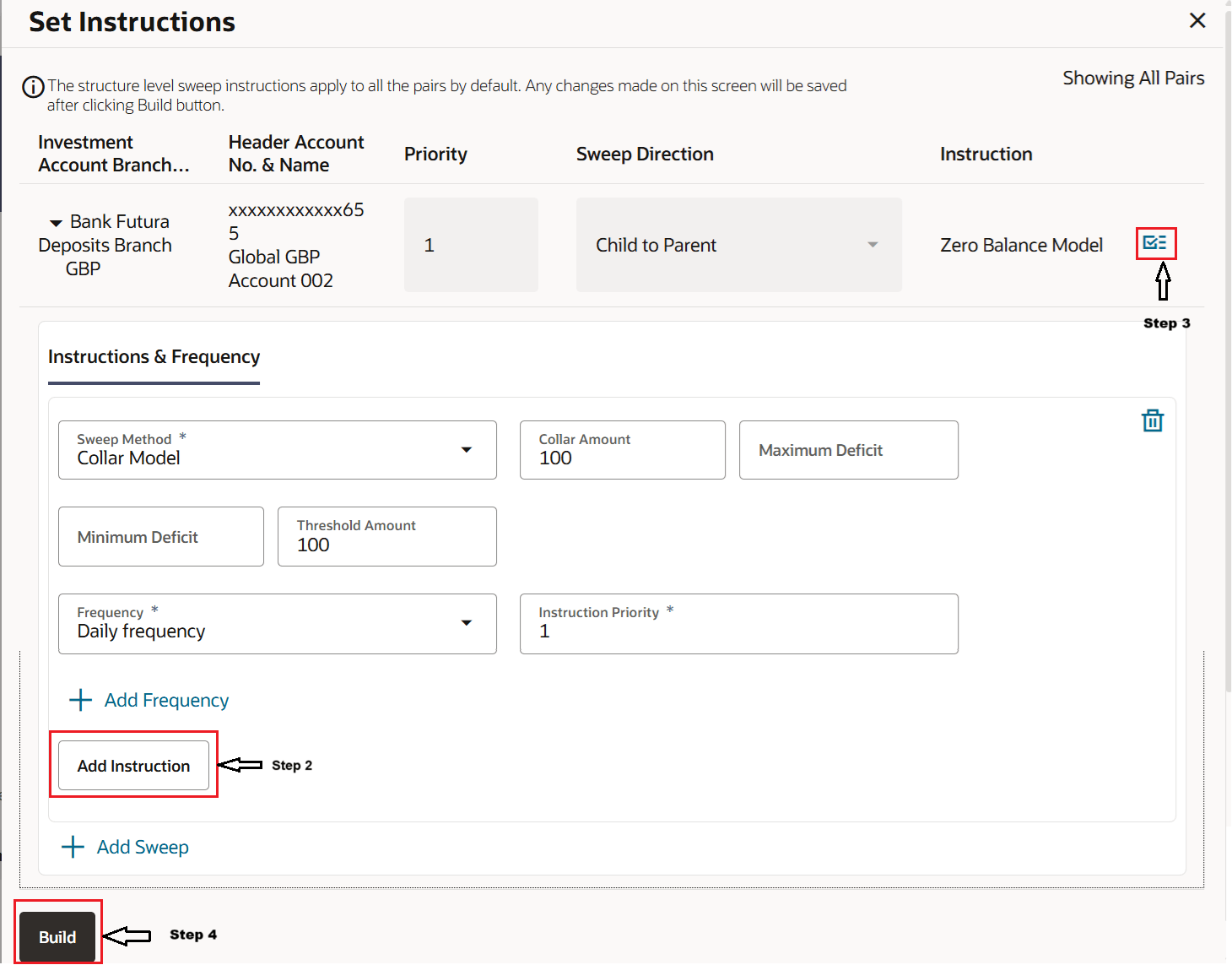
In a structure, swapping the priority set in two instructions within an account pair is not allowed. To do so, the user will have to delete one of the instructions and then re-add it with the desired priority.For more information on fields, refer to the field description table.Figure 2-65 Create Hybrid Structure – Set Instructions – Instructions & Frequency
Table 2-44 Create Hybrid Structure - Set Instructions - Instructions & Frequency
Field Name Description Sweep Method Select the sweep method set between the account pair. The available options are:
- Zero Balance Model
- Fixed Amount Model
- Collar Model
- Target Model - Constant
- Target Model - Fixed
- Threshold Model
- Range Based Model
- Cover Overdraft Model
- Percentage Model
Value defined as a part of first step will be shown in an editable form.
Sweep methods, based on Sweep Direction, will get listed.
Frequency Select the frequency at which the account structure should be executed. The list displays all the frequencies maintained in the product processor.
Instruction Priority Specify the instruction priority across multiple instructions within an account pair. Parameters Applicability of the below fields varies based on the instruction type selected between the accounts. Collar Amount Specify the collar amount set for executing sweep is displayed. This field displays for if the user has selected Collar Model from Instruction Type list.
Value set at the product processor is displayed in an editable form.
Maximum Specify the maximum amount for executing sweep. Value set at the product processor is displayed in an editable form.
Maximum Deficit Specify the maximum deficit amount for executing sweep. Value set at the product processor is displayed in an editable form.
Minimum Specify the minimum amount for executing sweep. Value set at the product processor is displayed in an editable form.
Minimum Deficit Specify the minimum deficit amount for executing sweep. Value set at the product processor is displayed in an editable form.
Threshold Amount Specify the threshold amount for which the sweep is to be executed. Value set at the product processor is displayed in an editable form.
Multiple Specify the amount in multiples of which the sweep is to be executed. Value set at the product processor is displayed in an editable form.
Percentage Specify the percentage for which the sweep is to be executed. Value set at the product processor is displayed in an editable form.
Fixed Amount Specify the fixed amount for which the sweep is to be executed. Value set at the product processor is displayed in an editable form.
- Perform any one of the following actions:
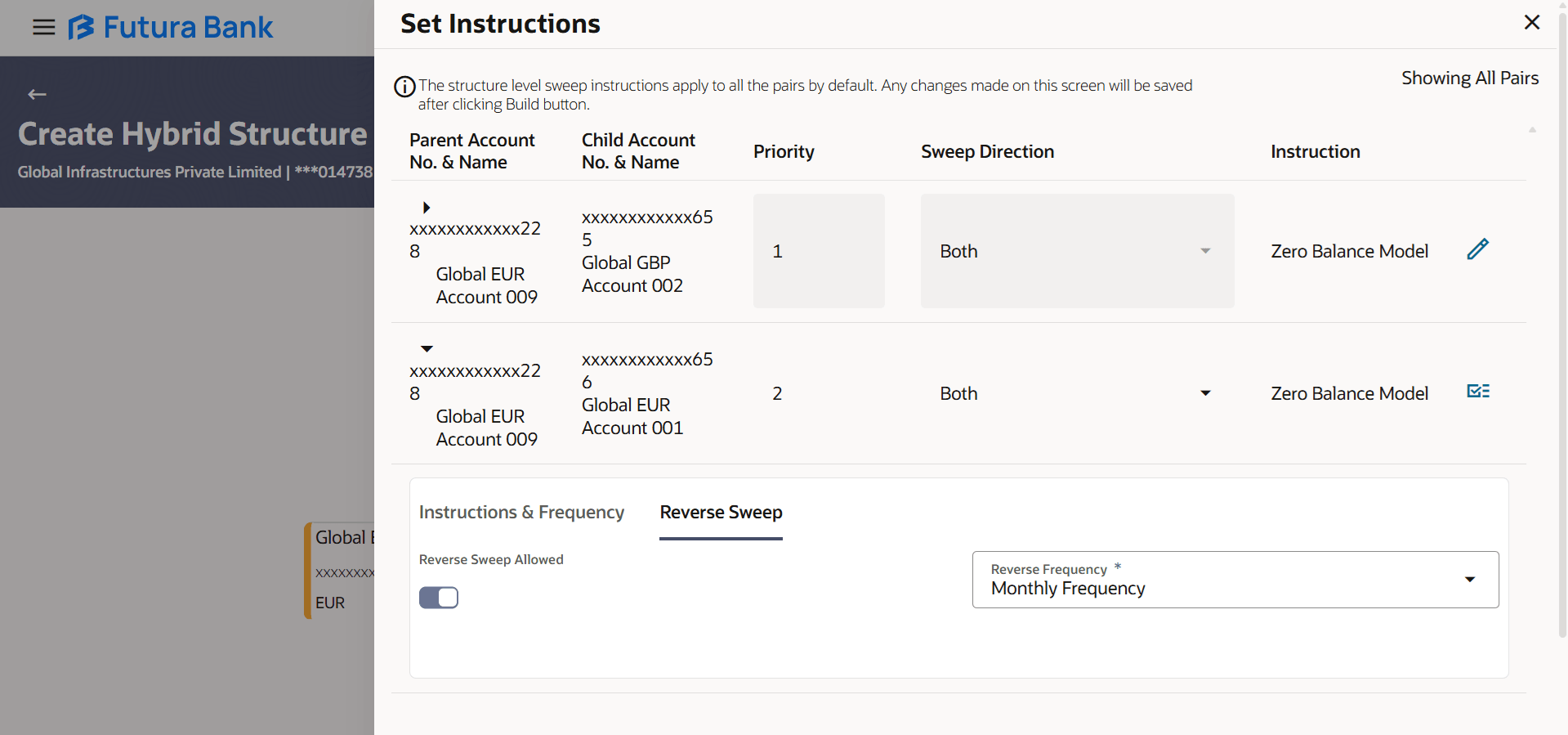
- Click Reverse Sweep tab to set the reverse sweep instruction for the account pair.
- Click to close the overlay screen.
The user can create the reverse frequency for the account pair.The Create Hybrid Structure - Set Instructions – Reverse Sweep screen displays.
Figure 2-66 Create Hybrid Structure – Set Instructions – Reverse Sweep Table 2-45 Create Hybrid Structure - Set Instructions – Reverse Sweep – Field Description The list displays the frequencies for which the BOD is enabled. Note: This field appears only if the Reverse Sweep Allowed toggle is enabled.
Field
Description
Reverse Sweep Allowed
Select the toggle to enable the reverse sweep for the account pair.
Reverse Frequency
Select the frequency at which the reverse sweep for the account structure should be executed.
- Perform any one of the following actions:
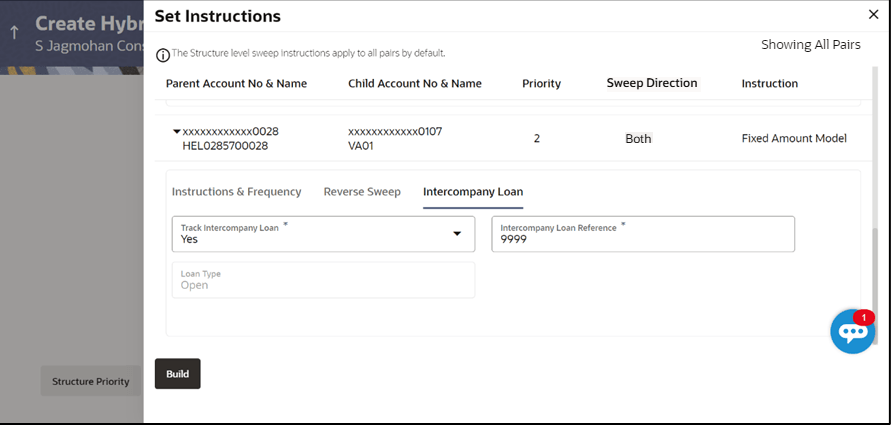
- Click Intercompany Loan tab to set the intercompany loan instruction for the account pair.
- Click to close the overlay screen.
The user can create the intercompany loan for the sweeps between the account pair.
Note: Figure 2-67 Create Hybrid Structure - Set Instructions – Intercompany Loan Table 2-46 Create Hybrid Structure - Set Instructions – Intercompany Loan – Field Description Note: By default, this field is selected as No Note: This field appears if Track Intercompany Loan is selected as Yes from the drop-down list.
Field
Description
Track Intercompany Loan
Select the option from the drop-down list, to enable the Track Intercompany Loan for the account pair.
Intercompany Loan Reference
Specify the intercompany loan reference details.
Loan Type
Displays the type of the loan.
- Perform any one of the following actions:
- Click Build the Create Hybrid Structure – Structure Priority screen displays.
- Click to close the overlay screen.
Note:
Submit button will be enabled only after the user clicks the Structure Priority on the overlay screen.
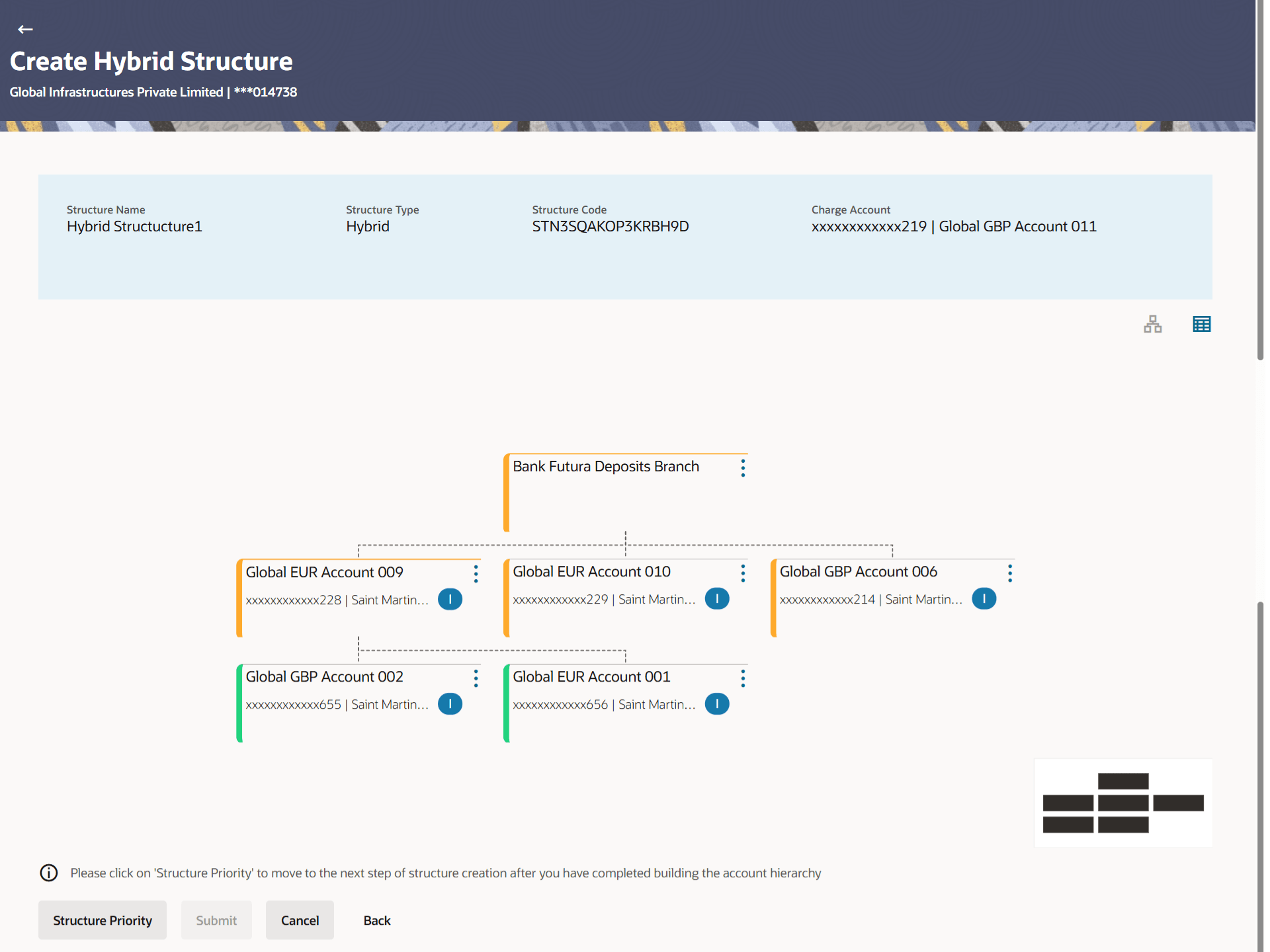
As a part of following step, the user can view and update the priority of other structures too and can also view the details of accounts in common participating in multiple structures.
Note: Figure 2-68 Create Hybrid Structure – Structure Priority Table 2-47 Create Hybrid Structure - Structure Priority – Field Description Note: Only accessible internal accounts of the primary party and the linked parties as part of GCIF will be displayed. This field will appear only if the user selects the charge account number.
Field
Description
Structure Code
Displays the structure ID of the structure.
Structure Name
Displays the name of the structure.
Charge Account
Displays the charge account number and account name from which the charges can be collected.
Parent/Child Account
Information displayed on parent/child account card in tree view.
Account Name
Displays the name of the account.
Account Number
Displays the account number of the user in masked format.
Location
Displays the location of the account.
Account Type
Displays the type of account.
Account Currency
Displays the currency of the account.
Displays the number of the child account(s) linked to the parent account.
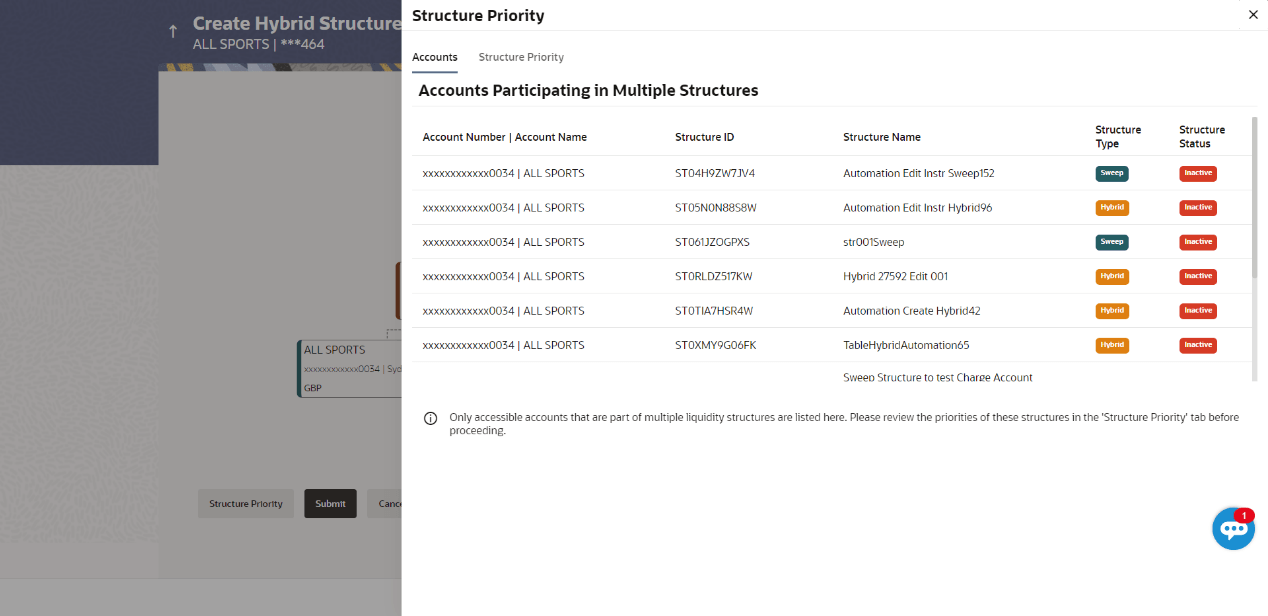
- Click on Structure Priority.The Create Hybrid Structure – Structure Priority pop-up overlay screen displays.For more information on fields, refer to the field description table.
Figure 2-69 Create Hybrid Structure – Structure Priority – Accounts Tab
Table 2-48 Create Hybrid Structure – Structure Priority – Accounts Tab - Field Description
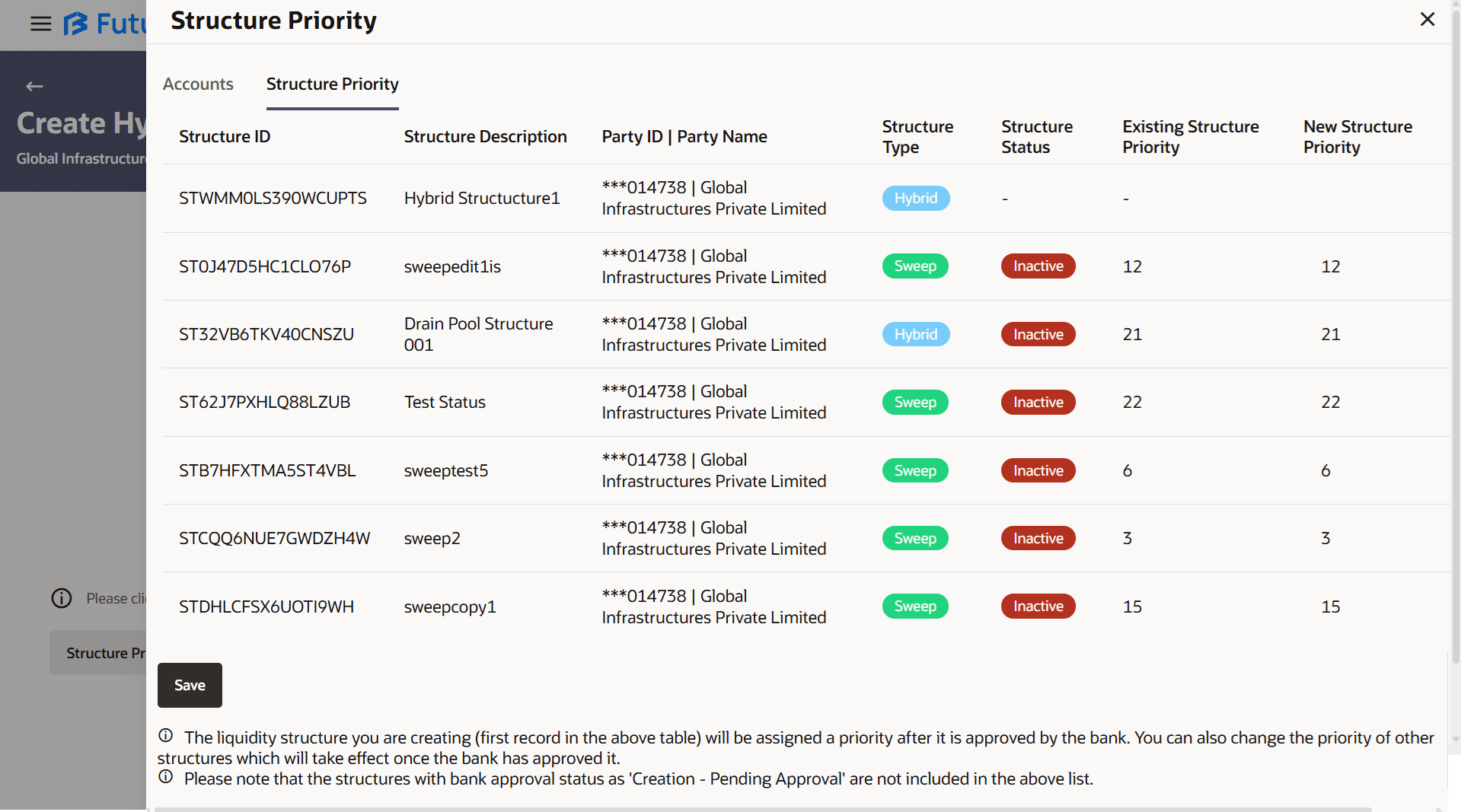
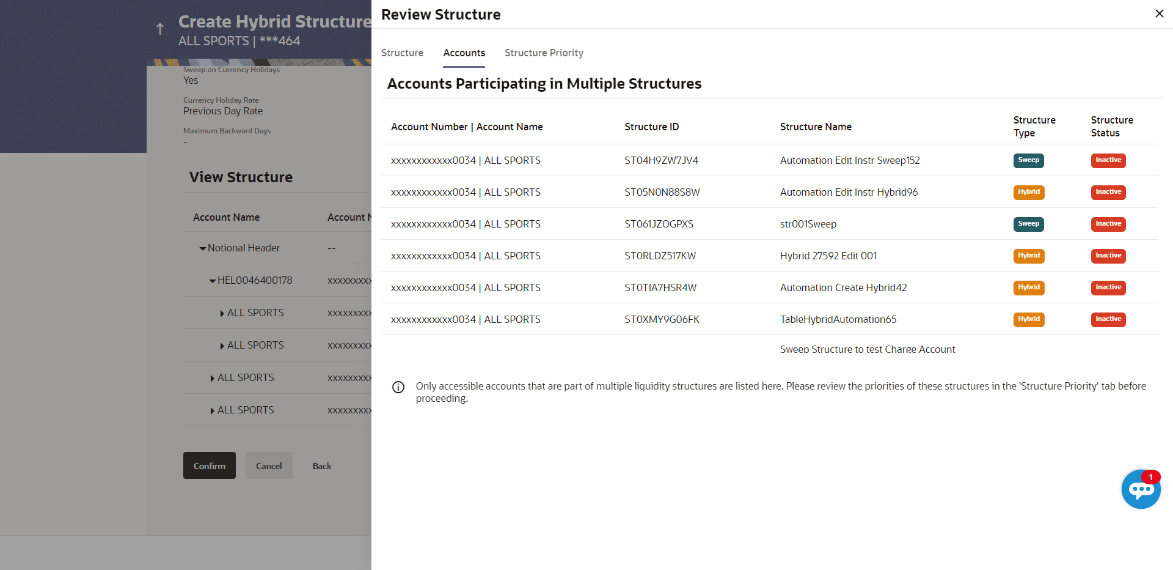
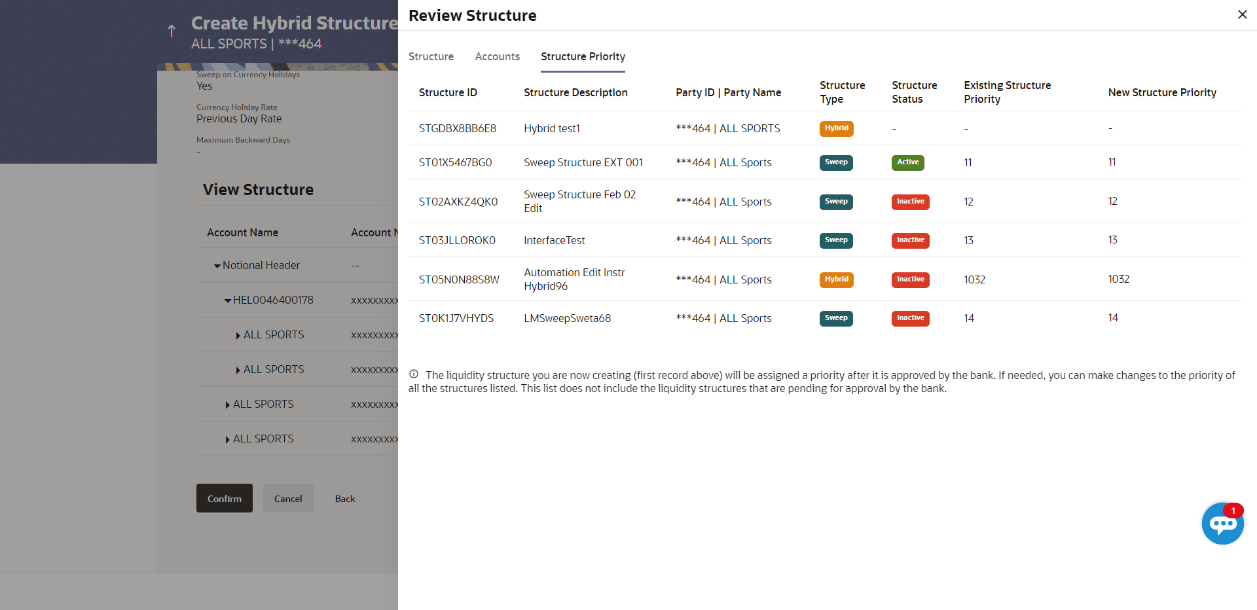
Field Description Account Number and Name Displays the account number and name of the structure in masked format. Structure ID Displays the structure ID of the structure. Structure Name Displays the name of the structure. Structure Type Displays the type of the structure. Structure Status Displays the status of the structure. For more information on fields, refer to the field description table.Figure 2-70 Create Hybrid Structure – Structure Priority – Structure Priority Tab
Table 2-49 Create Hybrid Structure – Structure Priority – Structure Priority Tab - Field Description
Field Description Structure ID Displays the structure ID of the structure. Structure Description Displays the description of the structure. Party ID | Party Name Displays the party ID and party name of the structure in masked format. Structure Type Displays the type of the structure. Structure Status Displays the status of the structure. Existing Structure Priority Displays the existing structure priority of the structure. New Structure Priority Specify the new structure priority of the structure. Note:- Structure Priority should be unique for each structure.
- Except the first row, which indicates a new structure creation structure priority cannot be blank for any other row.
- Perform any one of the following actions:
- Click Save to save the structure priority details.
- Click to close the overlay screen.
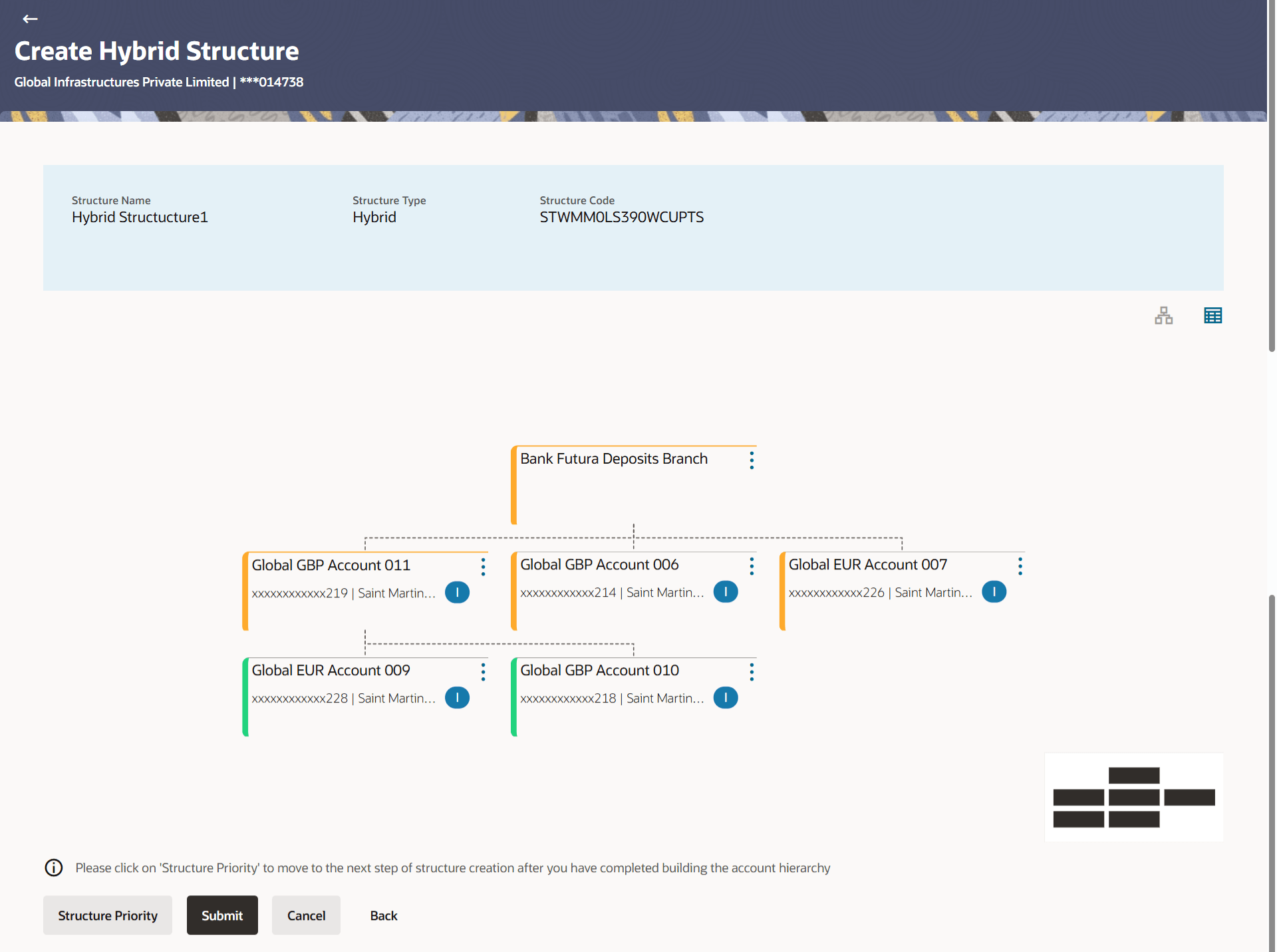
This screen enables the user to view the added accounts in both the Tree and Table view.The Create Hybrid Structure – Submit - Tree View screen displays
Figure 2-71 Create Hybrid Structure – Submit - Tree View Table 2-50 Create Hybrid Structure – Submit - Tree View – Field Description Note: Only accessible internal accounts of the primary party and the linked parties as part of GCIF will be displayed. This field will appear only if the user selects the charge account number.
Note:
Field
Description
Structure Code
Displays the structure ID of the structure.
Structure Type
Displays the type of the structure.
Structure Name
Displays the name of the structure.
Charge Account
Displays the charge account number and account name from which the charges can be collected.
Header Account
Information displayed on notional header account card.
Branch
Displays the branch name for the header account.
Currency
Displays the currency for the header account.
Displays the number of the child account(s) linked to the parent account.
Real Account
Information displayed on real account card.
Account Name
Displays the name of the account.
Account Number
Displays the account number of the user in masked format.
Location
Displays the location of the account.
Account Type
Displays the type of account.
Account Currency
Displays the currency of the account.
Displays the number of the child account(s) linked to the parent account.
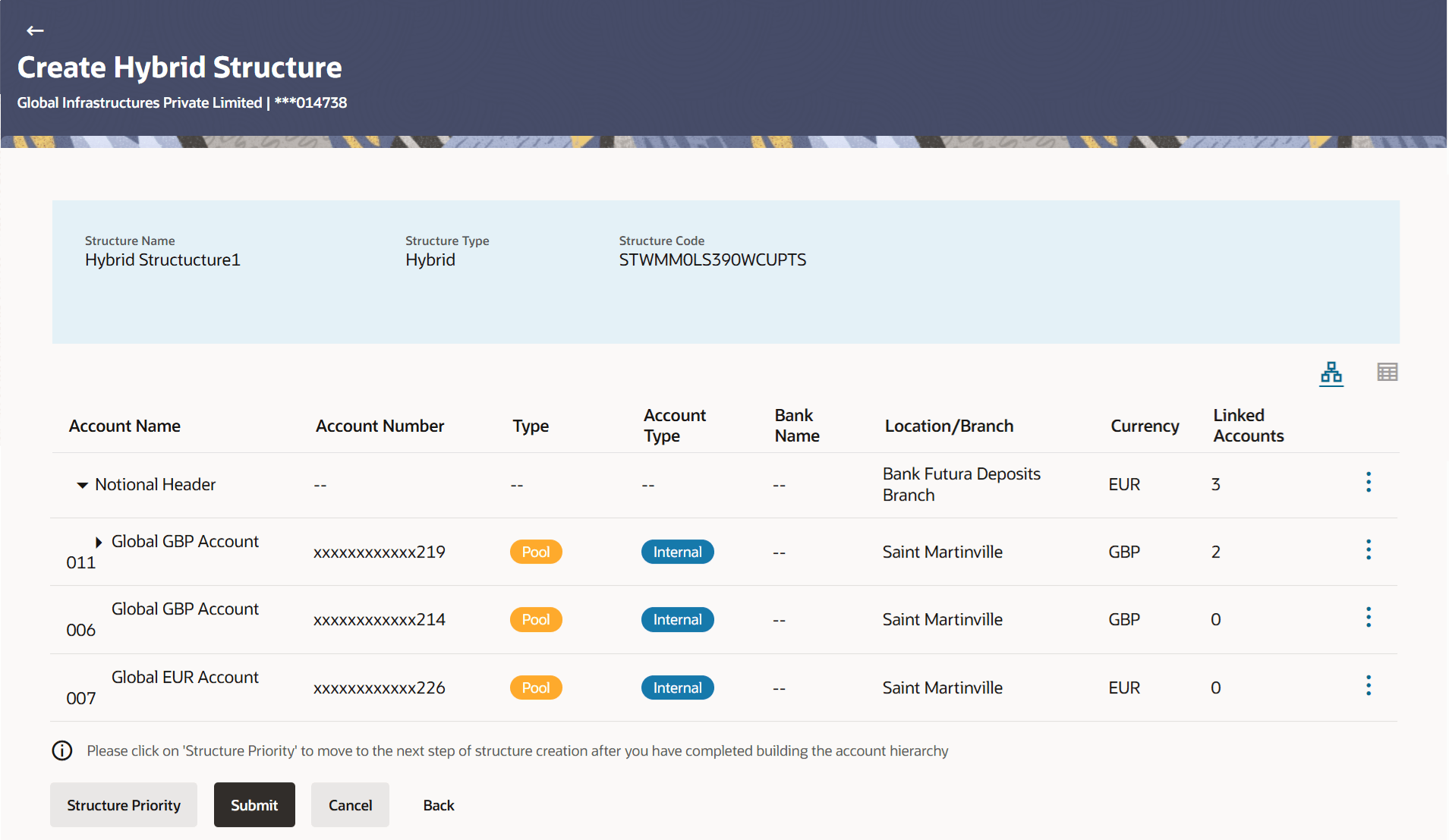
- Click to view the added accounts in the table view.The Create Hybrid Structure - Submit - Table View screen displays.For more information on fields, refer to the field description table.
Figure 2-72 Create Hybrid Structure – Submit - Table View
Table 2-51 Create Hybrid Structure - Submit - Table View – Field Description
Field Description Structure Code Displays the structure ID of the structure. Structure Type Displays the type of the structure. Structure Name Displays the name of the structure. Charge Account Displays the charge account number and account name from which the charges can be collected. Note: Only accessible internal accounts of the primary party and the linked parties as part of GCIF will be displayed. This field will appear only if the user selects the charge account number.
Header Account Information displayed for header account and each child account. Account Name Displays the name of the customer linked to the user’s account. Account Number Displays the account number of the user in masked format. Type Displays the type of structure. Account Type Displays the type of account. The available options are:- Internal: An account which is internal to the bank.
- External: An account which is external to the bank and linked for liquidity management.
Bank Name Displays the name of the bank. Location/Branch Displays the location/branch name of the account. Currency Displays the currency of the account. Linked Accounts Displays the number of the child account(s) linked to the parent account. Note:
- Only Header node and its immediate child accounts will appear on the screen initially.
- To view further nodes, click on the respective nodes to expand and view its child accounts
- Click and then click Link from the account header card.
- The Create Hybrid Structure - Link Accounts overlay screen displays.
- Click Child Instructions to set the instructions for the sweep account pairs. This option will appear only for the parent accounts with child accounts.
The Create Hybrid Structure – Set Instructions screen displays.
- Click Reallocation to update the reallocation method for the pool account pairs. This option will appear only for the parent accounts with the child accounts.
The Create Hybrid Structure – Reallocation screen displays.
- Click Account Details to view the account details.
The Account Details overlay screen displays.
- Click Undo link. A Undo Link Account pop-up displays confirming the removal of accounts.
This screen enables the user to review the updated structure details in the new structure.
Figure 2-73 Create Hybrid Structure - Review
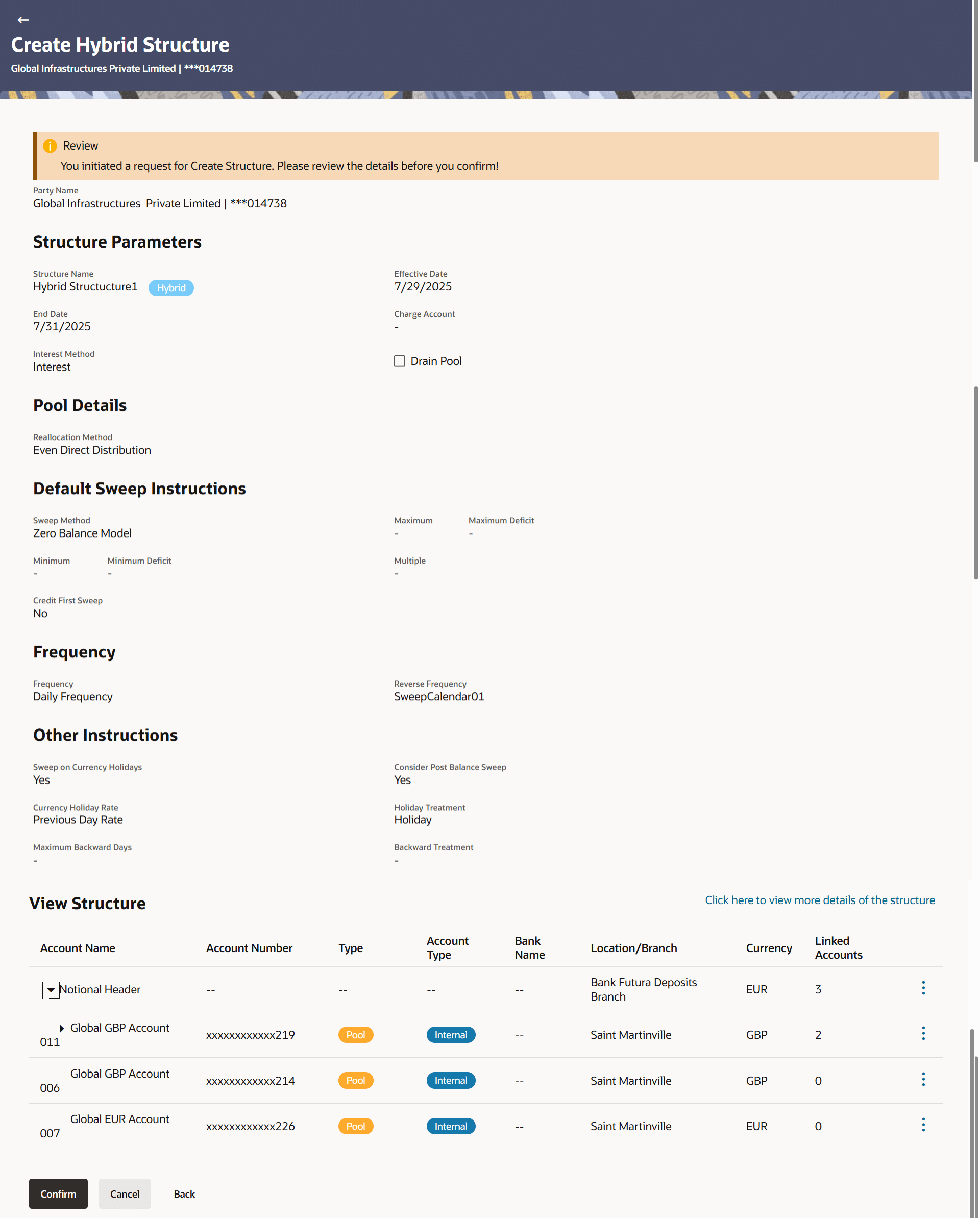
- Click and view the Account Details and Child Instruction/Reallocation of added accounts.
Note:
The Child Instruction/Reallocation option will be enabled only after the parent accounts nodes are expanded. - Perform any one of the following actions:
- Click Review Structure to review the structure.
- Click Confirm to create the hybird structure.
- Click Cancel to cancel the operation and navigate back to Dashboard.
- Click Back to navigate back to the previous screen.
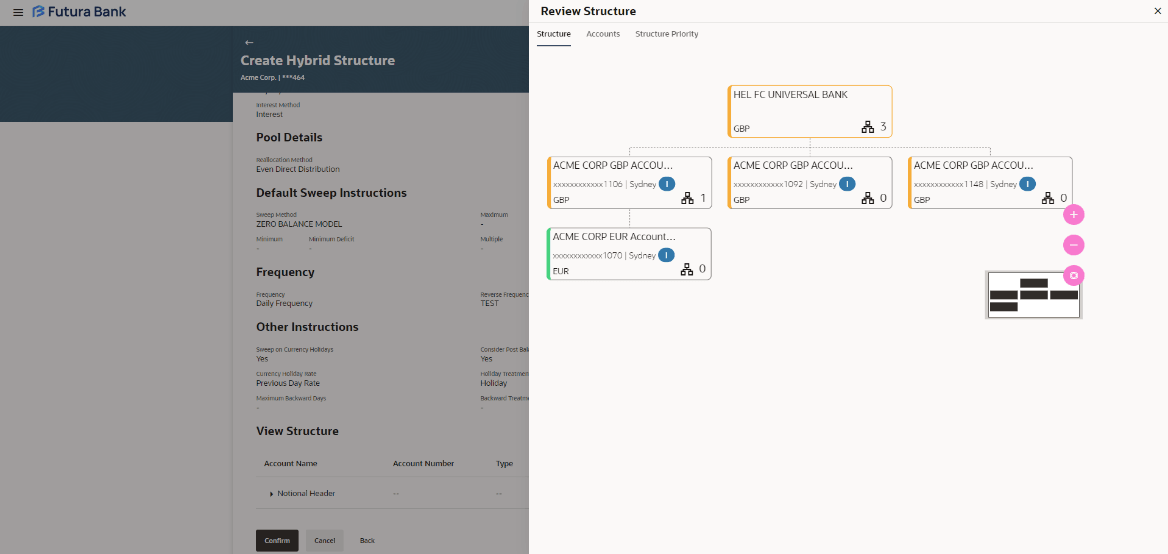
The Create hybrid Structure – Review Structure overlay screen displays.Figure 2-74 Create Hybrid Structure – Review Structure Tab
Figure 2-75 Create Hybrid Structure – Accounts Tab
Figure 2-76 Create Hybrid Structure – Structure Priority Tab
- Click + icon to zoom in the structure.
- Click – icon to zoom out the structure.
- Click
 to fit the structure to screen.
- Click to close the review structure overlay screen.
Parent topic: Create Account Structure