3.3.3 View Structure Simulation - Hybrid
This topic privides the sustematic instructions to view the Hybrid simulation structure.
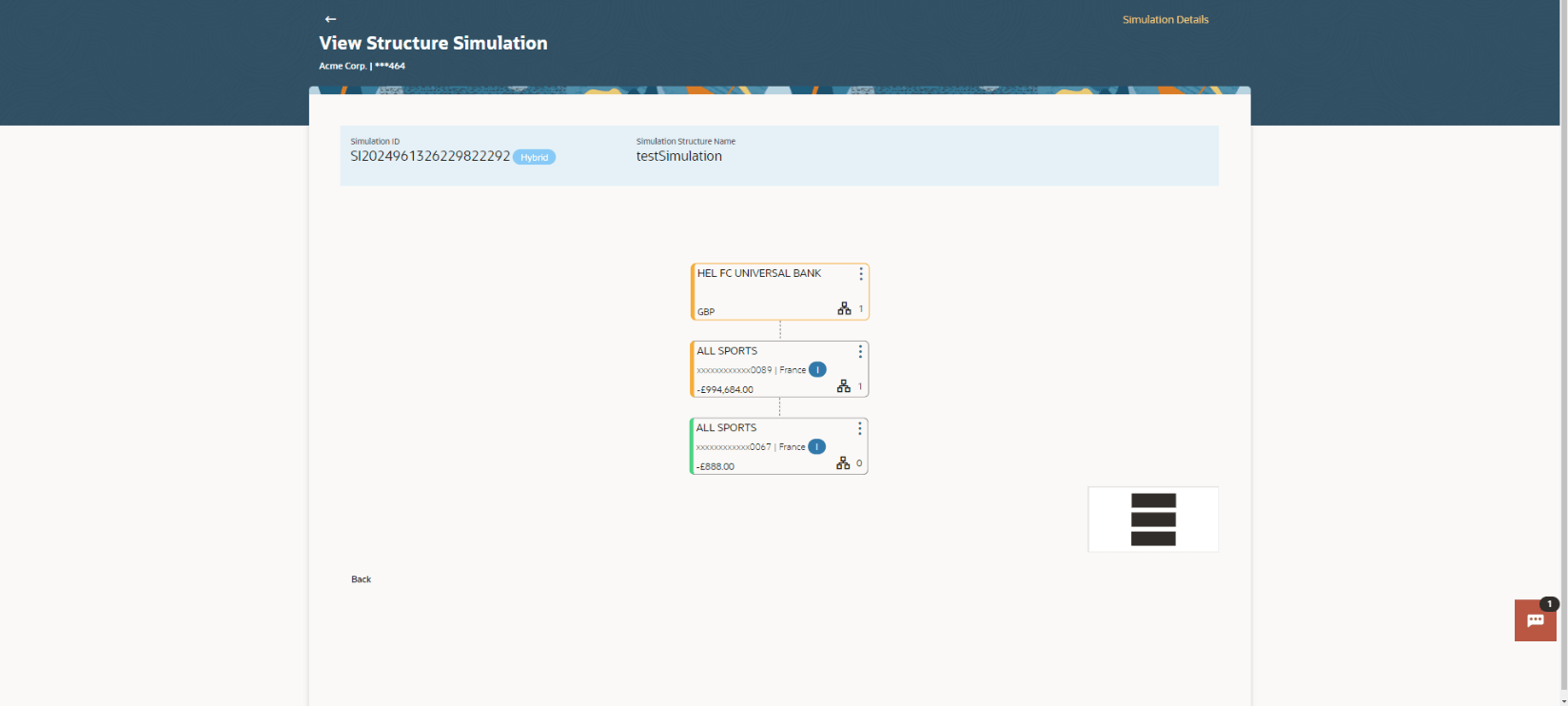
- In the Simulation Structure List screen, click on the specific simulation structure code.The View Hybrid Simulation Structure screen displays.For more information on fields, refer to the field description table.
Figure 3-47 View Hybrid Structure Simulation – Tree View
Table 3-38 View Hybrid Structure Simulation - Table View – Field Description
Field Description Simulation Structure Code Displays the structure ID of the simulation structure. Simulation Structure Type Displays the name of the simulation structure. Simulation Structure Name Displays the name of the simulation structure. Header Account Information displayed on notional header account card in tree view.. Branch Displays the branch name for the header account. Currency Displays the currency for the header account. Real Account Information displayed on real account card in tree view. Account Name Displays the name of the account. Account Number Displays the account number of the user in masked format. Location Displays the location of the account. Account Type Displays the type of account. The available options are:- I: An account which is internal to the bank.
- E: An account which is external to the bank and linked for liquidity management.
Account Balance Displays the currency and the available balance in the account. 
Displays the number of the child account linked to the account. - Click
 to get the following options on Account
Card.
to get the following options on Account
Card.- Click Account Details to view the
account details.
The Account Details overlay screen displays. For more information, refer unresolvable-reference.html#GUID-08F38AEC-C362-4040-B211-C25EEB7EBEA9
- Click Reallocation to view the
reallocation details. This option will appear only for the parent accounts
with the child accounts.
The Reallocation overlay appears for pool account pairs. For more information, refer unresolvable-reference.html#GUID-08F38AEC-C362-4040-B211-C25EEB7EBEA9.
- Click Child Instructions to view the
child instructions. This option will appear only for the parent accounts
with the child accounts.
The View Instructions overlay displays for sweep account pairs. For more information, refer View Structure Simulation - Sweep.
- Click Account Details to view the
account details.
- Click the Simulation Details link on the top right
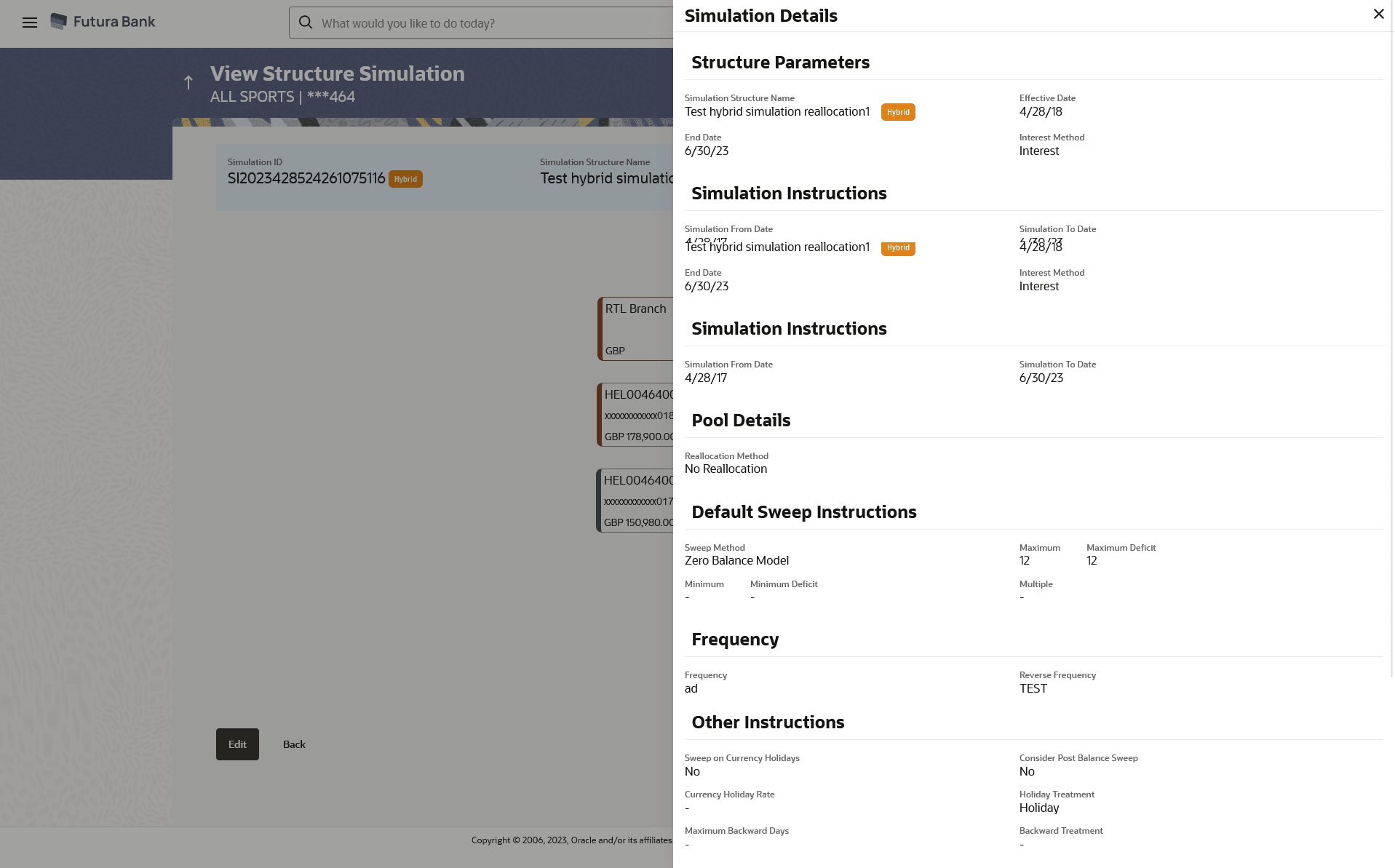
corner of the screenThe Simulation Details overlay screen displaying the parameters set at the account structure level are shown.For more information on fields, refer to the field description table.
Figure 3-48 View Hybrid Structure Simulation - Simulation Details
Table 3-39 View Hybrid Structure – Simulation Details - Field Description
Field Description Simulation Structure Name Displays the name of the simulation structure. Simulation Structure Type Displays the type of simulation structure. Effective Date Displays the date from which the pool structure execution should take place. End Date Displays the date till which the pool structure execution should take place. Interest Method Displays the method by which the interest is calculated. Simulation Instructions Information displayed for simulation instructions Simulation From Date Displays the date from which the simulation execution should take place. Simulation To Date Displays the date till which the simulation execution should take place. Pool Details Information specified in below fields are related to pool details. Reallocation Method Displays the reallocation method set at the parent and child account pair. Central Account Number Displays the account in which the interest arrived is credited to one central account, which can be any one of the participating accounts or a separate account. This field appears if the user select Central Distribution from the Reallocation Method list.
Central Account Currency Displays the currency and branch of the central account. This field appears if the user select Central Distribution from the Reallocation Method list.
Central Account Branch Displays the currency and branch of the central account. This field appears if the user select Central Distribution from the Reallocation Method list.
Default Sweep Instructions Information specified in below fields are related to default sweep instructions. Sweep Method Displays the sweep method that is to be applied to the structure. Fixed Amount Displays the fixed amount set for executing sweep. Maximum Displays the maximum amount set for executing sweep. Maximum Deficit Displays the maximum deficit amount set for executing sweep. Minimum Displays the minimum amount set for executing sweep. Minimum Deficit Displays the minimum deficit amount set for executing sweep. Threshold Amount Displays the threshold amount for which the sweep is executed (if set). Frequency Information specified in below fields are related to frequency. Frequency Displays the frequency at which the sweep is executed. Reverse Frequency Displays the reverse frequency at which the reverse sweep is executed. Other Instructions Information specified in below fields are related to other instructions. Consider Post Sweep Balance Displays whether the post sweep balance is considered. Sweep on Currency Holiday Displays whether the sweep on currency holiday is enabled. Currency Holiday Rate Displays the interest rate on Currency Holiday. The available option is:
- Previous Working Date
Holiday Treatment Displays the holiday treatment. The available options are:- Holiday
- Next Working Date
- Previous Working Date
Maximum Backward days Displays the maximum backward days. This field is enabled only if the Holiday Treatment is selected as Previous Working Date.
Backward Treatment Displays the backward treatment. The available options are:- Move forward
- Holiday
- Click
 to close the overlay displayed with structure parameters.
Parent topic: View Structure Simulation