2.2.1 Add Account Payee - Domestic Account
This topic describes the systematic instruction to Add Account Payee - Domestic Account screen.
A domestic account transfer is one which involves the transfer of funds to an account that is held with another bank within the same country or politically united region.
Note:
Bank can configure the network groups through backend as per the requirement of the specific region and based on the available APIs. (For example: if API is available to check on-us payee/bank code. They can configure within bank as part of another network, provided fields required are same for both). Refer the network groups created in case of UK payments.- From the Add Account Payee screen, select the payee type to
specify the details.
- Select the Payee Type as Domestic, and then choose the
required network group.
- Click Within Bank and FPS from the network group and specify
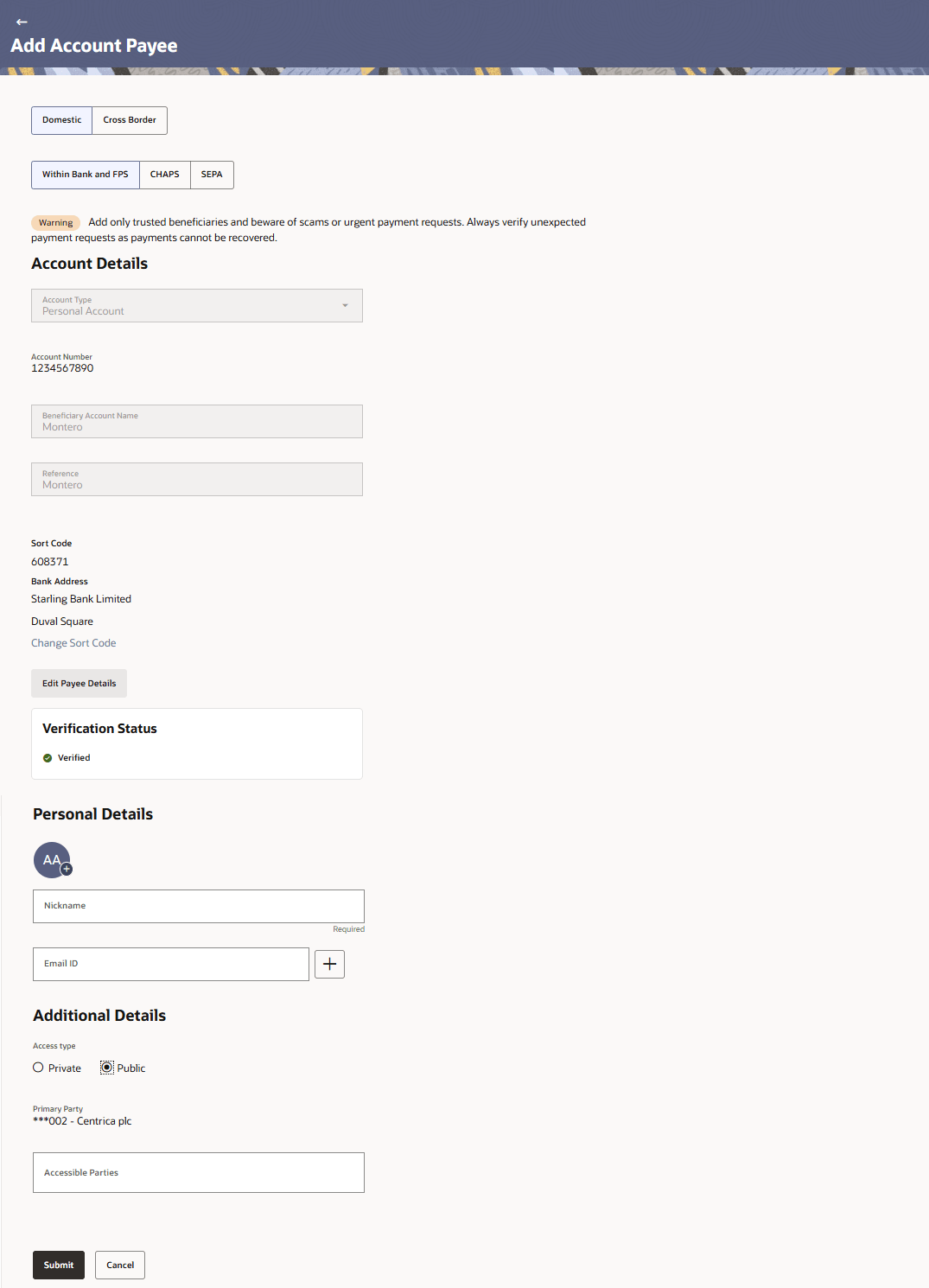
the required details.The Add Account Payee_Domestic_Within Bank and FPS screen is displayed.
Figure 2-8 Add Payee – Domestic Account - Within Bank and FPS
Note:
The below field description is not country specific and is given for general information. Fields will be populated based on the country/region fields configuration for Domestic Bank Account.Note:
The fields which are marked as Required are mandatory.Note:
Within-bank payees cannot be created from non within bank network groups. OBPM validation (Sort Code/IFSC/BIC) applies to payments, bulk uploads, and payee maintenance.For more information on fields, refer to the field description table.
Table 2-4 Add Payee – Domestic - Within Bank and FPS - Field Description
Field Name Description Payee Type Select Domestic as Payee Type. Network Group Select type payment network group as Within Bank and FPS. Note: Network groups are configurable through the backend. This is an example for UK payments.
Account Details Information specified in below fields are related to account details. Account Type Select the type of account associated with the payee. The available options are:- Personal Account
- Business Account
Account Number Specify the account number of the payee. Confirm Account Number The user is required to re-enter the payee’s account number in this field. Beneficiary Account Name Enter the name of the payee as maintained against the payee’s bank account. Reference Specify a reference to help identify the payee or transaction. Bank Details Displays the bank information based on the entered sort code. Sort Code Specify the sort code of the beneficiary bank and tab out to display the bank details. Bank Address Displays the address of the beneficiary bank based on the entered sort code. Change Sort Code Click this hyperlink to modify the entered sort code. Verify & proceed Click this button to validate the specified details and proceed to the personal information section. Personal Details Information specified in below fields are related to personal details. Upload Photo Select this option to upload a profile photo against the payee. Following actions are available on the + icon:
- Upload – Browse and upload the profile picture.
- Choose Avatar - Select initials pattern profile picture or picture from suggestions.
- Remove - Removes the profile picture uploaded.
This option will only appear if no photo has been uploaded against the payee.
Note:- The maximum allowable image size is 1MB, and the accepted formats are limited to JPG and PNG.
- Once a photo is uploaded against the payee, click on the + icon and select Upload/Choose Avatar to update the profile picture.
Nickname Specify a nickname to be assigned to the specific account of the payee for the purpose of easy identification. Email ID Email addresses of the payee. Note: This field is provided simply as a base product feature and will be available to send across to the backend Payments Processor during posting a payment. There will be no notifications sent to the payee on this email address by OBDX. Doing any processing of this field would be an implementation time activity.
Additional Details Information specified in below fields are related to additional details. Access Type Specify the access type to be assigned to the payee. The options are:
- Public
- Private
Primary Party The primary party associated to the user. The primary party users will always have access to the payee if it’s Public.
.Accessible to Parties Accessible parties associated to the user. During payee creation a corporate user can define the parties within his GCIF to whom this payee will be accessible if the payee is public.
The primary party users will always have access to the payee if it’s Public.
- Click CHAPS from the network group and specify the required
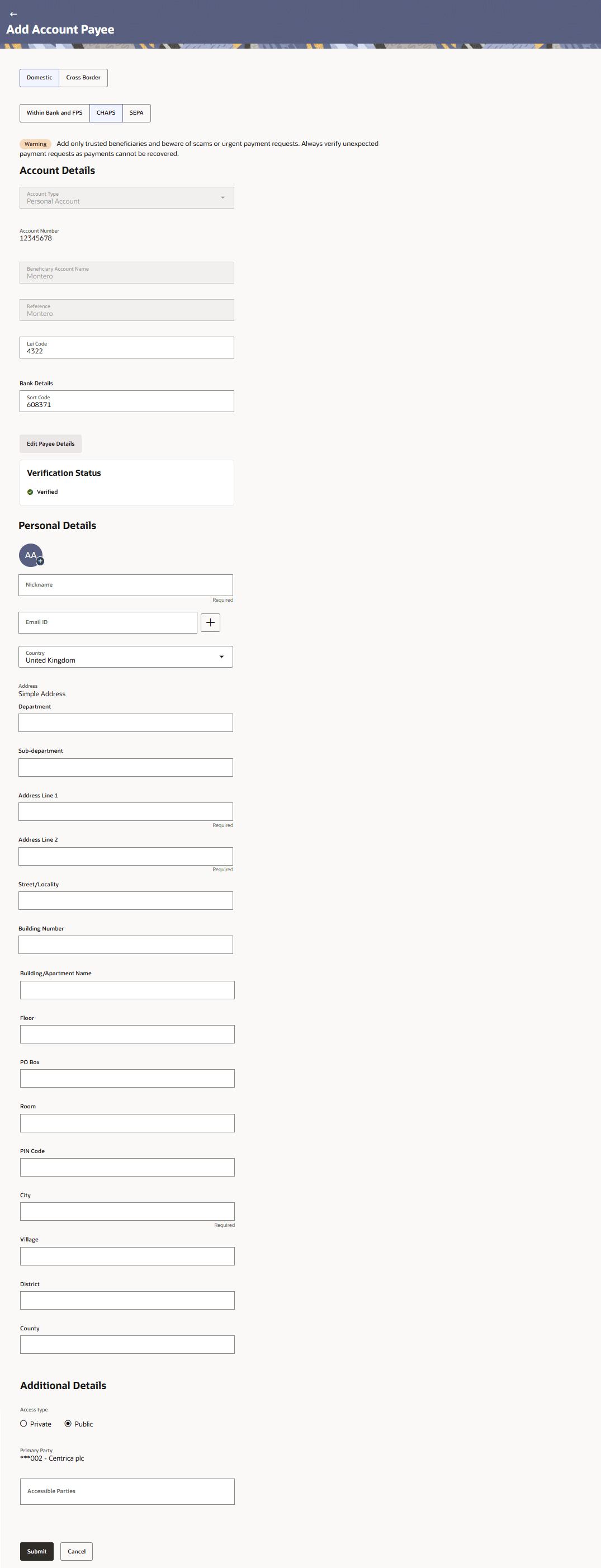
details.The Add Account Payee - Domestic - CHAPS screen is displayed.
Figure 2-9 Add Account Payee - Domestic - CHAPS
Note:
The below field description is not country specific and is given for general information. Fields will be populated based on the country/region fields configuration for Domestic Bank Account.Note:
The fields which are marked as Required are mandatory.For more information on fields, refer to the field description table.
Table 2-5 Add Payee – Domestic - CHAPS - Field Description
Field Name Description Payee Type Select Domestic as Payee Type. Network Group Select type payment network group as CHAPS. Note: Network groups are configurable through the backend. This is an example for UK payments.
Account Details Information specified in below fields are related to account details. Account Type Select the type of account associated with the payee. The available options are:- Personal Account
- Business Account
Account Number Specify the account number of the payee. Confirm Account Number The user is required to re-enter the payee’s account number in this field. Beneficiary Account Name Enter the name of the payee as maintained against the payee’s bank account. Reference Specify a reference to help identify the payee or transaction. Verify Account Select this to verify the account mentioned. Bank Details Displays the bank information based on the entered sort code. Sort Code Specify the sort code of the beneficiary bank and tab out to display the bank details. Bank Address Displays the address of the beneficiary bank based on the entered sort code. Change Sort Code Click this hyperlink to modify the entered sort code. Verify & proceed Click this button to validate the specified details and proceed to the personal information section. Personal Details Information specified in below fields are related to personal details. Upload Photo Select this option to upload a profile photo against the payee. Following actions are available on the + icon:
- Upload – Browse and upload the profile picture.
- Choose Avatar - Select initials pattern profile picture or picture from suggestions.
- Remove - Removes the profile picture uploaded.
This option will only appear if no photo has been uploaded against the payee.
Note:- The maximum allowable image size is 1MB, and the accepted formats are limited to JPG and PNG.
- Once a photo is uploaded against the payee, click on the + icon and select Upload/Choose Avatar to update the profile picture.
Nickname Specify a nickname to be assigned to the specific account of the payee for the purpose of easy identification. Email ID Email addresses of the payee. Note: This field is provided simply as a base product feature and will be available to send across to the backend Payments Processor during posting a payment. There will be no notifications sent to the payee on this email address by OBDX. Doing any processing of this field would be an implementation time activity.
Country Specify the country where the payee’s is located. Address Enter the payee’s address. Address Fields are displayed as per the configuration. Refer Chapter: Regulatory Changes for Cross-Border Payments – MT to MX Migration Enhancements.
Additional Details Information specified in below fields are related to additional details. Access Type Specify the access type to be assigned to the payee. The options are:
- Public
- Private
Primary Party The primary party associated to the user. The primary party users will always have access to the payee if it’s Public.
.Accessible to Parties Accessible parties associated to the user. During payee creation a corporate user can define the parties within his GCIF to whom this payee will be accessible if the payee is public.
The primary party users will always have access to the payee if it’s Public.
- Click SEPA from the network group and specify the required
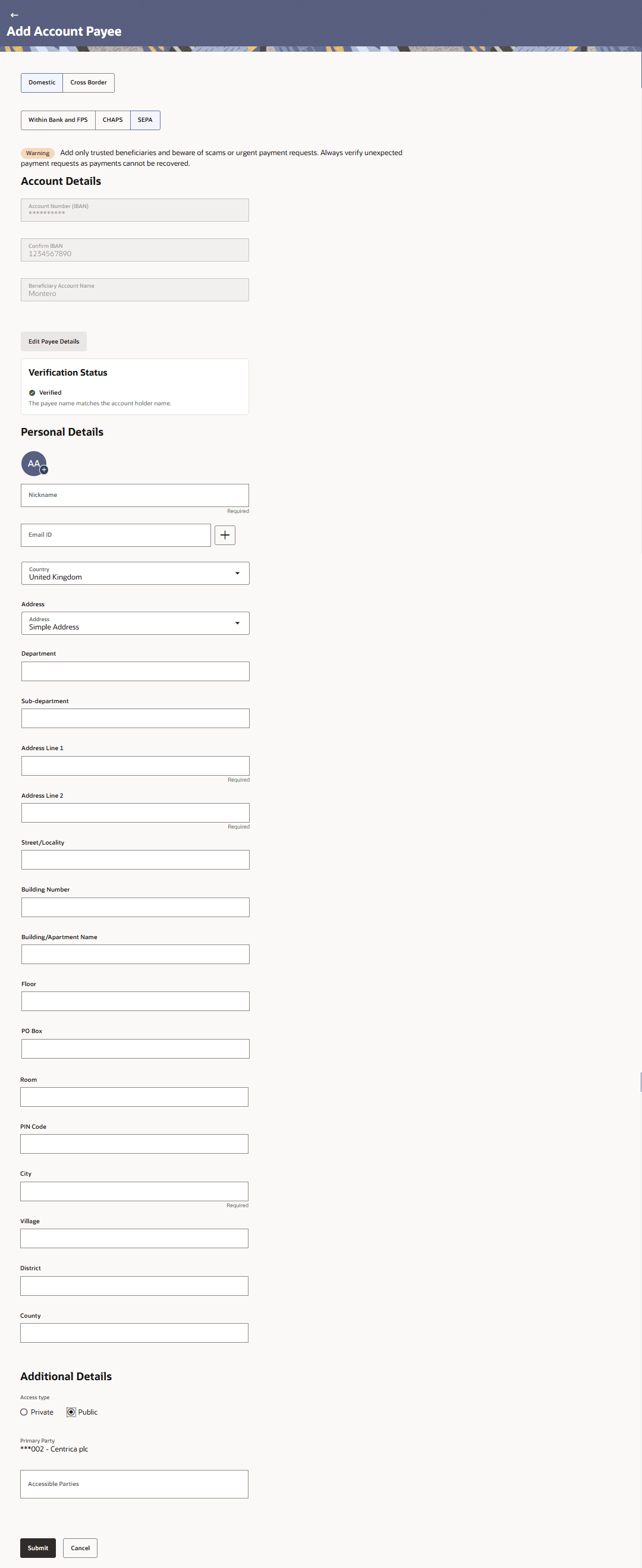
details.The Add Account Payee - Domestic - SEPA screen is displayed.
Figure 2-10 Add Account Payee - Domestic - SEPA
Note:
The below field description is not country specific and is given for general information. Fields will be populated based on the country/region fields configuration for Domestic Bank Account.Note:
The fields which are marked as Required are mandatory.For more information on fields, refer to the field description table.
Table 2-6 Add Payee – Domestic - SEPA - Field Description
Field Name Description Payee Type Select Domestic as Payee Type. Network Group Select type payment network group as SEPA. This field is displayed only when the Payee Type is selected as Domestic.
Account Details Information specified in below fields are related to account details. Account Number (IBAN) Specify the International Bank Account Number (IBAN) of the beneficiary account. Confirm IBAN Re-enter the IBAN to confirm the beneficiary account details. Beneficiary Account Name Enter the name of the payee as maintained against the payee’s bank account. Verify & proceed Click this button to validate the specified details and proceed to the personal information section. Personal Details Information specified in below fields are related to personal details. Upload Photo Select this option to upload a profile photo against the payee. Following actions are available on the + icon:
- Upload – Browse and upload the profile picture.
- Choose Avatar - Select initials pattern profile picture or picture from suggestions.
- Remove - Removes the profile picture uploaded.
This option will only appear if no photo has been uploaded against the payee.
Note:- The maximum allowable image size is 1MB, and the accepted formats are limited to JPG and PNG.
- Once a photo is uploaded against the payee, click on the + icon and select Upload/Choose Avatar to update the profile picture.
Nickname Specify a nickname to be assigned to the specific account of the payee for the purpose of easy identification. Email ID Email addresses of the payee. Note: This field is provided simply as a base product feature and will be available to send across to the backend Payments Processor during posting a payment. There will be no notifications sent to the payee on this email address by OBDX. Doing any processing of this field would be an implementation time activity.
Additional Details Information specified in below fields are related to additional details. Access Type Specify the access type to be assigned to the payee. The options are:
- Public
- Private
Primary Party The primaryparty associated to the user. The primary party users will always have access to the payee if it’s Public.
.Accessible to Parties Accessible parties associated to the user. During payee creation a corporate user can define the parties within his GCIF to whom this payee will be accessible if the payee is public.
The primary party users will always have access to the payee if it’s Public.
- Click Within Bank and FPS from the network group and specify
the required details.
- Perform one of the following actions:
- Click Cancel to discard the details.
- Click Submit to submit the details.
Parent topic: Add Account Payee