3.1.3 Make Payment - New Payee
This topic provides the systematic instructions to user for initiating payment requests to payees who are not registered within the system.
Since the payment request is for an unregistered payee, the user is required to specify details of the payee along with transaction details. Once the payment request is initiated, the user can register the payee as a payee by selecting the Add as Payee option provided on the confirm screen. The add payee request will go through the additional approval request if approval is configured for add payees.
Users can initiate Within Bank, Domestic and Cross Border payment requests.
To initiate payment request for new payee:
- Under the Transfer To section, click on the New Payee. The Transfer To overlay screen will appear with the New Payeetab to add new payee.
Perform one of the following actions:
- If you select the Domestic option in the Payee
Type field:
The Account Details appears for the domestic payment.
- If you select the Cross Border option in the
Payee Type field:
The Account Details appears for the cross-border payment.
The Make Payment screen appears.
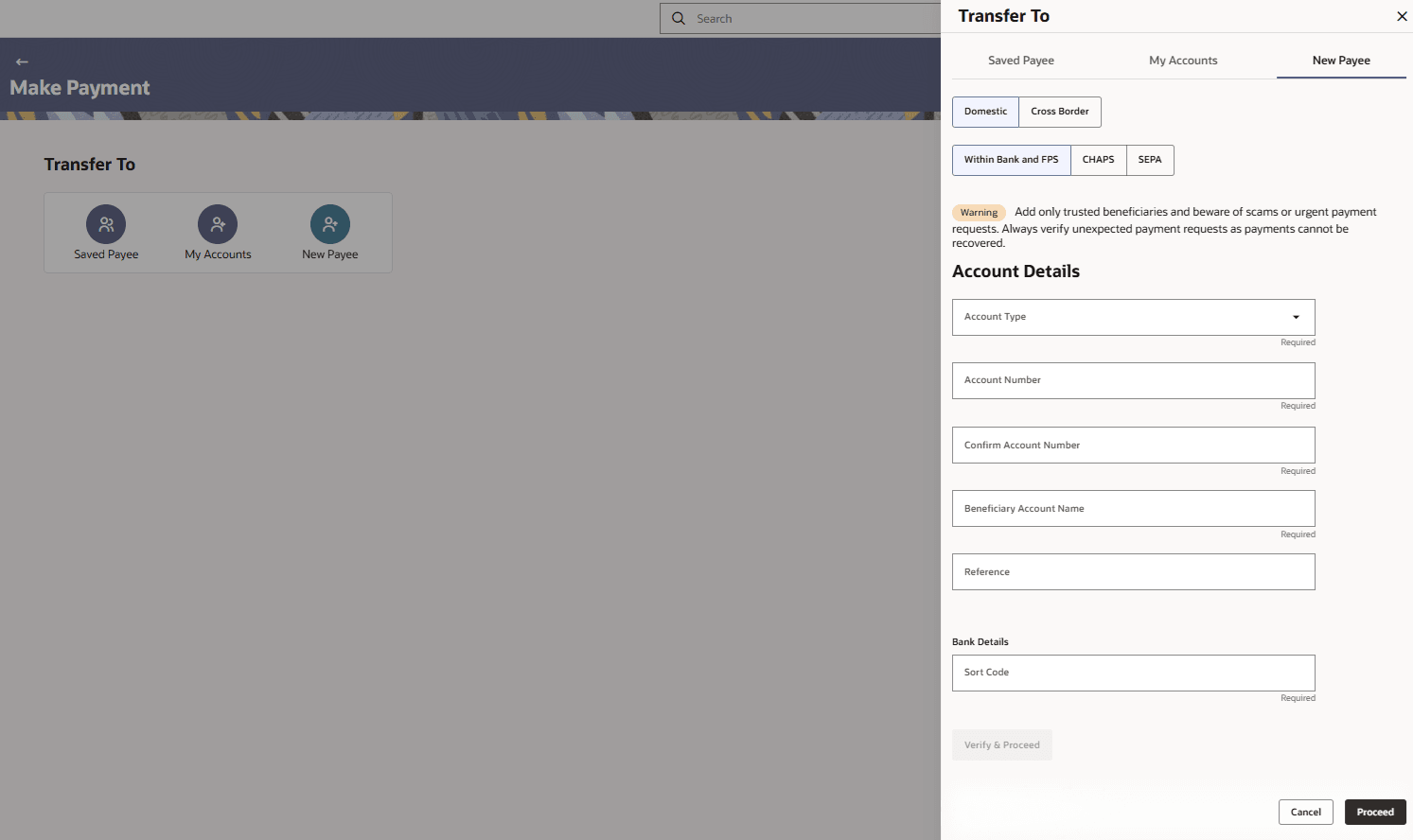
Figure 3-6 Make Payment- Transfer To (New Payee - Domestic) overlay screen
Below payee fields appears for the Domestic payment type. Fields mentioned below comes based on the region configuration. Out of the box supported regions and the corresponding domestic payment fields are mentioned in section Regionalization for Domestic Payments.
Note:
The fields which are marked as Required are mandatory.For more information on fields, refer to the field description table.
Table 3-6 Make Payment- Transfer To (New Payee - Domestic) overlay screen - Field Description
Field Name Description Payee Type Select Domestic, Network Group Select type payment network group from the list. The options are:- Within Bank and FPS
- CHAPS
- SEPA
Note: Network groups are configurable through the backend. This is an example for UK payments.
Account Details Information specified in below fields are related to account details Account Type Select the type of account associated with the payee. Account Number OR
IBAN
Specify the account number of the payee or specify the IBAN of the payee. Confirm Account Number OR
Confirm IBAN
The user is required to re-enter the payee’s account number in this field, or The user is required to re-enter the IBAN in this field. Beneficiary Account Name Enter the name of the payee as maintained against the payee’s bank account. Reference Specify a reference to help identify the payee or transaction. Bank Details Displays the bank information based on the entered sort code. Sort Code Specify the sort code of the beneficiary bank and tab out to display the bank details. Bank Address Displays the address of the beneficiary bank based on the entered sort code. Change Sort Code Click this hyperlink to modify the entered sort code. Verify & proceed Click this button to validate the specified details and proceed to the personal information section. Personal Details Information specified in below fields are related to personal details Email ID Email addresses of the payee. Note: This field is provided simply as a base product feature and will be available to send across to the backend Payments Processor during posting a payment. There will be no notifications sent to the payee on this email address by OBDX. Doing any processing of this field would be an implementation time activity.
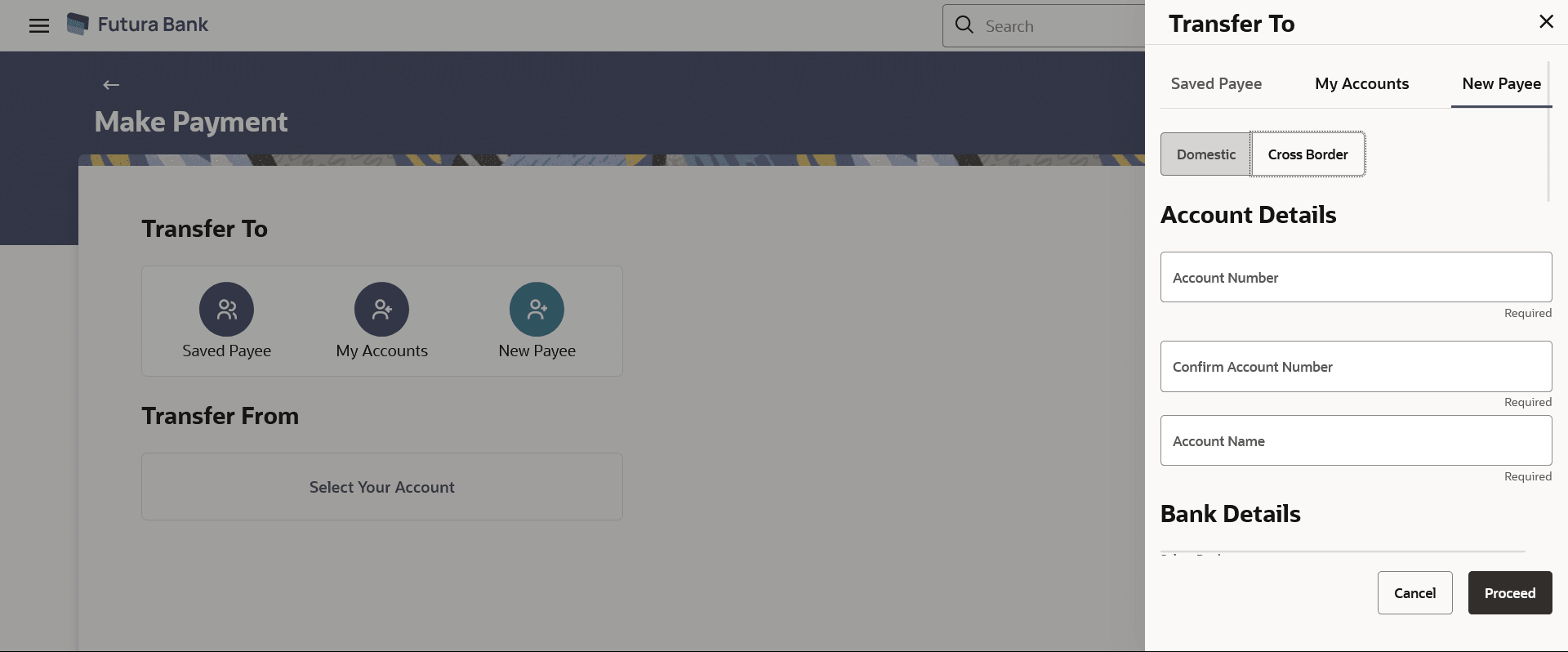
Figure 3-7 Make Payment- Transfer To (New Payee - Cross Border) overlay screen
Below payee fields appears for the Cross Border payment type.
Note:
The fields which are marked as Required are mandatory.For more information on fields, refer to the field description table.
Table 3-7 Make Payment- Transfer To (New Payee - Cross Border) overlay screen - Field Description
Field Name Description Payee Type Select Cross Border. Account Details Information specified in below fields are related to account details Account Number Specify the account number of the payee. Confirm Account Number The user is required to re-enter the payee’s account number in this field. Account Name Enter the name of the payee as maintained against the payee’s bank account. Lei Code Enter the Lei Code of the payee. Bank Details Information specified in below fields are related to bank details Select Bank The option to select the bank. The options are:
- Swift Code
- NCC (National Clearing code)
- Bank Details
Lookup Swift Code Link to search the SWIFT code. This link enabled if the Swift Code option is selected in the Select Bank field. For more information on Lookups, refer Lookups section.
National Clearing Code Lookup Link to search the NCC code. This link enabled if the NCC Code option is selected in the Select Bank field. For more information on Lookups, refer Lookups section.
Bank details - Select Bank Below fields are enabled if the Bank Details option is selected in the Select Bank field. Bank Name Name of the bank in which the payee account is held. Bank address Complete address of the bank at which the payee account is held. Country Country of the bank. City City to which the bank belongs. Transfer via Intermediary Bank The option to select another bank for Cross Border transaction as an intermediary bank. The options are:
- Swift Code
- NCC (National Clearing code)
- Bank Details
Swift Code Lookup Link to search the SWIFT code. This link enabled if the Swift Code option is selected in the Select Bank field. For more information on Lookups, refer Lookups section.
National Clearing Code Lookup Link to search the NCC code. This link enabled if the NCC Code option is selected in the Select Bank field. For more information on Lookups, refer Lookups section.
Bank Details - Select Bank Below fields are enabled if the Bank Details option is selected in the Select Bank field. Bank Name Name of the bank in which the payee account is held. Bank address Complete address of the bank at which the payee account is held. Country Country of the bank. City City to which the bank belongs. Personal Details Information specified in below fields are related to personal details. Email ID Email address of the payee. Note: This field is provided simply as a base product feature and will be available to send across to the backend Payments Processor during posting a payment. There will be no notifications sent to the payee on this email address by OBDX. Doing any processing of this field would be an implementation time activity.
Country Enter the country of the payee’s bank. Address Line 1- 3 Enter the address of the payee’s bank. City Enter the city of the payee’s bank. Zip Code Enter the zip code of the payee’s bank address - If you select the Domestic option in the Payee
Type field:
- Fill the details in the respective field and click on proceed.
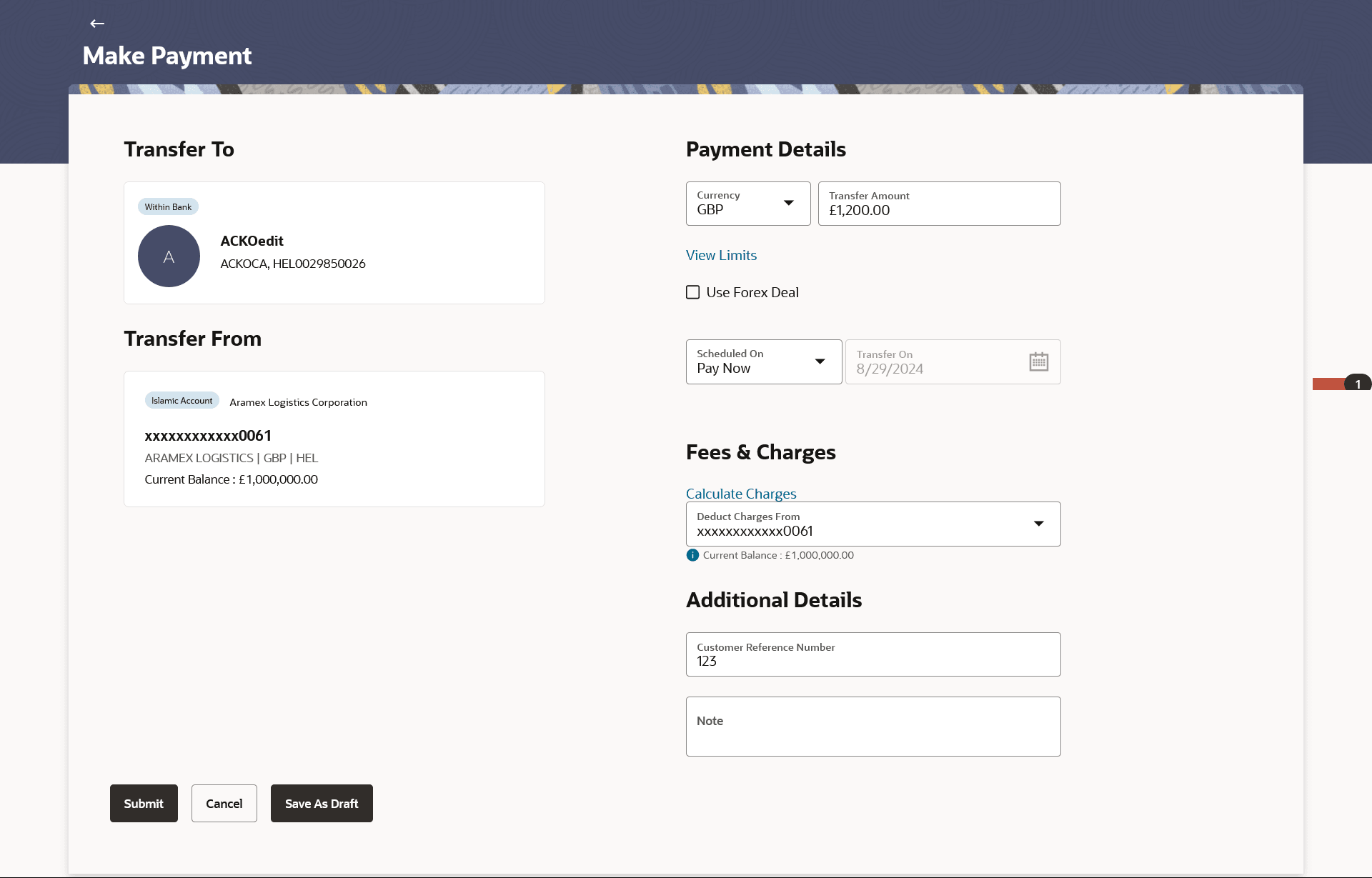
Once the payee details are entered Payment Details will be populated based on the payee type.
Note:
The fields which are marked as Required are mandatory.For more information on fields, refer to the field description table.
Table 3-8 Make Payment - Field Description
Field Name Description Transfer To Payee Type Displays the payment type associated with the payee. It could be:
- Within Bank
- Domestic
- Cross Border
Bank Name Displays bank name of the payee in case of Domestic and Cross Border Initials The initials of the payee account name will be displayed in place of the photo. Account Name, Account Number Displays the Account name and account number provided for the payee. Note:
Fields under Transfer From, Payment Details, Fees and Charges and Additional Details are same as mentioned above for Make Payment - Saved Payee.
Parent topic: Make Payment -Transfer to single user