54.1.1 Experience Builder - Create
This topic describes the systematic instruction to Experience Builder - Create option.
To create a experience:
- In the Experience Builder screen, click
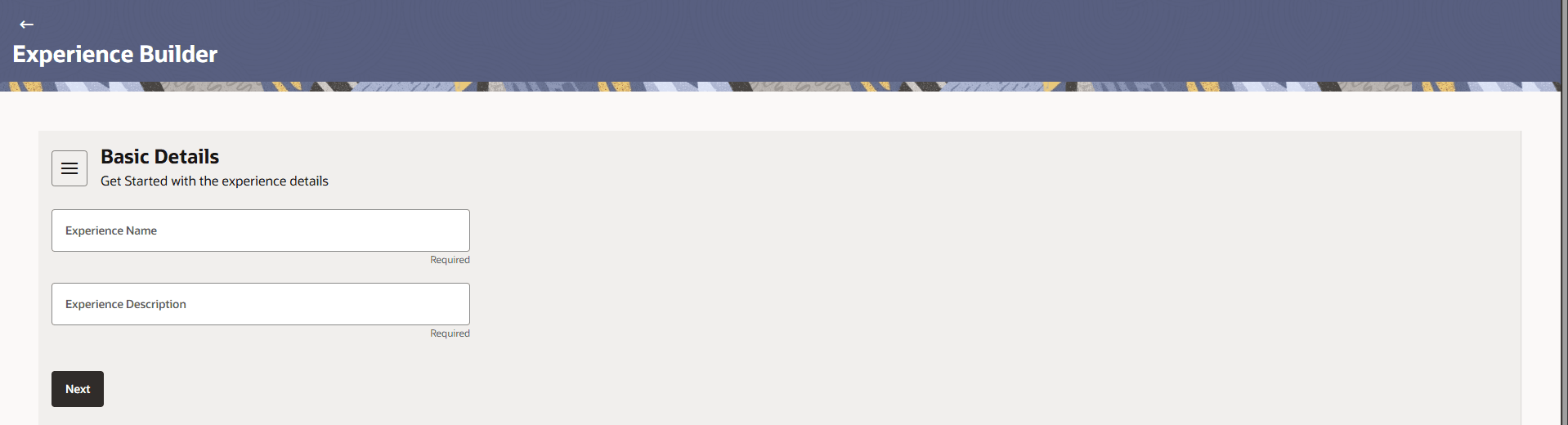
Create Experience. The Basic Details screen is displayed.
Figure 54-2 Experience Builder – Basic Details
Note:
The fields which are marked as Required are mandatory.For more information on fields, refer to the field description table.
Table 54-2 Experience Builder – Create -Basic Details - Step 1 - Field Description
Field Name Description Experience Name Specify the name for the experience being created. Experience Description Specify the description for the experience being created. - Click the Next button to upload the brand logo from the
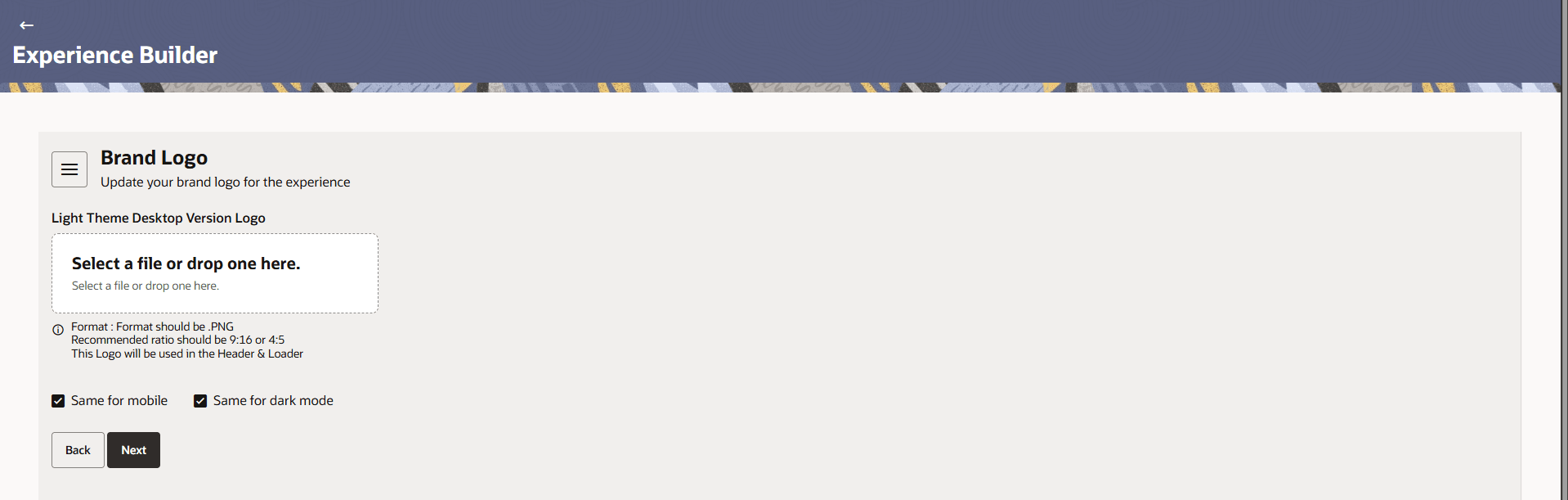
system.The Brand Logo screen is displayed.
Note:
The fields which are marked as Required are mandatory.For more information on fields, refer to the field description table.
Table 54-3 Brand Logo – Field Description
Field Description Brand Logo Displays the section to manage and upload brand logos. Light Theme Desktop Version Logo Upload the logo to be used for the desktop version in light theme. Select a file or drop one here Click or drag and drop a file to upload the logo. Format Indicates that the supported file format is .PNG. Recommended Ratio Specifies that the recommended image ratio is 9:16 or 4:5. Logo Usage Information Indicates that the uploaded logo will be used in the header and loader. Same for Mobile Select this check-box to use the same logo configuration for mobile devices. Same for Dark Mode Select this check-box to apply the same logo configuration for dark mode. - Click the Next button to specify the styling
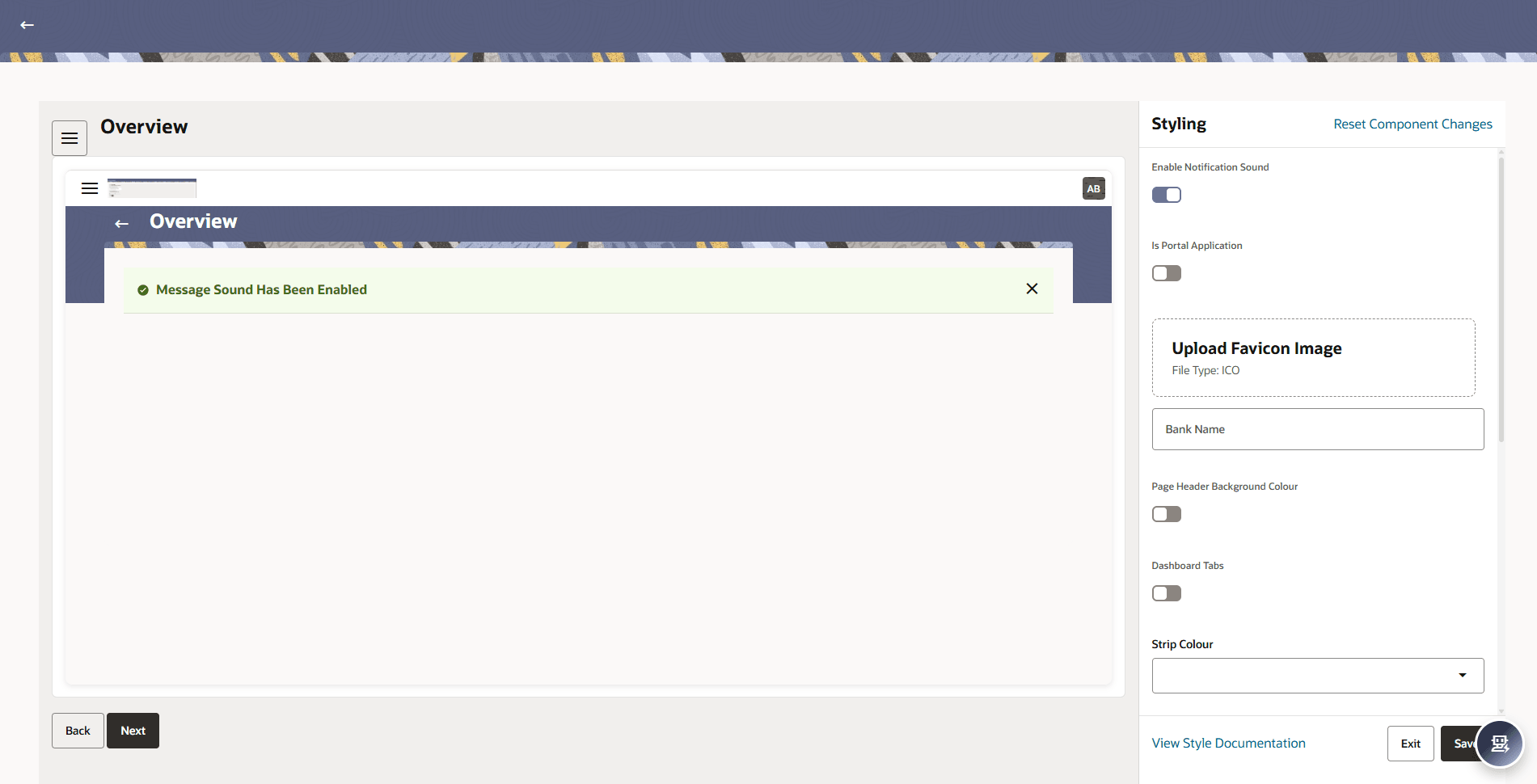
details.The Overview and Styling screen is displayed.
Table 54-4 Overview and Styling – Field Description
Field Description Styling Displays the section to configure styling and appearance settings. Reset Component Changes Click this huperlink to reset all styling changes to the default settings. Enable Notification Sound Click the toggle status to enable notification sounds. Is Portal Application Click the toggle status to indicates whether the application is configured as a portal. Upload Favicon Image Click and upload the favicon image to be displayed in the browser tab. Bank Name Specify the name of the bank to be displayed in the application. Page Header Background Colour Click the toggle status to enable the background color for the page header. Dashboard Tabs Click the toggle status to configure the appearance of dashboard tabs. Strip Colour Select the color for strips used in the interface. The options are:- Default
- Brand Colour
- Secondary Brand Colour
Apply Glass Morphism Click the toggle status to enable to apply a glass morphism visual effect to UI components. Main Content Background Colour Select the background color for the main content area. The options are:- Default
- Brand Colour
- Secondary Brand Colour
Body Background Colour Select the background color for the application body. The options are:- Default
- Brand Colour
- Secondary Brand Colour
Header Height Select the height of the header section. The options are:- Compact
- Wide
Header Padding Select the padding for the header section The options are:.- Extra Wide
- Wide
- Vertical Extra Wide
- Vertical Wide
Body Strip Colour Select the color for body strips within the interface. The options are:- Show
- Hide
View Style Documentation Click this huperlink to view the documentation style settings. Perform one of the following actions:
- Click the Exit button to exit the current screen without saving the changes.
- Click the Save button to save the entered details and applied configurations.
- Click the Next button to specify the styling
details.The Typography and Styling screen is displayed.
- Click the Basic button to specify the basic
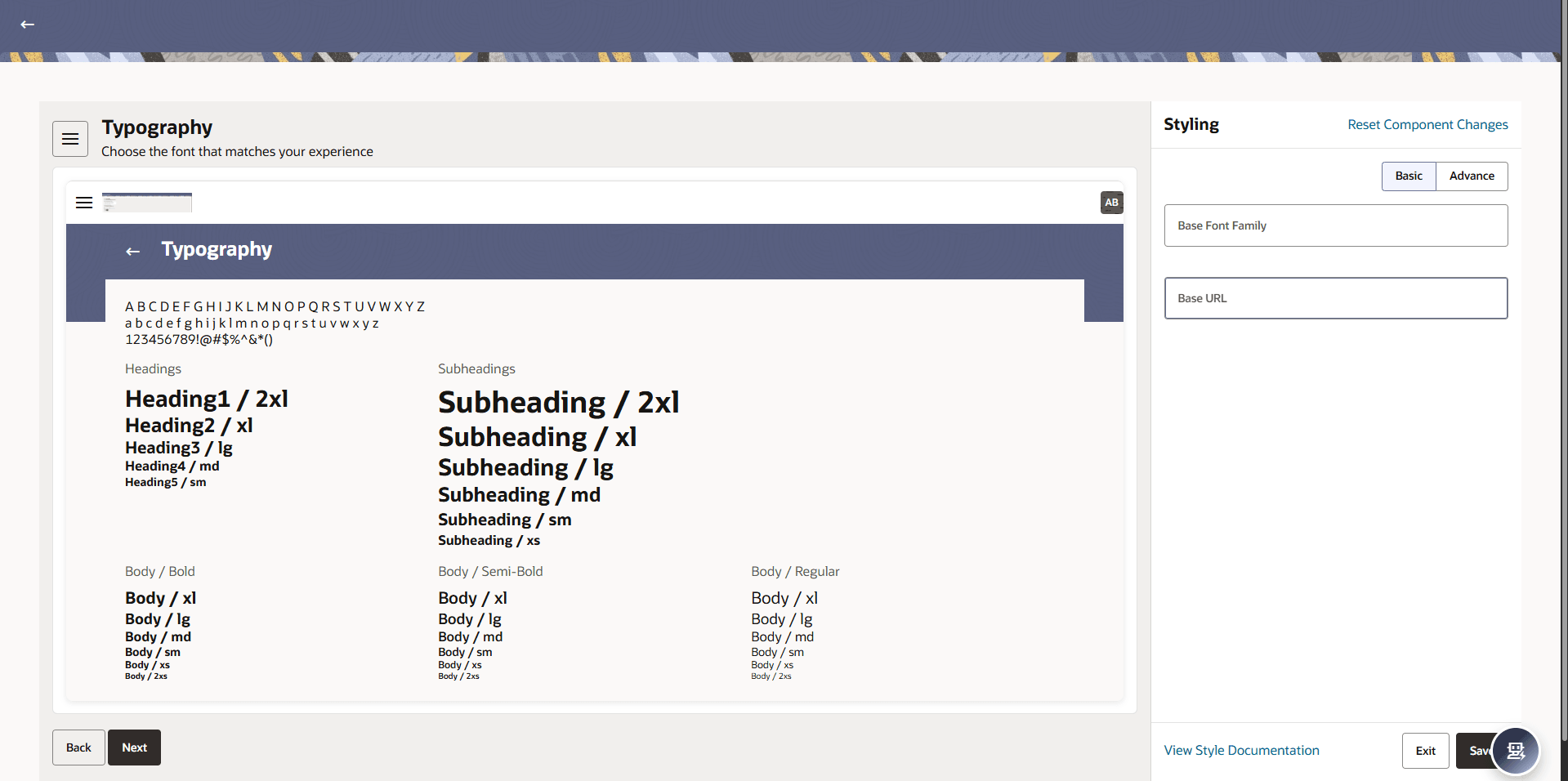
details.The Typography and Styling - Basic screen is displayed .
Figure 54-5 Typography and Styling - Basic
Table 54-5 Typography – Field Description
Field Description Typography Displays the section to configure font styles for the experience. Font Preview Displays a preview of selected font styles including alphabets, numbers, and special characters. Styling Displays the section for configuring styling options. Reset Component Changes Click the hyperlink to reset all typography and styling changes to default. Base Font Family Select the base font family for the application (for example, Arial, sans-serif). Base URL specifiy the base URL for font or style references. View Style Documentation Click to view detailed documentation for styling and typography. Exit Click to exit the screen without saving changes. Save Click to save the configured typography settings. Perform one of the following actions:- Click the Exit button to exit the current screen without saving the changes.
- Click the Save button to save the entered details and applied configurations.
- Click the Advance button to specify the advance
details.The Typography and Styling - Advance screen is displayed.
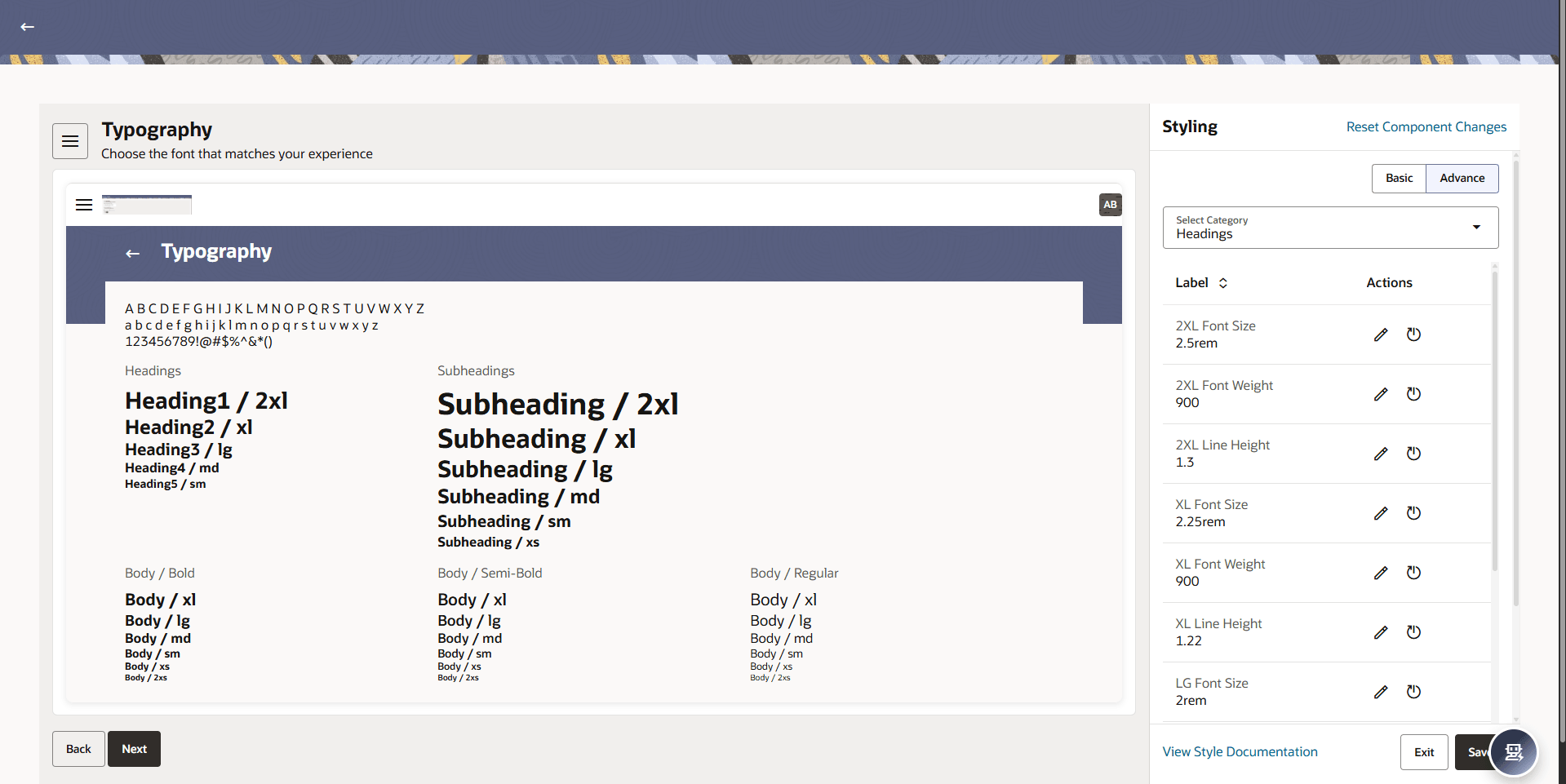
Figure 54-6 Typography and Styling - Advance
Table 54-6 Typography and Styling - Advance – Field Description
Field Description Select Category Select the category to configure typography settings. The options are:- Headings
- Subheadings
- Body
Label Displays the name of the typography attribute being configured. Actions Provides options to edit or reset the selected attribute. Perform one of the following actions:- Click the Exit button to exit the current screen without saving the changes.
- Click the Save button to save the entered details and applied configurations.
- Click the Basic button to specify the basic
details.
- Click the Next button to specify the styling
details.The Colour Palettes and Styling screen is displayed.
- Click the Basic button to specify the basic
colour details.The Colour Palettes and Styling - Basic screen is displayed.
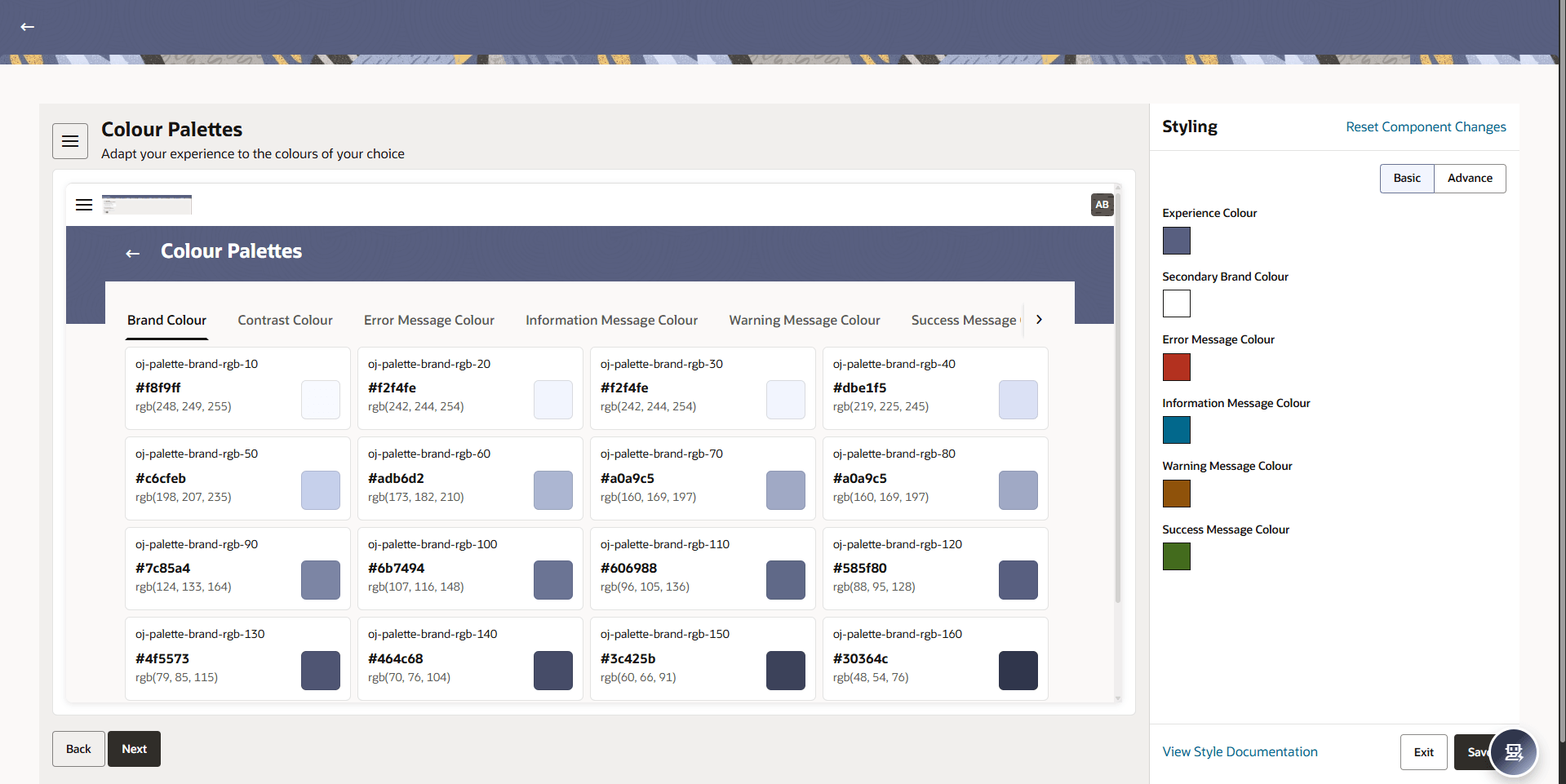
Figure 54-7 Colour Palettes and Styling - Basic
Table 54-7 Colour Palettes and Styling - Basic – Field Description
Field Description Colour Palettes Displays the section to configure color themes for the experience. Brand Colour Displays and allows selection of primary brand color shades. Contrast Colour Displays and allows selection of contrast color shades. Error Message Colour Displays and allows selection of colors used for error messages. Information Message Colour Displays and allows selection of colors used for informational messages. Warning Message Colour Displays and allows selection of colors used for warning messages. Success Message Colour Displays and allows selection of colors used for success messages. Styling Displays the panel to configure styling options. Reset Component Changes Click this hyperlink to reset all color and styling changes to default. Experience Colour Select the primary color for the experience. Secondary Brand Colour Select the secondary brand color. Error Message Colour (Panel) Select the color used for error messages in the application. Information Message Colour (Panel) Select the color used for informational messages. Warning Message Colour (Panel) Select the color used for warning messages. Success Message Colour (Panel) Select the color used for success messages. View Style Documentation Click this hyperlink to view detailed styling documentation. Perform one of the following actions:- Click the Exit button to exit the current screen without saving the changes.
- Click the Save button to save the entered details and applied configurations.
- Click the Advance button to specify the advance
details.The Colour Palettes and Styling - Advance screen is displayed.
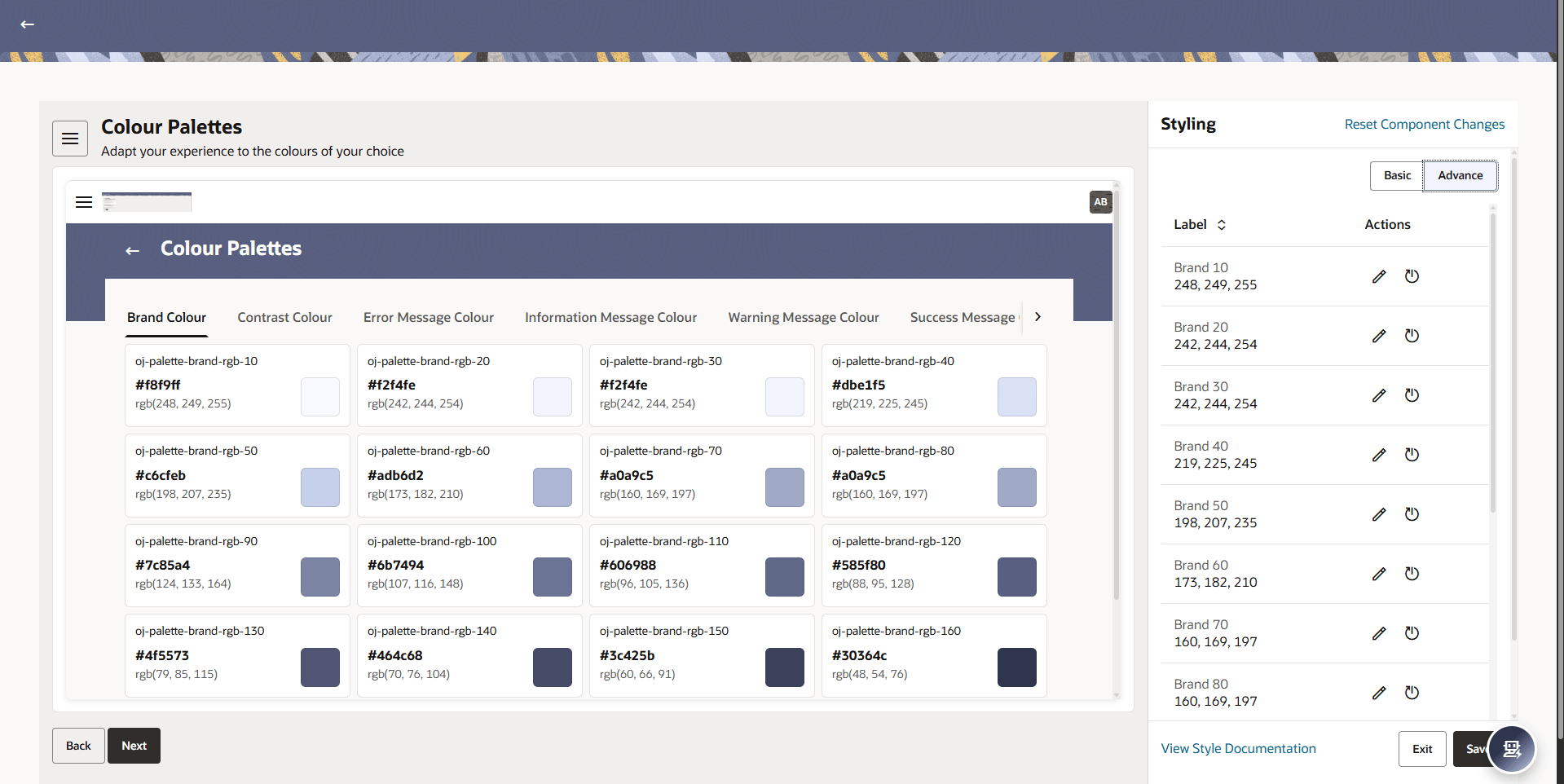
Figure 54-8 Colour Palettes and Styling - Advance
Table 54-8 Colour Palettes and Styling - Advance – Field Description
Field Description Label Displays the name of the typography attribute being configured. Actions Provides options to edit or reset the selected attribute. Perform one of the following actions:- Click the Exit button to exit the current screen without saving the changes.
- Click the Save button to save the entered details and applied configurations.
- Click the Basic button to specify the basic
colour details.
- Click the Next button to specify the styling
details.The Amount Styling screen is displayed.
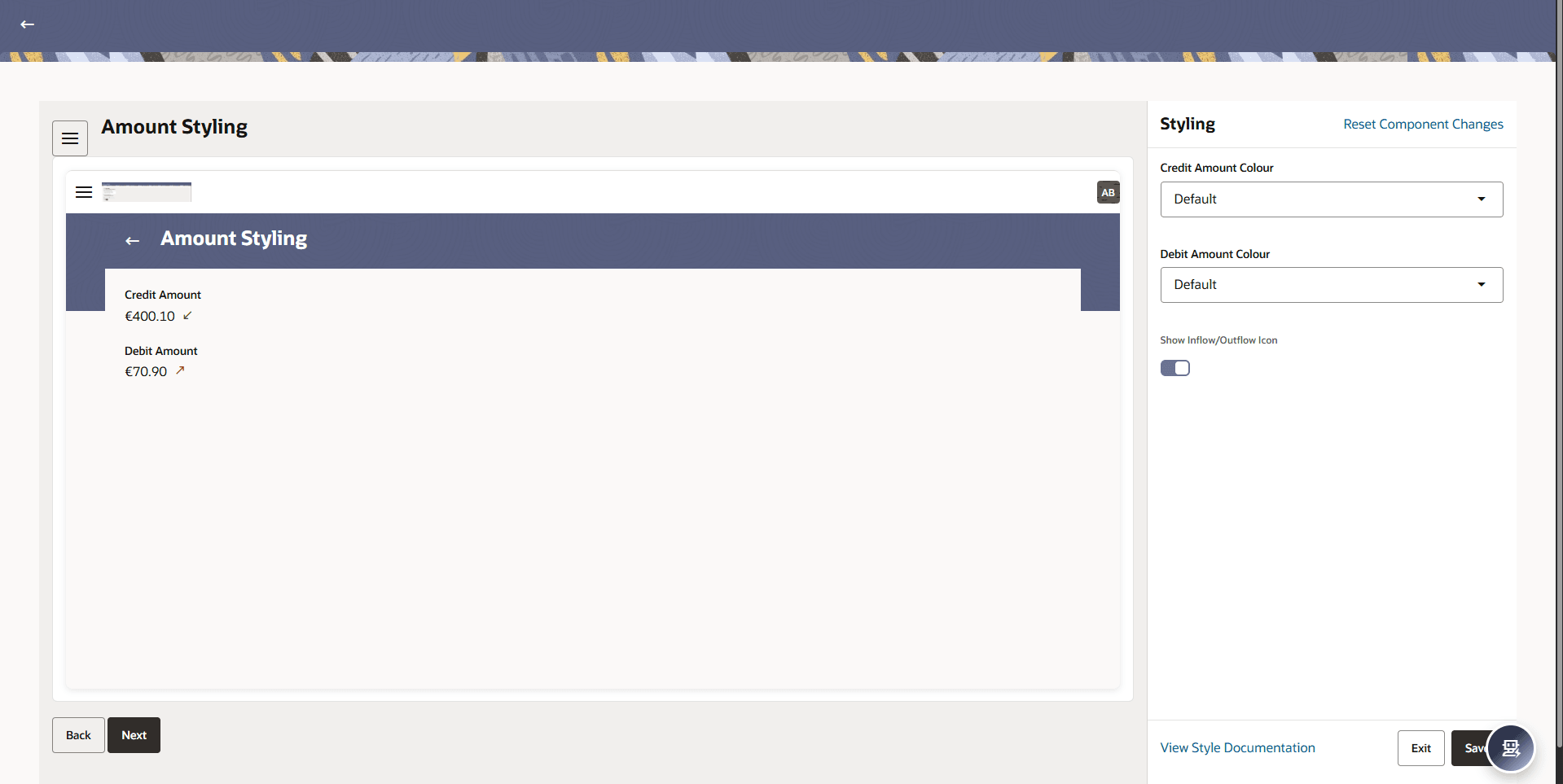
Table 54-9 Amount Styling – Field Description
Field Description Amount Styling Displays the section to configure styling for credit and debit amounts. Credit Amount Displays the formatted credit amount preview based on selected styling. Debit Amount Displays the formatted debit amount preview based on selected styling. Styling Displays the panel to configure amount-related styling options. Reset Component Changes Click this hyperlink to reset all amount styling configurations to default settings. Credit Amount Colour Select the color for displaying credit amounts. The options are:- Default
- Brand Colour
- Neutral Colour
- Success Colour
- Error Colour
Debit Amount Colour Select the color for displaying debit amounts. The options are:- Default
- Brand Colour
- Neutral Colour
- Success Colour
- Error Colour
Show Inflow/Outflow Icon Click the toggle to display icons indicating inflow (credit) and outflow (debit) amounts. View Style Documentation Click this hyperlink to view detailed styling documentation. Perform one of the following actions:- Click the Exit button to exit the current screen without saving the changes.
- Click the Save button to save the entered details and applied configurations.
- Click the Next button to specify the styling
details.The Input Fields and Styling screen is displayed.
- Click the Basic button to specify the input
field details.The Input Fields and Styling - Basic screen is displayed.
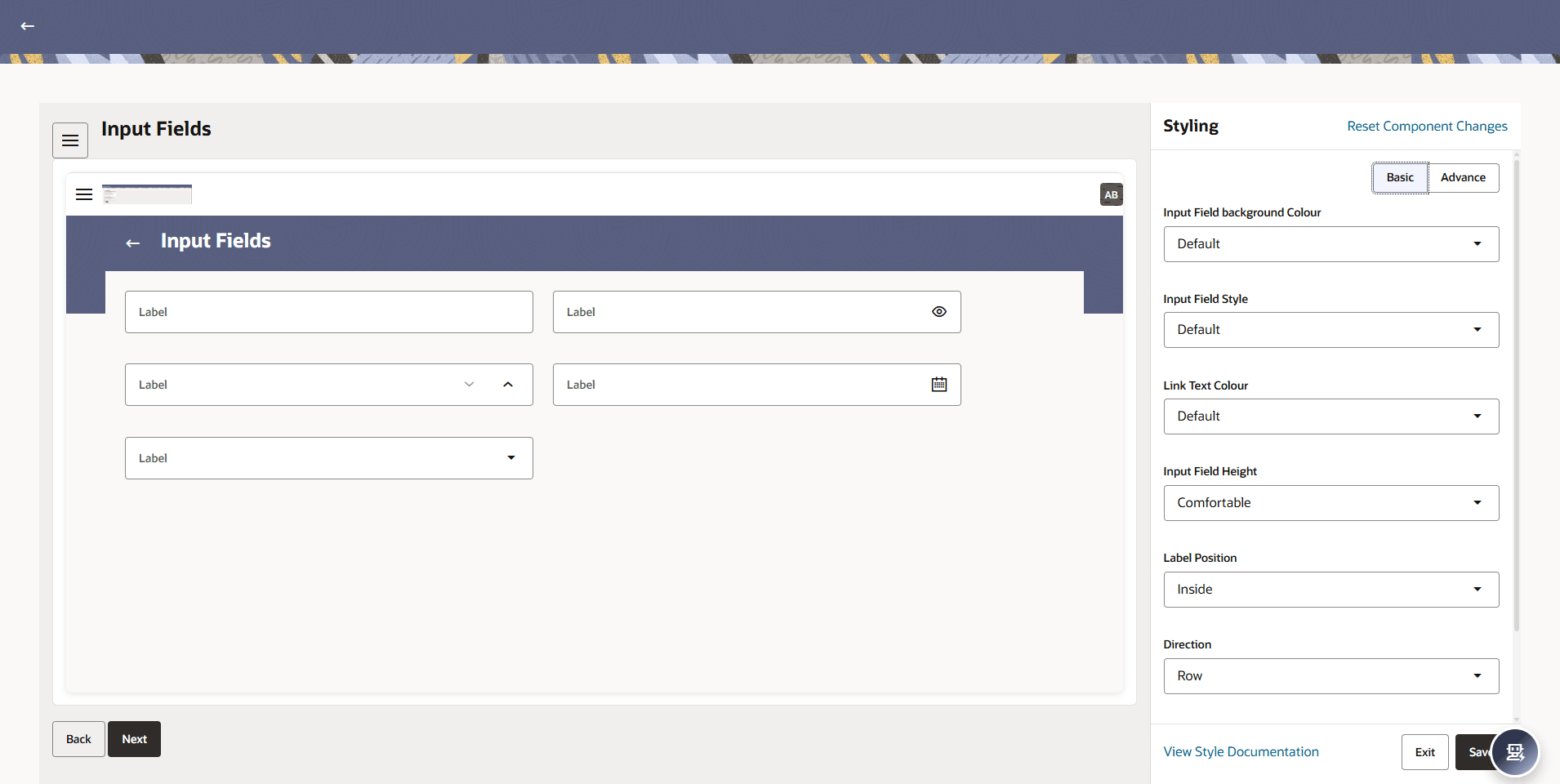
Figure 54-10 Input Fields and Styling - Basic
Table 54-10 Input Fields – Field Description
Field Description Input Fields Displays the section to configure the appearance of input fields. Label Represents the placeholder or label text associated with input fields. Styling Displays the panel to configure input field styling options. Reset Component Changes Click this hyperlink to reset all input field styling changes to default. Input Field Background Colour Select the background color for input fields. The options are:- Default
- Brand Colour
- Secondary Brand Colour
Input Field Style Select the style or appearance of input fields. The options are:- Default
- Underlined
- Circular
- Sharp
Link Text Colour Select the color for link text within input fields. The options are:- Default
- Brand Colour
- Secondary Brand Colour
Input Field Height Select the height of input fields. The options are:- Comfortable
- Large
- Compact
Label Position Select the position of labels. The options are:- Top
- Inside
- Start
Direction Select the layout direction of input fields. The options are:- Row
- Column
Maximum number of columns Select the maximum columns permitted in the page layout. The options are:- One
- Two
- Three
View Style Documentation Click this hyperlink to view detailed styling documentation. Perform one of the following actions:- Click the Exit button to exit the current screen without saving the changes.
- Click the Save button to save the entered details and applied configurations.
- Click the Advance button to specify the advance
details.The Input Fields and Styling - Advance screen is displayed.
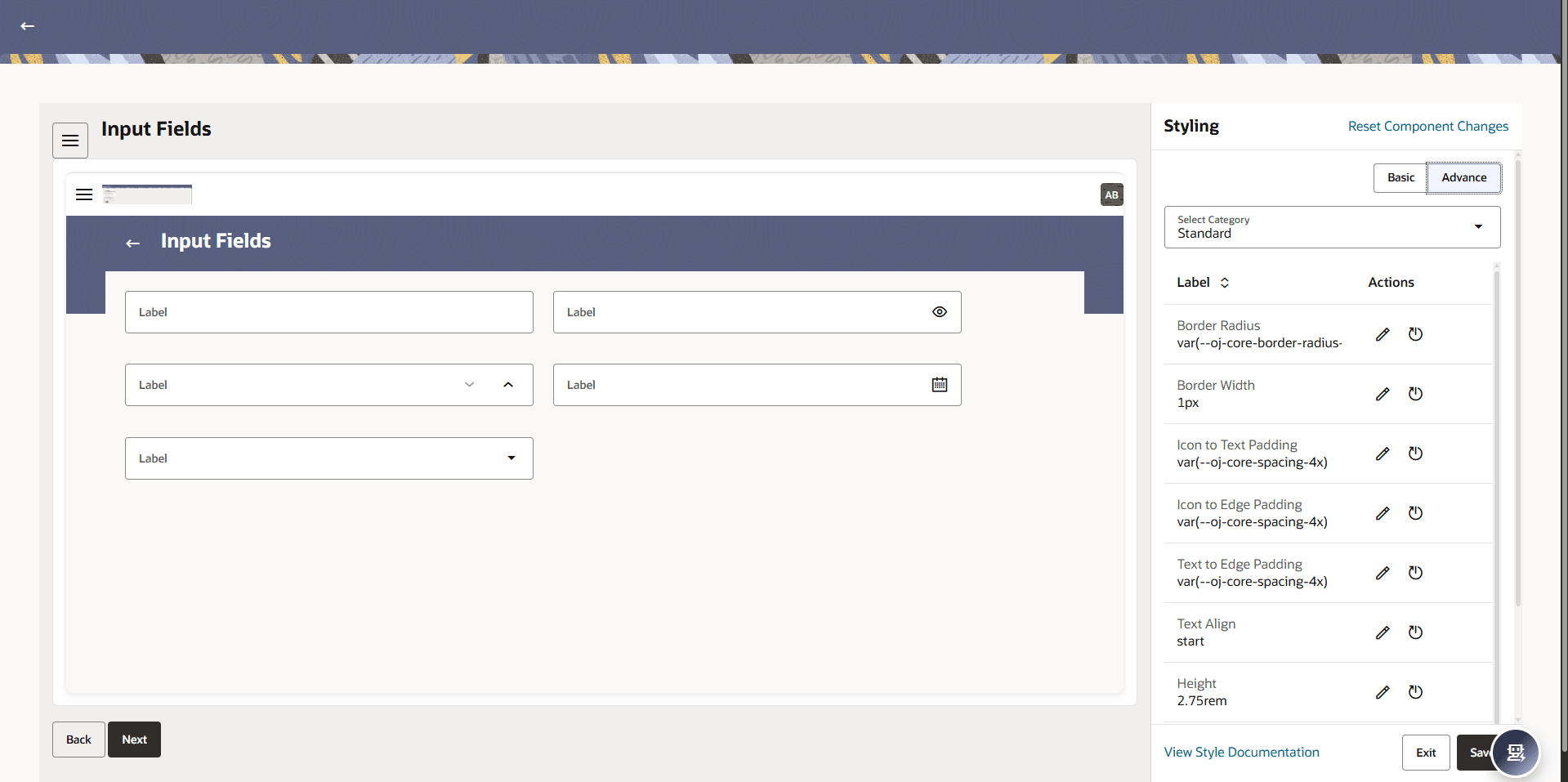
Figure 54-11 Input Fields and Styling - Advance
Table 54-11 Input Fields and Styling - Advance – Field Description
Field Description Select Category Select the category to configure typography settings. The options are:- Standard
- Enabled
- Focus
- Disabled
Label Displays the name of the typography attribute being configured. Actions Provides options to edit or reset the selected attribute. Perform one of the following actions:- Click the Exit button to exit the current screen without saving the changes.
- Click the Save button to save the entered details and applied configurations.
- Click the Basic button to specify the input
field details.
- Click the Next button to specify the styling
details.The Buttons and Styling screen is displayed.
- Click the Basic button to specify the buttons
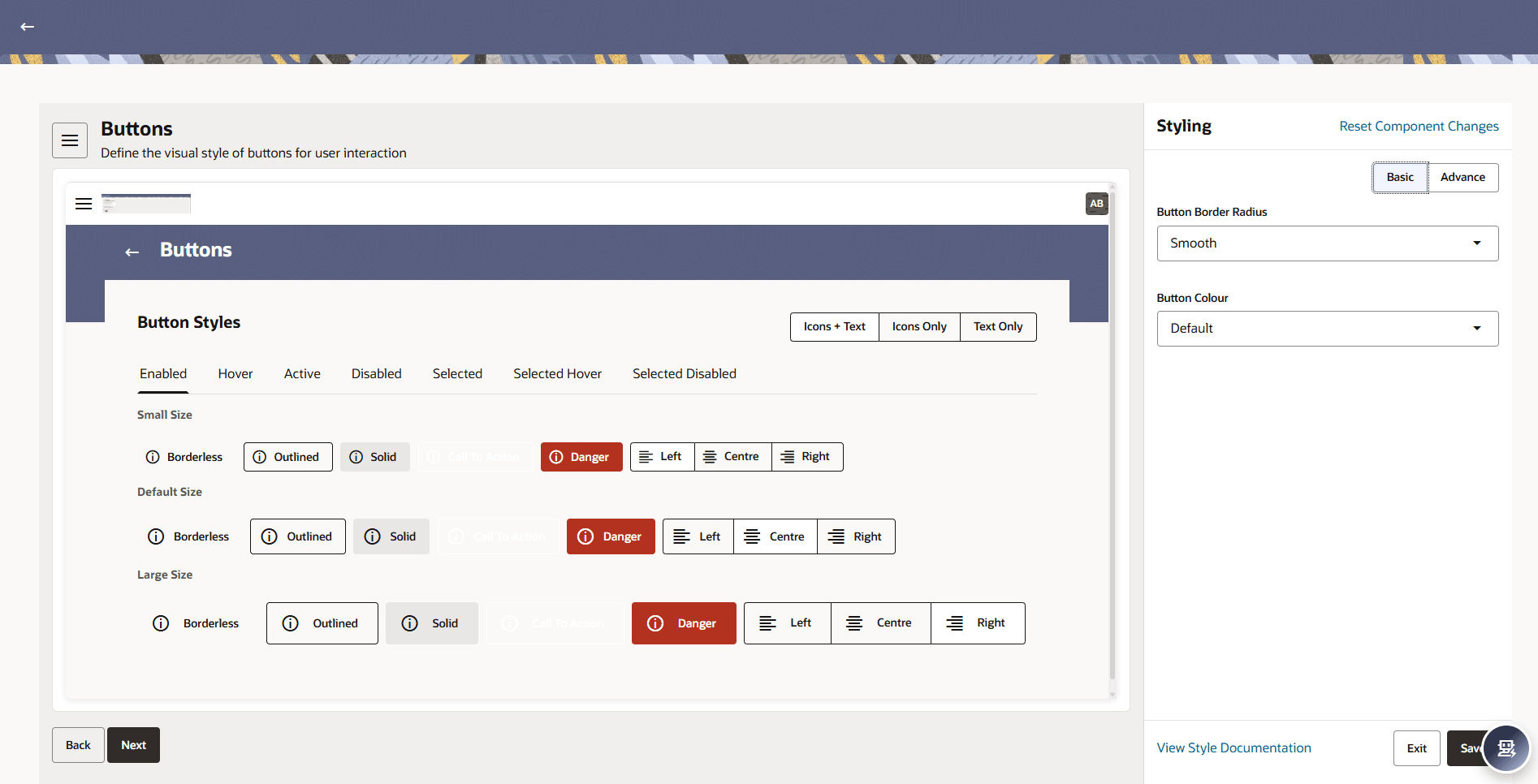
details.The Buttons and Styling - Basic screen is displayed.
Table 54-12 Buttons and Styling - Basic – Field Description
Field Description Buttons Displays the section to define the visual style of buttons for user interaction. Enabled Displays the default active state of buttons. Hover Displays the button appearance when hovered over. Active Displays the button appearance when clicked or active. Disabled Displays the button appearance when disabled. Selected Displays the appearance of selected buttons. Selected Hover Displays the appearance when hovering over a selected button. Selected Disabled Displays the appearance when a selected button is disabled. Small Size Displays button styles for small-sized buttons. Default Size Displays button styles for default-sized buttons. Large Size Displays button styles for large-sized buttons. Borderless Displays buttons without borders. Outlined Displays buttons with outlined borders. Solid Displays buttons with solid fill styling. Danger Displays buttons styled for critical or destructive actions. Icons + Text Select to display buttons with both icons and text. Icons Only Select to display buttons with icons only. Text Only Select to display buttons with text only. Left Align button content to the left. Centre Align button content to the center. Right Align button content to the right. Styling Displays the panel to configure button styling options. Reset Component Changes Click this hyperlink to reset all button styling changes to default. Button Border Radius Select the border radius style for buttons. The options are:- Sharp
- Smooth
- Rounded
- Circular
Button Colour Select the color for buttons. The options are:- Default
- Brand Colour
- Secondary Brand Colour
View Style Documentation Click this hyperlink to view detailed styling documentation. Perform one of the following actions:- Click the Exit button to exit the current screen without saving the changes.
- Click the Save button to save the entered details and applied configurations.
- Click the Advance button to specify the advance
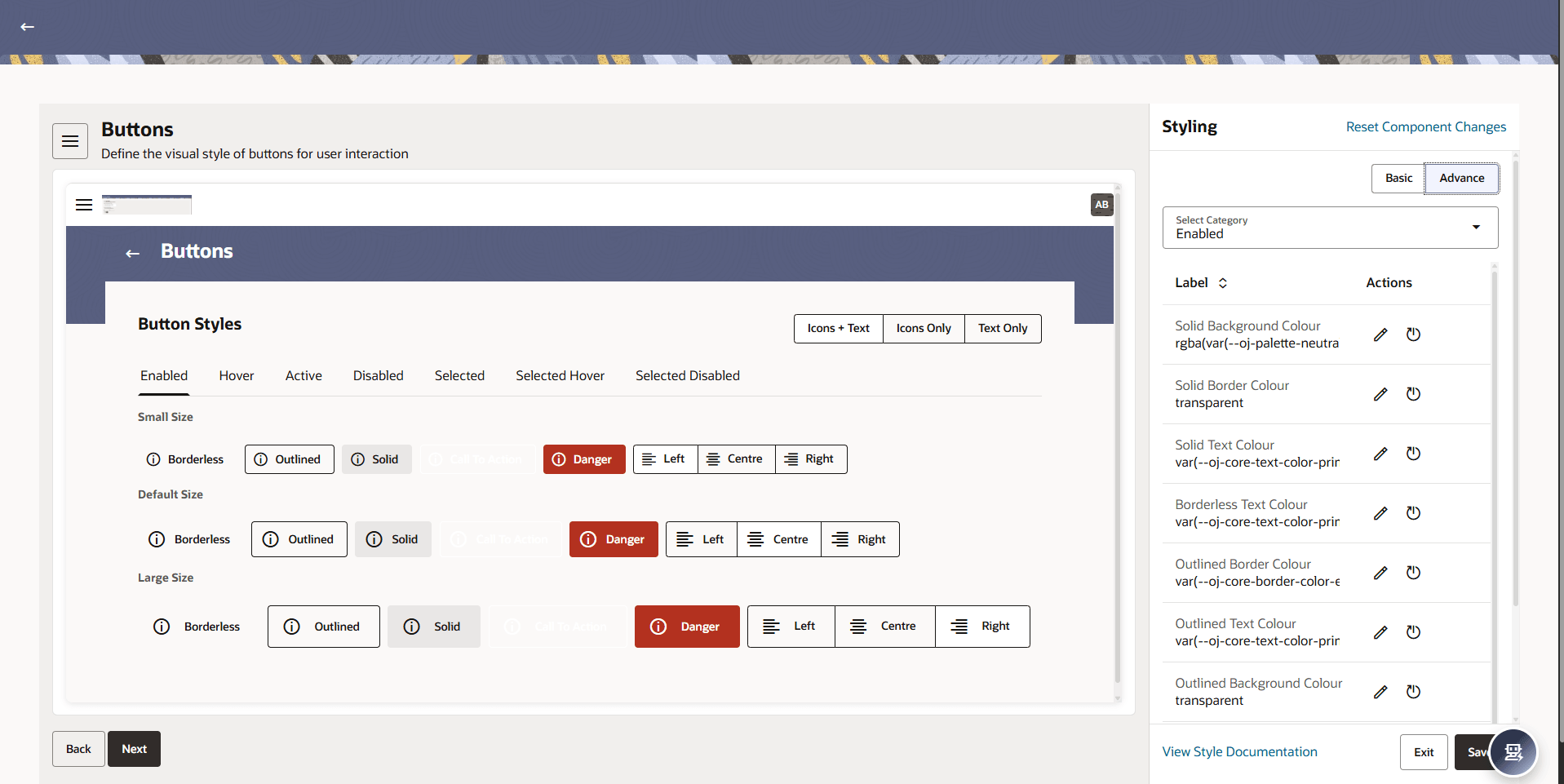
details.The Buttons and Styling - Advance screen is displayed.
Figure 54-13 Buttons and Styling - Advance
Table 54-13 Buttons and Styling - Advance – Field Description
Field Description Select Category Select the category to configure typography settings. The options are:- Default
- Enabled
- Hover
- Active
- Selected
- Selected Hover
- Disabled
- Selected Disabled
Label Displays the name of the typography attribute being configured. Actions Provides options to edit or reset the selected attribute. Perform one of the following actions:- Click the Exit button to exit the current screen without saving the changes.
- Click the Save button to save the entered details and applied configurations.
- Click the Basic button to specify the buttons
details.
- Click the Next button to specify the styling
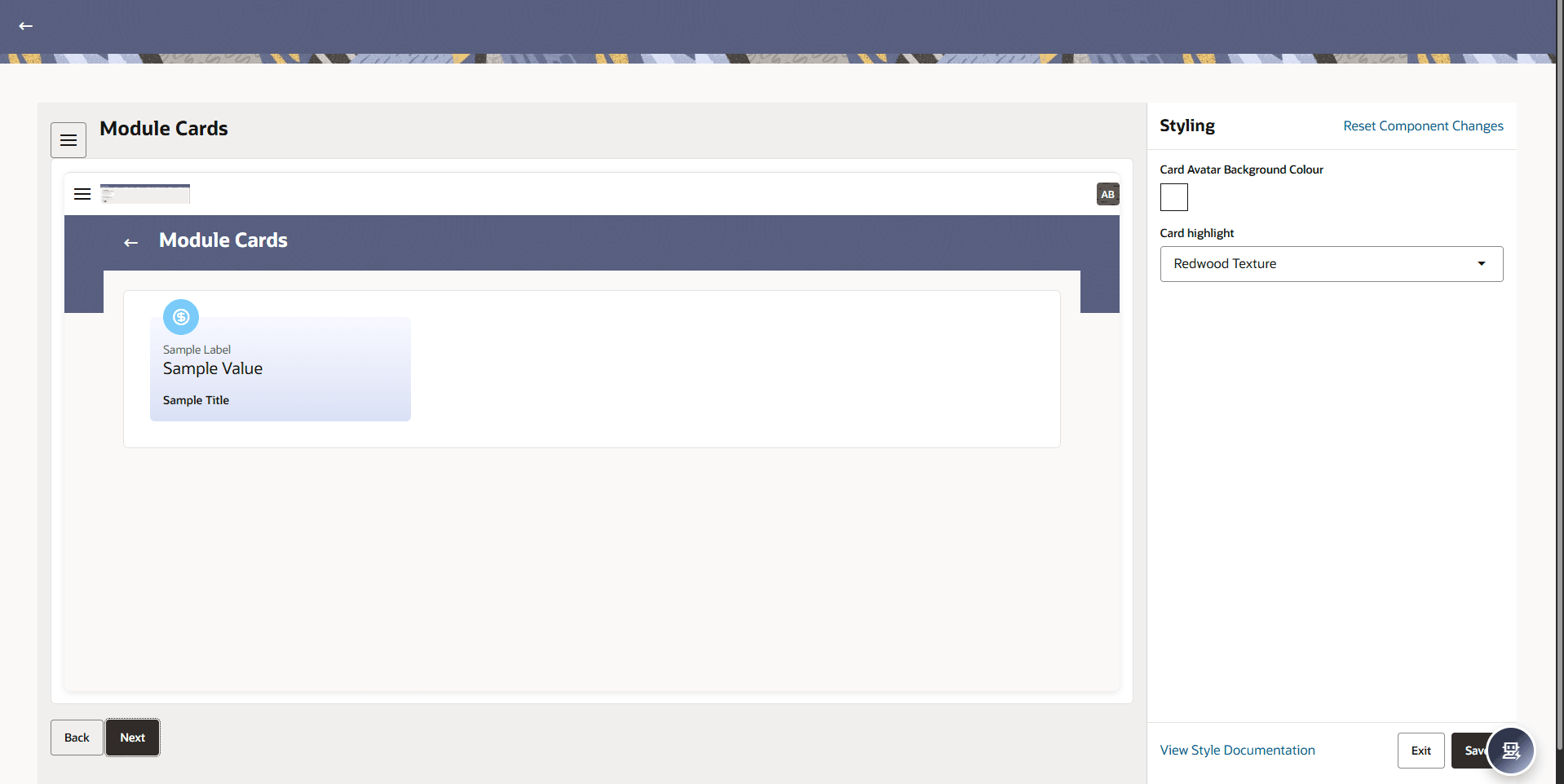
details.The Module Cards and Styling screen is displayed.
Table 54-14 Module Cards – Field Description
Field Description Module Cards Displays the section to configure the appearance of module cards. Sample Label Displays a sample label used within the module card. Sample Value Displays a sample value within the module card. Sample Title Displays a sample title for the module card. Styling Displays the panel to configure module card styling options. Reset Component Changes Click this hyperlink to reset all module card styling changes to default. Card Avatar Background Colour Select the background color for the card avatar. Card Highlight Select the card highlight styling for the module card. The options are:- None
- Floating Squares
- Rotating Squares
- Shooting Stars
- Redwood Texture
View Style Documentation Click this hyperlink to view detailed styling documentation. Perform one of the following actions:- Click the Exit button to exit the current screen without saving the changes.
- Click the Save button to save the entered details and applied configurations.
Parent topic: Experience