13.2 Modify Collection – Islamic – Settlement Details
This topic provides the systematic instructions to modify the settlement details.
User will be able to see the collection details along with the Base Date and Tenor and will be allowed to change the tenor, which automatically would get reflected in Maturity Date of the transaction.
The user can change whether collaterals are to be used and Advance by Loan is required or not.
To modify a Collection:
- Navigate to Settlement Details tab of Modify
Bill screen.
Figure 13-4 Modify Collection – Islamic – Settlement Details
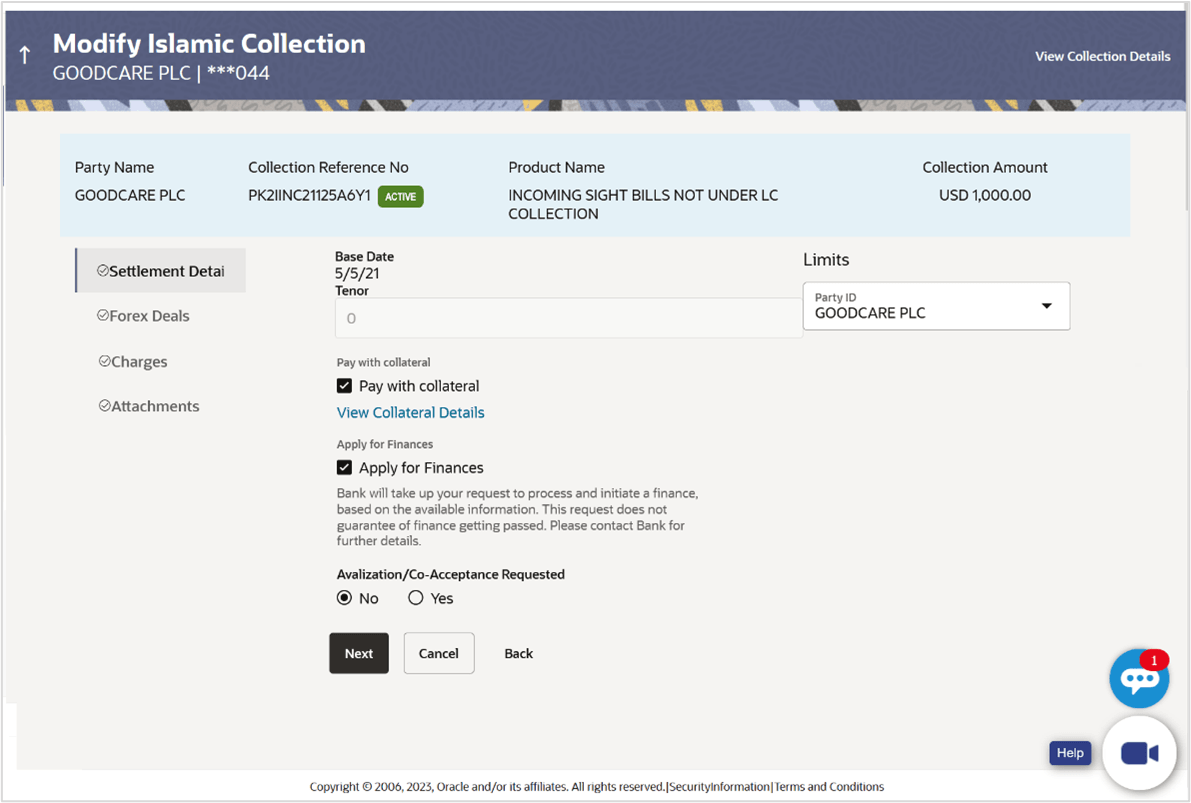
For more information refer to the field description table below:
Table 13-3 Modify Collection – Islamic – Settlement Details - Field Description
Field Name Description Party Name Displays the name of the applicant. Import Collection Reference Number Displays the Import Collection reference number. Product Name Displays the import Collection product name under which the Collection is created. Collection Amount Displays the amount of the import Collection. Settlement Details This section displays the Settlement Details. Base Date Displays the date that is considered as base date for Collection application. Tenor Displays the tenor of the Collection. Pay with Collateral Select this option whether collaterals are to be used. Click the View Collateral Details link to view the collateral details.
Settlement Account Option to select settlement account number. Select the settlement account number.
Note:
The balance in CASA account should be equal or more than the equivalent amount of claim in claim’s currency, which is being settled, in case of single claim being liquidated.Apply for Finances Select this option to apply for a finances directly from the page. Bank would be informed that the corporate user is looking for a loan. Avalisation/Co acceptance Requested The option allows the user to select if the Collection is to be avalised. The options are:
- Yes
- No
Parent topic: Modify Islamic Collection