24.3 View Outward Islamic Kafalah - Amendments
This topic provides the systematic instructions to view the amendments done to the Outward Guarantee in the application.
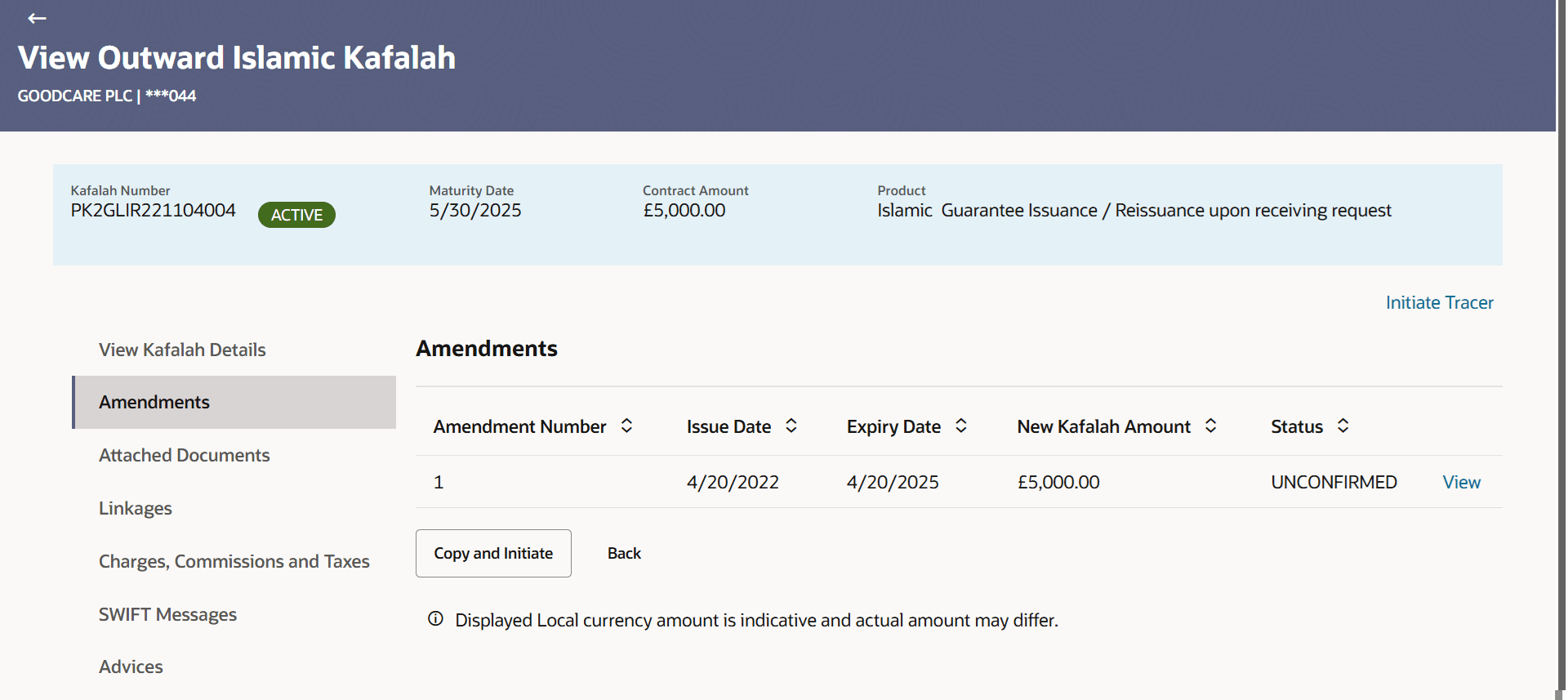
This tab displays the amendments done to the Outward Guarantee. The user can also initiate a new amendment request.
To View the amendments:
- Navigate to the Amendments tab.
Figure 24-5 View Outward Islamic Kafalah - Amendments tab
For more information refer to the field description table below:
Table 24-4 View Outward Islamic Kafalah - Amendments - Field Description
Field Name Description Amendment Number Displays the amendment number of the Outward Guarantee. Displays the link to view details of the Outward Guarantee amendment.
Issue Date Displays the issue date of the Outward Guarantee. Expiry Date Displays the modified expiry date of the Outward Guarantee. New Kafalah Amount Displays the modified amount of the Outward Guarantee. Status Displays the status of raised amendment. - Click the Attached Documents tab to go to the view the attached documents
detail.View Amendment Details
This screen allows the user to view the details of the amendment done under selected Outward Bank Guarantee.
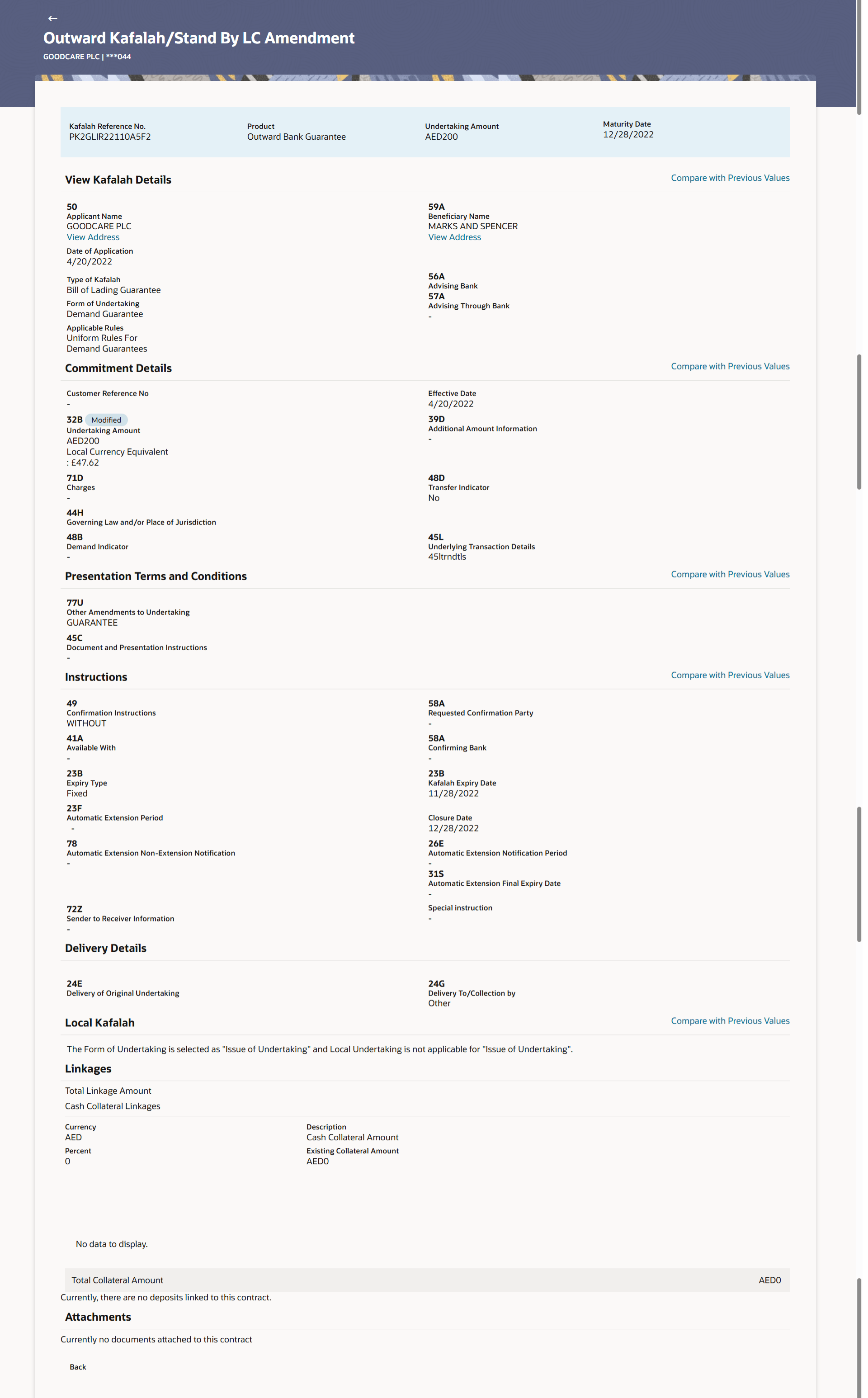
Description of the illustration outward-kafalah_stand-lc-amendment.png- Click Cancel to cancel the transaction, The Dashboard appears. The View Outward Guarantee screen appears.
- Click Back to navigate back to previous screen.
Parent topic: View Inward Guarantee/Stand By LC