5.1 Create Virtual Accounts Structure
This topic provides the systematic instructions to create the Virtual Account Structure.
Note:
The user can view theVirtual Entities to which they have access.
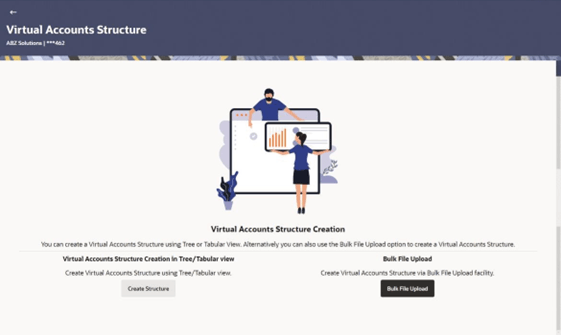
Figure 5-1 Create Virtual Account
Structure
- Perform the following navigation to access the screen.
- From the Dashboard, click Toggle menu, click Virtual Account Management, then click Virtual Accounts Structure. Under Virtual Accounts Structure, click Create Structure
- From the Dashboard, click Toggle menu, click Virtual Account Management, then click Overview, and then click Virtual Accounts Structure. Under Virtual Accounts Structure, click Create Structure.
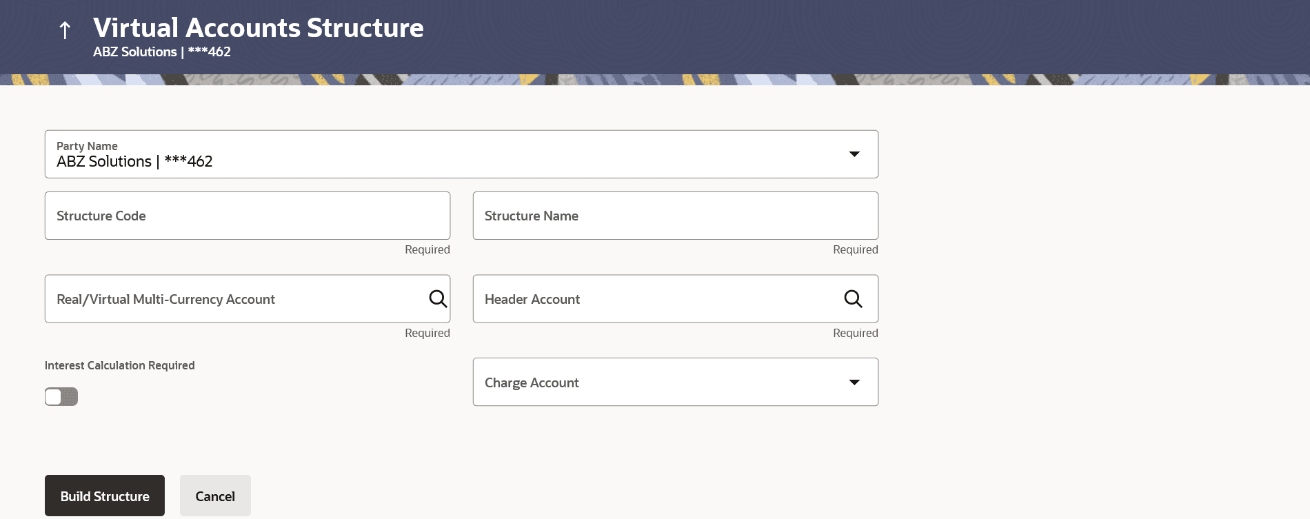
The Create Virtual Account Structure screen appears - Click Create Structure to create the Virtual Accounts Structure in Tree/Tabular view.
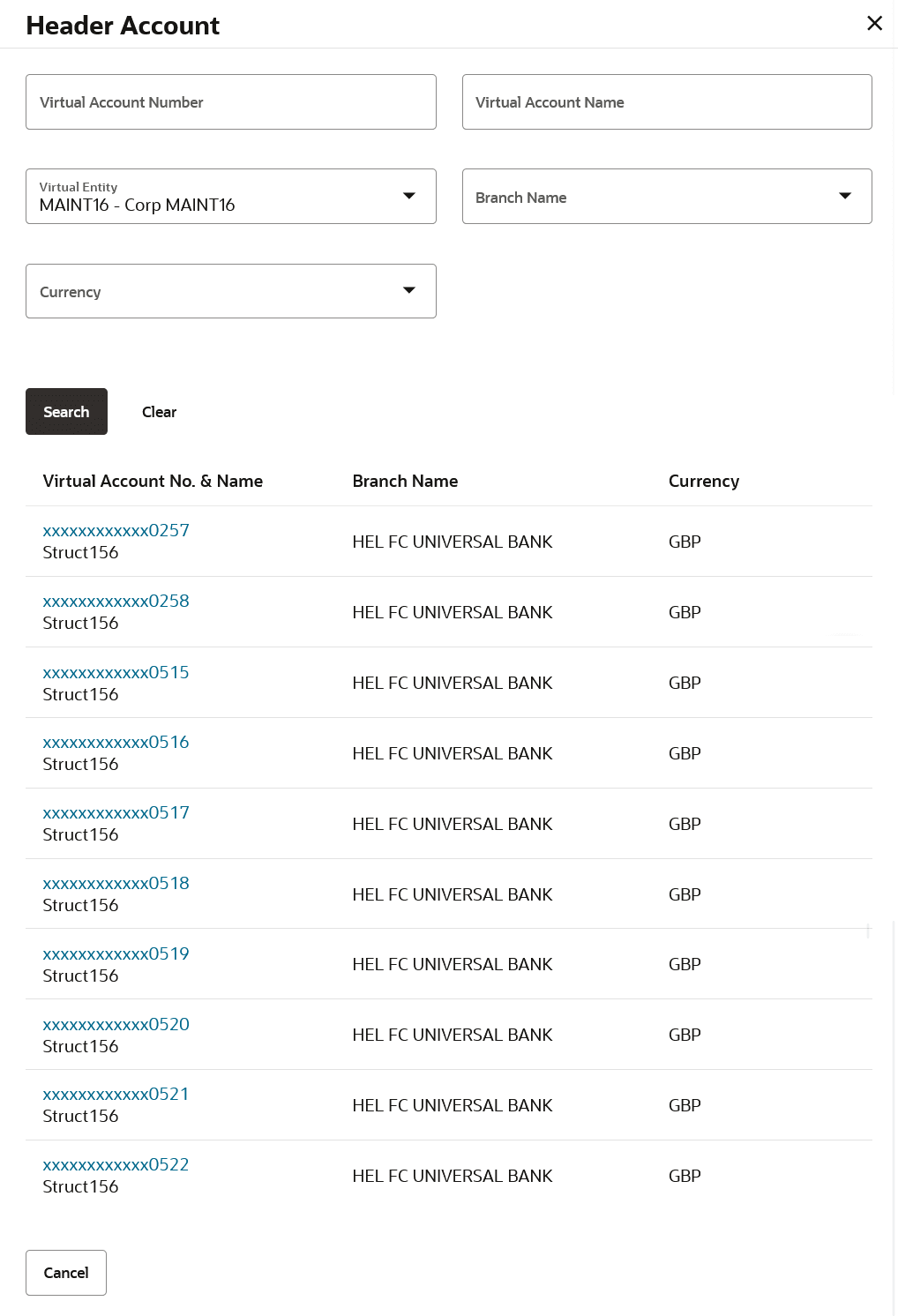
- In the Header Account field, click Search icon to search the
header account number.The Header Account overlay appears.
.For more information on fields, refer to the field description table.Table 5-1 Virtual Accounts Structure - Field Description
Field Description Party Name Select the party name and ID from the drop-down list in which the Virtual Account Structure must be created. By default, the primary party of the logged-in user is selected. Note: Based on the party name selection, the mapped Virtual Accounts Structure are displayed.
Structure Code Specify the structure code. Structure Name Specify the structure name corresponding to the structure code. Real/ Virtual Multi-Currency Account Select the Real/Multi-Currency account number under which the structure is to be created. Note: User can search the Real/ Virtual Multi-Currency Account by Account Name, Account Number, Real/ Virtual Multi-Currency Account’s Group ID, Branch or Currency based on the parameters set in the system configuration and displays these details in the search results and the respective fields once the required account is selected.
Header Account Select the Header account number, which is the topmost Virtual Account in the structure. Note: User can view only the configured number of Virtual Account Number in the search results.
Header Account Overlay Information specified in below fields are related to Header Account Overlay screen. Virtual Account Number Specify the Virtual Account Number. Virtual Account Name Specify the Virtual account name. Virtual Entity Select the virtual entity from the list. Note: The drop-down includes only those entities which are acessible to the user.
Branch Name Select the Branch of the account from the list. Currency Name Specify the currency of the account from the list. Search Result This section displays the search results. Note: User can view only the configured number of Virtual Account Number in the search results.If the search result count exceeds the configured count, an error message appears to refine the search criteria.
Virtual Account No. & Name Displays the Virtual Account number and name. Branch Name Displays the Branch of the account. Currency Displays the currency of the account. Interest Calculation Required Toggle to indicate whether interest calculation is required at a structure level. Charge Account Select the charge account number from which the charges can be collected. Note: User can search the Charge Accounts by Account Name, Account Number, Branch or Currency based on the parameters set in the system configuration and displays these details in the search results and the respective fields once the required account is selected.
- Perform any of the following actions:
- Click Build
Structure.
The Virtual Accounts Structure screen displays.
- Click Cancel to cancel the transaction.
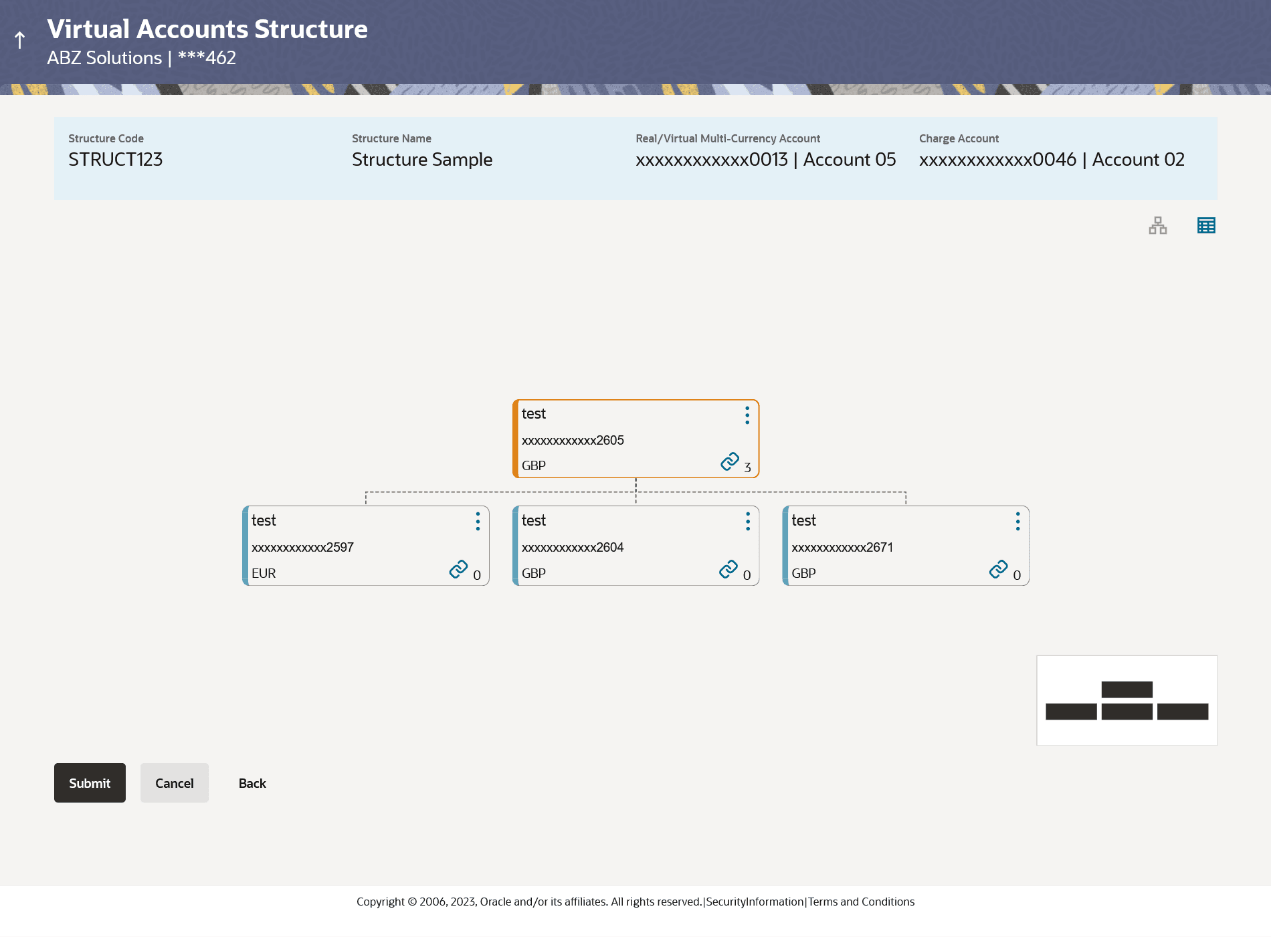
Figure 5-2 Virtual Accounts Structure - Tree view
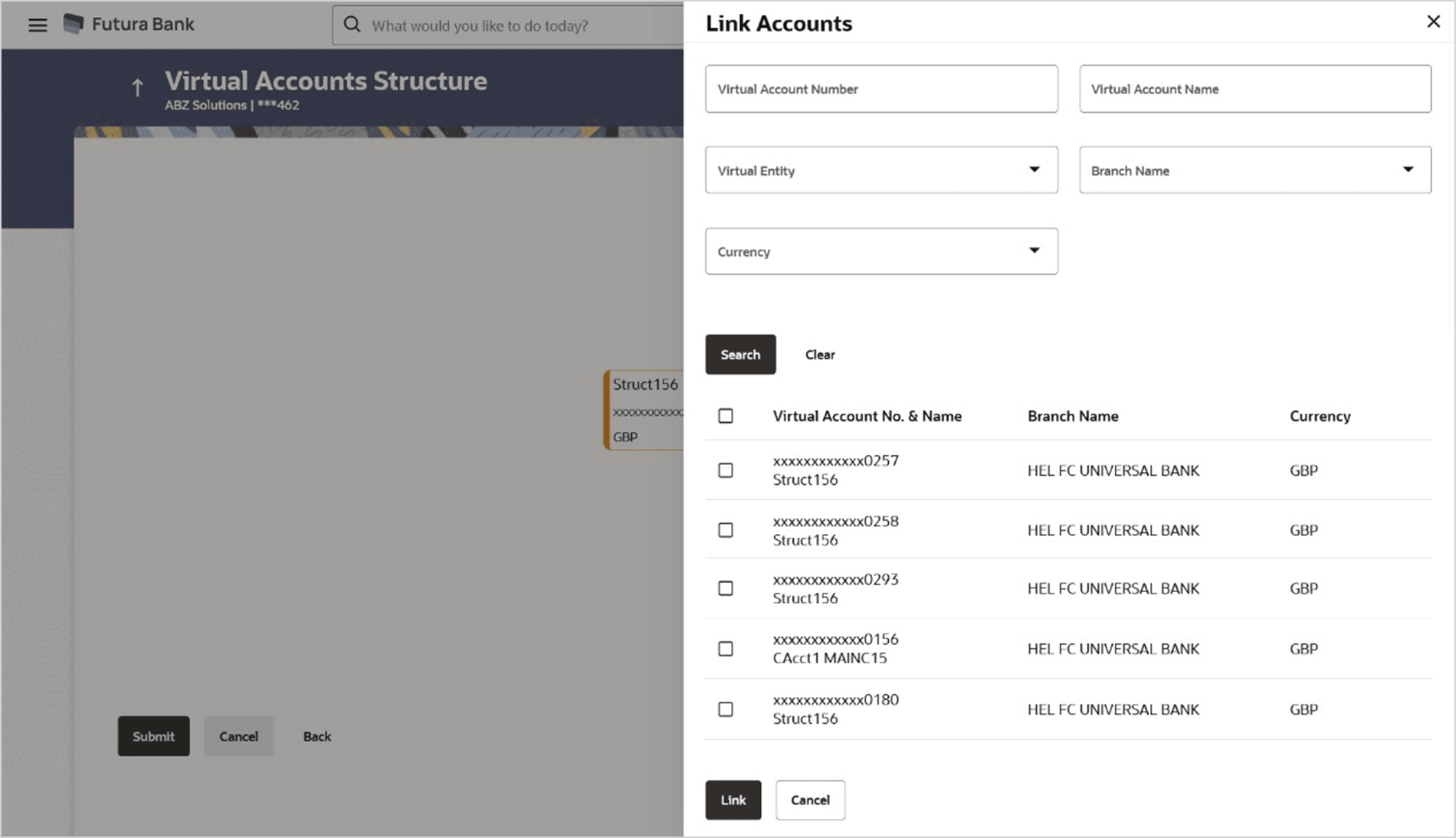
Figure 5-3 Create Virtual Accounts Structure - Link Accounts
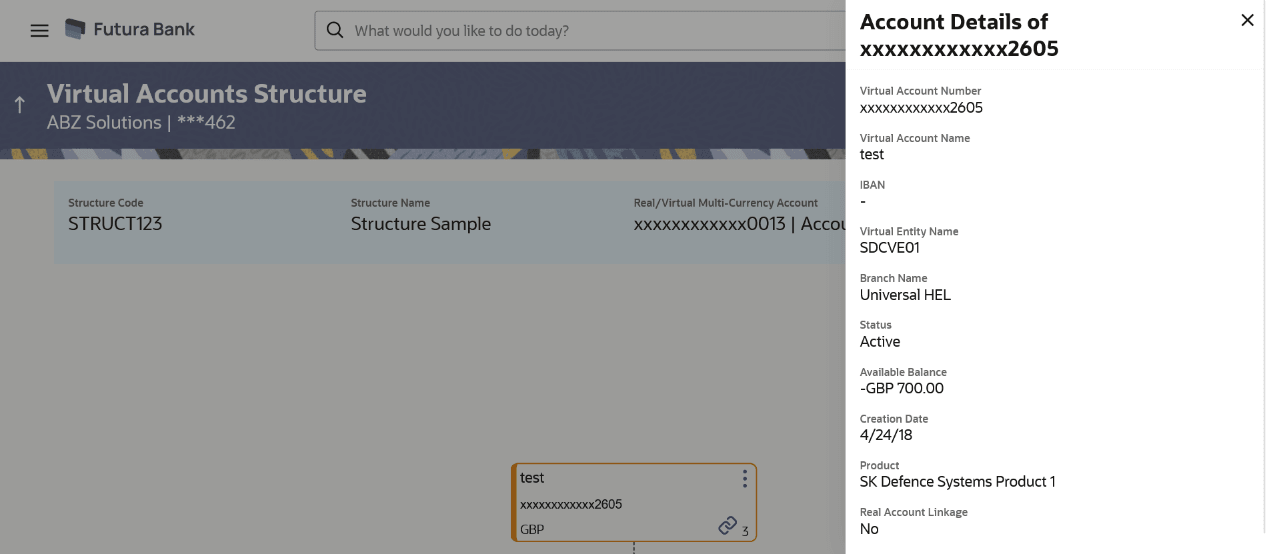
Figure 5-4 Create Virtual Accounts Structure - Account Details
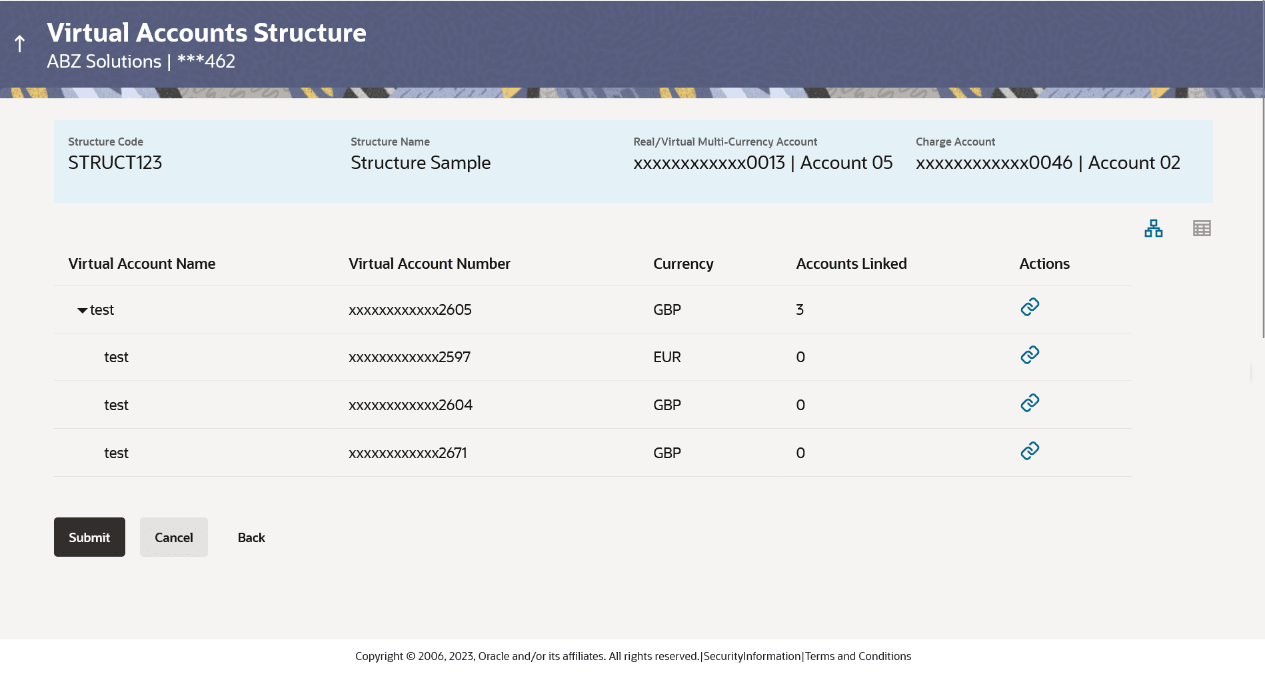
Figure 5-5 Create Virtual Accounts Structure - Tabular view
Table 5-2 Virtual Accounts Structure - Field Description
Field Description Structure Code Displays the structure code. Structure Name Displays the structure name corresponding to the structure code. Real/ Virtual Multi-Currency Account Displays the Real/Multi-Currency account number under which the structure is to be created. Header Account Displays the Header account number, which is the topmost Virtual Account in the structure. Charge Account Displays the charge account number from which the charges will be collected. Create Structure functionality is available in both Tree and Table view.
Below fields are available / applicable for both the views.
Virtual Account Name Displays the Virtual Account name corresponding to the Virtual Account Number. Virtual Account Number Displays the Virtual Account Number. Note:
The user will be able to view only the Virtual Accounts which he has access to.Currency Displays the currency of the Virtual Account. Account Linked Displays the number of linked child accounts to the parent account. This field appears as column in Tabular view.
This field Link icon appears directly in the Virtual Account node in Tree view.
Action Click three-dots icon to view the account details or undo link the Virtual Accounts in Tree/Tabular view. Note:
Undo link appears for newly added accounts only.Link Click Link icon to link the child accounts under Virtual Account Number in Tree/Tabular view. On clicking this icon, Link Accounts Overlay appears from which the user selects the Virtual Accounts to link.
Note:
The user will be able to view only the Virtual Accounts which he has access to.Expand/ Collapse Click to expand or collapse list in the table structure. This button appears only in Tabular view.
Click on the node to expands its immediate child accounts and collapses all other expanded nodes.
This option is applicable only for Tree view.
Link Accounts Overlay Information specified in below fields are related to Link Accounts Overlay screen. Virtual Account Number Specify the Virtual Account Number. Virtual Account Name Specify the Virtual account name. Virtual Entity Select the virtual entity from the list. Note: The drop-down includes only those entities which are acessible to the user.
Branch Name Select the Branch of the account from the list. Currency Select the currency of the account from the list. Search Result This section displays the search results. Note: User can view only the configured number of Virtual Account Number in the search results.If the search result count exceeds the configured count, an error message appears to refine the search criteria.
Select All Select the checkbox on the header row to select all the available virtual account number. Virtual Account No. & Name Displays the Virtual Account number and name. Branch Name Displays the Branch of the account. Currency Displays the currency of the account. Virtual Account Number Displays the Virtual Account Number. Note:
The user will be able to view only the Virtual Accounts which he has access to.Currency Displays the currency of the Virtual Account. Note:
In Tree view,- Header Node is displayed in different colour and selected node is highlighted.
- Click 1,2,3 to navigate between pages to view all the linked accounts. Count of nodes to be visible at a single level in a Virtual Accounts Structure will be as maintained in system configuration post which all the nodes appear in horizontal pagination.
- Click Build
Structure.
- Click
 icon to view the account details, and undo link the Virtual
Account.
icon to view the account details, and undo link the Virtual
Account.- If you click Account Details, the Account Details screen appears.
- If you click Undo Link, a message confirming removal of selected account appears. Click OK.
The selected account along with the child accounts are de-linked from the parent account.
- Perform any of the following actions:
- Click
 icon to view the account structure in tree
view.
icon to view the account structure in tree
view.
The Linked Accounts appears in Tree view.
- Click
 icon to view the account structure in table
view.
icon to view the account structure in table
view.
The Linked Accounts appears in Tabular view.
Table 5-3 Virtual Accounts Structure - Table View - Field Description
Field Description Party ID & Name Displays the party ID and name to which the Virtual Accounts structure is to be mapped. Structure Code Displays the structure code. Structure Name Displays the structure name corresponding to the structure code. Real/ Virtual Multi-Currency Account Displays the Real/Multi-Currency account number under which the structure is to be created.
- Click
Parent topic: Virtual Accounts Structure