2.1.2 Installing Weblogic Server

This topic describes the systematic instruction to Installing Weblogic Server option.

  1. Download the WebLogic Server installation package.
    Obtain the WebLogic Server 14.1.2.0.0 ZIP file from Oracle Downloads. Extract the downloaded ZIP file to obtain the fmw_14.1.2.0.0_wls.jar file.
  2. Navigate to the directory containing the extracted JAR file.
  3. Start the WebLogic installer.
    Run the following command from the same directory:
    java -jar <absolute_path>/fmw_14.1.2.0.0_wls.jar
                        

    Note:

    User must specify the absolute path of the directory where the JAR file is located.
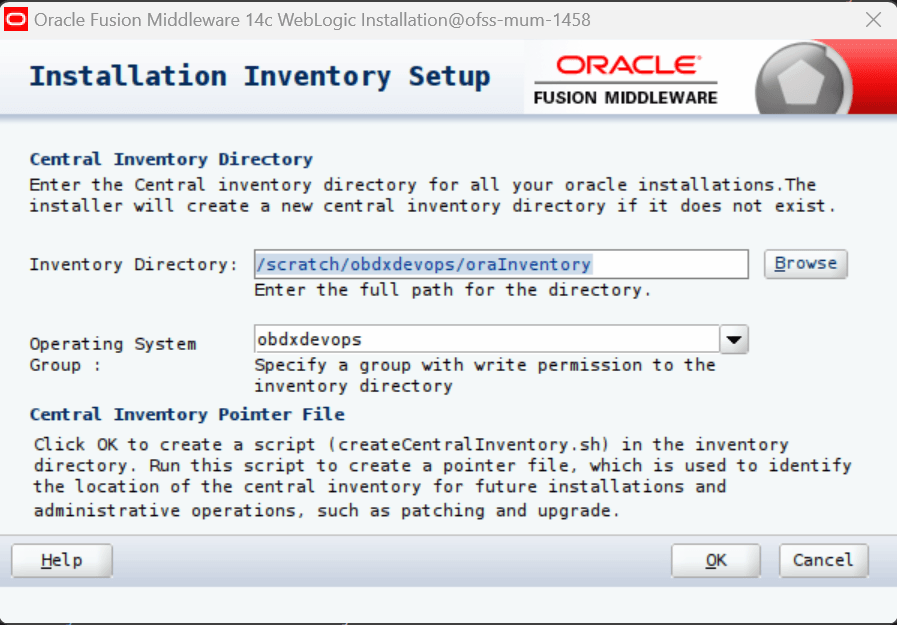
  4. Specify the Oracle Inventory directory (UNIX systems only).
    If this is the first Oracle product installation using Oracle Universal Installer, provide the location of the inventory directory where Oracle maintains installation data.

    Figure 2-1 Installation Inventory Setup Screen
    Description of instapre10.png follows
    Description of the illustration instapre10.png

  5. Specify the Oracle inventory directory and group permissions. Ensure the group has write permissions to this directory.
  6. Click OK.
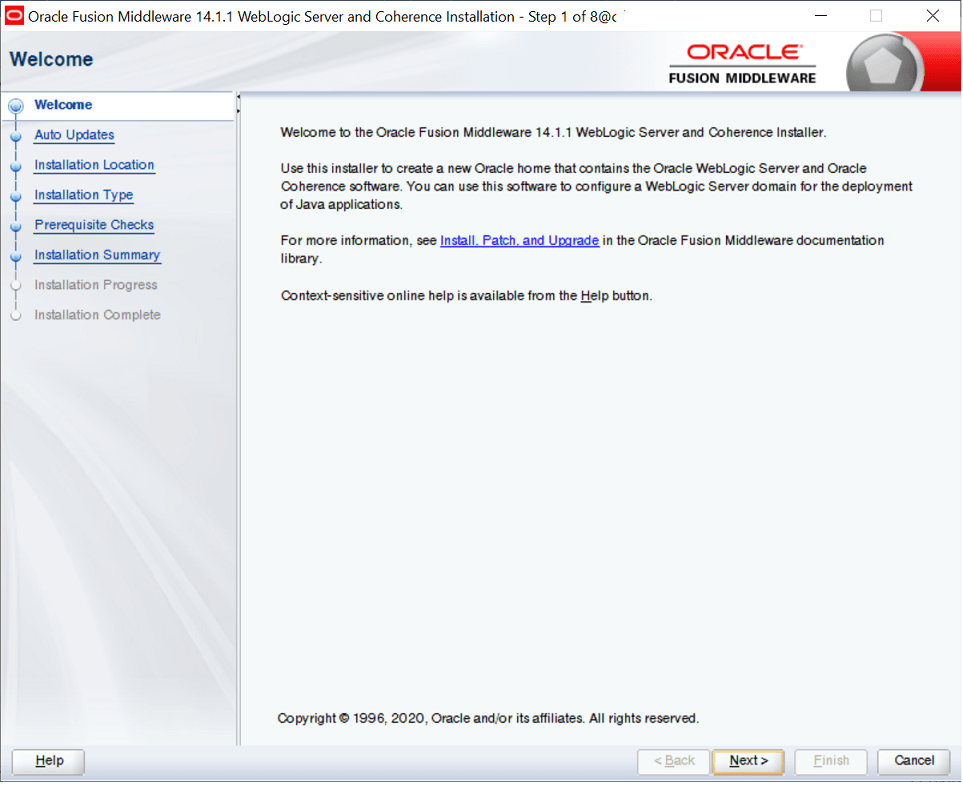
    The Welcome screen is displayed.

    Figure 2-2 Welcome Screen

    Installing Weblogic

  7. Click Next.
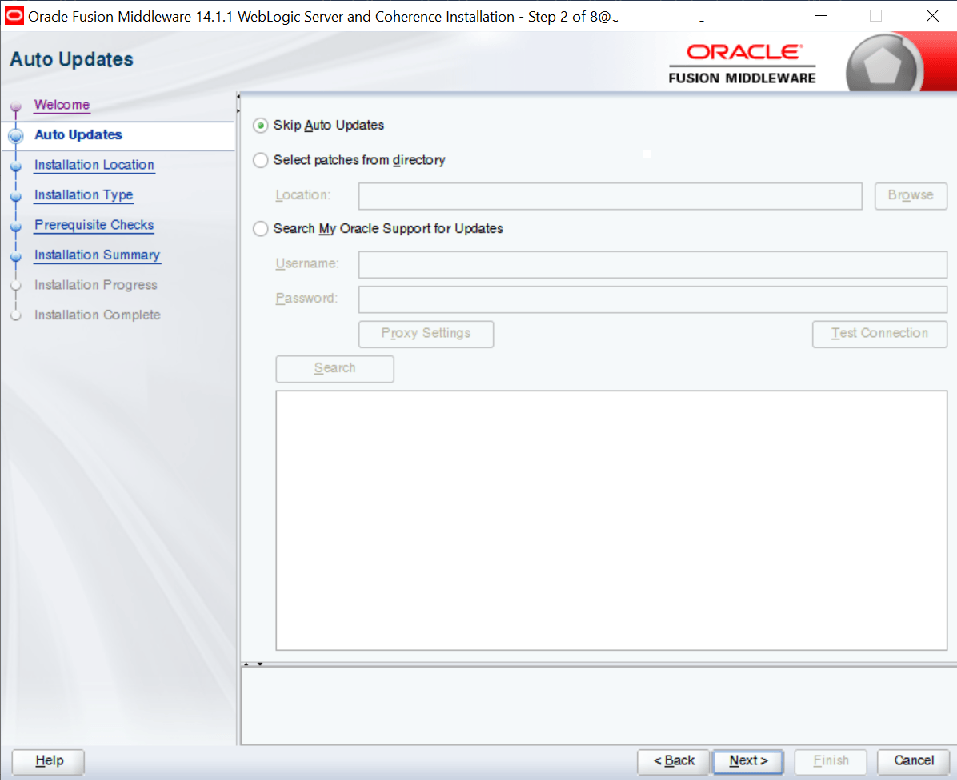
    The Auto Updates screen displays.

    Figure 2-3 Auto Updates Screen

    Installing Weblogic

    Configure Auto Updates.

  8. Select Skip Auto Updates. Follow recommended update practices based on your environment.
  9. Click Next.
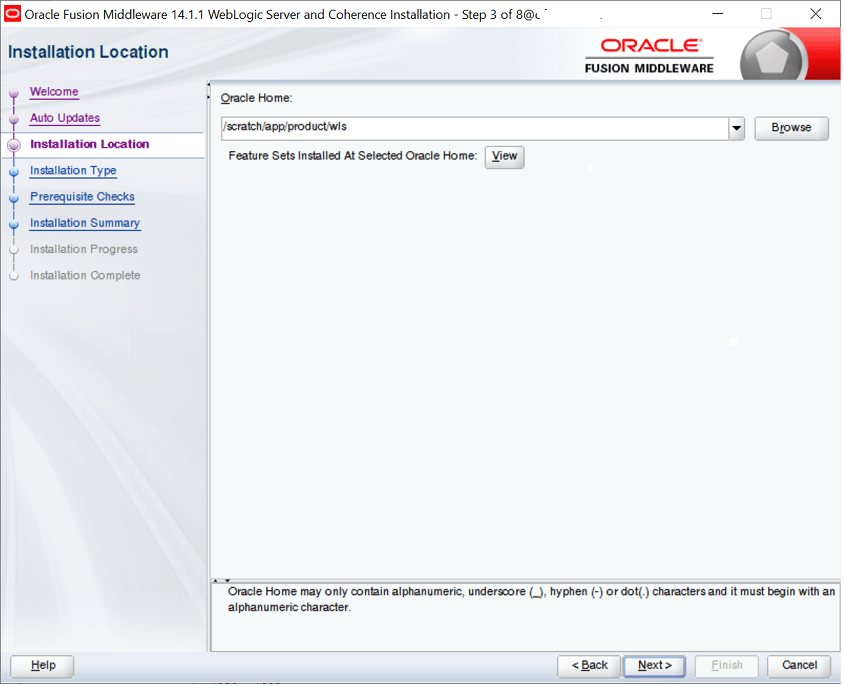
    The Installation Location screen displays.

    Figure 2-4 Specify Installation Location Screen

    Installing Weblogic

  10. Specify the installation location.
    Provide the Oracle Middleware Home location. This must be an absolute path where WebLogic Server will be installed.
  11. Click Next.
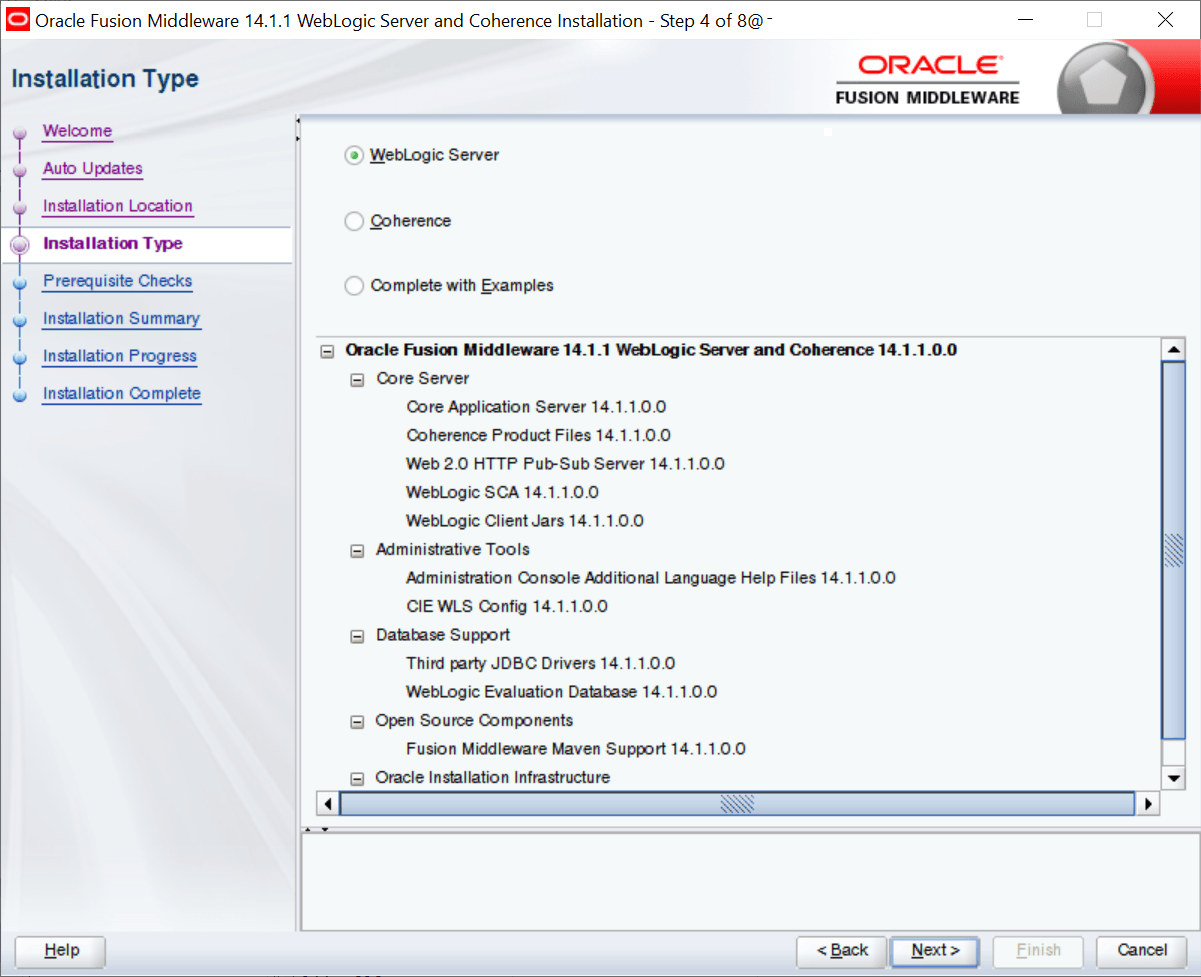
    The Installation Type screen displays.

    Figure 2-5 Specify Installation Type Screen

    Installing Weblogic

  12. Select the installation type.
    The available installation types:
    • WebLogic Server
    • Coherence
    • Complete with Examples
  13. Select WebLogic Server and click Next.
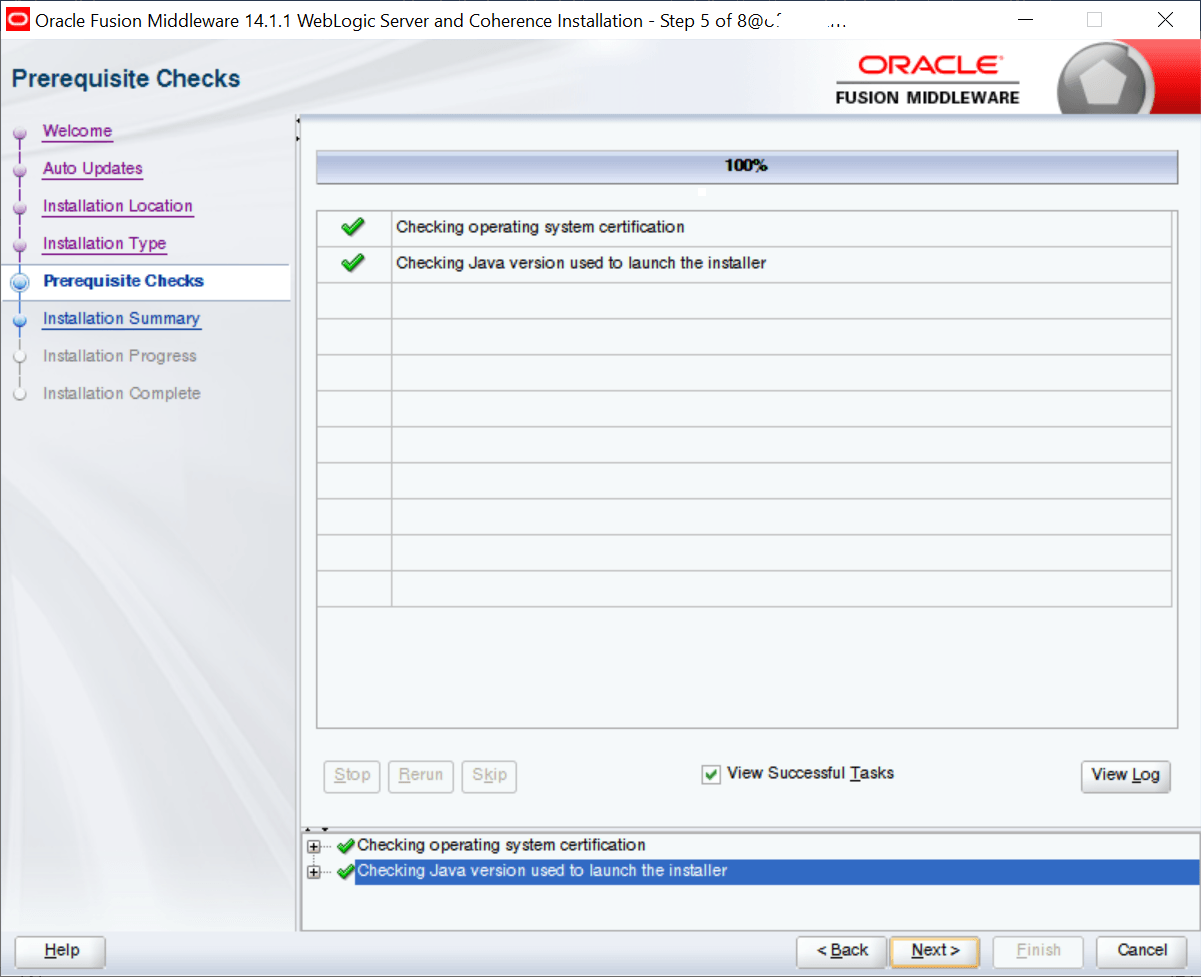
    The Prerequisite Checks screen displays.

    Figure 2-6 Prerequisite Checks

    Installing Weblogic

  14. Review prerequisite checks.
    Ensure all system requirements are met. If errors are displayed, resolve them and click Retry.
  15. Click Next.
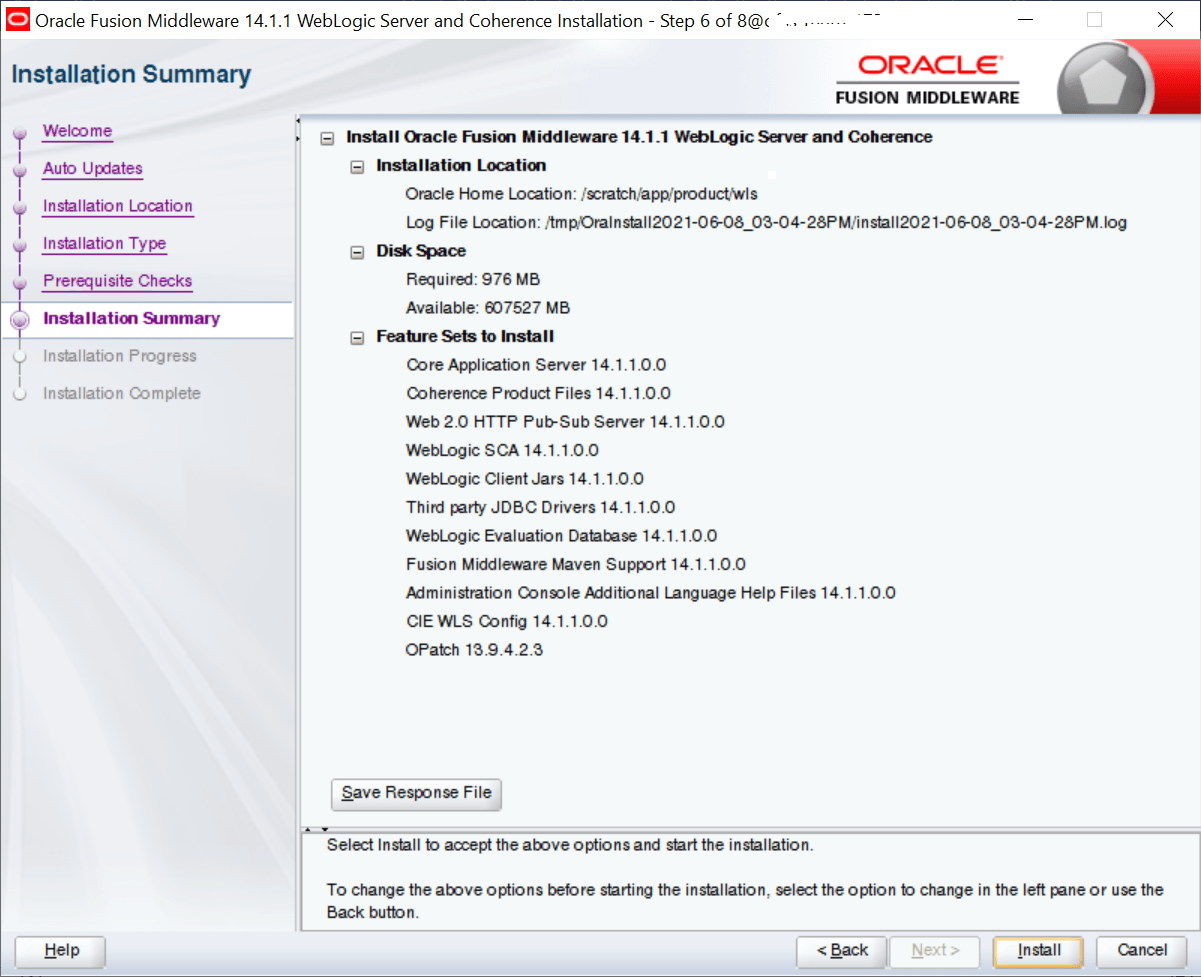
    The Installation Summary screen displays.

    Figure 2-7 Installation Summary

    Installing Weblogic

  16. Review the installation summary.
    Review the configuration details. To save the configuration as a response file, click Save and specify a file name (for example, silent_install.rsp).
  17. Click Install.
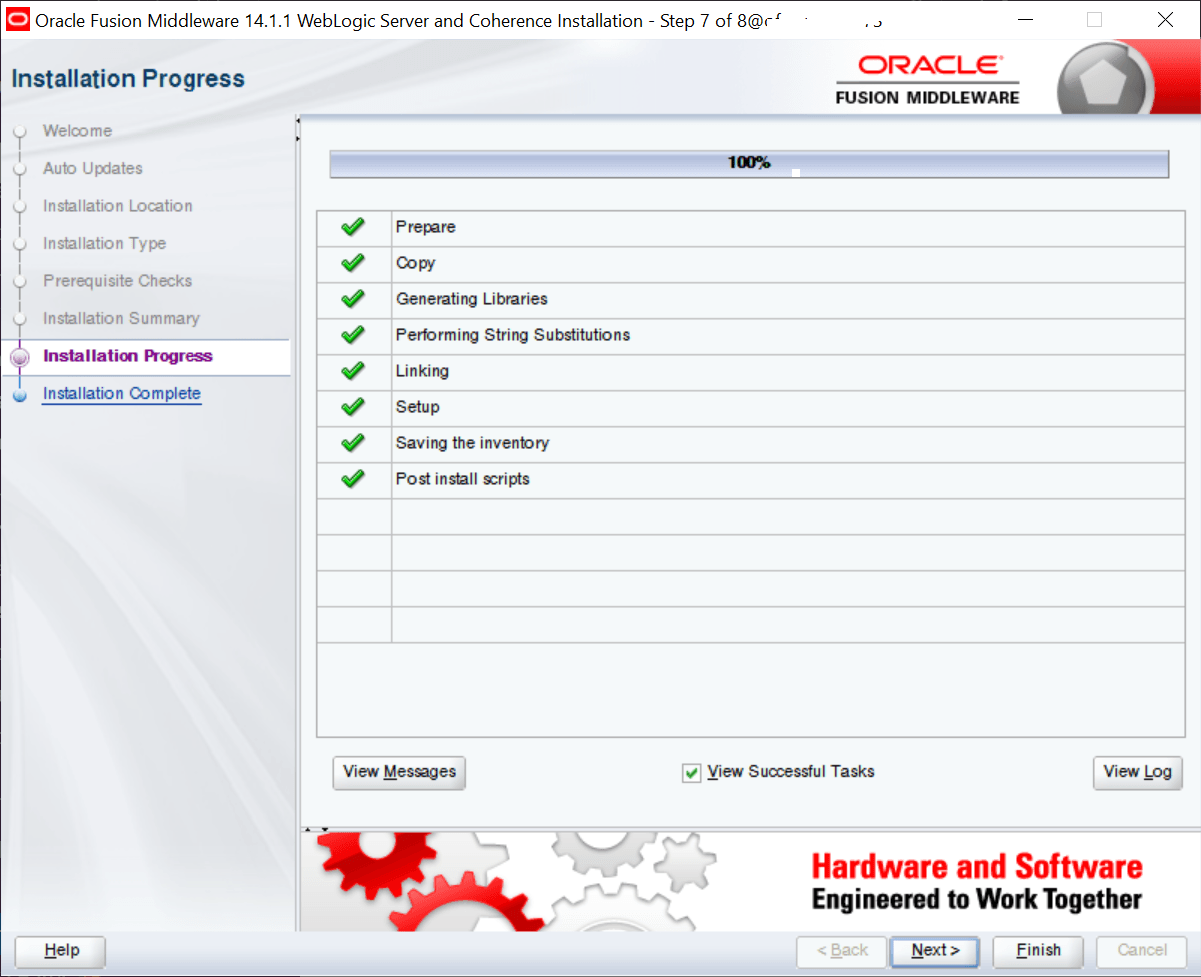
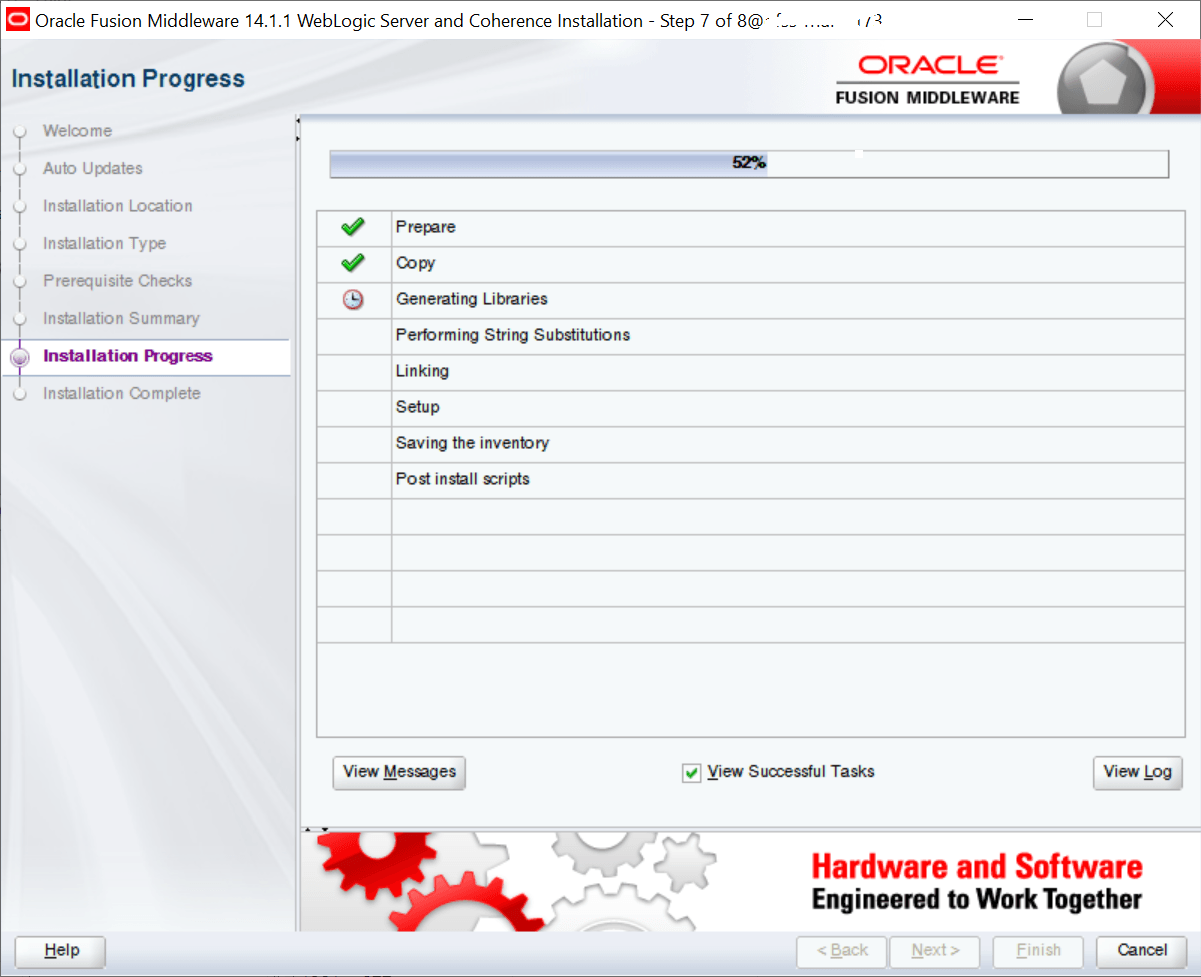
    The Installation Progress screen displays.

    Figure 2-8 Installation Progress

    Installing Weblogic


    Installing Weblogic

  18. Monitor the installation progress.
    The progress screen displays the installation status. To exit before completion, click Cancel.
  19. Click Next after installation completes.
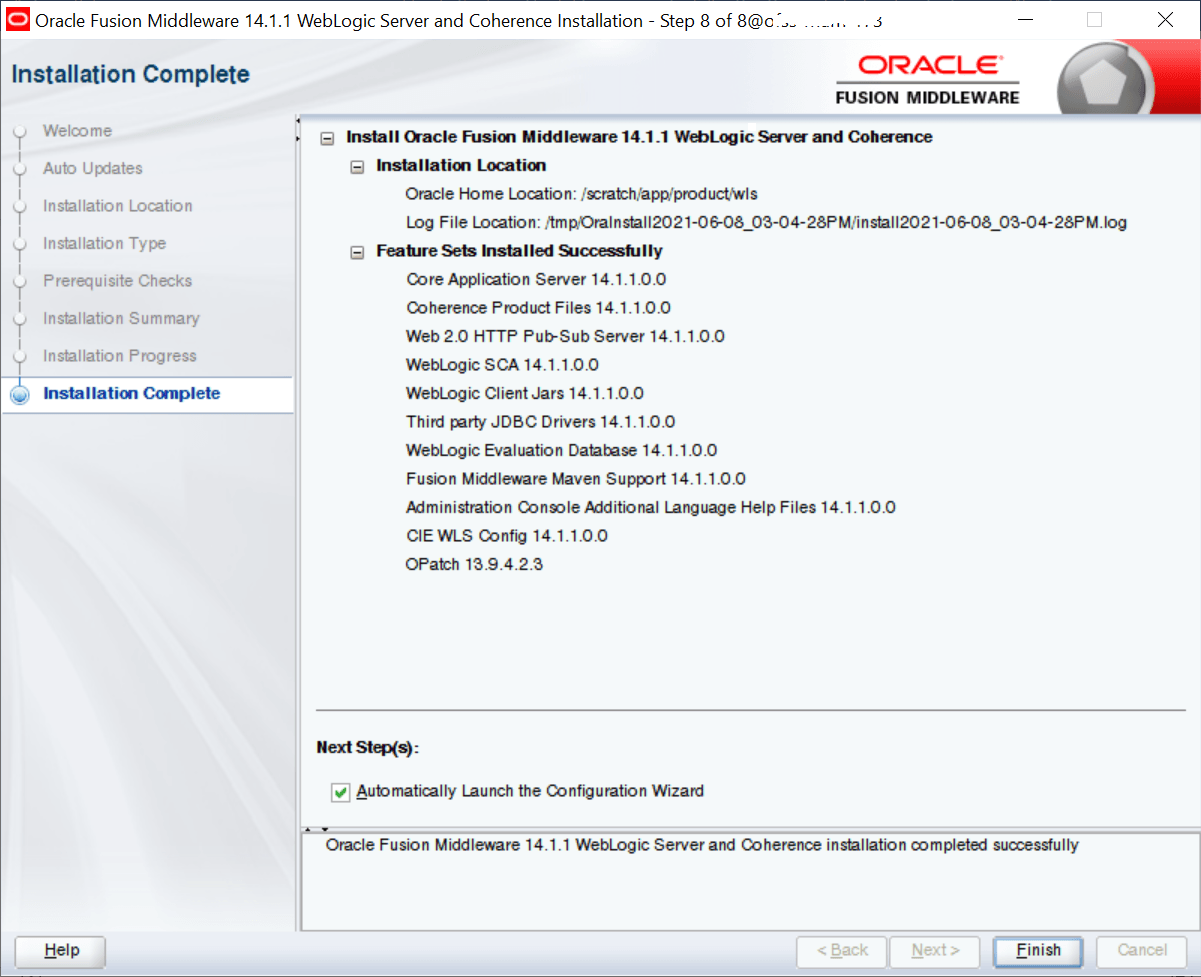
    The Installation Complete screen displays.

    Figure 2-9 Installation Complete

    Installing Weblogic

  20. Complete the installation.
    Review the installation summary, including Oracle Home Location and Log File Location.
  21. Click Finish.