3 FCM Push Notifications
This topic describes the systematic instruction to FCM Push Notifications option.
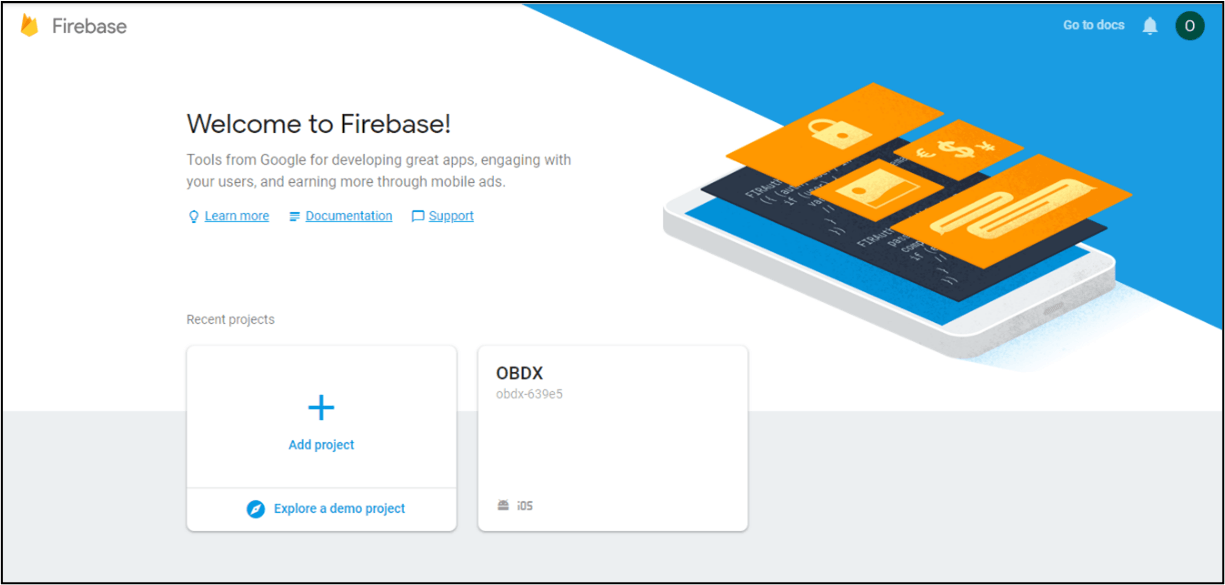
- Go to URL
https://firebase.google.com/. - Traverse to console and create a project.
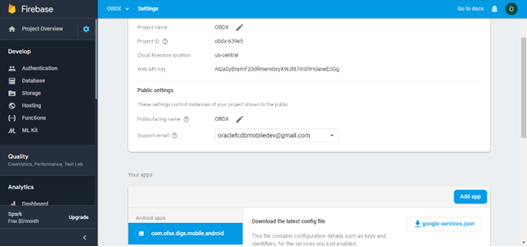
- Download google-services.json from below page and save to (zigbank\platforms\android\app) directory.
- Remember to keep the projects package name and firebase package name
same.
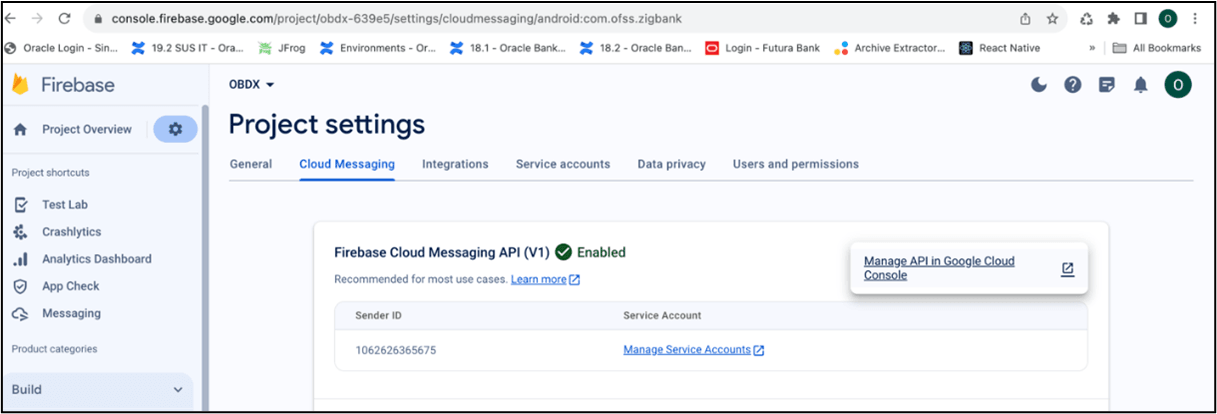
- Traverse to cloud messaging tab Enable Firebase Cloud Messaging API(V1)
by clicking on Manage API in Google Cloud Console.
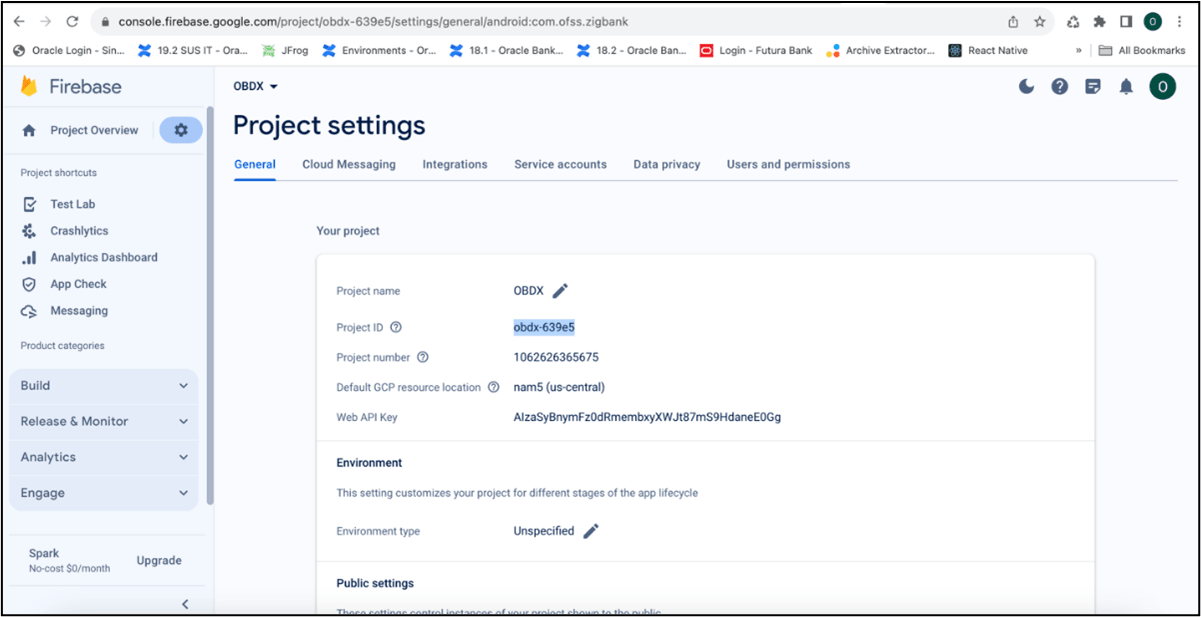
- Get the Project ID from Project Setting in Firebase console.
- Update FCM URL in system configuration (Refer Section 10) by adding YOUR_PROJECT_ID in url which is captured on above step.
- If proxy address is to be used, provide the same in proxy settings at System Configurations.
- Generate private key for your service account by using below steps-
- In the Firebase console, open Settings > Service Accounts.
- Click Generate New Private Key, then confirm by clicking Generate Key.
- You can also follow below google doc - https://firebase.google.com/docs/cloud-messaging/auth-server#provide-credentials-manually.
- Update the FCM properties which are mentioned in System Configurations section 10.
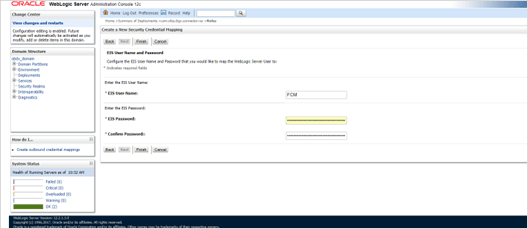
- If CONNECTOR is selected in Step 2 update password as
below: