5.2.1 Vehicle
This topic provides systematic instructions about the Vehicle data segment in Enrichment stage.
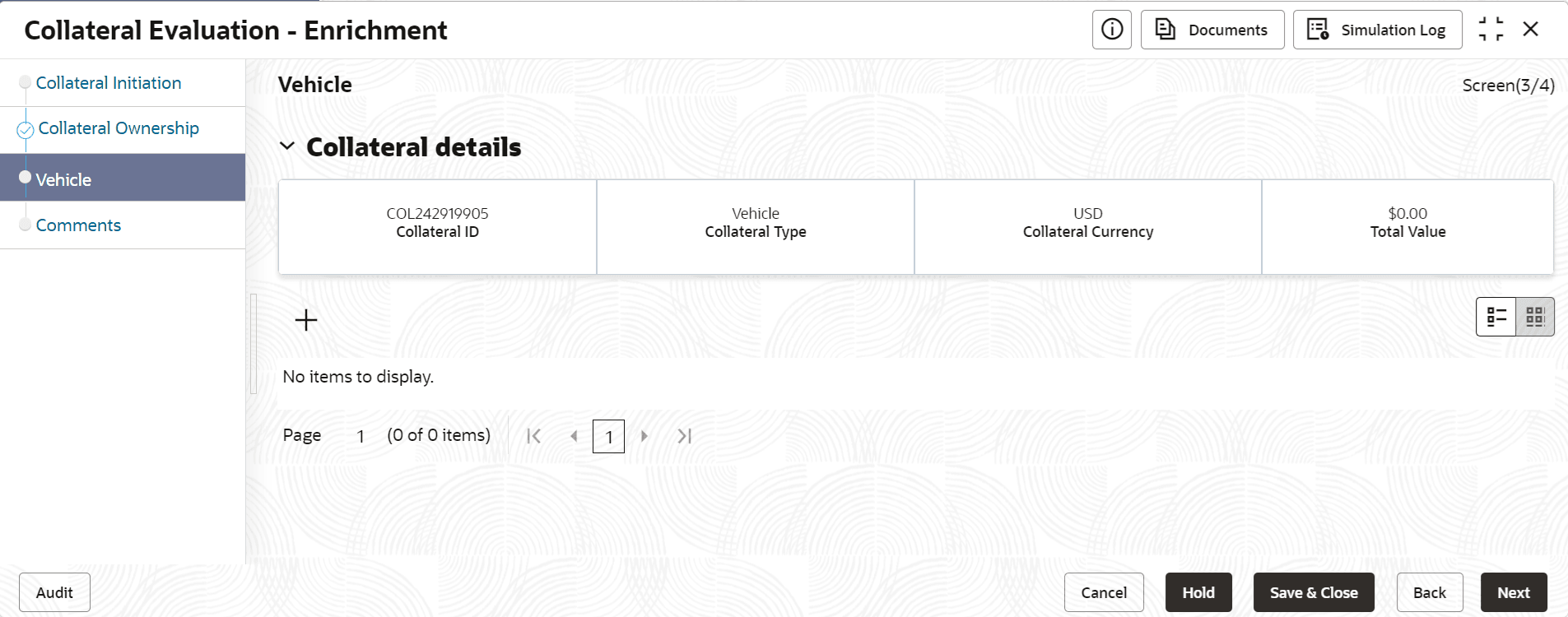
- Click the add icon.The Configure - Vehicle screen is displayed.
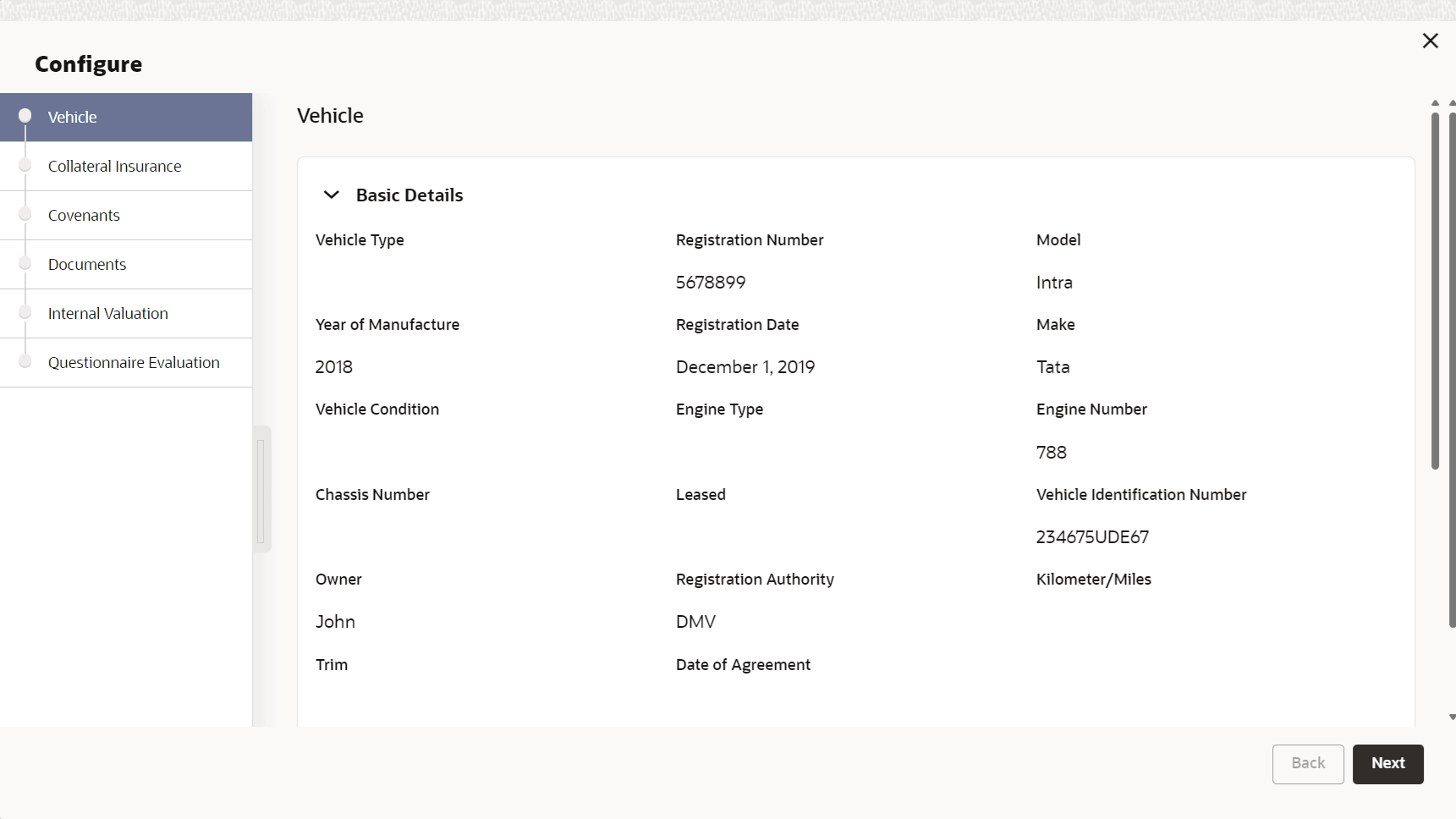
- Provide all the details about the vehicle in the Configure - Vehicle
screen.For field level information, refer the following tables.
Table 5-4 Configure - Vehicle - Basic Details - Field Description
Field Description Vehicle Identification Number
Click seach and select the vehicle identification number. Note: All fields are auto populated after fetching the details in Vehicle Identification Number.
Vehicle Type
Select the Vehicle Type from the drop down list. The available options are:- Four Wheeler
- Heavy Commercial Vehicles
- Light Commercial Vehicles
- Three Wheeler
- Two Wheeler
Registration Number
Specify the vehicle Registration Number.
Model
Specify the Model of the vehicle
Year of Manufacture
Specify the year in which the vehicle is manufactured.
Registration Date
Specify the date on which the vehicle registration is done. This field is mandatory, if the vehicle is new.
Make
Specify the vehicle maker details.
Vehicle Condition
select the Vehicle Condition from the drop down list. The available options are:- New
- Used
Engine Type
Select the Engine Type from the drop down list. The available options are:- Petrol
- Diesel
- Electric
Engine Number
Specify the vehicle Engine Number. This field is mandatory, if the vehicle is new.
Chassis Number
Specify the vehicle Chassis Number.
Leased
Specify if the Vehicle is leased by selecting Yes or No from the drop down list.
Vehicle Identification Number
Specify the Vehicle Identification Number.
Owner
Specify vehicle owner name.
Registration Authority
Specify details of the Registration Authority which registered the vehicle.
Kilometer/Miles
Select the unit for capturing Distance Travelled by the vehicle.
Distance Travelled
Specify the Distance Travelled by the vehicle in selected unit.
Trim
Specify the vehicle Trim details.
Accidental History
Enable this flag, if the vehicle has Accidental History.
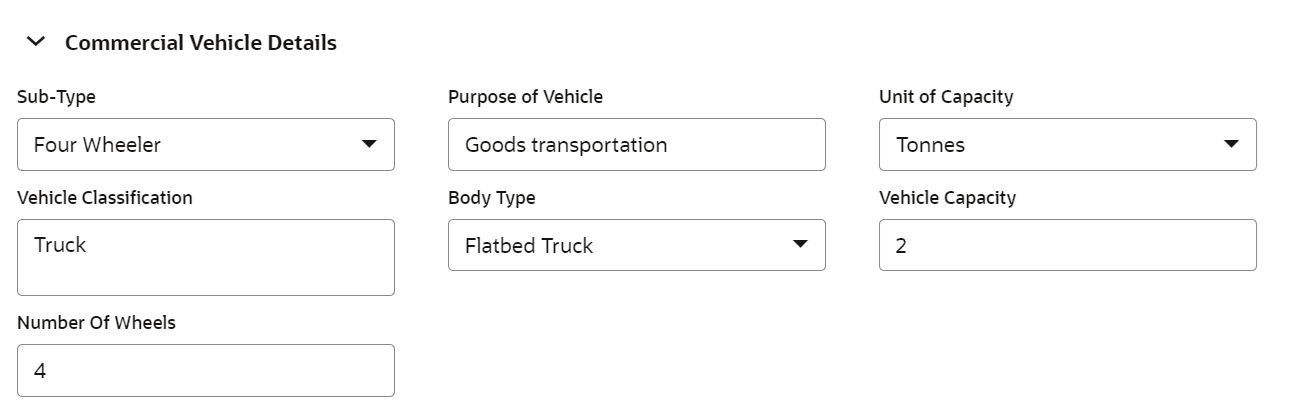
Figure 5-6 Configure - Vehicle - Commercial Vehicle Details
Table 5-5 Configure - Vehicle - Commercial Vehicle Details - Field Description
Field Description Sub-Type
Specify the Vehicle Sub-Type from the drop down list. The available options are:- Four Wheeler
- Heavy Commercial Vehicles
- Light Commercial Vehicles
- Three Wheeler
- Two Wheeler
Purpose of Vehicle
Specify the purpose of vehicle is used.
Unit of Capacity
Specify the Unit in which vehicle capacity is measured.
Vehicle Classification
Provide detailed information about the Vehicle Classification.
Body Type
Select the vehicle Body Type from the drop down list. The available options include but not limited to- Box Truck
- Semi Trailer Truck
- Van
- Trailers
- Heavy Equipment
- Travel Trailer
- MiniVan
- Pickup Truck/Van
- Flatbed Truck
- Platform Truck
- Crane
- Garbage Truck
- Refrigerator Truck
- Others
Vehicle Capacity
Specify the capacity of vehicle in selected unit.
Number of Wheels
Specify the number of wheels are available in the vehicle.
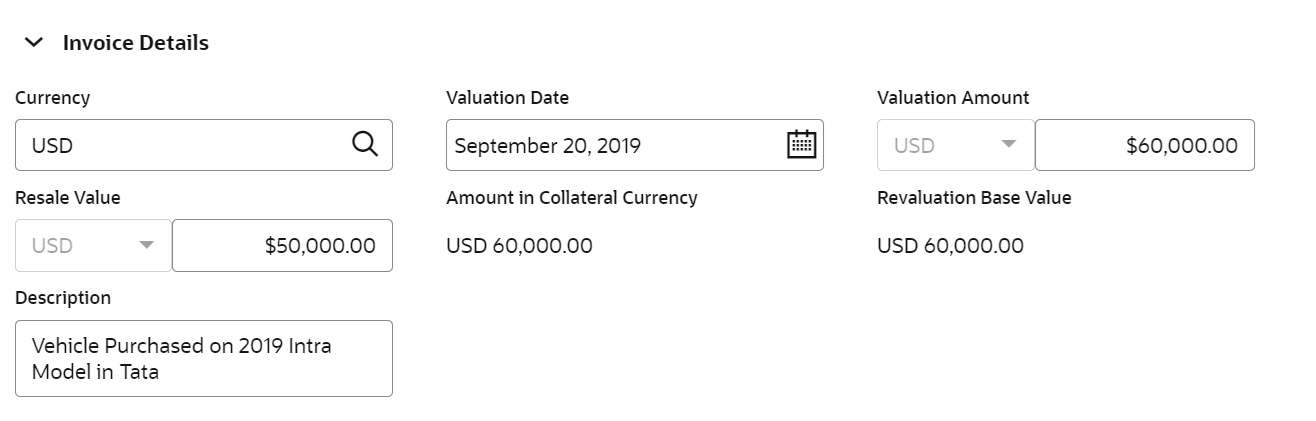
Figure 5-7 Configure - Vehicle - Invoice Details
Table 5-6 Configure - Vehicle - Invoice Details - Field Description
Field Description Currency
Specify the Currency in which invoice is prepared.
Invoice value
Specify the Invoice value of the vehicle.
Resale value
Specify the Resale Value of the vehicle.
Amount in Collateral Currency
The system converts and displays the vehicle value in collateral currency.
Revaluation Base Value
The system calculates and displays the Revaluation Base Value in this field.
Description
Specify the brief description about the vehicle.
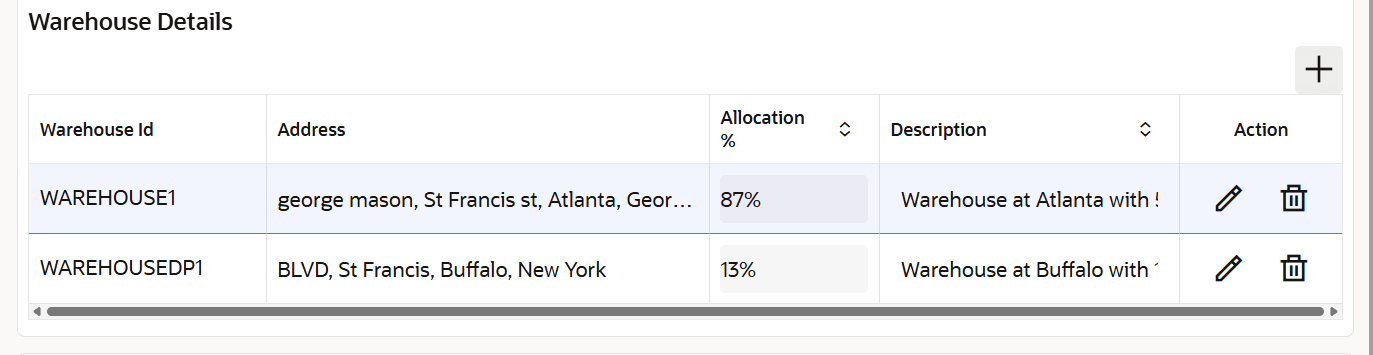
For more information on fields, refer to the field description table below.Table 5-7 Warehouse Details
Field Description Warehouse ID Specify the warehouse ID. Warehouse Address Specify the warehouse address. Allocation % Specify the allocation percentage of the warehouse. Description Specify the description on warehouse. - After capturing all the vehicle details, click Next in
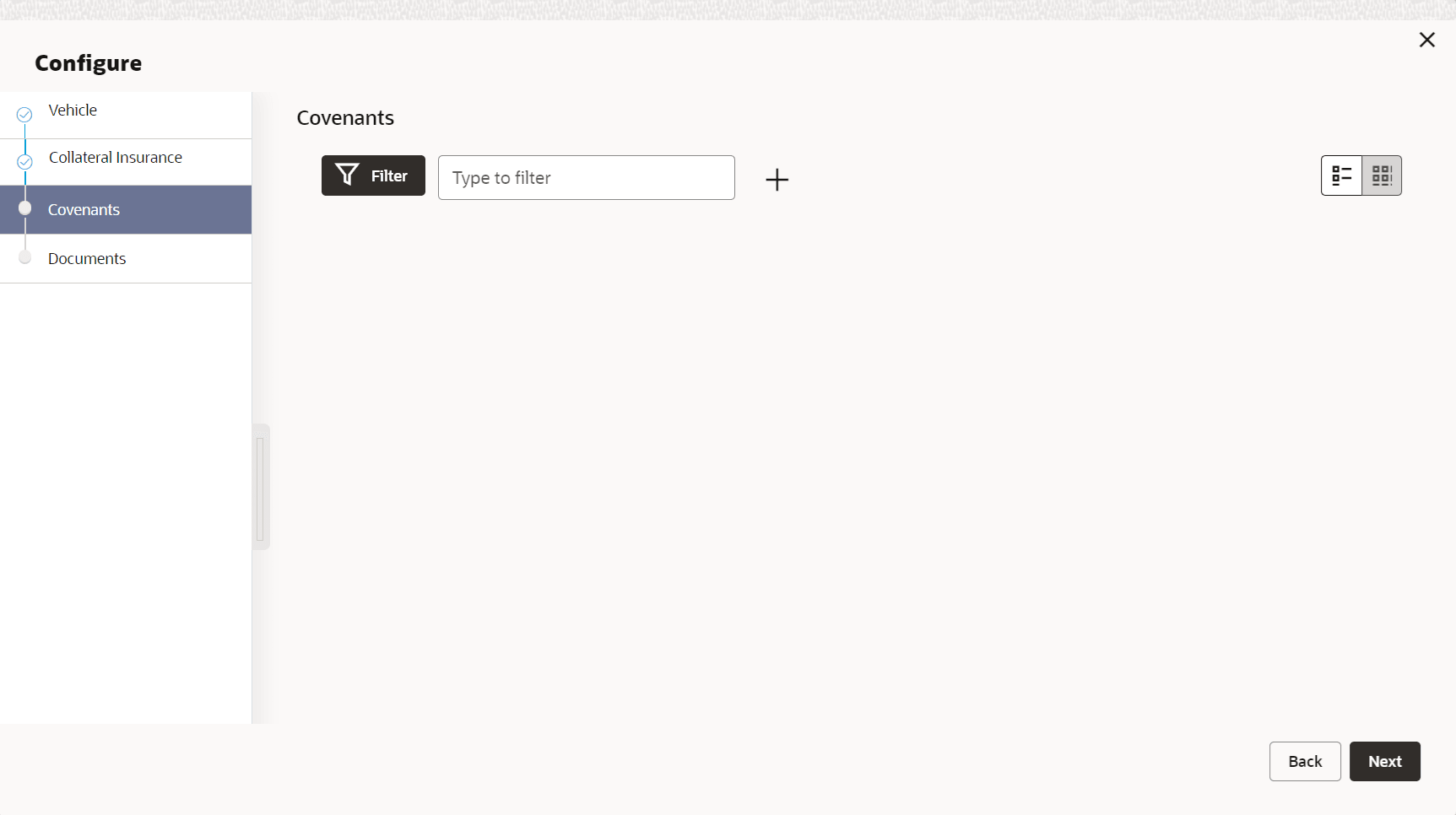
the Configure - Vehicle - Basic Details screen.The Configure - Vehicle - Covenants screen is displayed.
Figure 5-9 Configure - Vehicle - Covenants
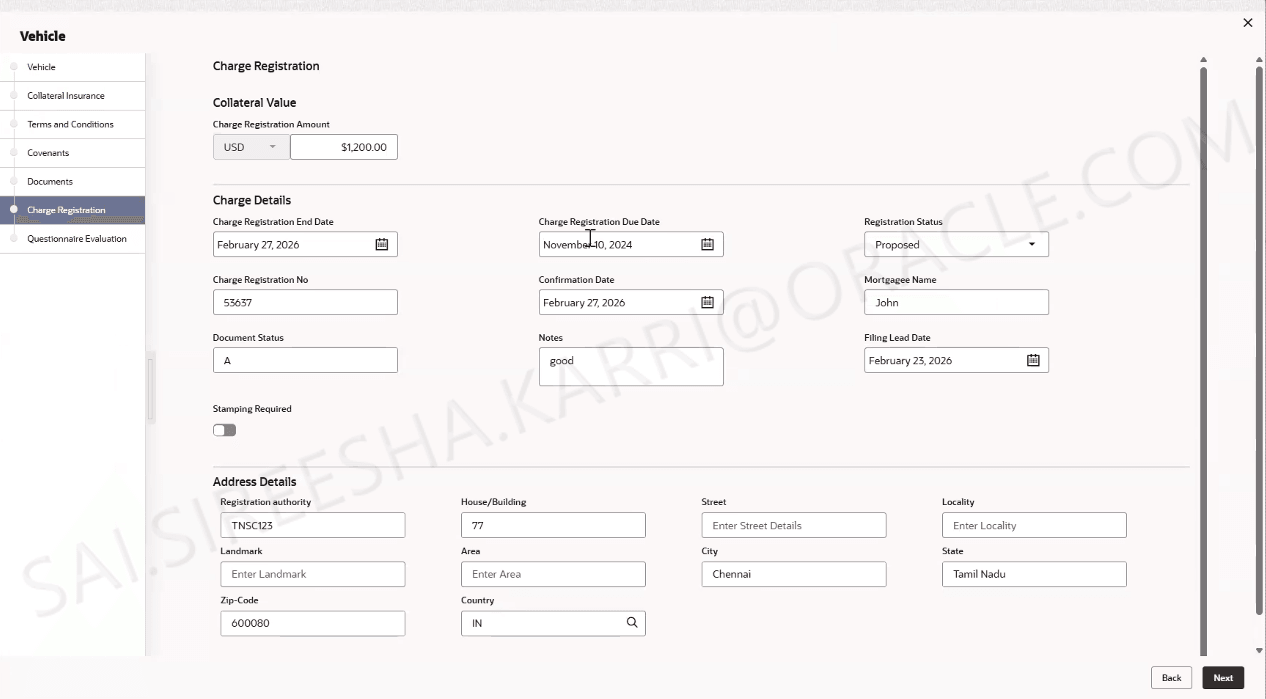
- Click Next.The Charge Registration screen displays.For more information on fields, refer to the field description table below.
Table 5-8 Charge Registration
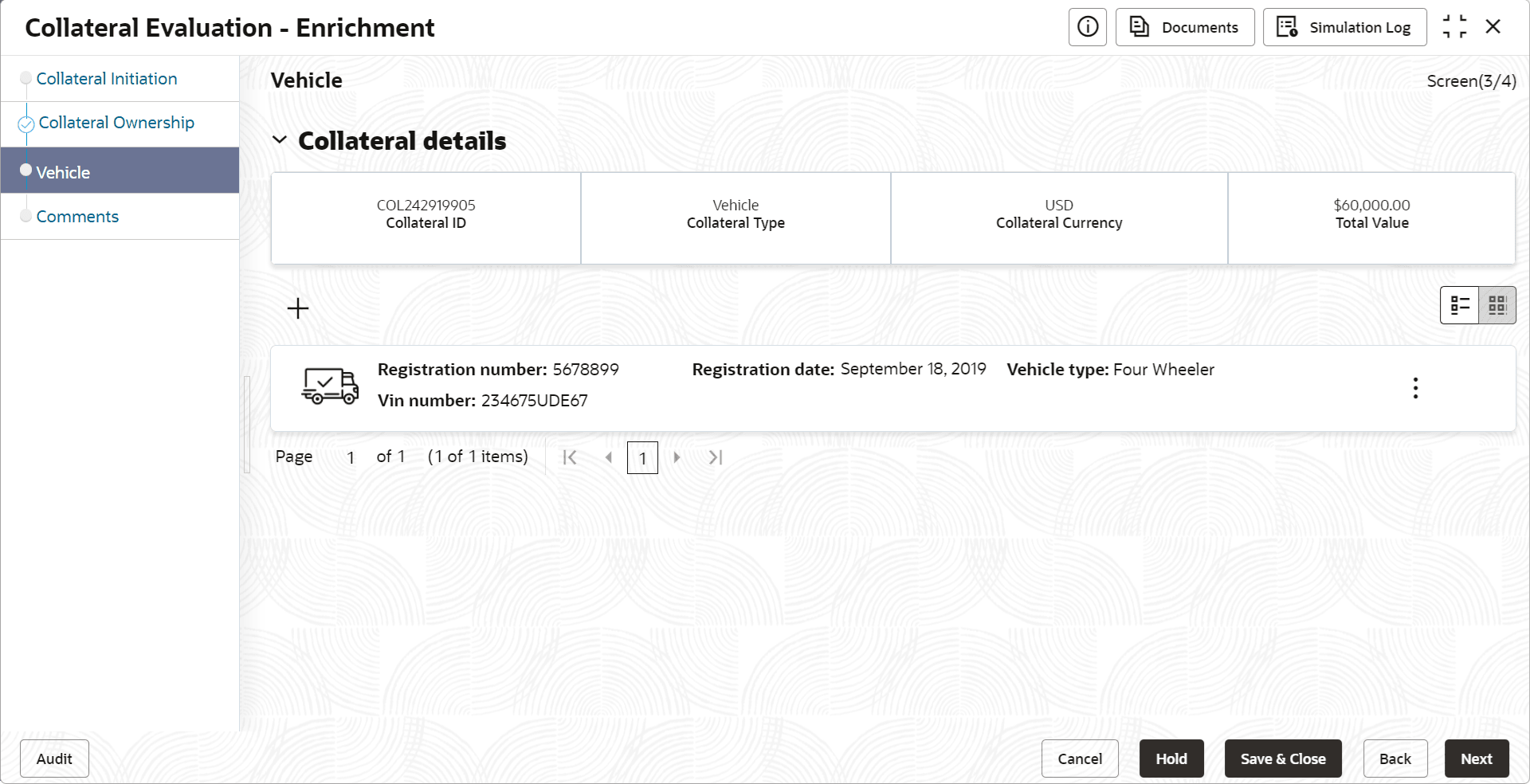
Field Description Charge Registration Amount Specify the charge registration amount. Charge Registration End Date Select the charge registration end date. Charge Registration Due Date Select the charge registration due date. Registration Status Select the registration status from the drop-down list. Registration Number Select the registration date. Confirmation Date Select the confirmation date. Mortgagee Name Specify the mortgagee name. Document Status Specify the document status. Notes Specify the notes. Filling Lead Days Specify the filling lead days.. Stamping Required Enable the toggle,if stamping is required. Registration Authority Specify the registration authority number. House/Building Specify the house/building name. Street Specify the street name. Locality Specify the locality name. Landmark Specify the landmark name. City Specify the city name. State Specify the state name. Zip Code Specify the zip code. Country Specify the country name. - Click Submit, after adding required documents.The vehicle details are added and displayed in the Enrichment - Vehicle screen as shown below.
Figure 5-11 Enrichment - Vehicle - Collateral Added
User can Edit, View, or Delete a vehicle record by clicking the action icon in the corresponding record and selecting the required option
Parent topic: Collateral Ownership