8.2 External Valuation
This topic provides systematic instructions about the procedure to add external valuation details.
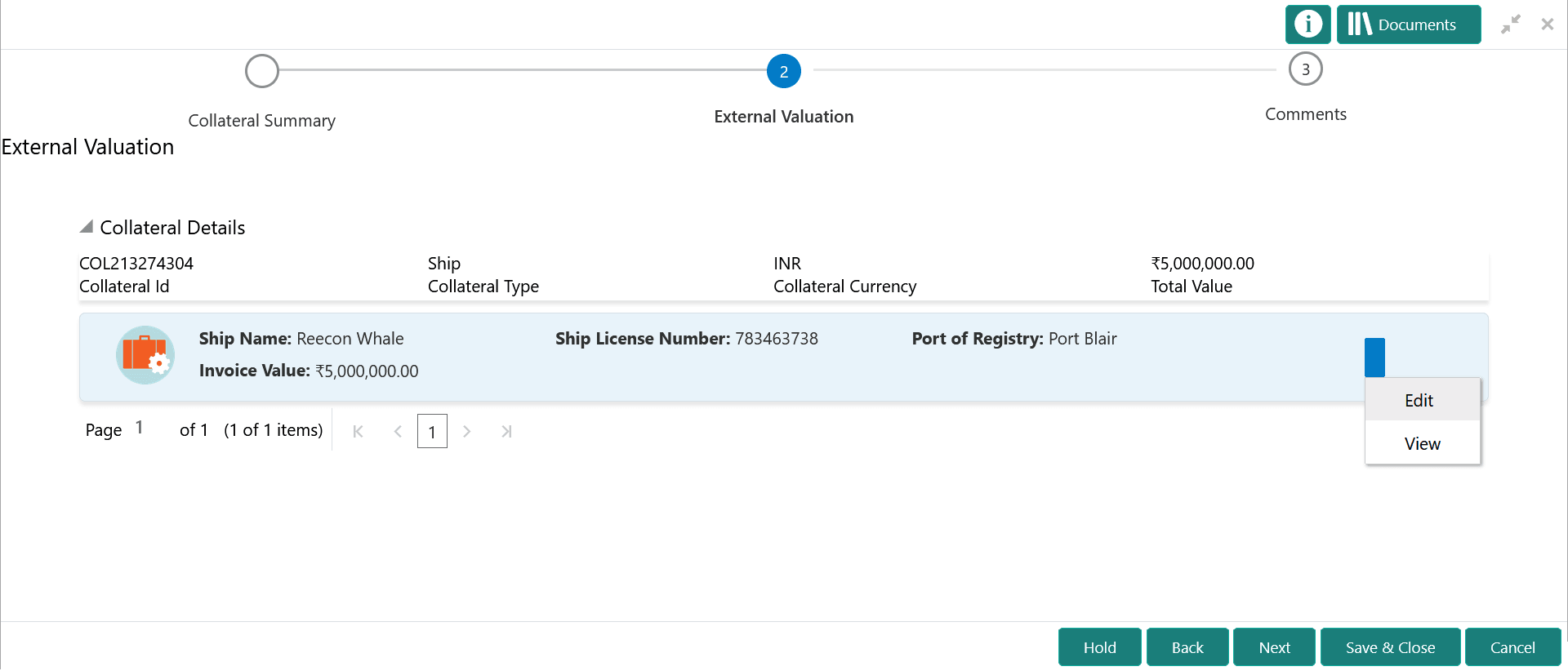
To capture the external valuation details for the collateral:
- Click the action icon in the collateral record and select
Edit.The External Valuation - Configure - Collateral Type screen is displayed.
Figure 8-4 External Valuation - Configure - Collateral Type
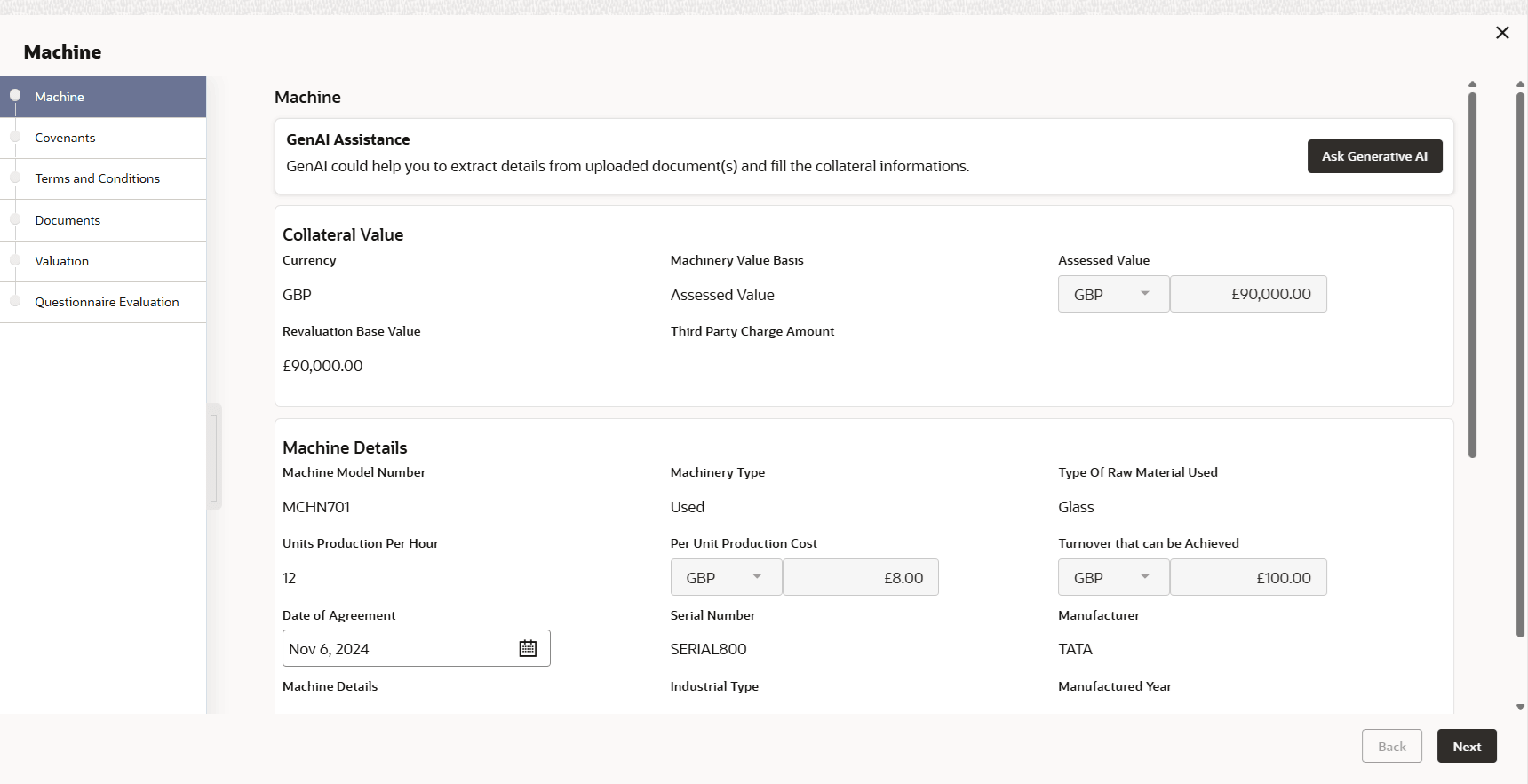
- Click Next and navigate to the Valuation
menu.
Figure 8-5 External Valuation - Configure - Valuation
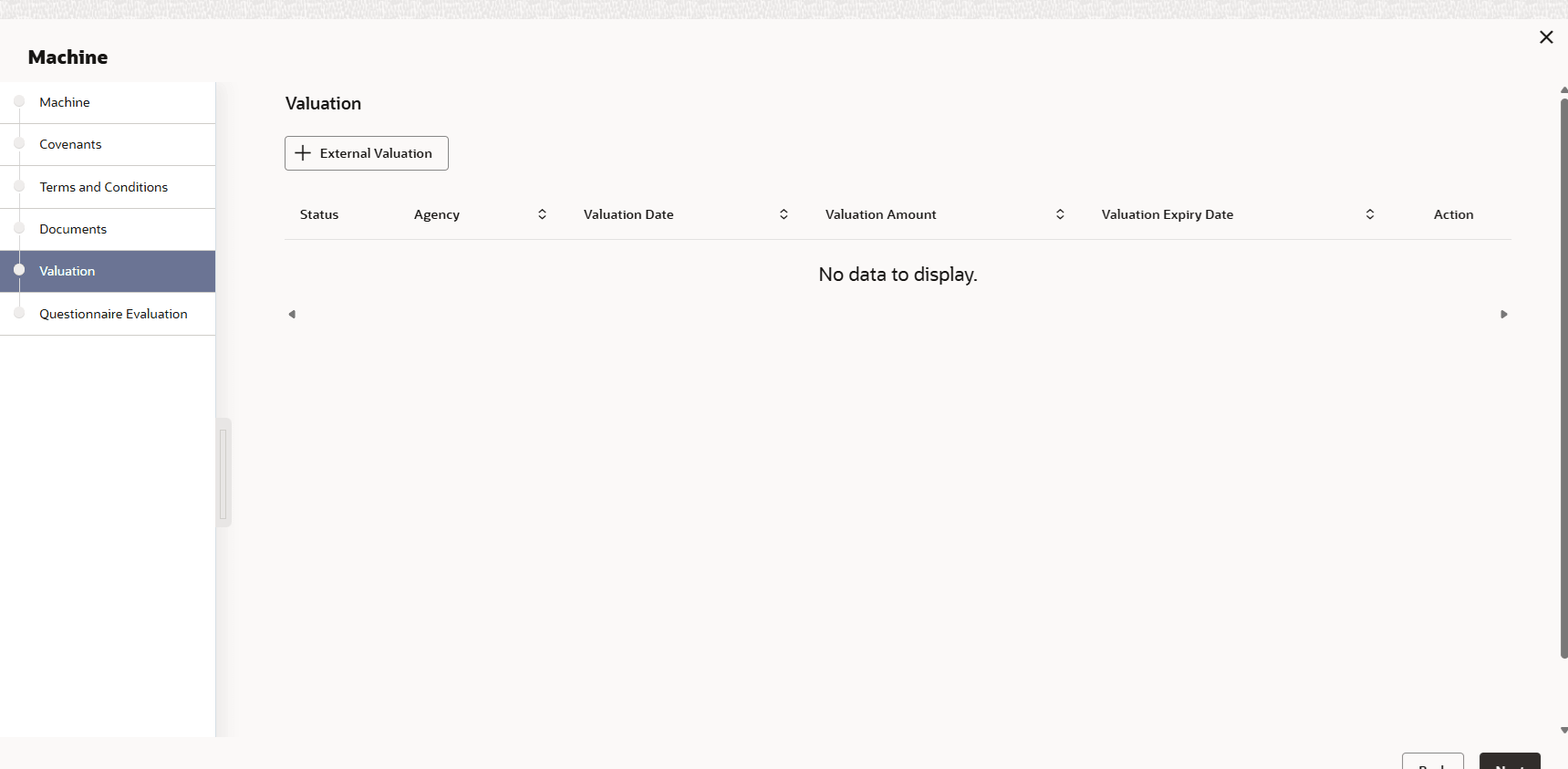
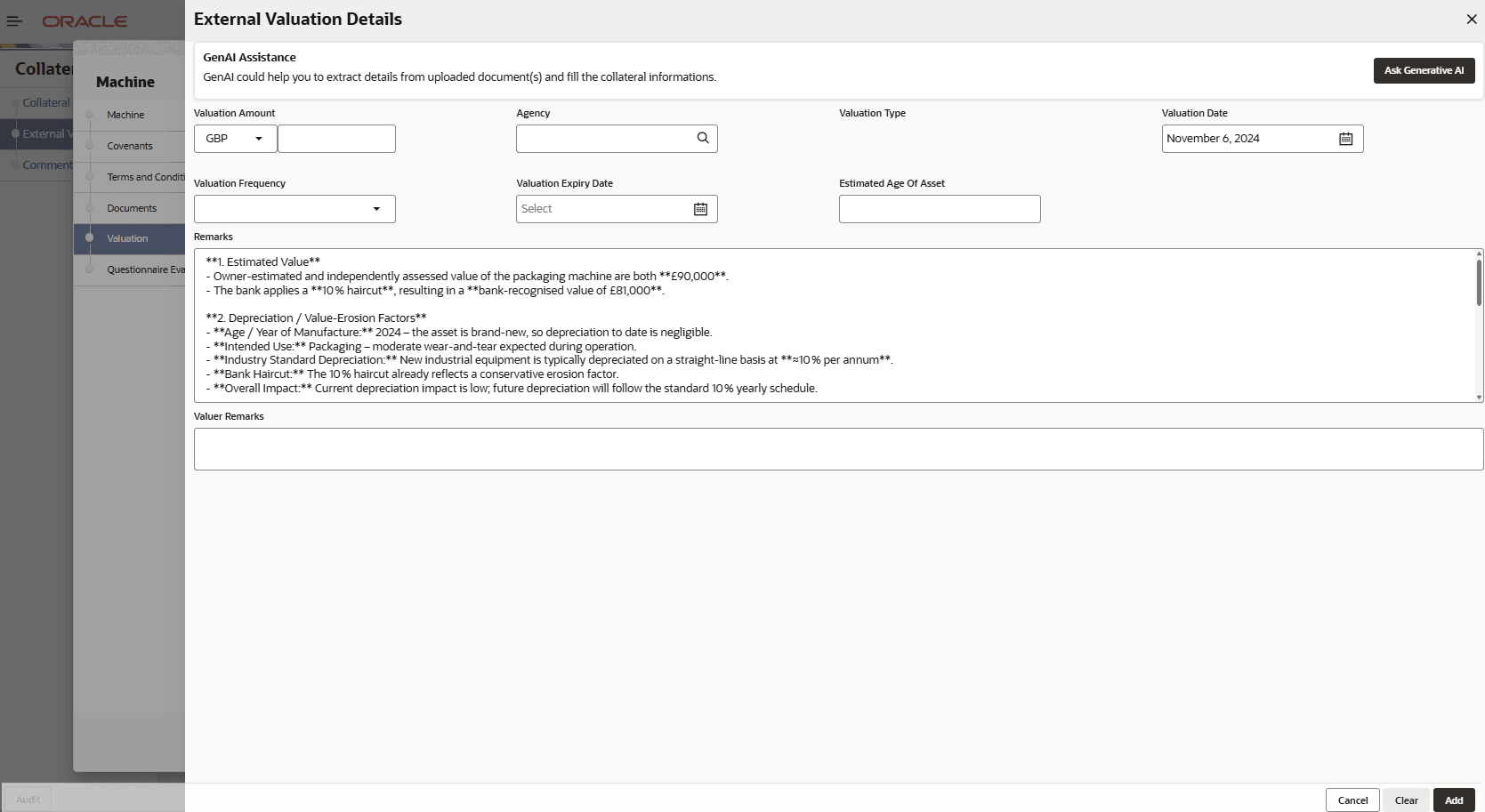
- Click the add icon in the External Valuation - Configure - Valuation
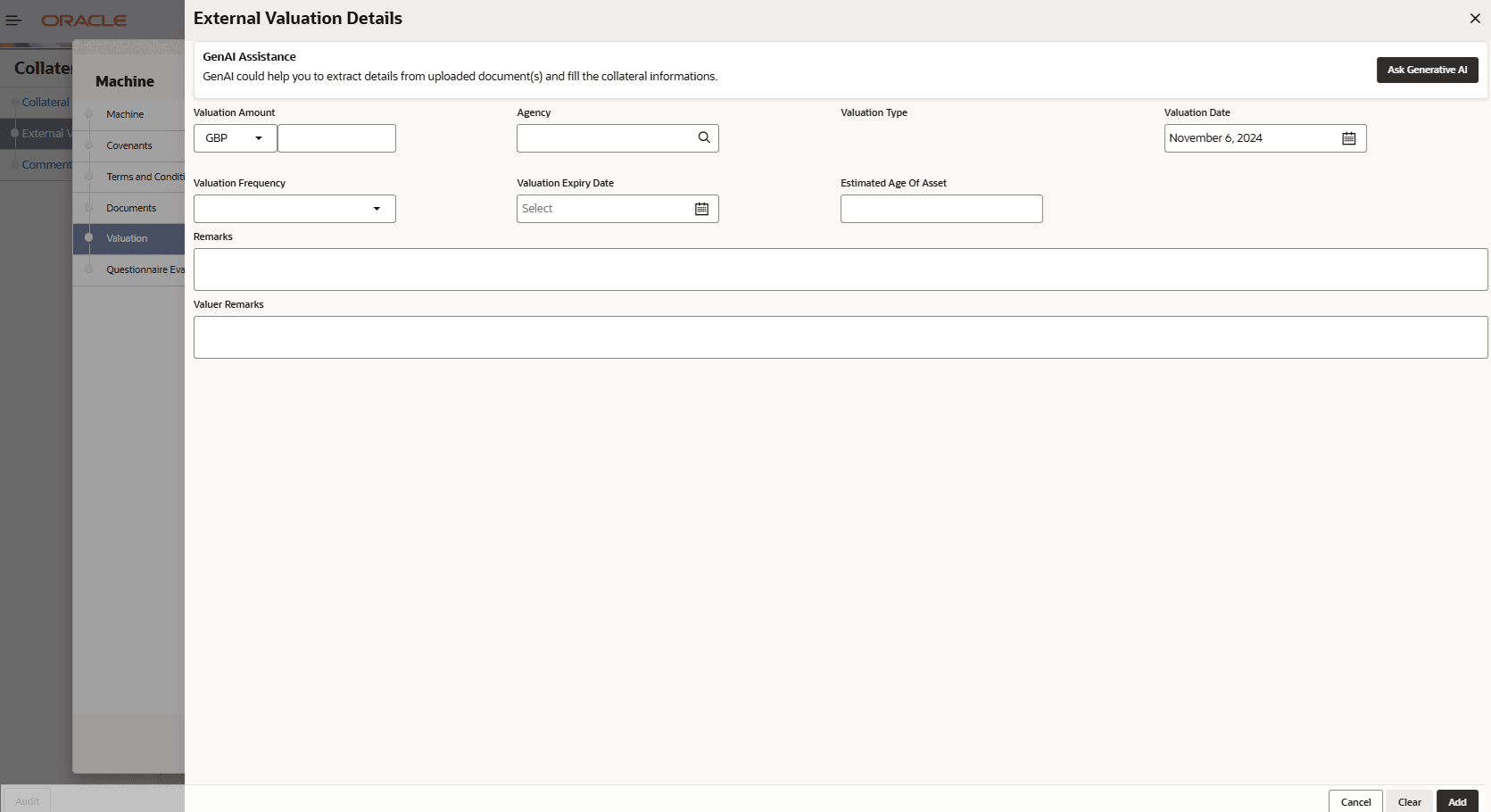
screen.The External Valuation Details window is displayed.
Figure 8-6 External Valuation - Configure - Valuation Details
For more information on the fields, refer to the field description table below:Table 8-1 Basic Details - Field Description
Field Description Agency Select the Agency which performed external valuation. Valuation Type Select the Valuation Type as External. Valuation Date Specify the date on which the external valuation is carried out. Valuation Frequency Select the Valuation Frequency from the drop down list. Frequency Unit Specify the number of times the valuation must be done in the selected Valuation Frequency. Valuation Expiry Date Specify the date till which the valuation is valid. Next Valuation Date Next Valuation Date is displayed based on the specified Valuation Date, Valuation Frequency and Frequency Unit. Valuation Amount Select a currency and specify the collateral Valuation Amount. Insurable Value Specify the Insurable Value of the asset. Deviation Approval As Per Bank Policy Provide the approval details in case there is any deviation in the construction from the approved plan and the bank has approved the deviation. Estimated Age of Asset Specify the Estimated Age of Asset. Estimated Life Span of Asset Specify the Estimated Life Span of Asset. Remarks Specify the bank user Remarks. Valuer Remarks Capture the Valuer Remarks for the collateral. - Click Add in the External Valuation Details
window.The external valuation details are added and displayed as shown below.
Figure 8-7 External Valuation - Configure - Valuation Details
You can Edit, View, or Delete the added external valuation detail by clicking the action icon and selecting the required option.
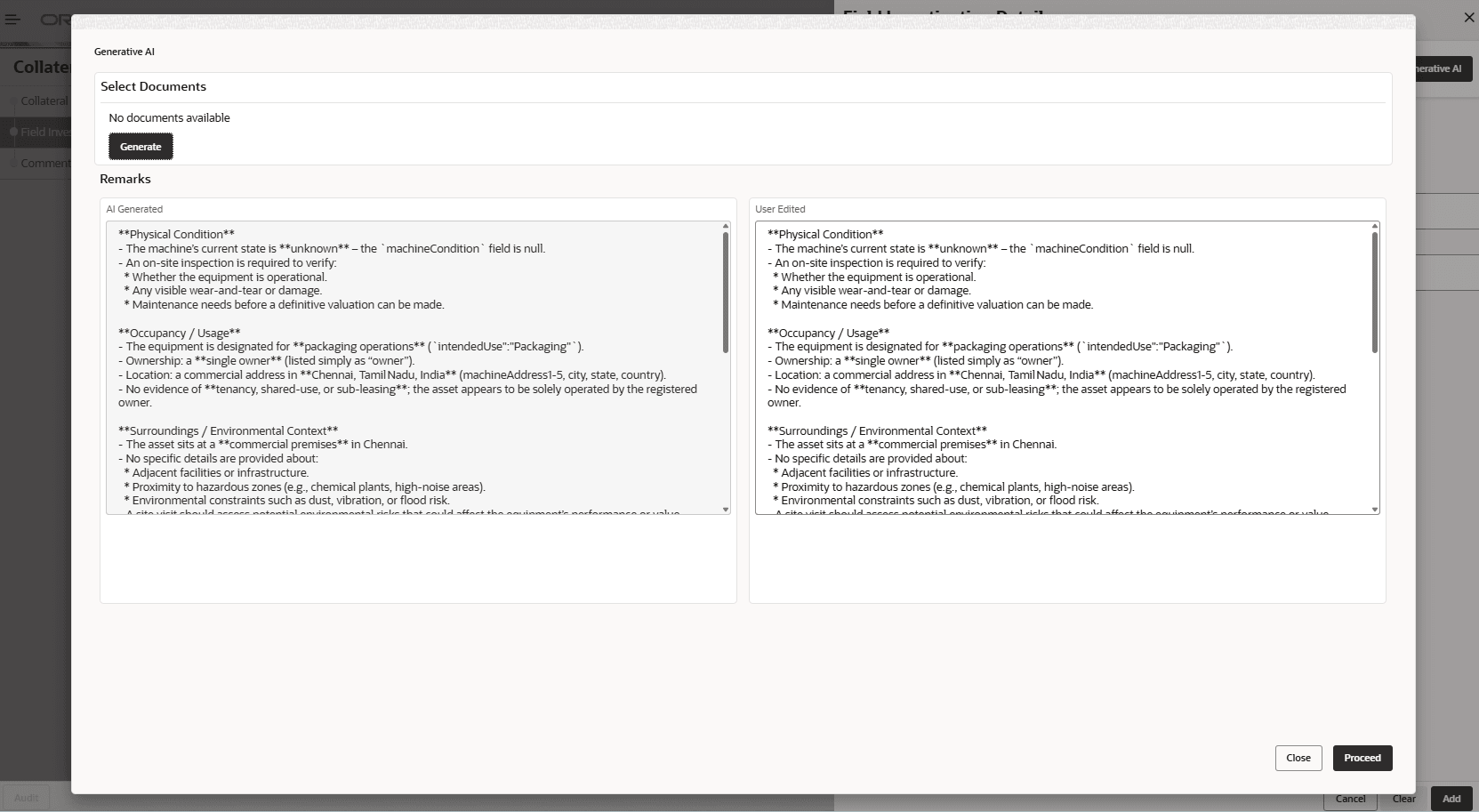
- Click on Ask Geneartive AI.The Generative AI screen displays.
Note:
The system automatically generates a Generative AI opinion. The user can edit the Generated AI text and update the details as required.
- Click Proceed.The External Valuation Details screen displays.
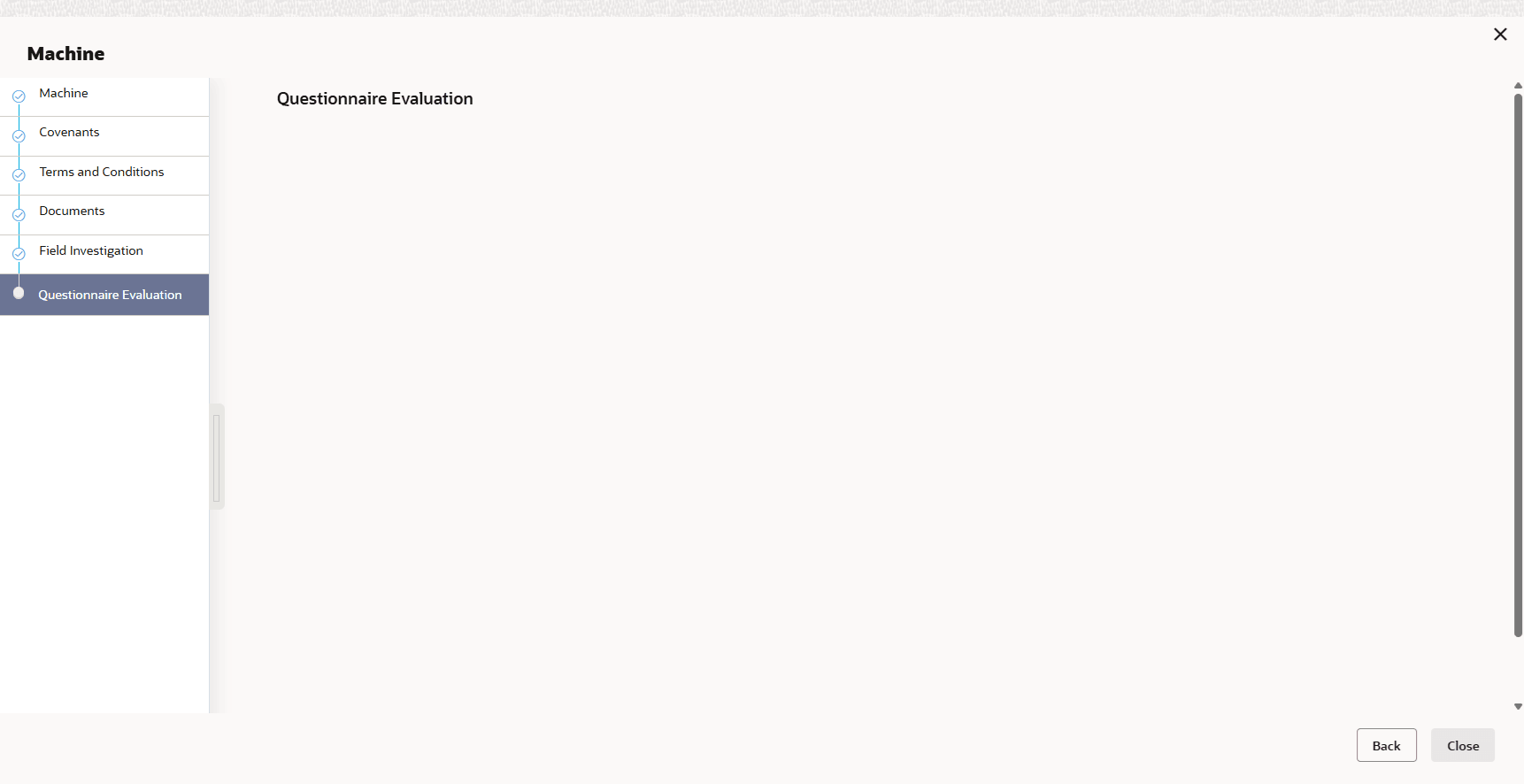
- After capturing field investigation details, click Next.The Field Investigation - Configure - Questionnaire Evaluation screen displays.
Figure 8-10 Field Investigation - Configure - Questionnaire Evaluation
Note:
In the above screen, the questionnaires linked to the Field Investigation stage in Business Process configuration are displayed. You can manage the questionnaire process linkage in Maintenance module.
Parent topic: External Valuation