6.2 Legal Opinion
This topic provides systematic instructions about procedure to add external legal opinion.
Click Next in the Legal Opinion - Collateral
Summary screen, the Legal Opinion data segment is displayed.
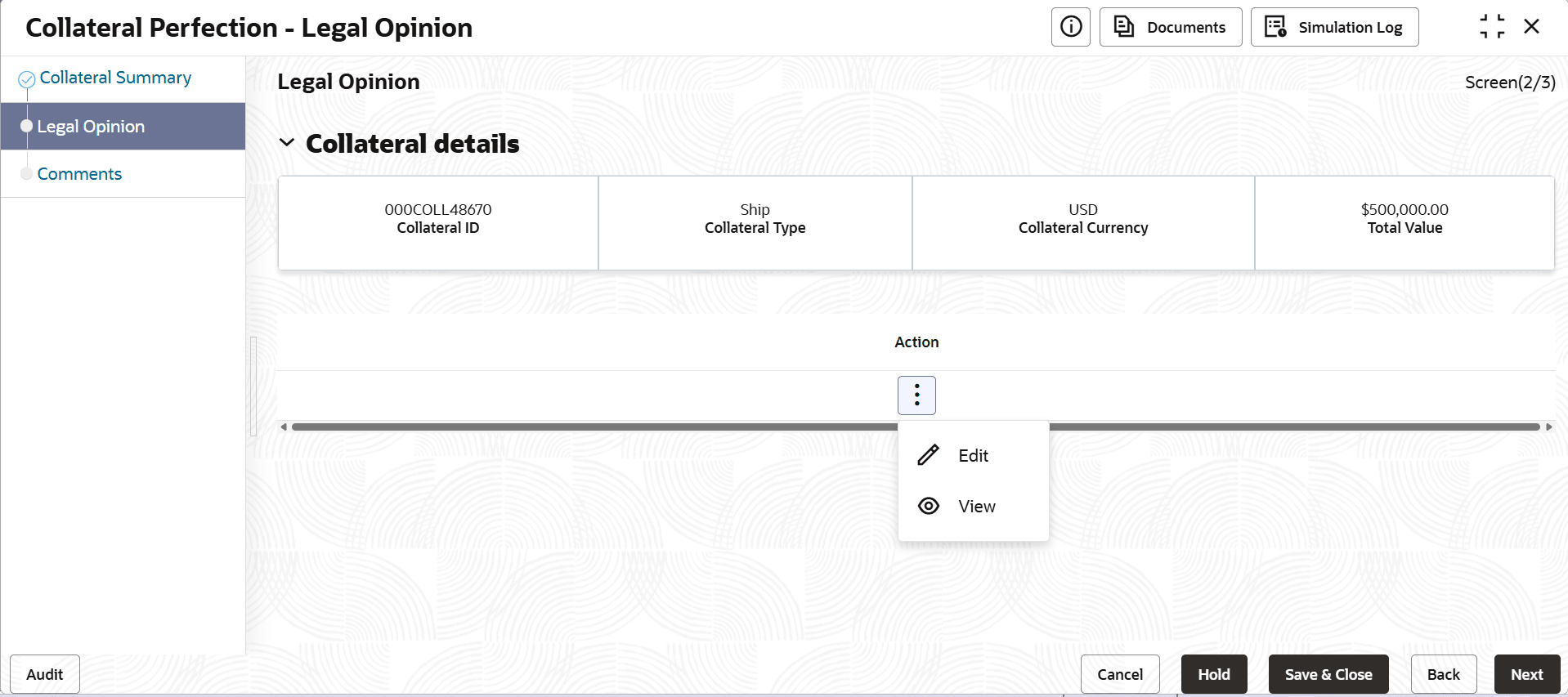
To capture the Legal Opinion for the collateral:
- Click the action icon in the collateral record and select
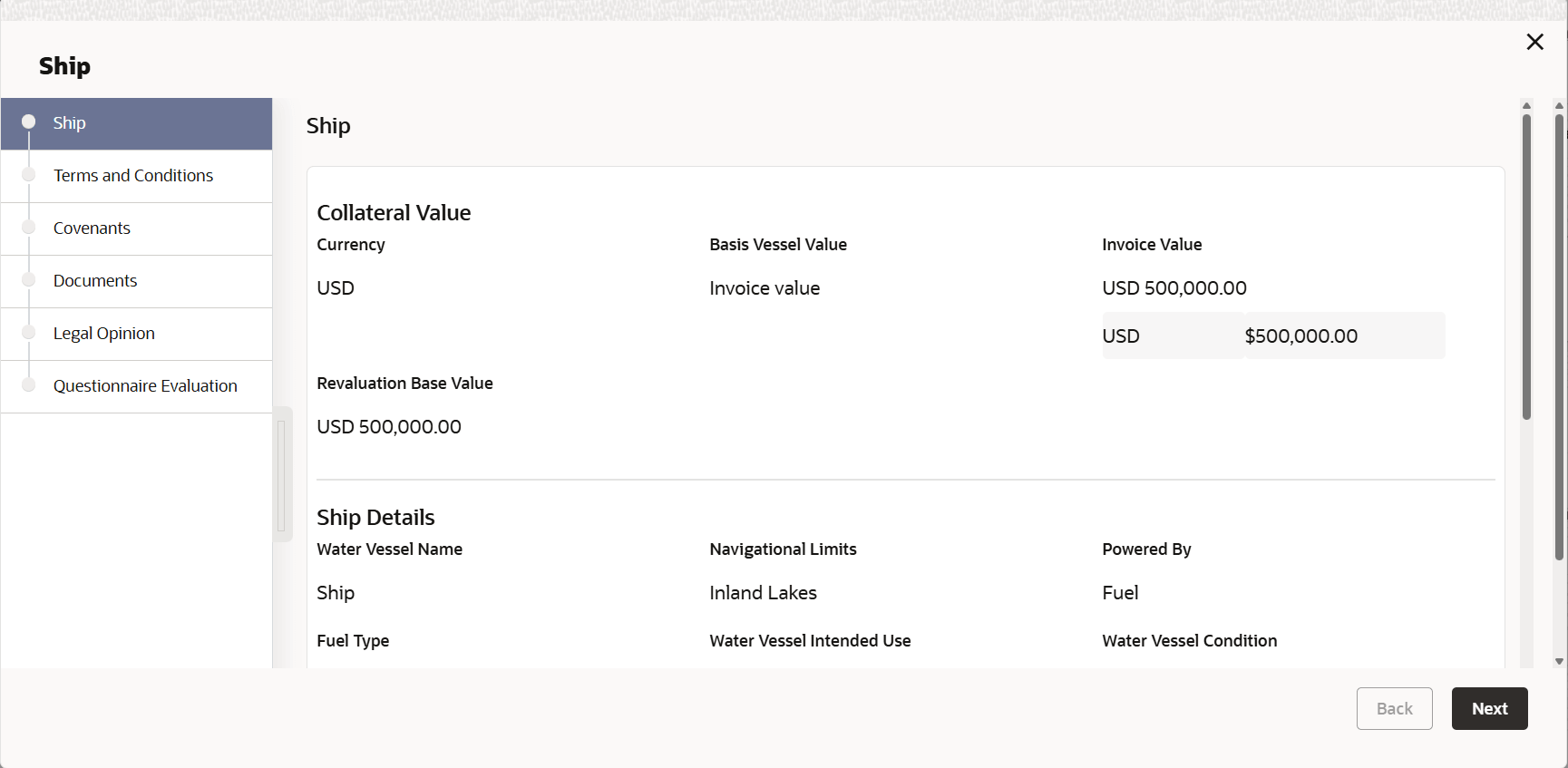
Edit.The Legal Opinion - Configure - Collateral Type screen is displayed.
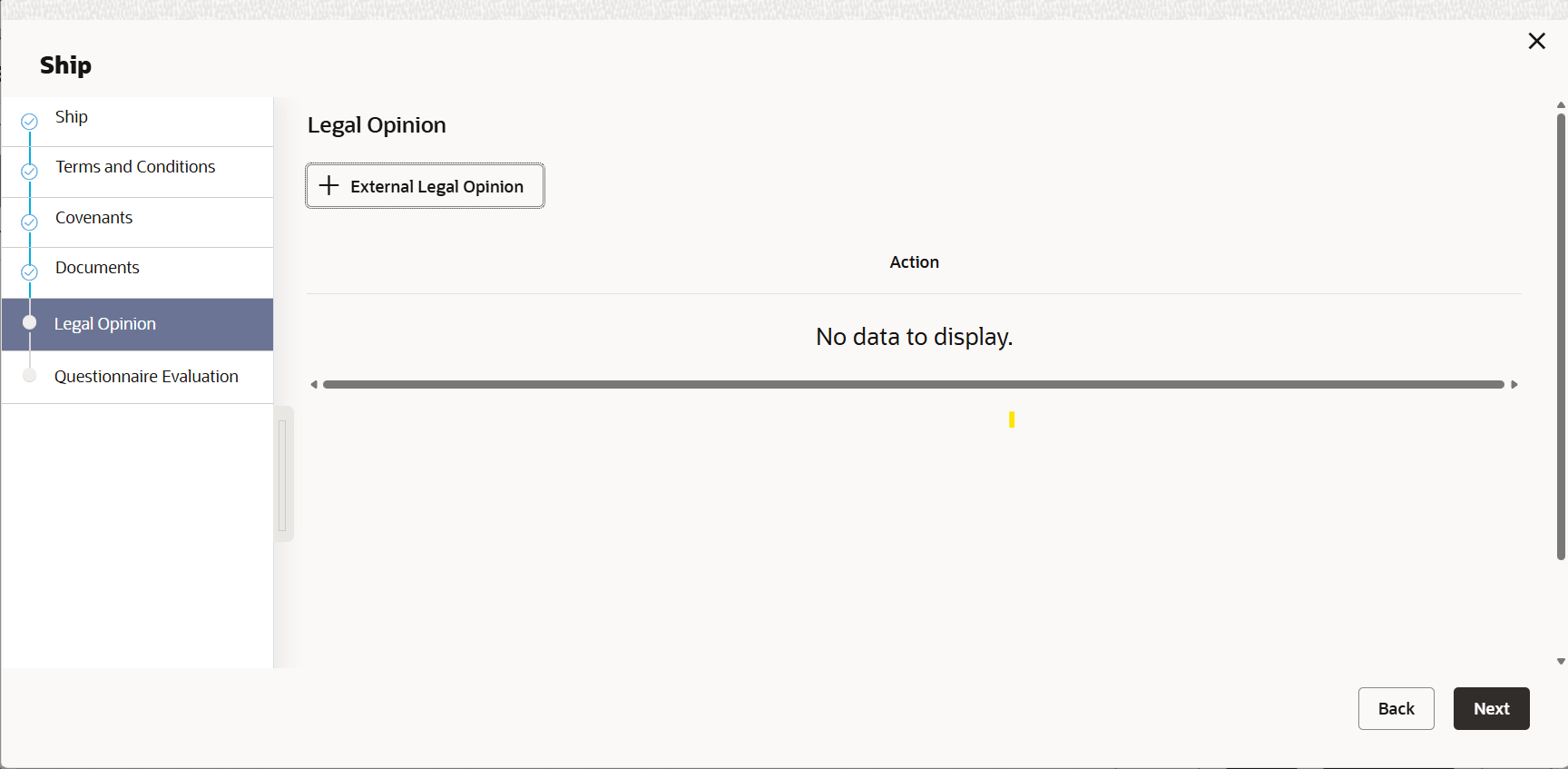
- Click Next and navigate to the Legal Opinion
menu.
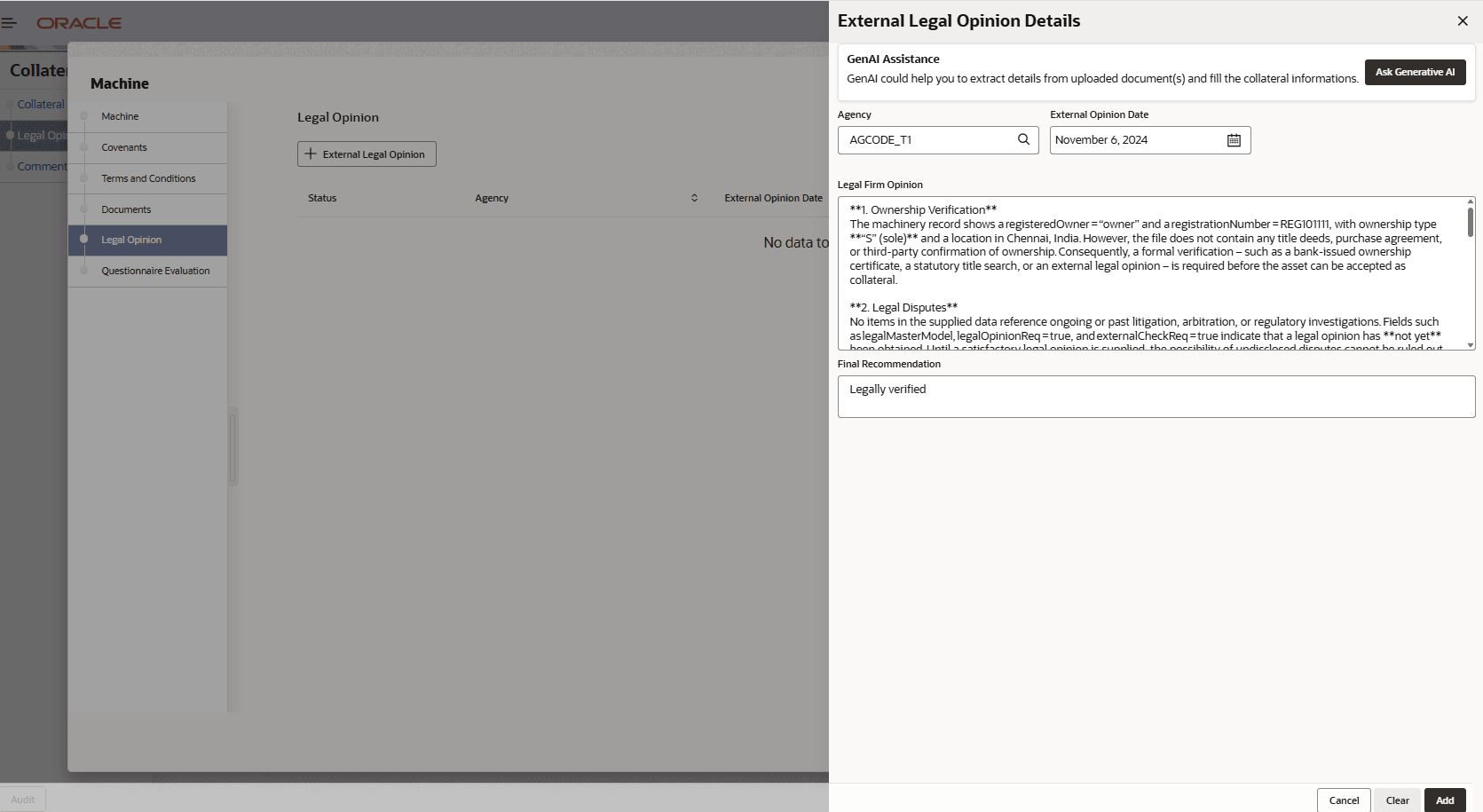
- Click the add icon in the Legal Opinion - Configure - Legal Opinion
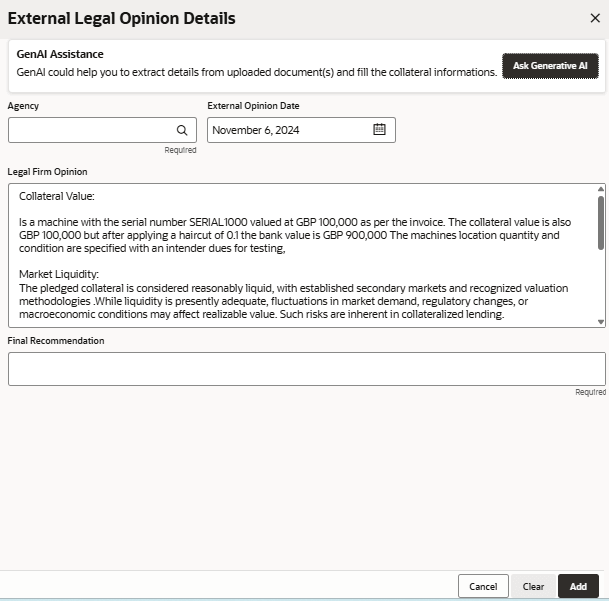
screen.The External Legal Opinion Details screen displays.For more information on the fields, refer to the field description table below:
Table 6-1 External legal Opinion
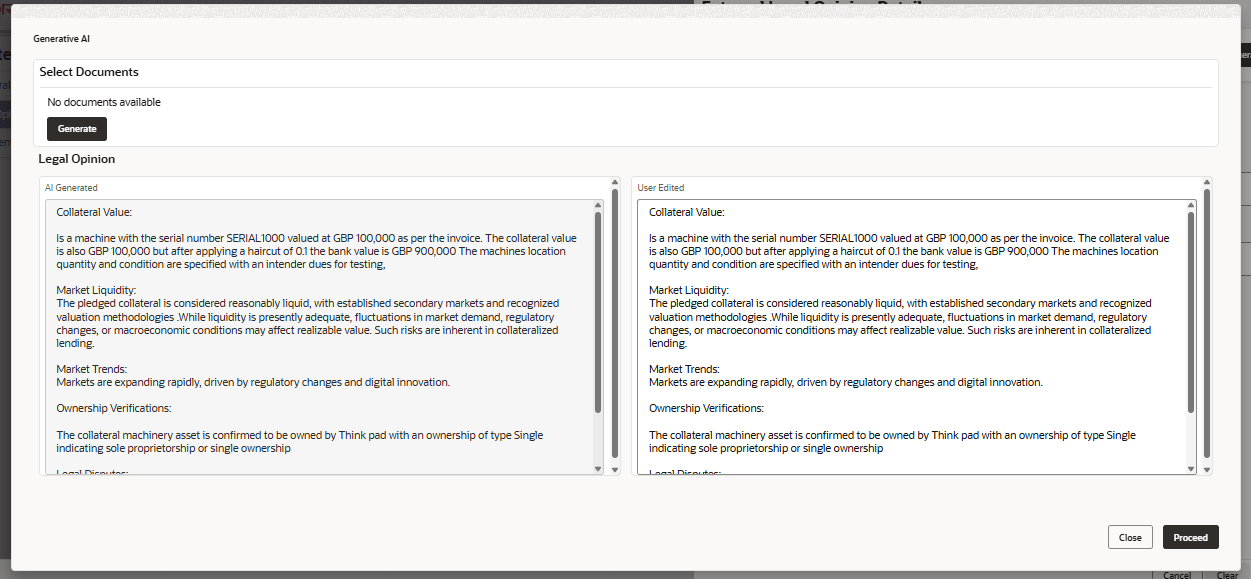
Field Description Agency Specify the agency providing the legal opinion for the collateral. External Opinion Date Select the date on which the legal opinion issued by the agency. Legal Firm Opinion Displays the detailed legal assessment provided by the external agency. Final Recommendation Displays the final recommendation from the legal opinion. - Click Ask Generative AI.The Generative AI screen displays.For more information on fields, refer to the field description table below.
Table 6-2 Generative AI
Field Description Generate Click generate to analyze the selected documents and generate a draft legal opinion. AI Generated Displays the legal opinion content automatically generated by the AI from the uploaded documents. User Edited Allows the user to redit the AI-generated legal opinion. Note:
The system automatically generates a Generative AI opinion. The user can edit the Generated AI text and update the details as required.
- Click Proceed.The Legal Opinion Details screen displays.
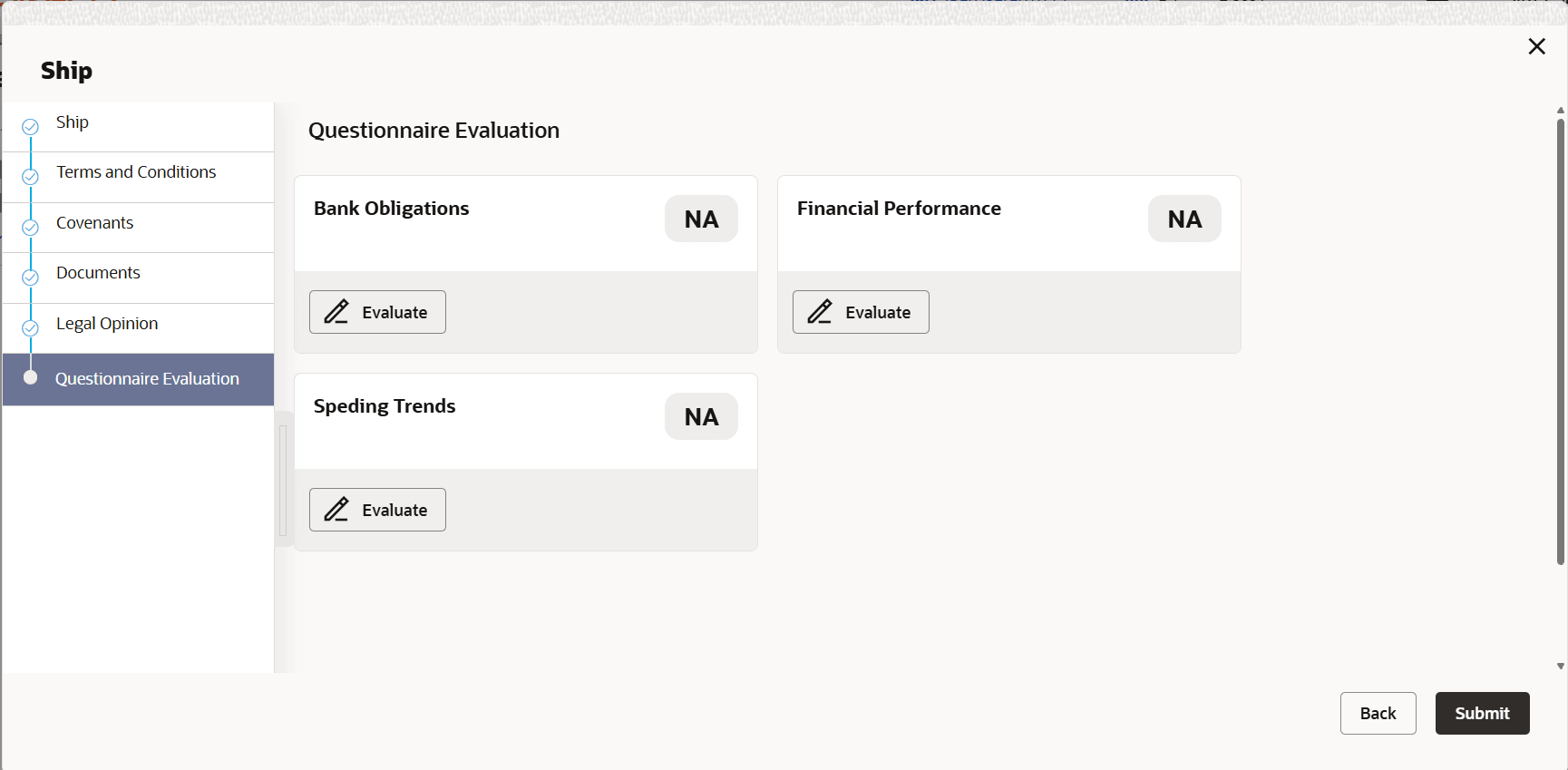
- After capturing legal opinion details, click Next.The Legal Opinion - Configure - Questionnaire Evaluation screen is displayed.
Figure 6-9 Legal Opinion_Questionnaire Evaluation
Note:
In the above screen, the questionnaires linked to the Legal Opinion stage in Business Process configuration are displayed. User can manage the questionnaire process linkage in Maintenance module.
Parent topic: Legal Opinion