2.2.2 View Conditions Linkage
This topic describes the systematic instructions to view the conditions Linkage.
- On Homescreen, click Covenants and
Conditions under Covenants and Conditions, click on
Conditions Linkage.Under Condition Linkage, click
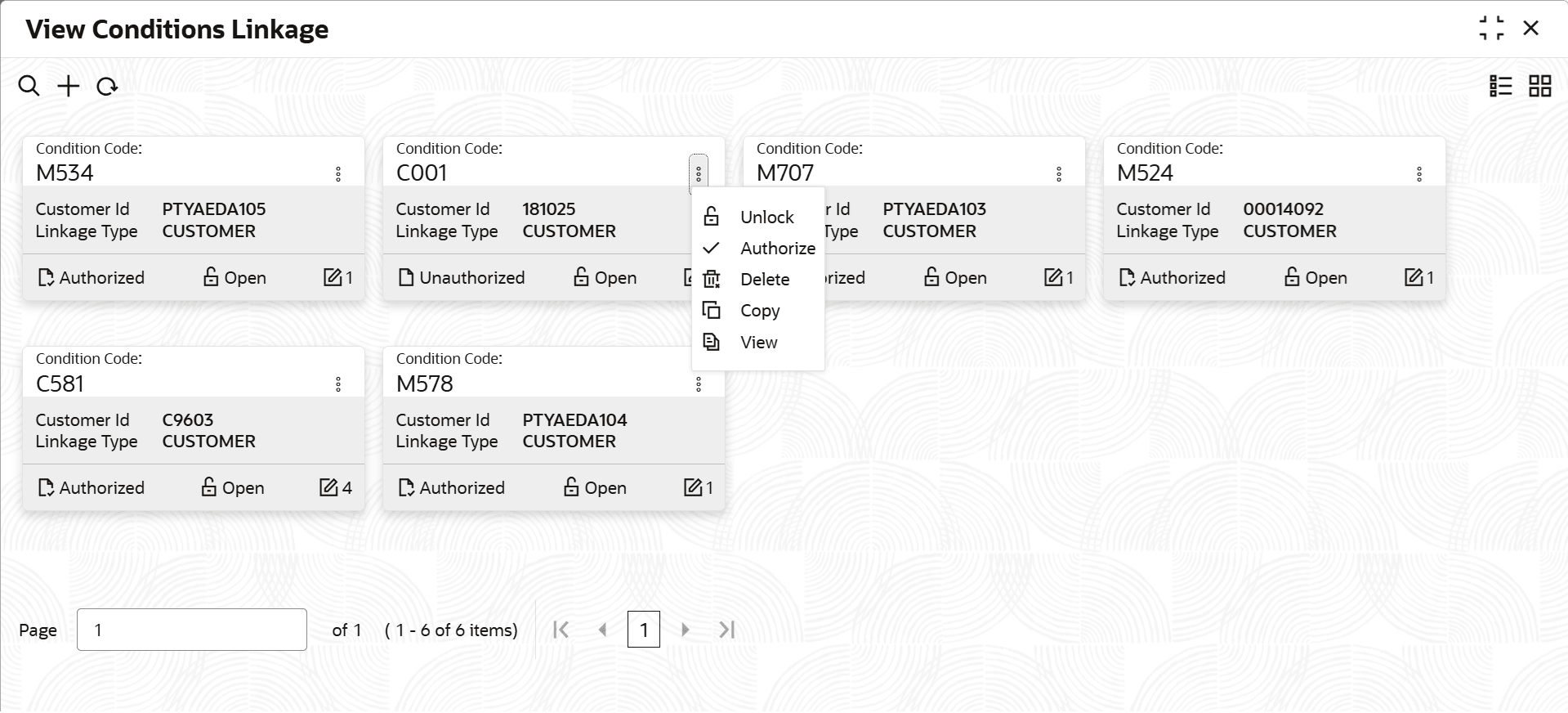
View Condition Linkage.The View Conditions Linkage screen displays.For more information on fields, refer to the field description table.
Table 2-11 View Condition Linkage
Field Description Condition Code Displays the condition code. Customer ID Displays the customer ID. Linkage Type Displays the linkage type. Authorization Status Displays the authorization status of the record.The options are: - Authorized
- Rejected
- Unauthorized
Status Displays the status of the record.The options are: - Open
- Closed
Table 2-12 Action Items Description
Action Item Description Unlock Unlock a record and make amendments. Close Close a record to prevent it from being unlocked and amended. View View the details of a record. Delete Delete a record. Note: Once deleted, the component can no longer be used to define an entity. But entities already defined using the component can continue to use it.
Reopen Reopen a closed record. Authorize Authorize a record to make it active and available to define entities. Note: Creator of a record cannot authorize the component. Another user with authorize permissions can.
Audit Select to view the Maker, Checker, Status, and Modification Number of a record. Errors and Overrides Select to view all existing errors or warnings on the page. - On View screen, select the
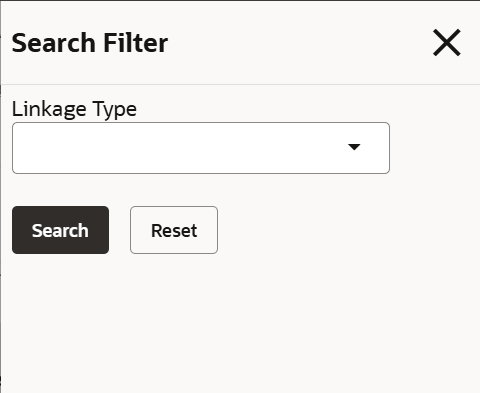
 icon.The View Condition Linkage - Search screen displays.
Parent topic: Conditions Linkage