5 Workflow Deployments
This topic describes about the workflow deployments for Oracle Banking Origination Installation.
Oracle Banking Origination Processes
The following list of Conductor based processes have to be deployed for Oracle Banking Origination.
Table 5-1 List of Conductors
| Serial Number | Process Name | Dependent Process |
|---|---|---|
| 1 | CASAHOSTORCH | None |
| 2 | CREDITCARD | None |
| 3 | CURRENTACCOUNT | None |
| 4 | EDUCATIONLOAN | None |
| 5 | HOMELOAN | None |
| 6 | HOSTORCHESTRATOR | None |
| 7 | INITIATION | None |
| 8 | INSTCURACC | None |
| 9 | INSTSAVACC | None |
| 10 | INSTTDACC | None |
| 11 | IPA | None |
| 12 | PERSONALLOAN | None |
| 13 | SAVINGSACCOUNT | None |
| 14 | SMBCURRENTACCOUNT | None |
| 15 | SMBLOAN | None |
| 16 | SMBSAVINGS | None |
| 17 | SMBTD1 | None |
| 18 | SMBTERMLOAN | None |
| 19 | TDACCOUNT | None |
| 20 | TDHOSTORCH | None |
| 21 | VEHICLELOAN | None |
Update the process
Before deploying the process the following section to be updated with the server ip/port for the end points used in the process.
For each process, open the process to find for “http_request” and modify the following in the uri.
"uri": "http://{{PROCESS_SERVER_HOST}}:{{PROCESS_SERVER_PORT}}/{{PROCESS_SERVER_HOST}} - IP of the Conductor server.
{{PROCESS_SERVER_PORT}} - Port of the Conductor server
Deploy the Conductor Process
Note:
Server names, Domain names must be same as provided in this guide.Steps to Deploy a process remains the same for all the process files:
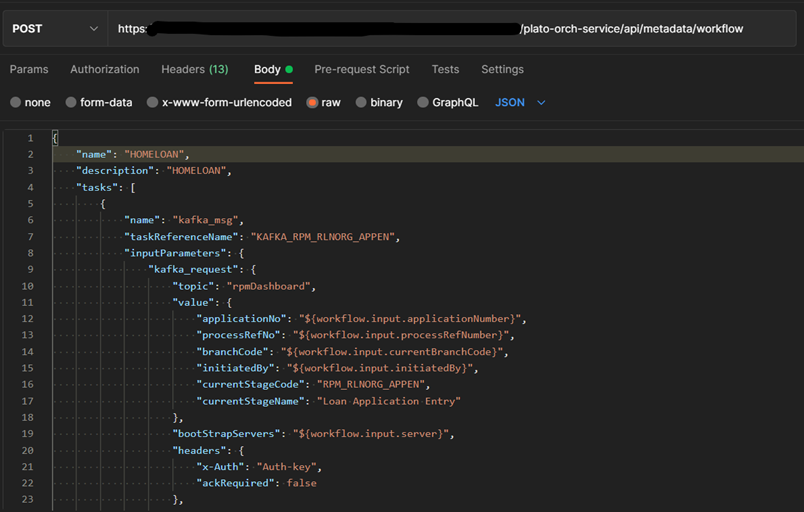
- Launch Postman.
- Select POST method.
- Input the URL in the below format
http://{{PROCESS_SERVER_HOST}}:{{PROCESS_SERVER_PORT}}//plato-orch-service/api/metadata/workflow - Input the header params as shown below:
Content-Type:application/json

userId:<userId>

appId:platoorch

branchCode:000

entityId:DEFAULTENTITY - Paste the body of the message with the content from the process file.
- Click Send. Response status 200 returned from server.
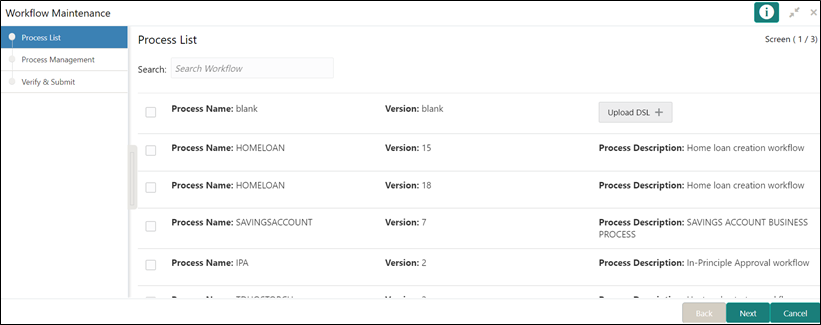
- Launch the menu TasksàBusiness Process Maintenance.
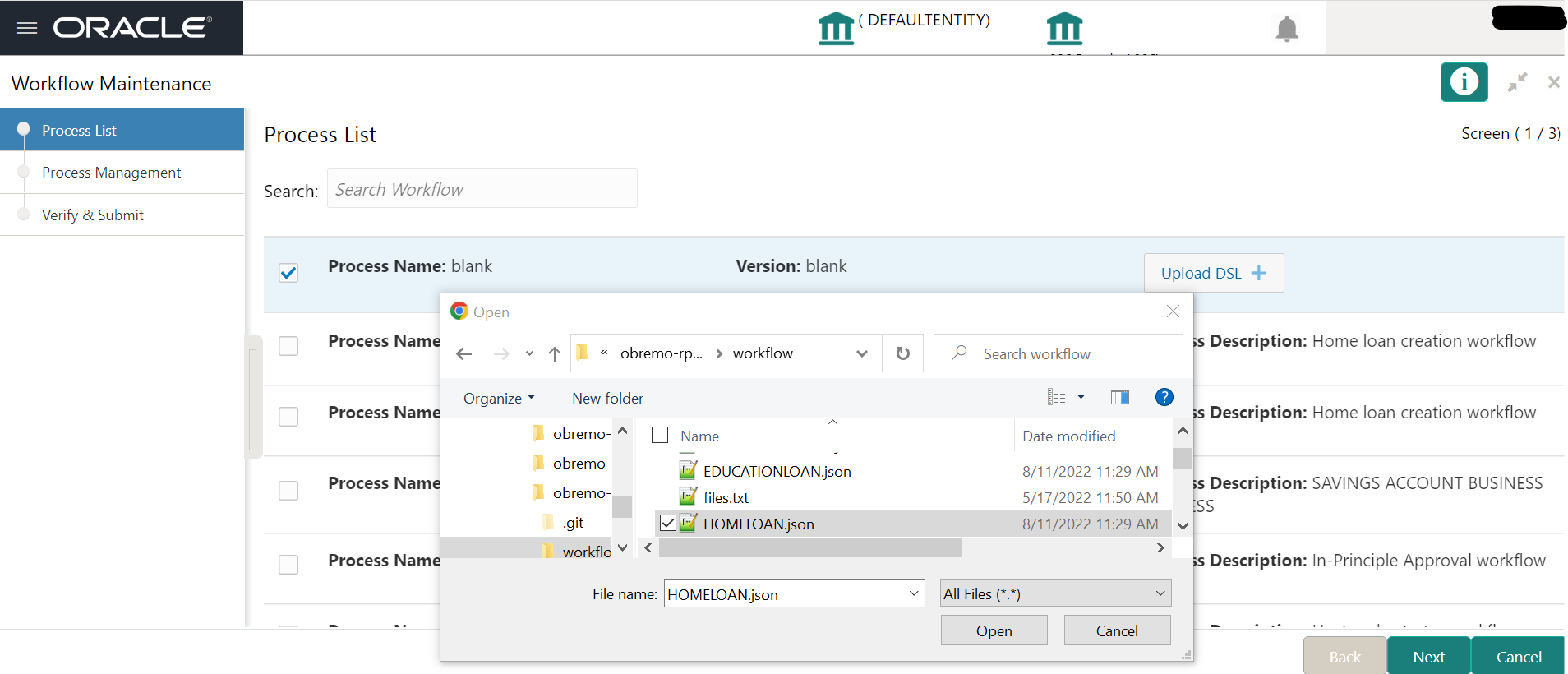
- Click on the “Process Name” check box and upload the required DSL json file.
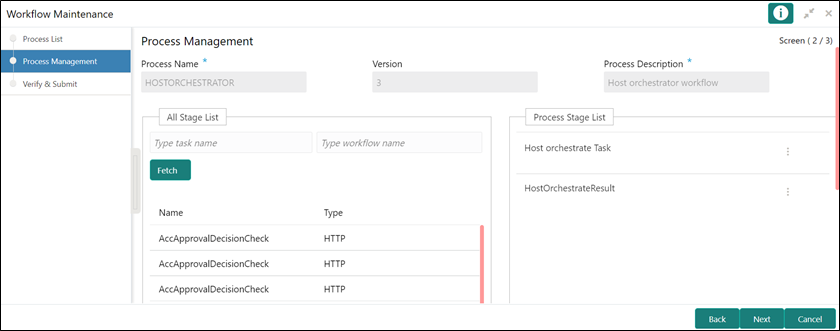
- Click Next to navigate to the Process Management screen.
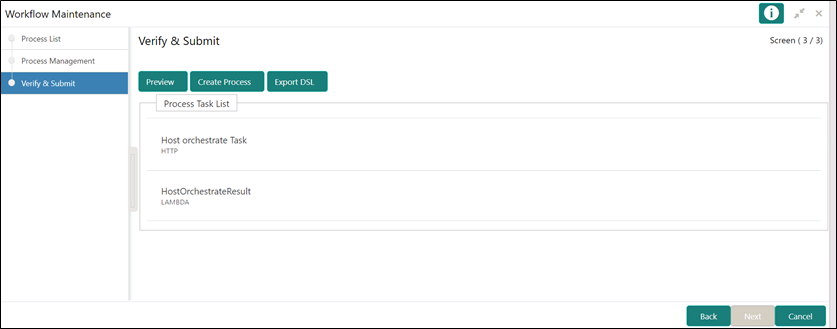
- Click Next to navigate to the Verify & Submit screen.
- Click Create Process.