11 Common Core Generative AI Service Setup
In this section you are going to setup the common core generative AI service for Oracle Banking Origination Installation.
Prerequisite
- Operating System: Oracle Linux 8
- Python Version: 3.9.5
- Tesseract: 5.1.0
- Document Verification Service
- yum install zlib zlib-devel
- yum install libffi-devel openssl-devel
- yum install bzip2 bzip2-devel
- yum install poppler-utils
- yum install xz xz-devel xz-libs
Refer theDocument Verification Framework of the Common Core Services Installation Guide for the manual installation process of the packages.
Application Installation
Geneartive AI document analyzer is a python-based application. The applciation is shipped as a byte-coded whl file. This wheel file installs all the implementation files without any dependencies. All the required dependencies are to be installed separately, refer below steps for the detailed process. It is recommended to install the whl file and the dependencies in a virtual environment using pip so that it doesn't affect any other operations or applications running in the system.
To install the application and the dependencies:
- Use the below command to install the application wheel package provided, for
example
cmc_ml_genai_doc_analyzer-{version}-py3-none-any.whl
pip install <wheel_package_name>.whl
- Install all the dependencies.
Dependency Installation
After installing the Document verification service, the following dependencies must be installed. Please install below third-party dependencies before starting the services.
Note:
These packages must be installed in the environment where the document verification services are installed.The dependencies can be installed using below commands:
pip install openai==0.27.7
pip install pypdf==3.9.1
pip install PyPDF2==3.0.1
pip install Flask-Cors==3.0.7
pip install pdfminer.six==20221105
pip install openpyxl==3.1.2
pip install cohere==4.32.0
pip install PyMuPDF==1.22.5
pip install tabulate==0.9.0
pip install oci==2.112.1
pip install oracledb==1.3.2
pip install langchain==0.0.295
pip install docx2txt==0.8
pip install tiktoken==0.5.2
pip install llama-cpp-python==0.1.83
pip install pydantic==1.10.13
pip install py-eureka-client==0.10.0
pip install importlib-metadata==6.0.0
pip install sentence-transformers==2.2.2
Note:
This application works when above libraries are installed with required versions. Please don’t upgrade the libraries unless instructed in the documentation.Configuration Update
- application-config.json
- system-config.json
- logging-config.json
The application-config.json file has the configuration details that are supposed to be changed by the user. Please refer the below table for the fields and description of the fields:
Table 11-1 Configuration Update
| Sr No | Parameter | Description |
|---|---|---|
| 1 | APPLICATION_NAME | Application name of our service to register on eureka. |
| 2 | LLM | Name of the LLM that you want to use. (openai/cohere) |
| 3 | LLM_API_KEY | The valid API Key of above mentioned LLM. |
| 4 | USE_CONFIG_LLM_API_KEY | Whether the API key should be used from this application config or not. (yes/no) |
| 5 | DELETE_AFTER_TRAINING | Whether the documents, trained files should be deleted post use or not. (yes/no) |
| 6 | WORKING_DOCUMENT_DIR | Path to local folder where trained files will be stored. User should have Read-Write permissions to this folder. |
| 7 | OCI_CONFIG_FILE | Path to ‘oci_config.txt’ file. You can get the filepath after completing the step of setting up OCI Credentials & configuration setup explained later in this document. |
| 8 | EUREKA_CLIENT_SERVICE_DEFAULT_ZONE | Address of Eureka for which we are getting DMS host to connect with. |
| 9 | DMS_DOWNLOAD_ENDPOINT | Endpoint used for downloading from DMS. |
| 10 | DMS_UPLOAD_ENDPOINT | Endpoint used for uploading to DMS. |
| 11 | DMS_SERVICE | Name of the DMS service to locate on eureka. |
OCI Credentials and configuration setup
- Create a folder with name secret.
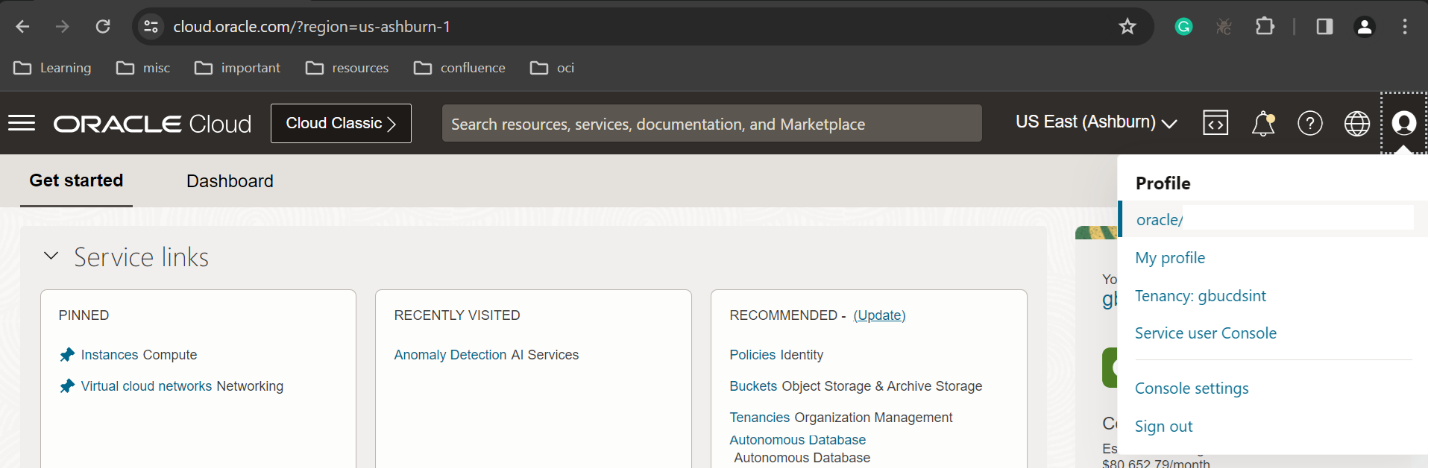
- Access the OCI Link and login to OCI using your credentials.
- Click Profile option from the menu bar. The option to login in profile appears.
- Click oracle/<Your email ID> option.
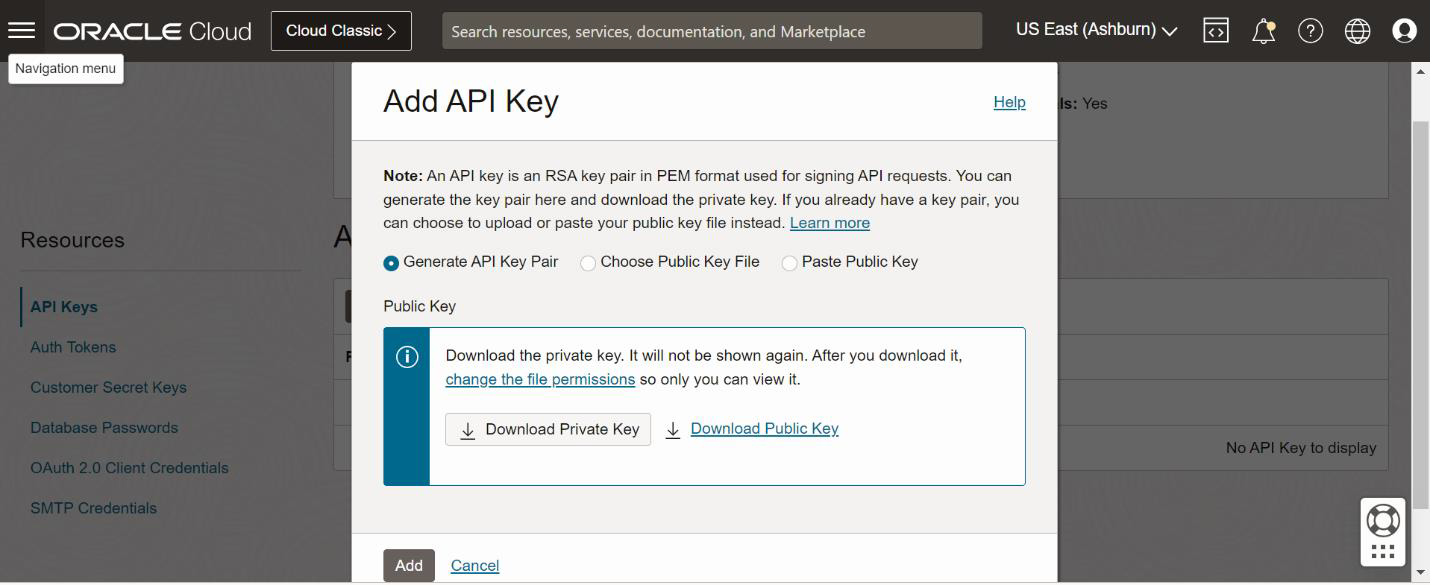
- Scroll down to the page and click on Add API Key. The Add API Key page appreas.
- Click the Download Private Key button. The key get downloaded.
- Copy the key and enter it in the Select API Key Fingerprint field. The Configuration File Preview window appears.
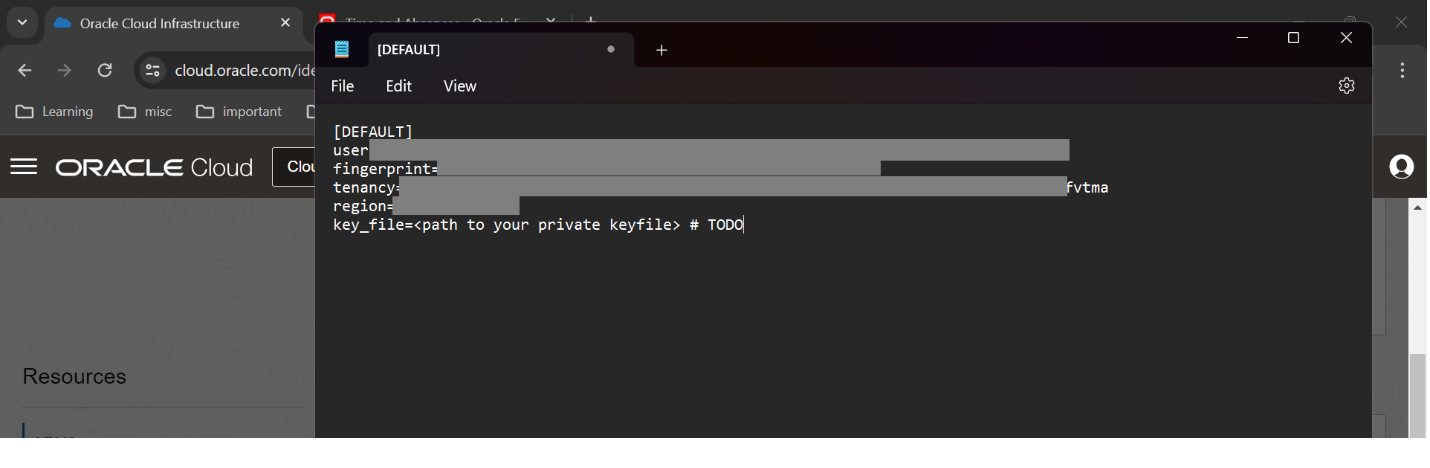
- Save the file in the secret named folder which is already created in Step 1.
- Copy the downloaded private keys in the secret folder.
- Edit oci_config.txt file. Change the key file path to the path of the private file in the secret folder. For example: key_file=./secret/oracle_oci.user-01-29-09-12.pem
- Save the file oci_config.txt.
- Move the logging-config.json, system-config.json and application-config.json to the current working directory.
- This is how the folder structure should look like:
├──root_dir
├── secret└── Config.ini
└── system-config.json
└── application-config.json
└── logging-config.json
Starting the application
- After installing the wheel package and the dependencies and setting up the configuration files, we can run the genai_doc_analyzer server using the below-mentioned command, python -m genai_doc_analyzer.
- Please note that this will by default run the app on port 7777. You can change the port by passing “–p” argument. For example, python -m genai_doc_analyzer -p 5000.
- To run the service in the background, use this command nohup python -m
genai_doc_analyzer > nohup.txt &.
Note:
After the execution of the above command, all the execution logs will be added to nohup.txt which is a text file. Now you may close the terminal and the app will keep running on port, unless stopped explicitly. - To terminate or kill the app, we can use the netstat command to find the process_id
using the port on which the app is running and then use the kill command with the
process_id of the app as shown below to terminate the application.
netstat -nlp | grep 7777
kill -9 <process_id>