1.7.2 View Reason
This topic describes the systematic instructions to view the list of fact.
Using this screen you can view the reason codes are already created.
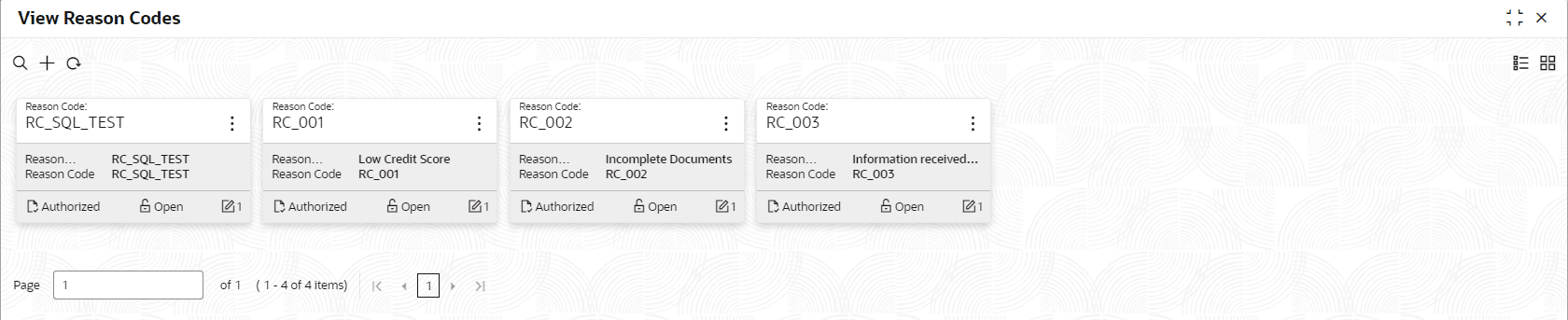
- Under Configurations, click Reason Codes, and then click View Reason Codes screen to view already defined reason codes.The View Reason Codes screen displays.
For more information on fields, refer to the field description table.
Table 1-108 View Reason Codes – Field Description
Field Description Reason Code Displays the reason code. Reason Description Displays the reason code description. - Click
 to search the reason code based on the following search criteria.
- Reason Code
- Reason Description
- Authorization Status
- Record Status
- Click
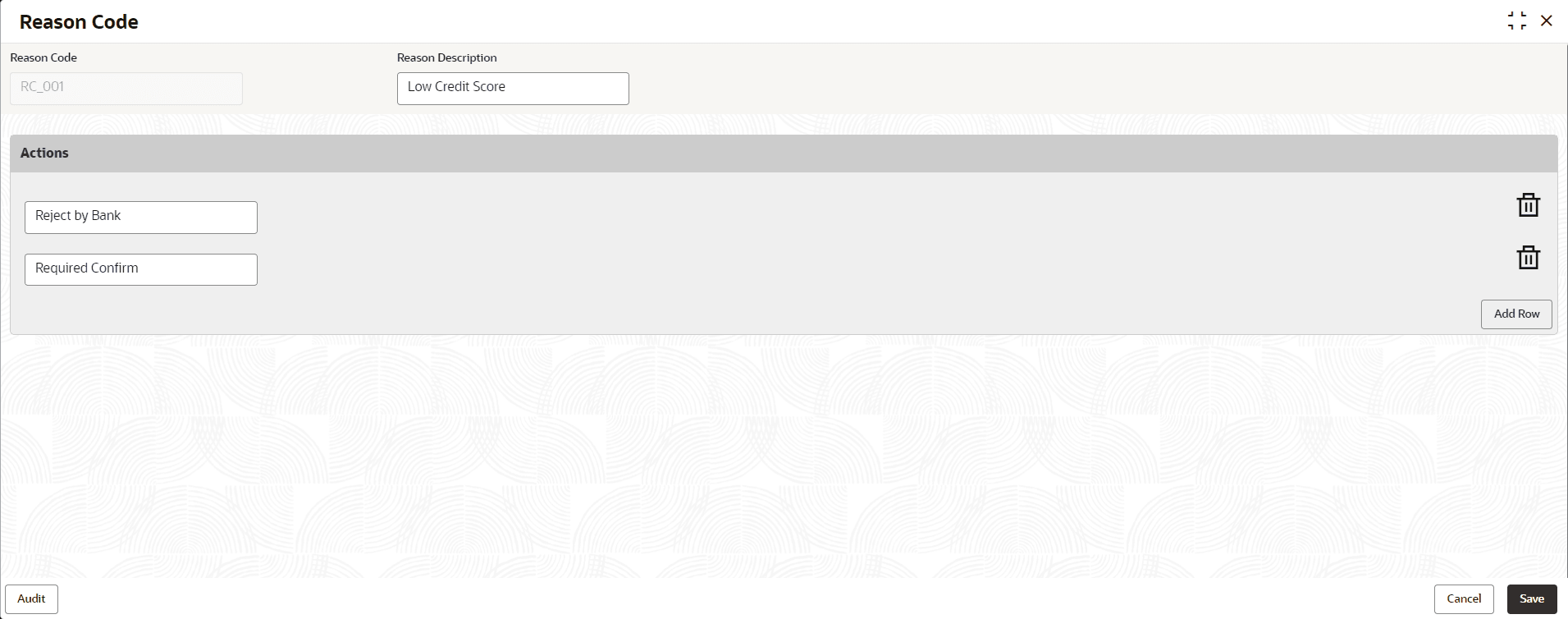
 on the top right-hand side of the reason code tile and click Unlock.The Reason Code screen displays.
Parent topic: Reason Codes