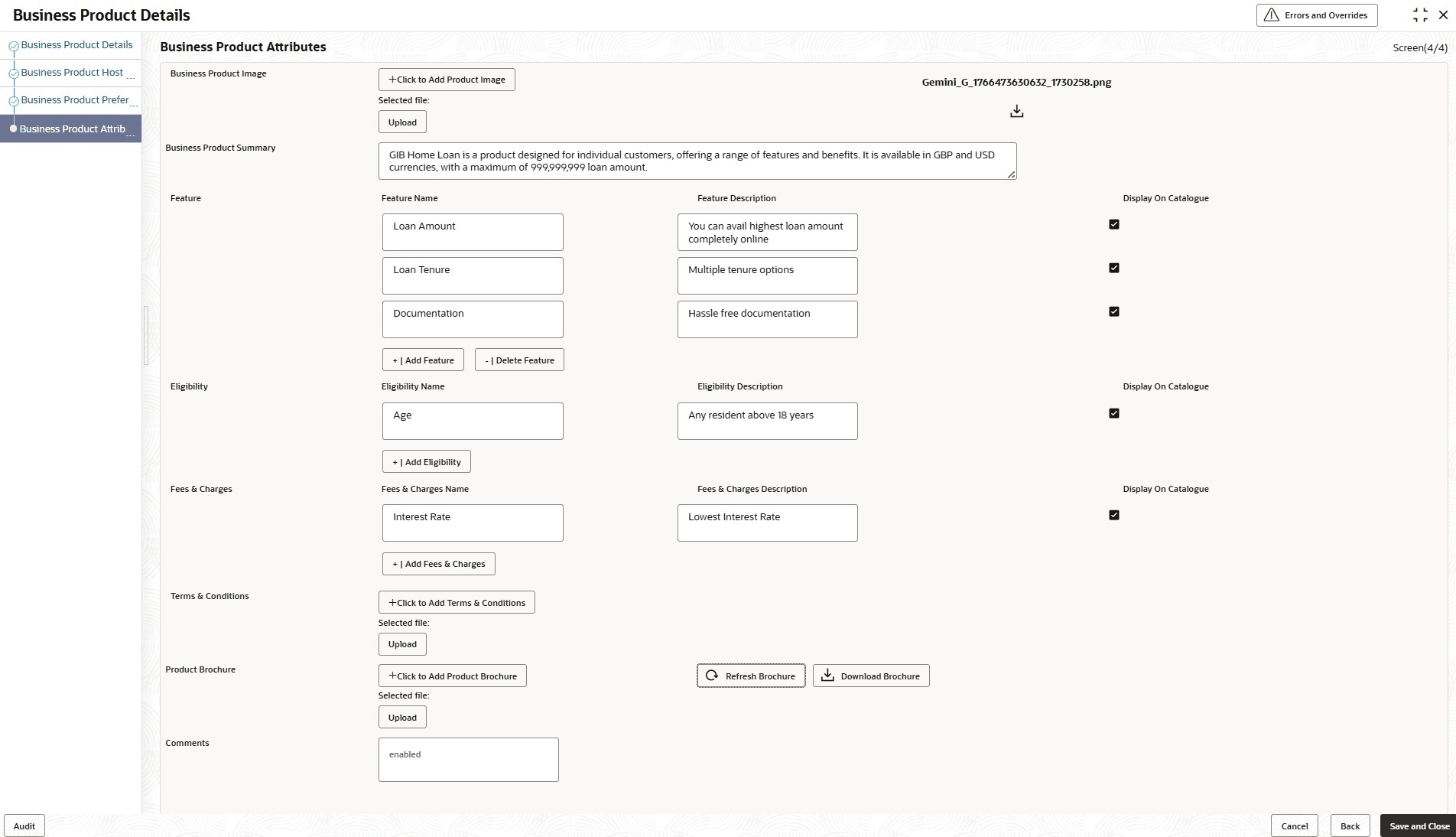
| Business Product Image |
Select the image that user want to display for the business product in the Product Catalogue. Click Upload to upload it.
|
| Business Product Summary |
Displays the content for the business product summary. However, the user can also edit the summary in the text box.
Note: The maximum length is 1000 characters.
|
| Feature |
Displays the feature details. |
| Feature Name |
Displays the feature name of the business product. However, the user can also edit it in the text box. |
| Feature Description |
Displays the feature description of the business product. However, the user can also edit it in the text box. |
| Display On Catalogue |
Select this checkbox, if the same information should be displayed in the Product Catalogue. |
| Add Feature/Delete Feature |
Click Add Feature or Delete Feature to add or remove the rows respectively.
|
| Eligibility |
Displays the eligibility details. |
| Eligibility Name |
Displays the eligibility name. However, the user can also edit it in the text box. |
| Eligibility Description |
Displays the eligibility description of the business product. However, the user can also edit it in the text box. |
| Display On Catalogue |
Select this checkbox, if the same information should be displayed in the product catalogue. |
| Add Eligibility/Delete Eligibility |
Click Add Eligibility or Delete Eligibility to add or remove the rows respectively.
|
| Fees and Charges |
Displays the fees and charges details. |
| Fees and Charges Name |
Displays the fees and charges name. However, the user can also edit it in the text box. |
| Fees and Charges Description |
Displays the fees and charges description of the business product. However, the user can also edit it in the text box. |
| Display On Catalogue |
Select this checkbox, if the same information should be displayed in the product catalogue. |
| Add Fees and Charges/Delete Fees and Charges |
Click Add Fees and Charges or Delete Fees and Charges to add or remove the rows respectively.
|
| Terms and Conditions |
Select the Terms and Condition PDF file and click Upload to upload it.
|
| Product Brochures |
Select the Business Product Brochure PDF file and click Upload to upload it.
|
| Refresh Brochure |
Click this button to update the product brochure document with latest changes. |
| Download Brochure |
Click this button to download the latest version of the product brochure.
|
| Comments |
Specify the comments, if required. |