1.6 Origination Preferences
This topic describes the preferences which are set at origination level.
User can maintain pre-defined origination parameters on this screen, allowing the bank to define generic parameters governing the application's behavior during account opening.
- Generic Parameters: The user can define parameters for dashboard widgets, age limits and nominees for minors, funding, lending, incomplete application expiry, dedupe, address stability, and loan stimulation and quick assessments in this section.
- Credit and Compliance : The user can define the credit decision threshold limits at the insider and executive officer levels, as well as the annual percentage rate parameters, in this section.
- Offer: The user can define downsell offer expiry parameters in this section.
- Integration: The user can define the host integration, address search, AI assistance, product advisor, and DocuSign parameters in this section.
- Collateral Parameters: The user can define preferences for each available collateral type in this section.
To edit origination preferences:
- Under Origination Preference, click View Origination Preference to view already defined preferences.
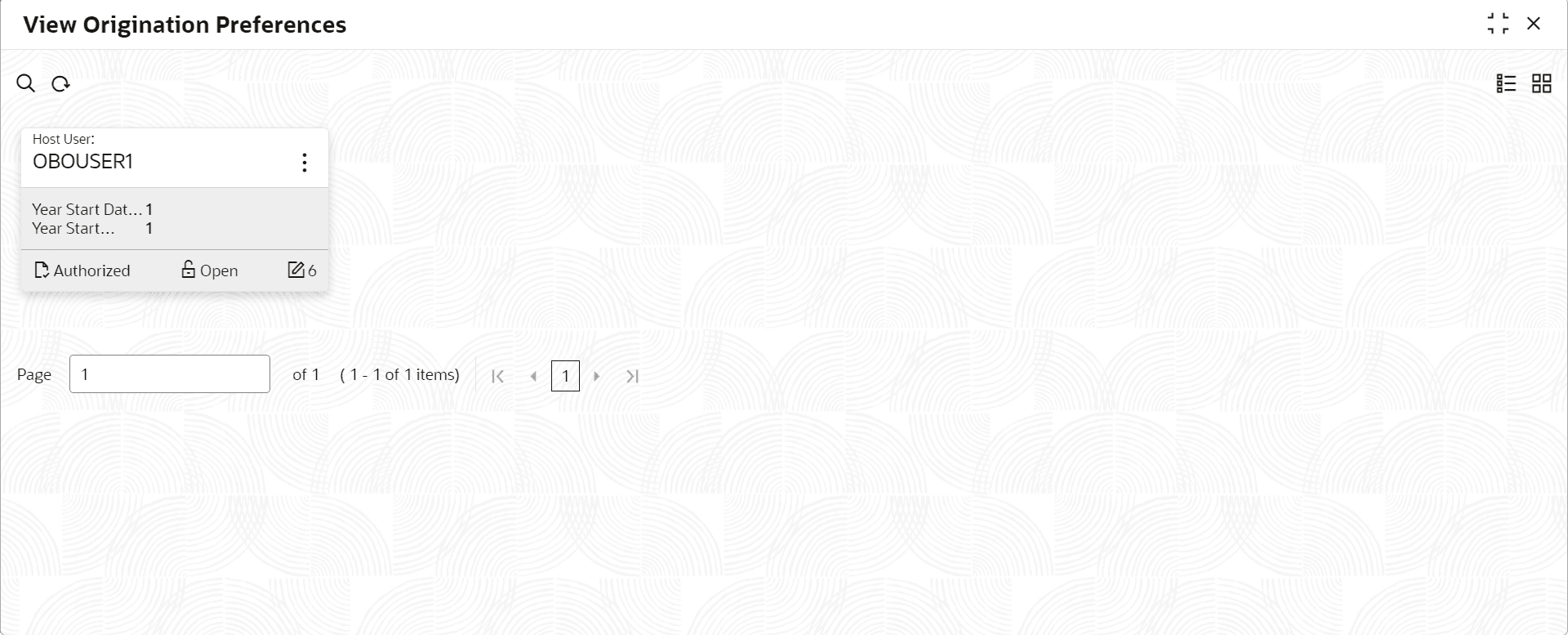
The View Origination Preference screen is displayed.
For more information on fields, refer to the field description table below.
Table 1-111 View Origination Preferences - Field Describes
Field Name Description Host User Displays the user ID of logged in user who set this preferences. Year Start Date Displays the year start date. Year Start Month Displays the year start month. <Footer of Title> This section displays the status of the record as,
- Whether the record is Authorized or Unauthorized.
- Whether the record is Open or Closed.
- Number of times the record is edited.
- Click
 on the top right of the tile and click Unlock.
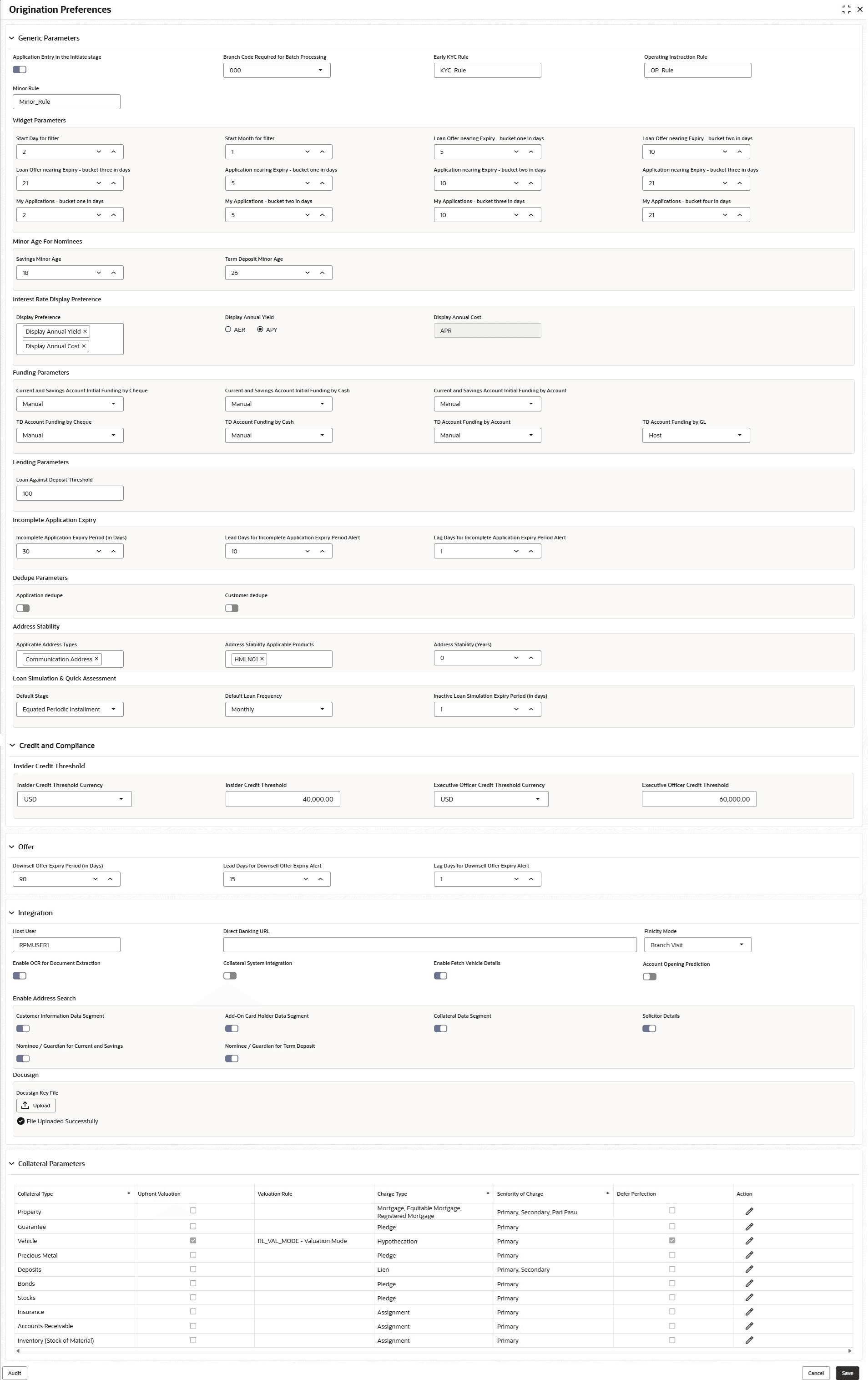
The Origination Preferences screen displays in edit mode.
Figure 1-108 Origination Preference - Edit
- Specify the details in the relevant data fields.
Note:
The fields which are marked with Required are mandatory.For more information on fields, refer to the field description table below.
Table 1-112 Origination Preferences - Edit – Field Description
Field Description Generic Parameters In this section user can capture generic parameters. Application Entry in the Initiate stage Switch  to enable the application entry option while initiating the account opening application.
Branch Code Required for Batch Processing Specify the branch code that processes the batch. Early KYC Rule Specify the early KYC rule. The Applicant data segment initiates the early KYC process based on the specified early KYC rules.
Operating Instruction Rule Specify the operating instruction rule to define the mode of operation (example: Single or Joint) based on the account holder relationships. Minor Rule Specify the minor rule to identify whether the applicant is minor or not. Widget Parameters In this section user can define dashboard widget preferences. Start Day for filter Specify the day of the month from which the application should be displayed in the dashboard widget. Start Month for filter Specify the start month count of the year to get the current financial year applications in the dashboard widget. Loan Offer nearing Expiry- bucket one in days Specify number of days to highlight the loan offers that are nearing to the expiry.
Based on this number of days the system calculates and displays the count of applications under the loan offer in the first bucket of the Loan Offers Near Expiry widget on dashboard.
Loan Offer nearing Expiry- bucket two in days Specify number of days to highlight the loan offers that are nearing to the expiry.
Based on this number of days the system calculates and displays the count of applications under the loan offer in the second bucket of the Loan Offers Near Expiry widget on dashboard.
Loan Offer nearing Expiry - bucket three in days Specify number of days to highlight the loan offers that are nearing to the expiry.
Based on this number of days the system calculates and displays the count of applications under the loan offer in the third bucket of the Loan Offers Near Expiry widget on dashboard.
Application nearing Expiry - bucket one in days Specify number of days to highlight the applications that are nearing to the expiry.
Based on this number of days the system calculates and displays the count of applications in the first bucket of the Product Application Near Expiry widget on dashboard.
Application nearing Expiry - bucket two in days Specify number of days to highlight the applications that are nearing to the expiry.
Based on this number of days the system calculates and displays the count of applications in the second bucket of the Product Application Near Expiry widget on dashboard.
Application nearing Expiry - bucket three in days Specify number of days to highlight the applications that are nearing to the expiry.
Based on this number of days the system calculates and displays the count of applications in the third bucket of the Product Application Near Expiry widget on dashboard.
My Applications - buckets one in days Specify number of days to highlight the applications that are initiated by the logged in user. This applications are highlighted as they are nearing to expiry within one day.
Based on this number of days the system calculates and displays the count of applications in the first bucket of the Product Application Near Expiry widget on dashboard.
My Applications - buckets two in days Specify number of days to highlight the applications that are initiated by the logged in user. This applications are highlighted as they are nearing to expiry within two day.
Based on this number of days the system calculates and displays the count of applications in the second bucket of the Product Application Near Expiry widget on dashboard.
My Applications - buckets three in days Specify number of days to highlight the applications that are initiated by the logged in user. This applications are highlighted as they are nearing to expiry within three day.
Based on this number of days the system calculates and displays the count of applications in the third bucket of the Product Application Near Expiry widget on dashboard.
My Applications - buckets four in days Specify number of days to highlight the applications that are initiated by the logged in user. This applications are highlighted as they are nearing to expiry within four day.
Based on this number of days the system calculates and displays the count of applications in the forth bucket of the Product Application Near Expiry widget on dashboard.
Minor Age For Nominees In this section, user can define the age limit of minor in years for opening and account. Savings Minor Age Specify the age of the minor to open saving account. Term Deposit Minor Age Specify the age of minor to open term deposit account. Interest Rate Display Preferences In this section, users can choose whether to display the interest rate while retail origination. Display Preference Select a display preference from the drop-down to determine which interest rate is displayed on the Origination screen. The available options are:- Display Annual Yield
- Display Annual Cost
Display Annual Yield This field appears when the display preference is selected as Display Annual Yield. Select one of the following interest rates to display on applicable deposits.- Annual Percentage Yield (APY)
- Annual Equivalent Rate (AER)
Display Annual Cost Displays the Annual Percentage Rate (APR) interest rate for loans.
Funding Parameters In this section user can define the funding parameters. Current and Savings Account Initial Funding by Cheque Specify the preferences of initial funding for current and saving accounts. This preferences are specific to funding that are initiate by cheques.
The available option is Manual process.
Current and Savings Account Initial Funding by Cash Specify the preferences of initial funding for current and saving accounts. This preferences are specific to funding that are initiate by cash.
The available options are:
- Automatic
- Manual
Current and Savings Account Initial Funding by Account Specify the preferences of initial funding for current and saving accounts. This preferences are specific to funding that are initiate by account.
The available options are:
- Host
- Manual
TD Account Funding by Cheque Specify the preferences of initial funding for term deposit and saving accounts. This preferences are specific to funding that are initiate by cheque. TD Account Funding by Cash Specify the preferences of initial funding for current and saving accounts. This preferences are specific to funding that are initiate by cash.
The available options are:
- Automatic
- Manual
TD Account Funding by Account Specify the preferences of initial funding for term deposit accounts. This preferences are specific to funding that are initiate by account.
The available options are:
- Host
- Manual
TD Account Funding by GL Specify the preferences of initial funding for term deposit accounts. This preferences are specific to funding that are initiate by GL. User can select the Host option from the list for initial funding.
Lending Parameters In this section user can define the lending parameters. Loan Against Deposit Threshold Specify the threshold value (1% - 100%) to define the maximum loan amount that can be availed against the term deposit. Incomplete Application Expiry In this section user can define the expiry preferences for incomplete applications. Incomplete Application Expiry Period (in Days) Specify number of days to highlight the incomplete applications that are nearing to the expiry. Lead Days for Incomplete Application Expiry Period Alert Indicates the number of days prior to the application expiry, when an alert is triggered to the banker intimating about the application expiry. Lag Days for Incomplete Application Expiry Period Alert Indicates the number of days after the application is expired, an alert is triggered to the banker intimating about the application expiry. Dedupe Parameters In this section user can define preferences for dedupe parameters. Application dedupe Switch to trigger the application dedupe process.
Customer dedupe Switch to trigger the customer dedupe process.
Address Stability In this section user can set preferences for resident stability. Applicable Address Types Select the address types for which the address stability is applicable. Applicable Stability Applicable Products Select the products for which the resident stability is validated. Applicable Stability (Years) Specify the number of years for which the resident stability is valid. Loan Simulation & Quick Assessment In this section user can set preferences for loan simulation and quick assessment. Default Stage Select the repayment stage from the list for the loan simulation and quick assessment. The available options are: - Personalized Repayment schedule
- User Defined Schedule
- Interest and Principal Installment
- Interest Only Principal on Maturity
- Principal Only Interest on Maturity
- Fixed Principal Instalments
- BULLET
- Equated Periodic Installment
- Interest Only Installments
- Moratorium
Default Loan Frequency Select the loan repayment frequency for the loan simulation and quick assessment. The available options are: - Daily
- Weekly
- Biweekly
- Monthly
- Quarterly
- Half Yearly
- Yearly
- Not Applicable
Note: If the repayment stage is set to Bullet then this field will be defaulted to Not Applicable.
Inactive Loan Simulation Expiry Period (in days) Specify the number of days for an inactive loan simulation remain valid before it is expired. Credit and Compliance In this section user can set preferences for credit and compliance. Insider Credit Threshold In this section user can define the threshold limits for insider credit. Insider Credit Threshold Currency Specify the credit threshold currency for insider. Insider Credit Threshold Specify the credit threshold value for insider. Executive Officer Credit Threshold Currency Specify the credit threshold currency for executive officer. Executive Officer Credit Threshold Specify the credit threshold value for executive officer. Offer In this section user can define offer related preferences. Downsell Offer Expiry Period (in Days) Specify number of days to highlight the downsell offers that are nearing to the expiry. Lead Days for Downsell Offer Expiry Alert Indicates the number of days prior to the downsell offer expiry, when an alert is triggered to the banker intimating about the offer expiry. Lag Days for Downsell Offer Expiry Alert Indicates the number of days after the downsell offer expiry, when an alert is triggered to the banker intimating about the offer expiry. Integration In this section, the user can define integration preferences. Host User Specify the host user for integration. Direct Banking URL Specify the direct banking URL. Finicity Mode Select the finicity mode for fund transfer. The available options are:- Branch Visit: If this option is selected then it is mandatory for a customer to visit branch for fund transfer.
- Customer Email: If this option is selected then finicity URL is sent to the preferred Email ID of customer for completing the fund transfer.
Enable OCR for Document Extraction Switch to enable OCR for document extraction.
Collateral System Integration Switch to integrate the collateral system.
Enable Fetch Vehicle Details -
Switch
to show the Fetch Vehicle Detail button in the Collateral Details screen during vehicle loan processing.
-
Switch
 to hide the Fetch Vehicle Detail button in the Collateral Details screen during vehicle loan processing.
Account Opening Prediction Switch to enable the Machine Learning Model to predict the account opening date in the Application Details screen.
Enable Address Search In this section, the user can define the preferences of enabling address search. Customer Information Data Segment Switch to enable the address search in the Customer Information data segment of account opening application.
Add-On Card Holder Data Segment Switch to enable the address search in the Credit Card Add-On Card Holder data segment of the credit card account opening application.
Collateral Data Segment Switch to enable the address search in the Collateral data segment of account opening application.
Solicitor Details Switch to enable the address search while capturing solicitor details.
Nominee/Guardian for Current and Savings Switch to enable the address search while capturing nominee or guardian details in the current and saving application.
Nominee/Guardian for Term Deposit Switch to enable the address search while capturing nominee or guardian details in the term deposit application.
Docusign Integration This section is used in Docusign integration. - An RSA key pair is used to encrypt token in the JWT Grant authentication flow to provide assurances of authorship and data integrity.
- Create RSA key pair through DocuSign portal. The private key is copied and saved as private.key.
- Click on Upload button to upload file.
Collateral Parameters In this section, the user can define the preference for each collateral type. Collateral Type Displays the list of all allowed types of collateral. The available collateral types are:- Property
- Guarantee
- Vehicle
- Precious Metal
- Deposits
- Bonds
- Stocks
- Insurance
- Accounts Receivable
- Inventory (Stock of Material)
Upfront Valuation Select this checkbox to assess the collateral value at the early (upfront) stage of a loan origination process. This option is only applicable to vehicle loans.
Valuation Rule Select a required valuation rule from the drop-down to determine the valuation mode for the collateral during loan processing. Charge Type Select the charge types from the drop-down list. The available options are:- Assignment
- Equitable Mortgage
- Hypothecation
- Lien
- Pledge
- Mortgage
- Registered Mortgage
User can select multiple options at a time.
Seniority of Charge Select the seniority level of the charge on the collateral from the drop-down. This determines the order in which creditors can claim the asset or collateral in case of default. - Primary
- Secondary
- Pari Pasu (equal priority)
Defer Perfection Select this checkbox to postpone the collateral perfection in Oracle Banking Credit Facilities Process Management until after disbursement. When selected, collateral perfection activities can be performed after disbursement of the loan, allowing the origination process to proceed without waiting for perfection to be completed.
Parent topic: Configurations